Delegating Responsibility
You can delegate your authorization responsibilities to other users. For example, if you will be away, you can assign a delegate to review requests that you usually would handle. You can also make the delegation indefinite, and then cancel it whenever it is convenient.
Any user can become your delegate. When a delegate accepts your request for delegation, he or she is given the same permissions that you have.
Depending on configuration, you may be able to delegate requests that other users have delegated to you, or that have been escalated to you. Authorizers who are delegation managers can delegate another user’s responsibilities.
Request a delegation
To request a delegation for all requests assigned to you:
On the main menu, click home dashboard, click Request delegationin the My profile section.
Click Add new... if there are other delegations.
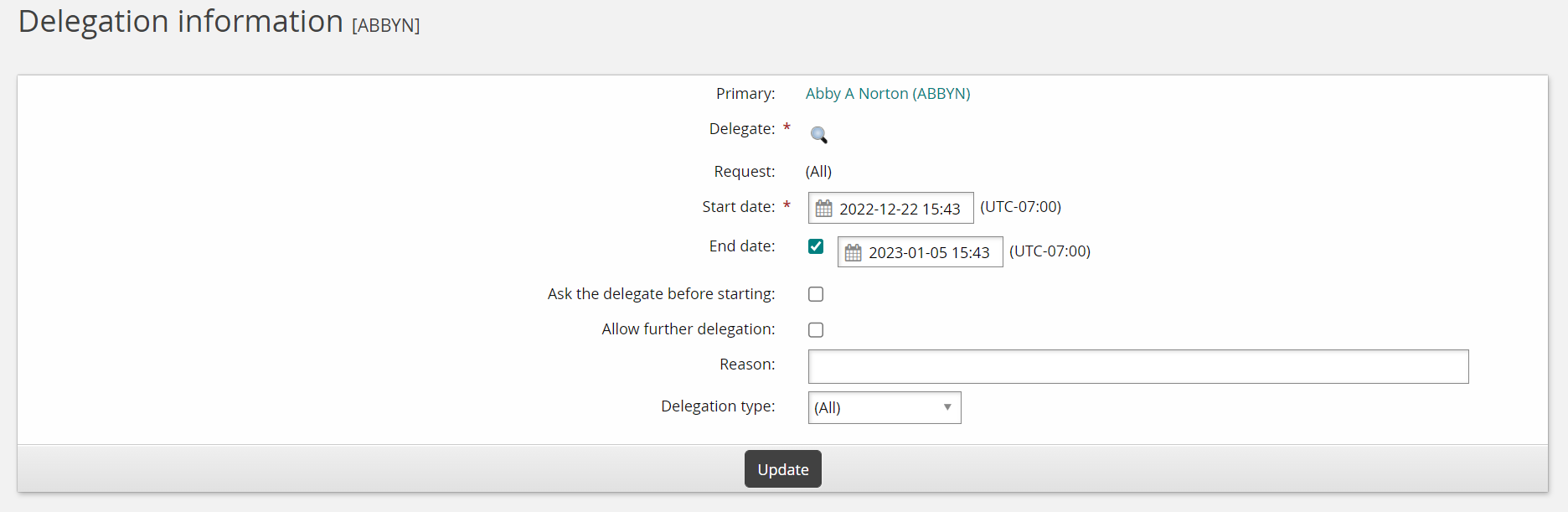
On the Delegation information page, set the delegation options.
Click Update.
You can also request delegations for:
One or more individual requests, when you are reviewing requests .
Certification campaigns , when you are reviewing users and privileges
Managing delegations
Authorizers who are also delegation managers can delegate:
Users’ authorization responsibilities
Multiple or individual authorization requests
Implementation requests
Delegation options
Delegate another user’s responsibility
To request a delegation as a delegation manager for another user:
On the main menu, click Delegate authority in the Other users section.
If you want to delegate the responsibility of an invalid user (for example, an employee who has left the organization), click the Show invalid magnifying glass
 icon.
icon.Search or browse to select the user whose responsibility you want to delegate.
On the page, set the delegation options.
Click Update.
Delegate authorization requests
To request a delegation for one or more authorization requests:
Click on the task link or Requests from the main menu to launch the Requests app.
From the Results panel, select the request you want to delegate. The details will appear in the Actions panel.
See Reviewing requests for information about reviewing requests in the Requests app.
Click Delegate and set the delegation options.
.
Delegate implementation requests
To request a delegation for one or more implementation requests:
Click on the task link or Requests from the main menu to launch the Requests app.
From the Results panel, select the request you want to delegate. The details will appear in the Actions panel.
See Reviewing requests for information about reviewing requests in the Requests app.
Click Delegate and set the delegation options.
.
Reviewing, updating or canceling a delegation
You can update a delegation that you have made while it is pending. You can cancel a delegation that you have made at any time. This applies to delegations of your own authority as well as delegations of other users’ authority that you have made for others. The procedure is identical.
To update or cancel a delegation that you have made for yourself:
On the main menu, click Delegate authority.
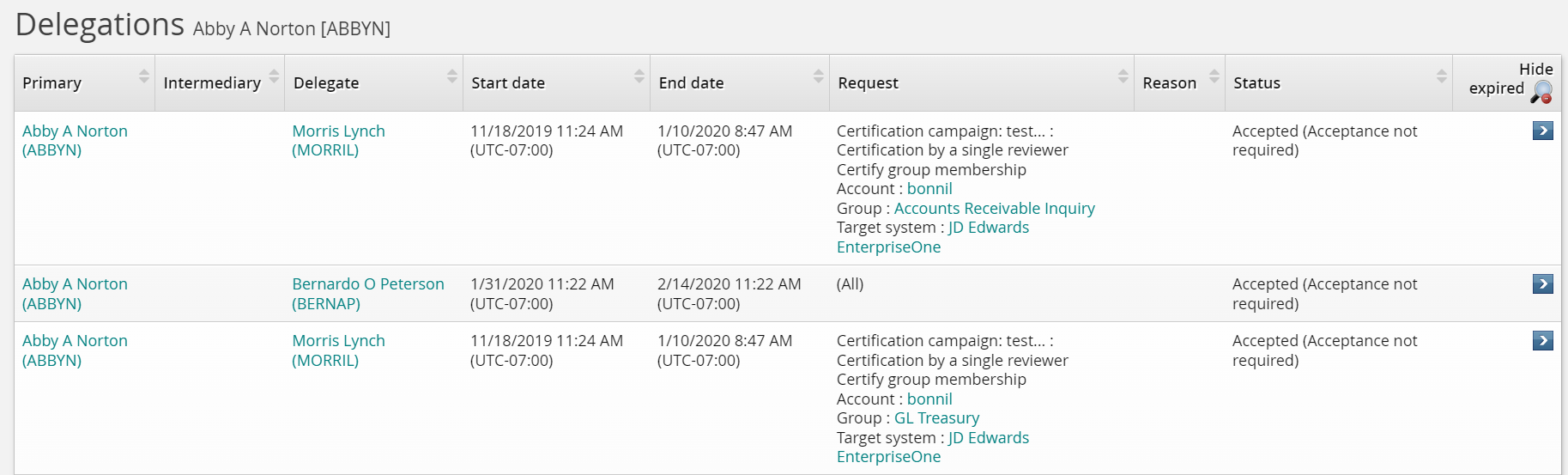
On the Delegations page, select the delegation.
Click Show all if you want to see expired delegation requests.
Modify the delegation as required and click Update, or click Cancel.
Responding to a delegation request
Bravura Security Fabric allows authorizers to delegate their responsibilities to other users. If you accept the delegation you will be given the same permissions and options as the primary (the user whose responsibility is being delegated to you). Depending on the configuration, you may in turn be able to delegate to other users.
When Bravura Identity is licensed, If you review requests acting on behalf of multiple authorizers, you can use a drop-down box at the top of the request list page to select which authorizer you want to act as. You must review requests independently for each authorizer. For example, if you are a delegate for auth1 and auth2, and a request requires approval from both authorizers, you must review the request as auth1, then again as auth2. This is necessary because each authorizer can have different access privileges.
When you receive a request for delegation, you will see a Manage delegations link on the main menu the next time you log into Bravura Security Fabric .
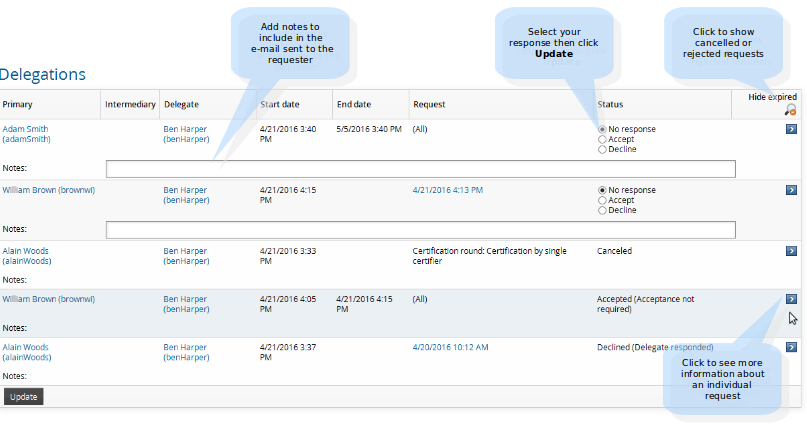
To respond to the request:
On the main menu, click Manage delegations or the task link.
Enable the appropriate No response, Accept, or Decline radio buttons and click Update.
You can also select a request to view the request details. Clicking Manage delegations takes you back to the previous page.
The next time you log into Bravura Security Fabric your main menu will include either the Authorize requests as a delegate or the Manage implementation tasks as a delegate option.
Example: Set up a delegation
This example demonstrates the typical workflow steps when a regular user wants to delegate all their requests while on leave.
Delegate all requests
Log into Bravura Security Fabric as a regular user.
From the main menu, click Delegate authority in the My profile section.
On the Delegation information page, set the delegation options:
Delegate Click the search icon
to search and select the user you want to delegate to.Start date Select the date and time you want the delegate to take over the responsibilities as primary.
End date Select the corresponding checkbox, then select the date and time you want the delegation to end.
Ask the delegate before responding Select this checkbox.
Reason Enter
Going on leave.
Leave the remaining settings as default.
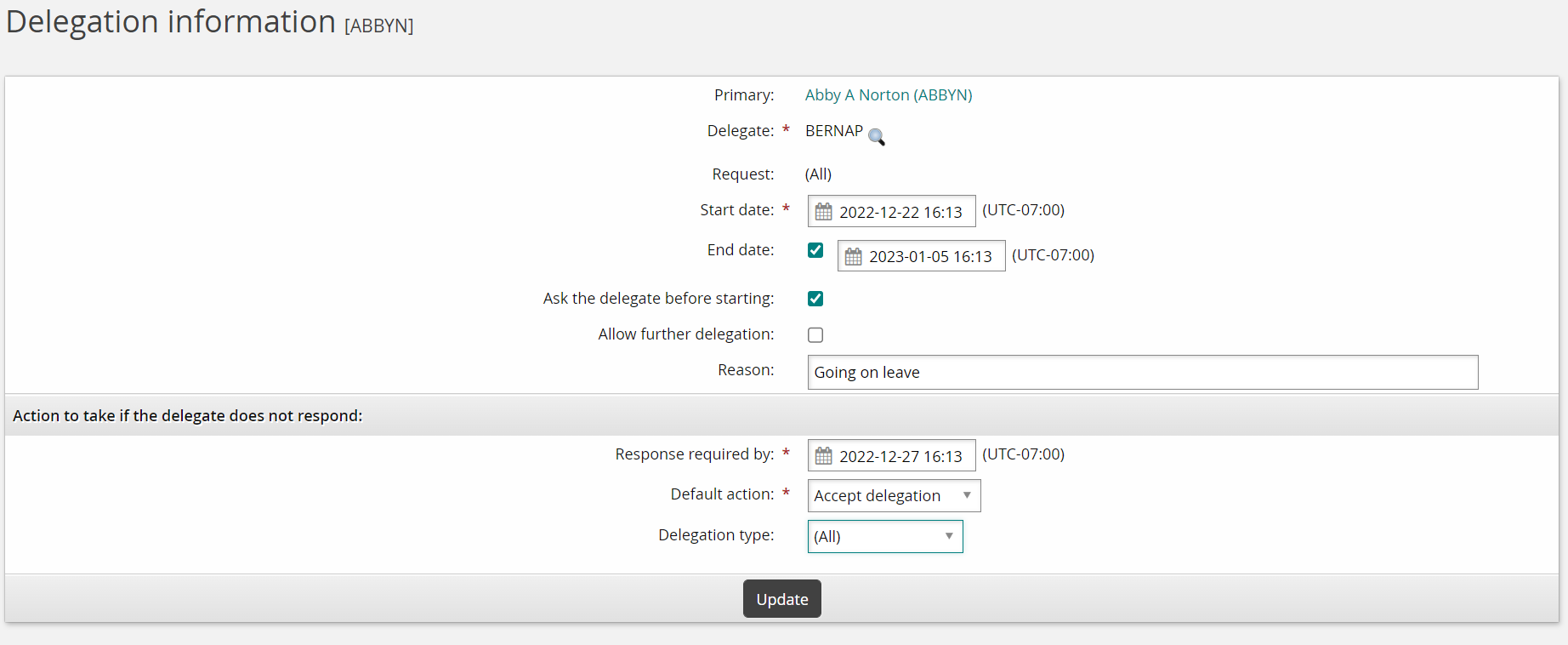
Click Update.
Respond to the delegation request
Log into Bravura Security Fabric as the delegate.
Click You have 1 delegation(s) waiting for your acceptance.
Click Accept.
All requests will be sent to the delegate until the end date of the delegation, or the delegation is canceled.
Example: Delegate a single request
This example assumes that:
Bravura Workforce Pattern and Connector Pack are installed.
There is an Active Directory target system set up as a source of profiles.
The Active Directory target is configured to create the OrgChart based on the manager attribute.
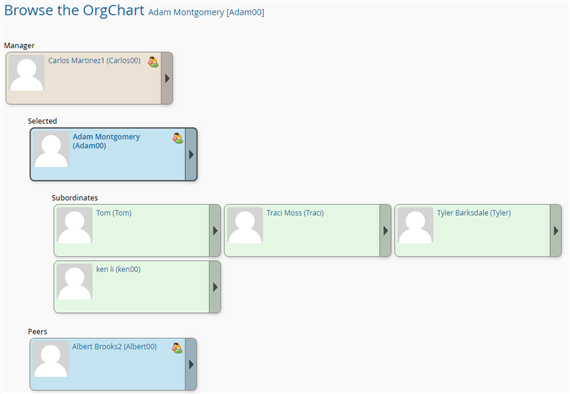
User Adam is the manager of the IT-DB-READWRITE group.
The Scenario.im_corp_delegate_filter_orgchart component is installed. This component provides functionality which filters the list of available users who may be delegated authorization authority based on their level in the OrgChart.
The OrgChart looks something like the following:
Delegate a single request
Login as Debbie to request to join the IT-DB-READWRITE group.
Log in to Bravura Security Fabric as Debbie.
Click View and update profile in the My profile section.
Click Change group membership near the bottom of the page.
Search for and check the box for the IT-DB-READWRITE group.
Click Submit.
Adam is the authorizer. Login as Adam, then check the request and search for a possible delegate. With Scenario.im_corp_delegate_filter_orgchart component installed, when searching for the possible delegate, you will find only his manager and peers are listed.
Log in to Bravura Security Fabric as Adam.
Click the There are 1 request(s) awaiting your approval link or click Requests in the Requests section.
The Requests app opens.
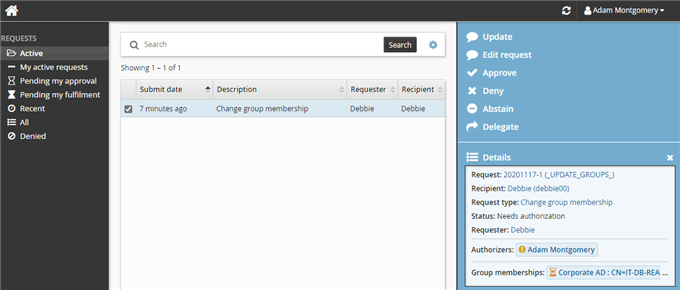
Click the request and click Delegate.
Search for the Delegate.
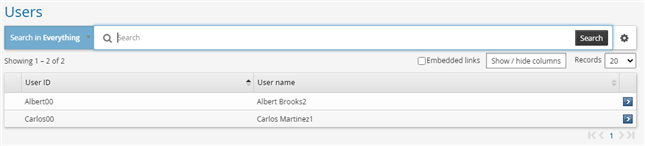
Select Carlos.
Set the following options:
Ask the delegate before starting Unselected
Allow further delegation Uselected
Reason Please review the request
Click Update.
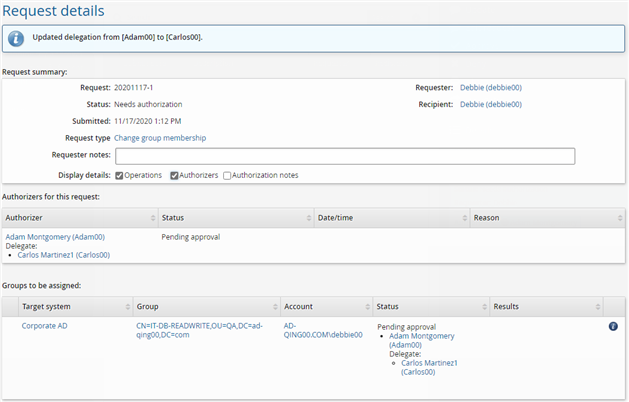
If you view the request details you should see the request requires authorization from Carlos as a delegate for Adam.
Approve the request
Log in to Bravura Security Fabric as Carlos.
Click the There are 1 request(s) awaiting your approval as a delegate link or click Requests in the Requests section.
The Requests app opens.
Select the checkbox next to the request.
Click Approve.
Type Approved in the box provided.
Click Approve.
Verify the request is processed
Log in to Bravura Security Fabric as Debbie.
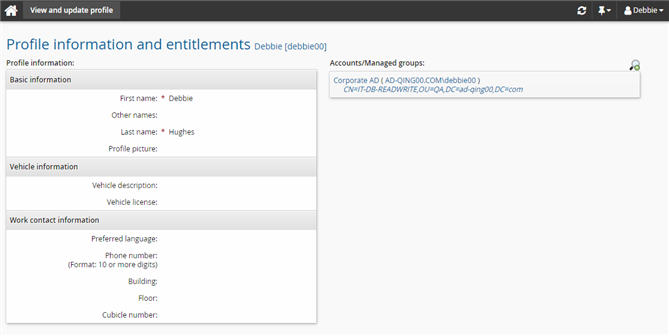
Click View and update profile in the My profile section.
Check Debbie’s Accounts/Managed groups.