Managing Implementation Tasks and Workflow
Implementers can be assigned to manually fulfill requests made through Bravura Security Fabric .
About manual implementation
Implementers are users who perform assigned tasks outside of the Bravura Security Fabric environment. Tasks can include manually setting up accounts on a system, assigning group membership, or delivering a physical item such as a security token. Bravura Security Fabric allows implementers to accept, update, track and resolve the status of the various assigned tasks.
When a request includes tasks that must be implemented manually, Bravura Security Fabric assigns implementers and notifies them by email. Bravura Security Fabric also displays task links at the top of the main menu to notify the implementers that they have requests to act on.
Once a task is accepted, the implementer can then carry out the task and return to Bravura Security Fabric to update its status. A task can be assigned to multiple implementers and everyone assigned will be notified if the task status changes.
See also
Implementers describes how to define and configure implementers, and assign tasks to them.
Delegating or escalating to other implementers
An implementer can request to delegate all their responsibilities or a single request. A delegation manager can delegate a request on behalf of an implementer.
See Delegating Responsibility to learn how to request or respond to a request for delegation.
Escalation occurs when a request has not been acted upon on time.
When a request is escalated or delegated, the user that accepted the request will have the same privileges as the original implementer for the request. Implementers who are delegated a task will be notified by email and on the Bravura Security Fabric main menu.
Provisioning inventory
An implementer who is also an inventory manager assigns and deliver requested items.
Managing implementation workflow
Implementers who are granted the role of workflow manager can accept, update, or delegate tasks for any open request to any implementer.
Acting on implementation tasks
Bravura Security Fabric notifies implementers if a request needs to be fulfilled. A link is also displayed if you need to act on current tasks when you log in. Task links contain the text "as a delegate" if action is required on behalf of another implementer.
To view or act on tasks, click Requests then click Pending my implementation in the action menu.
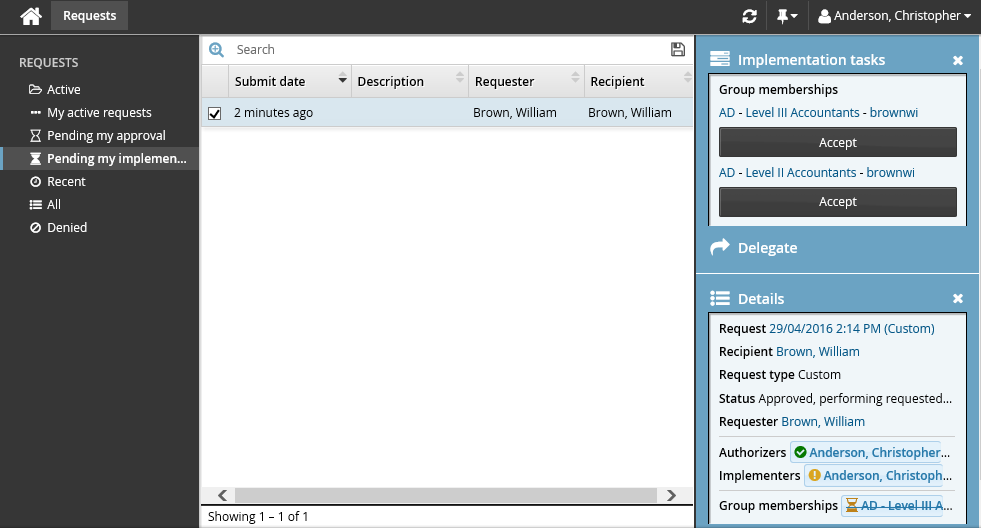
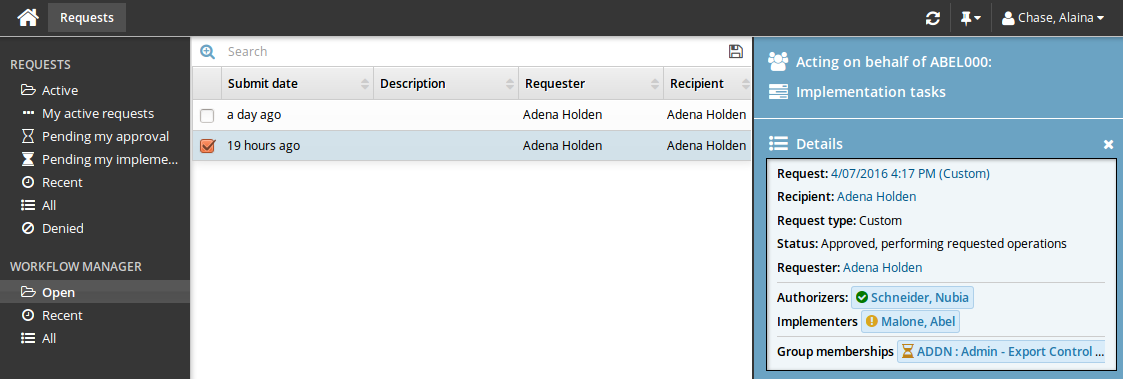
To view, manage, or act on tasks as a workflow manager, click Requests, then click Open under WORKFLOW MANAGER from the Filter panel.
Search
If you are managing workflow, you can search for requests assigned to other implementers.
See Searching for general information about using search criteria.
Proceed to:
Delegate requests
You can delegate your responsibility for all tasks included in a request to another user. You can also delegate an individual task once you’ve accepted it.
To delegate all tasks in a request:
Click on the task link or Requests from the main menu to launch the Requests app.
Click Open under WORKFLOW MANAGER to display all open requests.
Select the task you want to delegate from the Results panel.
The details of the request will appear in the Actions panel.
See Reviewing requests for information about reviewing requests in the Requests app.
Click Delegate and set the delegation options.
Accept tasks
You must use Bravura Security Fabric to accept a task.
To accept a task:
Click on the task link or Requests from the main menu to launch the Requests app.
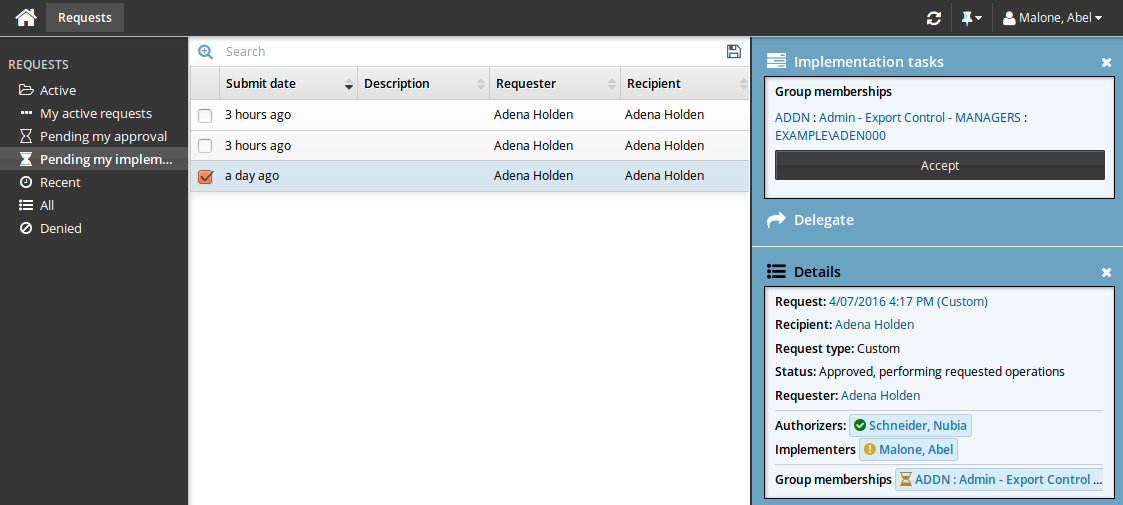
Click Pending my implementation from the Filter panel.
Select the task you want to accept from the Results panel.
See Reviewing requests for information about reviewing requests in the Requests app.
Click Implementation tasks from the Actions panel.
Click Accept.
Once you have accepted a task, you can:
View the password for account creation tasks. You have limited time to view the password. Whenever you are viewing secure passwords, ensure that no-one else can see the screen. It is recommended that the recipient changes the password once the account is created.
Select an item for inventory provisioning tasks, if you are an inventory manager and an item was not automatically assigned.
Once you have acted on a task, click:
Reserve – An inventory item is selected by the implementer but not yet delivered to the requester.
Release – An inventory item has been selected but cannot be delivered to the requester. Another item can be selected.
Complete – The request is fulfilled; for example, the resource is set up.
Decline – Do nothing and allow another implementer to accept it.
Cannot complete – The request cannot be fulfilled. Notes are required by default.
Delegate – Delegate the task to another user.
If you choose to delegate, on the page, set the delegation options.
.
Example: Request a laptop
This example demonstrates the typical workflow steps followed when a regular user requests a laptop; including the steps followed by the the implementer to assign the laptop.
Request the laptop
Log into Bravura Security Fabric as a regular user.
From the main menu , click View and update profile from the My profile section.
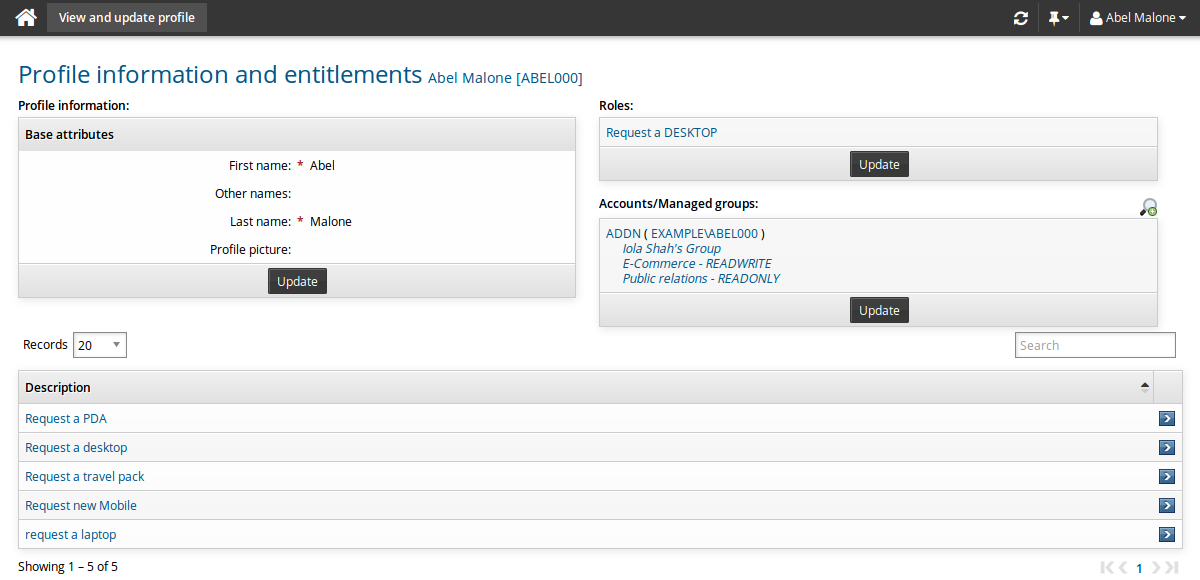
Select Request a laptop.
In Requester notes: Enter
Requesting a laptop to use while travelling.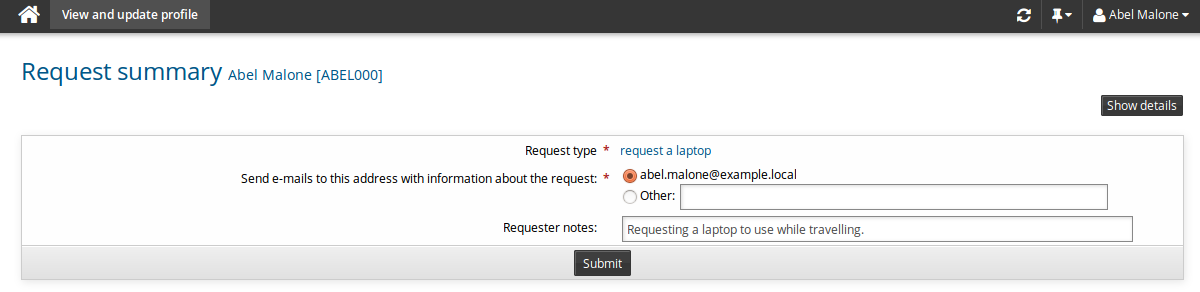
Click Submit.
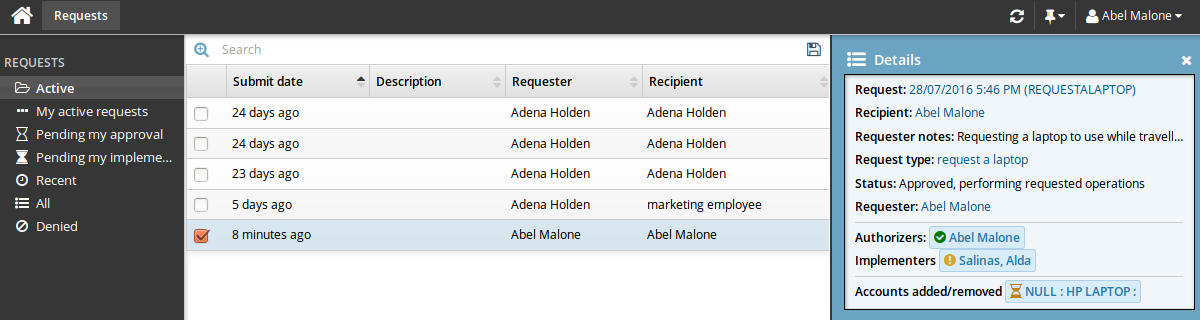
The request has been submitted and the authorizer receives a notification. Once the authorizer reviews the notification they approve the request.
The requester can use the Requests app to track the progress of their request. See Tracking and Updating Requests for information about tracking the request.
In this example, the status of the request would now indicate it has been approved and operations are being performed.
Assign the laptop
The implementer is notified that there is a request to be fulfilled.
Log into Bravura Security Fabric as the implementer.
Click You have 1 request(s) awaiting your implementation.
The Requests app opens and the request awaiting implementation appears in the Results panel .
Select the request.
Click Implementation tasks to view the required tasks.
Click Accept.
The Implementation tasks expand and the implementer can now select which laptop to reserve for the requester.
Select LAPTOP002 from the pull down menu.
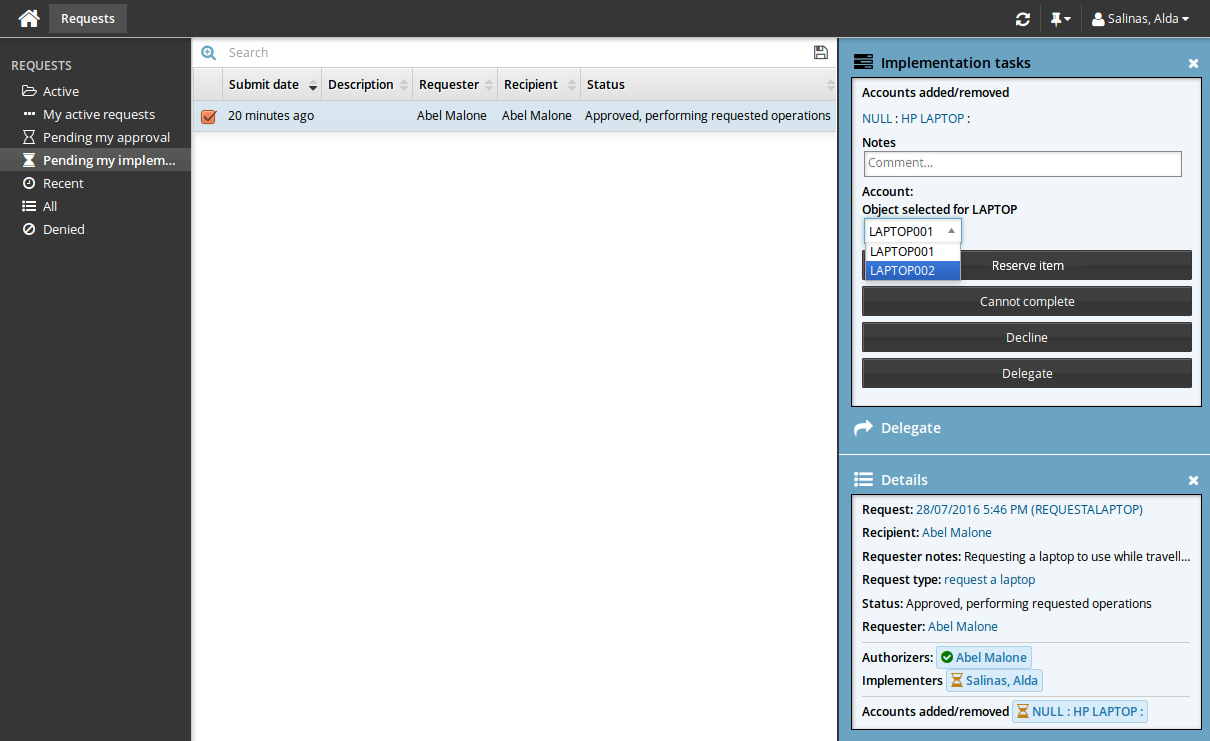
Click Reserve item.
The laptop is now reserved for the requester and is physically shipped to the user by the implementer.
Click Complete.