Viewing and Downloading Recorded Sessions
The Session monitor app allows users to submit requests to search, view and download recorded sessions.
Terminology
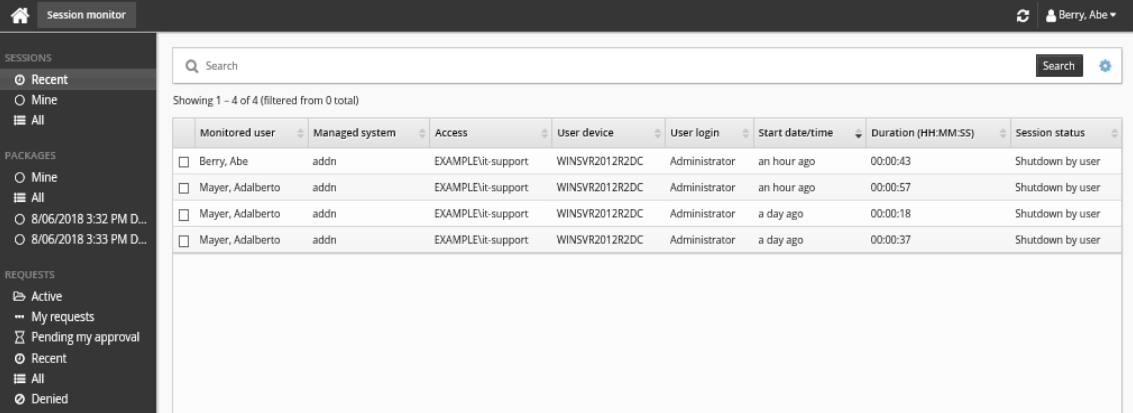
Monitored session An administrative session that has been monitored and recorded. A monitored session may process specific- or full-system content.
Managed system A workstation or server which is a member of a Bravura Privilege managed system policy. Bravura Privilege must manage access to at least one account on the Managed System.
User device The device from which the privileged session was initiated.
User login The login for the device from which the privileged session was initiated.
Monitored user The recipient of the privilege access check-out that is used to perform administrative tasks on sensitive monitored servers.
Getting started
In order to have access to the Session monitor app, users must be granted the Managed recorded sessions privilege.
If granted appropriate permissions, users can use the Session monitor app to:
Create a request to search for recorded sessions
Search recorded sessions
Create a request to view a recorded session
View recorded sessions in browser
Create a request to download a package
Download packages
Delete packages
For general information about using Bravura Security Fabric applications see Using Apps .
Creating a request to search for recorded sessions
The Request search option is always available, and can be used to request permission to search for specific recorded sessions and/or to create search filters, which are saved under the SESSIONS heading in the Filter panel.
To create a request to search for recorded sessions:
Click or tap Request search.
Fill in the appropriate fields:
Request description
Requester notes
Send emails about the request to this address
Allow the recipient to search starting at this time
Allow the recipient to search until this time
Managed system
Access
User device
User login
Monitored user
Find sessions that were active as early as this time
Find sessions active as late as this time
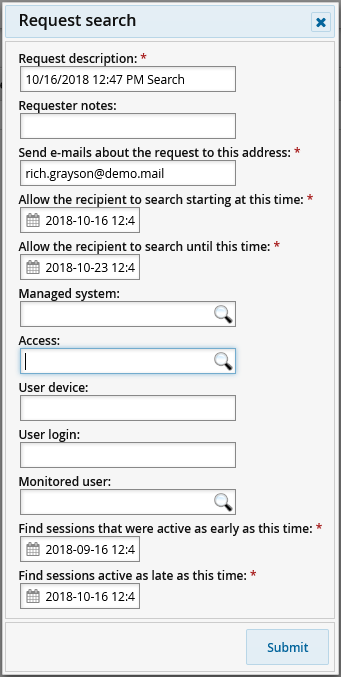
Click Submit.
Once the request is approved, a filter will be created under the SESSIONS heading in the Filter panel containing all sessions from the request. The request description will be used as the filter’s name.
Sessions
The following filters may be available by default:
Recent
All
Viewable
If you have privilege to search your own or all sessions, sessions will be available in the filters by default.
Each approved search request will have its own corresponding filter that will also be listed here.
Sessions you have privilege or approved access to view will be listed in the "Viewable" filter.
Searching recorded sessions
You can search for sessions with the basic or advanced search within each filter. For basic search, just type directly into the search bar. For advanced search, click or tap the magnifying glass and enter your criteria there.
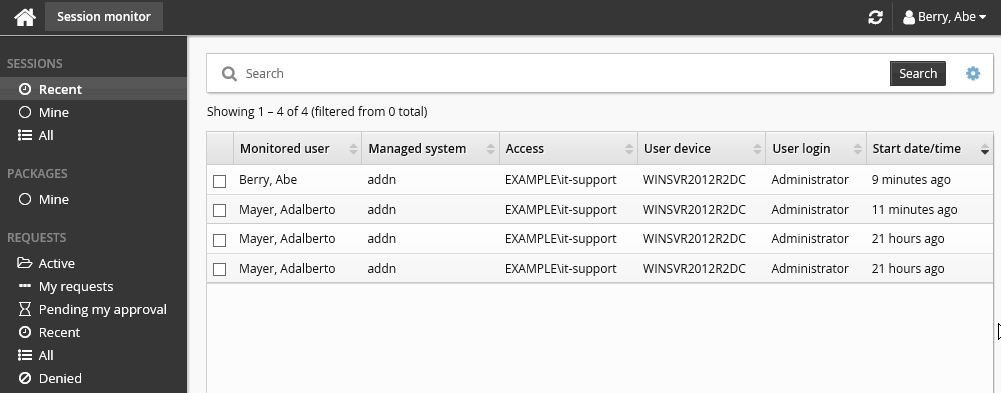
Select a session to view its details.
Creating a request to view a recorded session
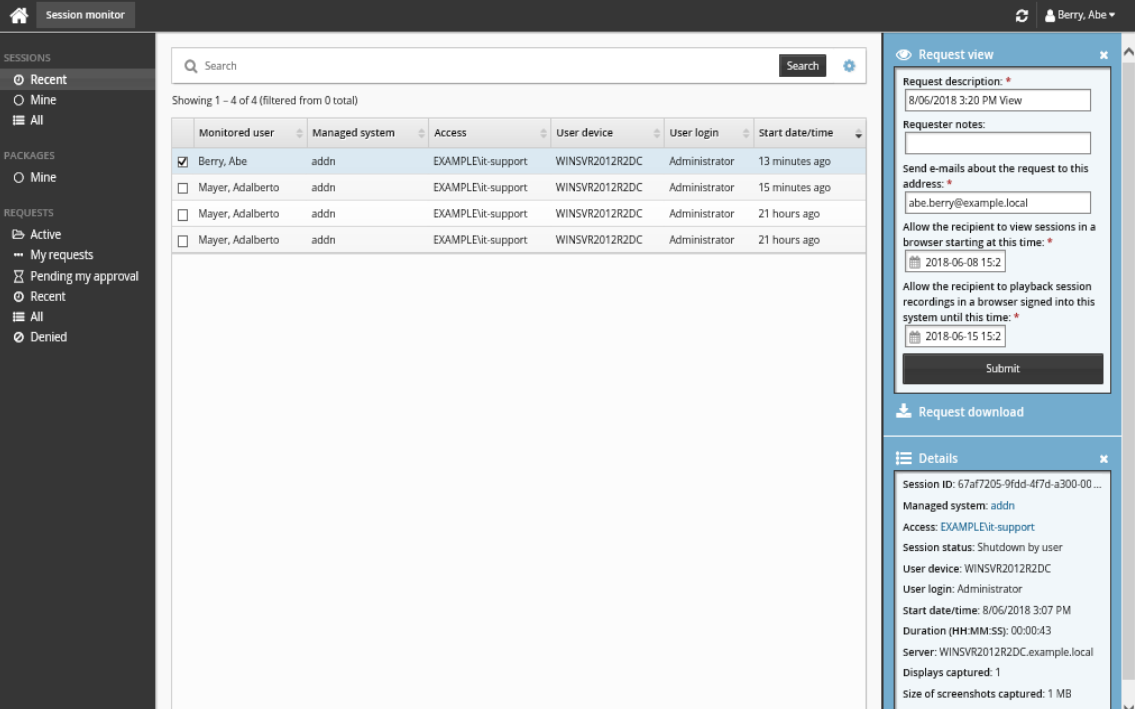
You can request to view a recorded session by doing the following:
Select a session.
Click or tap Request view.
Fill in the appropriate fields:
Request description
Requester notes
Send emails to this address with information about the request
Allow the recipient to view sessions in a browser starting at this time
Allow the recipient to view sessions in a browser until this time
Click Submit.
Viewing recorded sessions in browser
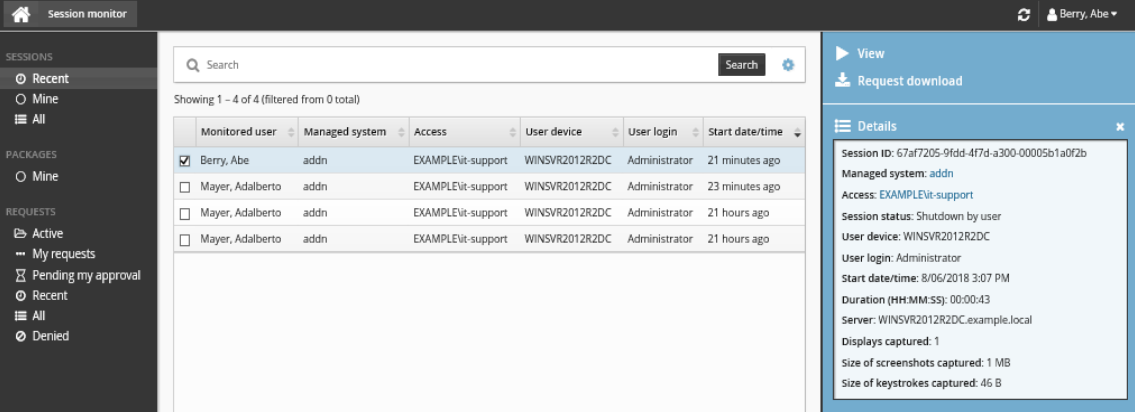
Once the request is approved, or you have privilege to view the session, you can view by selecting the session, and clicking or tapping View in the Actions panel:
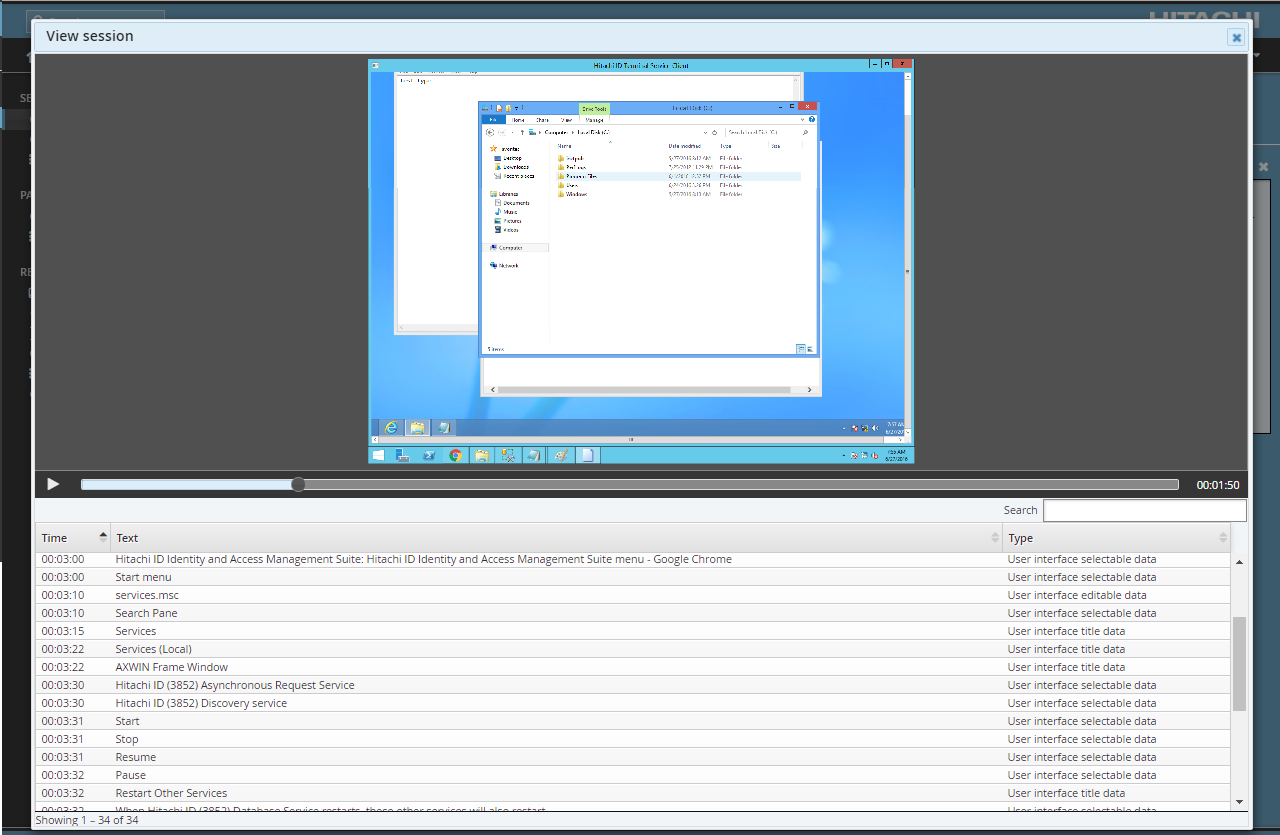
A window will appear in the foreground, containing video and text captured from the recorded session.
You can filter the text by entering search terms in the search bar.
Use the scrubber to play a particular part of the video. Alternatively, you can also click on a text to play the part of the video where it was captured. If the session is currently active, video is available with a delay of 20 seconds behind the current time.
Checking in access while viewing sessions
Users with privilege to check in another’s access, can check in access while viewing sessions of active check-outs.
A Check in access button is available for all sessions of active check-outs. When viewing a session of an active check-out, reviewers that see questionable actions can immediately check-in access and terminate the session. Please note, there is a delay (in minutes) when viewing active sessions.
Creating a request to download a package
You can request to package and download sessions. To create a request:
Select sessions
Click Request download.
Fill in the appropriate fields:
Request description
Requester notes
Send emails to this address with information about the request
Content types to include in package
How long the package should be retained once it is generated (in days)
Click Submit.
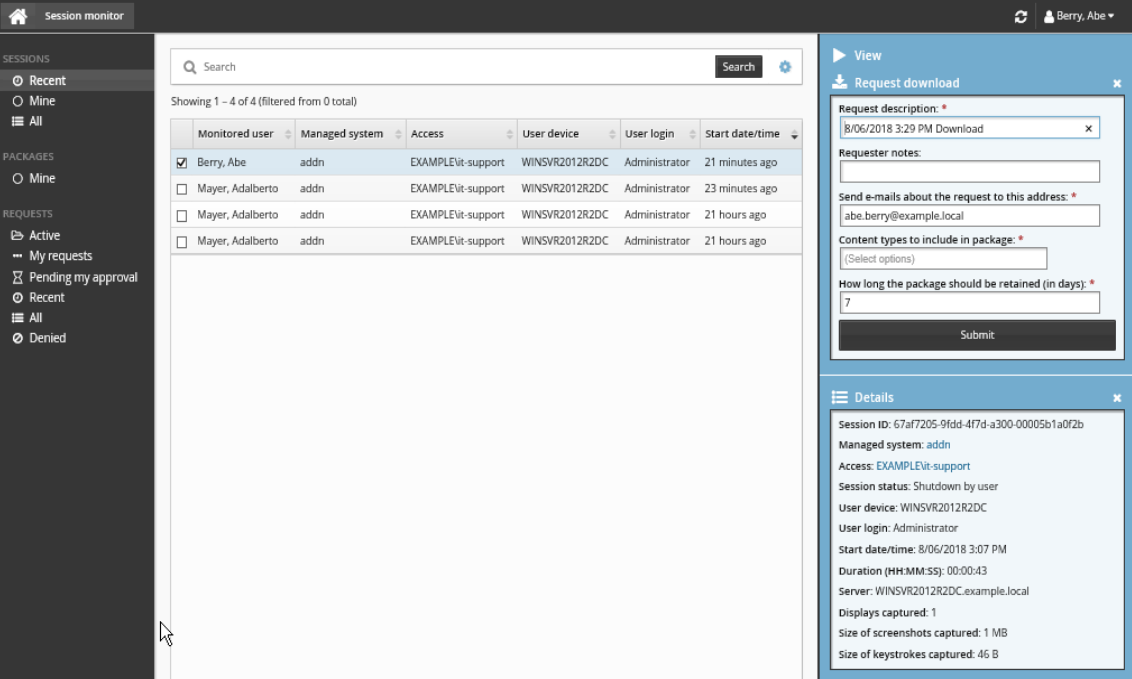
Once the request is approved, a new filter will be available under the PACKAGES heading containing all the sessions requested. The request description will be the name of the filter.
Packages
The following filters may be available by default:
All
Mine
By default no packages will be available until they have been requested and approved for download.
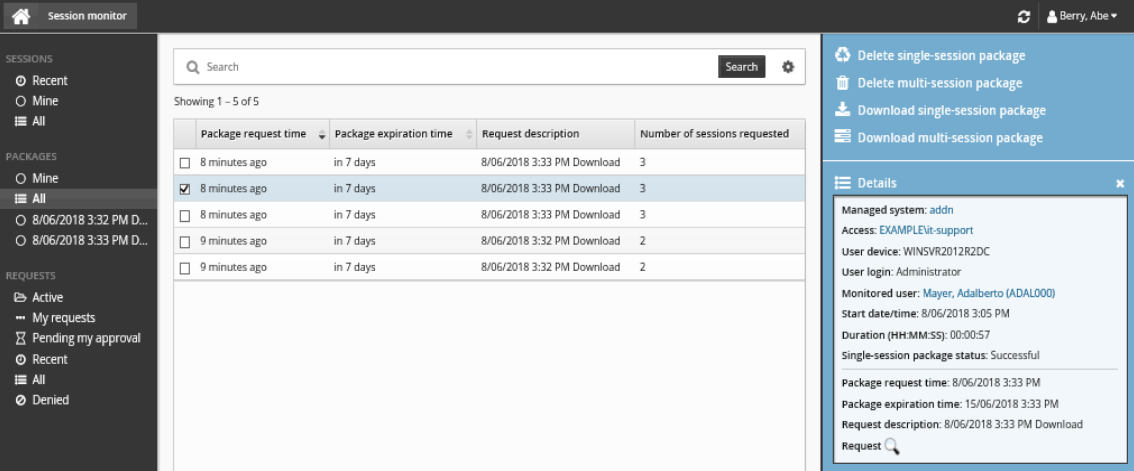
Downloading packages
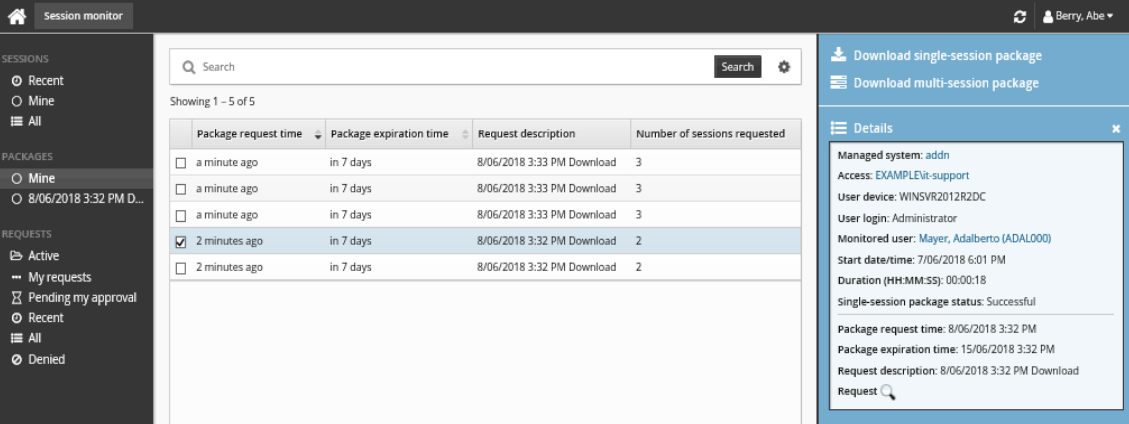
To download a package:
Select the session.
Click:
Download single-session package to download the package for selected session only.
Download multi-session package to download all sessions in the package request. This option will only appear if the session is part of a batch request with 2 or more sessions.
Deleting packages
By default, packages are retained for the time specified in the request (7 days).
If you have the Remove recorded session packages privilege, you can delete packages before they are automatically removed. To delete a package:
Select the packages you want to delete.
Click:
Delete single-session package to delete the selected session.
Delete multi-session package to delete all sessions in the package request. This option will only appear if the session is part of a batch request with 2 or more sessions. Note that only the multi-session package will be deleted and will not affect single-session packages.
Confirm the deletion.
Configuration notes
Users must have the "Manage recorded sessions privilege" to access the Session monitor app.
Help-desk users with the "Remove recorded session packages" privilege can remove recorded session packages created by other users.