Using Apps
Bravura Security Fabric includes the following apps with similar user interface design:
The Requests app Allows users to track the status of requests they have made, or that have been made on their behalf. They can also cancel requests. Users who are assigned as authorizers can authorize, unapprove, abstain, escalate or deny requests. Users who are assigned as implementers can accept or decline manual implementation tasks.
See Tracking and Updating Requests to learn how to use this app.
The Privileged access app Allows regular users to request temporary access to privileges. This app is available with a Bravura Privilege license.
See Requesting / Checking Out Privileged Access to learn how to use this app.
The Session monitor app Allows users to submit requests to search, view and download recorded sessions. This app is available with a Bravura Privilege license.
See Viewing and Downloading Recorded Sessions to learn how to use this app.
The Groups app Allows users to request changes to group membership, or to create or update groups if they have assigned privileges.
See Groups to learn how to use the app..
The Roles app Allows users to request role membership and role configuration changes.
See Roles to learn how to use the app.
About the app user interface
The apps utilize a responsive user interface (UI). Depending on the app and your permissions, you will have different options available; however, all apps share a common navigation scheme.
The navigation scheme has been designed to be intuitive and works from left to right across the screen. When you select the option you want from the Filter panel, the results are displayed in the Results panel. You can then select the records you want to action from the Results panel, and the available actions will be displayed in the Actions panel. After you click the action, a form will appear in the Actions panel that you can complete and submit.
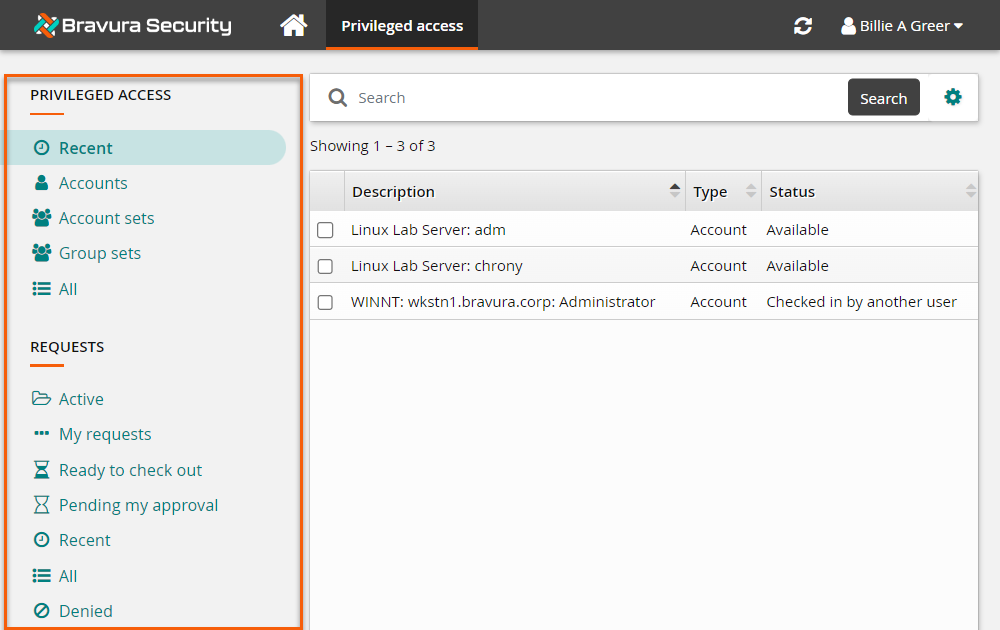
Filter panel
The Filter panel appears on the left side of the app window with links to various options, allowing you to filter the records to be displayed in the Results panel.
The contents of the Filter panel are view-specific. For example, in the Session monitor app, the Filter panel will include options to view sessions, packages and requests. In the Privileged access app the Filter panel will include options to display accounts and group sets available for check-out.
When you click on a link in the Filter panel, the results become active in the Results panel.
Results panel
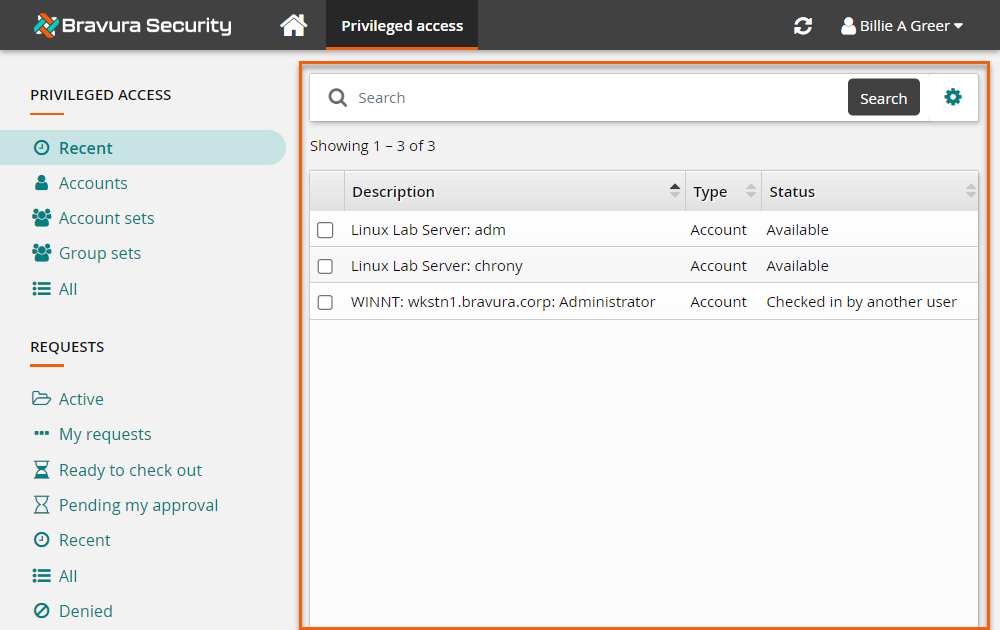
The Results panel is the area between the Filter panel and the Actions panel and displays the results from a link that is selected from the Filter panel.
For example, if you select to display accounts in the Privileged access app from the Filter panel, all available accounts will be displayed in the Results panel.
Actions panel
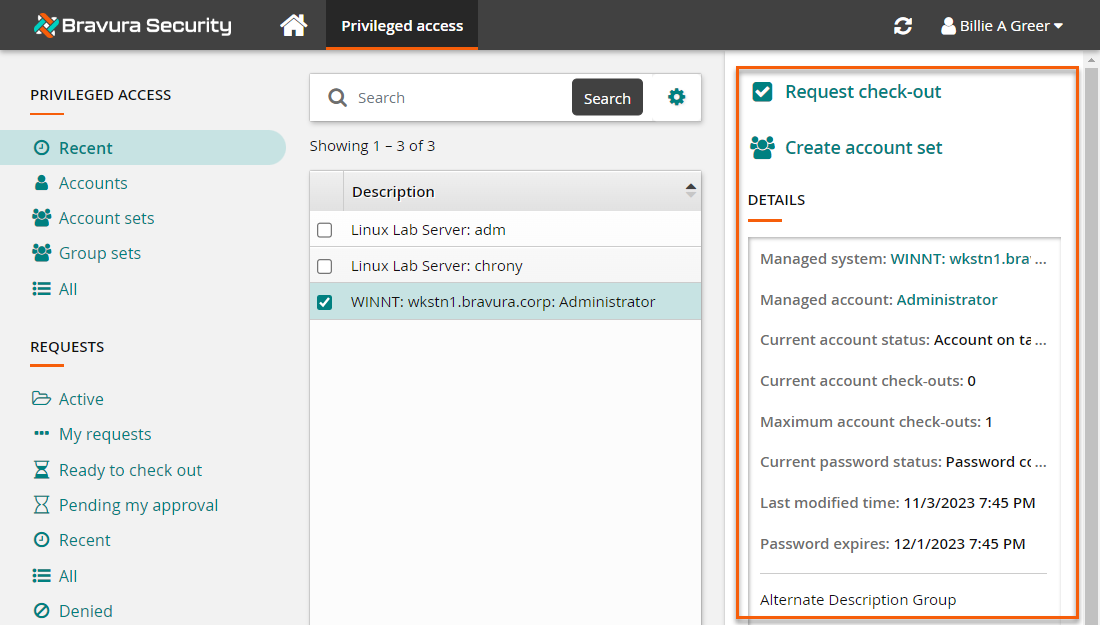
The Actions panel is on the right side. When a record is selected from the Results panel, a DETAILS box appears in the Actions panel displaying more information about that record. You can choose to hide the DETAILS box by clicking outside the edge of the box.
Available actions will be shown above the DETAILS box. If you do not see any actions, this means there are none available for that particular record.
The actions available will depend on the following:
Your permissions
The app you are using
The type of record you select
Searching in an app
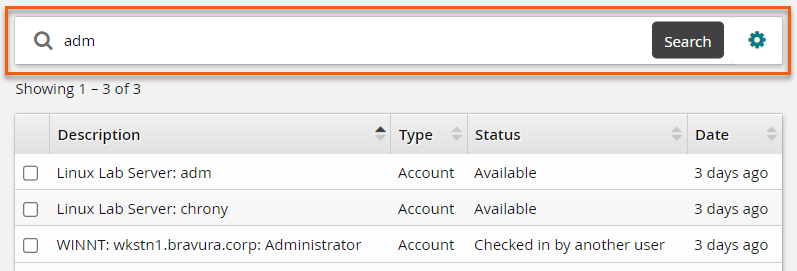
In the Results panel, you can search results based on the link selected in the Filter panel.
For a basic search, enter your text in the search bar and click Search. For advanced search, click the advanced search icon  and enter your criteria.
Working with filters
The Filter panel in each app includes links to built-in filters designed to help you find information. If you have many records to search through, and you complete the same search regularly, you may find it useful to save your own filters.
Saving your filters
You can save your own filters by clicking the icon, to the right of the search field, then click the  icon, after you enter your search criteria.
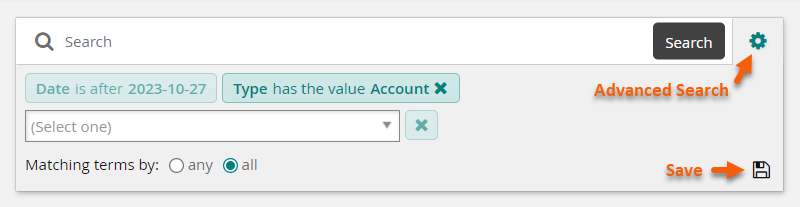
Once the filter is saved, you will see it in the Filter panel.
Deleting your saved filters
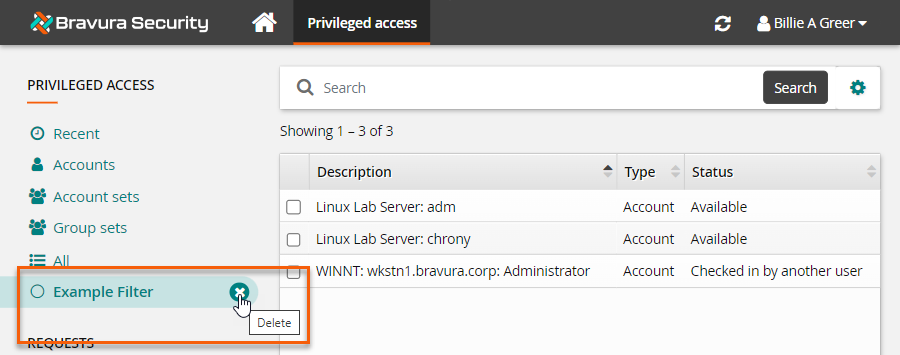
You can delete your saved filters at any time by hovering the mouse to the right of the filter until the  icon appears. When you click the icon, you will be prompted to confirm the deletion.
Hiding or showing filters
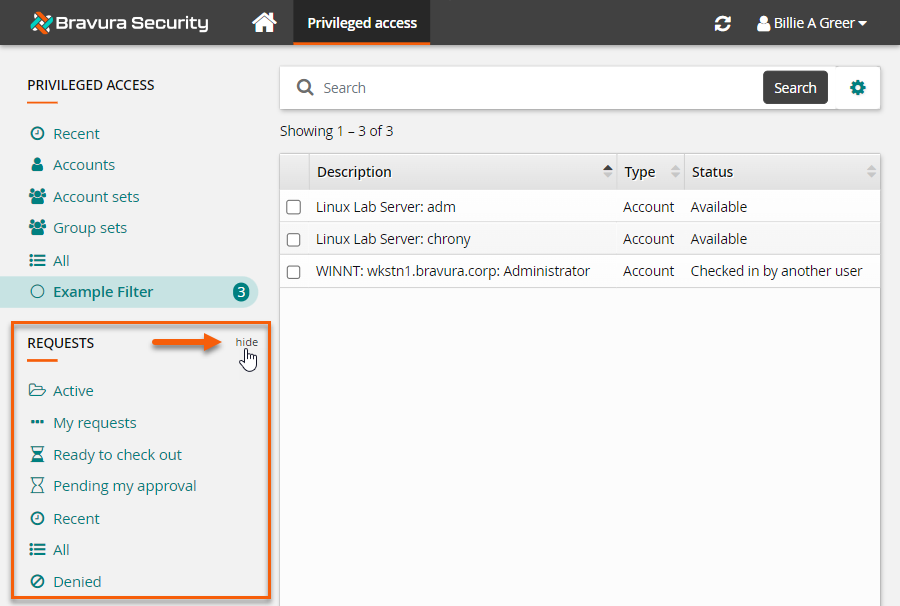
You can choose to hide groups of filters by clicking hide to the right of the heading for that group of filters.