Searching
Searching within a page
When you perform a task that requires you to select an object, such as a user, group, or target system, you may need to narrow down the list to find the object you are looking for.
When accessed from a report page, some searches behave somewhat differently from the rest of Bravura Security Fabric. See Native dashboards and reports for details.
Basic searching
You can narrow down the list of objects using a basic search. To do this, use the Search field to include only objects that contain the string of characters.
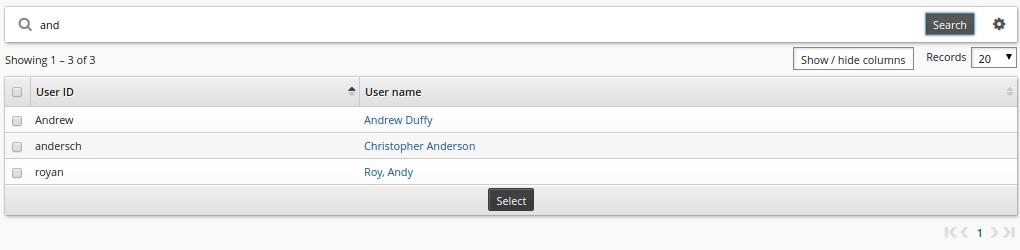
Click Show / hide columns to select or deselect columns for display.
Select the Embedded links checkbox to optionally enable object links for quick navigation.
When performing a basic search:
Bravura Security Fabric can match on more than one column.
All matches are case-insensitive (unless otherwise indicated).
Use the drop-down menu next to Records to change how many records are displayed on each page.
If a checkbox is available in the header row, you can use this to 'Select all' records displayed on the page.
You can perform an advanced search to locate objects with values or properties that are not displayed on the page.
Advanced searching
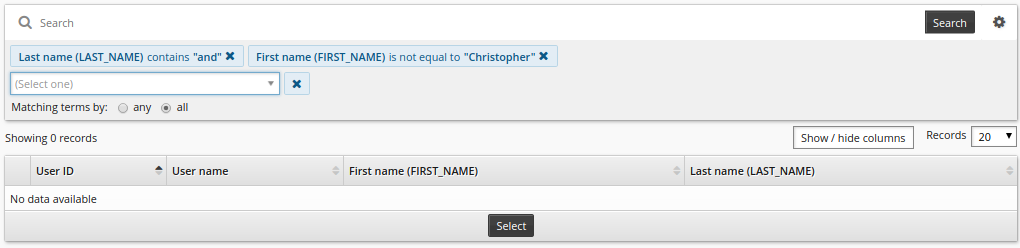
You can submit an advanced search query by combining up to five search expressions. The query can be configured to match any or all search expressions.
The advanced search engine displays a list of relevant search criteria. Depending on the initial criterion selected, conditional drop-down boxes provide a second list of possible comparators, such as ”contains” or ”starts with”. You can combine these lists to form complex search expressions.
Additionally, the advanced user search engine can search on:
User ID – the ID for one or more users
User name – the user name for one or more users
Target system ID – list of users that have an account on one or more matching target system IDs
Group ID – list of users that have group membership for one or more managed groups
Role ID – list of users that are assigned to one or more roles
Direct manager – users that have the specified user as a direct manager in the OrgChart
Direct and indirect managers – users that have the specified user as a direct or indirect manager in the OrgChart
Profile attributes – list of users that have a specific attribute set to a matching value
The advanced field search form is a query builder form; query fields and their values are dynamically generated and become available for selection depending on previously selected fields.
To create an advanced search query:
On the object list page, click the advanced search icon
 next to the Search button.
Select an attribute from the first drop-down list.
Select a comparator from the second drop-down list.
If applicable, enter a value in the input field.
This could mean typing text for integers and strings, selecting from a drop-down list, or selecting a date from a calendar. There is no third field for boolean (true/false) input types.

Click the ”Add condition” icon
 .
.Repeat steps 2 through 5 to add more search expressions.
If you have multiple search expressions, select whether the query should match Any or All search expressions.
See also
You can also save your search criteria to use later. See Saved searches for details.
Notes on search terms
Some fields can only match a list of restricted values. Fields with restricted values are presented in drop-down menus.
Search attributes that are built-in / shipped and use the !!! tags cannot be searched on using the displayed values for these attributes and may only be searched on using the tag name.
If a search term is invalid (for example, a required comparison method or search value is missing), then that term will be removed and will not be included in the advanced search.
If a search attribute (such as an optional profile attribute for example) does not have a value defined, then that search attribute will not appear in the advanced search results when using comparison methods such as: ”is less than”, ”is less than or equal to”, ”is greater than”, and ”is greater than or equal to”. For this case, the ”is empty” comparator must also be specified.
Configuration notes
The number of matches displayed is limited to 10,000 by default. If there are more matches, Bravura Security Fabric warns users to refine their search criteria. You can change this limit by modifying Manage the system > Modules> Options > SEARCH MAX RESULTS.
You can change the default options for Records per page by modifying Manage the system > Modules> Options > RECORDS PER PAGE LIST.
RECORDS PER PAGE must be one of the values in RECORDS PER PAGE LIST. For example; the default RECORDS PER PAGE LIST is 10, 20, 50, 100 and the default RECORDS PER PAGE is 20. This provides 20 records per page and the option to show 10, 20, 50 or 100 search result records per page.
The profile and request attributes option Allow in advanced search criteria controls whether or not the attribute shows in the advanced search attribute list. See Defining profile and request attributes.
‘ORGCHART_MANAGER’ is not included in the list of profile attributes listed in Advanced search. Use ‘Direct manager’ and ‘Direct and indirect managers’ instead.
Regular users can normally use advanced search capabilities to find existing users on request pages.
By default, if Bravura Security Fabric finds more than one match for the search terms, it displays a list and allows the requester to make a selection.
You can disable this behavior if you want to prevent Bravura Security Fabric from displaying a list of users or accounts, and if you want Bravura Security Fabric to only match on exact search terms. To disable advanced search capabilities, enable the following options in Manage the system > Modules > Options:
View and update profile (IDR) > IDR DISABLE ACCOUNT SEARCH
View and update profile (IDR) > IDR DISABLE USER SEARCH
Requests > IDP DISABLE USER SEARCH
Requests > IDS DISABLE USER SEARCH
Requests > IDV DISABLE USER SEARCH
Saved searches
If you have a lot of records to search through, and you complete the same search regularly, you may find it useful to save your own filters as a saved search and re-use it.
There are many cases where users can do a search, save it, then re-use it either to find stuff again quickly or in terms of controlling other business logic, such as being able to easily find:
Target systems of a certain type
Subordinates of a user
Users in a certain department
Users of a certain team
Types of saved search
Saved searches can be:
My Searches : Users can create saved searches from the user interface. My saved searches cannot be shared across users.
Searches : Product administrators can use plugin to create saved searches. Searches can be shared for all users.
Saved search logic
Saved searches are shared across all engines that derive from the same base engine; for example, saved searches for accounts are shared across all engines that derive from the account base engine class.
Saved search works with advanced search. Any search engine that supports advanced search will support saved searches except for some (older style) advanced search pages in the Manage reports (RPT) module. In addition, saved searches that are shared across engines will be disabled if the criteria within the saved search are missing in the engine; for example, if one account engine can search on First Name and another cannot, then any saved search containing First Name will be disabled on the second engine. This functionality works the same for criteria that have been removed from the system entirely; for example, profile attributes and resource attributes.
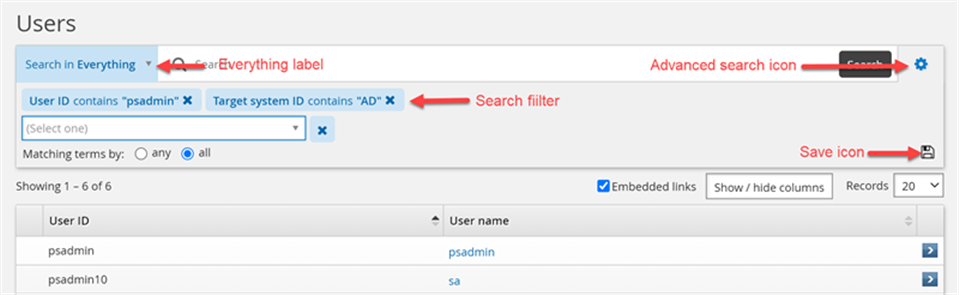
The pre-defined label ”Everything” is the default for all search engines that support saved searches. When a user selects another saved search and then switches back to ”Everything”, all results will be returned to the page.
Creating and deleting My Searches
To save an advanced search query:
On the object list page, click the advanced search icon
next to the Search button.Enter your search criteria.
See Advanced searching for details.
Click the ”Add condition” icon
.Click the ”Save search”
 icon.
icon.Enter a name for the new search.
Click Create.
Once it is saved, you will see it from the saved search drop-down list in the My Searches section.
You can delete your saved search at any time by clicking the saved search drop-down list and clicking the ”trash can” icon  on the right of the saved search. You will be prompted to confirm the deletion.

Creating and deleting Searches
Product administrators can use a plugin program to add or remove saved searches for users, based on the type of search engine. See Configure saved search plugin for details on how to write and configure this plugin.
Example: General usage of saved search
The following examples demonstrate how users can create a saved search, delete a saved search as well as add more filters to an existing saved search and save as a new saved search.
Create a saved search
To create a saved search:
As an end user, from the main menu , click View and update profile under Other users .
On the page, click the advanced search icon
next to the Search button.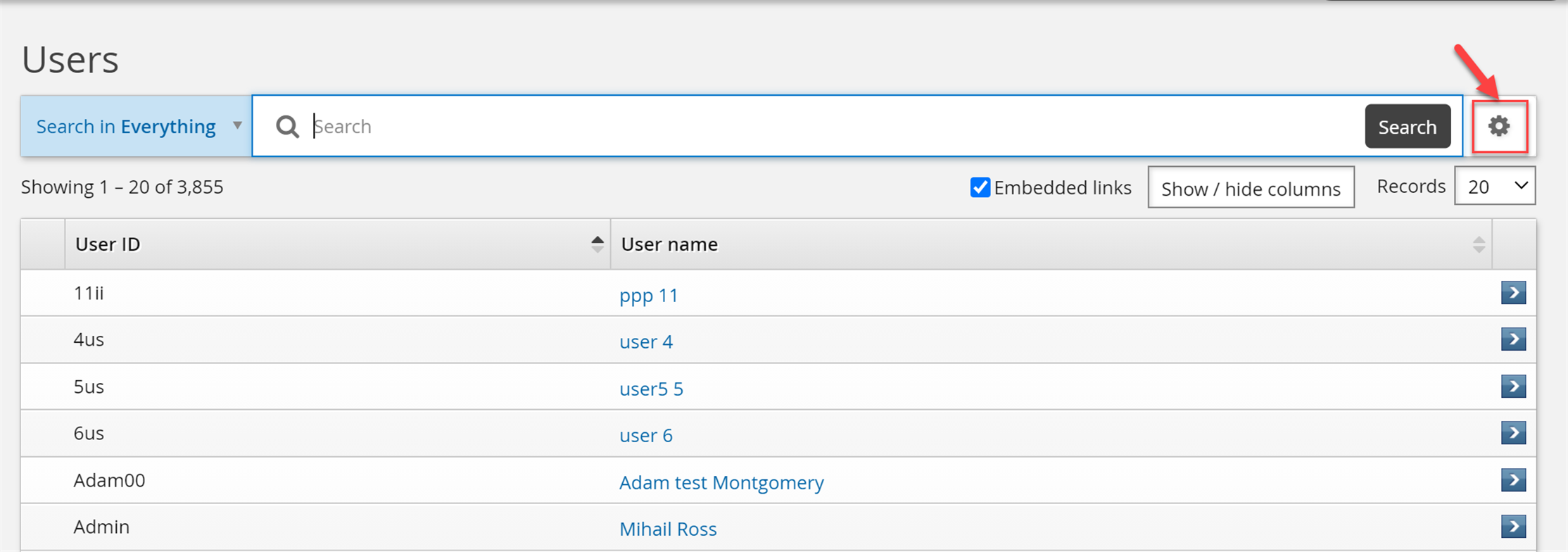
Create some search filters.
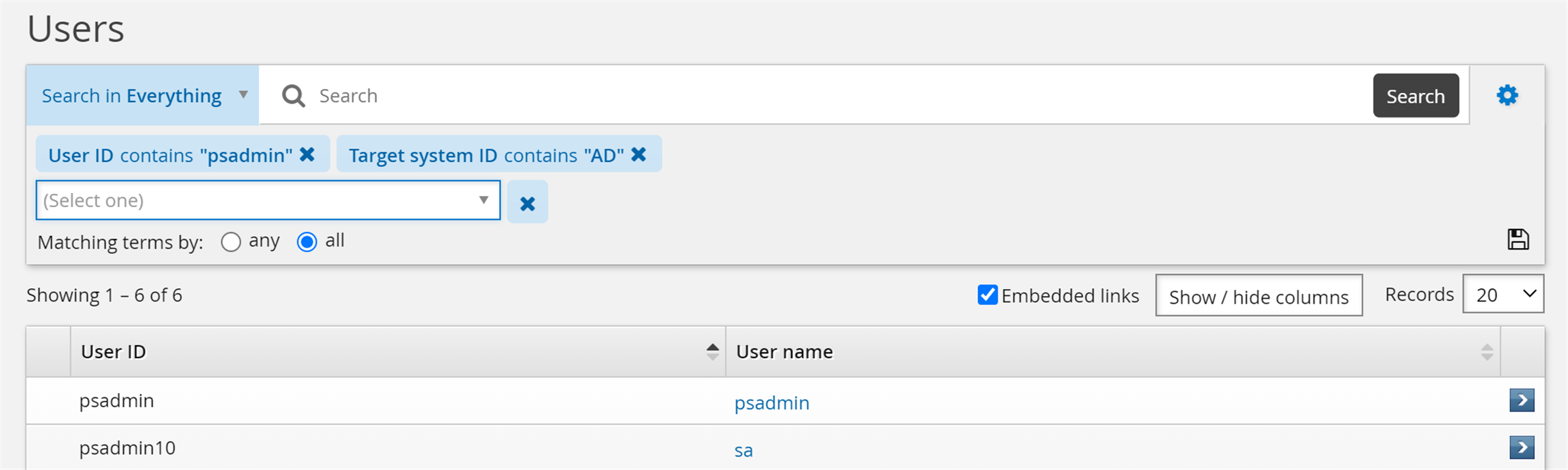
Click Save search and enter a name for saved search.
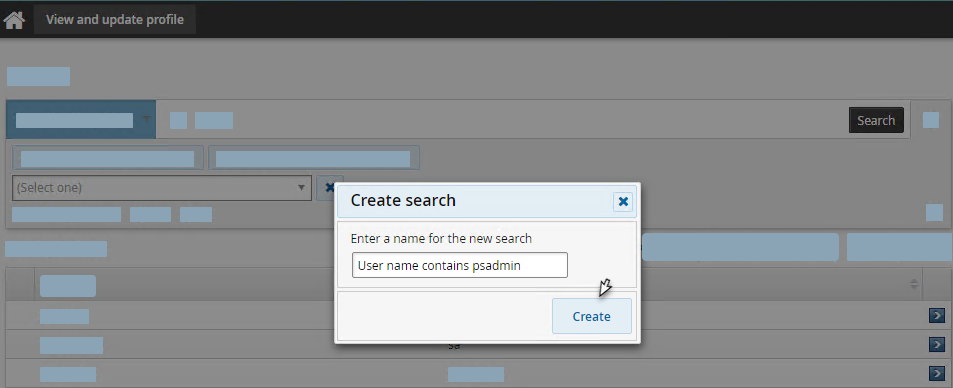
Click Create.
The saved search named User name contains psadmin is created.
Delete a saved search
To delete a saved search:
As an end user, from the main menu , click View and update profile under Other users.
Select the drop-down list and click the ”trash can” icon
.
Click the OK button.
The save search is deleted.
Modify a saved search
To add more filters to an existing saved search and save as a new saved search:
As an end user, from the main menu click View and update profile under Other users.
Select a saved search.
Click the advanced search icon
.Add more filters to the search.

Click Save search.
Click Save as and enter a name for saved search.
Click Create.
To add more filters to an existing saved search and save as current saved search:
As an end user, from the main menu , click View and update profile under Other users.
Select a saved search.
Click the advanced search icon
.Add more filters to the search.
Click Save search.
Click Update.
To create a saved search and override an existing one:
As an end user, from the main menu click View and update profile under Other users.
On the page, click the advanced search icon
next to the Search button.Create some search filters.
Click Save search and enter the name of a existing saved search which you want to override.
Click Create.
Click Yes.
Configuration notes
Below are the important points when creating saved searches:
Plugin saved searches cannot be deleted from the UI (No trash can icon displays).
All saved searches have an ID (hidden) and a label (shown in drop-down list).
All saved searches must have unique IDs and labels. My Searches have unique, generated ”guid-like” IDs. Plugin saved search (Searches) IDs are defined by the plugin creator.
Plugin saved searches override my searches. When you have both a plugin and a my search with the same label, my search is not shown.
Characters
<,>,/,&,"and'are forbidden in plugin saved search IDs as they are significant characters in XML and/or HTML.There is a hard limit of five criteria for each saved search. Extra criteria are simply dropped with a log warning.
Duplicate plugin labels are detected and rejected with a logged warning.
Plugin saved search labels are not case sensitive. Labels that are identical except for capitalization will be considered duplicates, and will be skipped and logged with warnings.
Label clashes between my searches and plugin saved searches are prevented. You cannot create a saved search with a label that already exists among plugin saved searches. On the contrary, you can create a plugin saved search with a label that already exists among my searches.
Saved searches are ordered alphabetically.