Targeting the Microsoft Azure Active Directory system
For each Microsoft Azure Active Directory system, add a target system in Bravura Security Fabric (Manage the system >Resources >Target systems):
Type is Azure Active Directory, listed under "Network Operating Systems" in the drop-down list.
Address is formed using the options listed in the table below.
The Administrator ID and Password for the target system administrator are the client ID and key generated in Setting up a target system administrator .
Check the checkbox for Target system supports multiple owners on groups to allow for multiple owners for the Microsoft Azure Active Directory groups.
Note
Microsoft Azure Active Directory requires that a group have at least one owner. If a group already has an owner assigned and you wish to replace them with a new owner, this should be done in separate requests: add a new owner, then remove the previous owner.
The full list of target parameters is explained in Target System Options.
Option | Description |
|---|---|
Options marked with a | |
Server | graph.microsoft.com (key: server) |
Port | 443 (key: port) |
Connection over SSL | Select to enforce SSL connections. Default is "true". (key: ssl) |
Validate the server’s certificate when connecting | Determines whether to validate the server’s security certificate for SSL connections. Default is "true". (key: checkCert) |
HTTP Network Proxy | Specifies a proxy URL to use for connecting. (key: proxy) |
Domain | The FQDN of the Azure domain. (key: domain) |
Oauth2 Authentication server address | login.microsoftonline.com (key: authsvr) |
Oauth2 Authentication port | 443 (key: authport) |
Include external (guest) accounts | Select to list external accounts. (key: listexternal) |
List roles as groups | This option is to be able to also list Azure roles for the managed groups. The account group memberships are based on the "Active assignments" list for the Azure role. (key: listRoleAsGroup) |
List Cloud groups only | Select to only list cloud groups. (key: cloudgrouponly) |
Poll time after create | Time in seconds, the product server will check the Azure server for a new account creation. (key: polltime) |
Connector fail on invalid user | If the server does not find the new account within the poll time, a message will appear in the system log: user creation in Azure failed, please re-try later. (key: failOnInvalidUser) |
Custom search expression for filtering users(ignored when listGroups specified) | Restrict user listing by using the search filters . (key: userFilter) |
Groups to list users from | Restrict user listing from the specified groups, using the group name. (key: listGroups) |
Http header settings | Set this as part of the advanced query parameters for Microsoft Entra ID objects. This is also used in combination with the Custom search expression for filtering users option. (key: headersettings) |

User search filters
You can restrict user listing by using the search filters.
Custom search expression for filtering users
Navigate to the page and enter a valid search filter expression in the Custom search expression for filtering users field.
Examples:
startsWith(displayName, 'M')not(startsWith(displayName, 'M'))&$count=trueendsWith(userPrincipalName, '.com')&$count=truenot(endsWith(userPrincipalName, '.com'))&$count=true
The userFilter parameter should follow Microsoft’s graph API requirement: https://docs.microsoft.com/en-us/graph/query-parameters#filter-parameter
Advanced filters
If you use anything other than startsWith in your search, it is considered an advanced filter, and additional parameters and settings are required:
$count=truemust be appended for the search filterThe Http header settings option must be set to
ConsistencyLevel:eventual
Below is a working example of an advanced filter configuration:
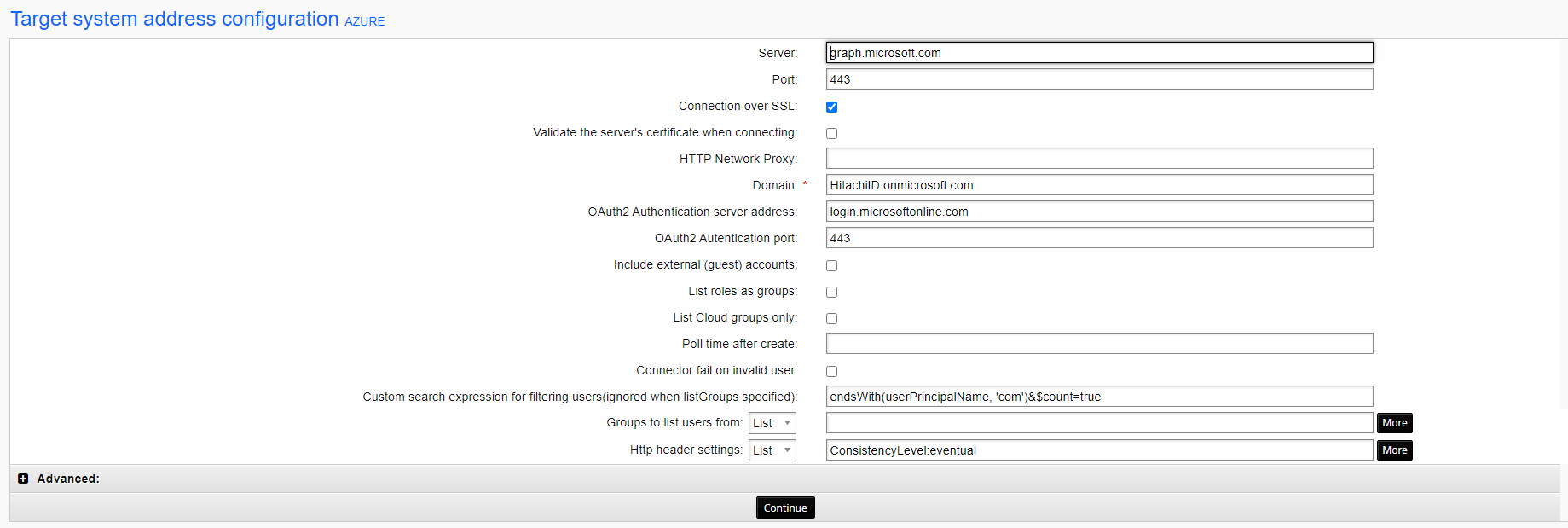
See more on advanced search queries (Implemented in Connector Pack 4.3): https://docs.microsoft.com/en-us/graph/aad-advanced-queries?tabs=http
Groups to list users from
Example:
Administrators; Sales
Custom search expression for filtering users is superseded when both this option and Groups to list users from are specified.