Self Service Anywhere: Login Assistant for remote users
Consider the scenario where a corporate user is off-site with their corporate-domain laptop. The user is at the Windows login screen and has forgotten their AD domain password, and cannot log in to Windows. A phone call to their corporate help desk would enable the user to have their domain account password reset by the help desk, but unfortunately the user is still off-site (remote) and so the laptop’s locally cached credentials cannot be updated with the new password.
As a result, the new network password cannot yet be used by the user to log in to their laptop, and the password reset has not actually helped the remote user in the least.
Laptop users sometimes forget their password while off-site from the corporate network. Without a technical solution, the users’ laptops are rendered inoperable until they return to the office. In this scenario, the IT help desk can do nothing to assist.
Bravura Security’s Self Service Anywhere (SSA) solution allows users to securely reset their Active Directory password and their locally cached password together, without needing to know the current value. This chapter describes the technologies and configuration required to deploy SSA in this scenario.
SSA Login Assistant process for remote users
In this scenario, the key client-side components are VPN, Login Assistant with Credential Provider and the Local Reset Extension (pslocalr) software. The Credential Provider creates a password-less login tile – a Change my password button – within the Windows 8+ login screen.
A user opens their Windows workstation to the log in screen and realizes they have forgotten their password. The user clicks the Credential Provider tile and is automatically logged into the help account. Instead of reaching the Windows desktop, however, a secure, kiosk-mode web browser is loaded. This application allows the user to:
Negotiate a corporate network and VPN connection,
Connect to the web interface of their organization’s instance of Bravura Pass (as a full-screen, non-navigable web page) using Login Assistant,
Log in to Bravura Pass using security question or other authentication,
Reset their password, including the locally-cached one using Local Reset Extension, and
Exit out to the login screen. (This will also tear down any temporary corporate network connections that were established.)
Because the Local Reset Extension provides the ability to refresh locally-cached passwords during a password reset from the user’s workstation, the user is able to log into their Windows workstation immediately and does not need to travel to an on-network location to resynchronize the cached and network password values.
SSA User Experience
The following is similar to the Login Assistant user experience, but modified to reflect a remote user not connected to the corporate network. Notice the additional configuration and steps required for VPN and Local Reset Extension to complete a password reset.
When using the Login Assistant as a remote user (not connected to a corporate network) for a forgotten password, the user experiences the following:
User: opens their workstation to the user log in screen.
User: triggers the Login Assistant by clicking an available "forgotten password" tile or link on the user log in screen.
Login server: Establishes a VPN connection that temporarily connects the user to the corporate network. This is achieved either by user token authentication to the VPN or using a previously configured static VPN account.
Login server: opens a web browser for the user with the appropriate Bravura Pass application URL.
User: authenticates to Bravura Pass using the configured multi-factor authentication, such as security questions and QR code verification through the mobile Bravura One app .
User: clicks Change Passwords on their self-service Bravura Pass home page.
User: successfully changes their password.
Bravura Pass : synchronizes the new password with the corporate domain and any other accounts attached to the user’s Bravura Pass profile.
Login server: the successful password change triggers the Local Reset Extension to update the user’s locally cached Windows workstation credential.
User: closes the web browser and is returned to the user log in screen.
Closing the web browser disconnects the temporary VPN connection and the user is no longer connected to the corporate network.
User: logs in to their remote workstation using the new password. Since the workstation is not connected to the corporate network, the workstation verifies the new password against the locally cached Windows workstation credential. The locally cached Windows workstation password was already updated to the new password by the Local Reset Extension so the verification succeeds and the user successfully logs in to the remote workstation.
Technical requirements
To deploy Login Assistant in the scenario described above, the following high-level requirements are needed:
Set up VPN infrastructure to support the refreshing of locally cached network credentials on Windows workstations.
Allocate/provision appropriate domain controllers and a dedicated "site" within Active Directory.
Install the Local Rest Extension either on remote user workstations/laptops, or set it up for remote execution from the Bravura Pass server.
Install the Login Assistant with Credential Provider software on remote user laptops and workstations, and configure it to use the locally installed VPN command-line client with specified credentials.
On newer Windows systems, the installer can assign the "SeBackupPrivilege" when it is run with elevated privileges.
Network architecture diagram
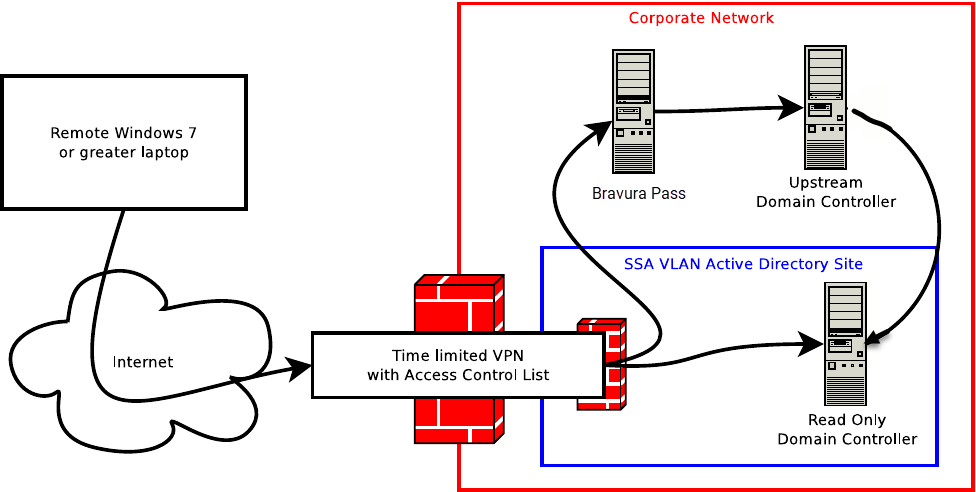
VPN requirements
A VPN connection is required during the credential refresh phase, where the Local Reset Extension updates the local Windows credential cache with the end user’s new AD password. If no VPN is available, then attempts to refresh the cached AD credentials will fail, and the user will still be locked out of their laptop.
When setting up the VPN infrastructure:
A command-line capable VPN client must be installed on each end-user workstation or laptop that will be used for remote connections.
To function with Credential Provider, it must be possible to start and stop this VPN connection using a command-line program. When the OTP method is implemented, the VPN command-line connect command must launch an interface where the OTP can be manually input by the end user. On the other hand, if using static credentials, the Credential Provider supports dynamically substituting two values — a “username” and a “password” — into the connect and disconnect command lines. Where used, these values are stored encrypted within the Windows registry.
An application-level VPN user account must be provisioned for exclusive use by the Bravura Pass client components. (This should normally be distinct from any VPN accounts assigned to individual end-users.)
One or more VPN endpoints should be setup:
These should be setup in perimeter networks ("DMZs").
If using a static password for the VPN credential, then VPN connections should terminate in a perimeter network ("DMZ") rather than the main, corporate network.
They must honor the above "application-level" VPN user credentials.
The VPN endpoints should be configured with network address/port access control list restrictions.
The VPN endpoints must also be configured to issue IP addresses to the connecting systems from a dedicated pool of IP addresses. This is needed as a part of a larger mechanism that will ensure that connecting VPN clients use the correct AD domain controllers.
Bravura Security only tests the Cisco AnyConnect VPN client with product feature integrations. It is the only officially supported VPN client integration with Bravura Security products. Other VPN clients may work, but Bravura Security does not test nor officially support them.
As the user’s personal VPN credentials may include the forgotten password, VPN authentication for SSA cannot include this password. There are two alternatives for SSA VPN authentication:
Authenticate the VPN using the end-user’s pre-existing OTP credential. For example, RSA SecurID or similar. There is less need to restrict VPN network access in this case.
Use a static password known to the credential provider software, but not to any human. Connections made using this password should be severely restricted. There may be one password per device, one shared password for all devices, or one password per group of devices.
For added security, follow these best practices when choosing to create a special VPN account with a static password that Login Assistant will use to connect to the network and update locally-cached passwords when users are off-site.
Presuming that the VPN service you use is capable of this, apply the following limits to this account on the VPN server side:
Create a new, dedicated read-only AD domain controller (DC), which will be used by Local Reset Extension.
Configure Bravura Pass to always push new AD password resets to the read/write DC along with any others.
Configure the VPN user to only be able to access:
The IP of this DC (all TCP ports).
The HTTPS URL of Bravura Pass – typically via a load balancer.
Set a connection timeout on the VPN user to 10 minutes.
Disable intruder lockouts on the VPN user, to minimize the potential for a denial-of-service attack on user access to self-service.
Active Directory requirements
Some Active Directory configuration is required for SSA to function properly. As a result, it is necessary to take steps to ensure that connecting SSA clients will use one of the specially-configured DCs for their login server.
A dedicated AD "site" must be provisioned.
One or more read-only domain controllers (RODCs) should be assigned to the AD site mentioned above.
These RODCs will also be deployed in the perimeter network(s) of the VPN endpoint(s).
This site will need to include an IP subnet to be defined below.
Ensure timely delivery of the new password to the RODC. See Password propagation delays between DCs .
The IP subnets from which the VPN clients will be assigned addresses must also be assigned to this site within AD.
One or more domain controllers must be provisioned, and assigned to the dedicated site.
All DCs in the dedicated site must be configured to use a fixed TCP port for NTDS and NetLogon RPC traffic.
The DCs must be deployed into the same network into which VPN clients connect, including if that ends up being a perimeter network ("DMZ").
For VPN connections that use a status password it is recommended to use read-only domain controllers.
Architectural considerations for deploying read-only domain controllers into a perimeter network is out of scope for this document. For information on perimeter network AD deployments, see https://learn.microsoft.com/en-us/previous-versions/windows/it-pro/windows-server-2008-R2-and-2008/dd728034(v=ws.10)?redirectedfrom=MSDN .
Microsoft provides some documentation for how to configure RPC dynamic port allocation and RPC to use certain ports and how to help secure those ports by using IPsec
Bravura Security does not believe port filtering is required between an RODC and its upstream, writable DC. Nonetheless organizations may port filter such traffic at their discretion and responsibility if they wish to do so.
Contact support@bravurasecurity.com for a more detailed document with a detailed breakdown of implementation tasks.
IP subnet requirements
When deploying Login Assistant, provision an IP subnet which:
Is used by the VPN endpoints as the IP address pool(s) offered to connecting VPN clients.
Can reach the RODCs mentioned above over the network.
Is assigned within the AD to the AD site mentioned above.
Can reach either the Bravura Pass server or a suitably configured reverse proxy by HTTPS.
The VPN endpoint, IP subnet and associated AD site should be provisioned within a perimeter network ("DMZ").
Configuration Example: SSA Login Assistant with VPN
This configuration example walks through a set of technical details for the installation of Self Service Anywhere (SSA) using the Login Assistant (SKA) with a VPN. This example also includes an example of how this was accomplished for a sample client.
Requirements
This configuration example assumes that:
Bravura Security Fabric and the Connector Pack are installed.
Set up RODC (optional)
Unless an organization is allowing for connectivity to a read-write domain controller (RWDC), one or more read-only domain controllers (RODCs) should be set up for security.
You can use dcselect and dcdiscovery to provide a list of applicable DCs to be used.
Ensure that there is sufficient speed of replication between all nodes in the AD forest. It is possible that you can run into a timing issue between the update of the password in Bravura Security Fabric , and its access on the RODC.
The PDC emulator master receives preferential replication of password changes within the domain. As password changes take time to replicate across all the domain controllers in an Active Directory domain, the PDC emulator master receives notification of password changes immediately, and if a logon attempt fails at another domain controller, that domain controller will forward the logon request to the PDC emulator master before rejecting it.
For more information see the following Microsoft resources:
Configure the local reset extension
This example shows you how to configure the Local Reset Extension to function using the Chrome web browser.
Tasks completed in this Example are:
Configuring the Bravura Security Fabric change passwords module.
Configuring the
cgilocalr.cfgscript.Installing the Local Reset Browser Extension for Chrome.
Installing the native browser extension on a user’s workstation.
Many organizations deploy software packages via Group Policies. Bravura Security Fabric local reset extensions can be distributed in the same manner. It is recommended that you talk with your system administrator to discuss this installation.
See Local Reset Extension: Resetting cached credentials for details.
Log in to the Bravura Security Fabric as superuser.
Click Manage the system > Modules > Change passwords (PSS) .
Set S STATUS EXT to
cgilocalr.exeand click Update.
To set up Login Assistant for remote users, configure the local reset extension, cgilocalr:
As an administrator, log into your Bravura Pass application server.
Copy the
cgilocalr.cfgfile from the samples directory.Open the copy in the script directory for editing.
Add the following section and replace "MY_AD_TARGET" and "MY_AD_DOMAIN" accordingly for the Active Directory target ID and domain name:
# Example: Generic Control - Windows Cached Credential Update. (via rundll32.exe)
  "targetid" "MY_AD_TARGET" = {
    "control" "generic" = {
      "id" = "pslocalr";

      "arguments" = "ResetCachedPassword2 %HID_ENCRYPTED_DATA%";
      "attributes" "" = {
        "logonDomain" = "MY_AD_DOMAIN";
      };
    };
  };
Save the modified
cgilocalr.cfgfile in the script directory.
On a Windows Workstation, log in as an end user. In this example, the user ID is ABBIEL .
Open the Chrome browser on the Windows Workstation.
Navigate to http://< Bravura Pass Server IP address>/default .
Log in to the Front-end (PSF) as ABBIEL .
Click Change passwords to reset the password the target system that is configured to use the local reset extension. In this example this is AD .
On the page, locate the Results column.
The AD target account password reset will work, but the cached credential reset will not.
Note the results column addition for the AD target system: Local Reset Extension Status: Disconnected Install chrome extension .
For the AD account, click the Install chrome extension link.
A new browser tab appears with the Bravura Security Browser Extension in the Chrome web store..
Click Add to Chrome.
Click Add extension.
Click
Xto close the sync notification.Close all Chrome browser windows.
Open the Chrome browser on the Windows Workstation.
Navigate to
http://< Bravura Pass Server IP address>/default.Log in to the Front-end (PSF) as ABBIEL .
Click Change passwords to reset the password the target system that is configured to use the local reset extension. In this example this is AD .
On the page, locate the Results column.
The AD target account password reset will work, but the cached credential reset will not.
Note the results column addition for the AD target system: Local Reset Extension Status: Disconnected Install native extension .
On the password reset result page, click the Install native extension link to download the installer.
The
browser-extension-win-x86.msiis downloaded.Close all Chrome browser tabs.
On the Windows Workstation, click the Start menu icon.
Search for and locate the Command Prompt application.
Right-click the Command Prompt application and click Run as administrator.
Click Yes if you are asked to confirm that you want to allow this app to make changes to your device.
On the command line, type
cd C:\Users\demo-admin\Downloadsand press Enter.Type
browser-extension-win-x86.msion the command line and press Enter .Click Run.
Click Next .
Check the box for I accept the terms in the License Agreement.
Click Next .
Click radio button for Install for all users of this machine.
Click Next .
Click Typical.
Click Install.
Click Next .
Click Finish.
The Local Reset Extension has now been successfully installed for the users of the Windows Workstation.
To test the installation and configuration, change a user's password and ensure a success message appears on the results page.
Log in to the Windows Workstation with the Local Reset Extension installed with a user’s domain account.
Open the Chrome browser.
Navigate to the Bravura Pass URL.
Log in to Bravura Pass as the user.
Click Change passwords.
On the Change passwords page, enter a New password and Confirm the password.
Click Change passwords.
This will display the Results page that shows the addition: Local Reset Extension Status: Processed .
The user’s password has now been changed. With Local Reset Extension installed, their previously cached password on the Windows Workstation will also update to match the new password.
Configure Login Assistant
This example shows you how to install the Login Assistant client software and set up the help account on a local workstation.
This example includes the following tasks:
Copy the SKA files from the Bravura Pass server to the Windows Workstation.
Install Login Assistant on the Windows Workstation.
Use a silent installer to install on all machines.
Requirements
In order to create the help accounts and install the software on Windows workstations, you must launch the appropriate Windows Installer package using elevated privileges. See all Windows requirements .
Bravura Pass provides installer packages to create the help account and install the required software on users’ workstations for Windows client workstations version 8 and newer (ska.msi, or ska-x64.msi for 64-bit systems).
Copy the
ska.msiinstaller, orska-x64.msiinstaller for 64-bit systems, from the addon directory on the Bravura Pass server to a scratch directory (C:\temp) on the local workstation or to a publicly accessible share.Run the installer on a workstation to test the configuration using a GUI.
For this example:
The URL is a dedicated internal IP address that is only available through the VPN.
The “help” account that is used for the Kiosk is a local account with a random password.
You may want, for testing, to assign a password that you know.
Remember that the SKA (Secure Kiosk Account) has no privileges on Windows; it only triggers wifi and VPN connection if needed, and opens a kiosk browser that connects only to the Bravura Pass URL configured.On closing that browser, the account is logged out automatically.
For the VPN connection, this example uses Palo Alto Networks GlobalProtect VPN service;
Connection Program:
PowerShell.exeConnection Arguments:
& 'C:\Program Files\Palo Alto Networks\GlobalProtect\PanGPA.exe';Start-Service PanGPSDisconnection Program:
netDisconnection Arguments:
stop pangpsUser ID: Entered, but not used
Password: Entered, but not used
Timeout:
10Retries:
10
This example uses machine-based certification for the credentials to the VPN, which does not require a username and password for the configuration.
Once the settings above are validated use a silent installer to push out the setting to all of the user machines. This example uses the following command:
msiexec /i ska-x64.msi ADDLOCAL=SKA,CREDPROV URL="http://10.172.68.26/test/" RANDOM_HELPPASSWORD=1 HELPACCOUNT="help" REMOTESKAACCESSENABLED=1 USEVPN=1 VPN_CONNECT_PROGRAM="PowerShell.exe" VPN_CONNECT_CMDLINE="& 'C:\Program Files\Palo Alto Networks\GlobalProtect\PanGPA.exe';Start-Service PanGPS" VPN_DISCONNECT_PROGRAM="net" VPN_DISCONNECT_CMDLINE="stop pangps" VPN_USER=myvpnuser VPN_PASSWORD=myvpnpassword VPN_TIMEOUT=10 VPN_RETRIES=10 IMAGEFILE="tile.bmp" ADMIN_USERNAME=".\Administrator" ADMIN_PASSWORD="***" /quiet /l*v install-ska.log
The administrator credentials listed about would need to be updated as appropriate. Additionally, the myvpnuser and myvpnpassword need to be updated appropriately.
Configure VPN on client side
This example uses an always-on VPN service that used a machine based certificate. It uses an existing local account that is currently working.
Note
This redacted example is based on a sample client; requirements are likely to be different for your environment.
Export from regedit using the existing local account with a working set of the full Palo Alto configuration:
HKEY_USERS\<GOOD_SID>\Software\Palo Alto Networks
Look up the SID of the created “help” user account, using the command:
wmic useraccount where name='help' get sid
Update <GOOD_SID> to the correct SID throughout all levels of the exported registration file:
Windows Registry Editor Version 5.00
[HKEY_USERS\<GOOD_SID>\Software\Palo Alto Networks]
[HKEY_USERS\<GOOD_SID>\Software\Palo Alto Networks\GlobalProtect]
[HKEY_USERS\<GOOD_SID>\Software\Palo Alto Networks\GlobalProtect\PanMSAgent]"DebugLevel"=dword:00000005"PanGPS"=dword:00000005"Client.DebugLevel"=dword:00000005"Service.DebugLevel"=dword:00000005"SearchOrder"=dword:00000001
[HKEY_USERS\<GOOD_SID>\Software\Palo Alto Networks\GlobalProtect\Recent File List]
[HKEY_USERS\<GOOD_SID>\Software\Palo Alto Networks\GlobalProtect\Settings]"ConfFromPortal"=dword:00001c2c"Configurations"=dword:00000002"LastUrl"="<***GATEWAY***>""LocalBioEnabled"=dword:00000000"LocalSSLEnabled"=dword:00000000"HipCheckInterval"=dword:0036ee80"UserOverrides"=dword:00000005"DisallowLocalAccess"=hex:66,61,6c,73,65"DisplayWelcome"=dword:00000001"DisplayTrafficBlockingMsg"=dword:00000001"OtherDisableStarted"=dword:00000000"agent-user-override-timeout"=dword:00000000"Configurations2"=dword:0000002f"OverrideMethod"="allowed""change-password-message"="""username"="""usertype"="""CredentialSaved"=hex:66,61,6c,73,65
[HKEY_USERS\<GOOD_SID>\Software\Palo Alto Networks\GlobalProtect\Settings\<***GATEWAY***>]"Configurations"=dword:00000002"HipCheckInterval"=dword:0036ee80"UserOverrides"=dword:00000005"DisplayWelcome"=dword:00000001"DisplayTrafficBlockingMsg"=dword:00000001"ConfFromPortal"=dword:00001c2c"Configurations2"=dword:0000002f"AuthTypes"=dword:00000010"OtherDisableStarted"=dword:00000000"agent-user-override-timeout"=dword:00000000"ssl-only-selection"=dword:00000000"OverrideMethod"="allowed""LatestCP"=""
Import or merge the configuration into the registry of the laptop that needs to have access.
Grant permission to the “help” account to be able to start the VPN service within the Kiosk.;
Look up the current configuration for the service that needs to be updated using the following command run from an administrator level command prompt.
sc sdshow pangps
Prepare the new <newSDDL> that will be used, by adding (A;;RPWP;;;<GOOD_SID>) to the end, but before the “D:” section if it exists
Reset the permission for the service using following command run from an administrator level command prompt.
sc sdset pangps “<newSDDL>”
Test the implementation
At this point you should be able to test your implementation through a Kiosk reset
Reboot your test device, and select to reset your password with the Kiosk tile
The VPN should engage, and validate your connectivity. This will be noted in the message Found magic string in received response .
Proceed to login.
Reset the password, following all of the password policy rules.
The password should be successfully reset, and the locally cached password should also have been reset.
Configuration and usage notes
Timeout
When the SKA is launched using the Change Password button, it automatically closes after two minutes if no activity takes place on the web page, which is default Windows behavior. The page can also be configured to close after a pre-determined amount of time regardless of activity using the Timeout option.In this case, the user is notified 30 seconds before the session is terminated.
Once countdown hits 0 it will wait for 2 minutes before it closes automatically. Clicking OK on the countdown prompt after it reaches 0 closes the SKA page immediately. Clicking OK when the countdown is still running closes the Login Assistant page after the remaining amount of time.
Credential provider and the help account
The Credential Provider add-on uses the help account to login and execute runurl to launch the SKA. When the Credential Provider is installed, it is recommended that you configure the help account with a random password and that you do not advertise the help account to users. In this setup, the help account should only be used by the Credential Provider add-on, and users should access Bravura Pass through the Credential Provider.
Connections over VPN
When using a VPN to connect to the instance, runurl will search for one of three HTML tags used to uniquely identify the Bravura Pass login page. The tags expected by runurl are:
A hidden <input> element with name="TRANSACTION" and value="F_LOGIN".
A hidden <input> element with name="TRANSACTION" and value="C_AUTHCHAIN_LOGIN".
A comment containing a GUID that was created specifically for
runurl.exeto match:<!-- 81A84EBD-2CE5-4794-8341-E1828711FFBC -->
If runurl cannot identify any of these values, it will default to attempting a reconnection through other means.
When VPN connection credentials is changed, you can use skautil to update the encrypted VPN credential, the help account, and their cached password values kept in registry. This utility does not change the actual underlying password.
Logging SKA remote connection failure
When the SKA remote connection fails, debugging information is provided in the SKA progress window which displays in the bottom-right corner of the locked-down SKA page. You can enable additional logging to capture this information in a log file for analysis.
Enable debug logging with debugska
Caution
Ensure that you are comfortable and knowledgeable in the mechanics of the registry before you attempt to change any configuration settings. Contact support@bravurasecurity.com if in doubt.
The debugska registry value increases the verbosity of the Details panel in the runurl progress window. On the workstation where Login Assistant is installed, create the following registry entry:
Path:
HKLM\SOFTWARE\Bravura Security\Login Assistant\debugskaType:
REG_DWORDValue:
1
Lock the workstation, click the Change my password tile to launch the SKA, and click the Details >> button on the progress window to view the debug messages.
Note
The log entries in the Details panel can become garbled if someone clicks in the text area while the logging text is being updated. Use logutil to capture the entries in the correct order.
Capture logs with logutil
The logutil program captures detailed log output from Login Assistant binaries including launch_ska, runurl, and the web browser component.
Copy
logutil.exefrom the\<instance>\util\folder on the Bravura Pass server to a folder on the workstation.Open an Administrator command prompt and run:
logutil -instance "Login Assistant" -level 99 -logfile c:\test\runurl-log.txt
To also capture Local Reset Extension (pslocalr) activity, open a second Administrator command prompt and run:
logutil -instance "Local Reset Extension" -level 99 -logfile c:\test\pslocalr-log.txt
Lock the workstation and click the Change my password tile to reproduce the issue.
After the issue occurs, exit the SKA, log back in to the workstation, and stop
logutilby pressing Ctrl+C or closing the command prompt.Open the log files to review the captured information.
As long as logutil is running, all binaries registered under the specified instance name log their entries to the text file. An instance corresponds to the keys found under HKLM\SOFTWARE\Bravura Security\Login Assistant.
As an alternative to logutil, you can use the Windows Sysinternals DebugView utility to capture debug output.
Capture network activity
To diagnose network-level connectivity issues, capture a network trace during the Login Assistant session:
Log in to the workstation with an administrator account.
Open an Administrator command prompt and run:
netsh trace start scenario=lan tracefile=c:\test\trace.etl persistent=yes
Log out and use the Credential Provider tile to launch the SKA.
Wait for the connection to fail.
Log back in to the administrator account and stop the trace:
netsh trace stop
Analyze the trace file to determine where and when the connection fails.
Verify correct installation bitness
An incorrect bitness (32-bit vs 64-bit) of the Login Assistant installation can cause unexpected behavior. On a 64-bit workstation:
The
HKLM\SOFTWARE\Wow6432Noderegistry key should not contain aBravura SecurityorHitachi IDsubkey. If it does, the wrong bitness of Login Assistant was installed.The
C:\Program Files (x86)\Common Files\directory should not contain aBravura Security\orHitachi ID\directory. If it does, incorrect DLLs may be loaded by Login Assistant binaries.
Password propagation delays between DCs
The Local Reset Extension updates locally cached passwords on the end-user’s PC by re-authenticating to the domain using the new password. The Bravura Pass server will typically reset the user’s password on one domain controller ("DC1"), while the user’s PC will attempt to authenticate to another domain controller ("DC2"). This creates a risk that the new password has not yet propagated from DC1 to DC2, or to other "upstream" DCs such as the PDC Emulator , before the user’s PC attempts re-authentication.
While Bravura Pass always issues password resets to Active Directory before attempting the cache-refresh authentication, it is still possible for network congestion or other factors to result in the subsequent authentication attempt failing.
To mitigate the risk of timing-induced failures, Bravura Security recommends using Bravura Pass ’s sub-host plugin feature to dynamically control which domain controllers receive password resets. If this is not practical, other mitigation strategies may also be considered:
Within Bravura Pass, explicitly target one of the DCs in the SSA site, or
Use Bravura Pass to target the domain (rather than any particular DC), but assign the Bravura Pass server’s /32 subnet address to the SSA site, or to the best-connected Active Directory site on the network.
Disaster recovery
Enterprises should consider whether remote, end-user password reset scenarios should be part of disaster recovery (DR) planning. If required for DR, then multiple VPN end points should be used, in at least two different regions or physical locations. Furthermore, enterprise Active Directory architects should be consulted on suitable Active Directory site layout changes needed to leverage those end points.