User types and access rules
Access controls assigned to users’ profiles determine the features and functions that they can access in Bravura Security Fabric ; for example, only certain users can access the Manage the system (PSA) module. Depending on their capabilities, users are categorized as one or more of the user types listed in the table below.
Symbols in this document indicate that the marked content applies to specific product licenses:
 Bravura Privilege |
  Bravura Identity |
  Bravura Pass
Regular user | A user who has an account on a target system, and can log into Bravura Security Fabric . Generally, you create regular users by creating a source of profiles in Bravura Security Fabric . | |
Requester | A user who can request access changes. In general, all regular users can be requesters; however, a user’s ability to submit requests may be limited by his access rules, policy rules, authorization workflow logic, or Bravura Security Fabric configuration. | |
| Help desk user | A regular user who can log into Bravura Security Fabric and act on the behalf of other users. Help desk users are participants in a user class that has been granted user access rules, such as the HELP_DESK_MANAGER or the GLOBAL_HELP_DESK user classes. |
| Authorizer | A user who can review and act on security change requests. Any regular user can be assigned as an authorizer. They can be defined as static authorizers or assigned dynamically during a request authorization workflow. See Authorization workflow. |
| Workflow manager | An authorizer who can approve, modify, deny, or cancel any authorization request. You can grant this capability by assigning a user the ”Manage workflow requests” user access rule. This capability can also be delegated. |
| Delegation manager | A user who can delegate the responsibilities of a user to another user. You can grant this capability by assigning a user the ”Delegate workflow requests” user access rule. This capability can also be delegated. |
| Implementer | A “human agent” that manually fulfills requests. An implementer can accept or decline tasks, and mark them as completed or cannot be completed. For example, instead of running a connector program, Bravura Security Fabric can notify an implementer that an access change request has been approved. The implementer then uses the Requests app to accept the task, completes the change using tools available on the target system, then uses the Requests app to mark the task as completed. You can grant this capability by adding any user as an implementer for resource operations on a per-resource basis. If a user is also an inventory manager, then they can also assign inventory items. This capability can be delegated. |
| Inventory manager | A user who can manage inventory items by location and type. You can grant this capability by adding a user to the list of inventory managers (Manage the system > Inventory > Inventory managers), and designating the user as an inventory manager for a specific inventory location and type. If a user is also an implementer, then they can also assign inventory items. This capability can be delegated. |
| Trustee | A user who can modify team settings, group memberships and privileges. They can also onboard and offboard systems and accounts to their teams. |
| Reviewer | A user with the responsibility for certifying users’ access rights. You can grant this capability by selecting the user as a reviewer for a certification campaign. |
Product administrator | A user who has been granted administrative privileges. These privileges control access to the administrative web modules and the Bravura Security Fabric API. Product administrators may or may not have an account on a target system. There are several types of product administrators. These are described in Product administrator types . |
Access to product features
The tasks that product administrators can perform depend on access rules that define their administrative privileges.
These privileges control access to the administrative web modules and the Bravura Security Fabric API. Product administrators may or may not have an account on a target system.
Topics in this section show you how to add product administrators using the:
Web interface using the Manage the system > Security menu.
Command-line using the
adm_setprogram
Product administrator types
Product administrators are categorized into the following subtypes:
Console-only user | These product administrators:
|
Superuser | These product administrators:
The user that you created during installation (named superuser by default) is a superuser. Superuser does not have administrative privileges to call an API. This privilege is assigned explicitly to the IDAPI caller product administrator. |
Console user with help desk/self-service access | These product administrators:
|
Report reader/creator | These product administrators:
|
IDAPI caller | A product administrator who has administrative privileges (IDAPI caller , OTP IDAPI caller , and Guacamole IDAPI caller) to connect to the Bravura Security Fabric API. This product administrator cannot have any other administrative privileges. Bravura Security Fabric includes these built-in users:
|
Anonymous user | Bravura Security Fabric includes the built-in _IDMSUITE_USER_ANONYMOUS user that is used to provide anonymous API access for any Ajax plugin endpoint defined in the hid_ajax_routing table. This user is disabled by default. When this caller is enabled, any Ajax plugin endpoint defined in the hid_ajax_routing table with Authenticated = false will automatically log in as _IDMSUITE_USER_ANONYMOUS and does not require a session to call. The CIDR for the anonymous user should be respected (via X-Forwarded-For if the TRUSTED_REVERSE_PROXY variable is enabled and not if disabled). |
Defining product administrators from the web interface
Individual product administrator privileges can be assigned by navigating to Manage the system > Security > Access to product features > Individual administrators.
Product administrators can be assigned privileges based on an administrator user group. These are accessed by navigating to Manage the system > Security > Access to product features > Administrator groups. By using administrator user groups, you assign privileges based on their user class membership.
You cannot grant any administrative privileges that you do not have.
Individual administrators
To define a product administrator :
Click Manage the system > Security > Access to product features > Individual administrators.
Click Add new… .
In the ID field, do one of the following:
Search for, or type the profile ID of an existing user.
This allows you to grant administrative privileges to a user who may also have access to self-service and help desk menus (depending on user access rules).
Type a new profile ID to create a new Bravura Security Fabric user who only performs administrative tasks (console-only access).
Users created this way are not mapped to accounts on target systems, and cannot access the self-service or help desk menus.
Optional: type the user’s full name in the Name field.
If the user is an existing user whose full name is stored in Bravura Security Fabric, you do not need to type a full name. The Name value is populated automatically after you submit the form.
Type the product administrator’s password in the Password and Confirm password fields if you want the user to authenticate using a password stored in Bravura Security Fabric .
This is only required if the user is not an account-holder; that is, if you are creating a console-only user.
Enable the Password never expires checkbox if you do not want the product administrators password to expire.
This option applies only to product administrators whose passwords are stored in the Bravura Security Fabric database. It overrides the ADMIN PASSWORD EXPIRE setting, which you can set by clicking Manage the system > Policies > Options.
Assign Allowed privileges by choosing:
All privileges to give the user the same access rights as the superuser you created during setup.
Selected privileges if you want the user to retain any access to self-service or help desk menus.
Caution
If you grant all administrative privileges to an existing user, they lose access to the self-service modules and the Help users (IDA) module.
You cannot grant any administrative privileges that you do not have.
The IDAPI caller privilege cannot be combined with any other privileges.
If the IDAPI caller , OTP IDAPI caller , or Guacamole IDAPI caller privilege is selected, you must configure the Allowed network addresses for remote API access field. This is used to specify the IP addresses from which the product administrator is allowed to connect to the Bravura Security Fabric API.
If Bravura Security Fabric is behind a reverse proxy, you can get the original Client IP from HTTP header X-Forwarded-For by enabling the system variable TRUSTED REVERSE PROXY.
This field uses Classless Inter-Domain Routing (CIDR).
If the OTP IDAPI caller privilege is selected, you can configure the Number of hours between password randomizations field. By default, the OTP user’s password will randomize on every login.
Click Add at the bottom of the form.
Administrator groups
To define an Administrator group:
Click Manage the system > Security > Access to product features > Administrator groups.
Click Add new… .
Type an ID and Description for the new Administrator group.
Assign Allowed privileges by choosing:
All to give the group the same administrative privileges as the superuser you created during setup.
Selected privileges if you want users in the group to retain any access to self-service or help desk menus.
You cannot modify any privileges that you do not have.
Click Add at the bottom of the form.
Bravura Security Fabric displays the page.
Click the Membership criteria tab to select or create user classes that define group membership.
Define group membership criteria by:
Selecting existing user classes:
Click Select… .
If required, click Edit
 for any user classes that need to be modified before you select them.
Enable the checkboxes for the user classes you want to select as membership criteria, then click Select.
Creating a new user class:
Click
 Create a new user class.
See Adding user classes for details on how to create a new user class.
If you have selected multiple user classes, select whether the participants are required to match All of the user classes or Any of the user classes . The default setting is All of the user classes .
Once you have finished defining membership criteria, you can click the Test tab to test membership of individual product administrators or List members.
Membership of non-built-in user classes can be cached to improve performance. There are options to recalculate or invalidate the cache on the user class configuration page.
Note
In a replicated environment, cache recalculation can only be performed on the instance which runs psupdate.
Example: Create a console-only product administrator
This example shows you how to create a product administrator who has limited access to product features. This will create a profile ID with a password that is verified against the Bravura Security Fabric database only; the user will not have an account on a target system. For a detailed procedure see Defining product administrators from the web interface .
Click below to view a demonstration.
To create a console-only product administrator:
Log in to the Bravura Security Fabric Front-end (PSF) as superuser .
Click Manage the system > Security > Access to product features > Individual administrators.
Click Add new...
Enter the following values:
ID: admin1
Name: admin1
Password / Confirm password: North*1
Select the Password never expires checkbox.
Select
AllAllowed privileges :Click Add at the bottom of the page to add the user.
This creates a user who can only perform administrative tasks (console-only access). Because the ID is not mapped to accounts on target systems, the user cannot access the self-service or help desk menus.
Test the administrative privileges
The Show effective privileges function allows you to view the product administrator privileges for any user.
To do this:
Click Manage the system > Security > Access to product features > Show effective privileges.
Type the ID of the User you just created,
admin1.Click Test.
Bravura Security Fabric displays the results of the test.
You will notice that the privileges listed are the ones setup during the admin1 administrator creation.
Login as the product administrator
Log in to the Front-end (PSF) as admin1 to review the menu options the privileges provide.
You will notice this user has the same administrator menu options as superuser.
Example: Define a product administrator group
This example defines a product administrator group of auditors who have limited access to product features. It shows how to use the built-in REPORT_READERS administrator group, and include users who also have accounts on target systems. For a detailed procedure see Defining product administrators from the web interface .
Requirements
This example assumes that:
Bravura Security Fabric and Connector Pack are installed.
An Active Directory target system has been configured.
Click below to view a demonstration.
Define the product administrator group
To define a product administrator group:
Log in to the Bravura Security Fabric Front-end (PSF) as superuser .
Click Manage the system > Security > Access to product features > Administrator groups.
Select REPORT_READERS .
Leave the default settings. This group has the following allowed privileges:
Manage reports
Click the Membership criteria tab.
The membership of the REPORT_READERS administrator group is defined by the _REPORT_READERS_ user class.
Click the edit icon
next to _REPORT_READERS_.In the user class configuration pop-up window, click the Criteria tab.
In the group memberships table, click Add new…
In the Target system field, enter
AD.Search for and select the AUDIT-GENERAL group.
Click Add.
Click the Test tab and click List to see the users that are now members of the _REPORT_READERS_ user class.
Return to the General tab and next to the option for Membership cache valid click Recalculate.
Close the user class configuration window.
Click the General tab of the REPORT_READERS administrator group.
If the Membership cache valid value is "No", click Recalculate.
Click Update.
This puts members of the AUDIT-GENERAL group in the REPORT_READERS administrator group. These users can perform some administrative tasks, and can also access the self-service menus.
Test the administrative privileges
To test the administrative privileges:
Click Manage the system > Security > Access to product features > Show effective privileges.
In the User field, type the name of a user in the AUDIT-GENERAL group that was added to the _REPORT_READERS_ user class.
Click Test.
Bravura Security Fabric should list ’Manage reports’ as a privilege for this user.
Login as a REPORT_READERS administrator group member
Log in to the Front-end (PSF) as the named user. You should see that the user now has access to the Manage reports option in the Administrative options section.
Defining product administrators from the command prompt
As an alternative to using the web interface , you can define product administrators from the command prompt using the adm_set program; for example:
adm_set.exe -user SmithJ -acl <ACL list>
You cannot grant any administrative privileges that you do not have.
Administrative privileges
The following table describes all available administrative privileges. It also includes the internal keyword – used in configuration files, plugin input/output, and by the adm_set program – for each privilege.
Right | Keyword | Description |
|---|---|---|
General system configuration | ||
Manage resources | resource | The product administrator can manage target systems, auto-discovered objects, and other resources. |
Manage policies | policy | The product administrator can manage user classes, segregation of duties (SoD), authentication and identification policies, authentication chains, question sets, import rules, login options. |
Manage notifications | mngnotifs | The product administrator can manage notifications and notification-related scheduled jobs. |
Configure workflow setup | workflow | The product administrator can configure workflow. |
Configure modules | module | The product administrator can modify web modules configuration. |
Maintain servers | maintain | The product administrator can manage services, schedule jobs, and configure auto discovery. |
Manage reports | runreport | The product administrator can run or schedule reports from the Manage reports app. |
Analytics | analytics | The product administrator can run, save or read reports from the Analytics app. |
Recompute Analytics cache | recanalyticscasch | The product administrator can update the cached data on dashboards from the Analytics app. |
Manage external data store | extdb | The product administrator can manage the external data store. |
Dashboards | ||
View certification dashboard | viewcertdash | The product administrator can use the View dashboards to view the certification dashboard. |
View privileged access dashboard | viewpswdash | The product administrator can use the View dashboards to view the privileged access dashboard. |
View workflow dashboard | viewworkdash | The product administrator can use the View dashboards to view the workflow dashboard. |
View enrollment dashboard | viewpsadash | The product administrator can use the View dashboards to view the enrollment dashboard. |
View OrgChart dashboard | vieworgdash | The product administrator can use the View dashboards to view the OrgChart dashboard. |
View helpdesk dashboard | viewhelpdeskdash | The product administrator can use the View dashboards to view the help desk dashboard. |
Recompute dashboard cache | recdashcache | The product administrator can use the View dashboards to update the cached data on dashboards. |
Security administration | ||
Manage security | security | The product administrator can manage User access rules and Options in the Manage the system Security menu. |
Manage product administrator | console | The product administrator can create and manage other product administrators. A product administrator may only manage or create new product administrators with equal or lesser rights assigned to them. A product administrator cannot manage his or her own rights. |
Manage user groups | mngacl | The product administrator can manage user access controls in the Manage the system module. |
Privileged access management | ||
Create managed system policies | creategroup | The product administrator can create managed system policies in the Manage the system . As owner of the managed system policy, the product administrator has access to the policy but not the passwords managed by the policy - that permission must be specifically assigned via user group access controls. |
Manage orphan managed systems | mngorphanres | The product administrator can manage orphaned systems (not a member of a managed system policy) in the Manage the system . |
Create managed systems | createres | The product administrator can add a user-managed system in the Manage the system . |
Manage managed system policies | groupmgmt | The product administrator can be granted access to modify or remove existing managed system policies in the Manage the system . Access to managed system policies must also be granted in the Manage the system > Security > Privileged access to systems menu. The product administrator cannot update user groups of which they are a member. This right does not give the product administrator access to orphan managed systems, nor access groups of which they are an existing member. |
Recover last managed password | recoverpwd | The product administrator can recover the last stored managed password for a managed account, regardless of the state of the target (whether it is managed, unmanaged or remanaged) using the RecoverKeyByAccount function call and OTP caller and LogonEx to connect to the API service. |
Access certification | ||
Manage certification process | certify | The product administrator can manage the access certification process, by which one or more reviewers confirm or remove access privileges of users, and remove stale users. |
Initiate entitlement certification campaigns | singleusercertify | The product administrator can initiate a access certification process, by which a single reviewer can confirm or remove access privileges of users, and remove stale users. |
OrgChart management | ||
Start Org building rounds | createorg | The product administrator can use the Manage the OrgChart to initiate OrgChart building rounds. |
Manage the OrgChart | updateorg | The product administrator can use the Manage the OrgChart to manually change the OrgChart structure. |
Remote API | ||
IDAPI caller | apicaller | The product administrator can access the API Service ( This right can only be combined with other rights by adding an individual administrator with the IDAP caller right to an administrator group with other rights. |
OTP IDAPI caller | otpcaller | The product administrator can access the API Service LoginEx function from the IP addresses specified in the IP address with CIDR bitmask field. The LoginEx function gains access to the KMKeyGetByAccount function, which is used to retrieve passwords that Bravura Privilege manages. This right can only be combined with other rights by adding an individual administrator with the OTP IDAP caller right to an administrator group with other rights. |
Guacamole IDAPI caller | guacamolecaller | The product administrator can access the API Service Login function from the IP addresses specified in the IP address with CIDR bitmask field. The Login function gains access to the CheckoutParamsGet and CheckoutStatusGet functions, which is used for a Guacamole gateway to periodically check whether a managed account checkout is still valid during an active Guacamole access disclosure session. This right can only be combined with other rights by adding an individual administrator with the Guacamole IDAPI caller right to an administrator group with other rights. |
Replication | ||
Configure replication | replication | The product administrator can configure database replication (Manage the system > Maintenance > Database replication) |
View information | ||
View information:Target systems | viewhost | The product administrator can view additional information about target systems via embedded links. |
View information:Managed groups | viewmgrp | The product administrator can view additional information about managed groups via embedded links. |
View information:Roles | viewrole | The product administrator can view additional information about roles via embedded links. |
View information:Segregation of duties rules | viewsod | The product administrator can view additional information about segregation of duties rules via embedded links. |
View information:User classes | viewuc | The product administrator can view additional information about user classes via embedded links. |
View information:Accounts | viewacct | The product administrator can view additional information about accounts via embedded links. |
View information:Pre-defined requests | viewpdr | The product administrator can view additional information about pre-defined requests via embedded links. |
View information:Template accounts | viewtpl | The product administrator can view additional information about template accounts via embedded links. |
View information:User notifications | viewntf | The product administrator can view additional information about user notifications via embedded links. |
View information:Certification campaigns | viewcert | The product administrator can view additional information about certification campaigns via embedded links. |
Testing administrative privileges
The Show effective privileges function allows you to view the product administration privileges for any user. To do this:
Click Manage the system > Security > Access to product features > Show effective privileges.
Search for, or type the ID of the User you want to test.
Click Test.
Bravura Security Fabric displays the results of the test.
Enabling, disabling and unlocking product administrator profiles
You can enable, disable or unlock the profile of product administrators using the Manage the system (PSA) module. Users with console-only access can only have their profile status updated using the Manage the system (PSA) module.
To enable, disable or unlock a product administrator ’s profile:
Click Manage the system > Security > Access to product features > Individual administrators.
Select the product administrator.
Click Enable, Disable or Unlock.
Access to user profiles
This section shows you how to define user access rules to control access to user profiles for self-service users and help desk users. User access rules define which privileges a group of users can have, and user classes define membership criteria for each user access rule.
Types of user access rules
The main types of user profile access rules are:
Delegated administration rules (Identity and Privilege)
Profile comparison rules (Identity)
Specify what help desk users can do for all other users.
Apply to users in a single-participant
The standard global help desk rules are:
ALLREQUESTERS | Defines privileges that apply by default to all regular users. By default, the membership criteria for this user access rule is defined by the _ALLUSERS_ user class. |
API_REQUEST | Defines privileges for API users. By default, the membership criteria for this user access rule is defined by the _EXPLICIT_API_USERS_ user class. |
API_TPM_REQUEST | Defines privileges for API users of Phone Password Manager. By default, the membership criteria for this user access rule is defined by the _EXPLICIT_API_USERS_TPM_ user class. |
GLOBAL_HELP_DESK | Defines privileges for basic, front-line help desk users. By default, the membership criteria for this user access rule is defined by the _GLOBAL_HELP_DESK_ user class. |
HELP_DESK_MANAGER | Defines privileges for all help desk managers. By default, the membership criteria for this user access rule is defined by the _HELP_DESK_MANAGERS_ user class. Note: The |
See User access rule privileges for details on each privilege.
Specify what self-service users can do for themselves.
Apply to users in a single-participant user class - that is, individual users are included based on an attribute or group membership.
The default self-service rule is:
ALL_SELF_REQUEST | All self-service users who make requests for themselves. By default, membership is defined by the _ALLUSERS_ user class. |
Note: The Unlock accounts, Manage tokens and Generate voice print enrollment PIN privileges all require configuration. If not yet configured, (Disabled) is displayed next to their name.
The Update security questions privilege has (Disabled) displayed next to it when the Update security questions is disabled. If this privilege is not selected, users are not required to update their security questions when logging in, and the link is not displayed on the main menu.
See User access rule privileges for details on each privilege.
Applies with Bravura Identity or Bravura Privilege license
Allow the same privileges as the global help desk rules.
Include users based on a relational user class – that is, there are multiple participants which are defined as either requester or recipient. An example of this is a manager-subordinate relationship.
Specify what the requester can do for the recipient.
Have no default rules defined.
See User access rule privileges for details on each privilege.
See Example: Delegate a certification segment when the reviewer is invalid for an example.
Applies with Bravura Identity license
Are relational, and have multiple participants which are defined as requester, recipient, or model user.
Determine which requester can modify/create which recipient based on model user. They also define which requester can use which model user.
Have no default rules defined.
Can only be defined by mapping participants to user class. Privileges are determined by other rules and user groups.
Defining access to user profiles
Requirements
You require the "Manage security" administrative privilege in order to access the Access to user profiles menu item.
Navigation steps
Use the page to configure user access rules. To navigate to this page:
Click Manage the system > Security> Access to user profiles.
Click a category:
Search for or select an existing user access rule, or click Add new...
Define:
Note
If defining profile comparison rules, you only define membership criteria, and there is no need to select a rule. There is, in effect, one rule.
User access rule privileges
The following table describes all available user access rule privileges. It also includes the keyword, used in configuration files and plugin input/output – for each privilege. These privileges can only be granted to users who have an account on a Bravura Security Fabric target system.
Right | Keyword | Description |
|---|---|---|
Change passwords | reset | Self-service users can change their own passwords. Help desk users can change users’ passwords. |
Change and expire passwords | resetexpirepw | Help desk users can change and expire users’ passwords. |
Unlock encrypted systems/accounts | hdd | Self-service users can unlock their own encrypted systems and accounts. |
Unlock accounts | unlock | Self-service users can unlock their own target system accounts. Help desk users can unlock users’ target system accounts. |
Enable/Disable user profile | profileenable | Help desk users can enable/disable users’ profiles. |
Unlock user profile | profileunlock | Help desk users can unlock users’ profiles. |
View profile | view | Self-service users can view their own profile information. Help desk users can view the profile information of other users. |
View accounts | viewacct | Self-service users can view their own account and group information. Help desk users can view the account and group information of other users. |
View roles | viewrole | Self-service users can view their own role information. Help desk users can view the role information of other users. |
Update account (for profile comparison) | update | Self-service users can edit their own profile information when comparing their profile with another user. Help desk users can update other users’ profile information when comparing the user’s profile with another user. |
Add roles (for profile comparison) | addrole | Self-service users can add roles when comparing their profile with another user. Help desk users can add roles when comparing profiles. |
Delete roles (for profile comparison) | delrole | Self-service users can delete when comparing their profile with another user. Help desk users can delete roles when comparing profiles. |
Create account (for profile comparison) | create | Self-service users can add new accounts when comparing their profile with another user. Help desk users can add accounts when comparing profiles. |
Delete account (for profile comparison) | delete | Self-service users can delete their accounts when comparing their profile with another user. Help desk users can delete accounts when comparing users. |
Manage group memberships (for profile comparison) | managegroups | Self-service users can modify their own group memberships when comparing their profile with another user. Help desk users can modify users’ managed group membership when comparing profiles. |
Check in access | ppmreqrevoke | Help desk users can check in another user’s privileged access. |
Rename account | rename | Self-service users can request to rename their own account ID. Help desk users can request to rename another user’s account ID. |
Rename profile | renameprofile | Self-service users can request to rename their own profile ID. Help desk users can request to rename another user’s profile ID. |
Move user from one context to another | movectx | Self-service users can move their accounts from one target system context to another. Help desk users can move users’ accounts from one target system context to another. |
View profile history | viewhistory | Self-service users can view their own profile history. Help desk users can view other users’ profile history. |
Delegate workflow requests | delegmang | Help desk users can delegate the responsibilities of a user to another user. |
Manage workflow requests | flowmang | Help desk users can act on individual authorization requests of other users. |
View workflow requests | viewworkflow | Help desk users can view individual authorization requests of other users. This rule does not allow users to act on requests of other users. |
Delegate authority | delegate | Self-service users can delegate their own authority to another user. Help desk users can delegate other users’ authority to another user. |
Update security questions | editqa | Self-service users can edit their own security question profiles. Help desk users can edit users’ security question profiles. Question sets must have their help desk permissions configured so that they can be viewed by help desk users. The Update security questions module must be enabled. |
View security questions | viewqa | Help desk users can view users’ security question profiles. Question sets must have their help desk permissions configured so that they can be viewed by help desk users. The Update security questions must be enabled. |
Bypass security questions | bypassqa | Help desk users can bypass security question authentication when helping a user. If a question set requires authentication, help desk users with this right are presented with a Skip authentication button. Help desk users who do not have this right must correctly authenticate the caller before proceeding. This user access rule works in conjunction with ADMIN AUTHUSR MANDATORY. |
View answers to security questions | showans | Self-service users can view answers to security questions, by clicking a Show answers button, when viewing their own security question profile. Normally, answers are obscured. Help desk users can view answers to security questions, by clicking a Show answers button, when viewing a user’s security question profiles. Question sets must be have their help desk permissions configured so that they can be viewed by help desk users. The Update security questions must be enabled. |
Attach other accounts | editids | Self-service users can add or remove existing IDs from their profiles. Help desk users can attach or detach accounts from users’ profiles. |
Request access to network resources | netres | Self-service users can request access to network resources for themselves. Help desk users can request access to network resources for others. |
Browse the OrgChart | vieworg | Self-service users can browse the OrgChart. This option is not available for help desk users. |
View my subordinates | manageorg | Self-service users can use the OrgChart to attach, detach, or transfer their subordinates to another manager. Help desk users can use the OrgChart to attach, detach, or transfer another user’s subordinates to another manager. |
Privileged access | pwdaccess | Self-service users can access the Privileged access to request and check out privileged access. |
Remove recorded session packages | smonremove | Help desk users can remove recorded session packages created by other users. |
Request check-out extensions | extendcheckout | Self-service users can request extensions to checked out privileged access. |
Manage recorded sessions | smonmanage | Self-service users can request the ability to search recorded sessions initiated by a specified user. |
Pre-approved search of my recorded sessions | smonsearch | Self-service users can search recorded sessions of initiated by themselves, without requesting authorization. In addition, users will require the "Manage recorded sessions" privilege to access the Session monitor . |
Pre-approved search of all recorded sessions | smonsearchother | Self-service users can search recorded sessions initiated by any user, without requesting authorization. In addition, users will require the "Manage recorded sessions" privilege to access the Session monitor . |
Pre-approved download of recorded sessions | smonview | Self-service users can download recorded sessions initiated by themselves, without requesting authorization. In addition, users will require the "Manage recorded sessions" privilege to access the Session monitor . |
Pre-approved view of recorded sessions | smonbrowserview | Self-service users can view recorded sessions initiated by themselves, in a browser, without requesting authorization. In addition, users will require the "Manage recorded sessions" privilege to access the Session monitor . |
Password synchronization registration | register | Self-service users can synchronize their passwords. This option is not available for help desk users. |
Generate voice print enrollment PIN | ivrreg | Self-service users can generate their own voice print enrollment PIN. Help desk users can generate a voice print enrollment PIN for other users. |
Manage tokens | token | Self-service users can manage their own security tokens. Help desk users can manage other users’ tokens. |
Requests | trackreq | Self-service users can access the Requests to track and act on requests. |
Groups | viewgroups | Self-service users can access the Groups to view and request changes to group membership. |
Initiate a review of all entitlements | adhoccertify | Users can initiate a review of all entitlements for another user, to confirm or remove access privileges. |
Manage mobile devices | mobile | Self-service users can register and activate their own mobile devices. Help desk users can view and delete mobile devices on behalf of other users. |
Personal vault | personalvault | Deprecated. |
Example: Define help desk rules
This example shows you how to provide a group of users the appropriate access so they can assist users to change their passwords.
Assumptions
This example assumes that:
Bravura Security Fabric and Connector Pack are installed.
The installation includes a Bravura Pass license.
There is an Active Directory target system set up as a source of profiles.
A user group on Active Directory has been mapped to the _GLOBAL_HELP_DESK_ user class.
A security question set is set up to allow help desk users to authenticate other users before helping them.
Click below to view a demonstration.
Steps
Use the page to define global help desk rules:
Log in to the Bravura Security Fabric Front-end (PSF) as superuser.
Click Manage the system > Security > Access to user profiles.
Click Global help desk rules.
Global help desk rules control what help desk users can do for all other users.
Select
 the GLOBAL_HELP_DESK user access rule.
This rule defines privileges for help desk managers. By default, the following privileges are enabled:
Change passwords
Change and expire passwords
Unlock accounts
Enable/Disable user profile
Unlock user profile
Attach other accounts
Generate voice print enrollment PIN
Manage tokens
If not yet configured, “(Disabled)” is displayed next to the privilege name.
Click in the field next to Allowed privileges and select
View security questions.This will allow help desk users to see the user’s security questions from question sets that have appropriate Help-desk permissions settings.
For help desk users to see security questions from a question set, the question set must also have its configuration setting for Help-desk permissions set to
Allowed to view security questions.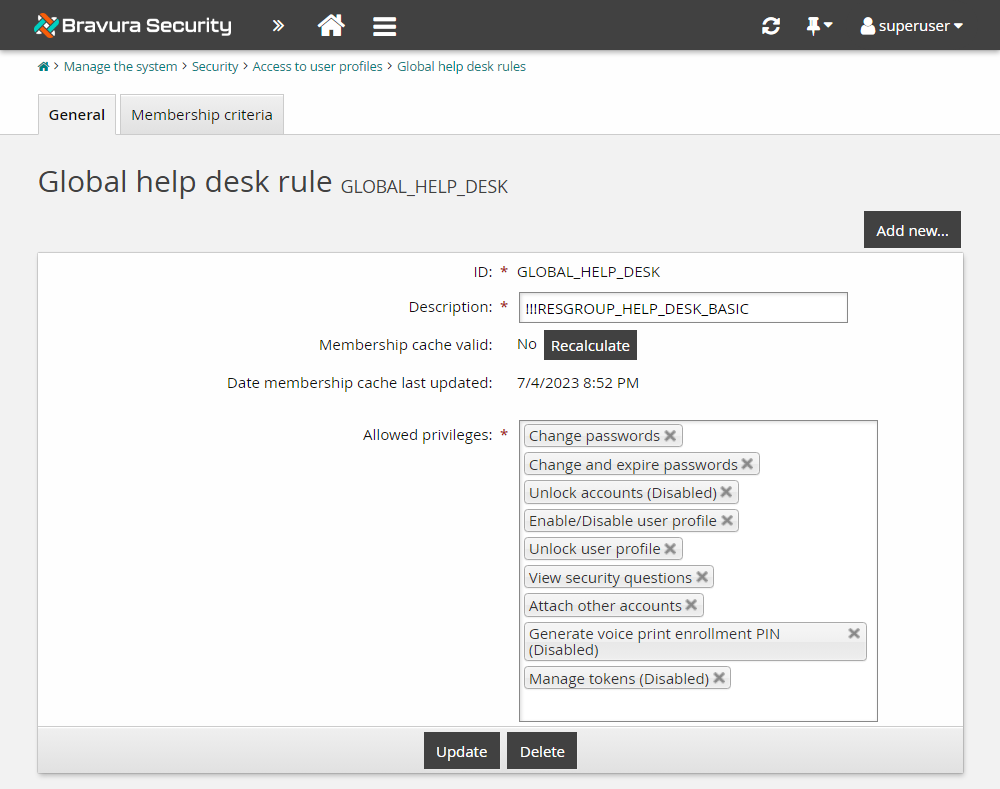
Click Update.
Click the Membership criteria tab.
This page allows you to select or create user classes that define the membership rules to have these access rights. By default, the membership criteria for this user access rule is defined by the _GLOBAL_HELP_DESK_ user class.
Click the General tab and click Recalculate for Membership cache valid.
The members of the _GLOBAL_HELP_DESK_ user class have now been granted permissions to see a user's security questions.
Testing privileges
The Show effective privileges function allows you to view the privileges for individual users by user access rule categories. To do this:
Click Manage the system > Security> Access to user profiles > Show effective privileges.
Type the profile ID of the Requester. This is the person for whom you want to show effective privileges.
Select which set of Rules to show effective privileges for:
Global help desk rules
Self-service rules
Delegated administration rules – You must enter the <PROFILEID> of the Recipient.
Click Test.
Bravura Security Fabric displays the message “User [ <profileID> ] has the following privileges when acting on <recipient> ”, and lists the privileges for the requester.
If the requester has a privilege in multiple user access rules, then they are all displayed.
Access to profile and request attributes
rules define read and write permissions on profile and request attributes for self-service users and help desk users. The rules define which privileges a group of users can have, and user classes define membership criteria for each user access rule.
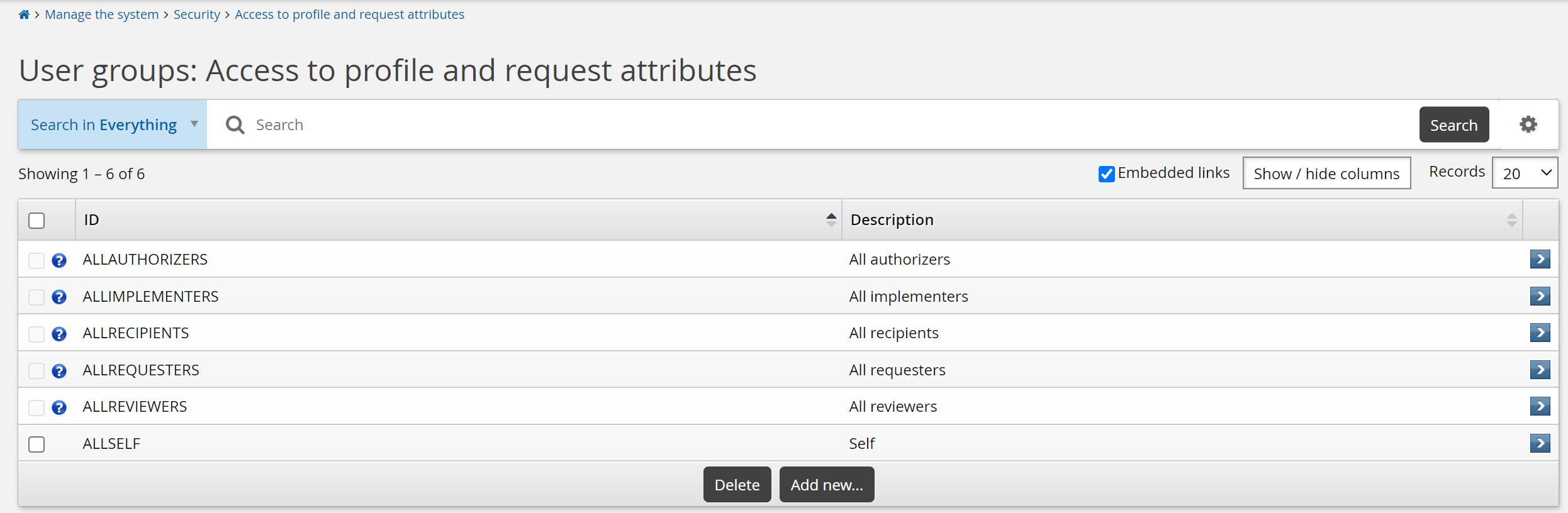
The following built-in user groups are configured for profile and request attributes:
ALLAUTHORIZERS | All users designated as authorizers of requests. |
ALLIMPLEMENTERS | All users designated as implementers of requests. |
ALLRECIPIENTS | All recipients of access change requests. |
ALLREQUESTERS | All requesters of access change requests. |
ALLREVIEWERS | All users designated to complete an entitlement or configuration review. |
Requirements
You require the "Manage user groups" administrative privilege to access the Access to profile and request attributes menu item.
You cannot modify the access controls of a user group of which you are a member.
Navigation steps
Click Manage the system > Security > Access to profile and request attributes.
Search for, or select a user group, or click Add new...
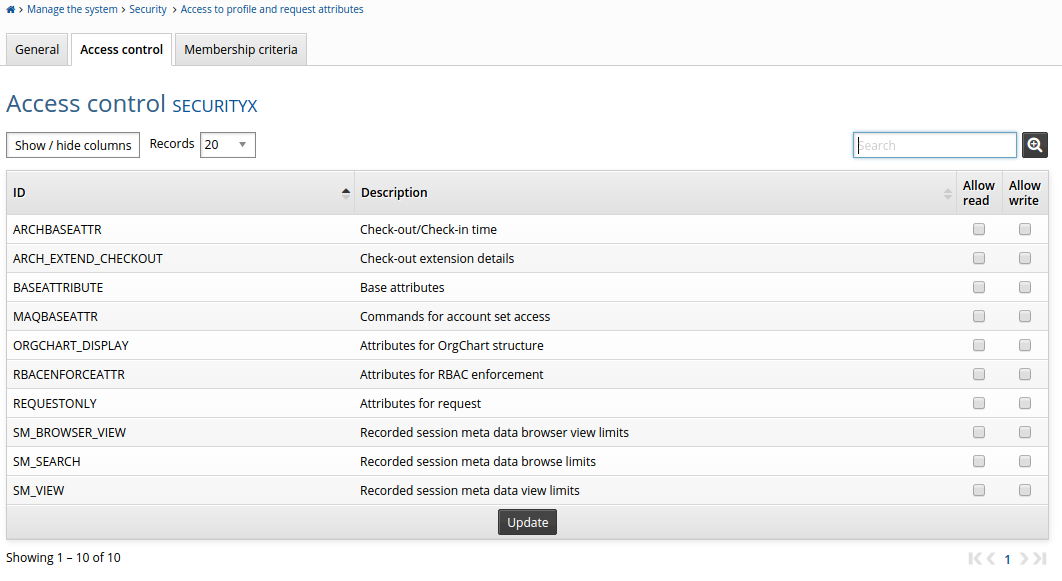
Click the Access control tab.
Select Allow read and Allow write checkboxes for attribute groups as required.
Define user group membership criteria.
Click Update to save changes.
You can also define permissions via the Workflow > Attribute groups menu.
Configuration notes
Users must have rights to at least one attribute group in order to view or edit attributes in Bravura Security Fabric .
Users can be members of multiple user groups, and are assigned the highest combination of privileges assigned to the rules to which they belong.
For example:
User A belongs to recipient group B with read permissions on attribute group C.
User A belongs to recipient group D with write permissions on attribute group C.
User A in effect has both read and write permissions on attribute group C.
The highest combination of rights is also assigned when a user is both recipient and requester, when using the Requests app. That is, when a user is tracking a request and:
Has requested an change for somebody else, their rights as a requester are in effect.
Is the recipient of a change requested by somebody else, their rights as a recipient are in effect.
Has requested a change for themselves, their combined rights as requester and recipient are in effect.
Similar rules apply for users who are both requester and authorizer.
If an attribute group contains required attributes that can only be edited by authorizers, the requirement is ignored until the request reaches the authorization stage. If authorizers then fail to provide values for the required attributes, the request is automatically denied.
Caution
When a user group is assigned write-only permissions to attributes with restricted or boolean values, they in effect cannot view or edit those attributes. If you require a user to be able to edit attributes with restricted or boolean values, you must assign them read/write permissions.
Access to resource attributes
rules define read and write permissions on resource attributes for self-service users and help desk users. The rules define which privileges a group of users can have, and user classes define membership criteria for each user access rule.
The following built-in user groups are configured for resource attributes:
ALLUSERS | All users |
ENTITLEMENT_EXPIRY_CONFIG | Users who can configure entitlement expiry days |
GROUP_CREATE_USERS | Users who can create groups |
Requirements
You require the "Manage user groups" administrative privilege to access the Access to resource attributes menu item.
You cannot modify the access controls of a user group of which you are a member.
Navigation steps
Click Manage the system > Security > Access to resource attributes.
Search for, or select a user group, or click Add new...
Click the Access control tab.
Select Allow read and Allow write checkboxes for attribute groups as required.
Define user group membership criteria.
Click Update to save changes.
You can also define permissions via the Manage the system > Resources > Resource attribute groups menu.
Privileged access to systems
rules control access to managed system policies and privileged access change requests. The rules define which privileges a group of users can have, and user classes define membership criteria for each user access rule.
The following user groups are configured by default for privileged access to systems:
ALLAUTHORIZERS | All users designated as authorizers of requests. |
ALLRECIPIENTS | All recipients of access change requests. |
ALLREQUESTERS | All requesters of access change requests. By default this group has permission to request authorization to view the administrative password of any managed system. |
IT_SEC_USERS | IT security users who are pre-approved to check-out managed account access. |
MSP_REPORT_USERS | Product administrators who can generate and view reports relating to Bravura Privilege , including password check-in/check-out, password expiry, and password history. |
Defining privileged access rules
Requirements
You require the "Manage user groups" administrative privilege to access the Privileged access to systems menu item.
You cannot modify the access controls of a user group of which you are a member.
Navigation steps
Click Manage the system > Security > Privileged access to systems.
Search for, or select a user group, or click Add new...
Click the Access control tab.
Select Grant or Deny checkboxes for managed system policies as required. Access controls are listed in Table 2, “Privileged access controls”.
Define user group membership criteria.
Click Update to save changes.
You can also assign access controls from within a managed system policy.
Permission | Description |
|---|---|
View properties for this policy | Allows product administrators to view the managed system policy and its members. |
Modify properties for this policy | Allows product administrators to modify the managed system policy and its members. |
Pre-approved check-out of managed accounts | Allows members to access accounts currently managed by this managed system policy. |
Randomize/override password of managed accounts | Allows members to randomize and override passwords currently managed by this managed system policy. |
Request check-out of managed accounts | Allows members to request access to accounts currently managed by this managed system policy, including account set access requests. Members can use shared account sets; however, they cannot modify them. |
View information: Managed systems/Managed accounts/Group sets/Account sets | Displays the managed system, managed account, group sets, and account sets as hyperlinks throughout the request to allow members to view system/access information from a pop-up window. |
Pre-approved check-out of group sets | Allows members to access group sets currently managed by this managed system policy. |
Request check-out of group sets | Allows members to request access to group sets currently managed by this managed system policy. |
Pre-approved search of recorded sessions | Allows members to be auto-approved to search the managed system policy’s recorded sessions. |
Pre-approved download of recorded sessions | Allows members to be auto-approved to download this managed system policy’s recorded sessions. |
Pre-approved view of recorded sessions | Allows members to be auto-approved to view this managed system policy’s recorded sessions. |
Run reports about privileged access for this policy | Allows product administrators to run reports on recorded session information for this managed system policy. |
Access password history for managed accounts | Allows members to view the password history for a managed account when access is checked out. |
Modify all account sets in this policy | Allows members to modify account sets managed by this managed system policy, whether shared or not. |
Manage systems on this policy | Allows product administrators to modify properties of systems currently managed by this managed system policy. |
Caution
Use of pre-approved options is not recommended for security reasons.
Product administrator user groups and permissions
The permissions granted by a user group work in conjunction with administrative privileges. Product administrators with the "Manage managed system policies" administrative privilege have the right to access managed system policies configuration pages. You add those product administrators to one or more user groups, which control which managed system policies the members have access to. For each managed system policy, the user group can be granted permissions listed in Table 2, “Privileged access controls”.
These permissions apply to administrative menus and to reports, such as the Password change history report. That is, a product administrator who has the " Manage reports " administrative privilege can only generate reports for managed system policies to which he has view access.
Product administrators can belong to more than one user group. The maximum privilege is given when a product administrator belongs to multiple user groups, as privileges are cumulative.
Regular user groups and permissions
Bravura Privilege allows regular users to request temporary access to administrative passwords on managed systems, for themselves or other users, using authorization workflow.
When you create a Bravura Privilege managed system policy, Bravura Security Fabric automatically gives all users, via the built-in ALLREQUESTERS user group, the permission to:
Request check-out of managed accounts
View information: Managed systems/Managed accounts/Group sets/Account sets
Request check-out of group sets
This default behavior can be changed in the Modules > Privileged access menu. Disable the IDARCHIVE PASSWORD REQUESTED and IDARCHIVE GSET REQUESTED settings. This changes the default behavior so that users must be assigned to a user group with appropriate permission.
You can also override this default behavior via a group’s Access control tab. For each managed system policy, the user group can be granted permissions listed in Table 2, “Privileged access controls”.
If regular users have ”Pre-approved check-out of managed accounts ” and ”Request check-out of managed accounts ” permissions, they can check out managed accounts without needing authorization. They can also update the end time of their checkout.
Note
If enabling ” Pre-approved check-out of managed accounts ” for managed system policies with the SSH key authentication type, check-out requests are automatically approved instead of pre-approved.
Regular users can belong to more than one user group. The maximum privilege is given when a user belongs to multiple user groups - privileges are cumulative.
Note
Regular users who are not also members of an administrative group cannot modify managed systems, or randomize or override passwords. Users must have appropriate product administrator capabilities to manage managed systems.
Defining user group membership criteria
A user group can have one or more users as members. Membership criteria for a user group is defined by selecting or creating user classes. Users must be participants of the selected user classes in order to have membership in the user group. For access to profile and request attributes, a user class must be mapped to the participant type: requester or recipient.
See User classes for more details on user classes.
This procedure applies to:
To define user group membership criteria:
From the page, click the Membership criteria tab.
Note
There are no tabs on the page for , which are only defined by membership criteria.
Add user classes to the rule. To define rule membership criteria:
Select existing user classes: Click Select and enable the checkboxes for the user classes you want to add, then click Select.
Create new user classes: Click + Add new .
Select and create user classes until you have defined group membership.
For access to profile and request attributes, set the Participant mapping to the:
REQUESTER to define can view and edit other users’ attributes
RECIPIENT to define whose attributes are being viewed and edited
If you have selected multiple user classes, select whether the participants must match All of the user classes or Any of the user classes .
The default setting is All of the user classes.
For a delegated administration rule, map user class participants as either REQUESTER or RECIPIENT. There must be at least one of each.
For profile comparison rules, map user class participants as either REQUESTER , RECIPIENT , or MODELUSER.
For example, the user class _MANAGER_DIRECT_ links a manager and a subordinate; you can define the manager as the requester and the subordinate as the recipient or model user. Arrange user classes so you have a defined relationship between a requester and a recipient, and between a requester and a model user.
Click Update to save your settings.
Once you have finished defining membership criteria, you can click the Test tab to Test membership of individual users, or List members.
Membership of non-built-in user classes can be cached to improve performance. There are options to recalculate or invalidate the cache on the user class configuration page.
Note
In a replicated environment, cache recalculation can only be performed on the instance which runs psupdate.
Removing users from membership
To remove users from rule membership, you can:
Edit user classes to change the participants.
Delete user classes from the membership criteria.
From the membership criteria page, enable the checkbox next to the user classes you want to delete.
Click Delete.
Security plugin options
You can set the options listed in the table below on the Manage the system > Security > Options menu.
Option | Description |
|---|---|
API ADMIN PLUGIN | Filters API function calls made by API users. This overrides the default API functions that API users are allowed to call. |
API ADMIN PLUGIN EXCLUDE | Add a comma-delimited list of users to exclude when running the API ADMIN PLUGIN. |
OTP MAXIMUM | Controls the number of last known passwords for an OTP API caller that are still considered valid. The default is set to 0, meaning that the one-time password will be invalidated after its first use. |
USER OPERATION FILTER PLUGIN | Control the operations that users can perform. You can also control the operations that users can perform by applying user access rules to user classes. This plugin can be used for more complex requirements. See Operation filtering . |
API administrative privileges
You can configure the API ADMIN PLUGIN to choose which API functions can be called for certain API users.
By default, OTP API users are only allowed to call KMKeyGetByAccount, RecoverKeyByAccount, ManagedAccountOverridePassword, and ManagedAccountRandomizePassword API functions, while all other API users are allowed to call all API functions except KMKeyGetByAccount and RecoverKeyByAccount.
This plugin will override the default settings, so if you want to include additional API functions to call and retain the existing ones, you must explicitly include this in the plugin.
To use a plugin to determine access controls for API users:
Click Manage the system > Security > Options .
Type the name of the plugin program in the API ADMIN PLUGIN field.
Optional: In the API ADMIN PLUGIN EXCLUDE field, add a comma-delimited list of users to exclude when running the plugin.
Click Update.
There is no shipped plugin in use with this plugin point.
Execution points
This plugin is executed any time an API function other than Login, LoginEx, or Logout is called. Refer to the api.pdf for available API functions.
Input
"" "" = {
  "OTP" = "false"

  "REST" = "false"

  "function" = "UserclassActorGet"
  "sessionid" = "Ibcb3b1a0-9f22-4221-9479-fb7dcb18badf"
  "userid" = "_API_USER"
}
Where:
OTPindicates whether the logged-in user is an OTP user.RESTindicates whether the plugin is being called from classic API or the REST API.functionindicates the API function being called.sessionidis the current session ID.useridis the user calling the API function.
Output
The following is an example of the output returned by the plugin
# KVGROUP-V1.0
"" "" = {
  "errmsg" = ""
  "retval" = "0"
  "action" = "allow"
}
Where:
errmsgis used to indicate the error on failureretvalis zero on success or non-zero on failure.actionis ’allow’ on success or ’deny’ on failure.
Operation filtering
Many organizations apply business logic to define what employees are allowed to do; for example, allow only managers to submit requests for disabling user access. Bravura Security Fabric implements the operation filter plugin point to allow you to restrict access to operations based on who the user is.
Note
You can also control the operations that users can perform by applying user access rules to user classes. This plugin can be used for more complex requirements.
To enable the plugin point:
Click Manage the system > Security > Options .
Type the name of the plugin in the USER OPERATION FILTER PLUGIN field.
Click Update at the bottom of the page.
The built-in plugin, userOperationFilter.psl, allows the permitted operations, based on user access rules, to be overridden by a requester. This plugin is not enabled by default. The default behavior is for Bravura Security Fabric to use user access rules to define permitted operations. You can also set a filter plugin to filter the users that a logged-in user can manage.
The userOperationFilter.psl plugin script, stored in the \<instance>\plugin\ directory, is written in the PSLang scripting language. You can customize the script to grant requesters additional control, or write a customized script.
Caution
Granting requesters additional control can weaken security. For example, if users are allowed to perform delete operations, they may be able to delete accounts belonging to other users.
Ensure that authorizers are assigned to target systems, and that the target systems require at least one authorizer. If you don’t, users’ requests to disable other user’s accounts are auto-approved, since they are not acting on any template.
Execution points
This plugin is run from the Front-end (PSF), Help users (IDA) module, View and update profile (IDR) module, Browse the OrgChart (IDO) module, Manage the OrgChart (IDG) module.
Options which the user cannot perform will not appear on the menus or request forms. When a recipient is not included in the input, the plugin provides user access rules for any potential user.
If the user is not allowed to perform any options on a request form, a message is displayed: "You cannot manage this user".
Input
Input passed to the plugin is as follows:
  "" "" = {
      "OP_ALLOWED" = "{ ... } # Operation type
        # Can have one or more OP_ALLOWED keys
      "delegId" = "<Profile ID>" # The user receiving delegated access
      "recipient" "user" = { ... } # Recipient's data
        # When the recipient is omitted, then the user access rules are
        # evaluated for any potential user.
      "viewer" "user" = { ... } # Viewer's data
   }
The following is an example of input to the plugin:
"" "" = {
  "OP_ALLOWED" = "NETRES"
  "OP_ALLOWED" = "CREATE"
  "reservationid" = ""
  "recipient" "user" = {
    "id" = "ADAM0000"
    "name" = "Adams, Lane"
  }
  "viewer" "user" = {
    "id" = "ACOS0000"
    "name" = "Alyce G Acosta"
  }
}
Output
The program outputs an operation keyword with a value "ALLOW" for each operation the user is permitted to perform. The user cannot perform any operation that is not explicitly allowed.
The operation keywords are listed in User access rule privileges.
The plugin also outputs the return value (0=success, non-zero=fail) and an error message if the return value if non-zero.
The following is an example output:
"" "" = {
  "NETRES" = "ALLOW"
  "CREATE" = "ALLOW"
  "DELEGATE" = "ALLOW"
  "DELETE" = "ALLOW"
  "DISABLE" = "ALLOW"
  "MANAGEGROUPS" = "ALLOW"
  "MOVECTX" = "ALLOW"
  "RENAME" = "ALLOW"
  "ROLES" = "ALLOW"
  "UPDATE" = "ALLOW"
  "retval" = "0"
  "errmsg" = "Successful"
}