Authentication chains: Use cases and examples
This section outlines use cases for authentication chains and examples of how to configure them. Broadly, use case scenarios fit into two categories, single-factor and multi-factor authentication.
Best practice
PINs sent via SMS and usage of security questions are not recommended authentication methods as they are less secure methods.
Twilio-based SMS PIN delivery for authentication is also nearing end of life, see here for more information: https://www.twilio.com/en-us/changelog/notify-api-end-of-life-extension-notice .
It is instead recommended to use two-factor authentication such as with Bravura OneAuth authentication. See Add Bravura OneAuth authentication to Bravura Security Fabric for more information.
Usage of PINs sent via email is also an option as part of the authentication process as an alternative for SMS PINs.
Single-factor authentication
Single-factor authentication (SFA) is a process that requires a single method of authentication to verify a user’s identity. Bravura Security Fabric provides a number of built-in and scenario based authentication chains that implement an SFA authentication process. Examples include:
Password based authentication against an external source (one of the integrated target systems)
Security questions based authentication (where security questions and answers are stored externally or within the product)
One-time passwords such as PINs sent to a device or location that requires a separate authentication process
Token or smart card based authentication
Caution
An improper configuration of the DEFAULT_LOGIN or HELPDESK_LOGIN authentication chains can render your Bravura Security Fabric instance inaccessible. Bravura Security recommends using the authcfg program to export authentication chain settings before modifying the default configuration. See authcfg .
The following describe some SFA use cases typically implemented as part of Bravura Security Fabric deployments.
Multi-factor authentication
Multi-factor authentication (MFA) is a process that requires more than one method of authentication from independent categories of credentials to verify a user’s identity. Bravura Security Fabric fully supports the configuration of MFA as part of its authentication process.
Deployments of Bravura Security Fabric that require enhanced authentication security typically implement a 2FA (two-factor authentication - subset of MFA) process by combining two authentication factors in subsequent steps. The two factors include something you know (such as a password or answers to security questions) and something you own (such as a mobile phone or token).
Using built-in functionality, the first step of authenticating a user can be configured to require validation using one of:
Password
Security questions (Not recommended for use in a Bravura Privilege implementation.)
As part of a second authentication step, the user then requires validation using one of:
Email (PIN sent to email address)
Phone (PIN sent via SMS)
Mobile app (by scanning a QR code displayed on the product’s login page)
Third-party token (a PIN that must be provided on the product’s login page)
Browser fingerprinting can be used to remember a previous authentication. When a user attempts to authenticate again, the fingerprint can allow the user to skip the first step.
Bravura Security Fabric ships with a number of built-in modules and scenario components which implement 2FA for users.
Single factor authentication: Password or security questions
For this use case, an authentication chain is set up to allow authentication with either a password or security questions. Even if the password is incorrect, the user may still proceed further down the chain to try logging in using their security questions.
This can be implemented by configuring a custom authentication chain:
Module | Control type |
|---|---|
Password authentication ( | sufficient |
Security questions ( | binding |
When a user logs in:
The user chooses the custom authentication chain and enters a password.
If the password is entered:
Correctly, then the user is immediately logged into the Front-end.
Incorrectly, then the authentication chain continues and the user is prompted to answer their security questions.
If the answers to the security questions are:
Valid, then the user is immediately logged into the Front-end .
Invalid, then the user is redirected to the main page to select an authentication method to use to log in. This is because the Control type for the
response.pssmodule is set tobinding, so the chain fails if an invalid answer is entered. Also, thepassword.pssmodule has the Control type set tosufficient, which requires at least one module to succeed authentication.
Two-factor authentication: Password and security questions
For this use case an authentication chain is set up to require authentication with both a valid password and valid answers to security questions.
This can be implemented by configuring a custom authentication chain:
Module | Control type |
|---|---|
Password authentication ( | required |
Security questions ( | binding |
When a user logs in:
The user chooses the custom authentication chain and enters a password.
If the password is entered:
Correctly, then the user is prompted for their security questions.
Incorrectly, then the user is prompted for their security questions. However, even if the security questions are answered correctly, the user is redirected to the main page to select another authentication method. This is because the Control type for the
password.pssmodule is set torequired. A valid answer is required for this module in order for the chain to pass authentication, as well as correct answers for all the modules in the rest of the chain.
If the answers to the security questions are:
Valid, then the user is immediately logged into the Front-end .
Invalid, then the user is redirected to the main page to select another authentication method. This is because the Control type for the
response.pssmodule is set tobinding, so the chain fails if an invalid answer is entered.
Example: Two-factor authentication
In this example, the default authentication chain includes the select_chain module which presents the user with options for authentication. In this demonstration, a second module is added to the default authentication chain, so that users must pass two-factor authentication in order to proceed. The second module will prompt users to answer a security question if they have completed their security questions profile.
This example assumes that the Update security questions (PSQ) module is enabled and an end user has completed their security questions profile. In a Bravura Privilege installation, the Update security questions (PSQ) module is disabled by default, because it is a weak authentication method by itself.
Click below to view a demonstration.
To configure authentication for this scenario, first add a custom authentication chain module:
Log into Bravura Security Fabric as
superuser.Click Manage the system > Policies > Authentication chains > Front-end login.
The Front-end login page shows the DEFAULT_LOGIN authentication chain.
Click Disable.
You must disable a chain in order to modify it. This prevents users from interacting with the chain while you are configuring it.
Disabling the DEFAULT_LOGIN authentication chain does not prevent users from accessing Bravura Security Fabric ; it simply defaults to using the PSFEXT VALUES specified in Modules > Front-end (PSF) options.
Under Modules, select the
select_chainmodule.Set the Control type for this module to
Required.This means that, if authentication on this module succeeds, access is granted unless authentication fails on a module further along the chain. If authentication fails, the user proceeds to the next module, but is ultimately denied access.
Click Update to close the Module configuration options.
Now add a second module.
Under Modules, click Add new…
Configure the built-in security question module:
From the Module drop-down list, select
Security questions.Set the Control type for this module to
Required.Click Update.
Notice some extra options become available in the section.
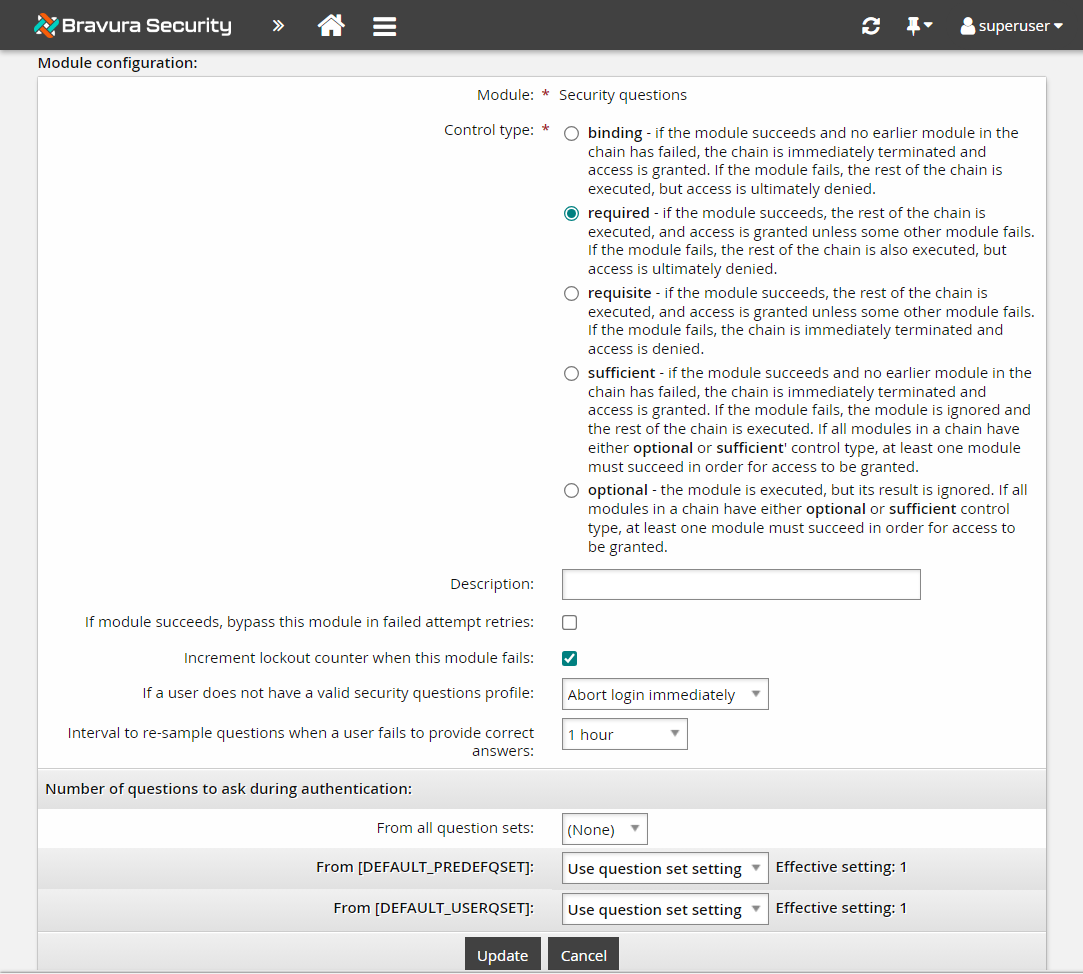
From the If a user does not have a valid security questions profile drop-down list, select
Bypass this module.In the Number of questions to ask during authentication section, select
1forFrom [DEFAULT_PREDEFQSET]andFrom [DEFAULT_USERQSET].Click Update to close the Module configuration options.
Confirm that the modules are in the correct order and type; that is, the
select_chainmodule has a1in the Order column, and theresponse.pssmodule has a2in the Order column.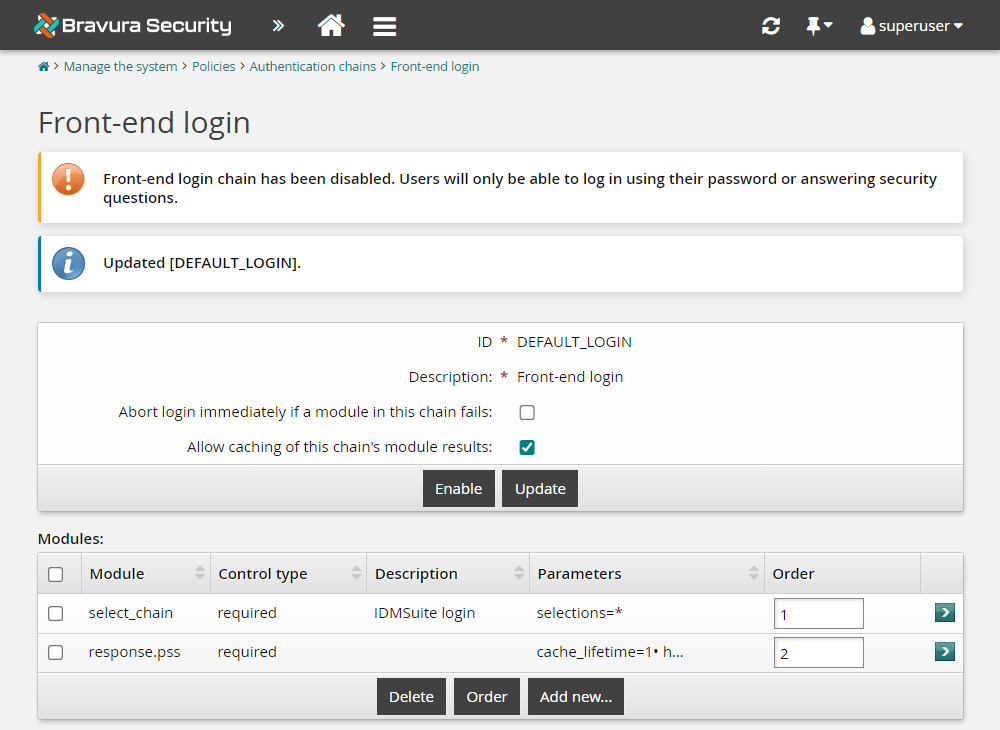
For maximum security, the last module in a chain should always have a binding, required or requisite control type.
Click Enable to make the DEFAULT_LOGIN authentication chain available to users.
To test the authentication chain:
Log in to Bravura Security Fabric as.
Because the the PSF EXT option is set to User-selectable via Manage the system > Modules > Front-end (PSF), and the PSFEXT VALUES option includes both
password.pssandresponse.pss, the user is given an initial choice to select either password or security question authentication.Click Use password.
Enter the correct password.
Because the separate
select_chainandresponse.pssmodules' Control type values are both set to required, the user must authenticate using EITHER their password OR security questions (as noted in step 1) AND then security questions again, in the order specified. They chose and satisfied the password requirement, and now the Security questions page is displayed.Correctly answer the security question.
You will be directed to the main menu.
Both required authentication modules have been satisfied, and the user is successfully logged in.
If, during testing, you were prompted with a choice of password or security questions followed by the user's security questions and had to answer both correctly to gain entry, then you have completed the configuration correctly.
PIN sent via SMS or email
Authentication chains can be used in conjunction with the View and update profile (IDR) module to utilize mobile phones as part of the authentication process.
Best practice
PINs sent via SMS and usage of security questions are not recommended authentication methods as they are less secure methods.
Twilio-based SMS PIN delivery for authentication is also nearing end of life, see here for more information: https://www.twilio.com/en-us/changelog/notify-api-end-of-life-extension-notice .
It is instead recommended to use two-factor authentication such as with Bravura OneAuth authentication. See Add Bravura OneAuth authentication to Bravura Security Fabric for more information.
Usage of PINs sent via email is also an option as part of the authentication process as an alternative for SMS PINs.
Security considerations
SMS Security Limitations: SMS transmission may lack inherent security, as messages are transmitted in plain text from the SMS service provider to the recipient's device. However, most SMS service providers offer security over the Internet via TLS encryption from the sender's servers to theirs.
Integration with Secure Providers: Bravura Security Fabric provides access to published APIs of SMS service providers, allowing clients to integrate with reputable providers. This enables organizations to leverage the security features and authentication mechanisms offered by these providers to enhance the security of SMS notifications.
TLS Encryption: While SMS transmission may lack inherent security, the use of TLS encryption between servers can provide an additional layer of security, ensuring that messages are transmitted securely over the Internet.
Implementation
There are several Scenario components for sending one-time PINs, depending on the existing infrastructure the customer has, and the expected delivery method for the PIN.
If you have one or more email-to-SMS gateways, like the ones provided by various phone providers, use Scenario.hid_authchain_smspin_email
If you purchase a specific API-based SMS provider subscription, there are two other Scenario components provided with the base product install: hid_authchain_smspin_twilio and hid_authchain_smspin_celltrust
By default, a single SMS PIN method can be used in a specific integration, so the three Scenarios listed above are mutually exclusive, as noted in their manifest files.
There are two stages in the process: enrollment and authentication.
For enrollment, users provide their contact information by logging into the View and update profile (IDR) module and populating profile and request attributes for mobile phone provider and mobile phone number, and/or email address. Enrollment can be enforced by redirecting users to the View and update profile (IDR) module when they login.
For authentication, Bravura Security Fabric generates a random PIN and can either email it to the user via an email-to-SMS gateway or use an SMS Messaging Gateway such as the CellTrust SMS Gateway to send the SMS message. The user receives the SMS containing the PIN and types it into the Front-end to log in.
This case can be implemented in the following way:
The Email/SMS PIN module is configured as follows:
PIN delivery method: Email/SMS Gateway
Profile attribute specifying email/mobile phone number: A required, restricted-value profile and request attribute must be added for the users mobile phone number.
Profile attribute specifying mobile phone service provider: A required, restricted-value profile and request attribute must be added for the users mobile phone service provider.
The attributes must be configured with the Allow in authentication chains option enabled.
The Front-end is configured to enforce enrollment for the View and update profile (IDR) module.
User notification is configured to direct users to login and fill in their details.
When a user logs in:
The user is automatically directed to the View and update profile (IDR) module to fill in their details.
Other authentication options must be available.
The next time the user logs in, they can use the SMS/email PIN authentication module, which sends a PIN to their mobile phone or email address. They are required to enter the PIN before authentication can be granted.
Alternatively, users’ phone details could be populated from a data source such as an Active Directory account attribute.
For most implementations the email address is auto-populated from the source of profiles; users are not allowed to update the email value.
There is more than one way to implement this functionality. It can be deployed using the authchain_emailpin scenario component shipped with Bravura Security Fabric , as illustrated below.
Example: Authentication via Email PIN
In this example, installing the hid_authchain_emailpin component modifies the Front-end login authentication chain to include a custom chain. This allows you to send a temporary PIN to a user’s email address as part of the authentication process. The user must enter the PIN within ten minutes of it being sent to authenticate.
The Front-end login authentication chain is configured with these settings:
Module | Control type |
|---|---|
Select chain ( | required |
Security questions ( | binding |
Click below to view a demonstration.
Log into Bravura Security Fabric as superuser .
Click Manage components > Scenario.
Select the checkbox for
Scenario.hid_authchain_emailpin.Click Install component(s) from the Actions panel on the right.
The component management program installs the component along with any dependencies. This may take some time depending on configuration requirements and dependencies. You should see ”Completed install for component” messages for each selected component in the TASK STATUS section of the Actions panel .
To test the addition of Email PIN authentication to the DEFAULT_LOGIN chain:
Log in to Bravura Security Fabric as an end user.
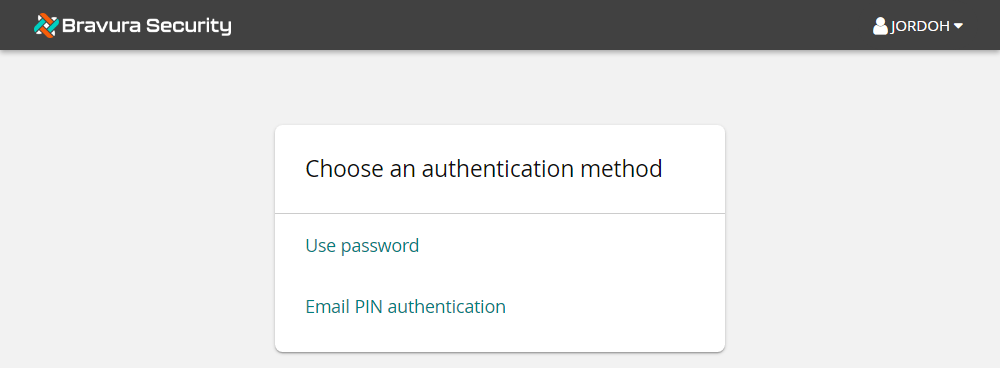
If you see a raw tag string instead of Email PIN authentication, restart your browser.
Click Email PIN authentication.
The page is displayed.
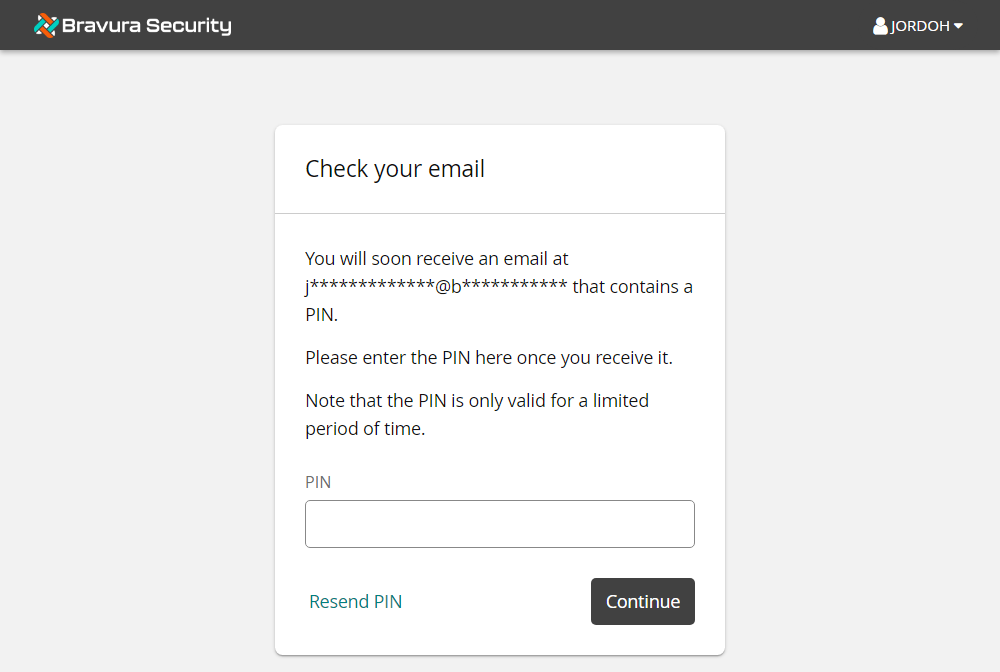
From the desktop, open Webmail.
Navigate to the Inbox and locate the "Your temporary PIN" message containing the user's email PIN.
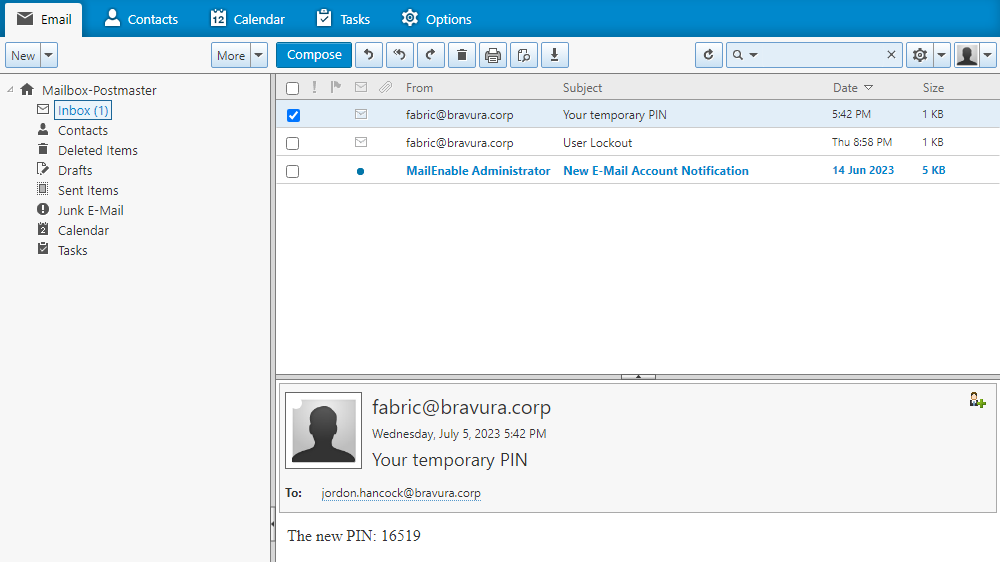
The body of the message contains the text ”The new PIN: <NNNNN>”.
In Bravura Security Fabric , enter the requested information and click Continue.
This module is a required control type. If you enter the incorrect response you will receive an error saying ”Invalid PIN”.
Once you have entered a correct PIN, you are then presented with two of the user’s security questions.
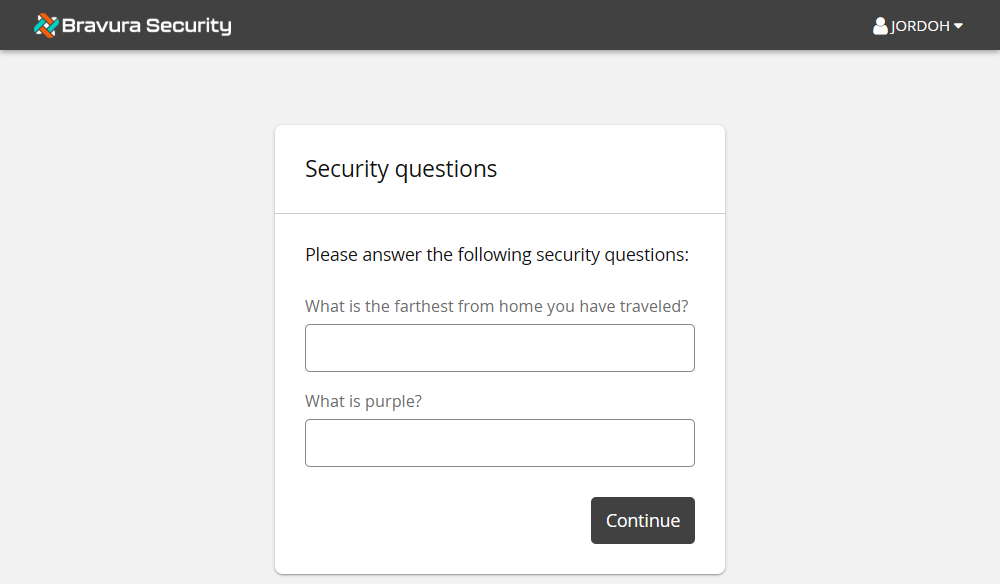
Answering the questions correctly will take you to the user’s home page.
If you are directed to the user's home page, you have completed the configuration correctly.
Example: Authentication via SMS PIN
In this example, installing the hid_authchain_smspin_email component modifies the Front-end login authentication chain to include a custom chain . This allows you to send a temporary PIN via SMS text message as part of the authentication process. The component uses the mobile providers’ email-to-text gateways to send SMS texts to registered cell phones. Major US and Canadian providers are automatically onboarded; other providers must be added before users register the phone to be available.
This component is installed by default with Bravura Workforce Pattern. This example shows you how to modify external data settings to customize the component.
Log into Bravura Security Fabric as superuser.
Click Manage components > Refbuilds.
Select the checkbox for
RefBuild.im_corporate.Click Install component(s) from the Actions panel on the right.
The component management program installs the components along with any dependencies. This may take some time depending on configuration requirements and dependencies. You should see "Completed install for component" messages for each selected component in the Details section of the Actions panel.
When you install a component, the component management program creates the database tables, framework, and configurations that are necessary for the plugin points to function.
Review the settings by clicking Manage external data store > hid_global_configuration.
Verify the default settings for
Scenario.hid_authchain_smspin_emailare as below: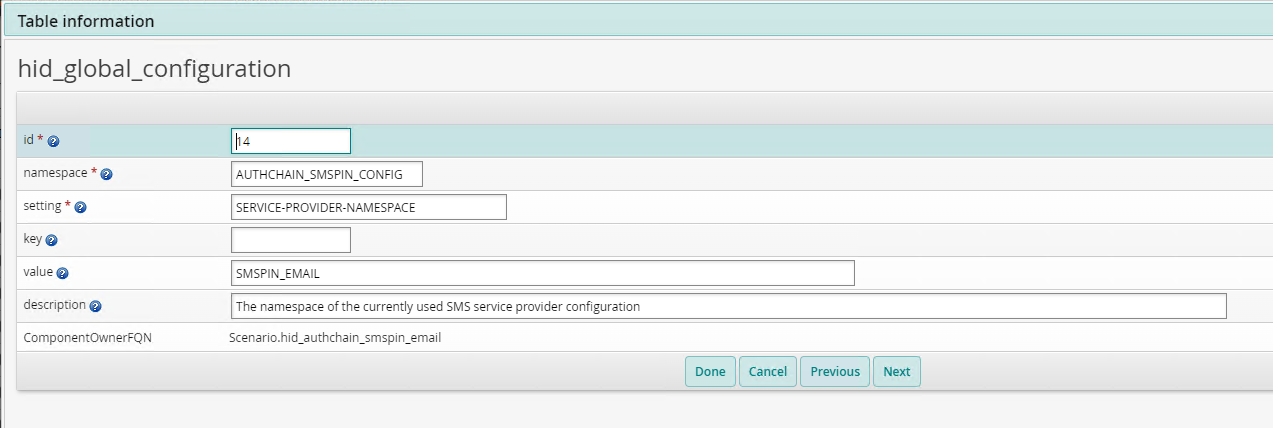
Populate or verify defaults in the external database namespaces for smspin and the SMS provider:
As superuser, navigate to the main menu and click Manage external data store.
Select
hid_global_configuration.Search in the table for something like "Value like '%SMSPIN_EMAIL%'".
Click the edit icon
 next to the empty row at the bottom of the table.
Adjust the following values:
ID <id>
namespace <>
setting
key
value
description
Click Done to close the edit form.
Click Update.
The external data store (extdb) hid_global_configuration table contains the name of the profile attribute to be used to store users' phone numbers. Format the profile attribute to match the format expected by the SMS provider used.
Provide the data source for the cellphone attribute:
If a source target account attribute is available in an HR feed, Company Directory or some other target from where the cellphone number can be automatically imported, link that account attribute into the profile attribute defined in the external data store.
Consider granting the end-user access to edit that profile attribute, for example by adding it to the BASE_ATTRIBUTES profile attribute group .
Add a custom SMS/PIN scenario
There are many other such possible scenarios for sending a PIN via SMS or email that could be customized for an SMS/PIN provider that provides a REST API or some other form of WebApp integration.
If you have the necessary Python and web-service integration expertise, you can:
Copy the
hid_authchain_smspin_twilioScenario component from the component\Default\Scenario directory to component\Custom\Scenario.Copy the respective Functional component (
component\Default\Functional\hid_smspin_twilio) from Default to Custom.Rename the two components' directories to match the name of the new SMS ISP to integrate with; for example
Functional\hid_smspin_plivoandScenario\hid_authchain_smspin_plivo.Edit the two Custom components' files to match the requirements of the new integration.
For guidance from Bravura Security's Professional Services, contact your Account representative to request a service engagement.
Authentication via Bravura One app
Organizations often deploy Bravura Privilege on their private, corporate network. Using their work PCs, users can access the web portal of any of these products either through the physical corporate network (Ethernet or WiFi) or using a VPN.
Users may wish to access these same Bravura Security products, which are not normally reachable from the public Internet, using a personal device such as a smart phone or tablet.
The Bravura One app allows personal mobile devices to access the Bravura Security Identity and Access Management (IAM) system deployed on the corporate private network.
Connectivity between the phone or tablet, attached to the public Internet, and the on-premise Bravura Security software, is mediated by a proxy server, deployed either on-premises or in the cloud.
See the Mobile access for more information about Bravura One and the Bravura One app.
Configure two-factor authentication via Bravura One app
The following steps demonstrate how to allow for users to authenticate using a QR Code that is provided by this module for two-factor authentication. The QR Code must be scanned from the Bravura One app that is registered for Bravura One for the user.
Click Home.
Click Manage components.
Search for "2factor".
Select
Scenario.hid_authchain_2factor.Click Install component(s) in the details panel.
Wait for the install to complete.
The component is installing all of its own dependencies and also the dependencies of
Functional.hid_authchain_2factor.When complete, the DETAILS panel will show:
Installed: True
Enabled: True
On the desktop:
Access the log-in page.
Enter a user name and click Continue.
A QR code appears with a time limit of 60 seconds.
On your mobile device:
Open the Bravura One app .
Tap the rocket icon.
Tap Computer Login.
Tap Authenticate User.
Aim the device’s camera at the unobstructed QR code being displayed on the desktop monitor.
Once the code has been recognized, the Choose an authentication method page will be displayed on the desktop.
Select the desired method. For example, Use password or Answer security questions.
Complete the authentication using the second method and click Log in.
Challenge-response authentication
Users can be allowed at access Bravura Security Fabric using challenge-response authentication, including tokens, via applicable Authentication (Tokens/MFA) connectors. The connector package agent module runs the built-in agent.pss authentication program.
The challenge-response is performed externally
When using any challenge-response authentication factors, all profiles being directed to that factor in any of their login paths or usecases must have an associated account from the target configured in the challenge-response module. That account on the challenge-response system needs to have at least one enrolled device or other authentication factors configured.
If this requirement is not met, the authentication cannot proceed, and will log an error both in:
The login Web UI
idmsuite.logfrom the connector binary of the challenge-response targetFor example, the DUO connector (
agtduo) might return: "Warning: Didn't find user enrolled devices"
Configuration
Challenge-response authentication in Bravura Security Fabric cans can be implemented in different ways. The following example makes use of the connector package agent module:
Three separate custom authentication chains are configured:
Chain
Module
Control type
chain_password
Password authentication (
password.pss)binding
chain_questions
Security questions (
response.pss)binding
chain_token
Connector package agent (
agent.pss)binding
The connector package agent module is configured as follows:
Target system to use for address and credentials : <RSA AM7.x/8.x target ID>
Password verification operation : Challenge response authentication
Each of the three separate custom authentication chains must be added to the Available chains section of the DEFAULT_LOGIN authentication
When logging in, the end user chooses the applicable method and enders a valid passcode.
For more detail see example configuration steps for Bravura OneAuth , Okta , DUO , RADIUS ,or RSA .
Add Bravura OneAuth authentication to Bravura Security Fabric
Bravura OneAuth is a passwordless authentication method that allows you to use a trusted mobile device and biometrics to verify your identity. Bravura OneAuth can be used as a secure primary or multi-factor authentication method when accessing Bravura Security applications.
Bravura OneAuth supports mobile versions iOS13+ and Android 9+.
Configure a custom authentication chain for Bravura OneAuth
You can integrate Bravura OneAuth authentication in Bravura Security Fabric by configuring a custom authentication chain, using the agent.pss authentication module with the Bravura OneAuth connector agthypr , to perform a challenge response operation.
The following steps demonstrate how to integrate Bravura OneAuth in Bravura Security Fabric :
Add the Bravura OneAuth target system.
Add a new custom authentication chain:
Add the Connector package agent (
agent.pss) module to the chain.In the module’s settings:
Set Target system to use for address and credentials to the target you created.
Set Password verification operation to ”Challenge response authentication”.
Enable the custom authentication chain.
Add the new custom authentication chain to the DEFAULT_LOGIN chain:
Click Policies > Authentication chains > Front-end login .
Disable the chain so that you can edit it.
Edit the
select_chainmodule to add the new custom authentication chain to the list of Available chains .Update and enable the DEFAULT_LOGIN chain.
Test challenge response authentication with Bravura OneAuth
The following steps demonstrate how to authenticate with Bravura OneAuth in Bravura Security Fabric :
Test the authentication by logging in as an end user associated with the target system.
You will be notified that an authentication request will be sent to the HYPR app on the user’s registered device,
Click Continue.
A Bravura OneAuth push notification for the authentication request will appear on the HYPR app for "Login" or "Deny" to approve or deny the request.
Tap Login to approve the authentication request.
The app will indicate that login is successful.
Access is then granted on Bravura Security Fabric .
See also:
Bravura OneAuth for details on how to target Bravura OneAuth
Add Okta authentication to Bravura Security Fabric via API integration
This section demonstrates how to configure Okta, using the API integration method, as an authentication chain with Bravura Security Fabric .
See Okta integration strategy for information about SAML versus API integration.
This demonstration assumes:
An Okta target system has been configured as described in Connector Pack documentation.
The Okta target system is set as a source of profiles, or the Okta accounts are associated to another source.
Auto discovery has been run.
Click Manage the system > Policies > Authentication chains > Front-end login .
Disable the DEFAULT_LOGIN chain and click Add new… to add a new module.
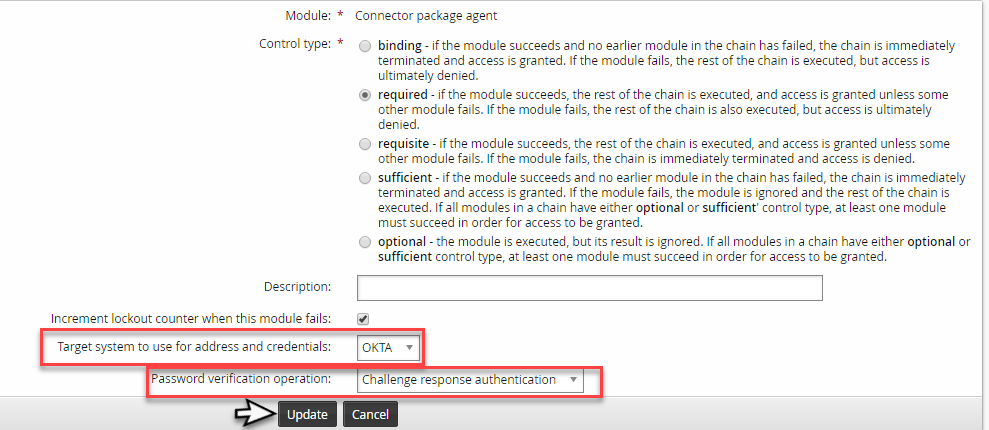
Select
Connector package agentfor the module type.Click Update.
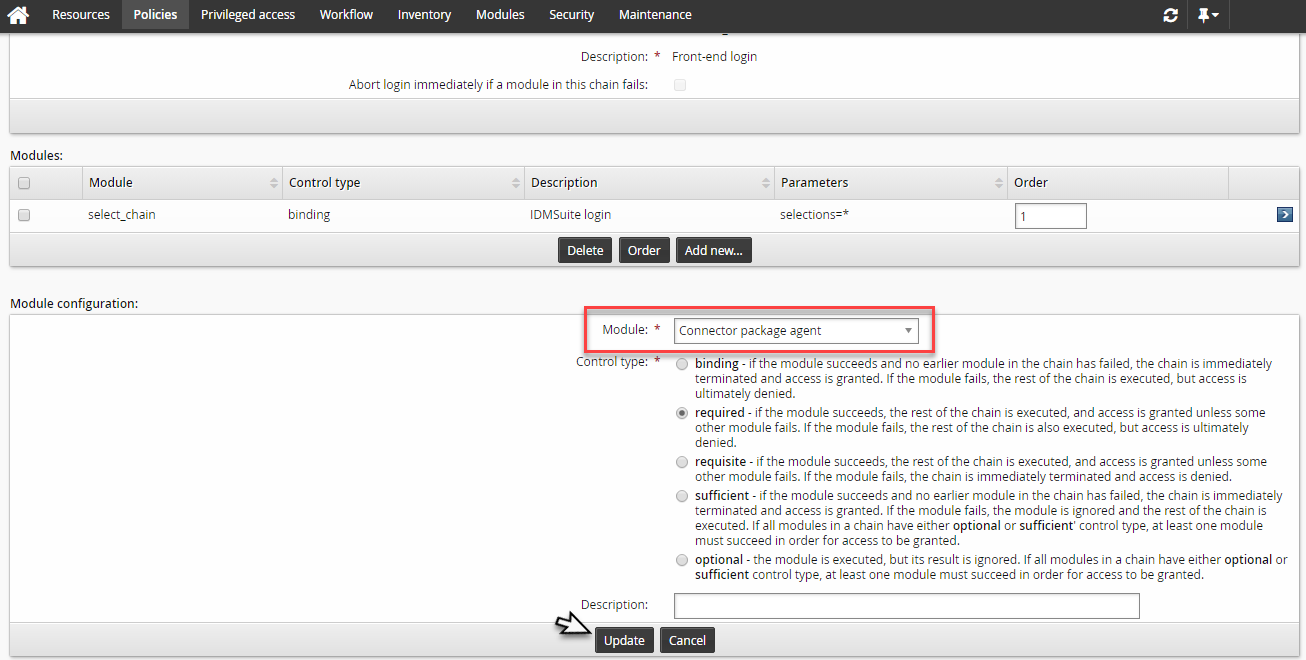
Set the Okta target system in Target system to use for address and credentials .
Select
Challenge response authenticationfor Password verification option.Click Update.
(Optional) Reorder the authentication chain modules so the Okta module comes first.
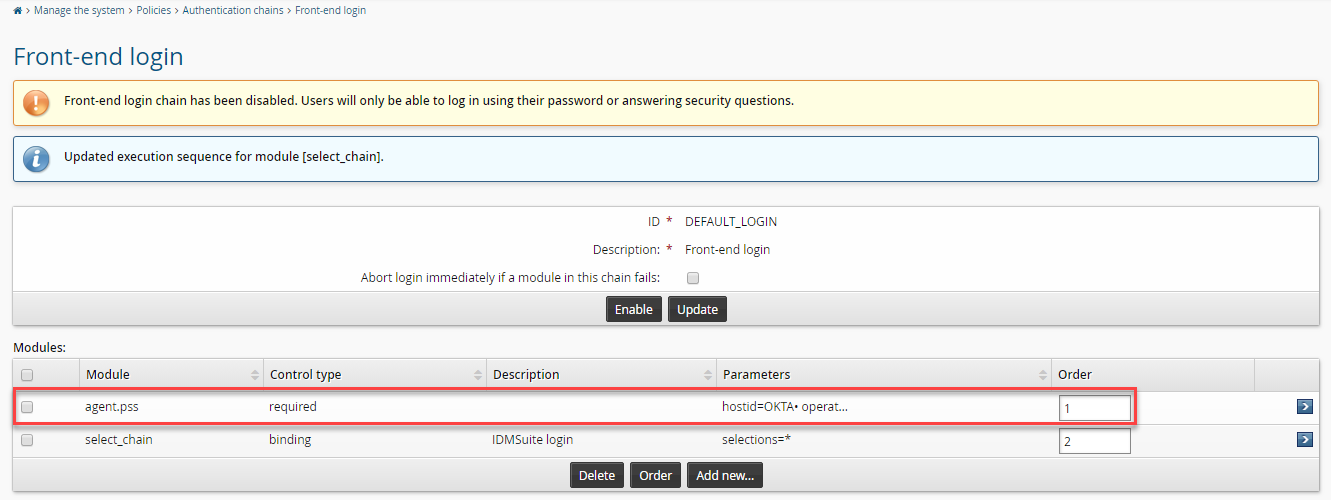
Enable the authentication chain.
Test the authentication by logging in as a user with an Okta account.
Select an Okta factor from the list of registered factors for the user.
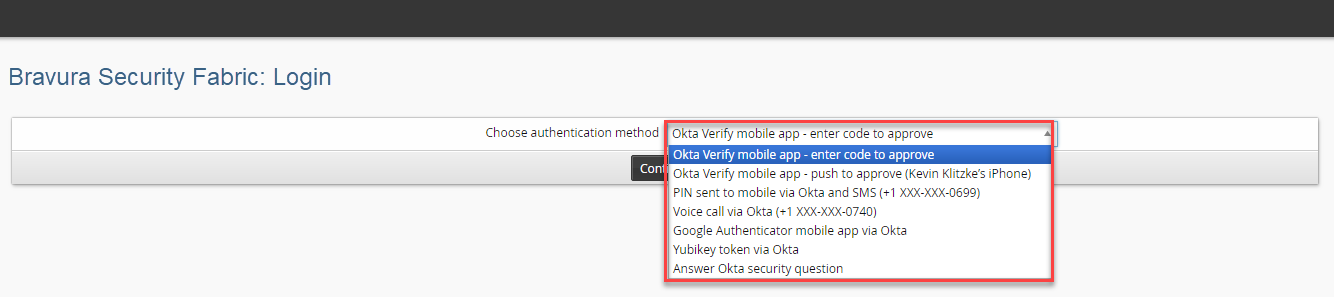
Complete the Okta authentication step.
Sign in to Bravura Security Fabric by completing the next step; the non-Okta authentication step.
Authentication into Bravura Security Fabric should now be complete.
Add DUO Authentication to Bravura Security Fabric
You can integrate DUO authentication in Bravura Security Fabric by configuring a custom authentication chain, using the agent.pss authentication module with the DUO Authentication connector agtduo , to perform a challenge response operation.
The following steps demonstrate how to integrate DUO authentication in Bravura Security Fabric :
Add the DUO Authentication target system.
Add a new custom authentication chain:
Add the
Connector package agent(agent.pss) module to the chain.In the module’s settings:
Set Target system to use for address and credentials to the target you created.
Set Password verification operation to ”Challenge response authentication”.
Enable the custom authentication chain.
Add the new custom authentication chain to the DEFAULT_LOGIN chain:
Click Policies > Authentication chains > Front-end login .
Disable the chain so that you can edit it.
Edit the
select_chainmodule to add the new custom authentication chain to the list of Available chains .Update and enable the DEFAULT_LOGIN chain.
Test the authentication by logging in as an end user associated with the target system.
You will be prompted for the DUO authentication methods that are available for the user and will depend on what the user has registered on the DUO Authentication server.
Here are a few examples of some of the available authentication methods that may be presented to the user:
Phone call to authenticate from a key press
SMS text message for a passcode
Passcode from the Duo Mobile app
Push notification to accept or deny from the Duo Mobile app
See also:
DUO Authentication in the Connector Pack Documentation for details on how to target DUO Authentication.
Add RADIUS authentication to Bravura Security Fabric
You can integrate RADIUS authentication in Bravura Security Fabric by configuring a custom authentication chain, using the agent.pss authentication module with the RADIUS Authentication connector agtradius, to perform a challenge-response operation.
The following steps demonstrate how to integrate RADIUS Authentication in Bravura Security Fabric :
Add the RADIUS Authentication target system .
Create a list file to associate users with the target system .
The
agtradiusconnector does not support listing operations. You must create a list file to associate users during auto-discovery, so that users can authenticate against the target system.Add a new custom authentication chain:
Add the
Connector package agent(agent.pss) module to the chain.In the module’s settings:
Set Target system to use for address and credentials to the target you created.
Set Password verification operation to ”Challenge response authentication”.
Enable the custom authentication chain.
Add the new custom authentication chain to the DEFAULT_LOGIN chain:
Click Policies > Authentication chains > Front-end login.
Disable the chain so that you can edit it.
Edit the
select_chainmodule to add the new custom authentication chain to the list of Available chains .Update and enable the DEFAULT_LOGIN chain.
Test the authentication by logging in as an end user associated with the target system.
You should be prompted to enter a valid RADIUS passcode.
Add RSA Authentication via connector authentication chain module
You can integrate RSA Authentication Manager authentication in Bravura Security Fabric by configuring a custom authentication chain, using the agent.pss authentication module with the RSA Authentication Manager 7.1/8.2 connector agtrsaam , to perform a challenge-response operation.
The following case illustrates how to integrate RSA Authentication Manager authentication in Bravura Security Fabric :
Note
If the requirements include using this target for authentication and do not need the other administrative features from the Java Administrative API , it's simpler and less maintenance to only install the C Authentication API . If you do need administrative features and also require authentication failover, which only the C Auth API provides, it is recommended to install both APIs.
Optional: Configure RSA Authentication Manager 7.1/8.2.
Optional: Add the system as an RSA Authentication Manager 7.1/8.2 target system .
Alternatively, if an actual RSA Authentication Manager 7.1/8.2 target system is not being used and only the challenge response authentication operation for the
agtrsaamconnector is to be used, the following steps must be taken:Add an RSA Authentication Manager 7.1/8.2 target system.
Leave the target system address parameters as defaults or provide any value for each of the parameters.
Uncheck the List accounts option for the target system.
Check Automatically attach accounts for the target system.
Manually create a <TARGETID> .db list file and copy it to the <instance>\psconfig\ directory.
A sample targetid.db file is located in the samples directory.
Add data for each user; or run the following queries in SQLite:
INSERT INTO discobj (stableid, type, longid, shortid,displayid,sd) values ("1001","ACCT","rsauser1","rsauser1","RSA Userone",NULL);
INSERT INTO discobjattr (stableid,type,attrkey,attrval,seqno) values ("1001","ACCT","@fullname","RSA Userone","0");
INSERT INTO discobj (stableid, type, longid, shortid,displayid,sd) values ("1002","ACCT","rsauser2","rsauser2","RSA Usertwo",NULL);
INSERT INTO discobjattr (stableid,type,attrkey,attrval,seqno) values ("1002","ACCT","@fullname","RSA Usertwo","0");
The value for the longid field must be the user IDs of the RSA Authentication Manager 7.1/8.2 users that will be used to authenticate with their SecurID tokens.
See also: Creating a list file and copying data from other targets.
Add a new custom authentication chain:
Add the Connector package agent (
agent.pss) module to the chain.In the module’s settings:
Set Target system to use for address and credentials to the target you created.
Set Password verification operation to ”Challenge response authentication”.
Enable the custom authentication chain.
Add the new custom authentication chain to the DEFAULT_LOGIN chain:
Click Policies > Authentication chains > Front-end login .
Disable the chain so that you can edit it.
Edit the
select_chainmodule to add the new custom authentication chain to the list of Available chains .Update and enable the DEFAULT_LOGIN chain.
Test the authentication by logging in as an end user associated with the target system.
You will be prompted to enter a valid passcode for the user’s SecurID token.
There will also be additional prompts if the user’s SecurID token is in an extended mode for either the new pin or next token code modes.
Azure MFA integration using RADIUS NPS
Azure MFA is a feature of Azure Active Directory that can be used as an additional form of identification. By using Azure MFA, users can be prompted during the sign-in process to provide a code on their mobile phone, Face ID, a fingerprint scan, or other authentication factor.
A Bravura Security Fabric instance can be configured to use Azure MFA through RADIUS, enabling cloud-based MFA capabilities to an existing network without having to install, configure, and maintain new servers. Azure MFA can be used directly as a passwordless Bravura Security Fabric login method, or as a provider of 2FA.
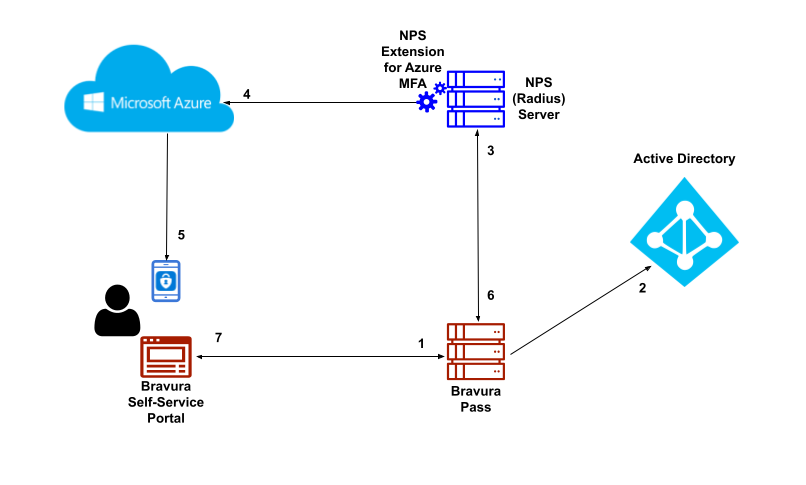
The following is the workflow of logging into Bravura Security Fabric using Azure MFA push notifications as a second factor:
End user navigates to the Bravura Pass self-service portal.
End user performs primary authentication with Active Directory username and password. Primary authentication can be configured to authenticate users against any connected system or authenticator.
After primary authentication the end user is presented with a list of secondary factors that are available to them.
End user selects Azure MFA Push notification for a second factor. The Bravura Security RADIUS connector initiates an authentication request against the NPS server with the NPS Extension for Azure MFA installed.
NPS Extension for Azure MFA triggers MFA request to Microsoft Azure.
End user receives push notification on their Microsoft Authenticator mobile application and approves the request.
NPS server responds with authentication status to the Bravura Security RADIUS connector.
End user is successfully authenticated into the Bravura Pass self-service portal.
Setting up Azure MFA through Radius
Azure MFA is a feature of Azure Active Directory that can be used as an additional form of identification. By using Azure MFA, users can be prompted during the sign-in process to provide a code on their mobile phone, Face ID, a fingerprint scan, or other authentication factor.
A Bravura Security Fabric instance can be configured to use Azure MFA through RADIUS, enabling cloud-based MFA capabilities to an existing network without having to install, configure, and maintain new servers. Azure MFA can be used directly as a passwordless Bravura Security Fabric login method, or as a provider of 2FA.
This use case illustrates a sample setup to use Azure MFA for Bravura Security Fabric login.
This sample setup uses:
Local Active Directory server
In this example a local Active Directory server is used to manage the office network. This AD server will be used as a target system of the Bravura Security Fabric instance so that users can log into the Bravura Security Fabric instance using their AD credentials.
You will also need to sync users from the AD server to the Azure AD tenant, so that those users can be authenticated by Azure AD when performing MFA through RADIUS.
In the sample setup, an AD server running on a Windows 2016 environment (named "CorpAD") is used.
Bravura Security Fabric Instance
This example includes a Bravura Security Fabric instance for users to log on using Azure MFA through RADIUS.
In the sample setup, the Bravura Security Fabric instance runs on a Windows 2016 server (named "Corp1").
Once the Bravura Security Fabric instance is installed and ready, users are loaded from the local Active Directory server by adding the server as an Active Directory DN target system.
Azure Active Directory tenant
Azure MFA is a feature provided through Azure Active Directory. An Azure AD tenant is needed in order to use the Azure MFA.
If you don't have an Azure AD tenant with premium P1/P2 license to use, you can acquire a 30-day P2 trial license by creating a new free Azure account (credit card info required to register.) If you have an existing Azure account to use, then create an Azure AD tenant using the Azure account. See this link for details:
https://docs.microsoft.com/en-us/azure/active-directory/develop/quickstart-create-new-tenant .
The Azure AD tenant can be accessed and managed through Azure AD portal: https://portal.azure.com .
Create a cloud-only global administrator account on the Azure AD tenant (see "Prerequisites" section in https://docs.microsoft.com/en-us/azure/active-directory/cloud-sync/tutorial-single-forest ). Using an account that does not exist on our local AD target system ensures that you won't get locked out of the tenant. For details on how to create an account, see: https://docs.microsoft.com/en-us/azure/active-directory/fundamentals/add-users-azure-active-directory .
In addition to managing and configuring the Azure AD, this global administrator account can also be used as a work or school account upon installation of the NPS extension for Azure MFA. You can see and verify the assigned roles of the user .
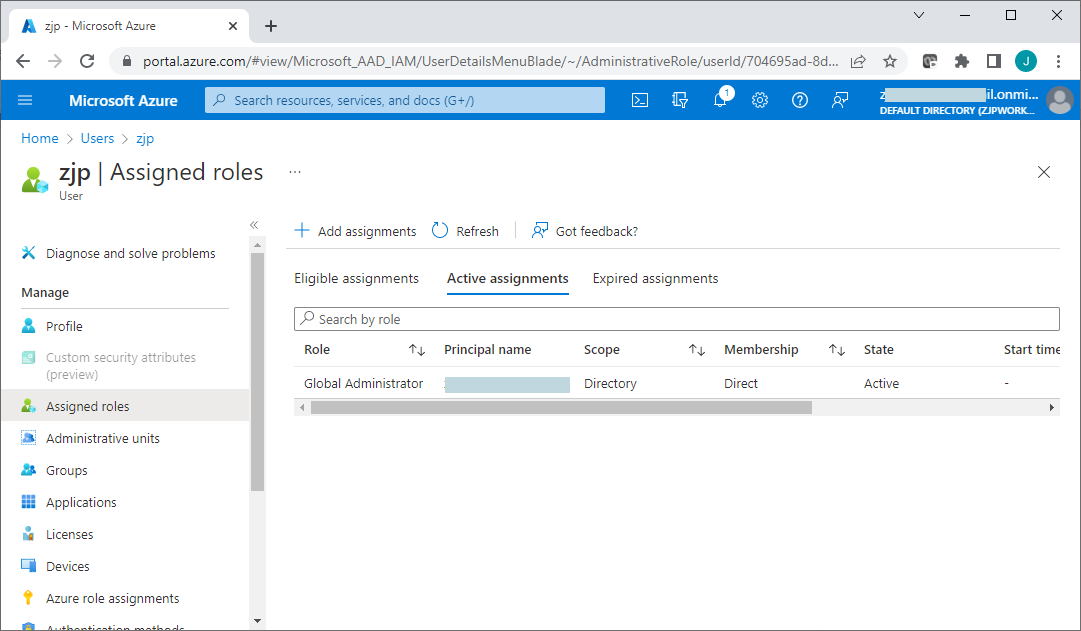
You should now be able to log into the Azure portal with the global administrator account, to manage and configure the Azure Active Directory.
Enabling MFA for Azure portal login allows users to register using the Microsoft Authenticator app on their mobile devices. Registered users can use the Microsoft Authenticator app to receive and approve push notifications sent during Azure portal login.
Azure MFA must be configured to send these push-mode notifications before users can authenticate using the Microsoft Authenticator app. To do this:
Log onto the Azure portal with the global administrator account to manage the Azure Active Directory.
From the directory Overview page, left side menu, click Security > Multifactor authentication.
Click Additional cloud-based multifactor authentication settings from the Configure menu.
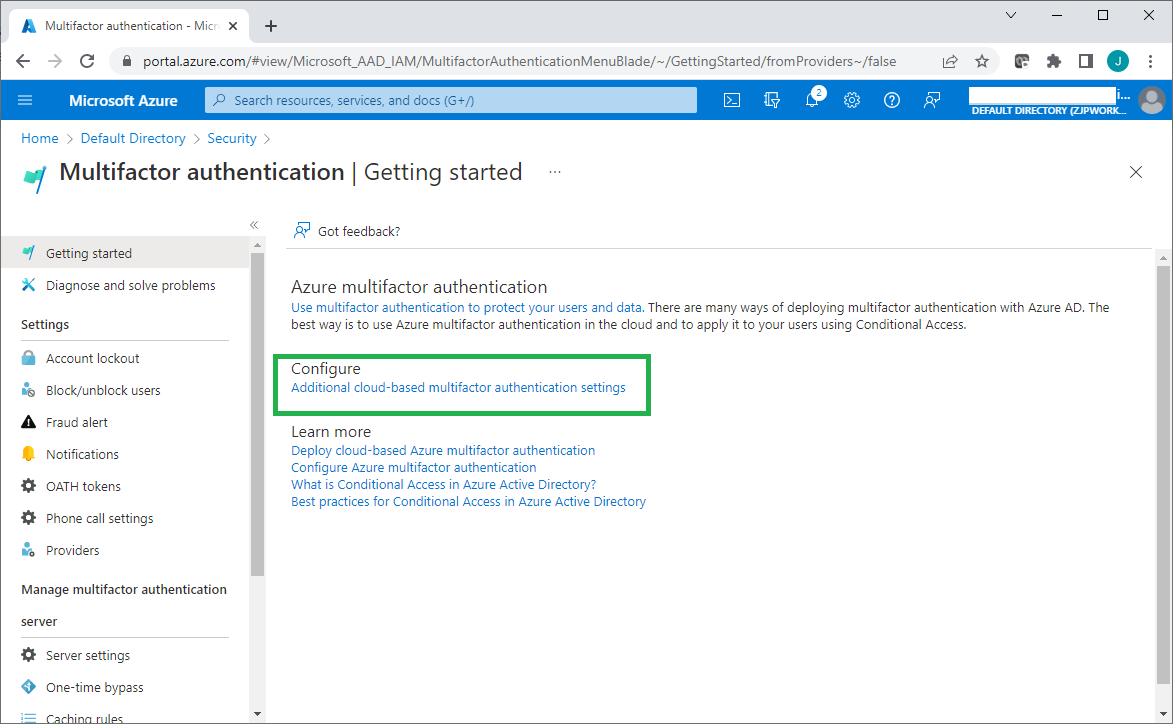
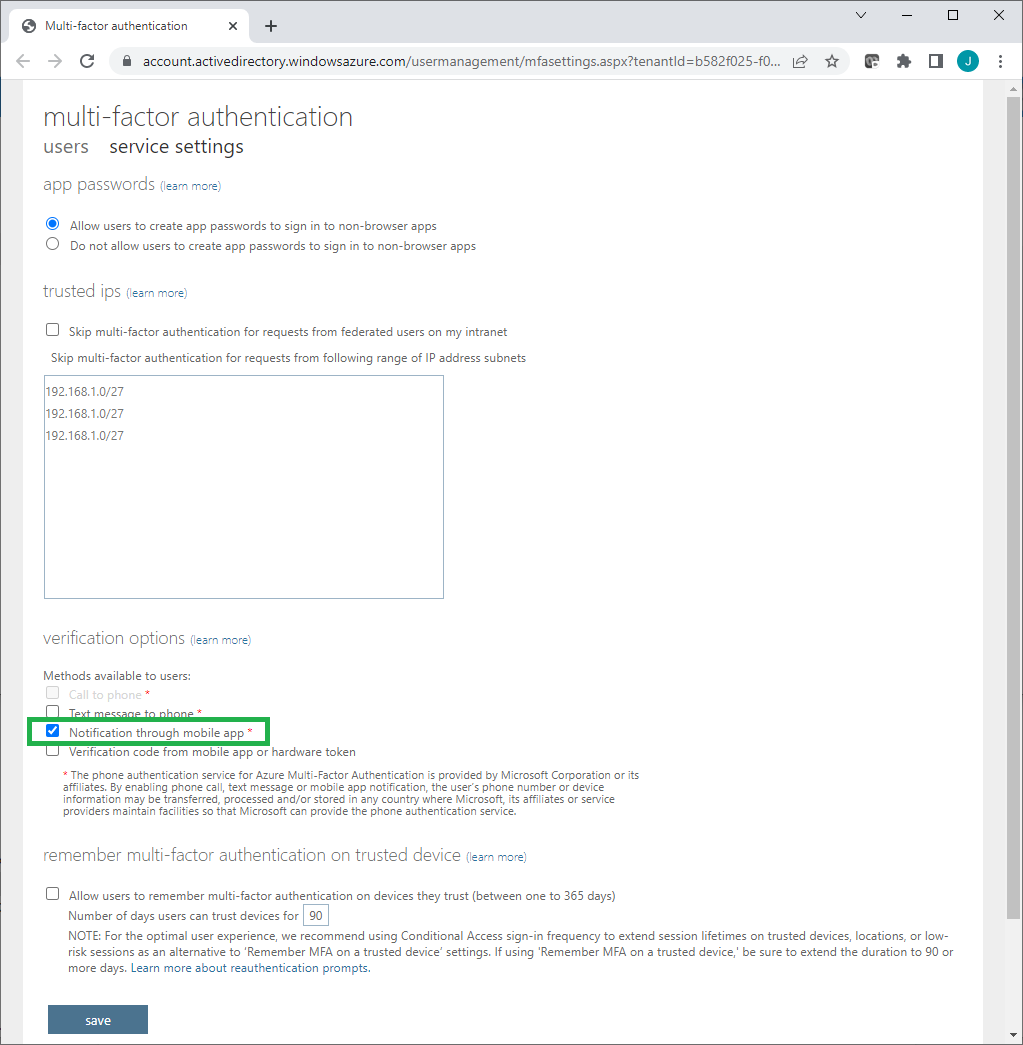
Select Allow users to create app passwords to sign in to non-browser apps.
Under Methods available to users, select Notification through mobile app.
Enable Azure MFA for users/groups on the Azure AD. For details see:
https://docs.microsoft.com/en-us/azure/active-directory/authentication/tutorial-enable-azure-mfa
After completion of MFA configuration, at the next Azure portal login, each user will be instructed to register on Microsoft Authenticator app using their mobile phone. The Microsoft Authenticator app can then receive push notifications from Azure AD for users to approve user authentication requests.
Enabling Azure AD Multi-Factor Authentication using Conditional Access policies is the recommended approach. Conditional Access is an Azure AD Premium P1 or P2 feature that lets you apply rules to require MFA as needed in certain scenarios. An activated Premium P1/P2 license may be needed for Conditional Access to work.
Note
For Azure AD free tenants without Conditional Access, you can use security defaults to protect users. Users are prompted for MFA as needed, but you cannot define your own rules to control the behavior. Conditional Access policies should not be used in conjunction with security defaults.
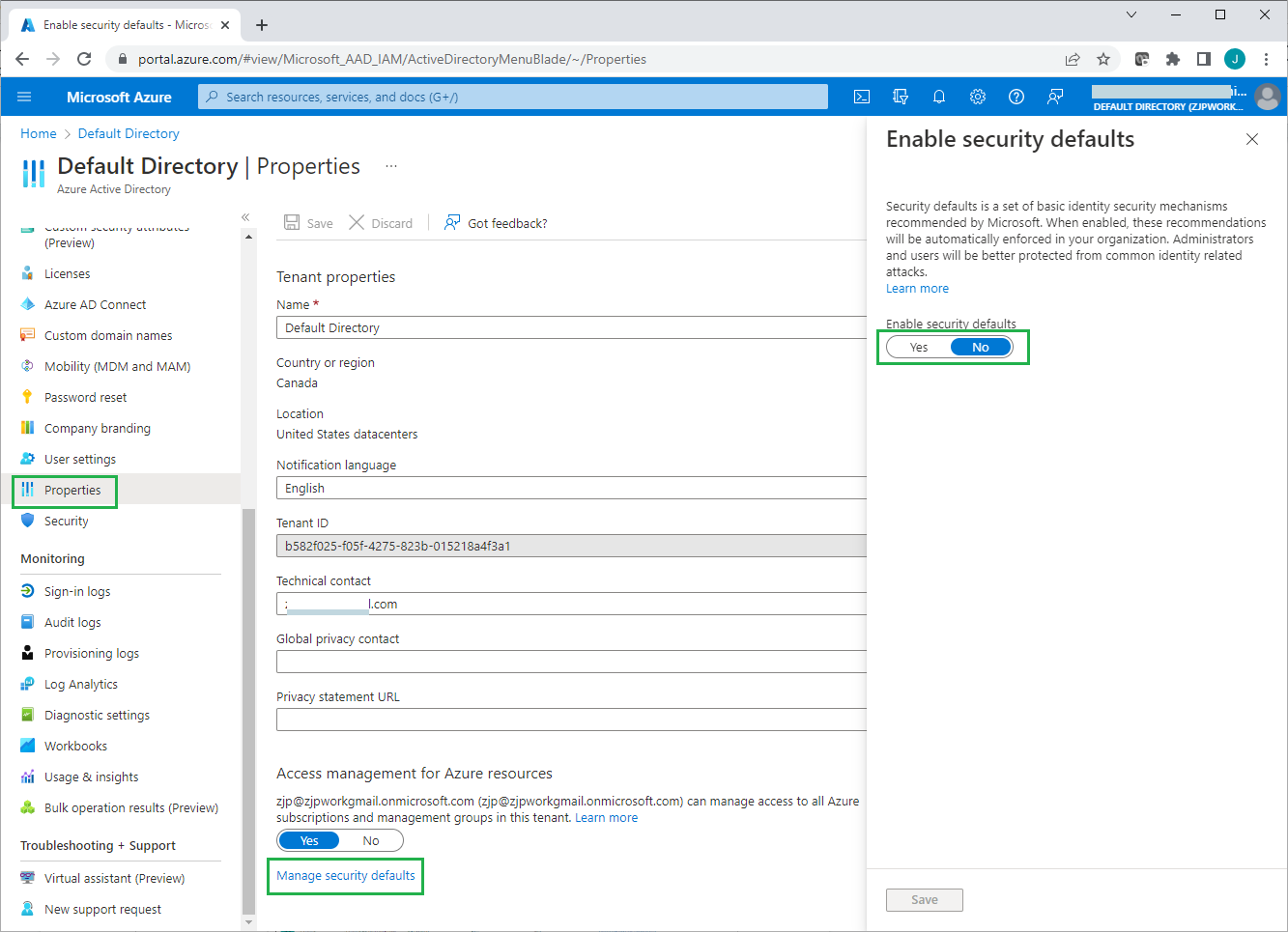
For details about using security defaults see: https://docs.microsoft.com/en-us/azure/active-directory/fundamentals/concept-fundamentals-security-defaults .
If needed, you can manually enable each account for per-user Azure AD Multi-Factor Authentication. When users are enabled individually, they perform multi-factor authentication each time they sign in (with some exceptions, such as when they sign in from trusted IP addresses or when the remember MFA on trusted devices feature is turned on). To do this:
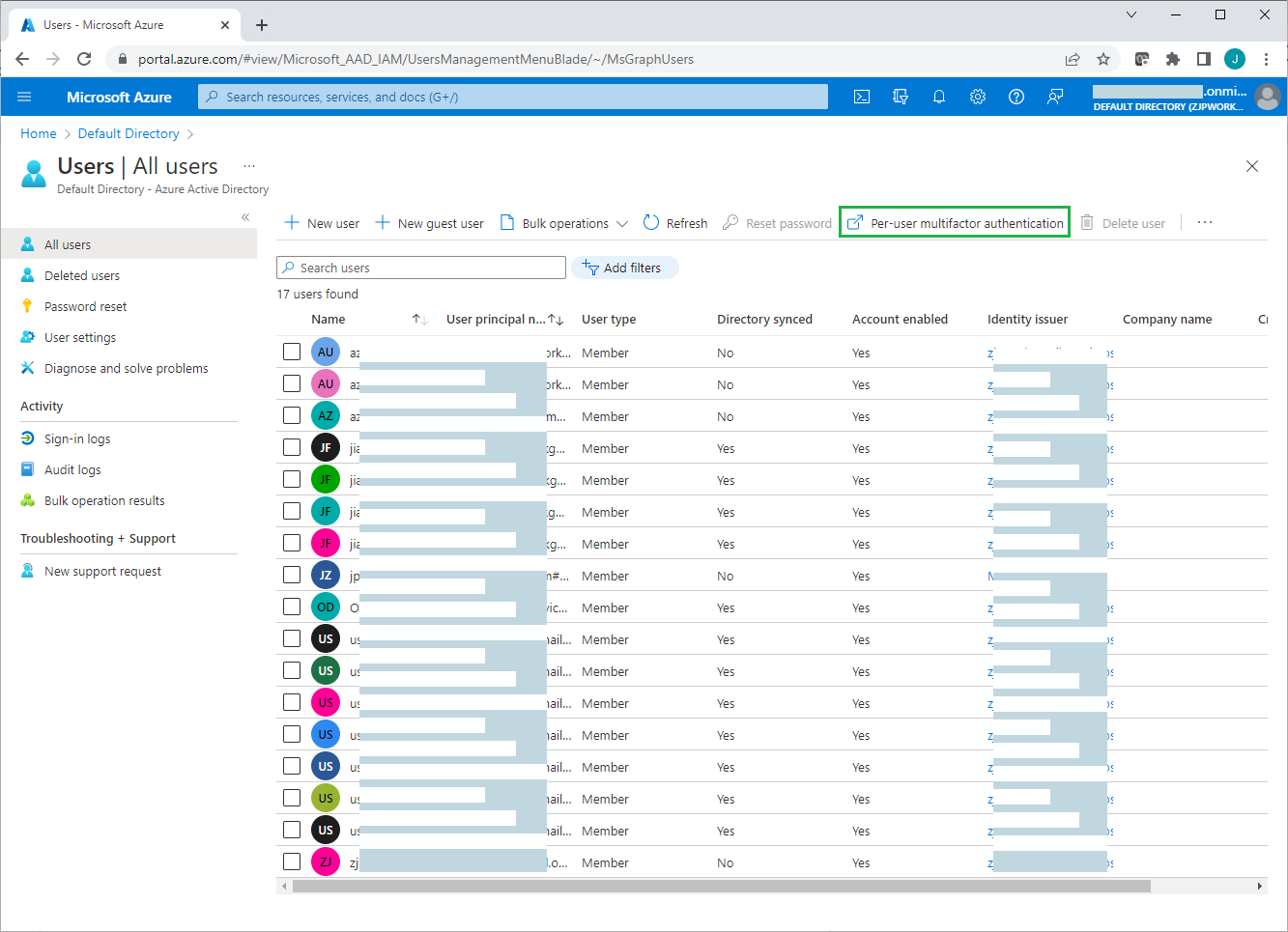
Click "Per-user multifactor authentication" on the Users >All users page.
On the per-user multifactor authentication page, review each user's current MFA status, and enable/disable MFA for selected users.
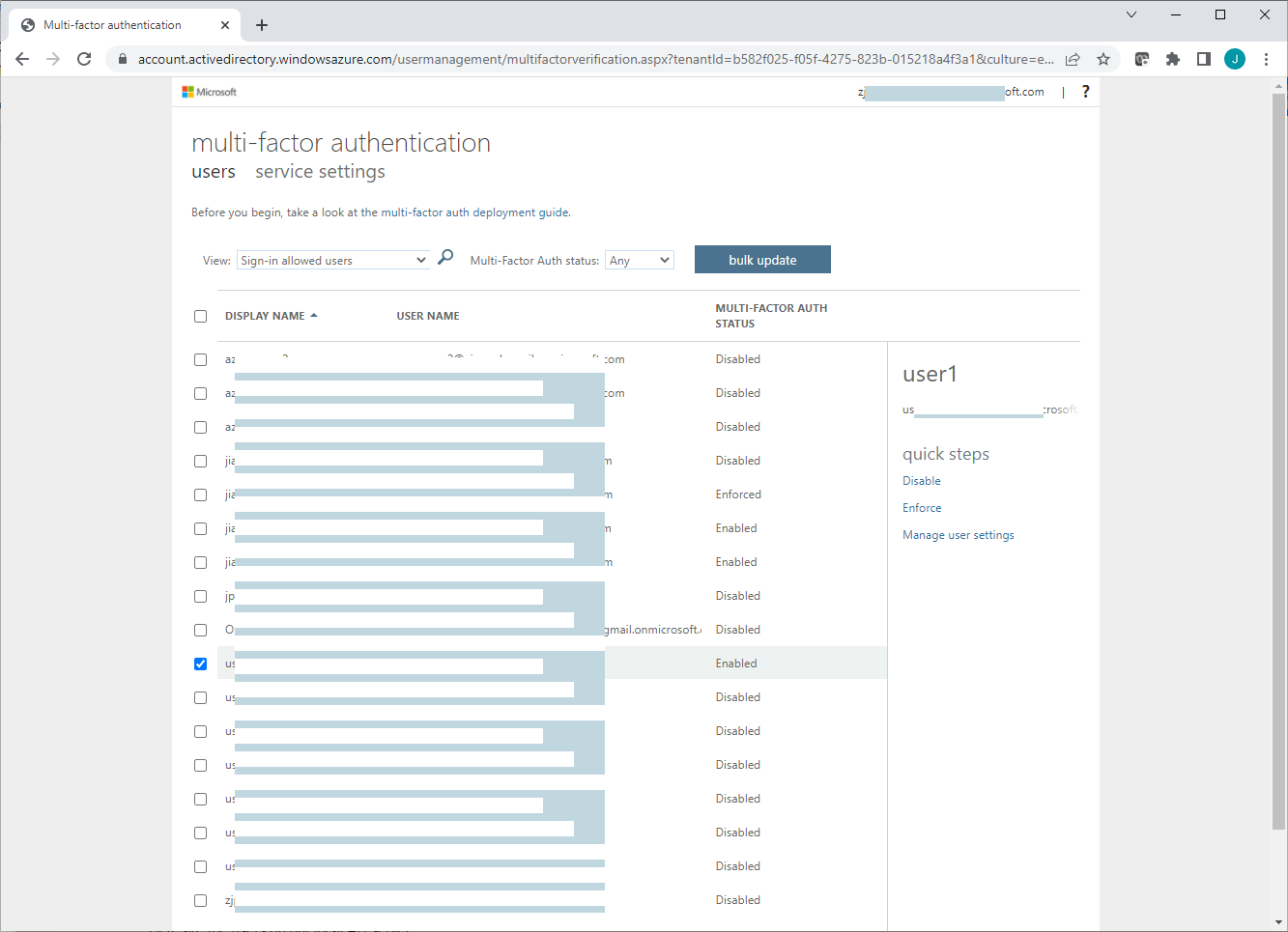
Both per-user MFA and conditional access can enable/disable MFA for users, and the per-user MFA may take precedence over conditional access.
To learn about using per-user MFA and how to convert users from per-user MFA to Conditional Access based MFA, see:
https://docs.microsoft.com/en-us/azure/active-directory/authentication/howto-mfa-userstates
If a user wants to retry the Azure MFA registration process, or wants to switch to a new mobile phone, an admin can use the Require re-register multifactor authentication link to force a user to re-register MFA at the next Azure portal login.
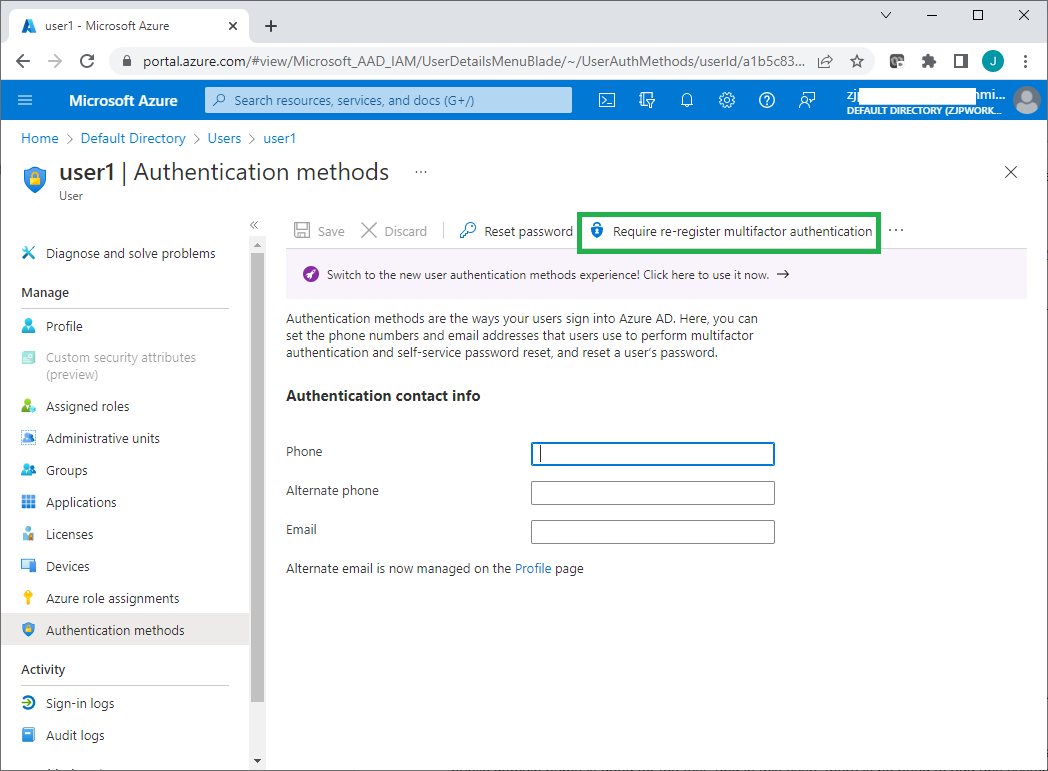
Next, you need to sync user accounts on the local Active Directory server to the Azure AD tenant.
In this sample setup, a single domain is synced to the Azure AD tenant, so there is no need for the local domain to have a public domain name, and there is no need to create any custom domain name on the Azure Active Directory.
For details about syncing a single domain to the Azure AD see:
https://docs.microsoft.com/en-us/azure/active-directory/cloud-sync/tutorial-single-fores .
Syncing your directory to Azure requires that the "Azure AD Connect" application be locally installed on a machine in your domain. It is recommended to install it on the server hosting your RADIUS NPS extension. There should not be any password change requirements on the domain administrator account used to sync the directory. If the domain administrator password expires or changes, you will need to re-configure the Azure AD connect sync agent with the new credential To download the Azure AD Connect application, navigate to: Azure portal > Directory Overview > Azure AD Connect > Download Azure AD Connect.
Once Azure AD connect sync has been successfully configured on the local AD server, and all users on the local AD server have been synced successfully to the Azure AD tenant, you will see those synced accounts added to the Azure ADThe "Directory Synced" column indicates which accounts originated from the local AD server.
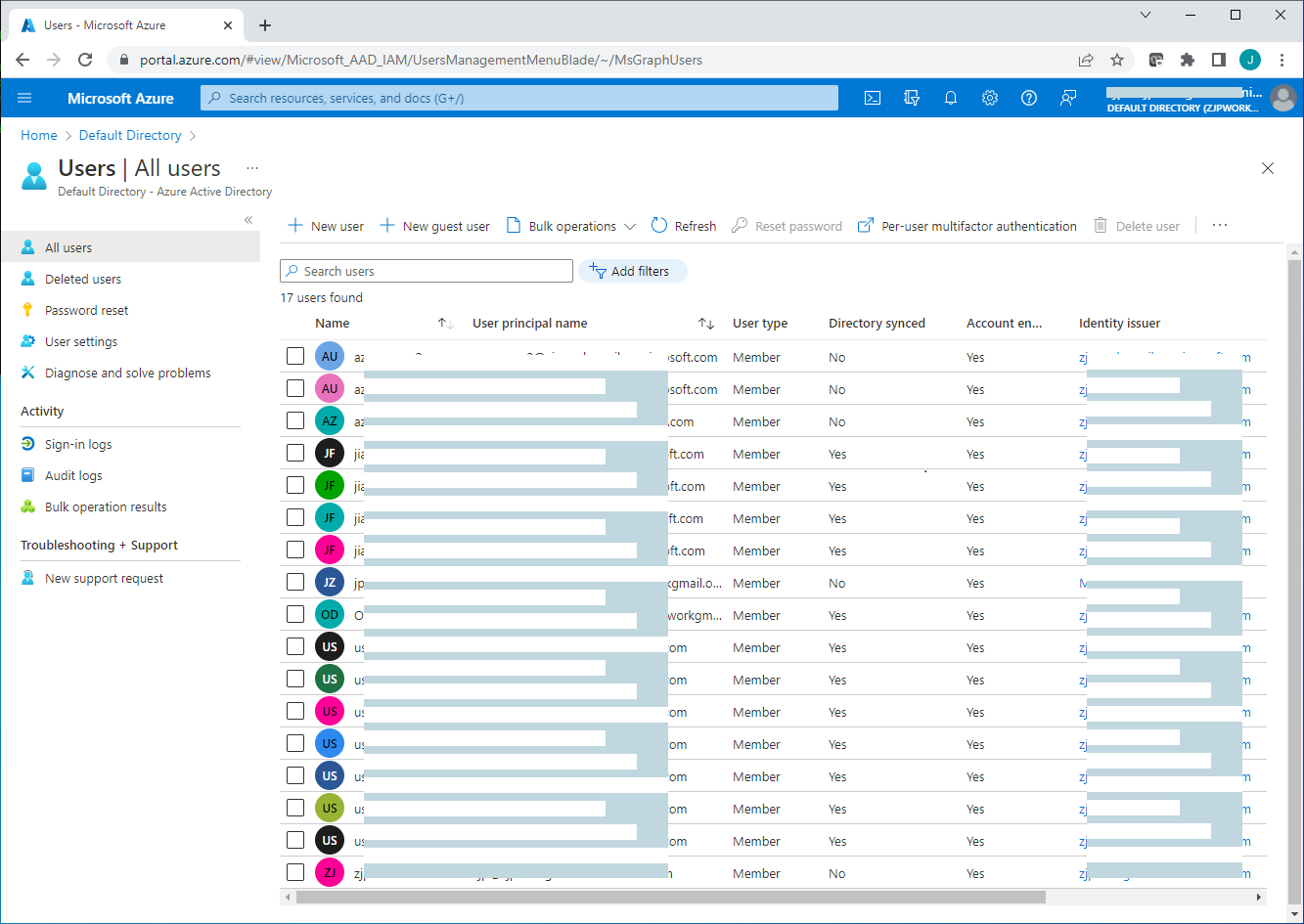
Because the local AD server has no public domain name, a custom domain is not used when user accounts are synced to the Azure AD. All user accounts are synced to the Azure AD under the default domain name "workexample.onmicrosoft.com" of the Azure . For example, user1 on the local AD server will be synced to the Azure AD as user1@workexample.onmicrosoft.com. Users that were synced to the Azure AD can also log on the Azure AD portal. Once MFA is enabled for them, those users will be instructed to register MFA on the Microsoft Authenticator app at the next Azure portal login in order to receive MFA push notifications.
Once the Azure AD connect sync has been successfully configured, it should normally show "Healthy" status on the Azure AD connect cloud sync page. Sometimes it might show an error status like "Quarantined may appear" when the network connection is broken or has some other err. It should go back to "Healthy" automatically at the next sync. Error status can also be cleared manually by an admin.
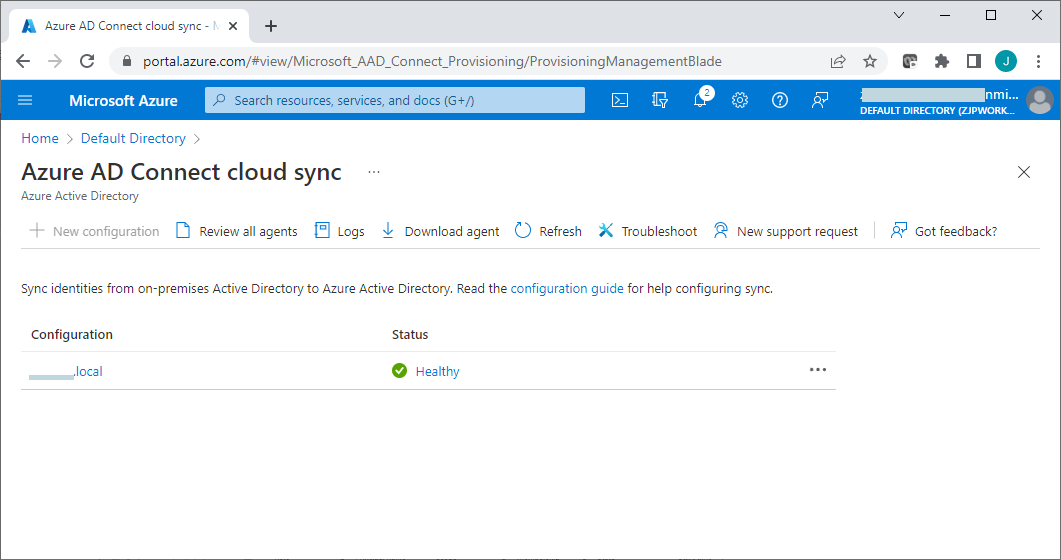
Once Azure AD connect cloud sync is working well, any change to user accounts on the local AD server will be automatically synced to the Azure AD.
Network Policy Server (NPS) with NPS extension for Azure MFA
The Network Policy Server acts as a RADIUS bridge between the Bravura Security Fabric instance and the Azure AD, passing authentication requests from the Bravura Security Fabric instance to the Azure MFA for approval.
NPS is available to Windows servers with the "Network Policy and Access Services" role enabled. The NPS role can be added to the AD server, but it's better to add it to a different windows server computer.
Before adding the Network Policy and Access Services server role to a machine that is not your local AD host, ensure the Windows server has joined to the domain of the local AD server.
To add NPS server role, see "Install Network Policy Server" in this link for details:
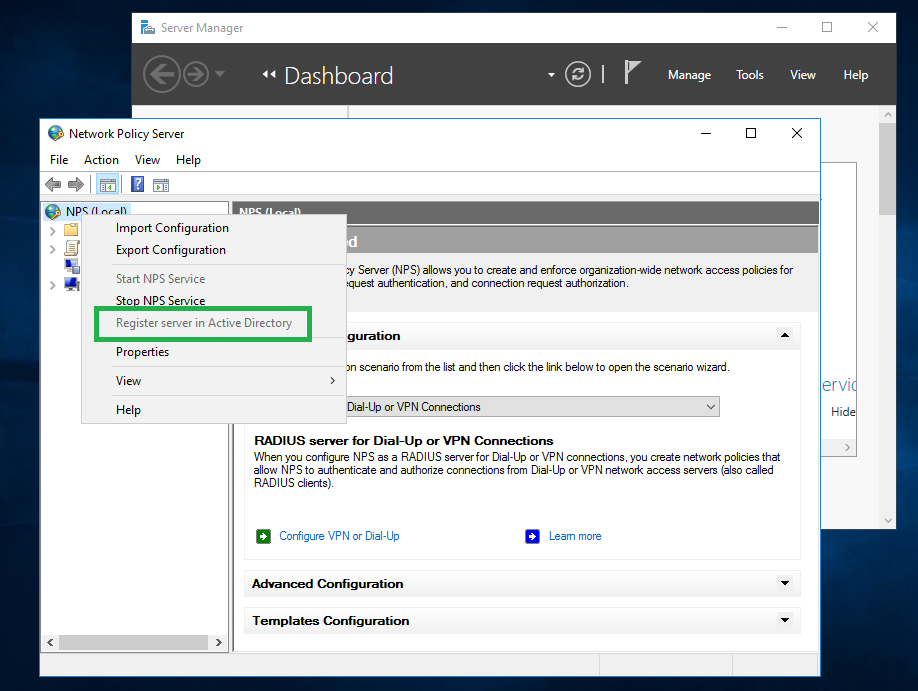
After the NPS server role has been added, confirm that the NPS server is registered with the local AD server:
Launch Network Policy Server from Tools menu on the Server Manager
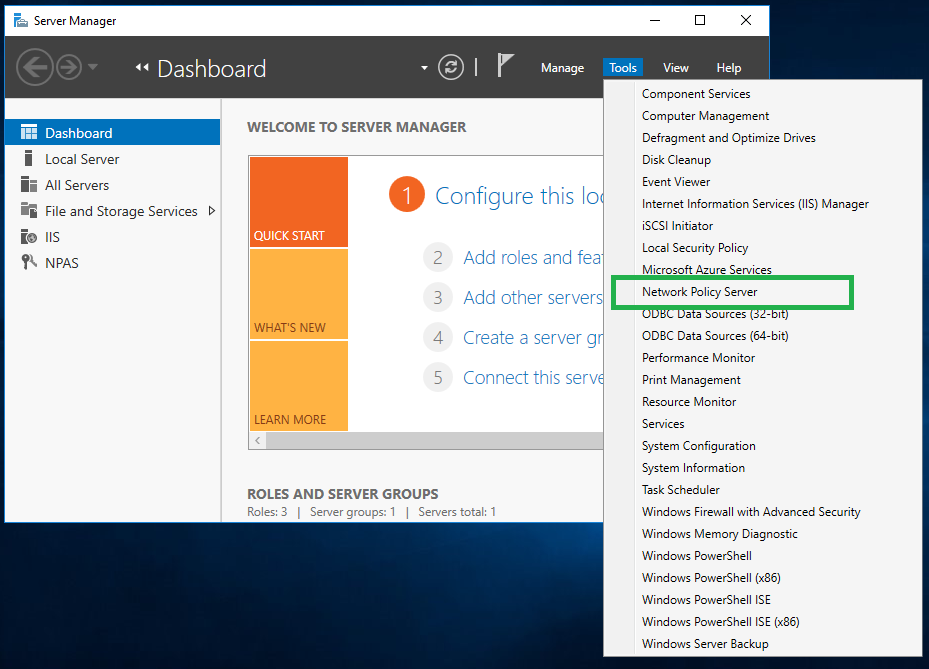
Right click on the NPS node, and select the Register server in Active Directory menu if it is not registered yet. This option will be grayed out if it has been registered already.
The NPS extension for Azure MFA uses winhttp to communicate with Azure AD, and the required port 443 may be blocked by your organization. In this case, you may need to set a winhttp proxy to allow the communication to work between the NPS extension and the Azure AD.
You can use the following command to set winhttp proxy on the NPS server before installing the NPS extension for Azure MFA:
netsh winhttp set proxy "http://your-proxy-address:80" "<local>"
and you can use this command to show current winhttp proxy settings:
netsh winhttp show proxy
After the winhttp proxy has been configured, reboot the NPS server to allow services/apps to use new winhttp proxy settings.
The installation of NPS extension for Azure MFA onto the NPS server asks for the following information:
The tenant ID of the Azure AD
A work or school account with admin rights.
Each Azure AD tenant has a tenant ID, so you can find and copy its tenant ID at Azure portal.
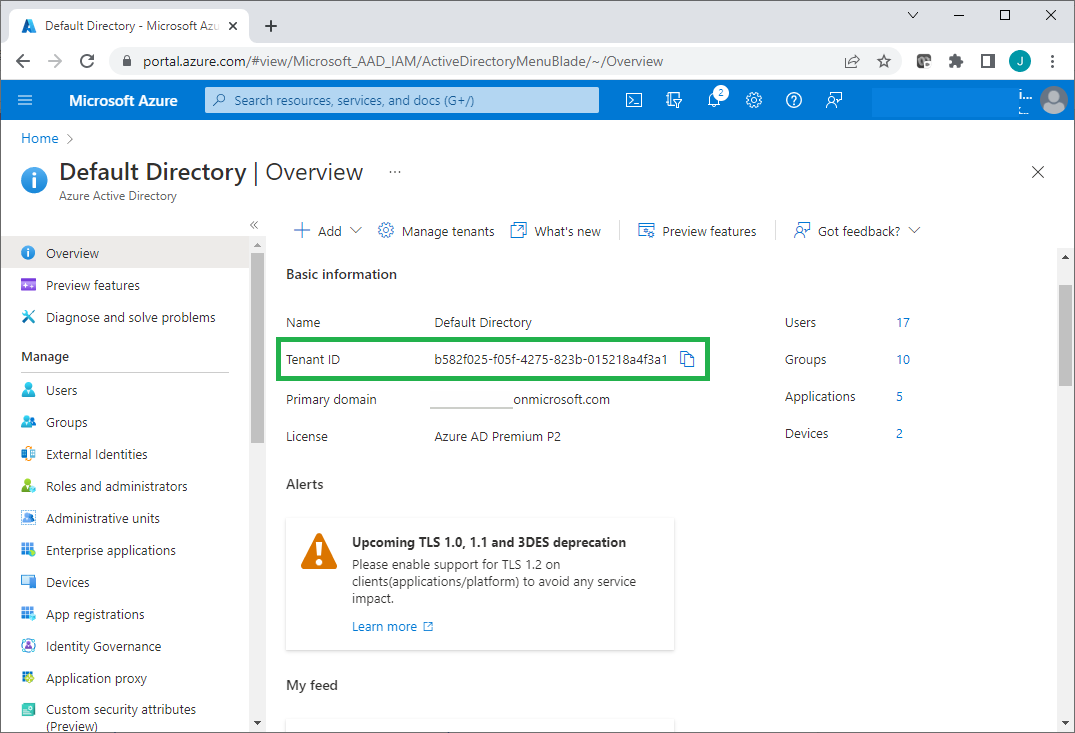
If you created a cloud-only global administrator account on the Azure AD tenant, that account can be used as a work/school account. If you created a new Azure account for a free trial license, that account is not a work or school account.
To Install the NPS extension, see the "Install the NPS extension" section here:
https://docs.microsoft.com/en-us/azure/active-directory/authentication/howto-mfa-nps-extension
After the NPS extension for Azure MFA has been installed, and before running the config script for NPS Extension in the folder "C:\Program Files\Microsoft\AzureMfa\Config", you may need to run the following powershell command to set security protocol first, otherwise the config script may not run successfully.
[Net.ServicePointManager]::SecurityProtocol = [Net.SecurityProtocolType]::Tls12
To allow the NPS server to accept RADIUS requests from the Bravura Security Fabric instance, you also need to add a new RADIUS client to the NPS server:
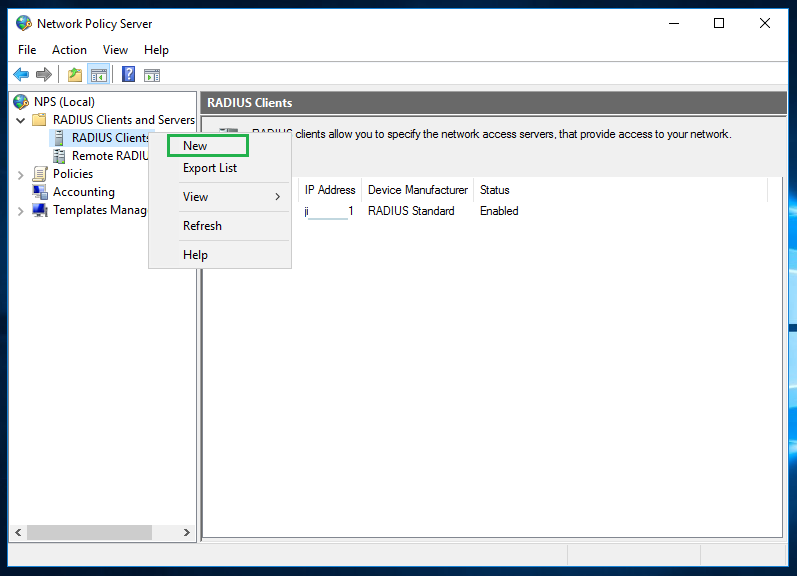
In the Network Policy Server window, right-click on RADIUS Clients, then click New.
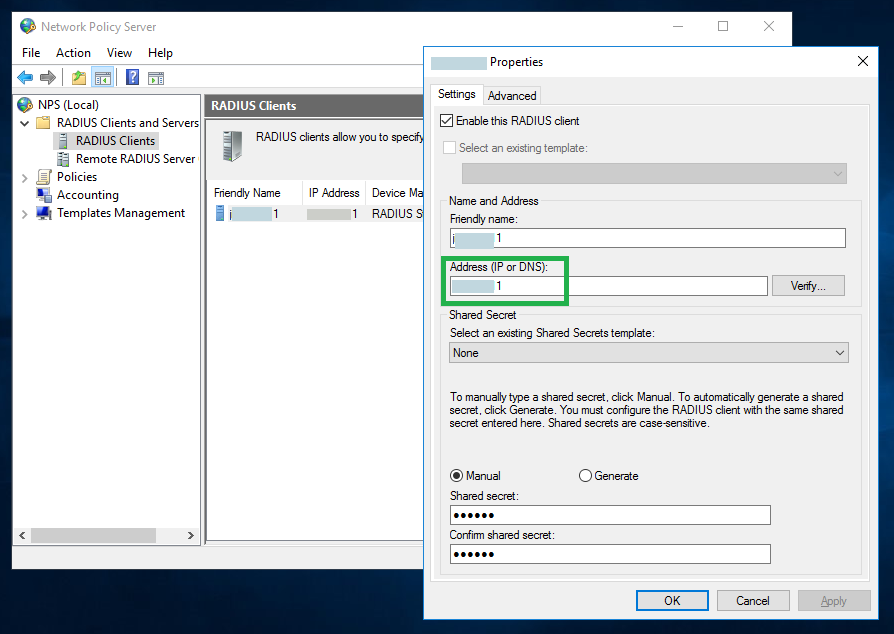
Specify the address of the Bravura Security Fabric instance and a shared secret on the RADIUS client properties window. You can leave other settings with default values.
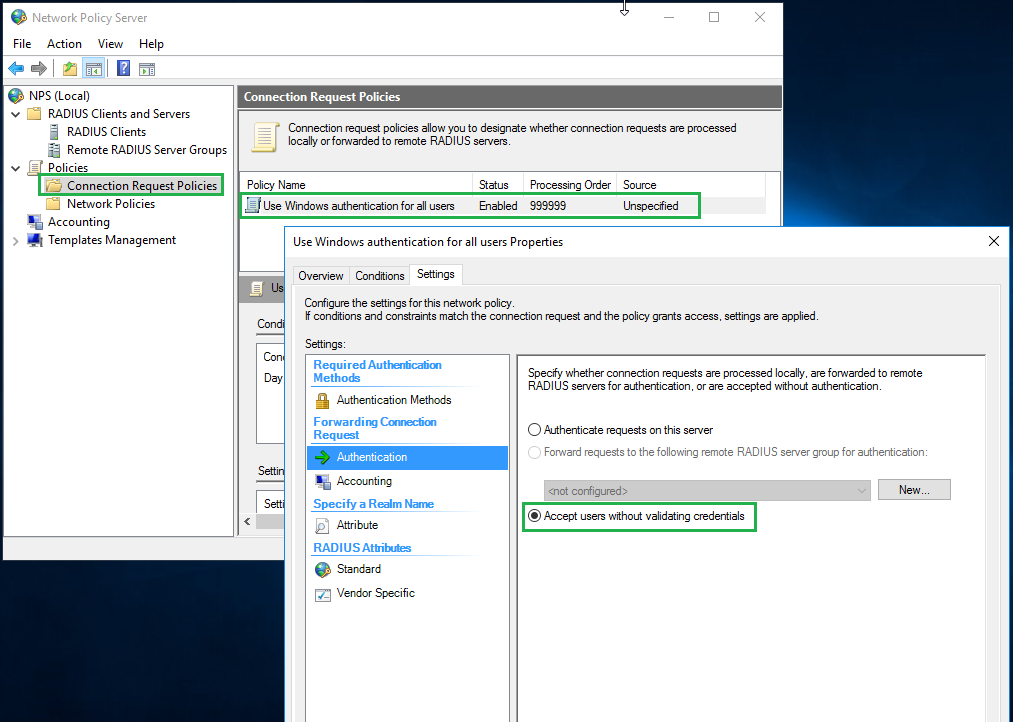
Expand the Policies tree, and set the authentication policy to Accept users without validating credentials.
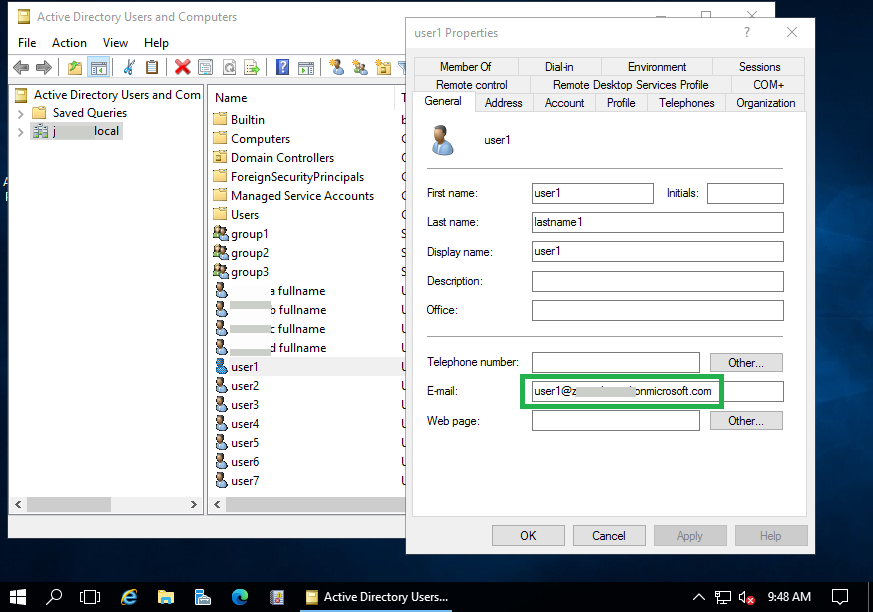
Because our example AD only has a local domain name (CorpAD.local) and no public domain name, there is no custom domain configured on Azure AD for users synced from the local AD server. As a result, users on AD server are synced to Azure AD under the Azure AD default domain (i.e. workexample.onmicrosoft.com). This means that the domain name of the users on the AD server is different from the domain name of the synced users on Azure AD, and usernames in the MFA requests received from Bravura Security Fabric instance (i.e. user1@CorpAD.local) is different from UPN (Universal Principal Name) of the synced user on Azure AD (i.e. user1@workexample.onmicrosoft.com).
Azure MFA uses the UPN of the synced user to send push notifications send push notifications. The NPS extension for Azure MFA provides a solution to use an alternative user attribute as Azure MFA login attribute. This alternative user attribute can be specified using a registry key. Normally you would use the user's email attribute on the local AD server, so you can update the user's email address to the user's matching UPN on the Azure AD.
On the NPS server with NPS extension for Azure MFA installed, set the registry value of "HKLM\SOFTWARE\Microsoft\AzureMfa\LDAP_ALTERNATE_LOGINID_ATTRIBUTE" to "mail".
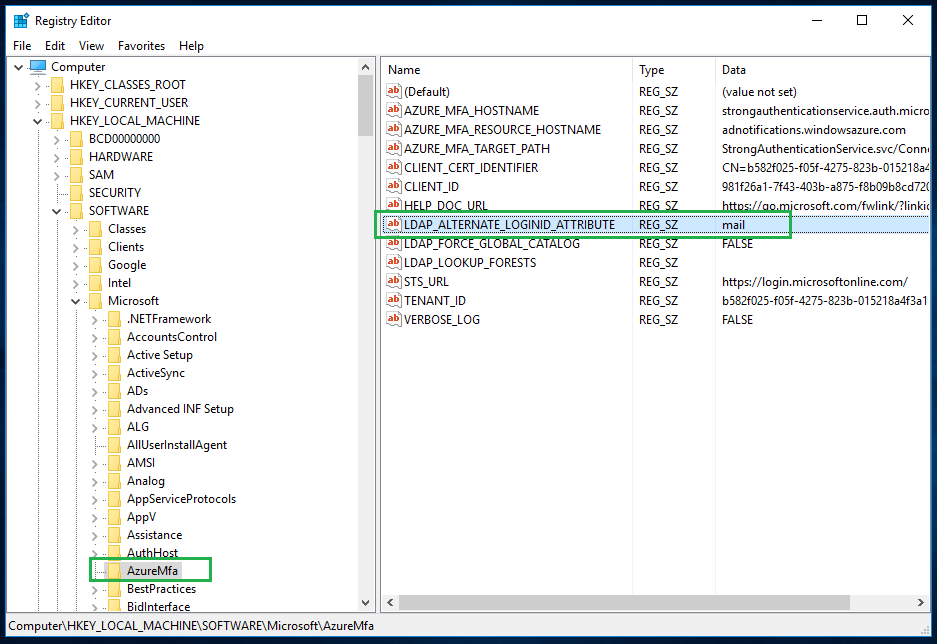
To allow the new registry value to take effect, you can either restart the computer, or the NPS service by itself.
Note
If you configured a custom public domain name in Azure, you can avoid needing to configure custom authentication attributes by having users under the same domain name on both local AD and Azure AD. See Azure AD documentation for how to sync users using custom domain: https://docs.microsoft.com/en-us/azure/active-directory/fundamentals/add-custom-domain.
Next:
You can integrate Azure MFA with Bravura Security Fabric by adding a RADIUS target system and a custom authentication chain.
Troubleshooting
If you have Active Directory connect sync issues, see:
If you have NPS extension issues, you can download Azure MFA NPS extension health check script:
The report of test errors on Azure URLs (i.e. https://login.microsoftonline.com or https://adnotifications.windowsazure.com) is inaccurate. It may still report those errors even when Azure MFA is actually working without issue.
The most useful application for troubleshooting of RADIUS request errors is the Event Viewer on the NPS server.
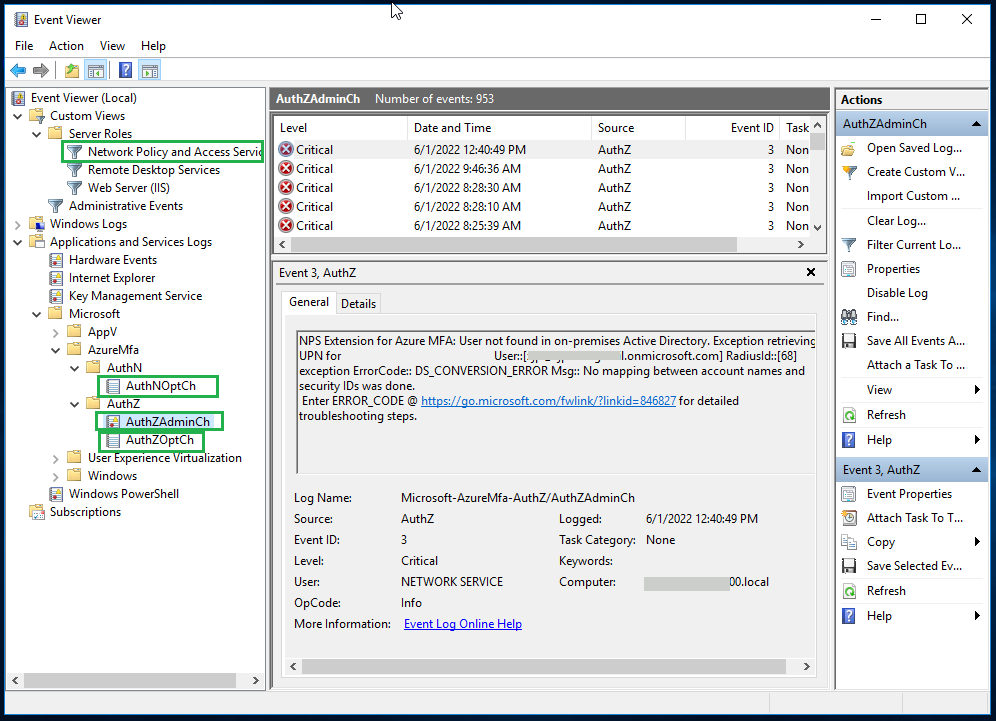
By looking into the events recorded in Event Viewer, you may be able to find the cause of common errors like request not received, incorrect attribute in the request, request timed out and , request rejected among others.
Integrating Azure MFA with Bravura Security Fabric
Once you have set up Azure MFA using RADIUS NPS , you must do the following to integrate Azure MFA with Bravura Security Fabric :
These steps are detailed below.
Configure the RADIUS Authentication target system
To configure the RADIUS Authentication target to support Azure MFA integration using RADIUS NPS:
Create a new RADIUS Authentication target system that will communicate with the Network Policy Server that is hosting the Azure MFA NPS extension.
In the target address page configure the following parameters:
Server: Set this to the DNS hostname or IP address of your NPS server that contains the Azure MFA NPS extension.
Port: Port on which the RADIUS server will accept connections by default is port 1812.
Skip password authentication? Select this option. This will skip the primary authentication step when communicating with the NPS server so that only the MFA step is required.
Placeholder password to use when skipping password authentication: Set this to any value. For example; ignoreme . This value will be used in place of asking for the password. Since the NPS server will also ignore this any value can be used.
Additional RADIUS attributes Set this with at least an "NAS-Identifier" attribute. Each RADIUS request must contain this attribute otherwise the request will be rejected by the NPS server. The value of this attribute can be any identifier you like.
In the Advanced section configure another target system to use for a list of users when performing RADIUS authentication. Since the radius protocol does not support listing, the set of user ID’s is copied from another target system. Typically this would be the Active Directory target system.
List Override: set to:
{action=copy;srcTargetId=<TARGETID OF AD>;}
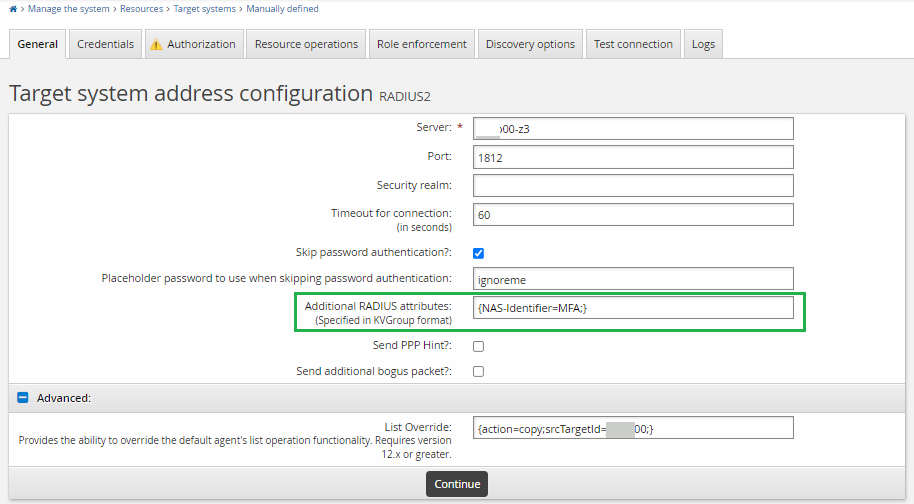
As described in Creating a list file to support challenge-response authentication in the Connector Pack documentation, when you need to copy a list from an Active Directory target, you should set the list override to something like
{action=copy;srcTargetId=ADDN;script=listoverride.py;postHook=replaceLongIdWithShortId;}.If you used an alternative attribute for NPS extension, you can set the list override to something like
{action=copy;srcTargetId=ADDN;}without needing postHook.Configure the administrative credentials for the target. For RADIUS integrations Bravura Security Fabric leverages the shared secret that is configured on the NPS server side. This shared secret is used as the Administrator Password for the target system. The Administrator ID is ignored.
Administrator ID: Set this to “shared_secret” or similar the value itself is ignored.
Password: Set this to the value of the shared secret that is configured on the NPS server.
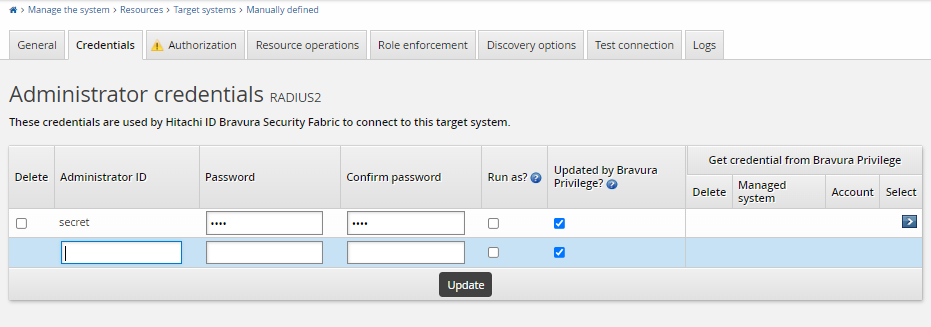
Ensure that you configure the target order using Maintenance > Auto discovery > Connector execution. Ensure the Active Directory target system is listed before the RADIUS target system, so that the RADIUS target system can copy the list file successfully.
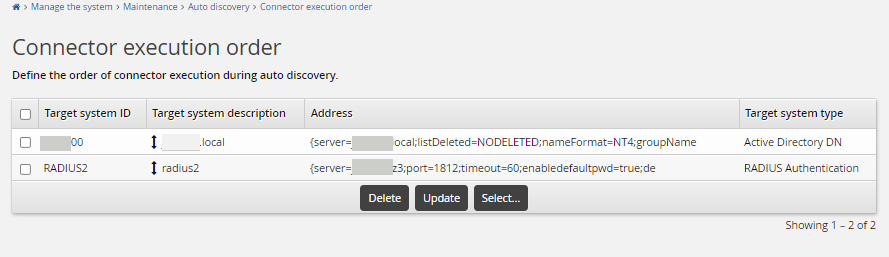
There is no need to add the Azure AD target to the Bravura Security Fabric instance.
Once both Active Directory and Radius target systems added to the Bravura Security Fabric instance and users are loaded into the Bravura Security Fabric instance using auto discovery or psupdate , you can log on to the Bravura Security Fabric instance using the loaded users.
Configure the Azure MFA authentication chain
To configure the Azure MFA authentication chain:
Click Manage the system > Policies > Authentication chains > Custom.
Click Add New.. to create a new authentication chain.
Give the authentication chain a name and description:
Name: AZURE_MFA
Description: Azure MFA
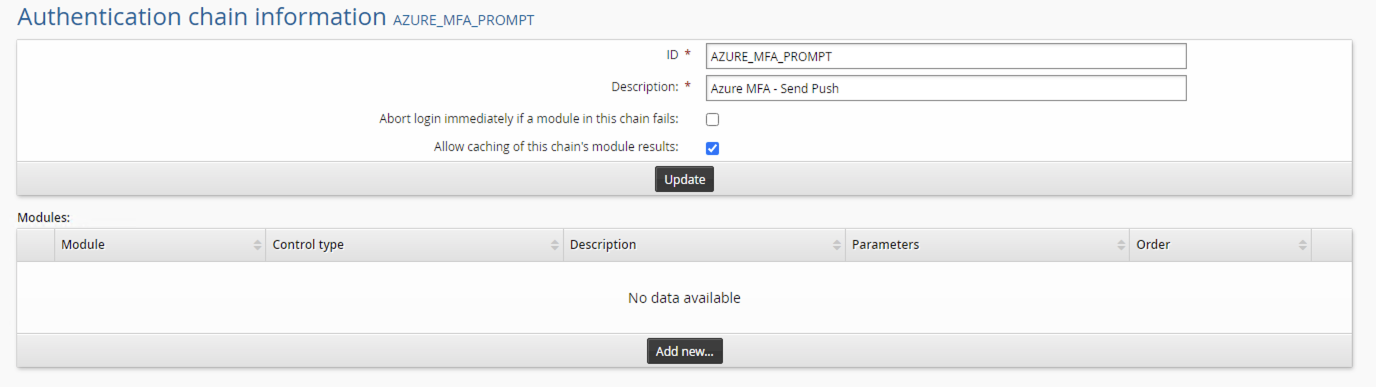
After creating the chain in the modules section click Add new…
In the module drop-down select
Connector package agent.For control type select
required.For description enter a description for this module; for example, Azure MFA.
Click Update.
After clicking update configure the rest of the module settings:
Target system to use for address and credentials: select the RADIUS target that was configured in the previous step.
Password verification operation: Select "Challenge response authentication".
Click Update.
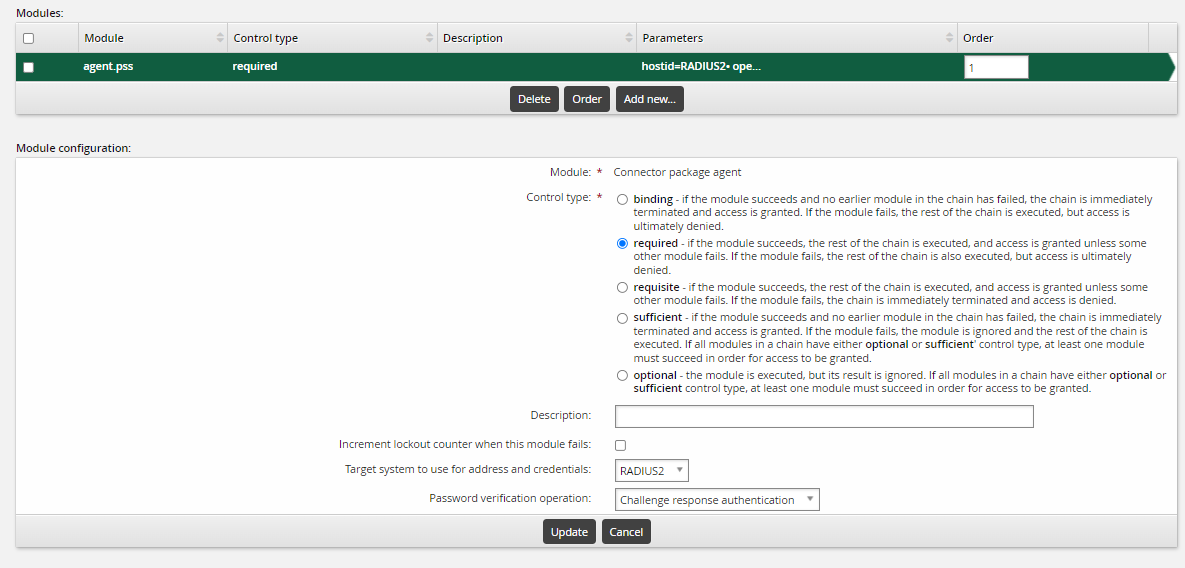
Click Enable to enable the authentication chain and make it available.
Add the new custom authentication chain to the front-end login authentication chain . This front-end login authentication chain allows users to use Azure MFA through RADIUS for passwordless login, thus users can receive the push notification on the mobile phone to approve the login request.
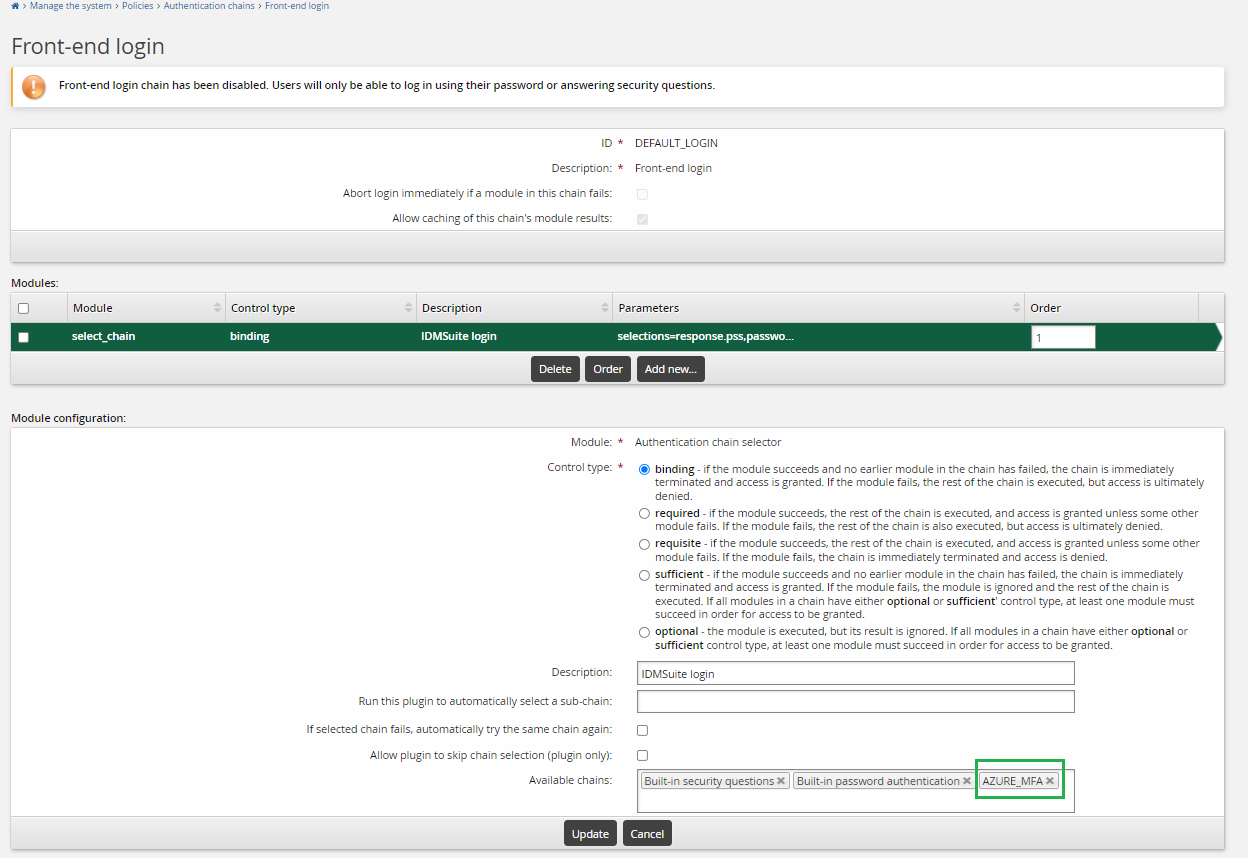
End users should now be able to log into Bravura Security Fabric by selecting Azure MFA as one of the authentication methods.
You can also configure the authentication chain differently to use Azure MFA as part of two-factor authentication:
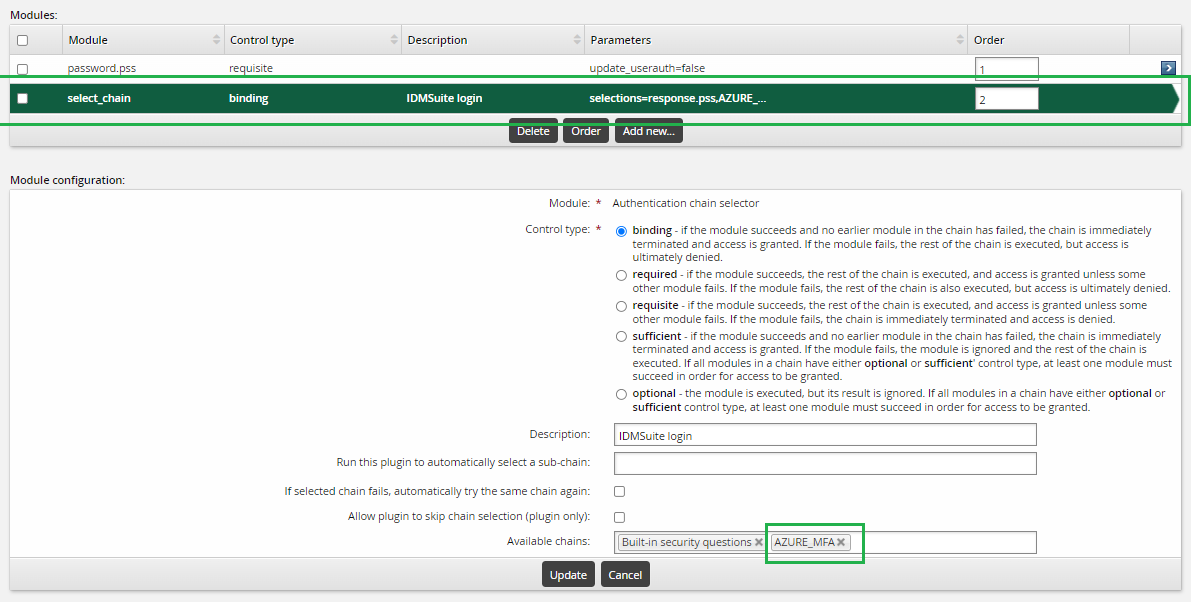
Before Azure MFA can be available to use at Bravura Security Fabric instance login, the NPS server must be running, and auto discovery or psupdate should have successfully processed the NPS server target.
If the NPS server is shut down or cannot be contacted by the Bravura Security Fabric instance, the profiles of the NPS server target will be disabled at the next auto discovery. At that time, Azure MFA will not be listed on the Choose an authentication method page.
Logging in using Azure MFA
Before using Azure MFA for Bravura Security Fabric instance login, ensure the user has already completed Azure portal login at least once using Azure MFA, and user has registered on the Microsoft Authenticator app to receive Azure MFA push notifications.
If authentication chains are configured as described above , end users can log into Bravura Security Fabric login using Azure MFA:
Enter the user name on the instance login page.
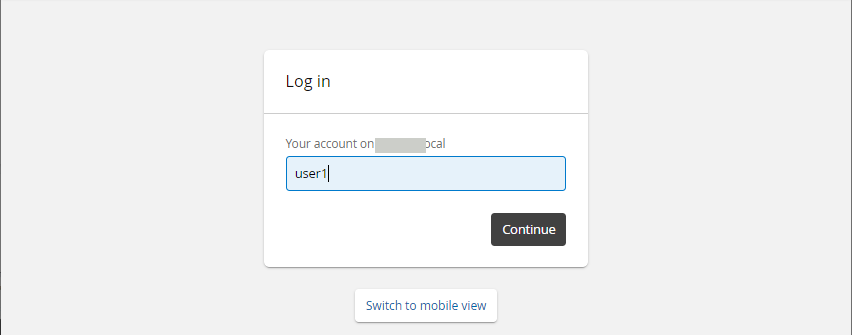
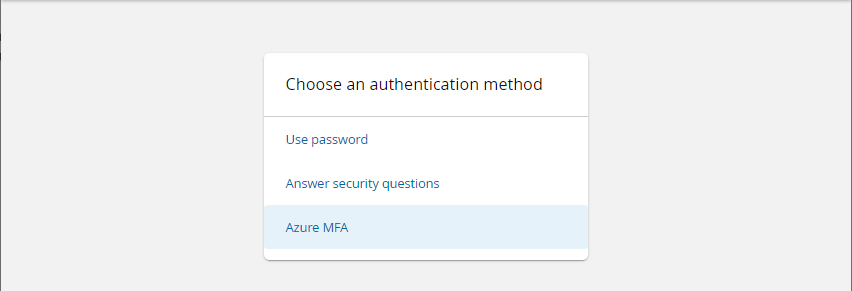
Select "Azure MFA" from the page
The user should receive a Azure MFA push notification on their mobile phone to approve the login request.
The user approves the request, then logs on the Bravura Security Fabric instance.
Smart Card authentication
Bravura Security Fabric can authenticate users with smart cards if:
Internet Information Services (IIS) is configured as your web server and it is set up with SSL.
Users’ web browsers are enabled for smart card access.
The login ID typed by users on the Bravura Security Fabric login page matches the user ID identified in the smart card certificate (the cn part of the CERT_SUBJECT environment variable).
To enable users to access Bravura Security Fabric using their smart cards, you must:
Configure certificate authentication of users with smart cards
The steps required vary depending on your environment. Consult your smart card documentation.
Enable and configure the HTTPAUTH authentication chain for web server authentication integration.
The
httpauth.exeprogram is both a CGI executable and an authentication plugin. It can be configured using a PSLang script.The custom authentication chain HTTPAUTH can be enabled.
Configure IIS for smart card authentication
The following instructions are for Internet Information Services (IIS) 8.0. Details may vary depending on your version of IIS and installed service packs.
These steps apply for a remote IIS server. On installation of Bravura Security Fabric , the httpauth CGI is installed and enabled for Windows authentication. To configure IIS for smart card authentication to Bravura Security Fabric :
Set up IIS with SSL and install a Server SSL certificate.
Consult your IIS documentation to learn how to do this.
Configure IIS to accept client certificates for
httpauth.exe:Open the Internet Information Services (IIS) Manager snap-in on the Bravura Security Fabric server.
Expand <computer name> > Web Sites > <install site>, then select the virtual directory for the Bravura Security Fabric instance.
On the bottom of the window, click on Content View.
From the list of content under the Bravura Security Fabric instance, select the
httpauth.exe.Right-click
httpauth.exe, then click Switch to Features View.Click SSL Settings.
Select the Require SSL checkbox.
Select the Accept radio button under Client certificates .
Under Actions, click Apply.
Configure mapping of client certificates.
Consult your IIS or smart card documentation to learn how to do this.
Single-page login and authentication
By default, the authentication process into Bravura Security Fabric is carried out in two separate steps: the user is identified, then authenticated (that is, the product prompts for a user name and then a password on separate screens). A plugin can be used to modify this behavior and have the product display both the user name and password fields on a single page.
In this use case a plugin is used to automatically direct users to a password authentication page, with ID and password fields on a single page.
This can be implemented by configuring the DEFAULT_LOGIN chain’s select_chain.pss to run the authselect.psl plugin .
A sample PSLang script, authselect.psl , is located in the samples directory. This file is only installed with a complete installation or if you selected Sample files in a custom installation.
When a user logs in:
The user is presented with a login page that also includes a password field.
The page includes the message:
Leave the password blank and press continue if you don’t know your password
The user may enter his ID and password to authenticate, or enter only his ID and proceed to the authentication menu that includes other authentication methods. If the user ID and password entered is:
Valid, then the user is immediately logged into the Front-end .
Invalid, then the user is redirected to the authentication menu to select another method.
Reorder available chains in select_chains module
When providing a choice of available authentication chains at login time, the chains listed in the Available chains list of the select_chain module get displayed for the user in the alphabetical order of their chain IDs, for example:
Configure Manage the system > Policies > Authentication chains > Front-end login .
In the Available chains setting, list:
Use PSFEXT_VALUES
EMAILPIN
SMSPIN
When users log in, Bravura Security Fabric displays the options in the in the alphabetical order of their chain IDs (after Use PSFEXT_VALUES):
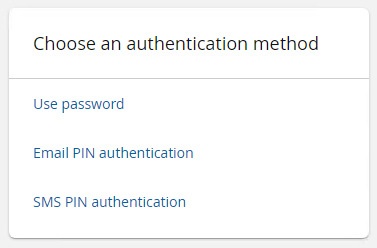
Requirements
This use case assumes that:
Bravura Security Fabric and Connector Pack are installed.
User has the administrative privilege and can access the Bravura Security Fabric server
Steps
Identify all cases where reordering is required. This will mean that you need to adjust the authentication chain names only once.
Export the authentication chains.
Edit the exported .cfg file(.exp file) to globally rename SMSPIN so it sorts above PERSONAL_EMAILPIN (for example ASMSPIN).
Re-import the authentication chains according to the article listed above.
Test the results.
When successful, update any custom components which add authentication chains, to use the new names for the authentication chain IDs.
If only default components are used, override them with custom ones that add the new chain ID names.
Now, the Available chains field lists chains as:
Use PSFEXT_VALUES
ASMSPIN
EMAILPIN
Bravura Security Fabric displays:
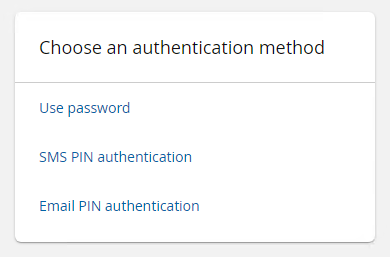
The method above is recommended even though manually creating a copy custom authentication chain is also possible only if the authentication chain does not have any of its modules registered (and it will require manual changes to all other chains where this chain is referenced).
Any other components and/or policy tables which may refer to the ID-renamed authentication chains must be edited as well. If component changes are required, do not edit default components; make custom ones.
Some other authentication chain modules (for example challenge-response modules like Okta or Duo) also provide their options in the order they are sent back from the API of the respective authentication service, or follow built-in order.
CAPTCHA test authentication
In this example, an authentication chain is set up to include a CAPTCHA test. CAPTCHA is an acronym for “Completely Automated Public Turing Test To Tell Computers and Humans Apart.” It is a type of challenge-response test used to determine whether or not the authenticating user is human. Publicly facing instances of Bravura Security Fabric are often configured to include a CAPTCHA test as part of the authentication process in order to prevent dictionary attacks on passwords, by displaying distorted text that humans can read but current computer programs cannot.
Bravura Security Fabric leverages Google’s reCAPTCHA system and offers a scenario-based component called Scenario.hid_authchain_recaptcha to help deploy this functionality. This component will install a custom authentication chain. As part of the configuration process, you are required to set the SECRET_KEY and SITE_KEY parameters (obtained from Google) in the hid_global_configuration table.
Configure the custom authentication chain:
Chain | Module | Control type | Settings |
|---|---|---|---|
DEFAULT_LOGIN | Authentication chain selector ( | requisite | Available chains : RECAPTCHA |
DEFAULT_LOGIN | Authentication chain selector ( | required | Available chains : Use PSFEXT_VALUES |
When a user logs in:
The user must use the default module, with either a password on a trusted system or by answering security questions.
The user must solve the CAPTCHA test module.
If the response is valid, authentication proceeds. If the response is invalid, authentication is immediately terminated.
Both modules must be successfully completed before the user can log in.
You can configure a similar HELPDESK_LOGIN chain for use when a helpdesk user accesses a user’s profile in the Help users (IDA) module.