Defining resource attributes
To add a new resource attribute:
Navigate to the Resource attribute information page .
Type a unique ID and Description.
Select a Type .
Bravura Security Fabric refreshes the page and re-displays settings according to the type you selected. If JavaScript is not enabled for your browser, you must click Add to allow the page to refresh.
Set parameters as described in the table below.
Click Add, or Update.
Setting | Type | Description |
|---|---|---|
Minimum required number of values | All | A number greater than 1 means the attribute is required. |
Maximum allowed number of values | String, Integer | A number greater than 1 means that multiple values are allowed. |
Allow duplicate values | String, Integer | Determine whether the values for a multi-valued attribute must be unique. This does not apply to single-valued attributes. |
Changes made will invalidate authorizations | All | If an authorizer or requester changes a resource attribute value, any previous authorizations of a request are invalidated. Other authorizers are notified and need to re-authorize the request. If an authorizer or requester changes an entitlement attribute value, any previous authorizations of that entitlement are invalidated. Other authorizers are notified and need to re-authorize the request. This is useful where an attribute change can be an entitlement authorization period issue; for example, if AESOD set to a value of 30 days, and an authorizer changes the value to 60 days, the original request should be invalidated. |
Maximum field length | String, Integer, Password | Maximum length allowed for each value |
Notes | All | Help information for the attribute. Once set, it will be available in wizards by hovering over the question mark icon. |
Description of input values | String, Memo, Integer, Password | This is displayed to users to show them how to enter values for the attribute. For example, type |
Format requirement of input values | String, Password | For example, type NNNN-NN-NN to indicate a series of numbers. |
Regular expression used for validation of input values | String, Memo, Integer, Password | If you use a regular expression for validation the Description of input values is required. |
Plugin used to generate a list of restricted values | String, Integer | You can use a plug-in to supply one or more restricted values for an attribute. Leave this field blank to define restricted values manually. |
Display text for positive value | Boolean | The default is |
Display text for negative value | Boolean | The default is |
Display text for no value | Boolean | The default is |
Default values for the attribute | String, Integer, Boolean | Attributes can be set up with default values, so that unless a user intervenes and changes them, the default values are copied to the newly added resource. If you define restricted values for the attribute, you can select them from a drop-down list for this option. |
Encrypt this attribute in theda abase | All except User | Enable this to encrypt attribute values in the database. If encrypted, the attribute cannot be mapped to a group attribute. Certification reviewers must have appropriate permission to view encrypted attribute values; otherwise they are masked. |
Boolean values
Boolean attributes require users to input a true or false value. The default choices displayed to end users are True or False or (None) if the attribute is optional.
To specify other values:
On the Resource attribute information page , type a text string for:
Display text for positive value
Display text for negative value
Display text for no value
Set the Default values for the attribute by selecting the appropriate radio button.
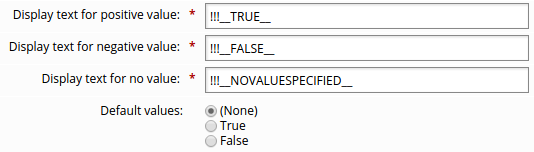
Click Update.
When you click Update, the default values text will change to reflect the values you specified.
Number of values required or allowed
The number of values required or allowed is set by the Minimum required number of values and Maximum allowed number of values on the page.
If the attribute is required for a resource, type a number greater than
0in the Minimum required number of values field.If more than one value can be entered, type a number greater than
1to set a Maximum allowed number of values, or type-1to allow an infinite number of values.This number can only be set to a positive number or
-1;0is invalid.Only string and integer attribute types can have more than
1value. The boolean, date/time, memo, and password attribute types can only have one value.
Maximum length
You can restrict the maximum length of a resource attribute value by using the Maximum field length setting on the page.
For multiple … | Maximum length refers to … |
|---|---|
Restricted values | Maximum length allowed for each value |
Unrestricted values | Total number of characters allowed in the text field for the attribute |
Restricted values
You can supply one or more restricted values for an attribute. Only integer or string type attributes can have restricted values.
When multiple restricted values are supplied for an attribute, users select one or more of the values from a list when they assign attribute values to a resource.
You can configure the values:
Manually using the Manage the system (PSA) module
Using a plugin to generate them dynamically
To define restricted values:
Add the attribute using the Resource attribute information page, leaving the Plugin used to generate a list of restricted values blank.
The Restricted values tab appears once the attribute has been created.
In the Restricted values tab, type the Actual value, to be recorded in the database, and Displayed value, to be shown to users.
To add additional values, click More or Update to add rows.
Click Update when you have added all values.
To delete a restricted value, select the checkbox next to the value then click Update.
The drop-down list above the section allows you to sort values alphabetically according to actual value or displayed value.
Default values
Attributes can be set up with default values so that unless a user intervenes and changes them, the default values are entered for a resource. This is the case for both required and optional attributes.
If default values are configured, they will be set in requests regardless of the recipient’s existing values.
On the page, define Default values for the attribute by typing them in the text box (unrestricted values) or selecting from the list of values (restricted or boolean values).