Change passwords (PSS)
The Change passwords (PSS) module allows end-users to change their passwords on one or more target systems using a web-based interface. If they have forgotten their password, they can access Bravura Security Fabric using another form of authentication.
The Change passwords (PSS) module is enabled by default. Switch PSS ENABLED off to disable it.
To configure self-service changes, follow these steps:
Click Manage the system > Modules > Change passwords (PSS) .
Configure the options listed in Table 1, “Self-service password change options” as required.
If required, configure event options, listed in Table 2, “Change passwords (PSS) module events that launch interface programs”.
Click Update to submit the changes.
Option | Description |
|---|---|
ALL HOST | Automatically selects all accounts/target systems for a user without showing a list of accounts on pages. See Automatically selecting / deselecting accounts for more information. |
HOST SELECT NONE | Shows accounts-per-target lists with no accounts/target systems selected on pages. See Automatically selecting / deselecting accounts for more information. |
S CHANGE EXT | The name of an external plugin program or script that supplies HTML to the page. See Self Service Anywhere: Smart Card PIN Reset to use a shipped plugin to extend the reset capability, or Adding new functionality and HTML to write a custom plug-in. |
S RESET TO PUSHPASS | Use the Password Manager service ( |
S STATUS EXT | The name of an external plugin program or script that supplies HTML to the page. See Local Reset Extension: Resetting cached credentials to use a shipped plugin to extend the reset capability, or Adding new functionality and HTML to write a custom plug-in. |
See also
Event Actions describes how to configure event actions to trigger external programs.
Changing your passwords in the end user documentation describes how to change your own passwords.
Changing passwords for users in the end user documentation describes how to change other users' passwords.
Queuing password changes
Bravura Pass can extend web-based password management by using the Password Manager service (idpm ) to queue password changes if the number of requests reaches a specific limit or to retry the change later if it failed.
Queuing failed password changes
You can use the S RESET TO PUSHPASS and A RESET TO PUSHPASS options to enable the automatic retrying (queuing) of failed web-based password changes.
S RESET TO PUSHPASS controls the behavior of the Change passwords (PSS) module and is set on the page. A RESET TO PUSHPASS controls the behavior of the Manage the system (PSA) module and is set on the page.
If your password policy enforces password history, failed password changes cannot be queued for automatic retry on target systems that are designated as synchronization triggers.
These settings have three possible values:
none | Bravura Pass behaves normally. Failed password changes must then be manually retried by logging into Bravura Pass and attempting the change at a later time, or through the use of a plugin. |
Manual | Users can select the accounts to be queued. If a password change failure occurs, users are notified on the password reset results page. The user may select accounts to queue by selecting the appropriate checkboxes under the Queue for automatic retry? column, and clicking the Queue failed changes button. Bravura Pass lists the target system and account IDs queued for automatic retry. |
Automatic | All failed password changes are queued for automatic retry. A message displays notifying the user that ”the failed password changes are queued and will automatically be retried”. |
Automatically selecting / deselecting accounts
Bravura Pass displays a list of accounts per target when users change their password on Change passwords (PSS) module. Normally, users can select accounts on any number of accounts, and every target is selected.
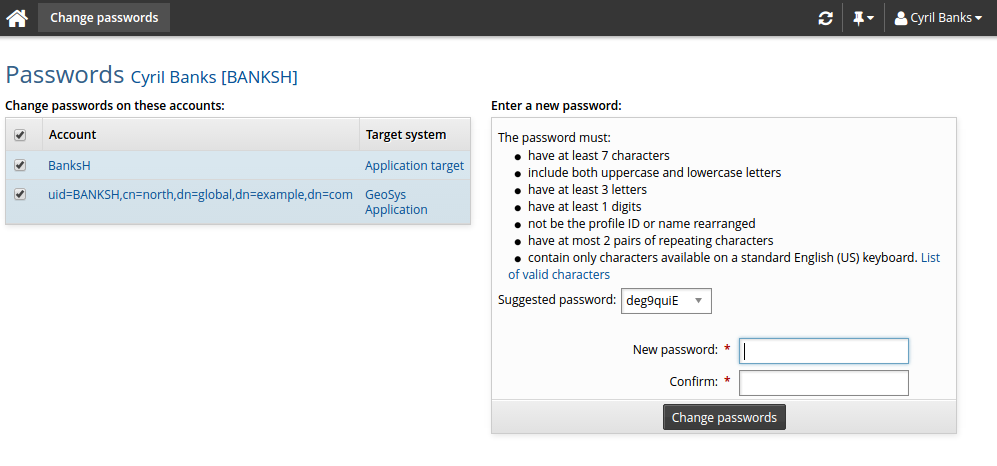
To change this behavior, enable the HOST SELECT NONE variable.
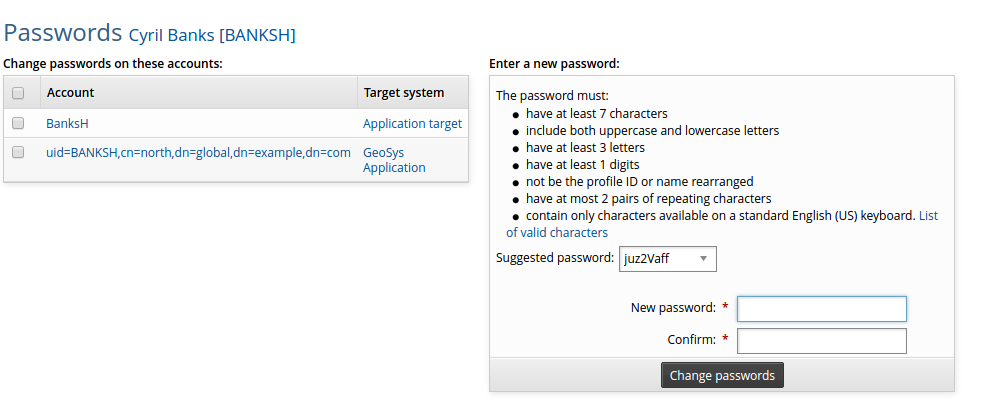
It is sometimes desirable to remove this flexibility; for example, if users need not recognize individual systems in the Change passwords (PSS) module when they need to change their passwords. Instead, users have the illusion of a single change operation that lets them regain access to multiple systems.
To remove the accounts-per-target list and automatically select every target, enable the ALL HOST variable.
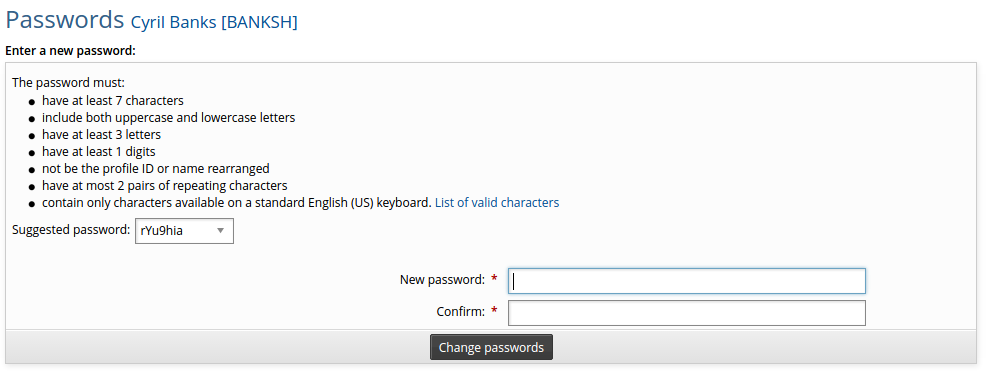
The ALL HOST variable has no effect when target systems belong to a target system group that uses the Only one account can be selected for password change rule.
Auto-populating suggested passwords
You can enable a JavaScript option to automatically populate password fields when a suggested password is selected. To do this, enable the UseSuggestedPassword option in the config.js script. See Modifying JavaScript behavior for more information.