Configuring target-system-level resource operations
Define resource operations for target systems to:
Determine whether Bravura Security Fabric connectors automatically fulfill requests or whether human agents will carry out tasks to fulfill the requests.
Add implementers to a target system to define who fulfills account requests based on the target system if Bravura Security Fabric connector is not used.
By default, all operations are set to be carried out by the connector. You can override resource operations at the target system, group, and template level. If the operation is set at target-system-level to be carried out by an implementer, you must assign at least one implementer to the target system. If you do not do this, requests involving the target system will be put on hold unless implementers are dynamically assigned by a plugin.
Determining override levels
To set resource operation override levels for a target system:
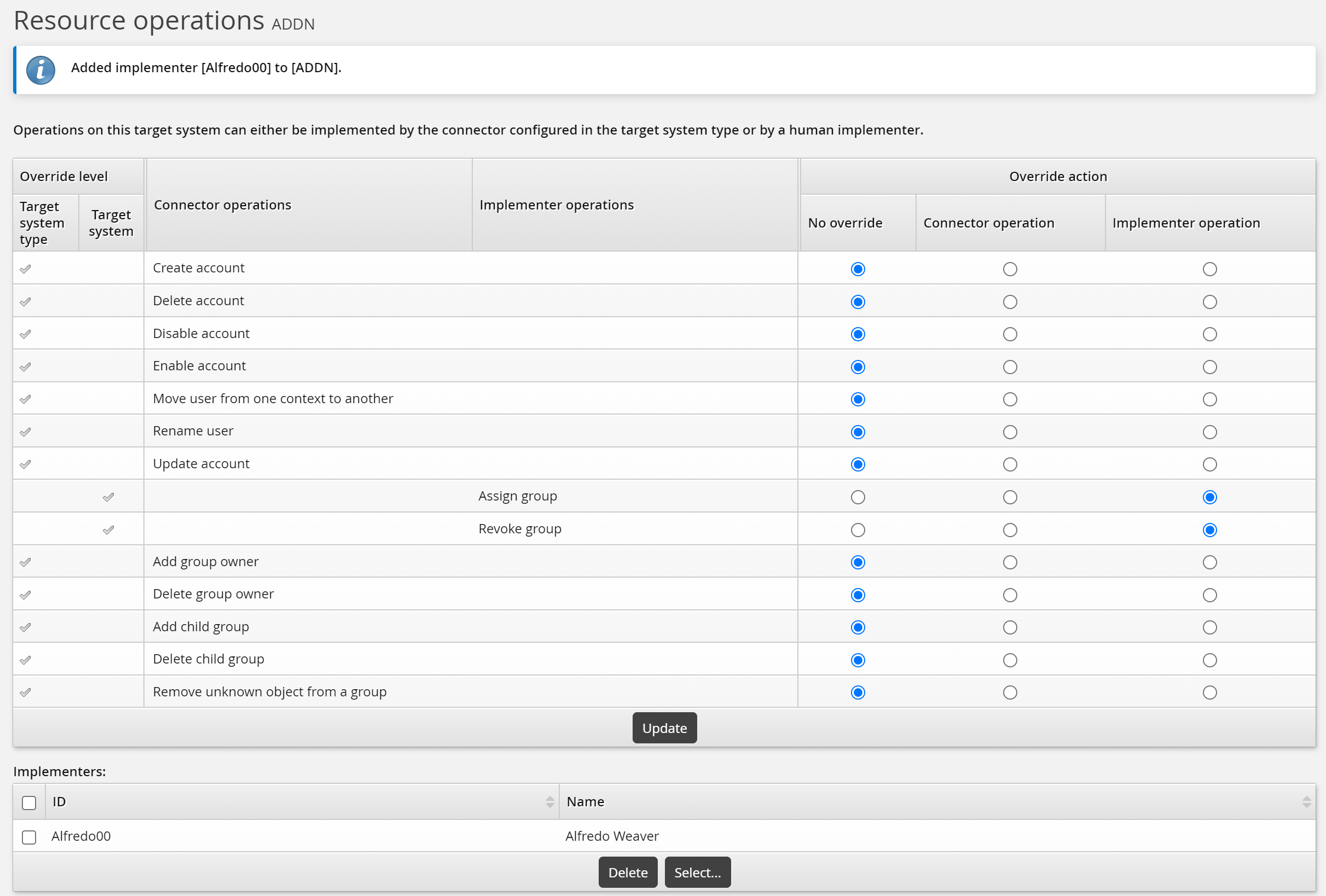
Navigate to the target system's Resource operations page .
Select:
No override - the operation is inherited from the target system type, which is by default connector enacted.
Connector operation – the operation will be connector enacted.
Implementer operation – the operation will be implementer enacted.
Click Update.
Assigning static implementers
When the target-system-level operation is carried out by an implementer, an Implementers table is included on the Implementer operation page. You can remove or keep the inherited implementer, or add new implementers for the target system.
To assign static implementers to a target system:
Navigate to the target system's Resource operations page .
Click Select… at the bottom of the Implementers table.
Search for, or select the checkboxes next to the implementers you want to assign to the resource.
Click Select at the bottom of the page.
To remove static implementers from a target system:
Click Remove implementer in the same row as the user’s ID.
Click Update at the bottom of the page.
Assigning implementers by user class
To assign implementers to a target system based on user class:
Navigate to the target system's Resource operations page .
Click the User classes sub-tab.
To define membership criteria:
Select existing user classes: Click Select… and enable the checkboxes for the user classes you want to add, then click Select.
Create new user classes: Click
 Add new… . See Adding user classes for full details on creating a new user class.
Configure Participant mapping for each user class that you add.
Select and create user classes until you have defined membership.
If your membership criteria includes multiple user classes, define whether users are required to match All of the user classes or Any of the user classes.
Removing users from membership
To remove users from membership, you can:
Edit user classes to change the participants.
Delete user classes from the membership criteria.
Navigate to the membership criteria page where user classes are listed.
Enable the checkbox next to the user classes you want to delete.
Click Delete.