Front-end main menu
The options displayed on the Front-end main menu depend on what Bravura Security Fabric features have been enabled and configured, and the permissions and capabilities granted to each user. The interface itself may also be customized. See Customizing the web interface.
The most common options available with an out-of-the-box installation are described in the following sections. If you do not have permissions to access an item, it will not be displayed. Symbols in the following sections indicate that the marked content applies to specific product licenses:
 Bravura Privilege |
  Bravura Identity |
  Bravura Pass
Option | Description | |
|---|---|---|
| Change passwords | Change your password on one or more systems. See Changing your passwords. |
| Unlock encrypted systems/accounts. | Unlock encrypted systems. See Unlocking access to encrypted systems. |
| Unlock accounts | Unlock accounts after you have been locked out due to too many failed login attempts. See Unlocking Your Accounts. |
| View and update profile | Change your personal information, manage your existing accounts, or request new resources. See Viewing and Updating Profiles. |
| Delegate authority | Delegate your own authority to approve or deny requests to another user. See Delegating Responsibility. |
| Browse the OrgChart | Manage who reports to you in the OrgChart, and browse other users’ lists of subordinates. See Viewing the OrgChart. |
Update security questions | Update your security question profile. See Updating Your Security Questions. | |
Attach other accounts | Attach accounts from different systems. See Managing Your Existing IDs. | |
| Password synchronization registration | Register yourself for transparent password synchronization. This enables you to change your password across all target systems simply by changing it in Windows. See Registering for password synchronization. |
Request access to network resources | Request access to network shares or other resources such as printers. If you are a group manager, you can also manage group membership and ownership. See Requesting Access to Network Resources. | |
Manage tokens | Enable or disable your RSA SecurID token, request or clear emergency access codes, set or clear your PIN, or resynchronize your token. See Managing Your SecurID Tokens. | |
Generate voice print enrollment PIN | Generate a PIN to register a voice print using an interactive voice response (IVR) system. Registering a voice print enables you to authenticate and reset a forgotten password or a locked-out account from a telephone. See Registering a Voice Print for Authentication via Phone. |
Option | Description | |
|---|---|---|
Help users | Administer help to users who have at least one account. This includes modifying users’ profile status, security question profiles, and owned accounts. See Helping Users. | |
| Create a new user profile | Request accounts or other resources for new users. See Creating a New User. |
View and update profile | Request new resources or modify information for existing users. See Viewing and updating profile information. | |
| Request access to network resources | Request access to network shares or other resources such as printers. See Requesting Access to Network Resources. |
| View initiated entitlement reviews | View and cancel ad hoc, single-user certification campaigns. See Reviewing entitlements. |
Option | Description | |
|---|---|---|
Privileged access | Request permission to access privileged accounts or acquire temporary group membership on a workstation or other resource. See Requesting / Checking Out Privileged Access. | |
| Session Monitor | Search and download recorded sessions. See Viewing and Downloading Recorded Sessions. |
Option | Description | |
|---|---|---|
| Requests | Track requests for which you are the requester or recipient. You can modify or cancel pending requests, and, if you are an authorizer, review and authorize requests. See Tracking and Updating Requests. |
Manage delegations | Respond to a delegation request. See Delegating Responsibility. | |
| Manage inventory | Add or modify inventory items if you are an inventory manager. See Managing Inventory Items. |
Option | Description | |
|---|---|---|
| View active subordinate privileges | Review the access rights for users of an application you own. See Reviewing entitlements. |
Option | Description | |
|---|---|---|
Manage the system | Configure Bravura Security Fabric objects and environment, and administer security. | |
| Manage certification process | Create, save, and start access certification campaigns. |
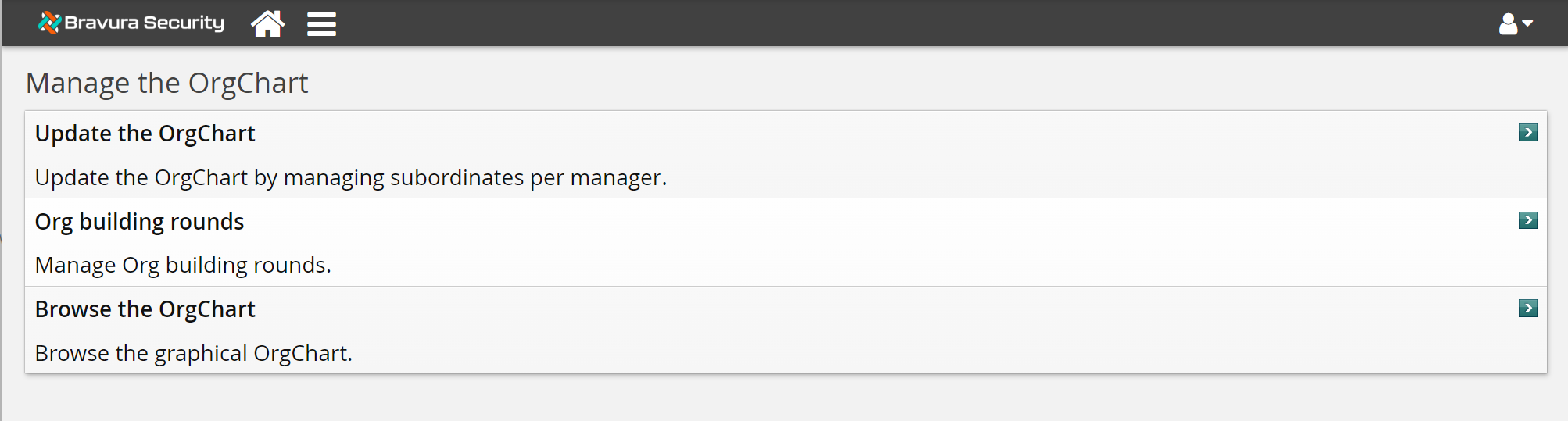
| Manage the OrgChart | Manually change the organization chart structure or start Org building rounds. |
| View dashboards | View graphical summary reports of Bravura Security Fabric operations and usage. |
Manage reports | Enables product administrators to view, run, save, and schedule reports. | |
Analytics | When configured, enables product administrators to view reports that exist on a Microsoft SQL Server Reporting Services (SSRS) server. | |
Manage external data store | Enables product administrators to view and update data in the External data store. | |
Change product administration password | Change your administrator password. This option is available only if your password is stored in Bravura Security Fabric , and not verified against a target system. | |
Manage components | Manage Bravura Security Fabric components. |
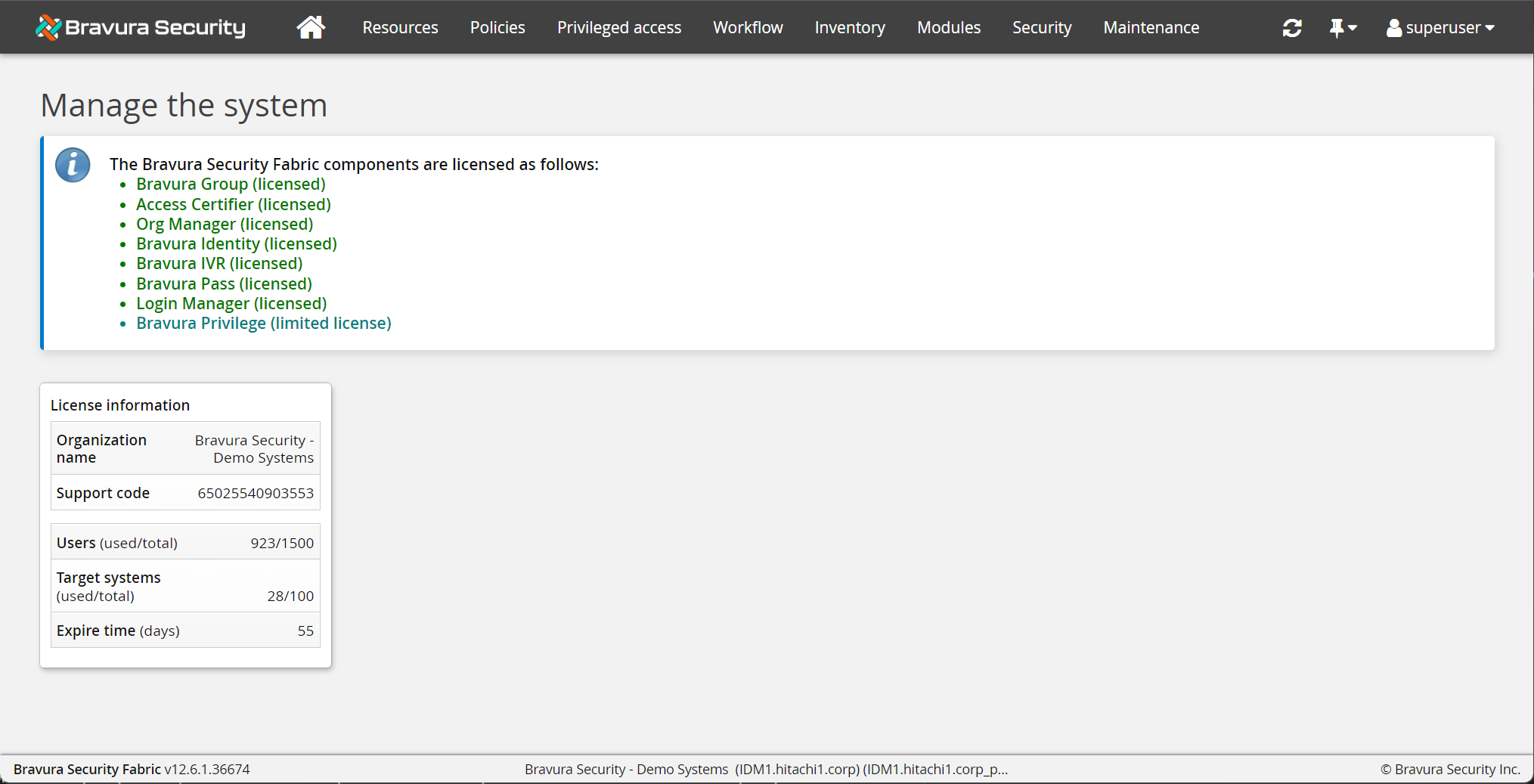
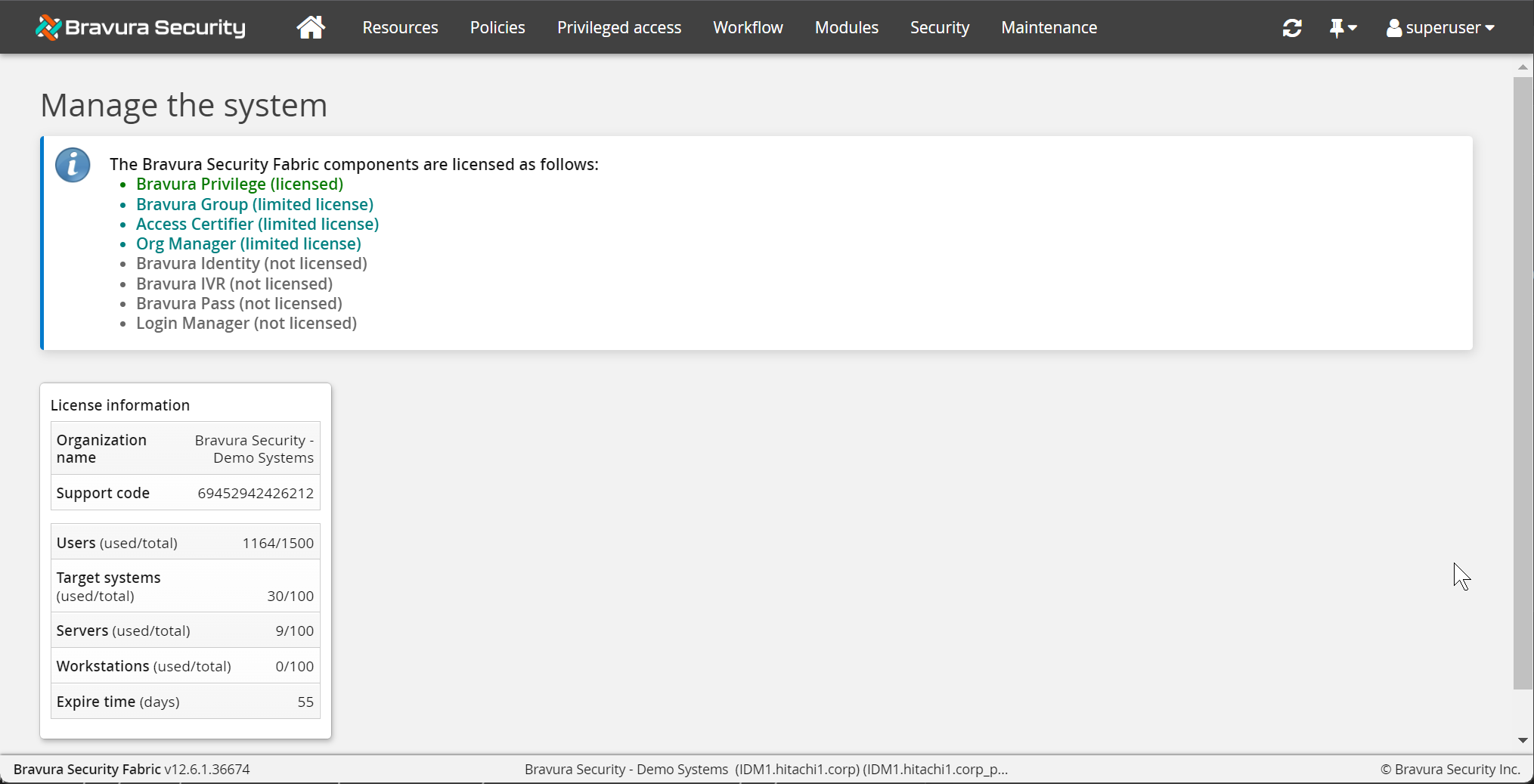
Product administrators can use the Manage the system (PSA) module to configure Bravura Security Fabric objects and environment, and administer security. The options available depend on the user's administrative privileges.
The menu includes license and usage statistics. The server that you are logged into is displayed at the bottom center of the page.
Manage the system main menu for Bravura Identity+Pass
Manage the system main menu for Bravura Privilege
The following subsections describe the Manage the system (PSA) module menu and corresponding sub-menu options.
Resources
Options on the menu enable you to add and update resources that can be managed by Bravura Security Fabric . You must have the "Manage resources" right to access this menu.
Click this ... | To access this functionality... |
|---|---|
Target systems | Add, update, or delete target systems. Details Target Systems |
Proxy tunnel clients | Manage proxy tunnel clients. Details Configure proxy tunnel clients (Websocket Connector Proxy). |
Target system groups | Apply web password change restrictions, synchronization rules, and password policies to groups of target systems. Details Target System Groups |
Discovered objects | View discovered systems and accounts, and add them to managed system policies . Details Discovered Objects |
Import rules | Add, delete and modify target system import rules. Details Import rules |
Template accounts | Set up templates that can be used to create accounts. Details Template Accounts |
Account attributes | Configure attributes specific to target systems. Details Account Attributes |
Roles | Set up roles that can be used assign requirements for a set of users. Details Roles |
Groups | Enable Bravura Security Fabric to manage group membership for certain target systems. Details Groups |
Network resources | Enable users to request access to network resources such as Active Directory network shares and printers. Details Network Resources |
Operation dependencies | Set up dependencies that control how data is exchanged between connectors; for example, the creation of an Exchange mailbox can be made dependent on an Active Directory account. Details Operation Dependencies |
Resource attributes | Define common and reusable attributes for resources. Details Resource Attributes |
Resource attribute groups | Define collections of resource attributes. Details Resource Attribute Groups |
Options | Options for role-based access control enforcement. |
Policies
You must have the "Manage policies" right to access the full menu.
Click this ... | To access this functionality... |
|---|---|
User classes | Set up user classes that can be used to segment the user population. Details User classes |
Segregation of duties rules | Set up rules that provide a way of identifying exceptions to roles or possible access conflicts. Details Segregation of duties rules |
Authentication priority | Prioritize target systems used to authenticate users when accessing Bravura Security Fabric . |
Identification priority | Prioritize target systems that users can select to identify themselves when accessing Bravura Security Fabric . Details Identifying users |
Password policies | Modify and apply strength rules to Bravura Security Fabric ’s global, centrally-managed password policy. Details Password policy |
Question sets | Configure question sets that are used to authenticate users. Details Question Sets |
Login options | Configure options for login. Details Login options |
User notifications | Configure notification of users of compliance requirements, password expiry, and other events. You must have the "Manage notifications" administrative privilege to access the User notifications sub-menu item. Details Batch and web notification |
Authentication chains | Customize authentication to Bravura Security Fabric using multiple methods. Details Authentication chains |
System interfaces | Configure interfaces with external systems. Details Keeping passwords secret from product administrators |
REST API authorization policies | Search, download, or reset REST API authorization policies to default. Details REST API Authorization policies. . |
Options | Configure general login and authentication policy options. Details Authentication policy options |
Privileged access
Note
Some of the options in this menu are only available with a full Bravura Privilege license .
Click this ... | To access this functionality... |
|---|---|
Managed systems | Add, delete and configure managed systems. Details Managed Systems |
Managed systems policies | Add, delete and modify managed systems policies. Details Managed system policies |
Import rules | Add, delete and modify import rules. Details Import rules |
Access disclosure plugins | Add, delete and modify access disclosure plugins. Details Access disclosure plugins |
Manual password randomization batches | View the manual password randomization results. Details Reviewing randomization results |
Local workstation service installation package | Generate installation key and download local workstation service installation package. |
Node assignments | Change the service linked to a managed system policy. |
Options | Configure general privileged access options. |
Workflow
Some of the options in this menu are only available with a full Bravura Privilege or Bravura Identity license .
The options on the Workflow menu enable you to configure common workflow objects and workflow logic. The table below details the available menu options. You must have the "Configure workflow setup" right to access this menu.
Click this ... | To access this functionality... |
|---|---|
Pre-defined requests | Configure pre-defined requests to define requests in terms that users understand, and reduce the number and complexity of steps. Details Pre-defined Requests |
Profile and request attributes | Set up profile and request attributes that can be used to collect and display information about users. Details Profile and request attributes |
Attribute groups | Group attributes to control user access and display, and apply attributes to certain operations. Details Attribute groups |
Authorizers | Set up users as authorizers. Details Static authorizers |
Email configuration | Set up e-mail notification. Details Modifying global mail settings |
Email customization | Customize language macros for email messages. Details Customizing workflow email using the Manage the system (PSA) module |
Options | Configure the various workflow options and features. This includes options for:
|
Inventory
This menu is available with a Bravura Identity license .
The options on the Inventory menu enable you to configure items and processes for inventory management. The table below details the available menu options. You must have the "Configure workflow" setup right to access this menu.
Click this ... | To access this functionality... |
|---|---|
Target systems | Add, update or delete target systems used for inventory management. Details Inventory Target Systems |
Locations | Set up location properties to help you define, search for, and manage inventory items. Details Inventory Locations and Types |
Item types | Set up item type properties to help you define, search for, and manage inventory items. |
Inventory managers | Set up users as inventory managers. You must have at least one item type, and one location set up before you can do this. Details Inventory managers |
Template accounts | Set up templates that can be used to request inventory items. Details Template accounts |
Inventory states | Update inventory states. Details Inventory Objects and States |
Inventory items | Add individual inventory items. |
Options | Enable plugins to manage inventory. Details Inventory Management Options |
Modules
The options on the menu enable you to configure the Bravura Security Fabric graphical user interface. The table below details the available menu options. You must have the "Configure modules" right to access this menu.
Click this ... | To access this functionality... |
|---|---|
Manage certification process (CERT) | Manage the access certification process and initiate certification campaigns. Details Manage certification process |
View dashboards (DASH) | View graphical summary reports. Details View dashboards |
Manage external data store (DBE) | Configure events and options for the External data store. Details External Data Store (DBE) |
Digital ID (DID) | Enable event actions for this module, which is used by Bravura Security Fabric to update a Lotus Notes ID file repository. Details Digital ID |
Help users (IDA) | Configure event actions and options for help desk users to assist users. Details Help users |
Manage the OrgChart (IDG) | Configure event actions and options for administrators to manage the organization chart. Details Manage the OrgChart |
Browse the OrgChart (IDO) | Configure event actions, plugins, and options for end users to browse or update the organization chart. |
View and update profile (IDR) | Configure plugins and options for end users to request security changes. Details View and update profile (IDR) |
Manage delegations (IDS) | Configure options for users to manage delegation requests. Details Manage delegations |
Manage the system (PSA) | Set event actions and options for product administrators to configure and manage Bravura Security Fabric . Details Manage the system (PSA) |
Front-end (PSF) | Configure plugins and options for front-end access and authentication. Details Front-End |
Generate voice print enrollment PIN (PSI) | Set event actions and options for voice print registration. |
Unlock accounts (PSK) | Set event actions and options for self-service account unlocks. Details Unlock accounts (PSK) |
Attach other accounts (PSL) | Set event actions and options for alternate login ID management. Details Manage tokens |
User notifications (PSN) | Enable the user notification system. Details User notifications (PSN) |
Manage tokens (PSP) | Set event actions and options for self-service token management. Details Manage tokens |
Update security questions (PSQ) | Set event actions and options for security question profile management. Details Update security questions (PSQ) |
Password synchronization registration (PSR) | Set event actions and options for password synchronization registration. |
Change passwords (PSS) | Set event actions and options for self-service password changes. Details Change passwords (PSS) |
Manage reports (RPT) | Configure options for the Manage reports (RPT) module. Details Manage reports (RPT) |
Requests | Configure event actions and options for users to view and act on requests. Details Requests app |
Privileged access | Configure Bravura Privilege managed systems and policies, service IDs, event actions, plugins, and options. Details Privileged access app |
Session monitor | Configure Bravura Privilege recorded sessions. Details Session monitor app |
Options | Configure plugins and options that apply to web modules in general. |
See also
For details about module configuration options see Modifying general behavior.
Security
The options on the Security menu enable you to set up and maintain the security of your Bravura Security Fabric environment. The table below details the available menu options. You must have at least one of the following rights to access this menu:
Manage security
Manage product administrators
Manage user groups
Manage certification
Click this ...
To access this functionality...
Access to profile and request attributes
Define user groups to control permissions for attribute groups.
You must have the "Manage user groups" right to access this option.
Access to resource attributes
Define user groups to control permissions for resource attributes.
Details Access to resource attributes
Access to product features
Add, update, delete, or enable / disable other users who log into the administrative consoles. You must have the "Manage product administrators" right to access this option.
Details Access to product features
Access to user profiles
Add, update, delete, or enable / disable groups of users who log into the self-service modules, or the Help users (IDA) module. You can also specify a requester and view a list of their privileges. You must have the "Manage security" right to access this option.
Details Access to user profiles
Privileged access to systems
Define user groups to control permissions for managed system policies .
You must have the "Manage user groups " right to access this option.
Details Privileged access to systems
Options
Configure general security options. You must have the "Manage security" right to access this option.
Details Security plugin options
Maintenance
The options on the Maintenance menu enable you to set up and maintain your Bravura Security Fabric service programs, schedule jobs, update the system, configure mail, and configure general settings. The table below details the available menu options. You must have at least one of the following rights to access this menu:
Maintain servers
Configure replication
Click this ... | To access this functionality... |
|---|---|
Auto discovery | Manage ID filters, set connector order, or run auto discovery. You must have the "Maintain servers" right to access this option. Details Auto Discovery |
System logs | View and search the current Bravura Security Fabric log. You must have the "Maintain servers" right to access this option. |
Services | Install and monitor the Bravura Security Fabric services through the Web interface. You must have the "Maintain servers" right to access this option. |
Scheduled jobs | Schedule jobs. You must have the "Maintain servers" right to access this option. Details Scheduling Maintenance |
Connector concurrency rules | Configure extra locking for connector operations, preventing concurrent execution. You must have the "Maintain servers" right to access this option. Details Customizing connector behavior |
File synchronization | Synchronize files between the main server and proxy servers, or between servers in a replicated environment. You must have the "Maintain servers" right to access this option. Details Managing Proxy Servers and File Synchronization . |
Connector behavior | Change default options for various connectors. You must have the "Maintain servers" right to access this option. See Customizing connector behavior for details about options for each connector. |
Database replication | Configure and control database replication. You must have the "Configure replication" right to access this option. |
System variables | Configure all system variables within Bravura Security Fabric from one page. This is helpful if you know the name of the system variable you want to modify, but cannot remember where it is located. |
Environment variables | Display the current system environment in which Bravura Security Fabric is running. This is not the same environment as the currently logged-in user. You must have the "Maintain servers" right to access this option. |
Options | Configure general maintenance options. You must have the "Maintain servers" right to access this option. |
The following security privileges control access to the Manage certification process (cert) module:
Product administrators with the ”Manage certification process” administrative privilege can initiate certification campaigns with multiple reviewers.
Product administrators with the ”Initiate entitlement certification campaigns” administrative privilege can initiate entitlement certification campaigns with a single reviewer.
Users with the ”Initiate a review of all entitlements” privilege can initiate a quick certification of a single user via the View and update profile (IDR) module.
The Manage certification process (CERT) module includes tabs:
Active campaigns to view information about campaigns that are in progress
Start entitlement certification campaign to add a new entitlement certification campaign
Start configuration certification campaign to add a new configuration certification campaign
Saved certification setups to select a saved configuration
Scheduled campaigns to view information about campaigns that are scheduled
See:
Managing the Certification Process to learn how to use the Manage certification process (CERT) module
Certification Options to learn how to configure the Manage certification process (CERT) module
The following security privileges control access to the Manage the OrgChart (IDG) module:
Product administrators with the ”Manage the OrgChart” administrative privilege can update the OrgChart and view the OrgChart structure.
Product administrators with the ”Start Org building rounds” administrative privilege can initiate OrgChart-building rounds and invite managers to update their list of subordinates.
The Manage the OrgChart (IDG) module allows product administrators to:
Identify managers and their subordinates
An Org Manager administrator could simply identify the top-level manager, then initiate an OrgChart building round whereby managers identify their own subordinates. In other cases, product administrators could build parts or all of the OrgChart, then initiate the process to have managers verify the information.
Identify users who no longer report to a certain manager
Transfer users from one manager to another
See:
Managing the OrgChart to learn how to use the Manage the OrgChart (IDG) module.
Manage the OrgChart (IDG) to learn how to configure the Manage the OrgChart (IDG) module.
The following security privileges control access to the View dashboards (dash) module:
View certification dashboard
View workflow dashboard
View privileged access dashboard
View OrgChart dashboard
View enrollment dashboard
Recompute dashboard cache
The View dashboards (DASH) console includes dashboards for graphical summaries of Bravura Security Fabric operations and usage.
See:
Viewing dashboards to learn how to use the View dashboards (DASH) module
View dashboards (DASH) to learn how to configure the View dashboards (DASH) module
The Health check monitor dashboard is also displayed on the Front-end if it is installed and the user has the required privileges. See Health check for more information.
The Manage reports menu enables you to use the Manage reports (RPT) module to run reports based on the information stored in the Bravura Security Fabric database You must have the " Manage reports reports" administrative privilege to access this menu.
See:
Reports for information about managing reports
Manage reports (RPT) for information about configuring the module
Analytics is an optional Bravura Security report feature that organizes and displays Microsoft’s SQL Server Reporting Services (SSRS) reports.
When analytics is configured, an Analytics link is available on the Bravura Security Fabric administrative menu.
Reports that exist on a SQL Server Reporting Service server are displayed on the Analytics user interface and can then be saved in different formats such as DOC, CSV, PDF and HTML.
The analytics feature requires SQL Server Reporting Service (SSRS). The version of SSRS must be the same version as the SQL Server for the instance; for example, SQL Server 2016 and SSRS 2016.
In order to use the Analytics app, the feature must be configured:
If you do not see Analytics on the main menu, it has not been installed.
In order to access the Analytics app users require the "Analytics" administrative right or have membership criteria which is defined by the _ANALYTICS_READERS_ user class.
To create new reports, Microsoft’s Report Builder must be installed on the user’s computer.
See Analytics for more information.
The Manage external data store (DBE) module allows product administrators to view and update data on external database tables on a SQLite connection. The data can be accessed through an API Service (idapi) function call. This provides the ability to use external information in plugin points and a means to maintain the external information.
Product administrators require the Manage external data store privilege to access the Manage external data store module. Once the administrative privilege is granted and the requirements are met, the Manage external data store link is displayed on the Front-end.
See External Data Store for information on configuring and using the module.
If you are a product administrator and your password is not verified against a target system, you may be required to change your password in Bravura Security Fabric at regular intervals. When your password expires, you are directed to the Change product administration password administration password page upon login.
There are two ways that you can change a product administrator’s password. You can change it using the Bravura Security Fabric web interface or by using the adm_set program in the <instance>\util\ directory.
If you forget the password for your Bravura Security Fabric superuser, then using adm_set is by default the only way to reset the product administrator’s password.
Change the password using the web UI
To change your Bravura Security Fabric console login password:
On the main menu, click
Change product administration password.Type your current password and new password in the appropriate fields.
Re-type your new password in the
Confirm your new passwordfield. The password can be up to 64 characters long.Click
Change my password.
If you are a product administrator and your password is verified against a target system, password expiry is determined by the target system, and the Change product administration password link is not included on the main menu.
Click below to view a demonstration of changing the product administrator’s password using the Bravura Security Fabric UI and then changing it back to the original password using the adm_set utility.
Change the password using the adm_set utility
Open a Windows command prompt (cmd.exe) as administrator.
Change directory to the location of the
adm_setutility using the following command:cd c:\Program Files\Bravura Security\Bravura Security Fabric\default\util
Change the password of the superuser using the adm_set utility using the following command:
adm_set.exe -user superuser -pass <new password>
If you are prompted to make changes to the computer, click Yes.
Log in to the Front-end (PSF) as superuser with the new password.
If the login is successful, then the superuser password was correctly reset using the
adm_setutility.
The adm_set utility can also be used to unlock a product administrator account. See adm_set usage information .
See also
Expiring product administrators’ passwords to learn how to set the password expiry interval for product administrators whose password is stored in Bravura Security Fabric .
Access to product features to learn how to set up product administrators, including password options.
Password policy to learn how to configure general password policy.
The menu enables you to install and manage components that provide extra functionality to Bravura Security Fabric .
The Manage Components link is only visible to superuser-type product administrators.
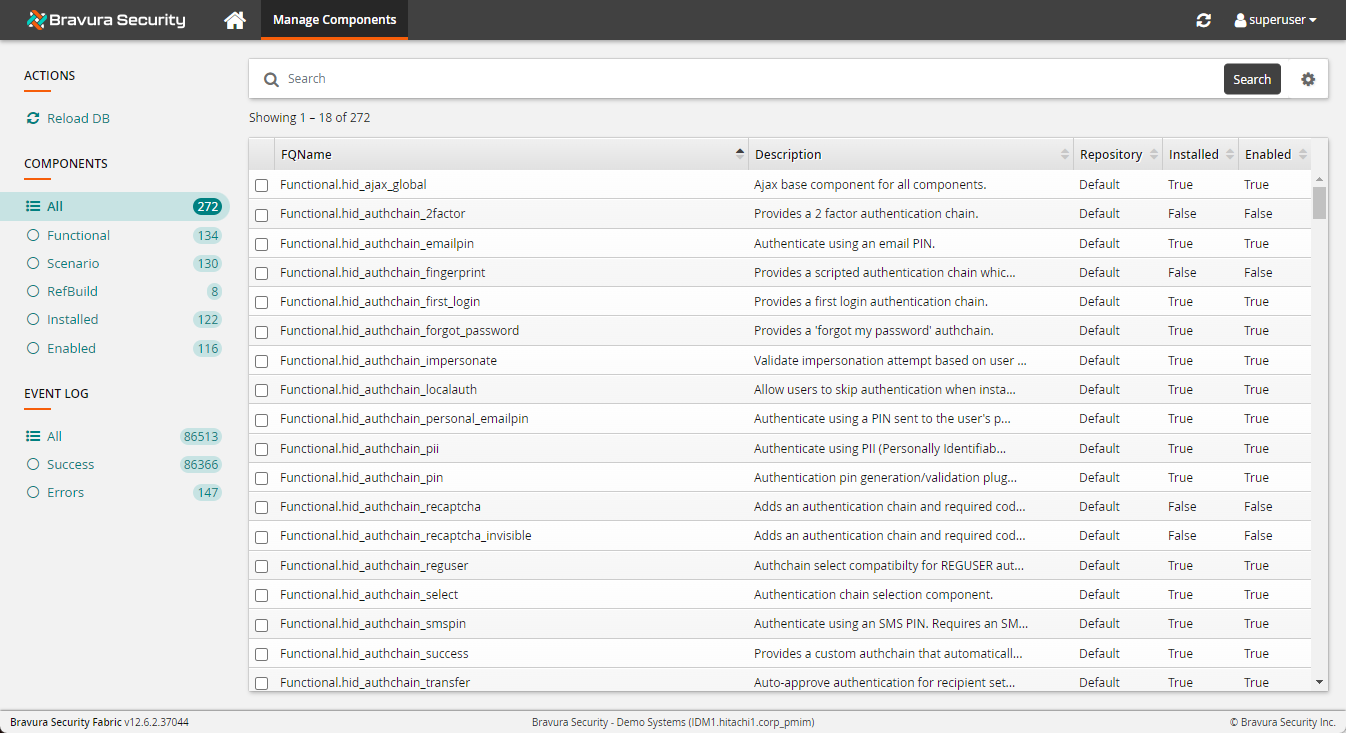
See Components for more information.