Self-service large credential management
Users with the LC Trustees privilege can upload large credentials enclosed in files and other documents into an encrypted vault for team vaults and vault systems. They also have the ability to specify passwords which can be disclosed from the privileged access app, similar to vault accounts. Requesters can then request access to the vaulted file and download it upon checkout.
LC trustees have access to the following pre-defined requests:
To manage vaulted files, a team vault needs to be created. Alternatively, a vault system can be used.
Upload a vaulted file
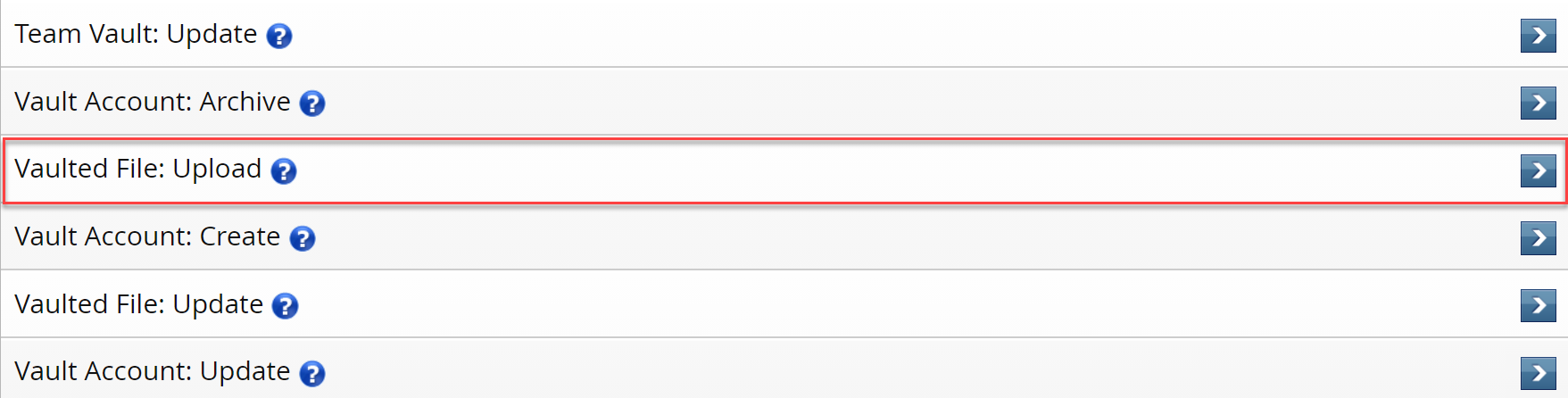
Users assigned as LC trustees can use the Vaulted File: Upload request to upload a file.
From the home page, click Manage resources.
Select the Vaulted File: Upload request.
Select a managed system.
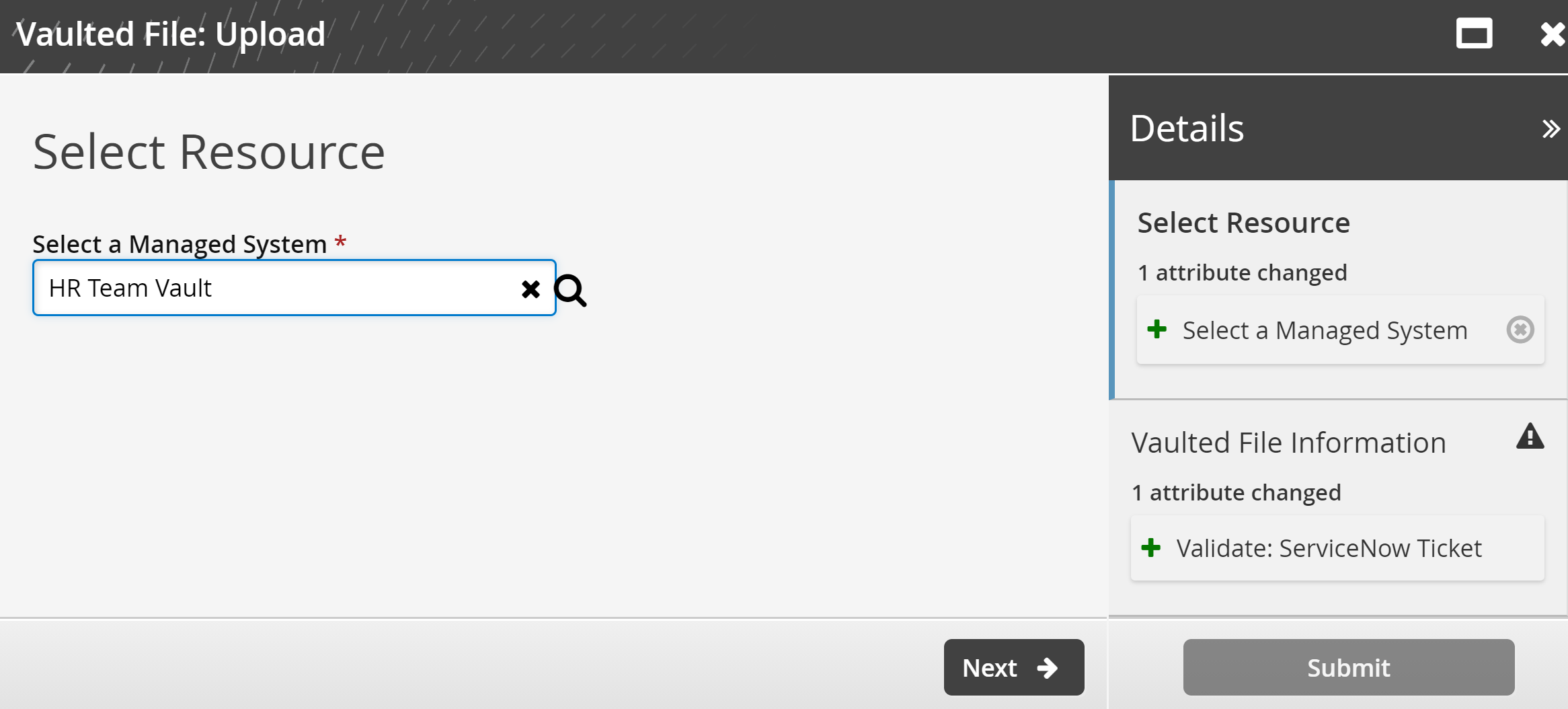
Click Next .
Enter a unique File ID.
Select a Vaulted File from the local workstation.
Enter an optional File Password, in case the file is password-protected.
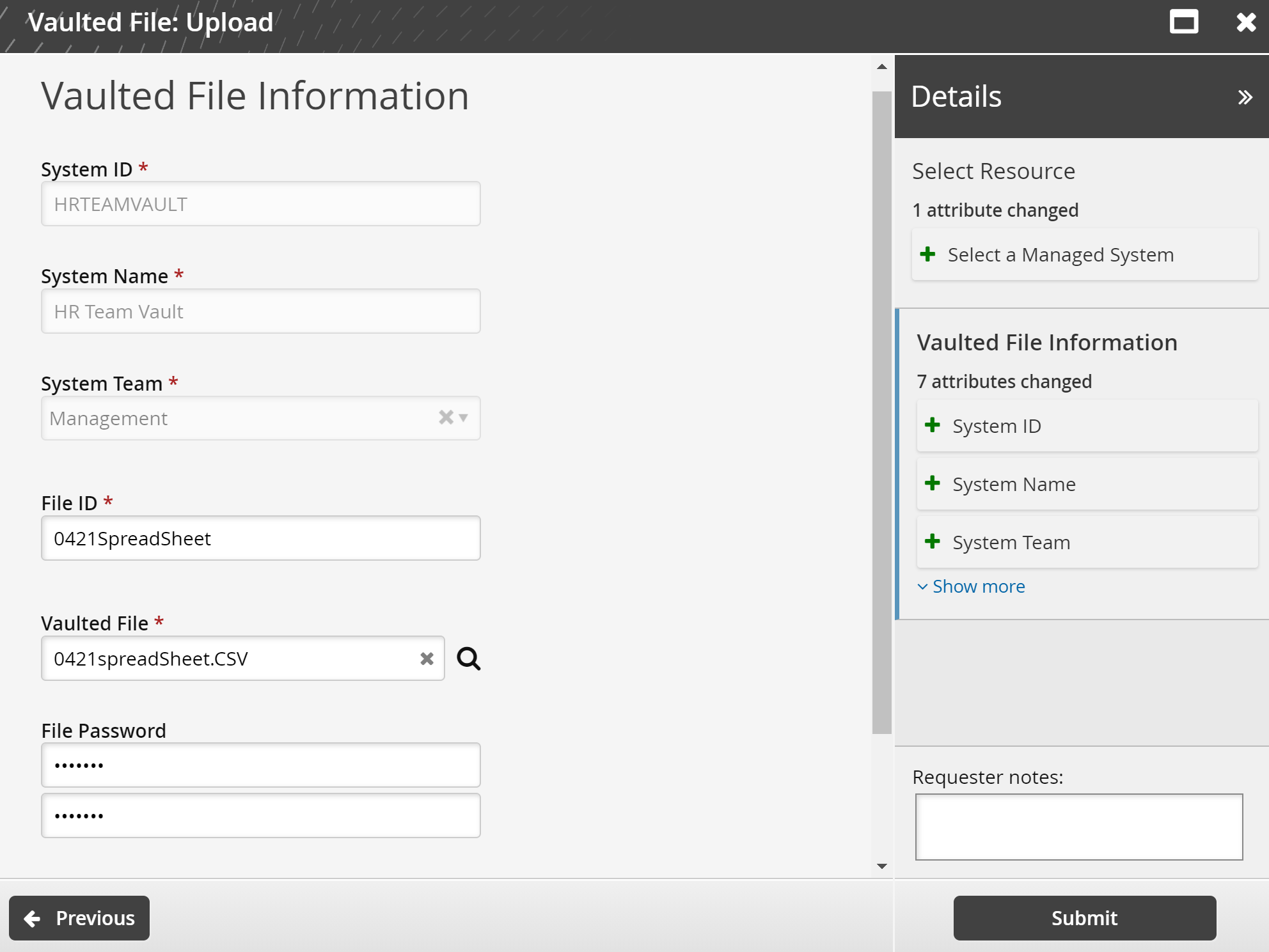
Click Submit.
Bravura Security Fabric notifies authorizers to review the request if required.
Click the View request link at the top of the page to view the status of the request.
Once created, you can update the vaulted file’s contents or file password.
API automation for vaulted file upload
This request is resource-dependent and cannot be submitted via API for Bravura Security Fabric version 12.7.1.
Updating a vaulted file
Users assigned as LC trustees can use the Vaulted File: Update request to update a vault file with a new file or specify a different file password.
From the home page, click Manage resources.
Select the Vaulted File: Update request.
Select a vaulted file.
Click Next .
Select a new Vaulted File from the local workstation.
(Optional) Enter a new File Password, in case the new file is password-protected.
Warning
If you select a new vaulted file and previously set a file password, the password will no longer be retained if the File Password fields are left empty.
Click Submit.
Bravura Security Fabric notifies authorizers to review the request if required.
Click the View request link at the top of the page to view the status of the request.
API automation for vaulted file update
This request is resource-dependent and cannot be submitted via API for Bravura Security Fabric version 12.7.1.
Troubleshooting
Password strength checking failed
On uploading or updating a large credential/secret file you may receive an error like:
"Failed: Password strength checking failed. The password does not meet the requirements of the password policy. Failed to perform operation [custom]."
Change the password text under the tag _NO_LARGE_CREDENTIAL_PASSWORD_PROVIDED_ inside the text ="" defined in the component/Custom/Functional/pam_vault_target/ui/en-us-language.kvg file, and reload the components with the --patch option . The new password needs to conform to the password policy defined under VAULT_MSP or the actual MSP that handled the large credential vault. If the file above doesn't exist, copy the Functional/pam_vault_target directory from component/Default to component/Custom.