Blue Prism Integration
Bravura Security Fabric can be used to secure credentials from Blue Prism processes used to automate Bravura Privilege tasks and has multiple options for securing callers of credential access requests.
Architecture
Blue Prism integration leverages the pamutil collection of libraries and utilities that mediate access to Bravura Privilege servers.
One or more pamutil clients need to be installed on resource PCs where credentials will be used.
The Blue Prism Utility Environment can be used to call the runwithpass executable provided as part of the pamutil package.
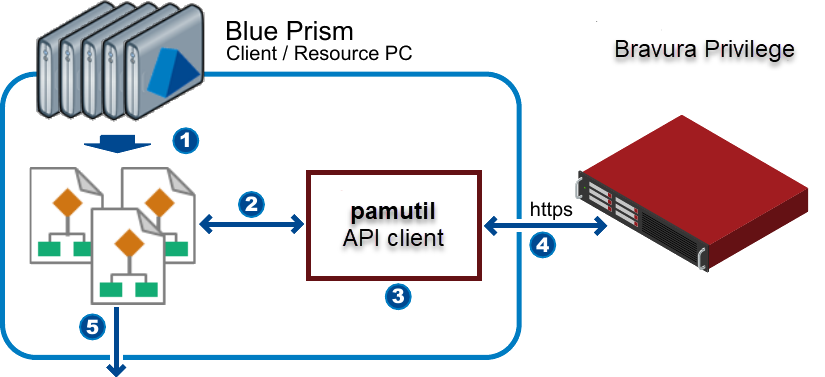
In the above diagram:
Blue Prism resources execute processes.
A Blue Prism process requests credentials from
pamutil.The "fingerprint" of the requesting caller/environment is obtained.
Bravura Privilege returns credentials to process through
pamutil.Blue Prism processes can automate logins into applications with credentials.
System requirements
Integration of Blue Prism with Bravura Privilege requires a minimum of:
Bravura Security Fabric version 9.x or higher.
Blue Prism 6.x
Usage scenarios
The following are typical scenarios for Blue Prism integration:
Providing Blue Prism automation targets with credentials.
The primary scenario shows how automation processes can obtain credentials from Bravura Privilege . These can be used to connect to accounts on systems where the credentials are managed by Bravura Privilege .
Running operating system processes as part of Blue Prism automation.
Some actions (typically calling command-line programs) can have credentials passed directly into them on the command line or replaced in files immediately before the command is executed.
Controlling and starting Blue Prism automation processes.
Blue Prism programs can accept credentials on the command line. These can be started with credentials stored by Bravura Privilege .
Integration requirements
The only requirements to access credentials from Bravura Privilege are an installed and configured pamutil client and the Blue Prism Utility Environment. The pamutil client is ordinarily installed by the administrators of the resource PC.
Initialization
Before pamutil can be used to retrieve credentials it must be initialized. In controlled environments this is normally a system administration task. To initialize a pamutil environment you need:
An initial OTP API user to access the API.
These can be provisioned through a predefined request workflow or created on an individual basis by administrators. The OTP API user will also need permissions to access the resources and accounts it will need.
Following is an example of an OTP API user:
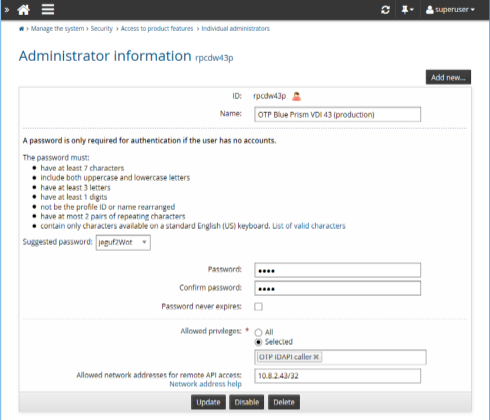
Using the API to retrieve administrative passwords describes how to configure an OTP API user via the Manage the system (psa) module.
Example: Create an OTP API user describes how to create an OTP API user with Bravura Pattern: Privileged Access Edition.
The
pamutilconfiguration file (by default, namedconfig.ini) which specifies the API connection parameters and details.A prepared credentials file which will contain the encrypted state and account cache information. The default name for this file is
creds.ini.The command runwithpass -initial will prompt for the OTP API account’s initial password, update the credentials file and initialize the encryption. At this point Blue Prism can use credentials stored within Bravura Privilege .
Fingerprinting callers
The pamutil client has the ability to "fingerprint" both the caller and the calling environment. This can help reduce the risk of unintended access disclosure – if the initialization fingerprint is different than the caller’s, then access to the credential is denied. Fingerprinting is optional but it can be applied as necessary in high-risk environments. It can also help to prevent unintended configuration mishaps from occurring in dynamic large scale deployments.
If you want to prevent credential access from unauthorized systems that simply had copies of the creds.ini file, you can add the line:
usemachinekey=1
to the config.ini before it is initialized. Callers on other machines will not be able to obtain the credentials if the machine attributes (such as the MAC address) are different than the one it was initialized with.
Similarly, the line:
filekey=./config.ini
Will prevent disclosure of credentials when its own configuration has been modified. In both cases, pamutil needs to be re-initialized with a new OTP API password before credentials can be retrieved.
See Configuration and credentials files for additional methods of fingerprinting pamutil callers in your version of Bravura Privilege .
Obtaining credentials
After initialization, Blue Prism developers can obtain the credentials by calling runwithpass from the "Utility - Environment" "Start Process Read Stderr and Stdout" Action as shown below:
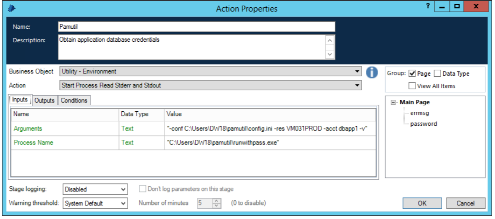
This will retrieve the password for the "dbapp1" account on the "VM031PROD" resource and places it into the data item "password."
Additional calling considerations:
Multiple names or locations for the config.ini configuration file can be specified. Each configuration specifies the location of its credential storage file creds.ini.
You should avoid obtaining the credentials as a data item unless it is absolutely necessary. The
runwithpassprogram can also execute commands directly without retrieving them.Obtain credentials only immediately before they are used (as late as possible). If they are not used again, then re-assign (or clear) the variable values after use as a precaution.
In cases where it is necessary to obtain sensitive information from
pamutilthen the Blue Prism Password data type should be used.In production, you may want to ensure that logging is turned off for this stage. This will help contain the inadvertent release of sensitive information through diagnostic channels.
Use case
The following steps demonstrate how to obtain credentials using Blue Prism:
Set up an OTP IDAPI caller.
You can either use the Manage the system (PSA) module or with request workflow.
Configure
pamutilwith the following command:runwithpass.exe -initial
Make sure
runwithpasscan retrieve a managed account password correctly.To use pamuti l in BluePrism, grab the environment-utility from
https://github.com/blue-prism/environment-utility
or use a business object that can read standard-out / standard-error.
Create an Action to use the business object to run
runwithpass.Configure the business object to run
runwithpassas shown in the example below: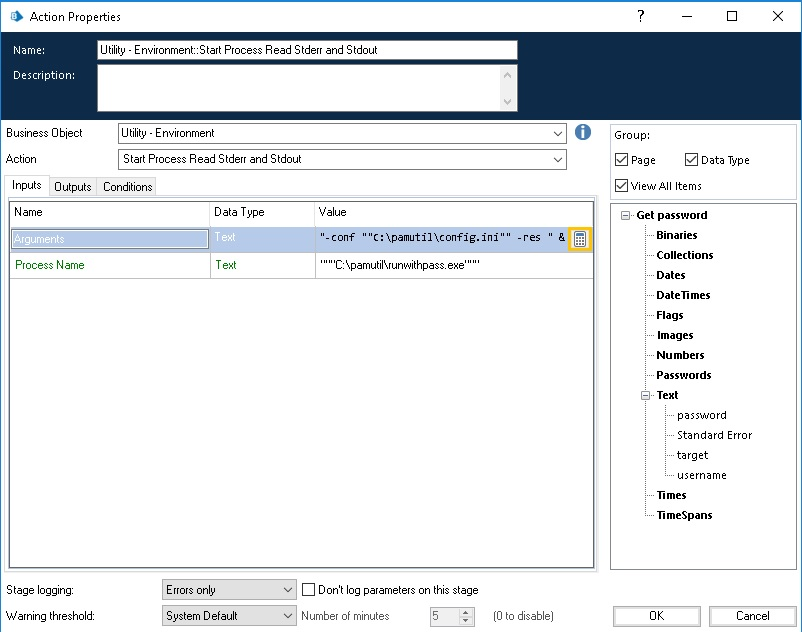
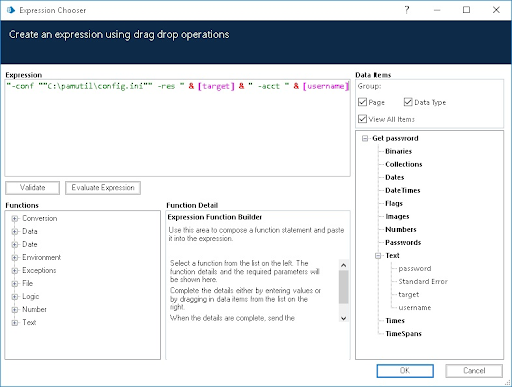
For the Business Object "Utility - Environment", use the Action "Start Process Read Stderr and Stdout" with the inputs:
Arguments
"-conf ""C:\pamutil\config.ini"" -res " & [target] & " -acct " & [username]Process name
"""C:\pamutil\runwithpass.exe"""We need to specify the path to
runwithpassand the config.ini file, where:targetis the managed system IDusernameis the managed accounttargetandusernameare in this format because they are Blue Prism Data Items and the & is used to concatenate the data item into the Arguments input.
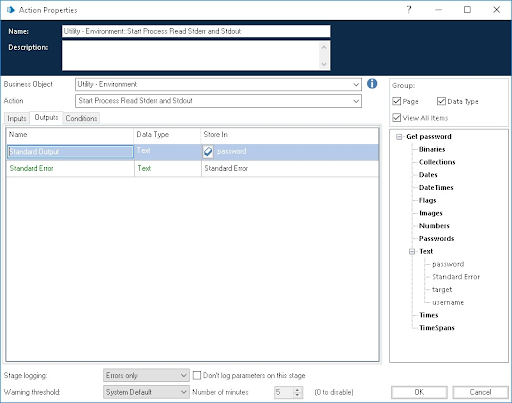
For the Outputs, store Standard Output and Standard Error into Data Items:
Once the action is configured with the business object to run
runwithpass, we can set the Data items for the inputs and run the process to verify that the password can be retrieved without errors.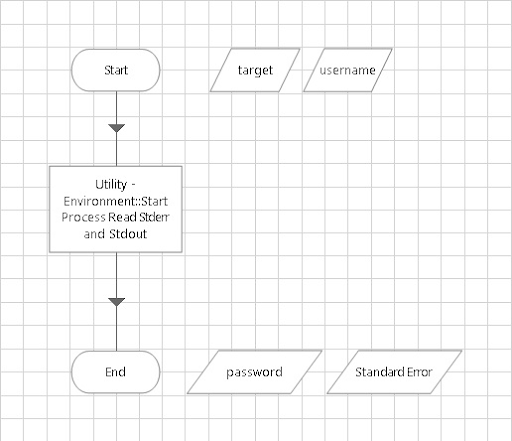
We can use the
pamutil/runwithpassaction with other business objects or publish this business object to use with as a business object as a whole.In the following example, we show how we can use
pamutilto either login to a Bravura Security Fabric instance or RDP into a workstation using the managed account and its password: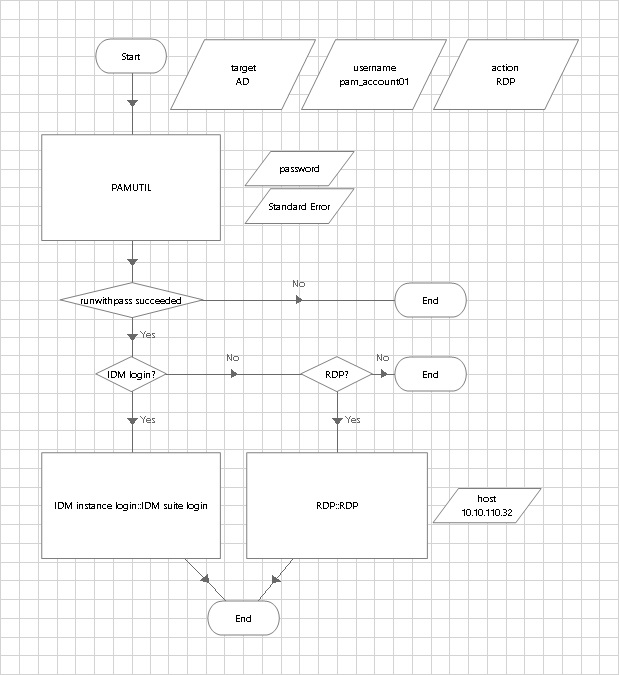
Running processes without handling credentials
It is not always necessary to handle the credentials themselves. Since runwithpass can send the credentials into the command directly without retrieving them into data items, it can be used for simple tasks that require an account password. Here is an example that ensures that a drive mapping exists:
runwithpass -res fs02 -acct bk01 -keyword X -- net use J: \\fs02\bak /user:bk01 X"
Starting Automation Processes
Some Blue Prism utilities have command-line arguments that accept credentials. Instead of leaving the command line parameters exposed, the passwords should be stored in Bravura Privilege and retrieved when the utility is started.
runwithpass -conf config.ini -res rpc04 -keyword PWD -acct dw09 --
AutomateC.exe /run myprocess /resource rpc04 /user dw09 PWD
In this example, pamutil will retrieve the password for the dw09 account on the machine (or resource) rpc04 and call AutomateC to start "myprocess" replacing the PWD field with the actual password.