Personal privileged access
The following sections show you how to configure and use the personal privileged access feature.
Terminology
The following terms are used in this chapter:
Personal administrative account | An account with elevated privileges that is owned by a single user. |
Account trustee | A user who can onboard, offboard, and update privileged accounts. |
Help desk trustee | Any user that is a member of the help desk trustee user class, and so can submit a request to assign an owner at account onboard or update. |
Objective
Technical staff in many companies have both a normal employee account and an administrator account that contains elevated privileges. These accounts are checked out at the start of almost everyday in order to connect to various systems to complete their tasks. It is tedious to request, check out, and disclose information repeatedly for something so critical to their day-to-day duties.
Organizations require administrators to streamline their workflow by automatically checking out personal administrator accounts that they own at login when launching the privileged access app.
Solution
The personal privileged access feature automates the request process, allowing specific account access to be assigned to a single owner. The act of signing into Bravura Privilege triggers an automatic check-out of all the owner’s personal privileged access accounts.
Initial considerations
Determine which accounts should be personal administrator accounts and who should own them by considering the following:
How often is this account accessed?
Is the same person always accessing this account?
If an account is accessed frequently, such as part of daily tasks, and is always accessed by the same person, it is a good candidate to make it a personal admin account and assign it single ownership.
API automation for personal privileged access account onboard
Once the API has been configured (See "SOAP API" in Bravura Security Fabric Remote API (api.pdf) and your script has been authenticated to the API (Login or LoginEx API calls), the WF API calls can be used to create an API request.
Use the WFPDRSubmit function to create a workflow request and submit the request for publishing.
When submitting a request, use ”ONBOARD_ACCOUNT” as the PDR ID.
Note
This is similar to the API automation for account onboard, with some differences noted in the table below.
The request uses the following attributes:
attrkey | value |
|---|---|
HOSTID | The ID of the system on which the account resides. |
ACCOUNT | The ID of the account to be onboarded. |
MSP_ID | The managed system policy the account will be binded to. This must be set to PERSONAL_ADMIN_ACCOUNTS. |
MA_PERSONAL_OWNER | The owner of the personal admin account. |
REQUEST_TEAM | The team in which its account trustee(s) will be used to authorize the request. This value is required, but not enforced for this request. See REQUEST_TEAM attribute for more information. |
DISCLOSURE_METHOD_DIRECT | T to enable direct connection disclosures for the account, F to disable. |
DISCLOSURE_METHOD_VIEW_COPY | T to enable display and copy disclosures for the account, F to disable. |
SESSMON_KEYSTROKE | T to enable keystroke recording for direct connections, F to disable. |
SESSMON_CLIPBOARD | T to enable clipboard recording for direct connections, F to disable. |
SESSMON_SCREENSHOT | T to enable screen recording for direct connections, F to disable. |
MA_PWD_OVERRIDE | T to allow credential managers to randomize or override account during check-out, F to disallow. |
MA_RES_CHECKOUT_LIMIT | The number of concurrent checkouts for the account. |
ACCOUNT and HOSTID attributes are required. Note that those are not automatically populated from SELECT_MA. This will be accomplished in a future version(s)
ONBOARD_ACCOUNT batch request sample
"ACCOUNT","HOSTID","MSP_ID","MA_PERSONAL_OWNER","SESSMON_CLIPBOARD","SESSMON_KEYSTROKE","SESSMON_SCREENSHOT","MA_PWD_OVERRIDE","DISCLOSURE_METHOD_DIRECT","DISCLOSURE_METHOD_VIEW_COPY","MA_RES_CHECKOUT_LIMIT"
"account01","D39B55F07A6A487AABE4BD8C9EC1679C","PERSONAL_ADMIN_ACCOUNTS","AlenCha","T","T","T","T","T","T","1"
The REQUEST_TEAM attribute is the team in which its system trustee(s) will be used to authorize the request. This can be a different value depending on which PDR is used. In some cases, the value is auto filled and in other cases, a value is not required.
PDR ID | API submittable | REQUEST_TEAM required | REQUEST_TEAM auto-filled |
|---|---|---|---|
BATCH_REQUEST | No | N/A | N/A |
CREATE_LARGE_CREDENTIAL | No | N/A | N/A |
UPDATE_LARGE_CREDENTIAL | No | N/A | N/A |
WEBAPP_DISCLOSURE_CREATE | No | N/A | N/A |
WEBAPP_DISCLOSURE_DELETE | Yes | No | N/A |
WEBAPP_DISCLOSURE_UPDATE | No | N/A | N/A |
TEAM-CREATE | Yes | Yes | Yes |
TEAM-DELETE | Yes | Yes | Yes |
TEAM-MEMBERS | Yes | Yes | Yes |
TEAM-UPDATE | Yes | Yes | Yes |
CREATE_VAULT_SYSTEM | Yes | Yes | Not required |
ARCHIVE_VAULT_SYSTEM | Yes | Yes | Yes |
UPDATE_VAULT_SYSTEM (1 - same team) | Yes | Yes | Yes |
UPDATE_VAULT_SYSTEM (2 - transfer) | Yes | Yes | Yes |
CREATE_VAULT_ACCOUNT (1 - team vault) | Yes | Yes | Yes |
CREATE_VAULT_ACCOUNT (2 - system vault - same team) | Yes | Yes | Yes |
CREATE_VAULT_ACCOUNT (3 - system vault - different team) | Yes | Yes | Yes |
ARCHIVE_VAULT_ACCOUNT | Yes | Yes | Yes |
UPDATE_VAULT_ACCOUNT (1 - team vault) | Yes | Yes | Yes |
UPDATE_VAULT_ACCOUNT (2 - system vault - same team) | Yes | Yes | Yes |
UPDATE_VAULT_ACCOUNT (3 - system vault - transfer) | Yes | Yes | Yes |
ONBOARD_SYSTEM | Yes | Yes, but not enforced | No |
ARCHIVE_ONBOARDED_SYSTEM | Yes | Yes, but not enforced | No |
UPDATE_ONBOARDED_SYSTEM | Yes | No | If the destination team is unset or the destination team is the same as the source team |
ONBOARD_ACCOUNT | Yes | Yes, but not enforced | No |
OFFBOARD_ACCOUNT | Yes | Yes | Yes |
UPDATE_ONBOARDED_ACCOUNT | Yes | Yes, but not enforced | No |
CREATE_PAMUTIL_API_USER | Yes | No | Not required |
 improper display of the team in update/archive when the destination team's vault trustee is not in a team owning the vault system. This will be fixed in a future release.
Example: Onboard an account and assign a single owner
This example shows you how to configure Bravura Privilege to onboard an account and assign an owner.
Requirements
This example assumes that:
Bravura Security Fabric and Connector Pack are installed.
An Active Directory target has been configured and is a source of profiles.
Bravura Privilege Pattern is installed.
Scenario.pam_personal_admin_managementis installed.Teams have been configured with account trustees.
Systems have been discovered and onboarded.
RefBuild.pam_team_managementis installed when Bravura Privilege Pattern is installed.Systems onboarded before this component is installed will need to be manually added to the "Personal administrator access" MSP.
Onboard an account and assign owner as an account trustee
Log in to Bravura Security Fabric as an account trustee.
In the Requests section of the main menu, click Manage Resources.
Click the Account: Onboard PDR.
Select a managed account.
Click Next .
Select Personal administrator access policy.
Configure other settings as appropriate.
Click Next .
Select a privileged access owner.
Click Next .
Configure session monitoring options as appropriate.
Click Submit.
Help desk trustees can also submit requests, but the task will not be implemented until an account trustee approves the request.
Example: Transfer ownership from a team to a single owner
This example shows you how to configure Bravura Privilege to transfer an account from a team and assign an owner.
Requirements
This example assumes that:
Bravura Security Fabric and Connector Pack are installed.
An Active Directory target has been configured and is a source of profiles.
Bravura Privilege Pattern is installed.
Scenario.pam_personal_admin_managementis installed.Teams have been configured with account trustees.
Systems have been discovered and onboarded.
There is at least one account managed by a team.
Transfer owner of an account from a team to a single owner
Log in to Bravura Security Fabric as an account trustee.
In the section of the main menu, click Manage Resources.
Click the Account: Update PDR.
Select a managed account.
Click Next .
Select the Personal administrator access policy.
Configure other settings as appropriate.
Click Next .
Select a privileged access owner.
Click Next .
Configure session monitoring options as appropriate.
Click Submit.
Example: Check out personal admin access
This example shows you how to assess the personal admin account as the owner.
Requirements
This example assumes that:
Bravura Security Fabric and Connector Pack are installed.
An Active Directory target has been configured and is a source of profiles.
Bravura Privilege Pattern is installed.
Scenario.pam_personal_admin_managementis installed.Teams have been configured with account trustees.
Systems have been discovered and onboarded.
At least one personal admin account exists.
Add the Personal admin accounts filter to the Privileged access app
Log in to the front-end as superuser.
Click Manage the system > Policies > User classes .
Create a user class to filter which users can view the Personal admin accounts filter.
Add the requesters' accounts to the user class you created. These requesters will see the Personal admin accounts filter.
Click Manage the system > Modules > Privileged access .
Add the new user class to the ACCESS PERSONALADMINACCOUNTS USERCLASS setting.
Check out personal admin account access
Log in to Bravura Security Fabric as a requester.
In the section of the main menu, click Privileged access.
Click Personal admin accounts filter.
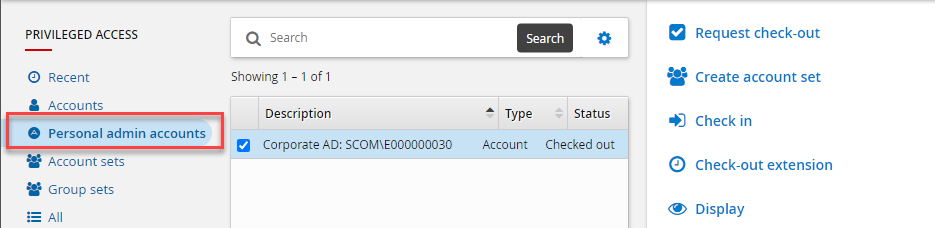
Select the personal administrative account to check out.
Click Request Check-out.