Bravura Safe (2025+)
Connector name |
|
Connector type | Python script, |
Type (UI field value) | Bravura Safe (2025+) |
Connector status / support | Bravura Security-Verified This connector has been tested and is fully supported by Bravura Security. |
Upgrade notes | Added in Connector Pack 4.8. The Bravura Safe (2025+) connector should be used for the latest Bravura Safe servers from 2025 and later. The Bravura Safe connector is for targeting Bravura Safe servers that were created prior to 2025. |
Bravura Security Fabric utilizes the agtpython connector to be able to manage the Bravura Safe credentials from collections for the users within an organization or team from Bravura Safe .
The following Bravura Security Fabric operations are supported by the Bravura Safe (2025+) connector:
get server information
user verify password
user change password
administrator reset password
create account
delete account
update attributes
add user to group
delete user from group
create group
delete group
List:
accounts
attributes
groups
members
For a full list and explanation of each connector operation, see Connector operations.
Note
The account operations for the agtbsafe25 connector refer to the Bravura Safe credentials or items found within a user's Safe collection.
The adding to or deleting users from groups operations refer to adding or removing Bravura Safe credentials or items to or from a user's Safe collection.
The group operations refer to the list of collections found within Bravura Safe.
See also
The Bravura Safe User Management (2025+) connector can be used to list users from an organization or team from Bravura Safe. This connector is for users logging into Bravura Safe.
Preparation
Before you can target Bravura Safe (2025+), you must:
Set up Bravura Safe
See Bravura Safe Documentation to learn how to set up a Bravura Safe instance, team, and users.
Recommended Bravura Safe permission sets
The following are the recommended sets of permissions for the Bravura Safe administrator as well for general access to the Bravura Safe web instance.
Bravura Safe target administrator:
User type: Custom
Admin Permissions:
Manage all collections
Create new collections
Edit any collection
Delete any collection
Access Control:
"This user can access and modify all items" must be selected
Bravura Safe web instance for administration and setup:
User type: Custom
Admin Permissions:
Create new collections
Edit any collection
Access Control:
The option for "This user can access only the selected collections" should be selected and set with no collections specified.
This will allow for the creation of collections and credentials as well as adding users to collections, but not be able to view the credentials in the collections once they are created. This would also allow the administrator to add themselves to a collection to view or edit the credentials.
Set up the target system administrator
The Bravura Safe (2025+) target system requires administrative credentials that are previously configured on the Bravura Safe instance.
To configure the target administrator:
Log in to Bravura Safe via the web interface and open your Team.
Click Teams, then Manage.
Invite a new user:
Click Invite User.
Enter the email address for a user that will be used as the administrator.
Set the User type to Custom.
Set the specific permissions as noted above for the recommended permissions.
Click Save.
Complete the process to onboard the user.
Alternatively, edit the permissions for a current user by clicking on their email address and modifying for the above set of recommended permissions.
The email address and master password set for this user will be used for the administrator credentials for the Bravura Safe (2025+) target system.
Install the Bravura Safe CLI
The Bravura Safe CLI is required for use with the Bravura Safe (2025+) and Bravura Safe User Management (2025+) connectors.
Troubleshooting
File Blocked by Windows Security
When downloading bsafe.exe from GitHub, Windows may mark the file as blocked because it came from another computer. This security feature can prevent the CLI from executing properly.
Symptoms:
The connector fails to execute
bsafe.exeAccess denied or execution errors when running the CLI
Windows security warnings about the file
Solution:
Right-click on
bsafe.exeand select Properties.On the General tab, look for a Security section at the bottom that states:
"This file came from another computer and might be blocked to help protect this computer."
Check the Unblock checkbox next to this message.
Click Apply, then OK.
Verify the file is now unblocked by checking the properties again - the security warning should be gone.
CLI Not Found in PATH
Symptoms:
Error
[WinError 2] The system cannot find the file specifiedappears in the logsObjects fail to be listed from the Bravura Safe connector
Solution:
Verify the system PATH environment variable includes the directory containing
bsafe.exe(e.g.,c:\bsafe).If the PATH is missing or incorrect, add the directory containing
bsafe.exeto the system PATH environment variable (not the user PATH). The method to access environment variables varies by Windows version.Ensure the path can be accessed by the psadmin account by verifying the file exists and has appropriate permissions.
Restart the Bravura Security Fabric services after updating the PATH. The updated PATH will not be reflected until the services are restarted.
After restarting services, test that the connector can successfully list objects from Bravura Safe.
Alternative Solution (if service restart is not possible):
If restarting services is not an option, you can modify the connector files to use the full path to the Bravura Safe CLI. Note that this change will be overwritten when the connector pack is upgraded and will need to be reapplied.
Locate the following connector files:
agtbsafe25-user.pyagtbsafe25.py
In each file, find the line:
CLI_EXE: str = "bsafe"
Change it to use the full path:
CLI_EXE: str = "c:\\bsafe\\bsafe.exe"
Save the files and test that the connector can successfully list objects from Bravura Safe.
Session Authentication Issues
Symptoms:
Repeated authentication prompts
Connection failures after initial success
Session timeout errors
Solution:
Clear the existing session data as described in the "Clearing Session Data" section above.
Verify the Bravura Safe server address is correct in the connector configuration.
Check that the Bravura Safe server is accessible from the Bravura Security Fabric server.
Configuring Bravura Safe (2025+) collections for auto-association
The following are recommended Bravura Safe target system settings for using the collections and managed groups:
Source of Profile IDs: unchecked
Automatically attach accounts: checked
Account attribute to automatically attach accounts to user profiles: set to a custom account attribute
In this case, the value for a user's custom account attribute is set to the user's collection name.
The Bravura Safe collections and custom account attributes for this purpose are named exactly the same as the profile ID of the user in the Bravura Security Fabric instance. Each item in that collection will then be listed as an account for the user from the Bravura Safe target. For example:
In Bravura Safe a collection exists and is named "User1".
Within the "User1" collection, there may be one or more login items stored.
Each of these login items will be listed as accounts for the "User1" user Bravura Security Fabric.
Add a custom attribute in Bravura Safe
To add a custom attribute for items on the Bravura Safe server:
Edit a Bravura Safe item.
Click the link for the New custom field.
Set Name to the custom attribute name, for example
safe-collection.Set Value to the collection name of the Bravura Safe item.
Locate the value for IDSYNCH ID PLUGIN MASK
The value for the plugin will be used for the Bravura Safe (2025+) custom account attribute for the PSLang expression.
Navigate to Manage the system > Workflow > Options > Plugins.
Locate the IDSYNCH ID PLUGIN MASK field.
Note the value.
Add a custom account attribute in Bravura Security Fabric
To add a custom account attribute on the Bravura Security Fabric instance:
Navigate to Manage the system > Resources > Account attributes.
Select one of the following:
Target system type, then select the Bravura Safe (2025+) target system type from the drop-down list, then click Select.
Target system, then select the Bravura Safe (2025+) target system. Use the search function if necessary.
From the Target system level overrides tab, click Add new... , then:
Set ID to the custom attribute name, for example
safe-collection.Set Action when creating account to
Set to specified value.Set Action when updating account to
None.Check the checkbox for Load attribute values from target system.
Click Add to save the changes.
Set Value type to
PSLang expression.Set Attribute value to the same value as IDSYNCH ID PLUGIN MASK then click Add to save the changes
When users are created using the Bravura Safe (2025+) connector, the new user must first be added to a Bravura Safe collection. This is accomplished by the new using being added to the template user's collection. The custom account attribute will also be updated to be the value for the user's Bravura Safe collection name and Bravura Security Fabric profile ID.
Ensure that the template user that is assigned for the Bravura Safe (2025+) target has the permissions locked down both on the Bravura Safe server for the collection for the access permissions as well as on the Bravura Security Fabric instance so that no one else has access.
To clean up the Bravura Safe collection assignment from the template user:
If the template collection is a managed group, the group (Bravura Safe collection) may be unassigned from the template user through a workflow request from the Bravura Security Fabric instance.
If the template collection is not a managed group, then the Bravura Safe collection for the template will need to be unassigned directly from the Bravura Safe server.
Also ensure that for a user's collection within Bravura Safe, that the access permissions for the Bravura Safe user are set to Can view. This will ensure that the users are able to see the Safe item in the collection and copy out the secret value, but they are unable to change any of the settings directly in Bravura Safe. This also ensure that the value for the custom attribute within their Safe item may also not be able to be modified.
Targeting Bravura Safe (2025+)
For each Bravura Safe system, add a target system in Bravura Security Fabric (Manage the System > Resources > Target systems):
Type is
Bravura Safe (2025+)Address uses options described in the table below:
Options marked with a  are required.
Option | Description |
|---|---|
Script file: | The hard-coded script file that is used by the Bravura Safe (2025+) connector ( (key: script) |
Server: | The domain name URL for the Bravura Safe instance. (key: server) |
Organization name: | The organization or team name within the Bravura Safe instance that will be used to target. (key: organizationName) |
The full list of target parameters is explained in Target System Options.
Setting the administrator credentials
The Bravura Safe target system requires administrative credentials, as outlined in Set up the target system administrator.
The administrator and password is set to the email address and master password of the administrative user that was previously onboarded.
Targeting groups
Managed groups in Bravura Security Fabric for the Bravura Safe (2025+) target are listed from the collections in the Bravura Safe instance.
Note
From the Bravura Safe instance, groups (located from Teams, Manage, Groups) are not used within the scope of a Bravura Security Fabric instance.
Handling account attributes
You can view the complete list of attributes that Bravura Security Fabric can manage, including native and pseudo-attributes, using the Manage the system (PSA) module. To do this, select Bravura Safe (2025+) from the Manage the system > Resources > Account attributes > Target system type menu.
Handling group attributes
You can view the complete list of attributes that Bravura Security Fabric can manage, including native and pseudo-attributes, using the Manage the system (PSA) module. To do this, select Bravura Safe (2025+) from the Manage the system > Resources > Group attributes > Target system type menu.
Adding items in Bravura Safe
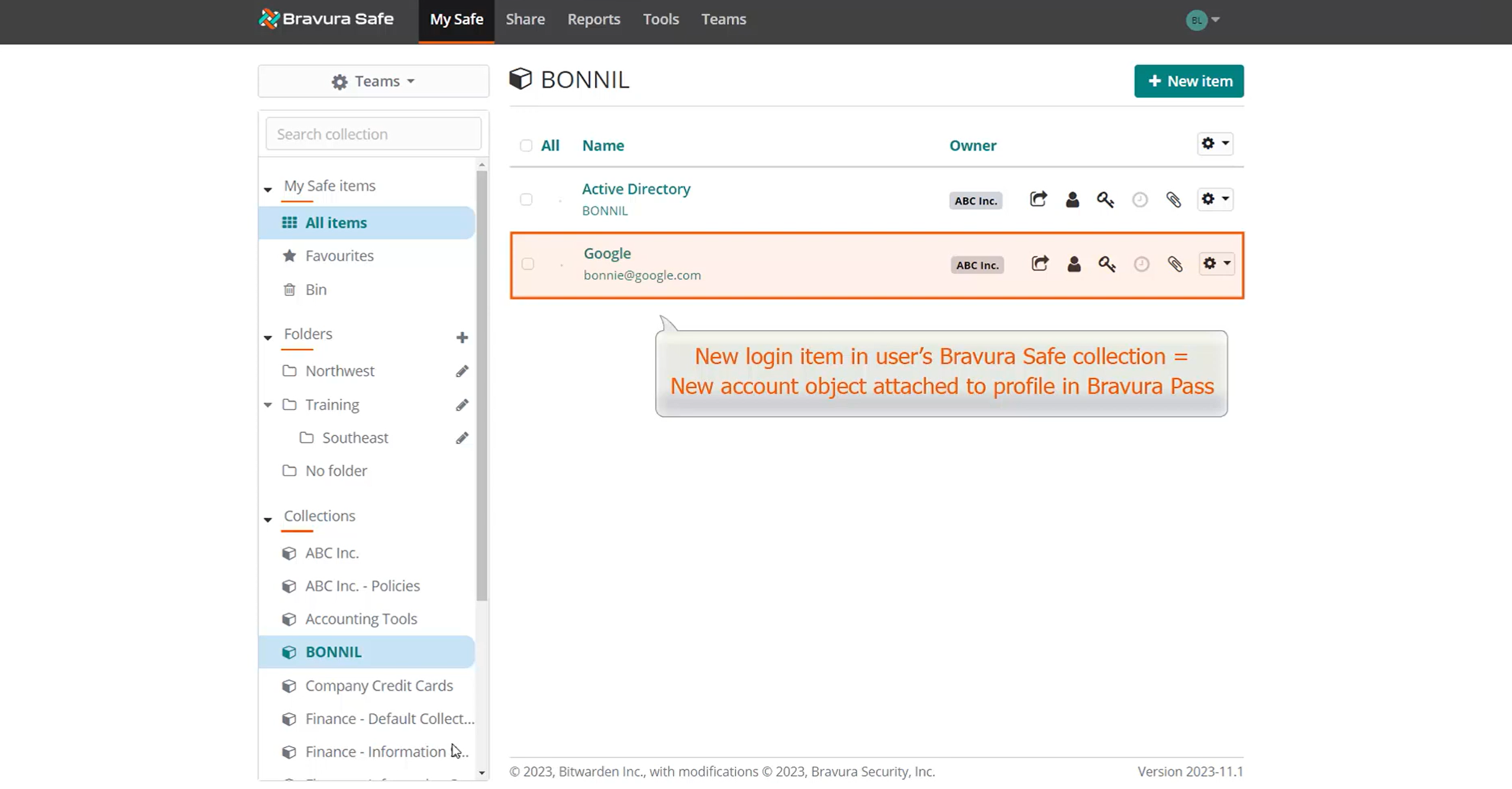
When Bravura Safe is integrated with Bravura Security Fabric, adding login items to the user's named collection in Bravura Safe also adds corresponding accounts to the user's profile in Bravura Security Fabric.
For example, if the user BONNIL adds a new login item to her named "BONNIL" collection in Bravura Safe and auto-discovery is run in Bravura Security Fabric , an account object is created on the Bravura Safe target system and is attached to Bonnie's profile, ensuring password synchronization with the corresponding native target account.
Deleting Bravura Safe items
When a Bravura Safe item is deleted directly on the Bravura Safe instance, there is first the option for Delete. Unless the item gets restored, they are permanently deleted after 30 days once they are in the Trash.
When a Bravura Safe item is deleted using Bravura Security Fabric and the agtbsafe25 connector and the delete operation, they are also moved to the Bravura Safe Trash.
When removing a Bravura Safe item from a group (Bravura Safe collection) and using Bravura Security Fabric, the item must remain in at least one collection. An error message will be shown when attempting to remove the group assignment for a Bravura Safe account from a Bravura Security Fabric group (Bravura Safe collection).
If a group (Bravura Safe collection) is deleted from Bravura Security Fabric and it is the remaining collection in which a Bravura Safe item is a member, that item will be moved to the Unassigned area in Bravura Safe and will therefore no longer have a collection assigned for the item.
Example: Bravura Safe password synchronization with Bravura Safe
The following example demonstrates how login items in Bravura Safe correspond to user accounts in Bravura Security Fabric, and how changing passwords in Bravura Security Fabric updates corresponding items in Bravura Safe .
Log in to Bravura Safe
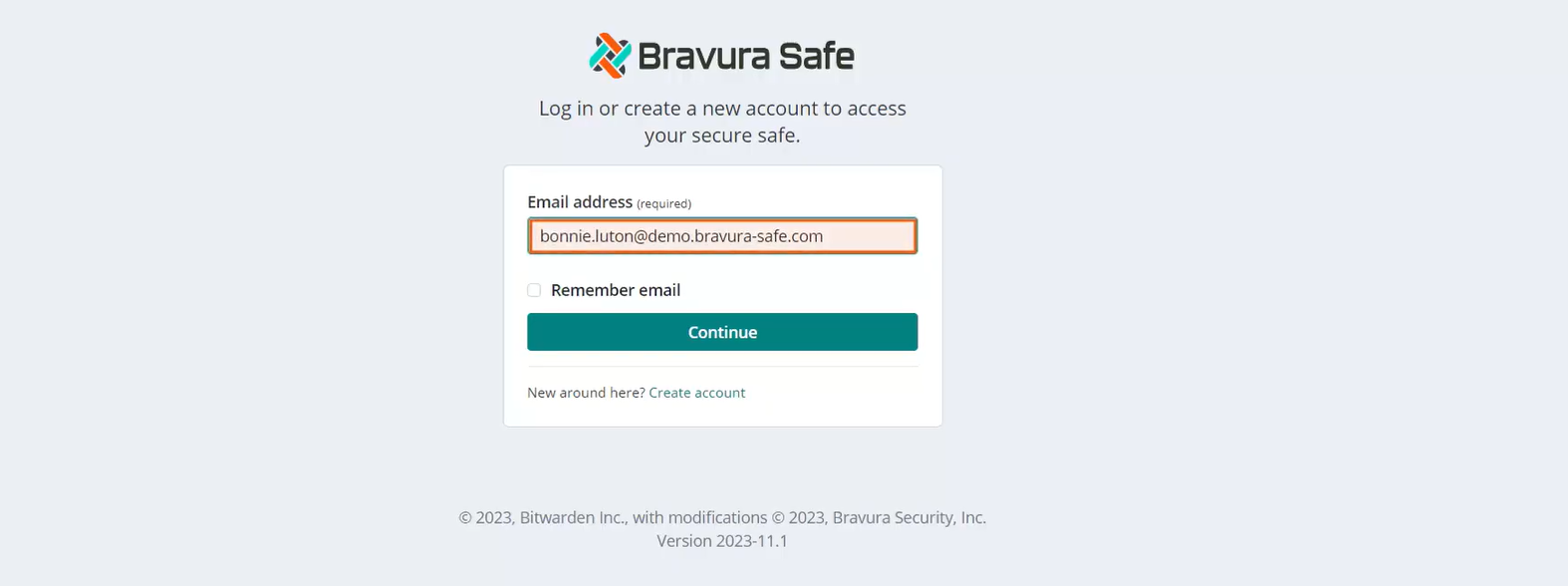
Log in to Bravura Safe as user Bonnie Luton.
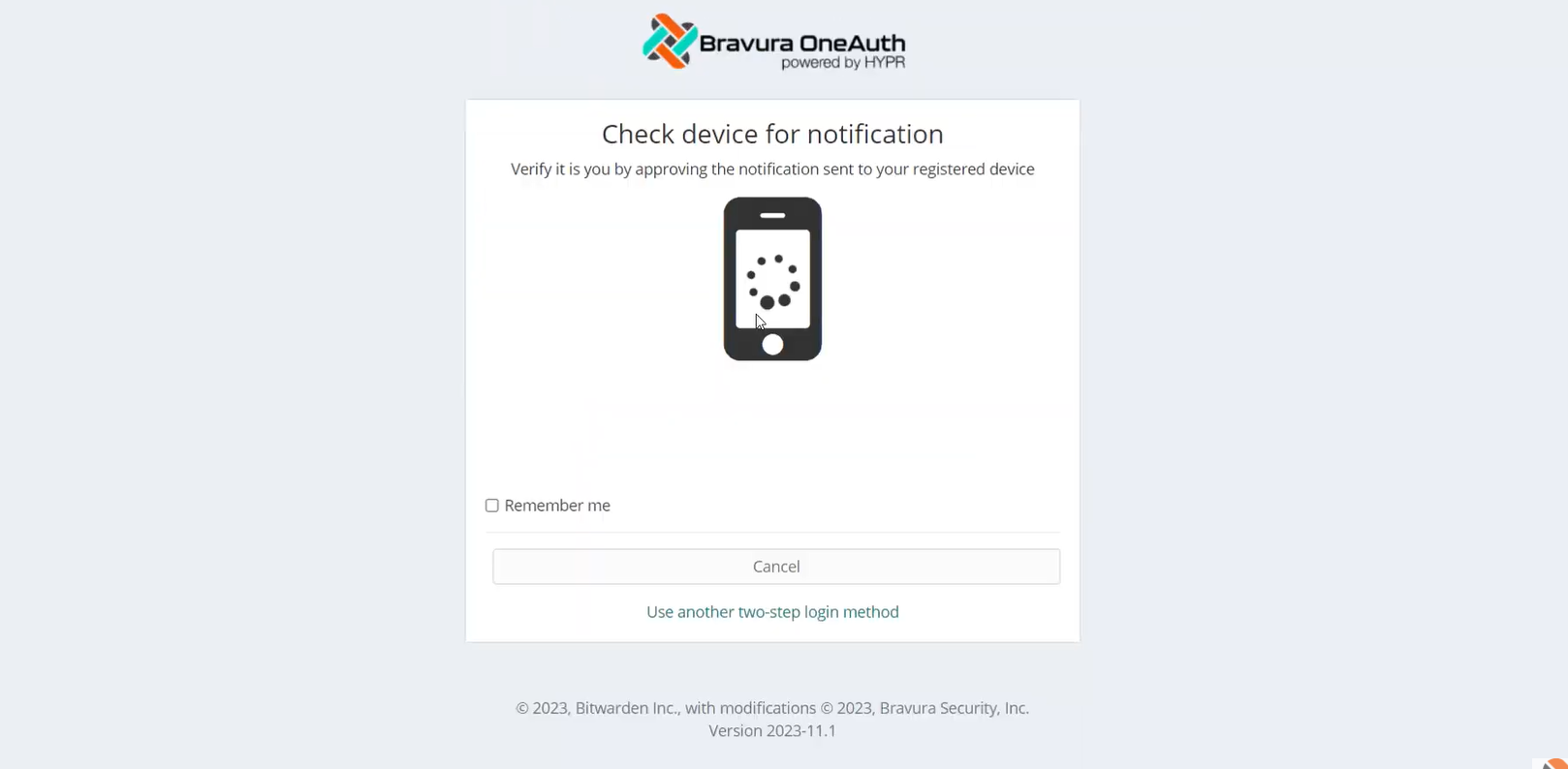
This Bravura Safe configuration requires all members of the Enterprise Team to use Bravura OneAuth with a mobile device as a second authentication factor when logging in to their Bravura Safe account.
In Bravura Safe, a special collection is set up to store managed account credentials.
Locate a collection named "BONNIL". This collection was named using Bonnie Luton's profile ID.
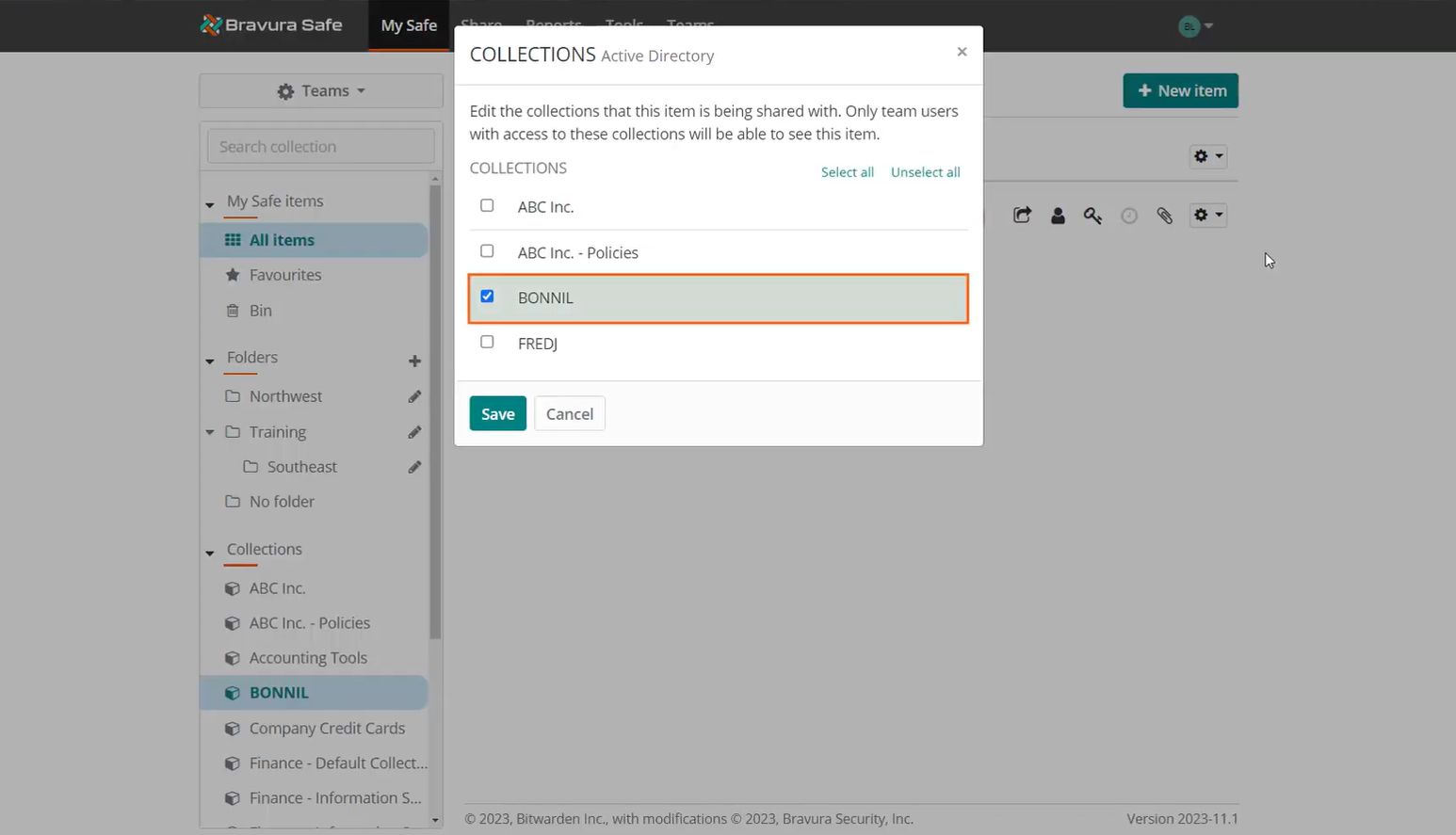
For synchronization, collection names in Bravura Safe are specified to match the profile ID of the user in Bravura Security Fabric .
Locate a login item in the named collection. This example collection has only one login item.
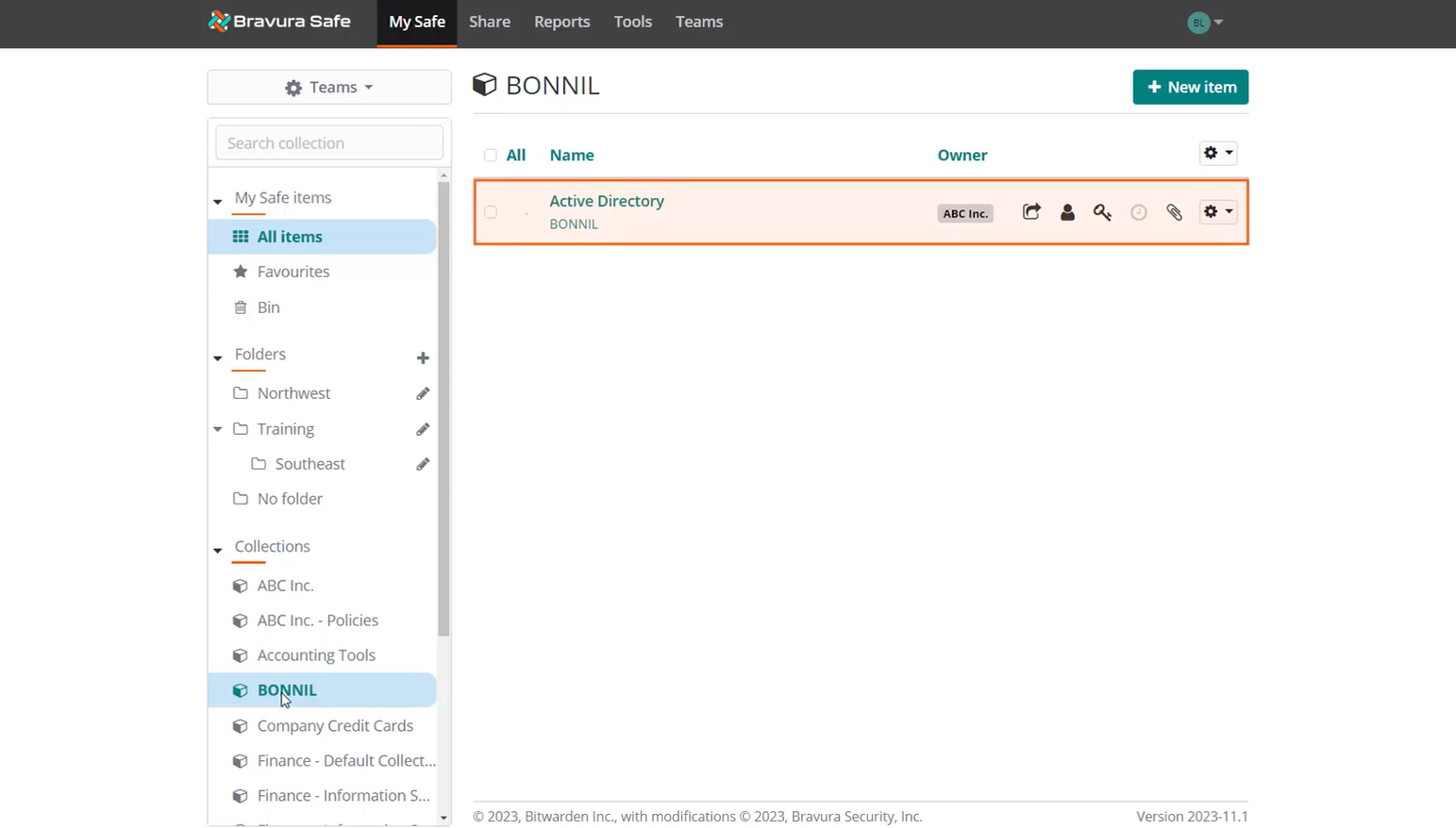
Login items with credentials are stored in the special named collection to be discovered by the Bravura Security Fabric instance and auto-associated to the corresponding user's profile ID. The item must be owned by the Enterprise team and stored in the collection matching the user's Bravura Security Fabric profile ID.
View the current password value and test the login to ensure it can be used to access the corresponding system.
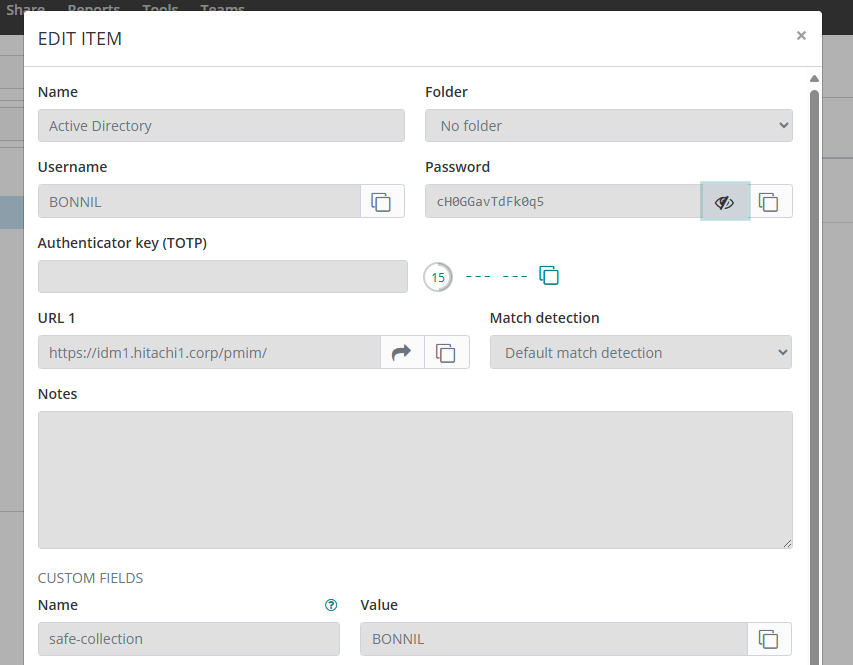
Log in to Bravura Security Fabric
Log in to Bravura Security Fabric with the ID
bonnil.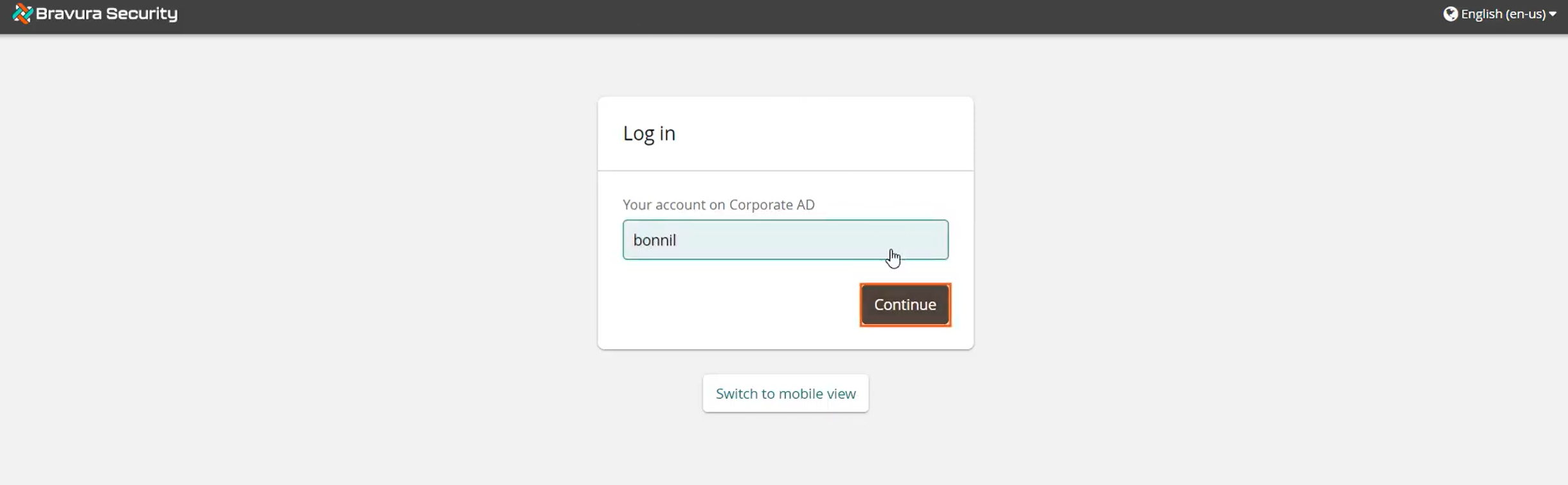
Initiate a Change passwords request.
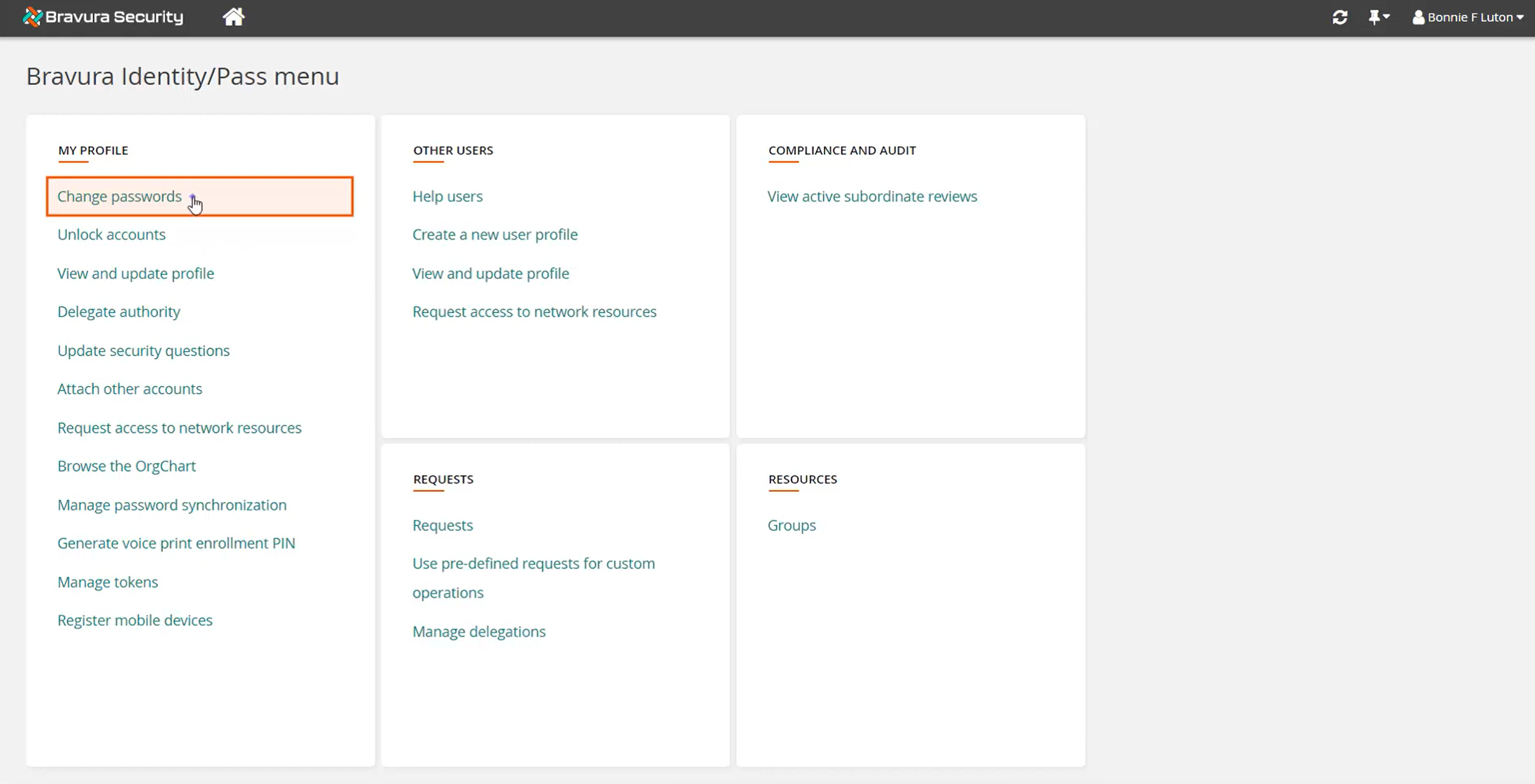
View accounts in target system groups.
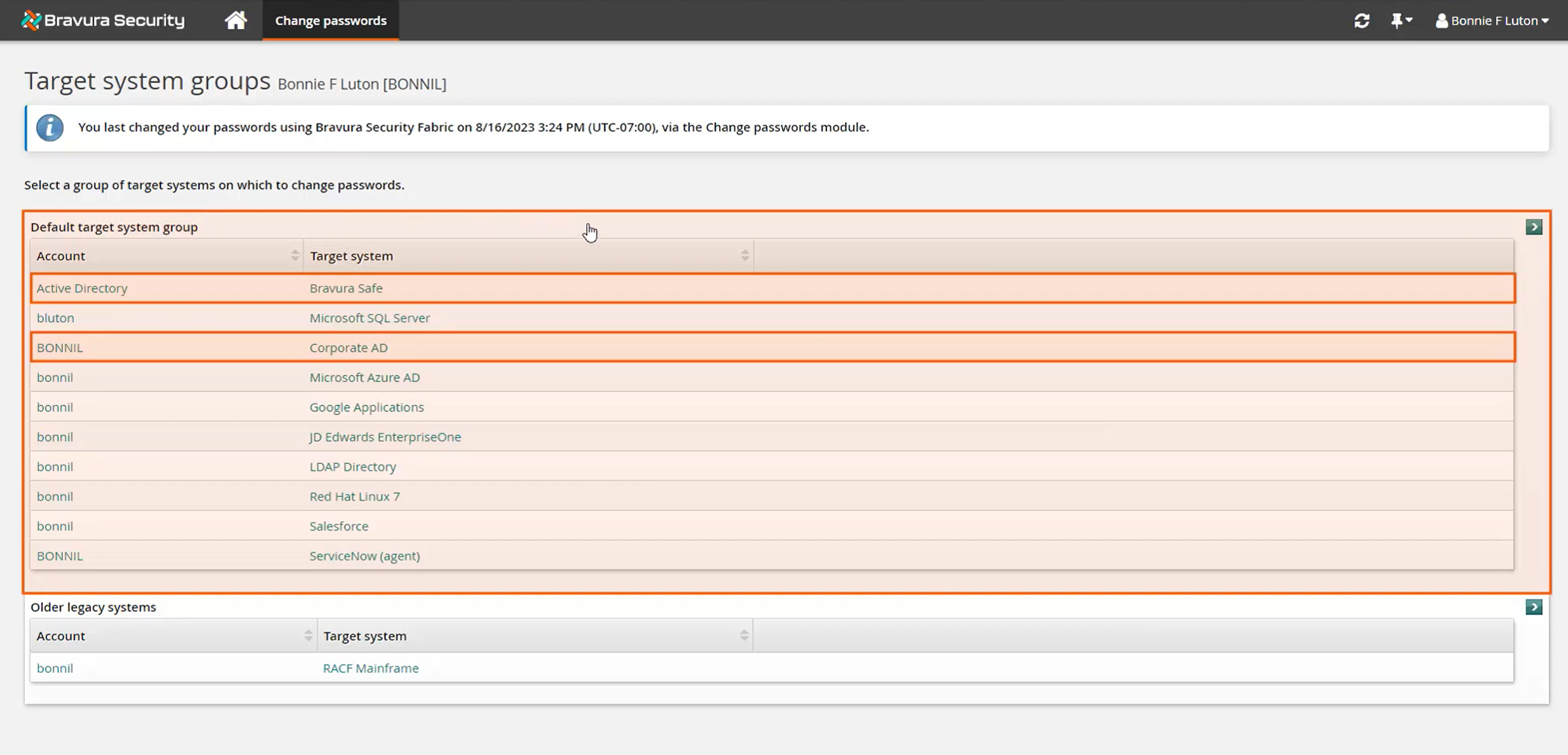
Account objects listed from the Bravura Safe (2025+) target system will match the list of login items in the corresponding Bravura Safe collection.
Each Bravura Safe login item a user has linked to Bravura Security Fabric will have a corresponding account in Bravura Security Fabric being discovered from its native target system. Both the item and account are associated to the user's Bravura Security Fabric profile ID to ensure password synchronization between them. In this case, the user has a Bravura Safe login item called "Active Directory" that stores the credential for their Corporate AD account. When the user changes their password, both the account and the Bravura Safe login item passwords are updated simultaneously.
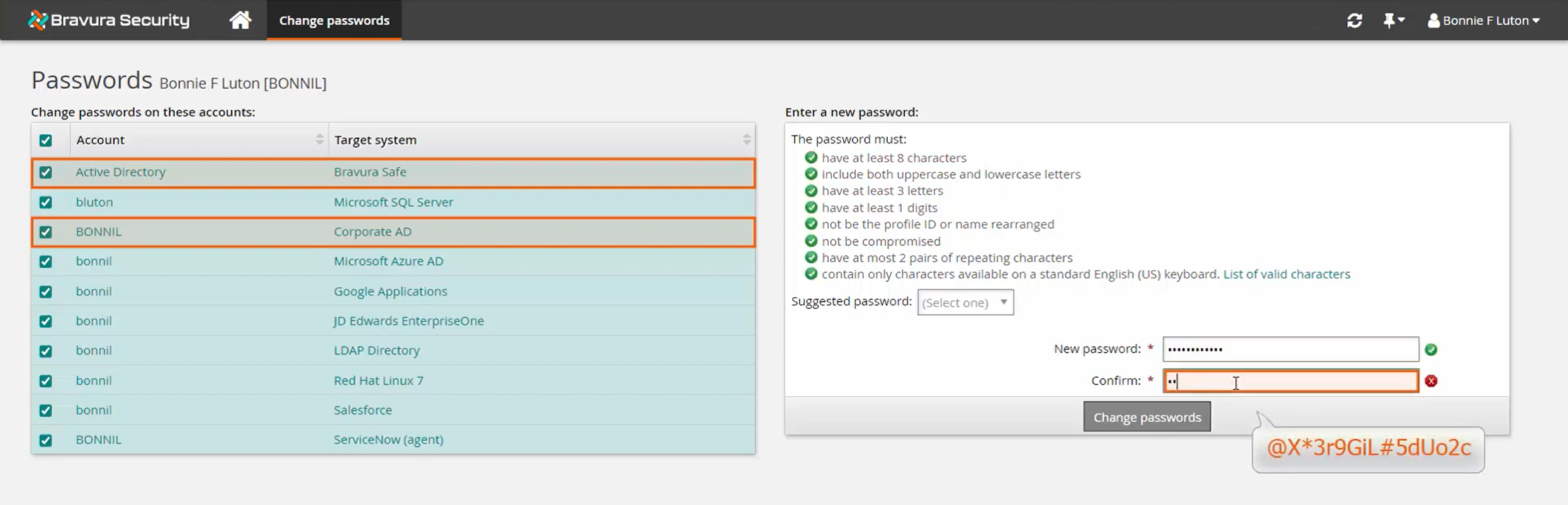
Change passwords for all account objects in the selected target system group in Bravura Security Fabric, which in this case includes the Bravura Safe target item and the respective Corporate AD account.
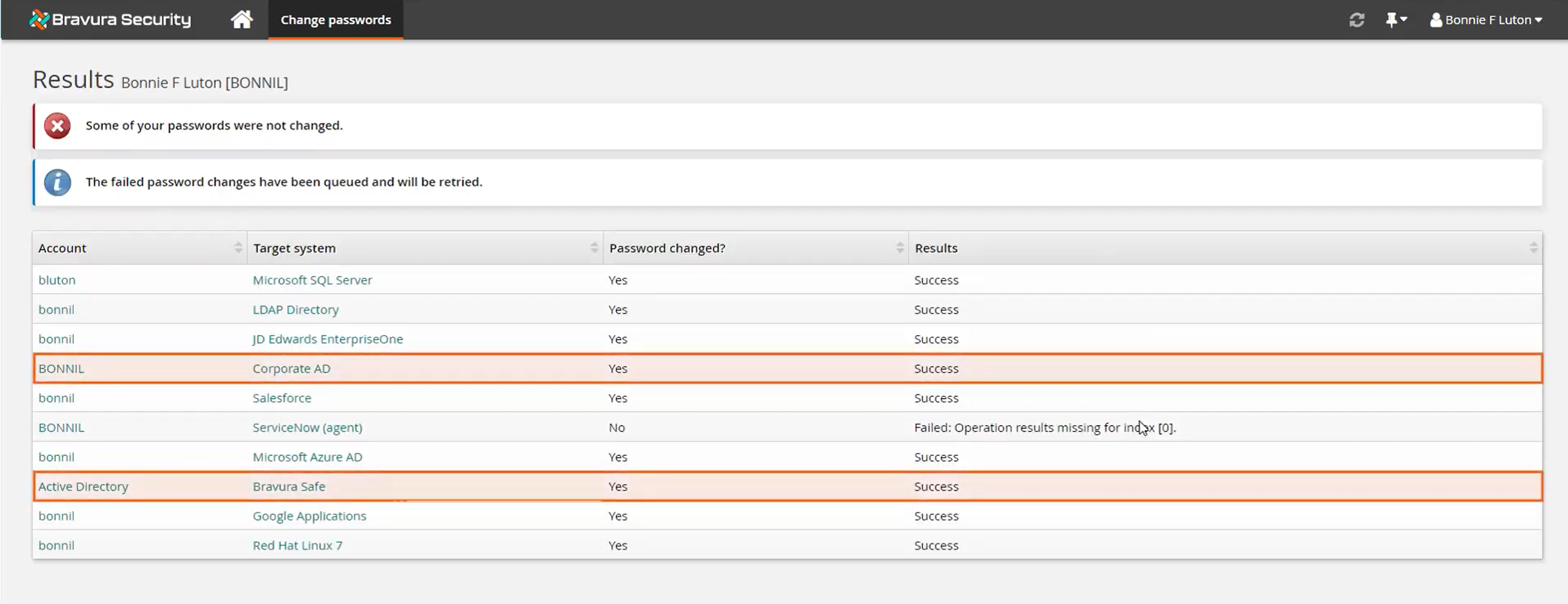
Confirm the change was successful for both the login item and the account.
Return to Bravura Safe to view item
Log in to Bravura Safe again, and view details for the synchronized login item.
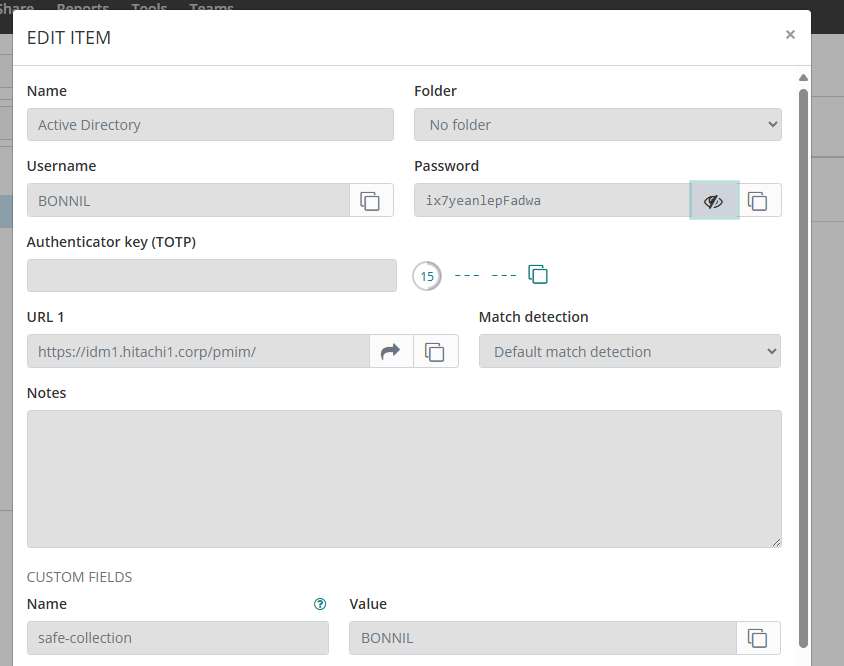
The password was changed for the corresponding login item in Bravura Safe.
Use cases: Bravura Safe synchronization with Bravura Pass
The following are typical use cases for Bravura Safe synchronization with Bravura Pass:
Mass password reset
In the event of a potential compromised password incident—where the scope of affected users is not yet known - a Mass Password Reset (MPR) administrator can initiate a mass password resetmass password reset to perform a system-wide password rotation. This action updates all employee passwords and synchronizes them with their Bravura Safe collections. From the end user's perspective, there is minimal disruption to their daily workflow. They can continue using Bravura Safe as usual to access the credentials they need.
Forgotten password
Bonnie receives a notification from Bravura Pass that her passwords are expiring soon. She changes them on Friday and heads out for the weekend.
Bonnie returns Monday and has forgotten her Active Directory password required to log in. With Bravura Safe password synchronization, she can simply open the Bravura Safe app on her mobile device, get the synchronized password and log in.
Password breach
User account passwords were breached and the organization used a bulk operation to reset all passwords to mitigate risk. This put passwords in Bravura Pass out of sync with login items in Bravura Safe .
Before users can experience any issues, they are notified to perform a simple password change in Bravura Pass; thus, re-synchronizing account passwords with login items in Bravura Safe. Having experienced minimal disruption, the users can now log in to their accounts using their Bravura Safe item credentials and continue their work.