About the auto discovery process
Auto discovery is initiated and controlled by the psupdate program. This program calls a series of other programs, such as updproxy , that perform the actual work for most of these tasks, which are described below.
Auto discovery process stages
The following diagram illustrates the auto discovery process flow, including the listing, processing, and post-processing phases:
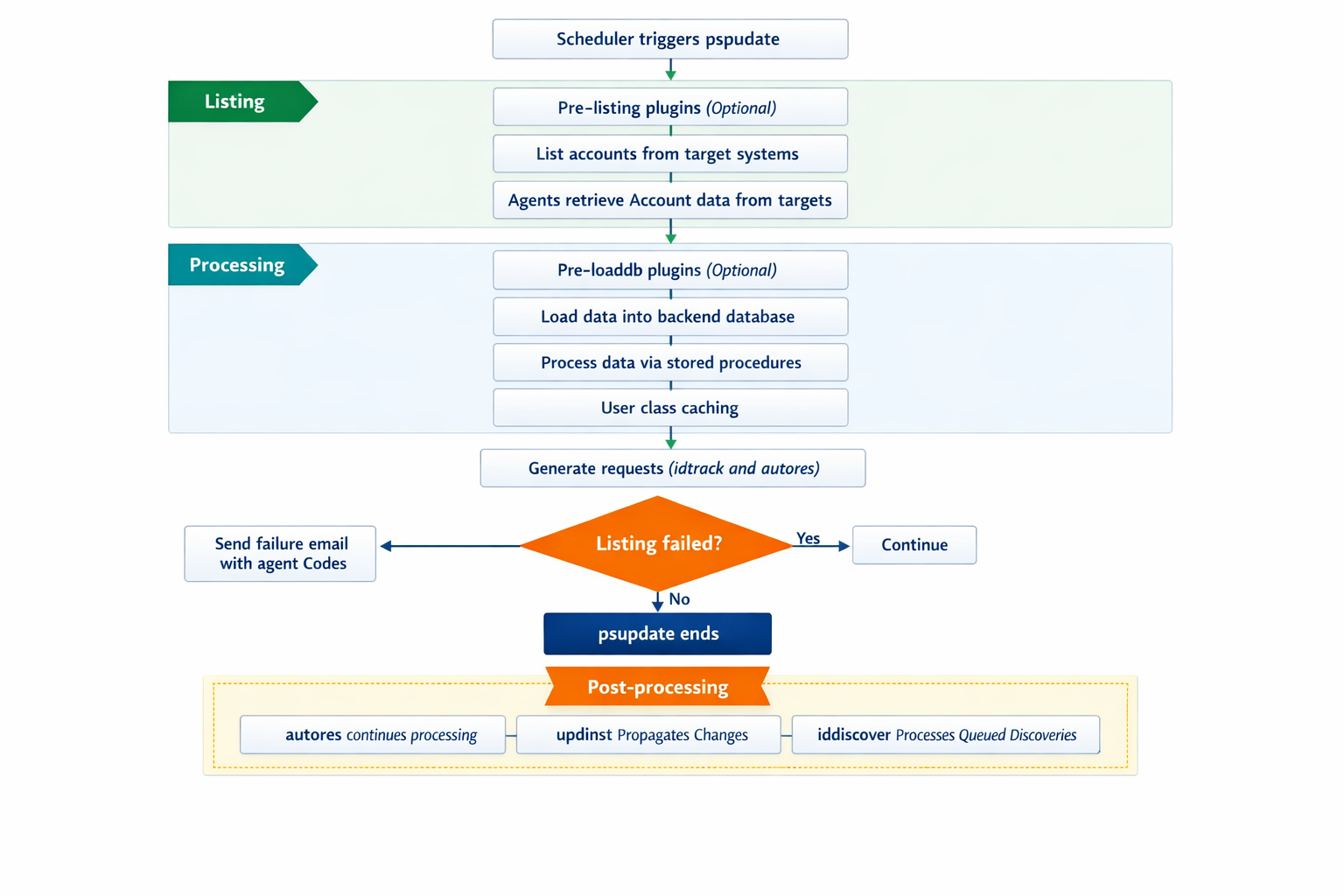
The auto discovery process executes the following stages in sequence:
The scheduler triggers
psupdateat the configured time. By default, the scheduler polls the backend database every 10 minutes. Configure the polling interval at Manage the system > Maintenance > Services > Scheduler Service (psscheduler).Pre-listing
psupdateplugins run (if configured).Target system listing starts. The
psupdateprogram instructs the iddiscover service to list accounts from each target. Agent binaries (named with theagtprefix, such asagtldap.exe) connect to target systems and retrieve account data.Pre-loaddb
psupdateplugins run (if configured).Database loading starts. The
iddiscoverservice processes the listed data and updates the backend database using stored procedures. If loading encounters errors, some backend data may not be updated.User class caching is performed. This can take significant time if many user classes are defined with complex criteria, especially criteria that contain API calls.
The
idtrackandautoresprocesses run to generate requests based on detected attribute changes and role or group surplus and deficits.File replication is triggered to propagate changes to secondary nodes.
If target listing failed, psupdate sends an email containing agent return codes (requires email delivery configured at Manage the system > Workflow > Email configuration). This email is only sent when psupdate finishes gracefully, not if it is interrupted.
psupdateends. The completion time is recorded on the Manage the system > Maintenance > Scheduled jobs > PSUPDATE page for scheduled runs only. Manually triggered auto discoveries are not recorded on this page.
Sources of auto discovery
The following sources can initiate discovery:
Scheduled auto discovery via Manage the system > Maintenance > Scheduled jobs > PSUPDATE.
Manual execution from the web UI (Manage the system > Maintenance > Auto discovery > Execute auto discovery) or from the server console using
psupdate.The persistent listing service, which continuously monitors target systems for changes.
Component-based scripted automation (more common in Bravura Identity and Bravura Privilege deployments).
Local Workstation Service (LWS) systems contacting Bravura Privilege servers with data updates (Bravura Privilege only).
All discoveries are processed serially. Each discovery waits for the previous one to complete. Discovery data waits in the iddiscover service file-based queue in the instance db\iddiscover directory. If a discovery fails, the .commit flag on the discovery file changes to .archive, and the file remains until investigated or removed manually.
Refreshing proxy servers
If one or more of your target systems is set up to use a proxy server, the updproxy program automatically copies files that have been created or modified to the proxy server.
See updproxy for details of this program.
You can also refresh proxy servers manually. See Managing Proxy Servers for details.
Listing information from target systems
Connector programs connect to target systems and extract information about users (accounts) and other objects from those systems. Each connector is designed to target a specific type of system. Depending on how Bravura Security Fabric is configured and the capabilities of the connector, Bravura Security Fabric may extract information about: computer objects on the domain, service accounts, group memberships, per-user attributes, unassigned tokens, and OrgChart information.
Connector programs write the extracted information to SQLite database files in the <instance>\psconfig\ directory. In Bravura Security Fabric these files are referred to as list files. A SQLite database list file is saved for each target system.
The following is the schema for the connectors to use when writing discovered objects:
discobj ( stableid TEXT, type TEXT, longid TEXT, shortid TEXT, displayid TEXT, sd TEXT )
discobjattr ( stableid TEXT, type TEXT, attrkey TEXT, attrval TEXT, seqno INTEGER )
discobjrel ( parent_stableid TEXT, parent_type TEXT, reltype TEXT, child_stableid TEXT, child_type TEXT,
All data for a target system is stored according to the schema listed above.
Groups, accounts, computers, and subscribers are listed in the discobj table.
Attributes for each of these objects are listed in the discobjattr table.
Group members (both group and account) are listed in the discobjrel table.
Subscriber account associations are listed in the discobjrel table.
During discovery, all data is loaded into generic Bravura Security Fabric tables (targetobj, targetobjattr, and targetobjrel).
Computer objects and subscriber data are loaded into the new generic tables above, as well as foundcomputer, foundcompattr, foundaccountmngobj, and foundobjattr tables for use by import rules.
Note the following about listing:
Connectors are only run for target systems that are configured to list accounts or other objects.
Account IDs and group IDs must be no longer than 200 characters.
When infrastructure auto discovery options are configured, SQLite list files for discovered target systems are placed within a <instance>\psconfig\discovered\ directory, with sub-directories for each discovered system. Each sub-directory is named after the first three characters of the discovered system. The discovered directory is not replicated by the file replication program (
updinst).
Normally, if a user has an account on a target system and that account has an <accattr> value that is empty, Bravura Security Fabric attempts to get an associated attribute value from another system. You can change this by enabling the Manage the system > Maintenance > Options > LOADDB NULL IS VALUE setting. When this is enabled, Bravura Security Fabric considers the associated profile attribute value empty; it does not attempt to get an attribute value from another system.
All operations triggered during target listing (Connect, serverinfo, listobj) must be supported by the connectors that run the list operations, and all have to succeed in order for the newly listed target data to be loaded and processed during discovery.
Monitoring list file size
The "listing information from target systems" task is fail safe; if lists extracted from a target system fail to return sufficient data, where the extracted list file size falls below the value listed for this option, Bravura Security Fabric discards the defunct lists and restores the previously harvested lists.
The Minimum list file size is set on each target system's configuration page.
Updating profiles with alternate login IDs
Profiles containing alternate login IDs can be updated by end users using the Attach other accounts (PSL) module or by help desk users using the Help users (IDA) module. See Manual account attachment examples.
You can also specify alternate login IDs for users and add them in batches using a text file <instance>\psconfig\malias.txt. You might do this, for example, to minimize user enrollment time, or where a source of profiles target system has no attributes to map to an easy-to-remember profile ID. The text file must be created manually, and use the following format:
" <Target system ID> " " <Login ID> " " <Profile ID> "
For example:
"ACTIVEDIRECTORY" "glorib" "glorib"
"LINUX" "browng" "glorib"
"LDAP" "gloria.brown" "glorib"
"WEBAPP" "153029" "glorib"
The next time auto discovery is run, the alternate login IDs are associated with the specified profiles.
Every time auto discovery runs it adds the manual associations specified by malias.txt. If the manual association is removed by the user or help desk through other mechanisms (but not removed from malias.txt), it is re-added on the next discovery. Removing entries from malias.txt does not remove manual associations it created, as it is only used to add associations. Similarly, deleting malias.txt entirely does not remove the manual associations it created.
To remove manual associations added by malias.txt, the following must occur:
The association must be manually removed.
The
malias.txtentry must be removed to prevent the association from being re-added on the next auto discovery.
Managing ID filters
Bravura Security Fabric uses ID filters to include or exclude users (profile IDs) and accounts (long IDs) from a target system. The filters are applied during the auto discovery process when accounts are imported.
Use the Maintenance > Auto discovery > Manage ID filters page to identify account IDs that you want or don’t want managed by Bravura Security Fabric , or to be included or excluded from a source of profile IDs.
See Filtering users and accounts for details.
Evaluating import rules
If you have configured import rules to be evaluated against discovered objects, psupdate evaluates:
Target system import rules: to generate automatically discovered target systems from discovered computers.
Managed systems import rules: to add discovered systems into the managed system policies as configured for the import rules.
Managed accounts import rules: to add discovered accounts in managed system policies as configured for the import rules.
See Infrastructure Auto Discovery for details about import rules.
Updating the database
The iddiscover service processes the information stored in list files and loads it into the Bravura Security Fabric database. During this task, new users are imported to Bravura Security Fabric, existing user profiles are updated, and inventories of available groups and unclaimed accounts are created.
If iddiscover discovers accounts that differ only in case on a case-sensitive target system, it writes a warning to its log and notifies the Bravura Security Fabric administrator of a potential security issue.
Cleaning up the database
The psupdate program removes stale session keys from the database. This helps to ensure that the database does not grow too large.
Enforcing roles
If the RBAC ENFORCEMENT NIGHTLY LIST option is enabled, Bravura Security Fabric runs the rbacenforce program to list role enforcement violations. If the RBAC ENFORCEMENT NIGHTLY SUBMIT option is enabled, Bravura Security Fabric runs the rbacenforce program to submit requests into workflow to rectify the violations. Both of these jobs are run at the end of auto discovery.
Both of these options are set in Manage the system > Resources > Options.
See Role Enforcement for more information about the options.
See rbacenforce for command-line usage and examples.
Checking inventory levels
If the CHECK INVENTORY PLUGIN inventory option is enabled, Bravura Security Fabric runs a plugin to check the number of inventory objects available for provisioning. If inventory levels fall below a certain level, Bravura Security Fabric notifies the responsible inventory managers. This job is run at the end of auto discovery.
Loading user class cache
At the end of the auto discovery process, Bravura Security Fabric runs the loaduccache -load -hours 0 command. This command loads user class and user class point cache for all caches.
The caching that is evaluated on the Bravura Security Fabric server is replicated to other Bravura Security Fabric servers with Database Service replication.
See loaduccache for command-line options and examples.
Submitting automatic assignment requests
If automatic assignment is configured, Bravura Security Fabric runs the autores -all -submit command. The command calculates the automatic assignment for configured roles and groups and submits requests based on results.
See autores for command-line options and examples.
Synchronizing server files and registry keys
In a replicated environment, Bravura Security Fabric can synchronize all the files and registry keys between all nodes during auto discovery. You control this using the Maintenance > Options > PSUPDATE FILE REPLICATION setting. When switched on (by default), psupdate runs the updinst program that synchronizes the files and registry keys between all nodes in the environment. This job is run at the end of auto discovery.
See updinst for command-line usage and configuration options.
Notifying the Bravura Security Fabric administrator
The psupdate program automatically sends email notification to the Bravura Security Fabric administrator if:
A command fails or produces a warning.
A product administrator exists without a password defined in the Bravura Security Fabric database.
This situation can occur, for example, if all target system accounts are unassociated from a product administrator’s profile.
Generating a configuration summary file
At the completion of auto discovery, Bravura Security Fabric can write a summary of configuration settings for an instance. The summary is written to a file called config-<yyyy>-<mm>-<dd>.kvg in the Logs directory. The file can be used by Bravura Security support to help provide assistance.
You can control this function using the Maintenance > Options > PSUPDATE INSTDUMP setting. When enabled (disabled by default), psupdate runs the instdump program.