Discovered objects
Discovered objects are systems and accounts that are:
Registered by a Local Workstation Service when it contacts the Bravura Privilege server
Found on a target system configured as a source system
Listed through special account attributes (sid and objectSid )
They are not managed initially by default. You must either manage them using the Resources > Discovered objects menu, or via import rules.
For planning purposes, it is recommended that you read Implementing Infrastructure Auto Discovery before configuring these settings.
Configuring source systems
When automatic discovery options are enabled for a target system, Bravura Security Fabric can extract additional data for privileged access management.
On Active Directory target systems, you can list:
Server and workstation computer objects
On Microsoft Windows NT target systems, you can list:
Service manager accounts (local and domain)
Scheduled task accounts (local and domain)
IIS manager accounts (local and domain)
DCOM manager accounts (local and domain)
Built-in administrator group members
On scripted target systems, you can list all of the above. This requires additional configuration in the script files. See Script Systems for details.
Service accounts are accounts that are used to manage services and dcom objects, authorize scheduled tasks, and manage iiswebsite permissions. These lists are used by Bravura Privilege to manage systems and accounts according to import rules. See Enabling resource discovery to learn how to enable these options.
Bravura Security Fabric can also make listed accounts from any type of target system into discovered account objects. See Enabling all accounts found on system to be discovered objects to learn how to enable this option.
Enabling resource discovery
You can enable resource discovery using the Automatically discover resources to load option on a target system’s Discovery options tab, or using manually created list files that are processed during auto discovery . If you are loading resources manually by providing list files, do not select the Automatically discover resources to load option.
Caution
Take care when configuring target systems to list computer objects that you do not attempt to list the same computer more than once. For example, when targeting a domain to list from specified OUs, and a computer exists in more than one OU.
On Windows target system, make sure the Remote Registry service is started (On Windows workstations it is disabled by default, on Windows servers it is enabled by default).
To enable resource discovery options:
Add a target system or select an existing target system.
On the page, select the Discovery options tab.
The Automatically discover resources to load option is enabled by default.
Select the resources to load into the Bravura Security Fabric database:
Select Link accounts on this target system to subscribers if accounts on the target are used to run subscribers.
Select Incrementally discover objects if you want to enable incremental listing of computer attributes.
This setting prevents attributes from being deleted from discovered computers at load time if no attributes at all were discovered. Attributes are still deleted if some attributes were discovered; the new set supersedes the old set.
Click Update.
Once selected, Bravura Security Fabric lists these additional resources for each target system during auto discovery and generates a corresponding list file in the psconfig directory.
These discovered objects are saved in the database. To view and manually manage discovered server and workstation computer objects, click Manage the system > Resources > Discovered objects. See Managing discovered objects for more information about viewing and managing discovered objects.
Before Bravura Security Fabric can update services, tasks, IIS and DCOM objects using domain accounts, they must be discovered during auto discovery otherwise password changes on domain accounts could cause services to stop working.
Enabling all accounts found on system to be discovered objects
Bravura Security Fabric can make listed accounts from managed systems of any target type into discovered account objects.
To discover listed accounts:
On the page, select the Discovery options tab.
Check Enable import rules for accounts on this system.
Run Auto discovery.
You can also use account attributes in import rules if they are supported and loaded. Only NOSGRPID , NOSGRPNAME and NOSSHORTID group attributes can be used for groups that have been managed.
Configuring discovery templates
Discovery templates are used to apply configuration settings for new target systems that are created from discovered server and workstation objects. The target systems are created when the servers or workstations become managed systems, either manually via the Manage the system > Resources > Discovered objects menu, or via target system import rules during auto discovery .
Default templates
Bravura Security Fabric includes the following default discovery templates:
NT_TEMPLATE – This template creates a target system using the (
agtnt) connector for Windows servers and workstations. It creates a target system that is a source of profile IDs, and will automatically discover administrative and service accounts during auto discovery .You can apply this template for systems discovered on an Active Directory domain.
LWS_NT_TEMPLATE This template creates a target system using the (
agtnt) connector for Windows servers and workstations. It creates a target system that is not a source of profile IDs and does not automatically discover administrative and service accounts during auto discovery .It is recommended that you apply this template for workstations on which the Local Workstation Service has been installed. Used only with a full Bravura Privilege license.
CISCO_IOS_SSH_TEMPLATE – This template creates a target system for Cisco IOS networking equipment using a PSLang script,
agtcisco-ios.psland a scripted platform definition file,agtcisco-ios-ssh.conto call theagtsshconnector. It creates a target system that is not a source of profile IDs and does not automatically discover administrative accounts during auto discovery .CISCO_IOS_TELNET_TEMPLATE – This template creates a target system for Cisco IOS networking equipment using a PSLang script,
agtcisco-ios.psland a scripted platform definition file,agtcisco-ios-telnet.conto call theagttelnetconnector. It creates a target system that is not a source of profile IDs and does not automatically discover administrative accounts during auto discovery .A placeholder hostname value is provided in the Cisco IOS discovery templates. This needs to be replaced with a valid target system internal hostname for a Cisco IOS discovered system to be properly managed.
Adding a discovery template
To add a discovery template:
Click Manage the System > Resources > Target systems > Discovery templates.
Click Add new… .
Configure the for the template:
The discovery template’s ID will be used to specify which template a discovered system will use to specify its target system settings.
Depending on the chosen Type, the Description and Address may be populated with example text. Review these settings before accepting them.
The Description and Address can be set automatically using a PSLang expression based on <accattr>s discovered during auto discovery . These discovered values are stored in SQLite .db files, located in the <instance> \ psconfig directory.
For example, the default NT_TEMPLATE has its Address set to:
"\\\\"+$comp["dNSHostName"][0]
You can also target systems using the system IP address; for example:
"\\\\"+$comp["ip"][0]
or
"\\\\"+$comp["ip"][1]
depending on whether detected systems have multiple IP address, and which address is chosen.
The List of proxies to run connectors on can also be set automatically using a PSLang expression. For example, to copy the proxy address from the source target system, use the following expression:
$comp["sourceProxy"][0]
Optionally, configure the administrator credentials. This is useful if you plan to use the same password for all subsequently discovered workstations.
Note that the ID is set by a PSLang expression, so a literal string must be enclosed in quotes; for example "Administrator" . Discovered target systems that have the adminid <accattr> can also use adminid to configure the administrator credentials.
See also Defining connection methods for details about how target system template credentials are used in managing discovered resources.
Optionally, configure the Discovery options to select what you want to list from discovered systems. This step is required if the discovery template is to be used with import rules .
By default, all discovery options for a template are enabled, if the target type supports discovery options.
The target system IDs of discovered systems are set using the computerUUID attribute that is set for them. Push mode discovered systems have this attribute set to the objectGUID attribute if the systems are imported. Local service mode discovered systems have this attribute set to the system’s virtualdnshostname attribute unless specified during installation.
If a Local Workstation Service is discovered to be using an ID that has already been discovered, the conflict will be detected and the new service will be shut down. If you are reinstalling a Local Workstation Service, you must specify the reinstall flag.
Updating a discovery template
After you have managed systems using a discovery template, you can still update the configuration settings of the discovery template and propagate the settings to the existing systems, as well as any systems added in the future.
To update a discovery template:
Click Manage the System > Resources > Target systems > Discovery templates.
Select the discovery template you want to update.
Configure the settings in or Discovery options as desired.
Set Allow changes propagated to imported discovered system using this template to:
Yes- To propagate the changes to all existing and future systems that uses this discovery template, or,No- To only propagate the changes to future systems that will use this discovery template.
Click Update.
Managing discovered objects
This section shows you how to view and manually manage discovered objects.
You require the "Manage resources" administrative privilege in order to access the Discovered objects menu item.
You require the "Manage managed system policies" administrative privilege in order to attach discovered objects to managed system policies .
If either the description or the address for a discovered system cannot be resolved, then it cannot be managed by a managed system policy as a member system.
You must have membership in a user group that has the following access controls for the managed system policies to which you want to attach discovered objects:
View properties for this policy
Modify properties for this policy
Viewing discovered objects
To view the list of all discovered objects, click Manage the system > Resources > Discovered objects, then select Systems, Accounts, or Subscribers.
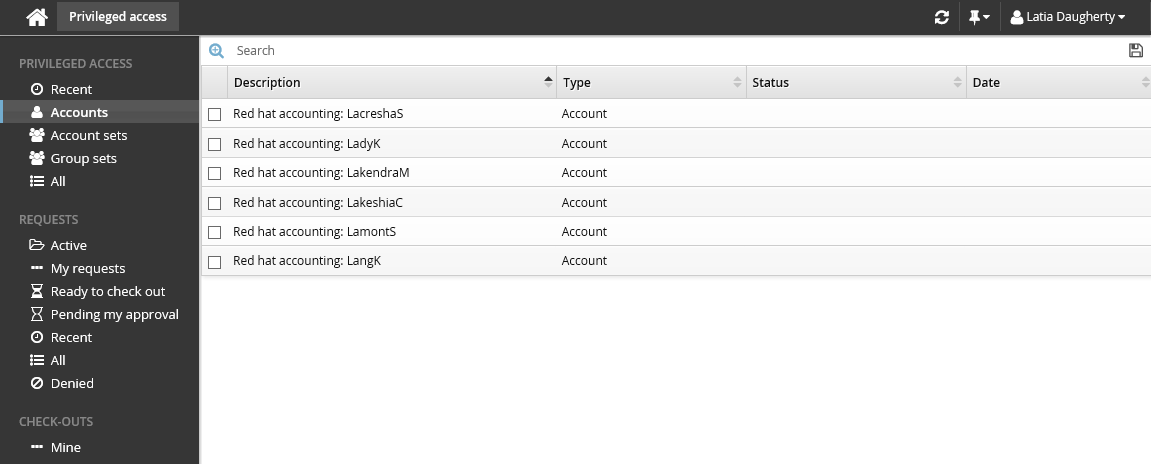
Bravura Privilege also displays system and account attributes, as well as any subscribers that are using the account credentials to run; for example, services, tasks, iis, dcom objects, ODBC system DSNs. This information can be accessed by clicking on the name of the discovered system or account.
Other information is provided when the discovered object is managed. This includes which import rules were used to manage the discovered object, managed system policies the object is added to, managed account check-out/check-ins, and manual password randomization batches.
To learn how to use attributes when creating requirements for import rules, see ?? .
Manually managing discovered systems
To manually manage discovered systems:
Click Manage the system > Resources > Discovered objects > Systems
Enable the checkboxes for the systems that you want to manage, then click Manage...
Select managed system policies to which you want to add the systems, then click Select.
Set the Template target system to use to define target system information.
Set the New system connection credentials for the Bravura Privilege server to use to connect to the new managed systems.
Click Apply , and confirm the settings.
Target systems are created for the new managed systems, and they are added to the selected managed system policies as member systems. For local service mode systems, the local service will need to contact the Bravura Privilege server a few times to verify the administrator credentials.
By default, you can manually manage up to 20 systems at a time.
Manually managing discovered accounts
To manually manage discovered accounts:
Click Manage the system > Resources > Discovered objects > Accounts.
Enable the checkboxes for the accounts that you want to manage, then click Manage... .
Select managed system policies to which you want to add the accounts, then click Select.
Accounts are only managed if they exist on the selected managed system policy member systems.
Click Apply , and confirm the setting.
The accounts are added to the managed system policies ’ managed accounts.
Deleting discovered systems
To delete a discovered system:
Click Manage the system > Resources > Discovered objects > Systems .
Select the checkbox next to the system that you want to delete.
A target system that is automatically discovered (manually or with an import rule) must be deleted first before its discovered system can be deleted.
Click Delete , and confirm the setting.
The discovered system is removed from the instance.
If you delete a push mode discovered system and the system still exists on an Active Directory domain, it will be rediscovered the next time auto discovery is run. If you delete a local service mode discovered system and the Local workstation service is still installed and running on the system, it will be rediscovered on the next poll interval.
Displaying discovered object attributes
You can display discovered object attributes as additional columns on configuration screens and managed account requests. These attributes can provide users with additional information about managed accounts or managed systems.
To specify a list of attributes to display, set the MANAGED ACCOUNT ATTR DISPLAY LIST or MANAGED SYSTEM ATTR DISPLAY LIST option at Manage the system > Modules > Privileged access f or account attributes and system attributes, respectively.