Navigating and updating information in the web interface
The following sections show you how to navigate web pages and update information in Bravura Security Fabric .
The user interface is designed to work at a screen size of 1024x768 or larger, although it may be resized smaller than that if necessary. All menus fit correctly down to a width of 900px.
Using the navigation bar
Bravura Security Fabric web page icons
Bravura Security Fabric web pages include the following navigation icons in the top left menu:
 | Display a side menu of module options. |
 | Return to the Front-end dashboard. |
Bravura Security Fabric web pages include the following action icons in the top right menu:
 | Update information that could have changed since you first visited Bravura Security Fabric web page. For example, click Refresh on the Request status page to see whether an authorizer has responded to a request. |
 | Options to pin items to customize your menu. |
 | User profile status and logout. |
Navigating with breadcrumbs
Most Bravura Security Fabric web pages include breadcrumbs on the left of the screen under the navigation bar. Breadcrumbs are a list of pages that show the path from the home page to the current page. This path represents the hierarchical organization of the web pages rather than the path the user took to arrive at the current page.

Click on a link in the breadcrumbs to be taken to that page.
Selecting from a menu table
When presented with a menu table, you can navigate to the page for a particular object or action by clicking anywhere in the row, except for a hyperlinked item . This action requires that JavaScript is enabled for the web browser. If JavaScript is not enabled, you can click the  button.
Similarly, if your cursor is in a text field in a row with a button, you can press Enter to select the item.
Embedded links: Viewing information about an object
Most lists or tables of objects have an Embedded links option that turns the text of objects into hyperlinks, indicated by underlined text when hovering. The option is disabled by default.

When clicked, a pop-up window opens. If the user has appropriate permission, the window displays extra information about that item.
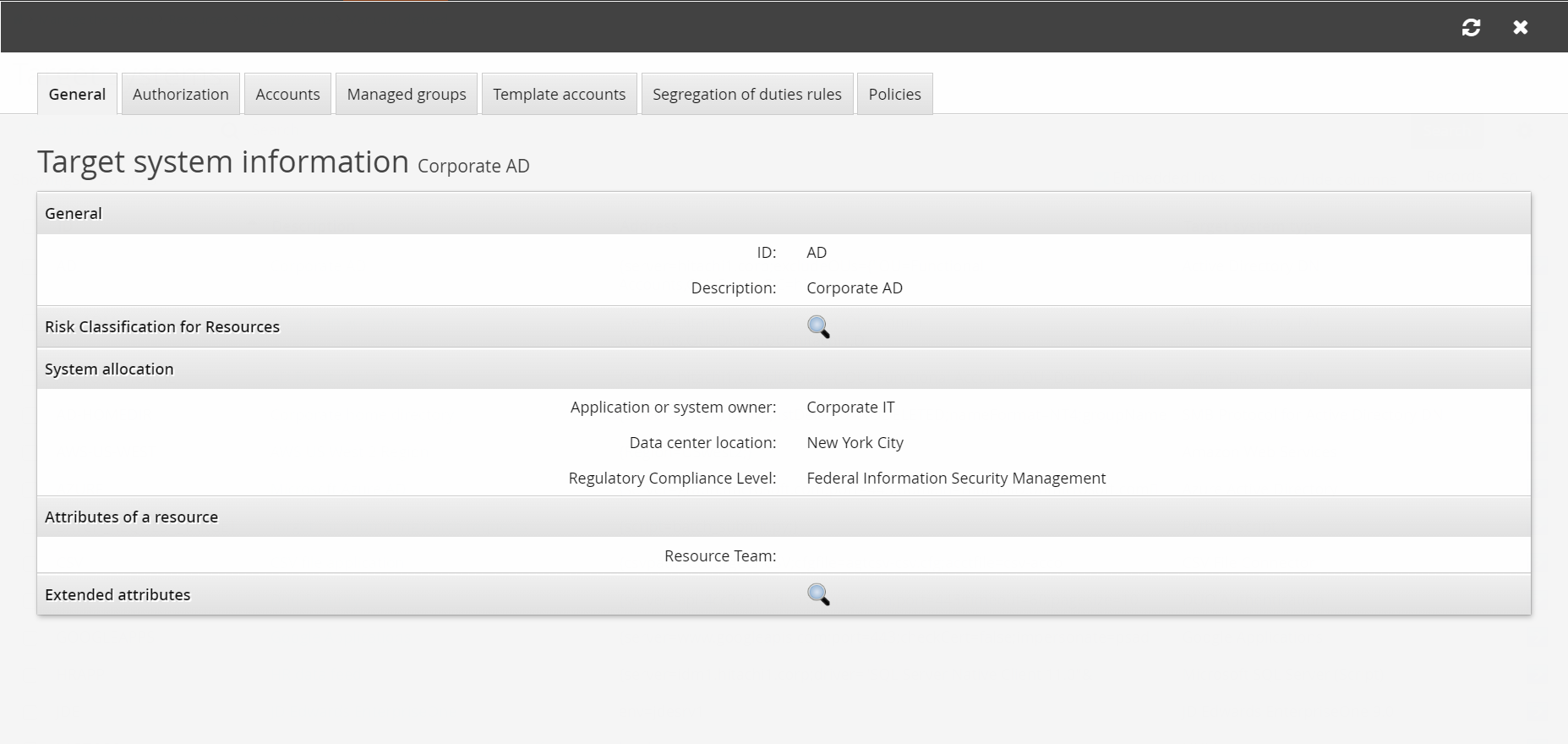
Column display
Most tables have a Show/hide columns option that allows you to choose which columns to display.
When clicked, a drop-down menu displays. Click on the column labels in the drop-down menu to either view or hide the columns.

Types of messages
When you navigate or update information, Bravura Security Fabric provides feedback of various types:
This icon … | Indicates this type of message … |
|---|---|
 | Status information and tips |
 | Cautions and warnings |
 | Error messages |
 | Tasks |
Adding and modifying information
When you add a new object or modify an existing object or setting, you must submit your changes before navigating to a new page. You do this by clicking Add, Update, or a similar button at the bottom of each form.
Failure to submit your changes before you click Back, select a menu item, or close your browser, will result in your changes being lost.
When you add objects, such as target systems, templates, item types, locations, you can click Add new… on the web form to add another object.
Confirming your actions
Bravura Security Fabric requires you to confirm actions that are irreversible or may be slow to complete. After clicking Delete or a button with similar consequences, you are presented with a confirmation dialog box. Click OK to confirm your action.
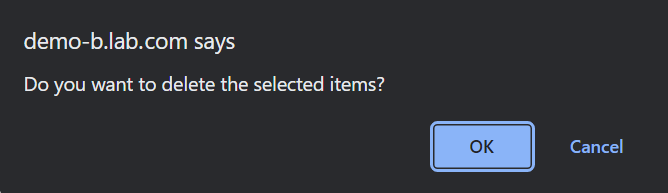
This functionality requires JavaScript to be enabled. If JavaScript is not enabled, a checkbox will appear next to the button. You must select this checkbox before clicking the button.

Entering multi-language descriptions
Wherever you enter a description that Bravura Security Fabric displays to end-users (target descriptions, question set descriptions, question definitions) you can type a multi-language tag, rather than the verbatim English text. When users view the description in a self-service module , Bravura Security Fabric replaces the multi-language tag with text in the language selected by the user.
In the Manage the system (PSA) module, you write multi-language tags in the format !!! <tag name>. For example, Bravura Security Fabric creates the default pre-defined question set (DEFAULT_QSET) with the description !!!DEFAULT_QSET_DESC.
In order to use a custom multi-language tag, you must first create a definition in the appropriate file, then rebuild the skin files.
See Add language tags for more information.