Adding email support
Bravura Security Fabric uses the pxnull interface program to send email when events are configured using the Configure event (ITSM) module. You must install this program with the Connector Pack .
To set up email event actions and compose message content, using the Configure event (ITSM) module:
Using the Configure event (ITSM) module, select
 to Send email each time this event occurs.
Type text into each field. You can include variable strings as placeholders for variable text, and M4 macros as well. These can be included in the Subject and Message body.
For example, for the DB_REPLICATION_CONN_FAILURE event, you could enter values as follows:
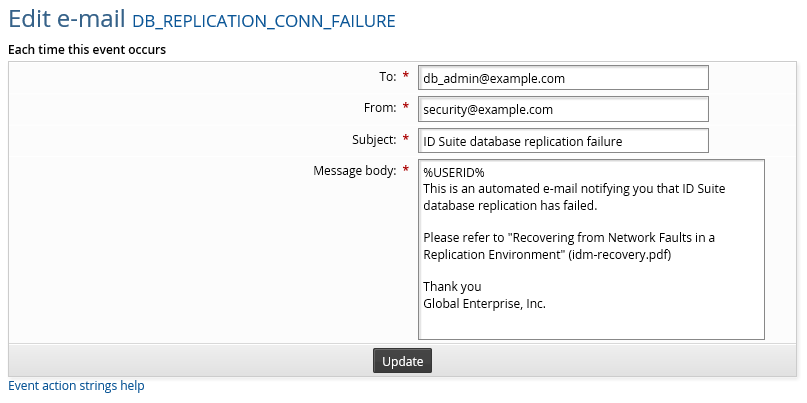
Click Update.
After you click Update, any M4 macros that you've included are expanded to show their Displayed value. Repeat step 1 to see the Displayed value. Variable strings are not expanded, because their values vary depending on when the event occurs.
Click Back to add more event actions.
Adding event action variable strings in email messages
When you compose message content using the Configure event (ITSM) module, you can include variables in the Subject and Message body that expand to event-specific information. The following variables are available:
String | Value | Example |
|---|---|---|
%CTIME% | The current time | Tue Jun 29 07:16:12 2004 |
%LTIME% | The current local time | 6/29/2004 3:18 PM 2004 |
%OPERATION% | The event name | SELF_RESET_SUCCESS |
%REMOTE_ADDR% | The IP address of the user that initiated the event | 169.6.33.197 |
%SESSID% | The ID of the current session | S20040629-1925 |
%RECIPIENT_ID% | The ID of the user affected by the event | JSMITH |
%RECIPIENT_NAME% | The full name of the user affected by the event | John Smith |
%RECIPIENT_EMAIL% | The email address of the user affected by the event | JSmith@example.com |
%REQUESTER_ID% | The ID of the requester affected by the event | azhu |
%REQUESTER_NAME% | The full name of the requester affected by the event | Andy Zhu |
%REQUESTER_EMAIL% | The email address of the requester affected by the event | AZhu@example.com |
%MGRNAME% | The full name of the affected user's manager (from the org chart). Only included when the user has a manager defined; if no manager exists, this variable is not present in the exit trap input and will not be substituted. | Jane Doe |
%MGREMAIL% | The email address of the affected user's manager. Only included when the user has a manager defined; if no manager exists, this variable is not present in the exit trap input and will not be substituted. | JDoe@example.com |
%EXPACCTHOST% | The target system ID(s) of the affected account(s). Comma-delimited when multiple accounts are involved. Available for unlock and password reset events. | AD_SERVER01,UNIX_HOST02 |
%EXPACCTLONGID% | The long ID(s) of the affected account(s). Comma-delimited when multiple accounts are involved. Available for unlock and password reset events. | DOMAIN\jsmith,jsmith |
%EXECUTION_DATE% | The date and time that conflicting passwords are discovered and updated. Only used by the PAM CONFLICTED PASSWORDS UPDATED event. | 6/29/2004 3:18 PM |
%CONFLICTED_PASSWORDS_LINK% | The URL link to the Conflicting passwords page. Only used by the PAM CONFLICTED PASSWORDS UPDATED event. | http://idm-server/default/manage-the-system/privileged-access/conflicting-passwords |
The strings are case-sensitive.
Displaying the local time zone
Use the %LTIME% variable to display the local time zone within email messages triggered by event actions. This variable requires the creation of a new profile attribute named PREFERRED_TIMEZONE. The attribute PREFERRED_TIMEZONE must be set to a supported time zone in the same format specified by those in the following registry key:
HKEY_LOCAL_MACHINE\SOFTWARE\Microsoft\Windows NT\CurrentVersion\Time Zones
For example if UTC-0700 was the time zone of the user, the following would be a valid value:
Mountain Standard Time
Adding macros to email messages
When you compose message content using the Configure event (ITSM) module, you can use M4 macros that expand to text strings, in the language of the user. These macros can be used in the Subject and Message body of the message content. The macros can include HTML code to enhance the display of message content.
The M4 system and requirements are detailed in the The M4 macro system.
To use M4 macros, type the corresponding tag, beginning with !!! , in the relevant fields on the page; for example:
!!!ADMIN_GROUP_TITLE
To learn how to:
Add HTML code to enhance the display of the message content, see Editing email content.
Modify the text defined by the M4 macros, see Altering text.
The message subject line can contain macros that expand to text, but you cannot include HTML code in the subject.
Adding custom tags
To add customized messages to Configure event (ITSM) module message fields:
Create
itsm.m4in <instance>\design\custom\, if it does not already exist.Add lines to the custom file in the following format:
!!!<MESSAGE_TAG>
<text>
where
<text>can include HTML code and M4 macros.For example:
!!!SIMPLE_MESSAGE_TAG
Have a <strong>good</strong> day.
!!!TRANSLATABLE_MESSAGE
CUSTOM_MACRO_1
CUSTOM_MACRO_2
CUSTOM_MACRO_3
To define text in multiple languages, create the
<lang >-<locale>-language.kvgfile for each supported language in <instance>\design\custom \ if it does not already exist.Note
If you want the email to be translated, the To: field must be a single person, either the recipient (%RECIPIENT_EMAIL%) or the requester (%REQUESTER_EMAIL%) of the operation or event being trapped. The user’s last used language in the Bravura Security Fabric web interface will be the language the email will be translated in (as determined by the userid’s LASTLANG tag value in the USERSTAT table).
Edit the macro definitions as required, in the format:
"CUSTOM_MACRO_1" "" = {
       "text" = "This is the first line of the message"
     }
     "CUSTOM_MACRO_2" "" = {
       "text" = "... the second"
     }
     "CUSTOM_MACRO_3" "" = {
       "text" = "...and the third.<br>Signed, your company"
     }
In the relevant field in the Manage the system (PSA) module Edit email page, type the corresponding tag beginning with
!!!fromitsm.m4.Recompile and install your skin (*.z) files by running make.bat in the design directory.
See Generating and installing skins for more information.
Troubleshooting and the email action configuration file
When you configure an email action for an event using the Configure event (ITSM) module, Bravura Security Fabric automatically creates a pxnull-itsm.cfg file in the script directory. Changes you make in Bravura Security Fabric can affect this script.
Mail server changes
This file contains the mail server settings you set in Manage the system > Workflow > Email configuration .
If you change the mail server settings, you must update the pxnull-itsm.cfg file by:
Manually editing the file
Adding or updating any event configuration that includes an email action, to allow Bravura Security Fabric to regenerate the file
pxnull output files not cleared
The pxnull program calls psmail which expects the pxnull output KVG file to be in the location specified by the PsTempDir system variable (Maintenance > Options). When psmail finds the file, it deletes it.
When PsTempDir is updated, the KVG file output path configured in pxnull-itsm.cfg does not get updated. The pxnull program continues to write the output KVG file to a location where psmail will not find it, causing the output KVG files to get left behind and pile up.
If PsTempDir is updated, then for each event for which email action is configured, access the Send email each time this event occurs form and click Update without making any changes. This will regenerate the KVG file output path in pxnull-itsm.cfg to the PsTempDir location. The psmail program will find KVG output files generated by future events and will delete them.
This should be done on the primary server. If file synchronization is configured, the changes are propagated to secondary servers the next time psupdate (auto discovery) is run.
Deleting email event actions
To delete the email action for a configured event, click  in the Send email row in the Configure event (ITSM) module.
Example: Sending email when a user is locked out
This example shows you how to configure Bravura Security Fabric to send an email to an administrator when a user is locked out due to too many failed login attempts.
Click below to view a demonstration.
Requirements
This use case assumes that:
Bravura Security Fabric and Connector Pack are installed.
An Active Directory system has been targeted as a source of profiles.
All users have values defined in the mail attribute on the Active Directory target system.
Configure email settings
To configure email settings :
Log in to Bravura Security Fabric as superuser.
Click Manage the system > Workflow > Email configuration.
Note
When you select the Workflow tab, Bravura Security Fabric directs you to the menu until the required variables are set.
Note the following settings which are set during installation:
BASE IDSYNCH URL The URL that will display in all emails to direct users to the Bravura Security Fabric application.
GLOBAL MAIL PLUGIN The plugin that sends email to users.
The default setting,
global-mail-plugin, is overwritten by thehid_policy_wfemailcomponent to use theplugin_wfemail.pyplugin.GLOBAL MAIL PLUGIN MAILDIR The directory path to store messages when they are written to a file.
The default is <Program Files path>\Bravura Security\Bravura Security Fabric\Logs\<instance>\mail.
Set the following:
MAIL SEND METHOD
SMTP,FILEThese are the delivery options for notification messages. When the MAIL SEND METHOD value includes FILE, it writes to a file in the directory specified by GLOBAL MAIL PLUGIN MAILDIR, which by default is <Program Files path>\Bravura Security\Bravura Security Fabric\Logs\<instance>\mail. When the value includes SMTP, the plugin sends emails.
MAIL SERVER This can be
localhost.RECIPIENT EMAIL The comma-delimited list of email addresses of the Bravura Security Fabric administrators who should receive notification of events relating to the running of the server; for example,
billie.greer@bravura.corp.SENDER EMAIL The email address that appears as the sender of emails; for example,
fabric@bravura.corp.
Click Update.
Configure the event action
To set up an email action when a user is locked out of Bravura Security Fabric :
Click Manage the system > Policies > Login options.
Select Configure event under the USER LOGIN LOCKOUT field.
A pop-up form appears.
Select Each time this event occurs under Send email.
Define the message; for example:
To
billie.greer@bravura.corpFrom
fabric@bravura.corpSubject
User LockoutMessage body
Due to several failed password attempts
%USERID% has been locked out. Check for suspicious behavior.
The Event action strings help link at the bottom left of the form gives you a guide to the variable strings you can use in the message body.
Click Update.
Close the pop-up form.
Click Update. The settings are saved.
Test the event action
To test the event action:
As an end user, attempt to log in to Bravura Security Fabric with the wrong password until you are locked out (three attempts).
Open your email client as the admin user, or go to the <Program Files path>\Bravura Security\Bravura Security Fabric\Logs\<instance>\mail\ directory.
You should see that there is a
User Lockoutmessage. Open this message to confirm that it appears as you intended.When the MAIL SEND METHOD includes
FILE, a copy of this email is also created in the <Program Files path>\Bravura Security\Bravura Security Fabric\Logs\<instance>\mail\ directory as a <date>.eml file.Open an Administrator Command Prompt and navigate to:
<Program Files path>\Bravura Security\Bravura Security Fabric\<instance>\util\
Run the following command to unlock the user:
userunlock.exe -user <username>
Close the command prompt.