Logging into Bravura Security Fabric
The following sections show you how to log into the Bravura Security Fabric web interface using the front-end login page, the format of the Bravura Security Fabric URL and how you can choose a language at login.
For detailed technical information about how users log in using the Front-end, or to learn how to configure authentication in general see Login Process.
Front-end login
The steps that you take to identify yourself and authenticate and then carry out tasks can vary according to how your organization customizes the interface between Bravura Security Fabric , the corporate intranet, and other applications.
In general, the front-end login process works as follows:
Go to the URL for the Bravura Security Fabric Log in page in your browser.
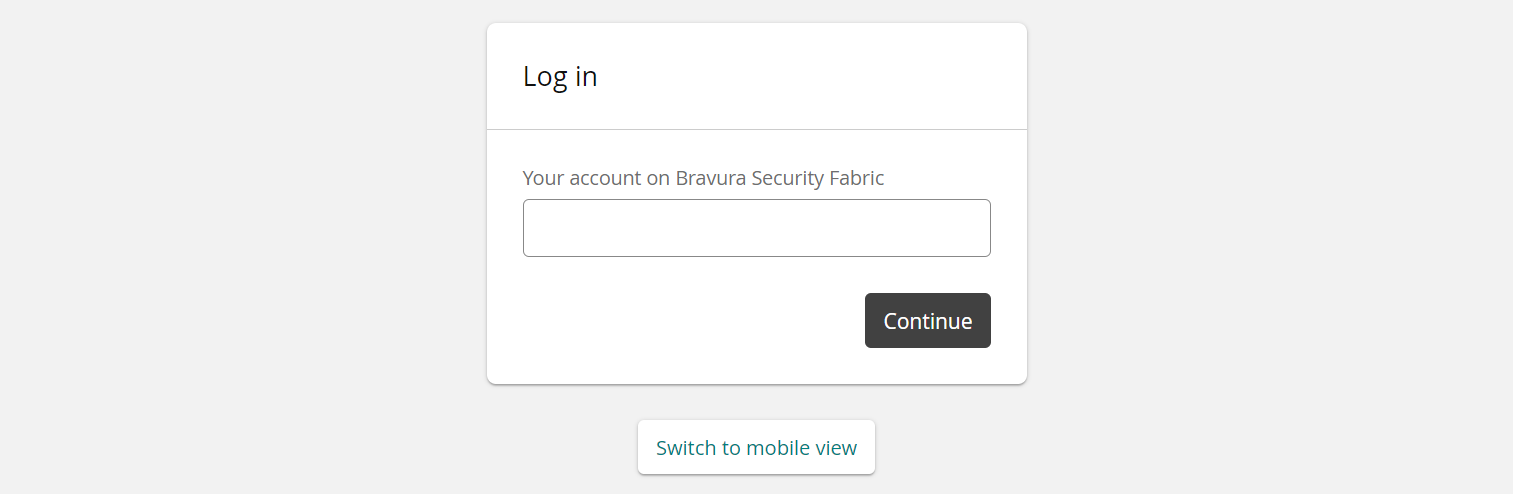
At the login page, type your:
Login ID on a system on which you have an account (for example, your Windows user name)
or
Profile ID (this is your unique ID in Bravura Security Fabric )
Depending on the configuration, you might be able to select a system from a drop-down list.
Click Continue.
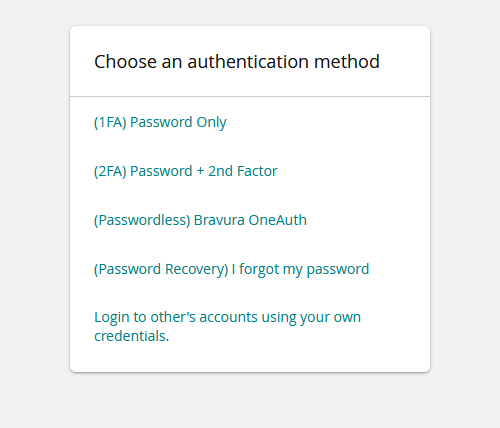
Authenticate to Bravura Security Fabric .
Depending on configuration and your access privileges, Bravura Security Fabric may display a list of authentication methods to choose from, or direct you to a particular method.
The Bravura Security Fabric URL
This topic is shared between product docs and training
You can access the login page for the Front-end by including the full path to the virtual directory in the URL:
http[s]:// < host name > / < virtual directory >
where:
http[s]: If your web server is configured to use a secure connection type https . If not, type http .
For security purposes, HTTPS should be used at all times. This is especially recommended for production environments.
<host name>: This is your domain name, or Bravura Security Fabric server name or IP address
<virtual directory>: If Bravura Security Fabric was installed using the default instance name, this is default ; otherwise, this is the non-default instance name.
You can supply additional arguments, such as language preference, by including a question mark (?) in the Bravura Security Fabric URL. Separate multiple arguments using an ampersand (&). For example:
https://idm-server/default/?LANG=fr-ca&USERID=bobsmith
For security reasons, arguments other than language and skin will be only be acknowledged when included in URLs for the root virtual directory or in URLs that redirect the user to the root virtual directory. In all other URLs, all arguments except language and skin will be ignored.
If the index page for your Bravura Security Fabric instance is set up (during installation) as your web server’s default web page, you can access the Front-end login page simply by typing the web server’s URL in a browser. For example:
https://idm-server.example.com
Redirecting to a specific module or page
If a URL includes the path for a particular page, the user is redirected to that page after successful authentication via the Front-end . Users who have not logged in, or whose user profiles are locked or invalid, are not able to access any page they would not be able to navigate to manually.
For example, to have an end user directed to the workflow dashboard, change the URL to:
https://idm-server/<VIRTUALDIR>/view-dashboards/workflow
Alternatively, you can pass the Front-end an optional argument, JUMPTOCGI=<module> , so that the user is redirected to a particular module after successful authentication.
For example, to have an end-user directed to the Change passwords (PSS) module, change the URL to either:
https://idm-server/<VIRTUALDIR>/change-passwords
or
https://idm-server/<VIRTUALDIR>/?JUMPTOCGI=PSS
If a user accesses a module in this way, and their session fails for any reason, they are returned to the Front-end .
Desktop and mobile view
Most browsers will default to the correct view for Bravura Security Fabric automatically. However, a link is available on the login page to switch views if necessary.
Click Switch to mobile view to view Bravura Security Fabric on a mobile device. The mobile view displays a mobile-friendly version of Bravura Security Fabric, optimized specifically for browsers on mobile devices.
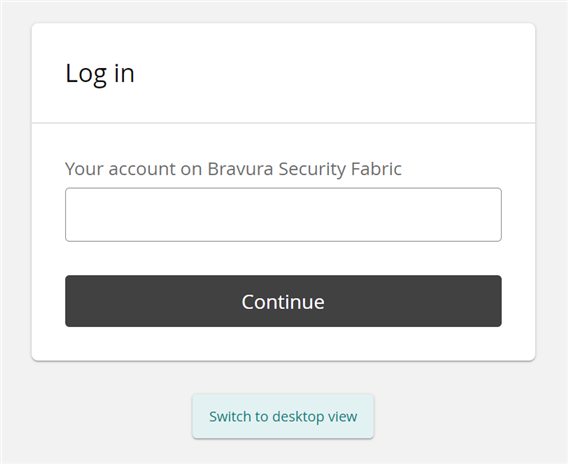
Click Switch to desktop view to view Bravura Security Fabric on a desktop machine. The desktop view has been designed for accessing Bravura Security Fabric on a desktop or laptop computer.
The selected view will be remembered for that browser until the browser cache is cleared.
Choosing a language
Bravura Security Fabric can determine your language preference by reading a value in the URL; for example, en-us for American English.
If no language is specified in the URL, Bravura Security Fabric checks the browser for your language preferences. If no exact match is found among the installed languages, Bravura Security Fabric uses the closest related language. For example, if Portuguese/Portugal (pt-pt) and French/France (fr-fr) language packs are installed for Bravura Security Fabric and your browser preferences are set to French/Canada (fr-ca), Bravura Security Fabric displays text in French/France (fr-fr). If a related language cannot be found, Bravura Security Fabric defaults to English/United States (en-us).
Using the language selector
If multiple languages have been installed, a language selector is available in the top right hand corner of the login page. Click the language selector drop-down menu to display the available languages, then select the language you want to use.
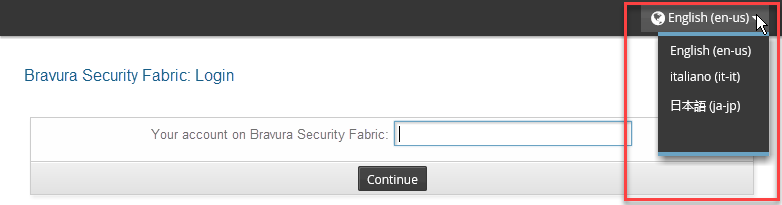
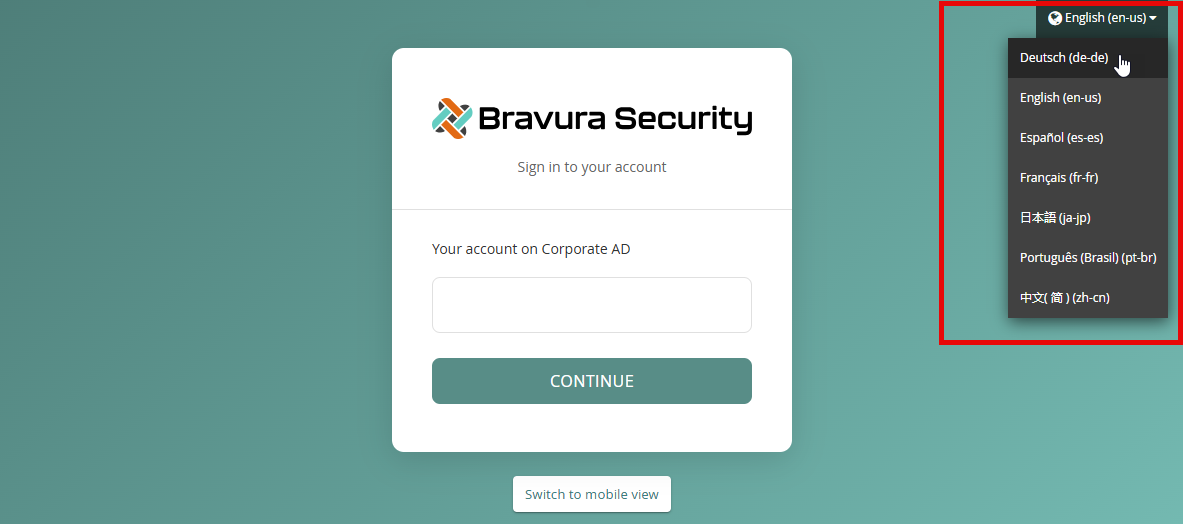
To access the language selector after you have logged in, click the user  icon first, then scroll down to the language selector. The available languages are displayed. You can then select the language you want to use.

See also
To learn how to configure language display and install new languages, see Supporting multiple languages and locales.