Managing teams
Team administrators can access pre-defined requests, via the Manage Resources option in the Request section on the home page, that can create, delete and alter group memberships of teams. When creating a team, the team administrator assigns a team trustee who can then manage that team by controlling team group membership and privileges.
Team administrators have access to the following pre-defined requests:
Team: Create for creating teams.
Team: Manage Group Membership allows administrators to add users to team groups in order to grant them privileges. Trustees of a group will be asked for their approval of any group memberships that the team administrator requests.
Team: Delete for removing teams.
Requirements
In order to define a team administrator, users need to be added to the PAM_TEAM_ADMINS user class:
Click Manage the system > Policies > User classes .
Select the PAM_TEAM_ADMINS user class.
Click the Explicit users tab.
Click Select .
Search and select a user.
Click Add.
Creating a team
To create a new team, use the Team: Create request. When selected, a wizard will guide you through the process of creating a team.
From the home page, click Manage Resources.
Click Team: Create.
Enter a unique Team name and, optionally, a Team description.
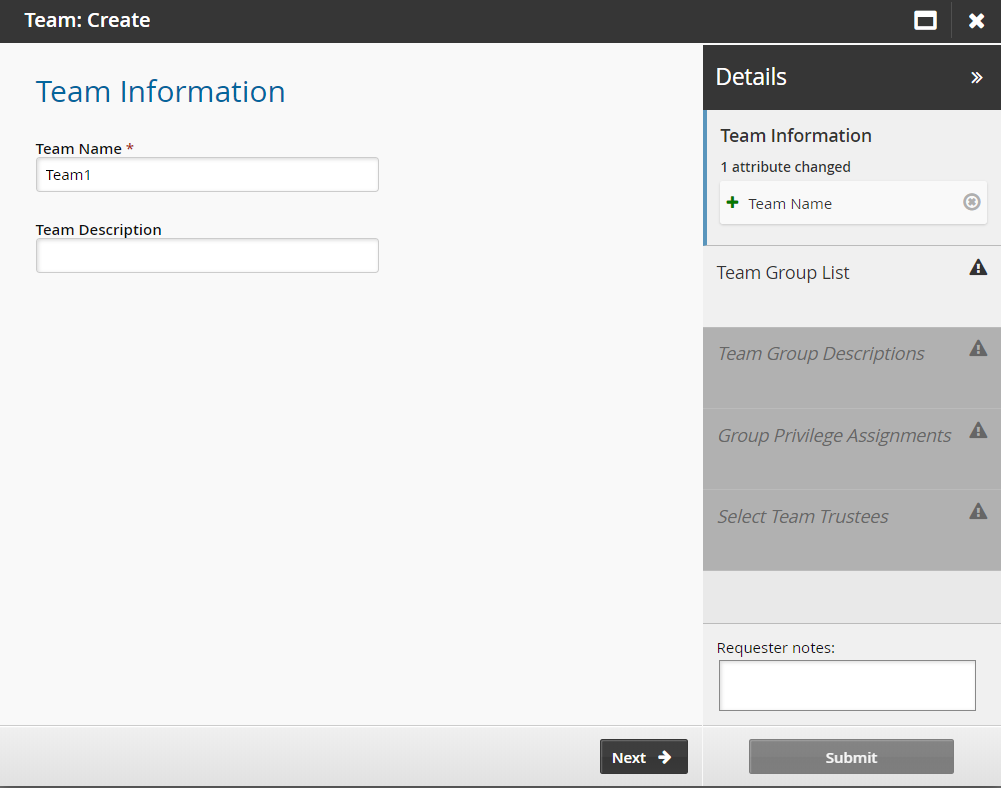
Click Next .
Create the initial team groups.
Depending on the installed features, there may be a default set of groups that are displayed here. Change the names to suit your business processes. Use the ”More” icon to add more team name fields to the list.
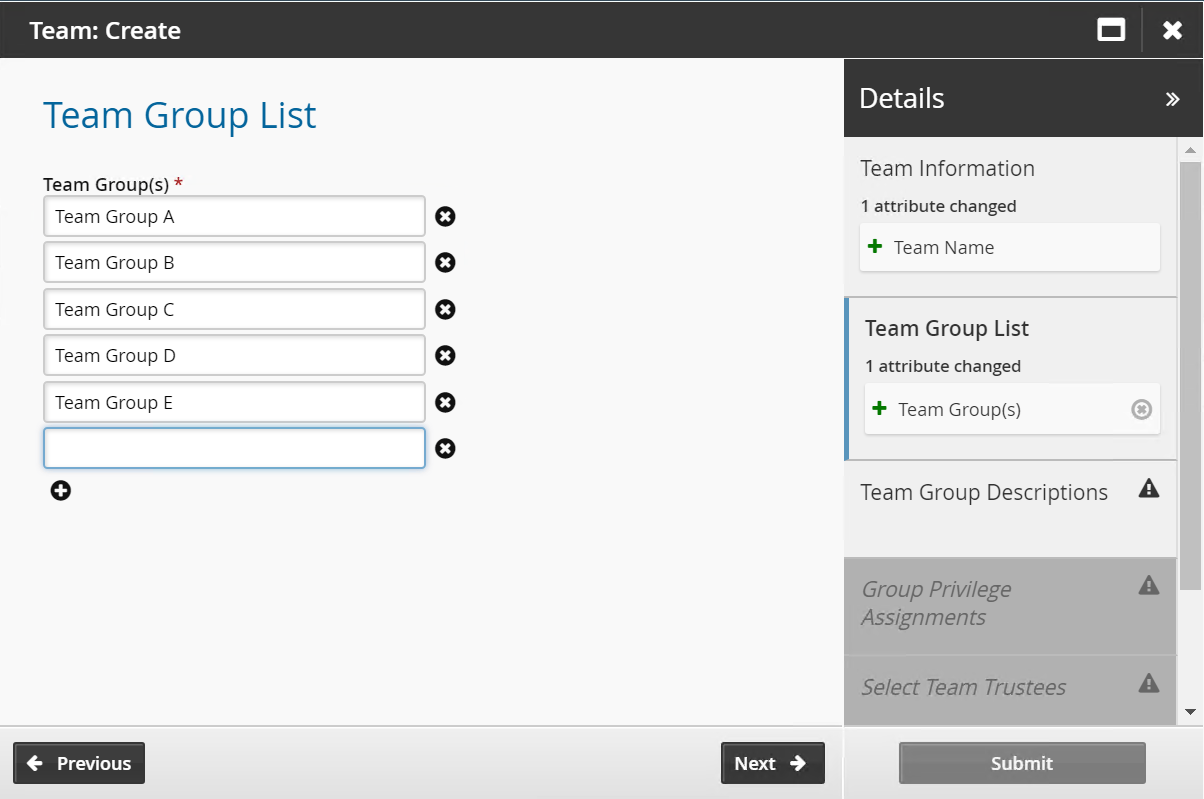
Click Next .
Enter team group descriptions as required.
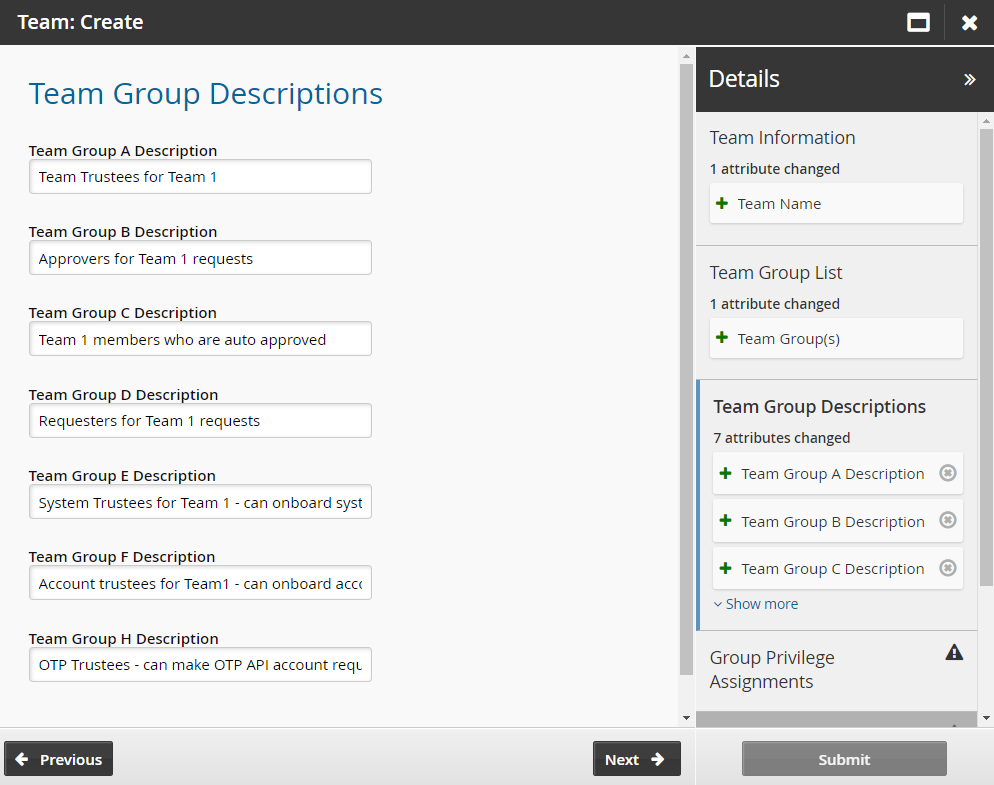
Click Next .
Assign privileges to the team groups.
Each group can have one or more privileges . Bravura Security Fabric administrators can set a default set of groups for new teams.
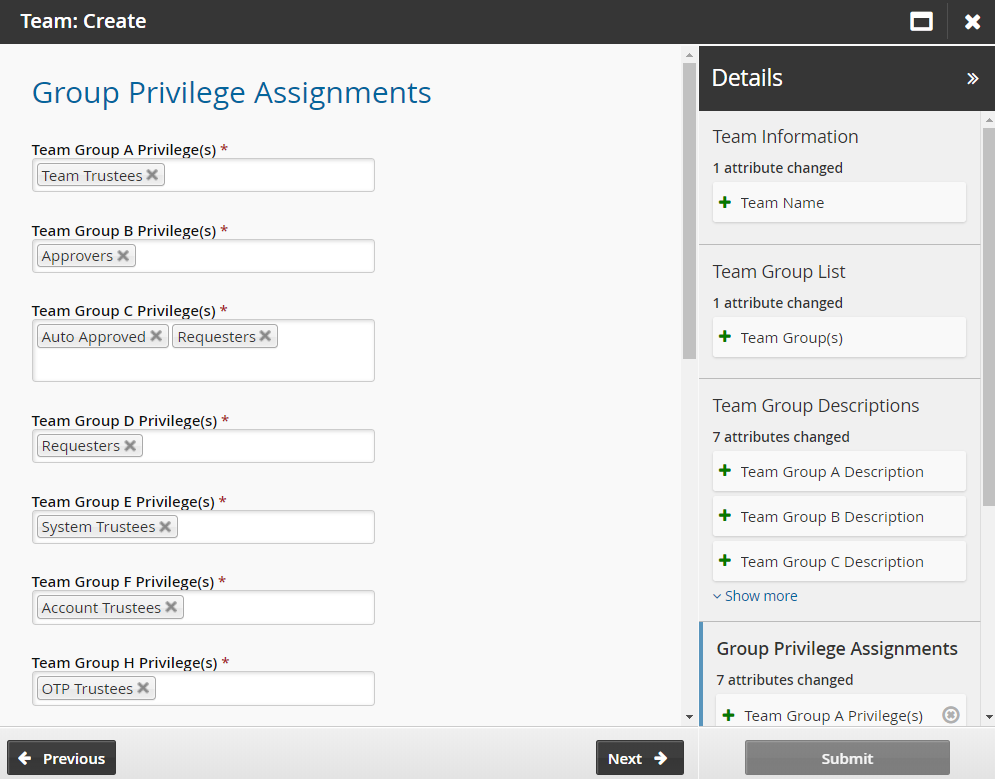
Click Next. Set the initial team trustees for the new team.
Team trustees can manage team groups and members. There must be at least one team trustee in order to create a team.
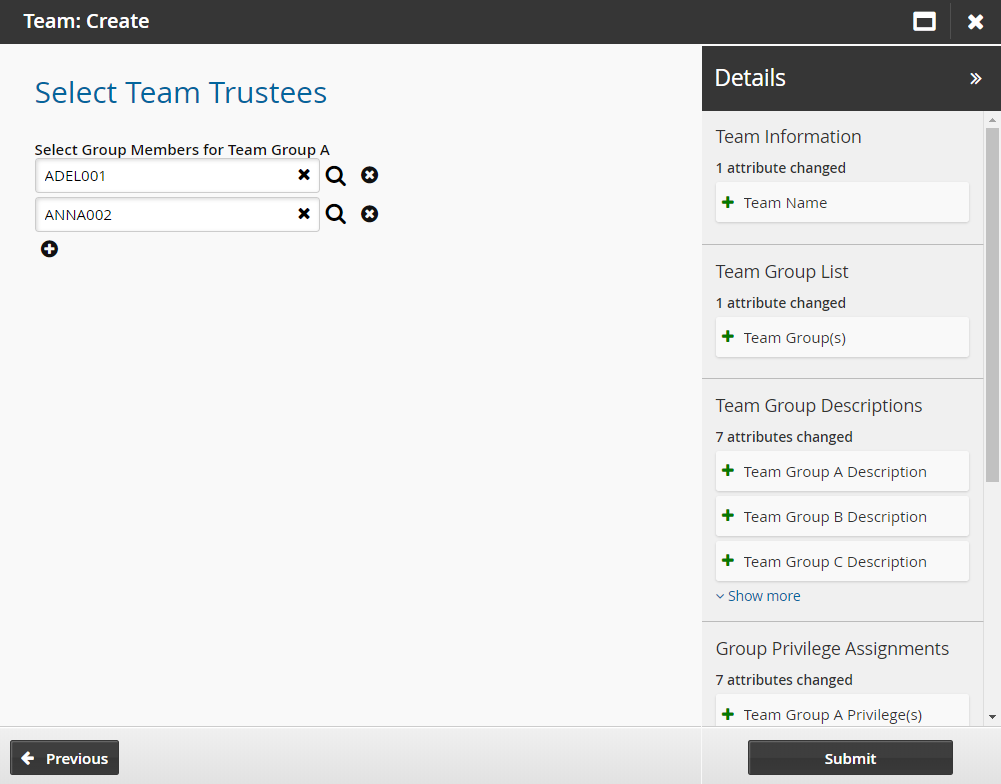
Click Submit.
Bravura Security Fabric notifies authorizers to review the request if required.
Click the View request link at the top of the page to view the status of the request.
Once the request has been approved, the team will be created and the team trustee will then have access to the following pre-defined requests:
API automation for team creation
Once the API has been configured (See ”SOAP API” in Bravura Security Fabric Remote API (api.pdf) and your script has been authenticated to the API (Login or LoginEx API calls), the WF API calls can be used to create an API request to create a team.
Use the WFPDRSubmit function to create a workflow request and submit the request for publishing.
When submitting a request, use ”TEAM-CREATE” as the pre-defined request (PDR) ID. At a minimum, the request requires the following attributes:
attrkey | value |
|---|---|
TC | The name of the team. |
TC_GROUPS | The team group name(s). |
*_PRIVILEGES | The privileges for the team group, where * is the team group name. This needs to be defined for every team group in TC_GROUPS. |
*_MEMBERS | The profile GUID of the user(s) for the team group, where * is the team group name. This only needs to be defined for team groups with the Team_Trustees privilege only. |
TEAM-CREATE batch request sample:
"TC","TC_GROUPS","Group1_PRIVILEGES","Group2_PRIVILEGES","Group3_PRIVILEGES","Group1_MEMBERS"
"TEAM-000000","Group1,Group2,Group3","Team_Trustees","System_Trustees","Account_Trustees","5A8598FA-BCB1-4C36-A504-03F1F0478138"
Verify team configuration
To verify a team's configuration or check why specific users do not get the access expected, run the P AM team Management configuration report on the specific team:
Click Manage reports > Reports > Privileged access: Configuration> PAM Team Management configuration.
Search for the team name you want to include in the report.
Click Run.
The report will display the various team groups, privileges, child groups and members of those groups.
Example: Creating a team
This example demonstrates how to define team administrators, how a team administrator creates a team, and how a trustee manages team group members.
Requirements
This example requires:
Bravura Security Fabric and Connector Pack installed
Bravura Pattern: Privileged Access Edition installed
Active Directory source of profiles
RefBuild.pam_team_management and Scenario.pam_personal_admin_management are installed when Bravura Pattern: Privileged Access Edition is installed.
Click below to view a demonstration:
Log in to Bravura Security Fabric as superuser.
Click Manage the system > Policies > User classes .
Select PAM_TEAM_ADMINS.
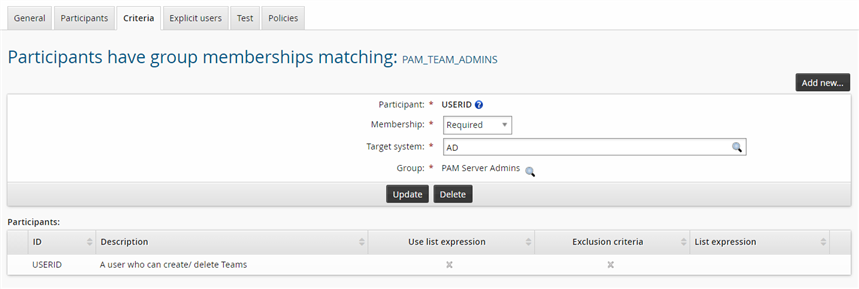
Click the Criteria tab.
Bravura Security Fabric displays the user class criteria page.
Click Add new… in the Participants have group memberships matching section.
Bravura Security Fabric displays the add criteria page.
Choose "Required" from the Membership drop-down list to include users who belong to the specified group in the user class.
Search for, and select, the AD target system.
Search for the PAM Server Admins managed group, and select that group.
Click Add.
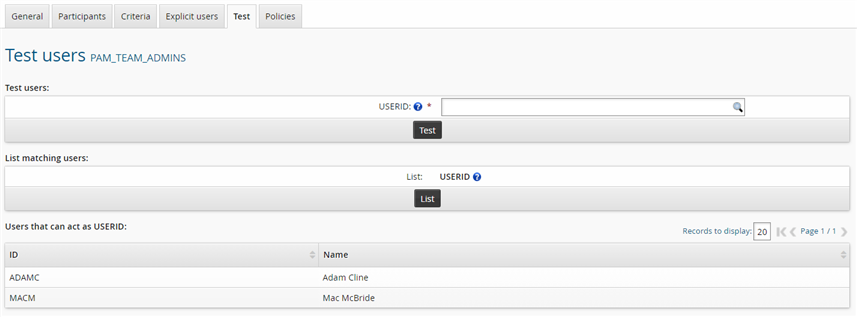
Click the Test tab and click List to list all users who match the criteria.
The result should display users similar to the image below:
Click the General tab and click Recalculate to update the user class membership cache.
Log in to Bravura Security Fabric as a team administrator.
In the Requests section of the main menu, click Manage Resources.
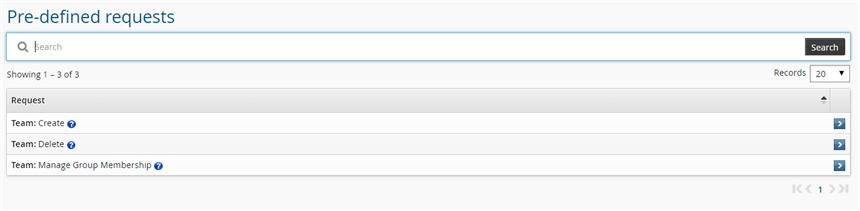
Click Team: Create.
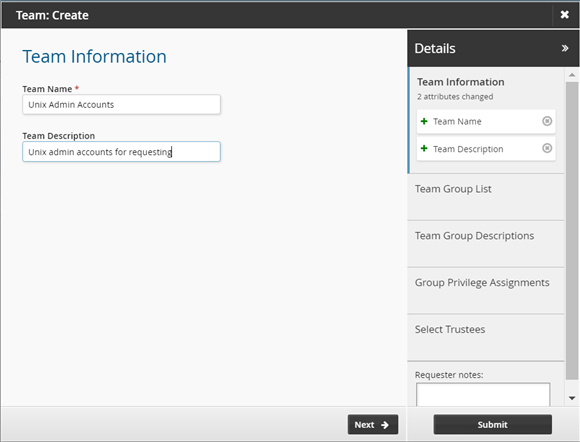
Enter the following:
Team Name Unix Admin Accounts
Team Description Unix admin accounts for requesting
Click Next
Create the following groups:
Approver
Requester
Trustee
Use the "More" icon
 to add more team name fields to the list.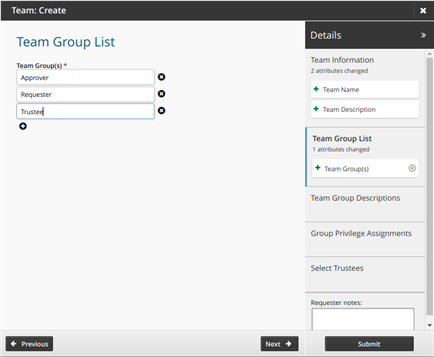
Click Next
Enter the following team group descriptions.
Approver Users who can approve
Requester Users who can request
Trustee Users who can manage team
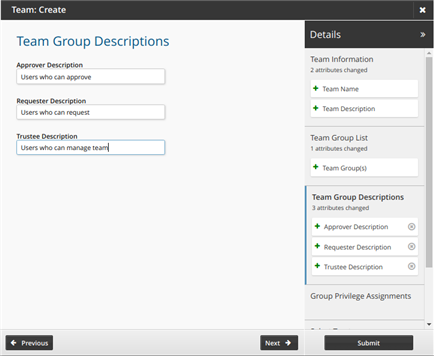
Click Next .
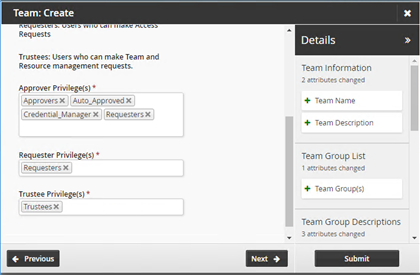
Assign privileges to the team groups as follows:
Approver Approvers, Auto_approved, Credential_Manager, Requesters
Requester Requesters
Trustee Team Trustees
Note that it is important that users who have the Auto_approved privilege also have the Requesters privilege.
Click Next .
Search for and select a user as the initial team trustee for the new team.
Team trustees can manage team resources and members. There must be at least one team trustee to create a team.
Click Submit.
Bravura Security Fabric notifies authorizers to review the request if required.
Click the View request link at the top of the page to view the status of the request.
You will see that the request has been processed. The team has been fully configured.
To manage team group membership as a team trustee:
Log in to Bravura Security Fabric as the team trustee for the "Unix Admin Accounts" team.
In the Requests section of the main menu, click Manage Resources.
Note the requests that are available to this user.
Click Team: Manage Group Membership.
Select the "Unix Admin Accounts" team.
Click Next .
On the page, select "Approver" and "Requester".
Click Next .
In the Select Child Group for Approver field, select the "IT-UNIX-MANAGERS" group.
In the Select Group Members for Requester field, select the user.
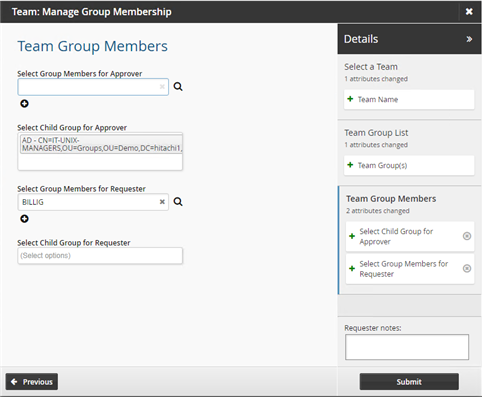
Click Submit.
Pre-define team groups and privileges during team creation
Normally, when you create a team using the Team: Create request, you are prompted to create custom team groups to assign privileges to. To standardize your teams and save time, you can set up a global configuration for your teams so when new ones are created, you start off with the appropriate groups available with the correctly assigned privileges. It is then up to the administrator who created the team to add the appropriate users to each team group. These global groups are still customizable to allow non-standard team setups.
You configure global team groups and privileges in the hid_global_configuration table in the Manage external data store (DBE) module.
Pre-define team groups during team creation
To create a team group that will automatically be configured for team administrators when they create a new team using the Team: Create request, add a new entry to the hid_global_configuration table. Each entry must use the new group name as the key and each group can have one or more rows.
The screenshot below pre-defines the Approver group when using the Team: Create request:

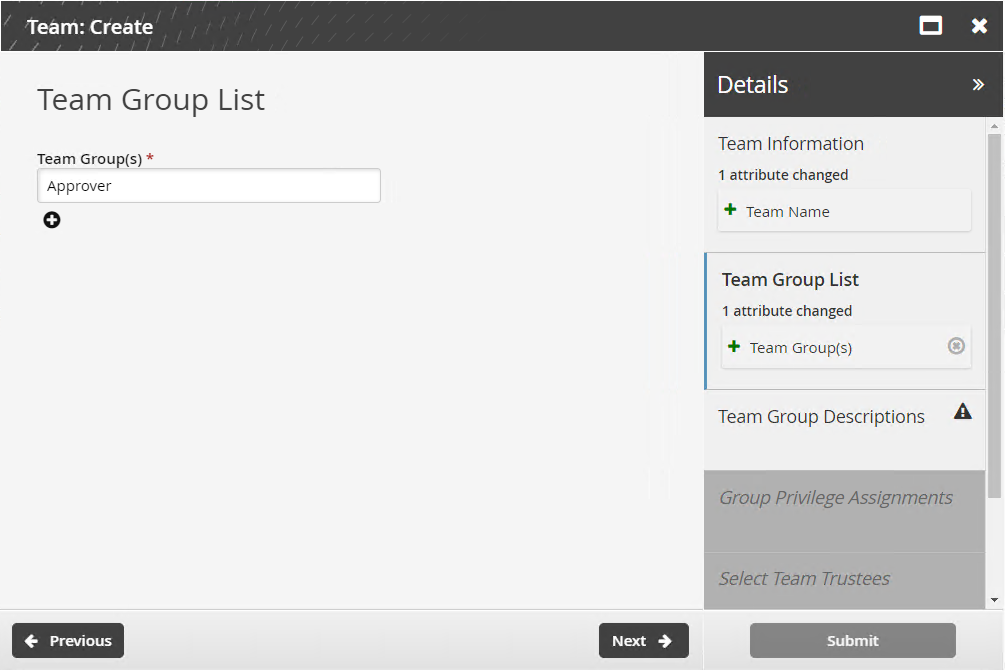
For each predefined team group, a new row in hid_global_configuration may be created with its own key. For each row, the namespace column must be set to pam_team_management, and the setting column must be set to GROUP-PRIVILEGE-ASSIGNMENT.
Pre-define team privilege assignments during team creation
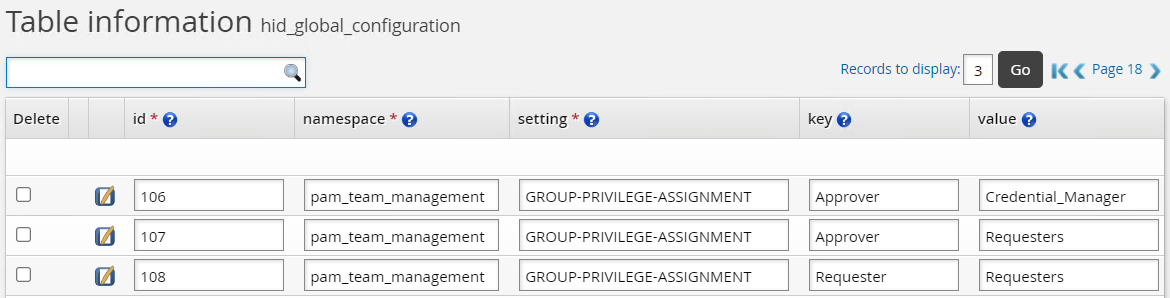
To pre-define a team privilege assignment to a team group, the process is the same as pre-defining team groups during team creation , except that you will also enter the team privilege into the value column of the hid_global_configuration table. The screenshot below shows the team privilege Credential_Manager pre-defined for the team group Approver when using the Team: Create request.

An additional example is the screenshot below where:
The Approver group is pre-defined with "Credential Manager" and "Requesters" privileges.
The Requester group is pre-defined with the "Requesters" privilege.
Team group members can be assigned the following privileges:
Approvers | Users who allow or disallow access requests. Note : Approvers are also referred to as authorizers in the core Bravura Security Fabric configuration and documentation. |
Auto_Approved | Users who can check-out access to accounts without making an access request. These users must also have permission to request access. |
Credential_Manager | User who can override or randomize the stored password on a checked-out account. These users must also have the Requesters privilege. |
Requesters | Users who can make access requests. |
Account_Trustees | Users who can make account management requests; for example, onboard accounts. |
System_Trustees | Users who can make system management requests; for example, onboard privileged systems. |
Vault_Trustees | Users who can make vault management requests; for example, create and update team vaults and accounts. |
Team_Trustees | Users who can make team management requests. |
LC_Trustees | Users who can make large credential management requests; for example, uploading and updating encrypted files, including SSH keys and password protected code signing certificates. |
OTP_Trustees | Trustees who can make OTP API account requests; for example, can create and use OTP accounts. |
Subscriber_Trustees | Trustees who can validate subscribers of onboarded accounts. |
These are the actual values that must be inserted into the value column of the hid_global_configuration table.
Example: Creating global team groups and privileges
To make creating new teams more efficient, you can define rules in the hid_global_configuration external data store (extdb) table that will configure standard team groups with attached privileges that get automatically created whenever a user triggers the Team:Create pre-defined request.
This example demonstrates how to make the entries required in the hid_global_configuration external data store (extdb) table and create a new team for Windows administrator accounts using the new standardized configuration.
Requirements
This example requires:
Bravura Security Fabric and Connector Pack installed
Bravura Pattern: Privileged Access Edition installed
Active Directory source of profiles
Click below to view a demonstration.
Log in to Bravura Security Fabric as superuser.
Click Manage external data store > hid_global_configuration.
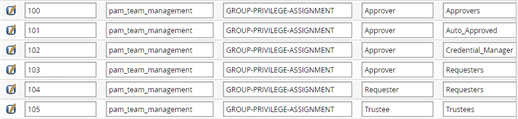
Add the following rules to the table:
Rules to add a global team group called Approver with the approvers, auto-approved, credential_manager and requesters privileges:
id: 100
namespace: pam_team_management
setting: GROUP-PRIVILEGE-ASSIGNMENT
key: Approver
value: Approvers
description: Add Approver group with approvers privilege to new teams.
id: 101
namespace: pam_team_management
setting: GROUP-PRIVILEGE-ASSIGNMENT
key: Approver
value: Auto_Approved
description: Add Approver group with auto-approval privilege to new teams.
id: 102
namespace: pam_team_management
setting: GROUP-PRIVILEGE-ASSIGNMENT
key: Approver
value: Credential_Manager
description: Add Approver group with credential manager privilege to new teams.
id: 103
namespace: pam_team_management
setting: GROUP-PRIVILEGE-ASSIGNMENT
key: Approver
value: Requesters
description: Add Approver group with requesters privilege to new teams.
Rule to add a global team group called Requester with the requesters privilege:
id: 104
namespace: pam_team_management
setting: GROUP-PRIVILEGE-ASSIGNMENT
key: Requester
value: Requesters
description: Add Requester group with requesters privilege to new teams.
Rule to add a global team group called Trustee with the trustees privilege:
id: 105
namespace: pam_team_management
setting: GROUP-PRIVILEGE-ASSIGNMENT
key: Trustee
value: Trustees
description: Add Trustee group with trustees privilege to new teams.
Click Update at the bottom of the table once all your entries are added.
Log in to Bravura Security Fabric as a team administrator.
In the Requests section of the main menu, click Manage Resources.
Click Team: Create.
Define values for the team name, description, and members.
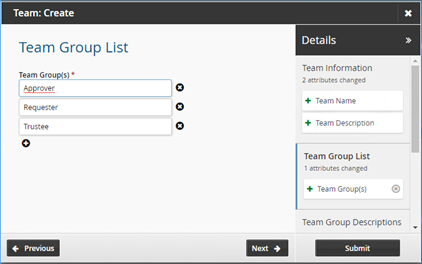
Click Next and proceed to add the information for the team. Group information and the privileges for each group are added automatically.
Click Submit.
Bravura Security Fabric notifies authorizers to review the request if required.
Open another browser tab and login as trustee for the "Windows Admin Accounts" team.
Click Manage Resources > Team: Manage Group Membership.
Select the "Windows Admin Accounts" team.
Click Next .
On the page, select "Approver" and "Requester".
Click Next .
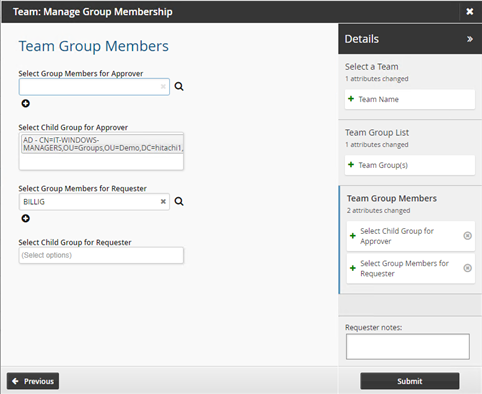
In the Select Child Group for Approver field, select the "IT-WINDOWS-MANAGERS" group.
In the Select Group Members for Requester field, select the "billig" user.
Click Submit.
Managing team group memberships
To update a group’s membership, log into Front-end (PSF) as a team trustee and use the Team: Manage Group Membership request. When selected, a wizard will guide you through the process of updating the team’s group membership.
This request can be made by either the team trustee of the team or the team administrator, however the latter will require authorization by the team trustee.
From the home page, click Manage resources.
Click Team: Manage Group Membership.
Select the team to be updated.
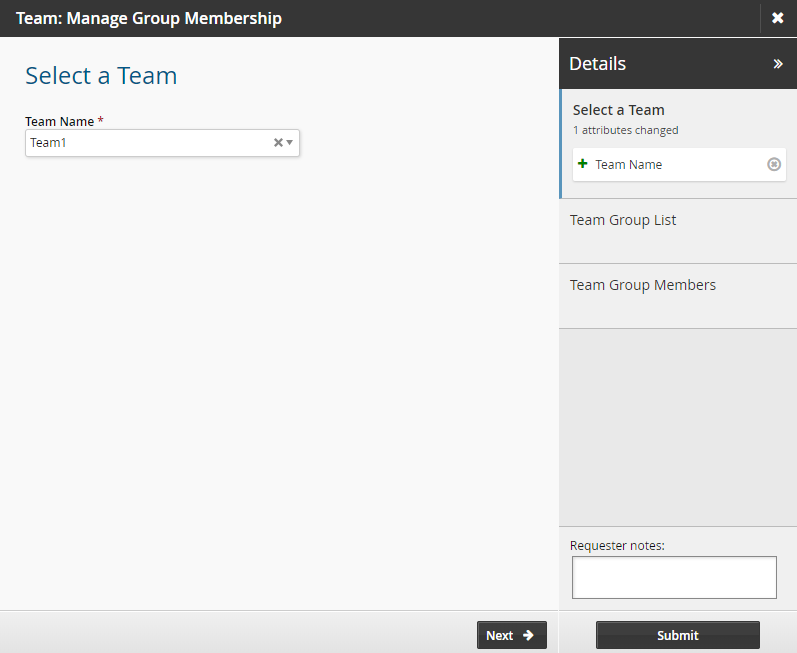
Click Next .
Select the groups to be managed.
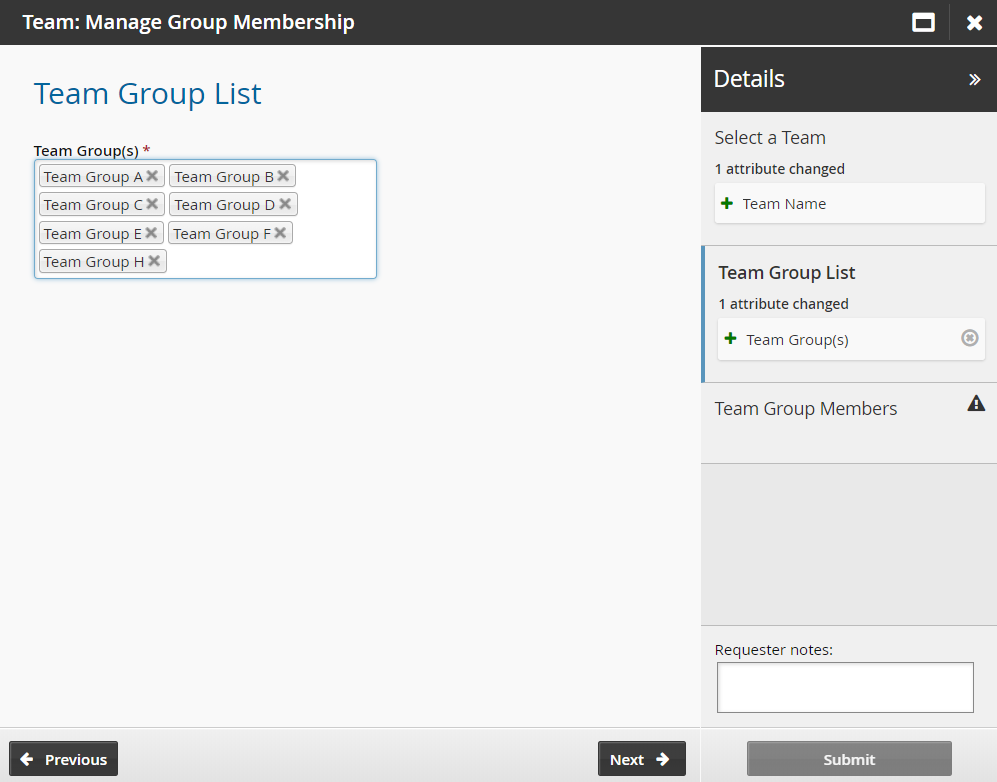
Click Next .
Add or remove users from the group.
You can add users who have profiles in Bravura Security Fabric , or add managed groups as child groups.
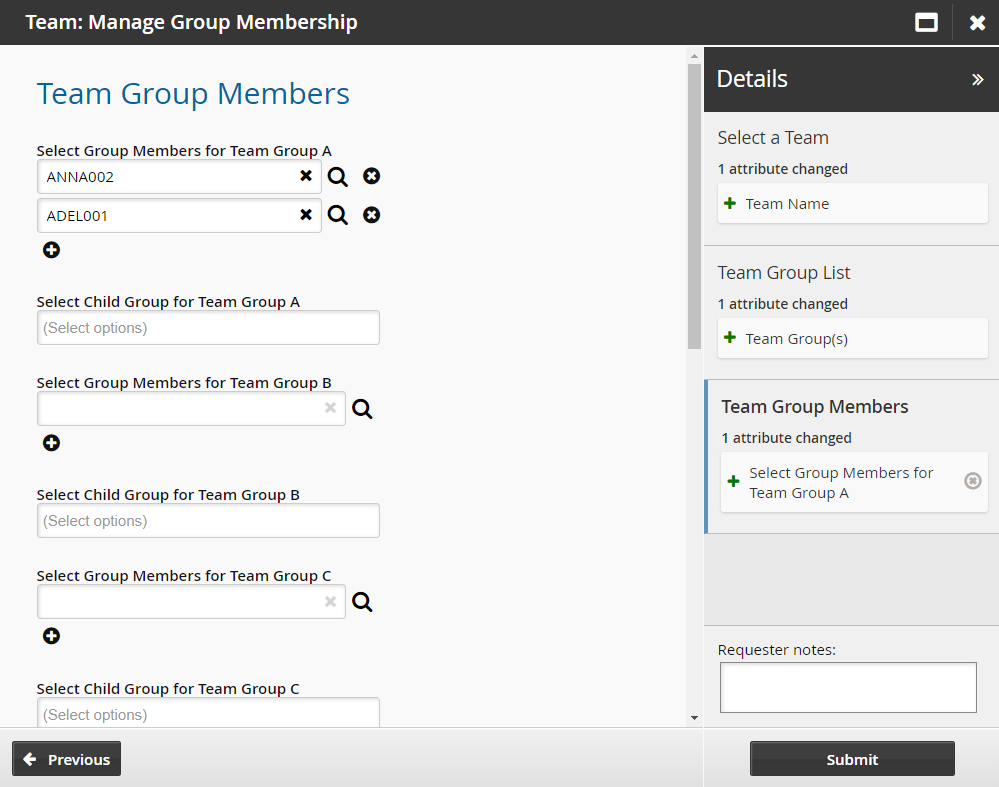
Click Submit.
Bravura Security Fabric notifies authorizers to review the request if required.
Click the View request link at the top of the page to view the status of the request.
Once submitted and approved, the group’s membership will be updated with the users that have been selected.
The request will not proceed if updating a team group’s membership results in none of the groups with team trustee privileges on a team with at least one user defined.
Limiting the number of child groups displayed
By default, child groups from all targets are selectable from the Team: Manage Group Membership pre-defined request. To limit the amount of child groups by only displaying those from certain target systems, a new entry can be added to the hid_global_configuration table for each target.

namespace: pam_team_management
setting: TEAM-MEMBERS
key: TARGET_TO_SHOW
value: the ID of the target system whose child groups will be shown
API automation for team group membership
Once the API has been configured (See ”SOAP API” in Bravura Security Fabric Remote API (api.pdf) and your script has been authenticated to the API (Login or LoginEx API calls), the WF API calls can be used to create an API request to manage team group membership.
Use the WFPDRSubmit function to create a workflow request and submit the request for publishing.
When submitting a request, use ”TEAM-MEMBERS” as the PDR ID. At a minimum, the request requires the following attributes:
attrkey | value |
|---|---|
TC | The name of the team. |
TC_GROUPS | The team group name(s). |
*_MEMBERS | The profile GUID of the user(s) for the team group, where * is the team group name. This only needs to be defined for team groups with the Team_Trustees privilege only. |
TEAM-MEMBERS batch request sample:
"TC","TC_GROUPS","Group2_MEMBERS","Group3_MEMBERS"
"TEAM-000000","Group2,Group3","5CA66384-6277-4360-B94F-9D34F4F36F13","1BE00757-A15E-4BA1-A528-507AE744E47F"
Updating a team
To update a team’s attributes, groups, privilege assignments, or trustees, log into Front-end (PSF) as a team trustee and use the Team: Update request. When selected, a Wizard will guide you through the process of updating the team’s groups and privileges associated to those groups.
This request can be made by either the team trustee of the team or the team administrator, however the latter will require authorization by the team trustee.
From the home page, click Manage Resources.
Click Team: Update.
Select the team to be updated.
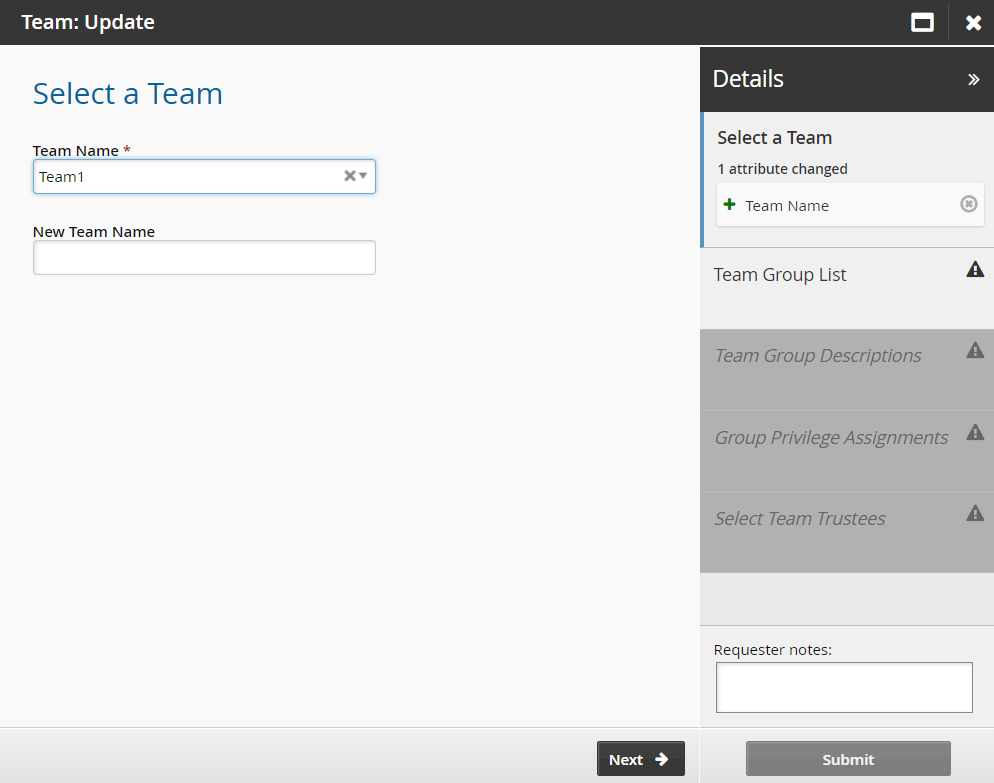
Click Next .
Update the team description as necessary.
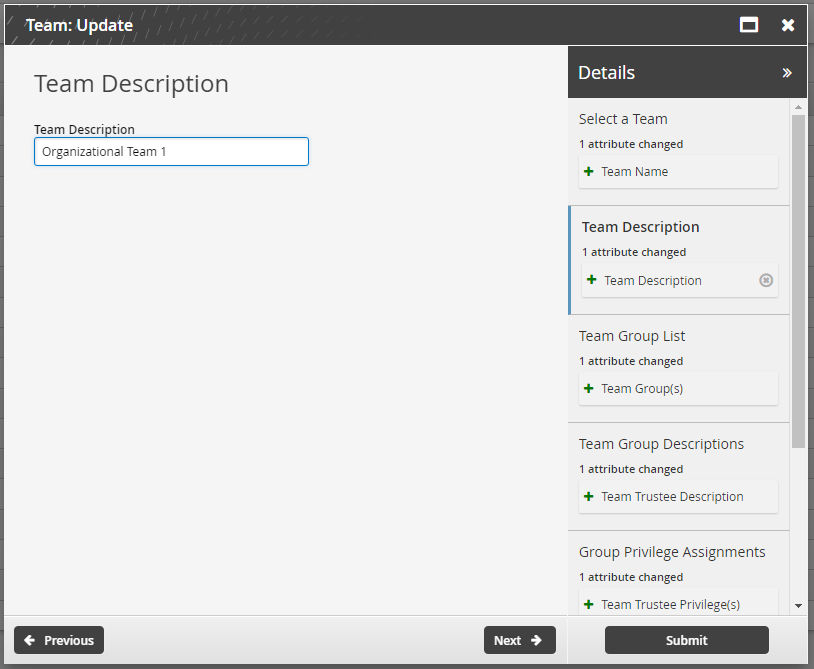
Add or remove groups as necessary.
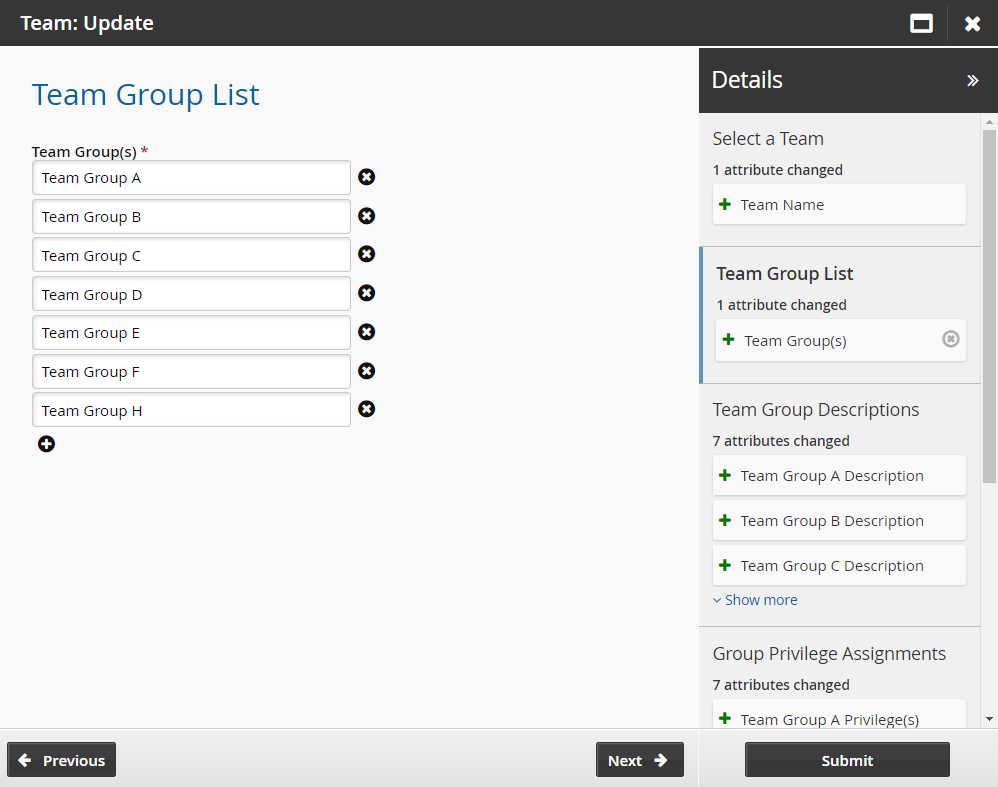
Click Next .
Update group descriptions as necessary.
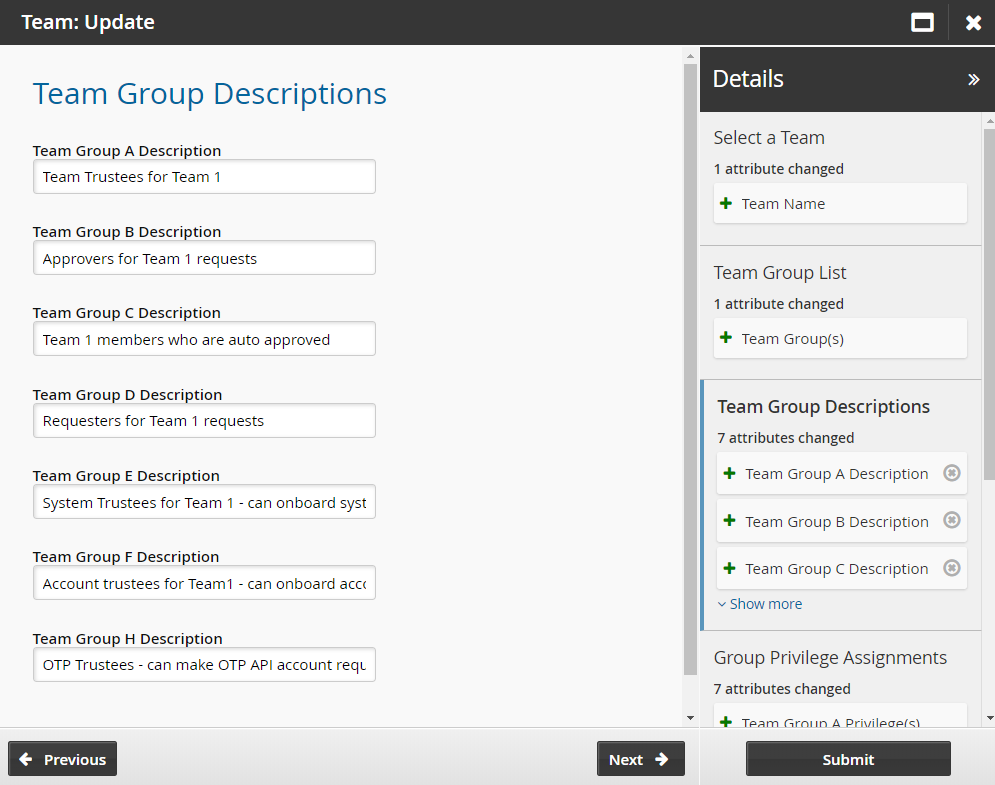
Click Next .
Assign or change the privileges assigned to each group.
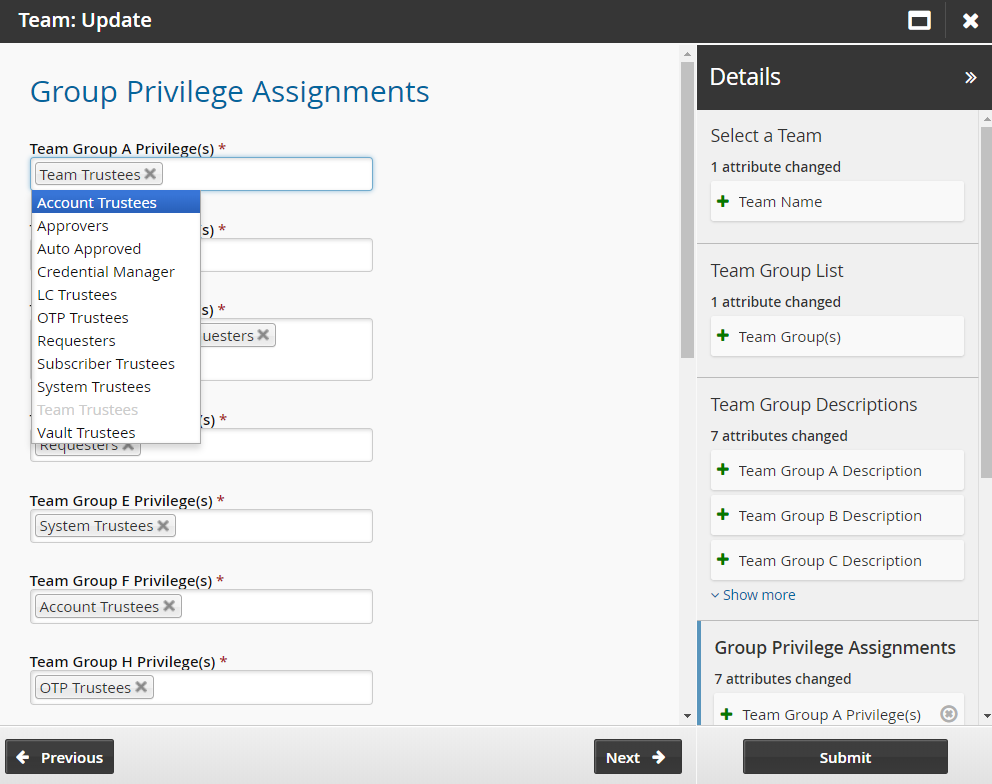
Click Next .
Update the team trustee’s group membership if necessary.
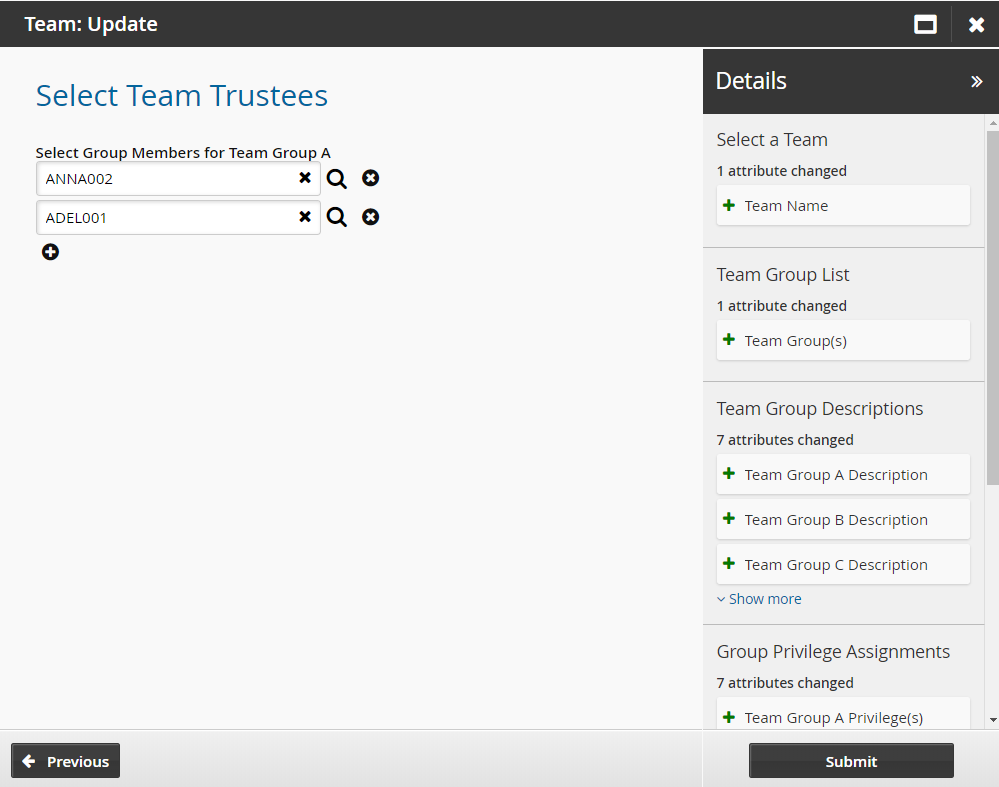
Click Submit.
Bravura Security Fabric notifies authorizers to review the request if required.
Click the View request link at the top of the page to view the status of the request.
Once submitted and approved, the group will be added or removed with the appropriate privileges that were selected.
The request will not proceed if updating a team results in none of the team groups having team trustee privileges.
API automation for team update
Once the API has been configured (See "SOAP API" in Bravura Security Fabric Remote API (api.pdf) and your script has been authenticated to the API (Login or LoginEx API calls), the WF API calls can be used to create an API request.
Use the WFPDRSubmit function to create a workflow request and submit the request for publishing.
When submitting a request, use ”TEAM-UPDATE” as the PDR ID. At a minimum, the request requires the following attributes:
attrkey | value |
TC | The name of the team. |
TC_DESC | The description of the team |
TC_GROUPS | The team group name(s). |
*_PRIVILEGES | The privileges for the team group, where * is the team group name. This needs to be defined for every team group in TC_GROUPS. |
*_MEMBERS | The profile GUID of the user(s) for the team group, where * is the team group name. This only needs to be defined for team groups with the Team_Trustees privilege only. |
Changes made will override existing attribute values for the team. You will need to specify the existing team groups, privileges and members in this request, or it will be removed from the team.
TEAM-UPDATE batch request sample:
"TC","TC_GROUPS","Group1_PRIVILEGES","Group2_PRIVILEGES","Group2_MEMBERS"
"TEAM-000000","Group1,Group2","Team_Trustees,Vault_Trustees","Team_Trustees","5A8598FA-BCB1-4C36-A504-03F1F0478138"
Deleting a team
To delete a new team, log into Front-end (PSF) as a Team administrator and use the Team: Delete request. When selected, a wizard will guide you through the process of deleting a team.
Before you can delete a team, the team trustee must remove all managed systems and accounts from the team. This prevents managed systems and accounts from being orphaned with Bravura Security Fabric .
From the home page, click Manage resources.
Click Team: Delete.
Select the team to be deleted.
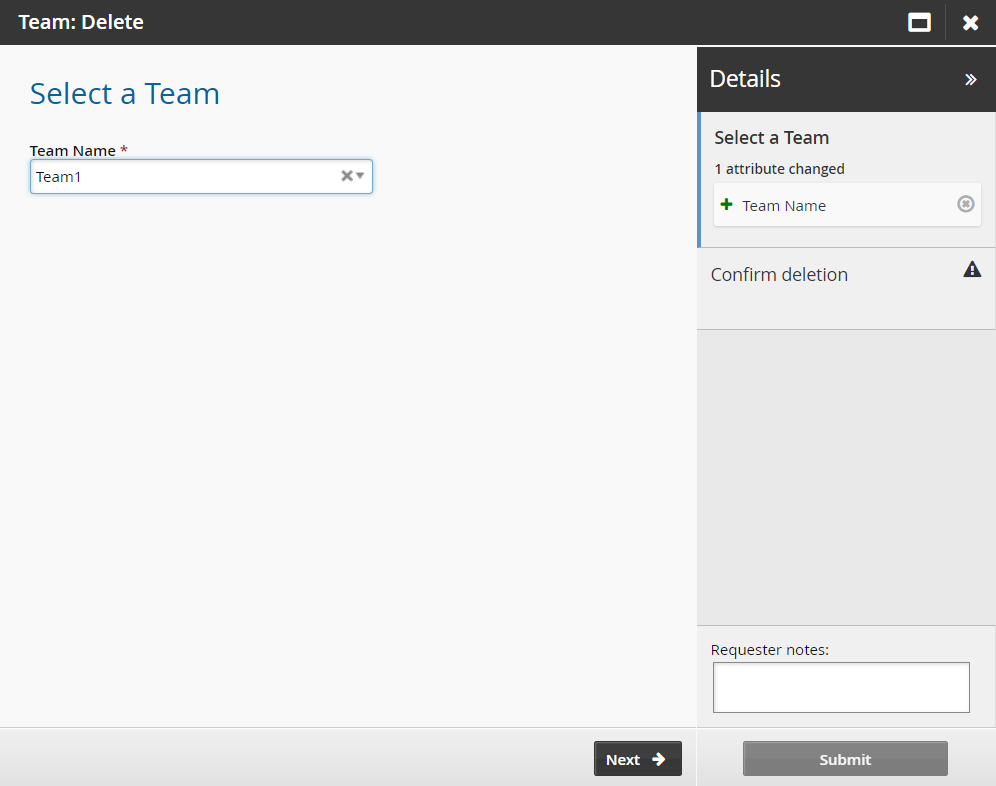
Click Next .
Confirm the deletion and add notes if necessary.
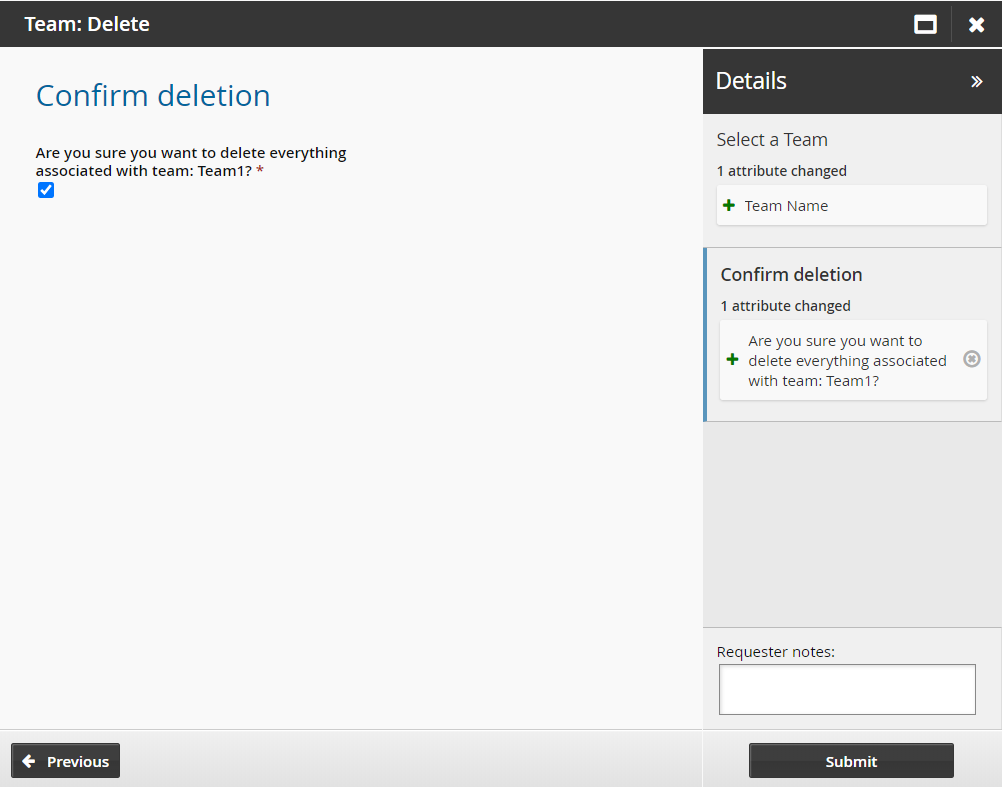
Click Submit.
Bravura Security Fabric notifies authorizers to review the request if required.
Click the View request link at the top of the page to view the status of the request.
Once the request has been approved, the team will be deleted from Bravura Security Fabric .
API automation for team delete
Once the API has been configured (See "SOAP API" in Bravura Security Fabric Remote API (api.pdf) and your script has been authenticated to the API (Login or LoginEx API calls), the WF API calls can be used to create an API request.
Use the WFPDRSubmit function to create a workflow request and submit the request for publishing.
When submitting a request, use ”TEAM-DELETE” as the PDR ID. At a minimum, the request requires the following attributes:
attrkey | value |
|---|---|
TC | The name of the team. |
TEAM-DELETE batch request sample:
TC
TEAM-000000