Google Applications
Connector name |
|
Connector type | Executable |
Type (UI field value) | Google Applications |
Connector status / support | Bravura Security-Verified This connector has been tested and is fully supported by Bravura Security. |
Upgrade notes | Added support for the rename account operation in Connector Pack 4.5.0. Added the Delete app specific passwords, Delete third party tokens, Delete backup verification codes, and Disable two step verification target address options in Connector Pack 4.7.0. Review any Google Apps targets prior to the upgrade in order to determine if App passwords, third-party apps and services oauth tokens, backup verification codes, and 2-Step Verification should be disabled during the reset, disable, and delete connector operations. The agtgapps connector defaults to yes for deleting third-party apps and services oauth tokens. |
The following Bravura Security Fabric operations are supported by this connector:
administrator reset password
administrator reset+expire password
expire password
unexpire password
check password expiry
check account enabled
enable account
disable account
create account
delete account
rename account
update attributes
create group
delete group
add user to group
delete user from group
add group to group
remove group from group
add owner(user) to group
remove owner(user) from group
List:
attributes
accounts
groups
members
For a full list and explanation of each connector operation, see Connector operations.
Preparation
Before targeting Google Apps:
Enable api access in Google Apps.
Configure the Google API credentials
These steps are detailed in the sections that follow.
Enabling API access in Google Apps
The Google Admin SDK API lets you perform administrative operations on users, groups and organization units in your account. api access needs to be enabled before it can be used.
To enable API access in Google, log into the Google Cloud Console and enable the Admin SDK API. It can be searched by clicking on Library on the left side menu then in the APIs & Services section.
For more information on where to find this setting refer to the Help available in the Google Cloud Console.
Configuring the Google API credentials
The agtgapps connector uses a service account to call the Google api service, so that Bravura Security Fabric users are not directly involved. Those credentials need to be set up in the Google Cloud Console.
In order to connect through the API, an encryption file must be generated and saved on the instance server. This encryption file is unique for each Google Apps service account.
To configure the Google API credentials:
From the Google Cloud Console, create a new service account or choose an existing one.
Do not use one of the Google default service accounts.
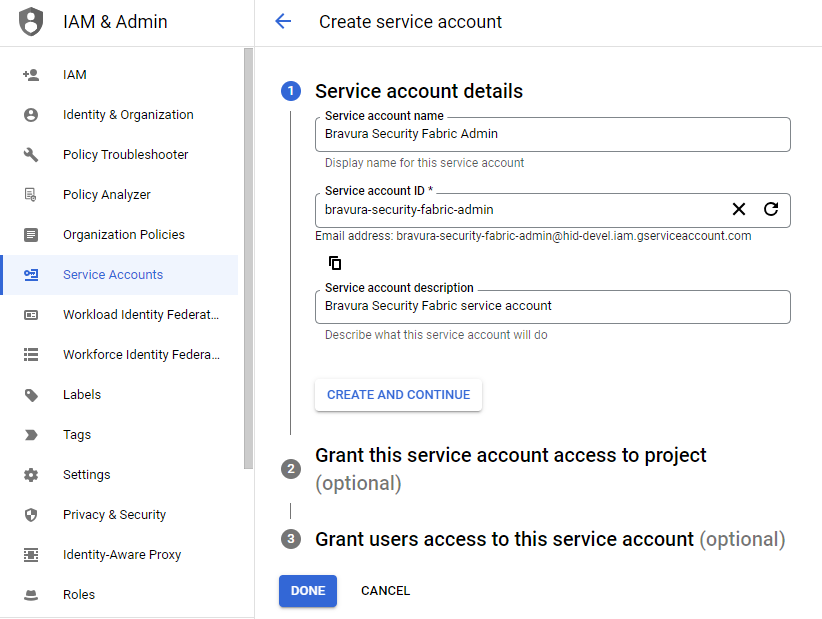
Assign the service account the "Editor" role.
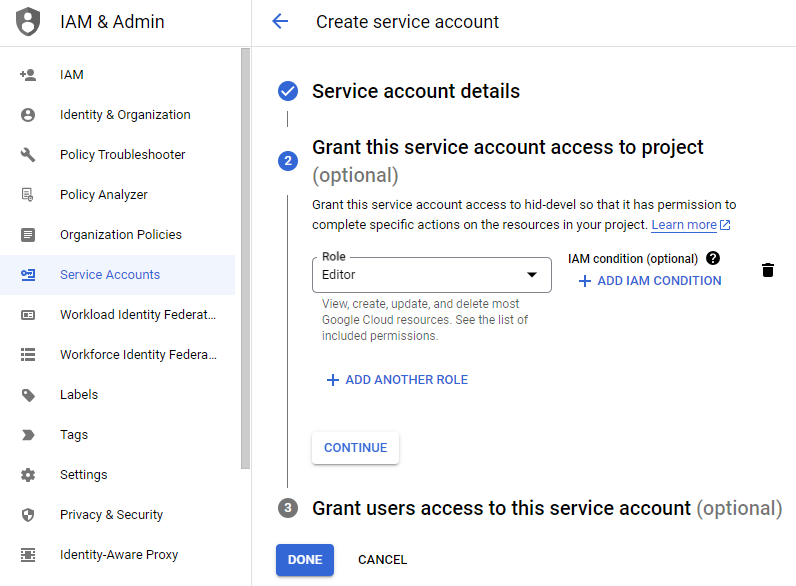
Take note of both the Email and Unique ID (Client ID) values for the service account that were generated. These will be used later.
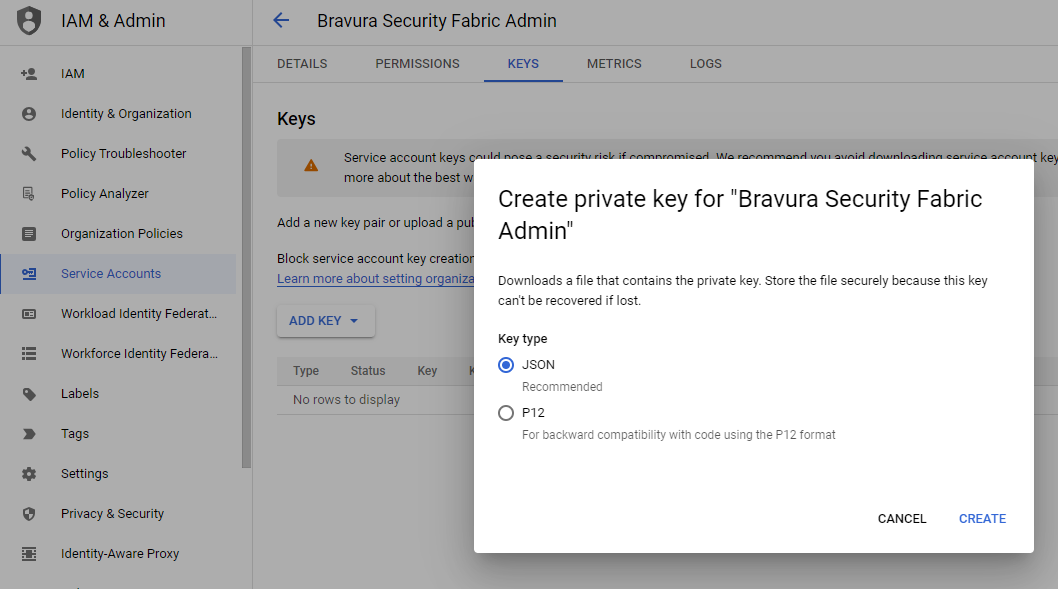
Once the service account is created, from the KEYS tab, choose to create either a JSON formatted file (which is recommended) or a .P12 type of "private key" for the service account you are going to use.
Save the generated file on the instance server. This will be used later.
Note
Take note of the private key’s password if .P12 type of key is selected.
For information on how to create a Google service account, enabling Google Apps Domain-wide Delegation, assigning roles, or to generate a service account key, refer to the Help available in the Google Cloud Console and Google Admin Console.
Note
You can view the Email and the Unique ID (Client ID) for the service account client and the service account ID in the Google Cloud Console later if required.
Your Google administrator may be able to provide the service account key file, and the .P12 private key’s password.
Once you have the encryption file, set the permissions to allow the instance to use the API:
Log into the Google Admin console.
Browse to Security > Access and data control > API controls, then click Manage Domain-wide Delegation.
Add a new API client for the service account and enter:
In the Client ID field, enter the value of the Unique ID for the Service account generated earlier.
In the OAuth scope field, enter
https://www.googleapis.com/auth/admin.directory.user,https://www.googleapis.com/auth/admin.directory.group,https://www.googleapis.com/auth/admin.directory.rolemanagement, https://www.googleapis.com/auth/admin.directory.usersecurity
Click Authorize.
Google Apps is now ready to be added as a target system to the Bravura Security Fabric instance.
Targeting Google Apps
For each Google application, add a target system in Bravura Security Fabric (Manage the System > Resources > Target systems).
Type is
Google Applications.Address uses options described in the table below.
The full list of target parameters is explained in Target System Options.
Option | Description |
|---|---|
Options marked with a | |
Server | The IP address/domain name of the Google API server. This is set to (key: server) |
Port | Default is 443. (key: port) |
Connection over SSL | (optional) Select to enforce SSL connections. Default is "true". (key: ssl) |
Validate the server’s certificate when connecting | Determines whether to validate the server’s security certificate for SSL connections. Default is "true". (key: checkCert) |
HTTP Network Proxy | Optional (key: proxy) |
Impersonate | Email address of the Google domain administrator. (key: impersonate) |
Domain | External domain name, used to map to the Google API. Required for operations other than listing. (key: domain) |
List all domains | (optional)Select to list all domains from a Google Application instance. Incompatible with the Domain target system parameter. (key: listalldomain) |
List roles as groups | The "groups" that the connector lists are the Admin roles that are found in the Google Admin console. The list members operation lists the admins that are assigned to the role. Default is "true". See Google group listing and creation for more information. (key: listRoleAsGroup) |
Records per page | Affects the number of records returned during listing. Default: 100. (key: pagesize) |
Retry count | The retry count for the number of times an operation will be attempted if it initially fails during listing. Default: 2. (key: retry) |
Delete app specific passwords | Delete the App passwords that are defined for the user. Default: unchecked. (key: deleteAppPasswords) |
Delete third party tokens | Delete the third-party apps & services oauth tokens defined for the user. Default: checked. (key: deleteTokens) |
Delete backup verification codes | Delete the backup codes that are remaining for the user. Default: unchecked. (key: deleteVerificationCodes) |
Disable two step verification | Turn off the 2-Step Verification that is configured for the user. Default: unchecked. (key: disableTwoStep) |

Upgrade note
Options Delete app specific passwords, Delete third party tokens, Delete backup verification codes, and Disable two step verification were added in Connector Pack 4.7.
When the following options are checked:
Delete app specific passwords
Delete third party tokens
Delete backup verification codes
Disable two step verification
The actions for these options will be performed for the following connector operations:
Resetting a user's password
Disabling a user account
Deleting a user account
Note that when the Disable two step verification action is invoked, this will also delete the backup codes. This is a behavior specifically for the Google API for when the connector operation is triggered. It is different from the behavior of the Google web user interface, which retains the backup verification codes when 2-Step Verification is turned off.
Google group listing and creation
The agtgapps connector supports listing either Google Applications groups or roles as Bravura Security Fabric managed groups during auto-discovery. If List roles as groups is deselected, then Google groups are listed as managed groups.
The Google groups are of the format GRP_<GroupName> while roles are of format Role_<RoleName>.
When creating groups using Bravura Security Fabric, ensure that the GRP_ prefix is included for the group id in order to identify the object as a Google group properly. Currently the agtgapps connector only supports creating Google groups for the groupcreate operation and managed groups.
Setting the administrator credentials
A Google Apps target requires two sets of administrative credentials. One must use a system password. For the first administrator, add the following:
ID Full path to the JSON or .P12 file (the C: drive is recommended)
[Password] is needed only when .P12 type key is used.
For the second administrator, add the following:
ID The email address for service account referred to in Configuring the Google API credentials (including the "@<domain>")
Password Any value (unused)
System password Must be checked
The target should now be able to connect and interact with the Google API.
Handling account attributes
You can view the complete list of attributes that Bravura Security Fabric can manage using the Manage the system (PSA) module. To do this, select Google Applications from the Manage the system > Resources > Account attributes > Target system type menu.
The following account attributes may be used to clear the related Google settings for the user:
_AppPasswords
_Tokens
_VerificationCodes
_TwoStep
For example, setting any of the above account attributes to CLEARALL when they are updated in a request will run the actions for all of the following Google settings for the user:
Delete app-specific passwords
Delete third-party tokens
Delete backup verification codes
Disable two-step verification
These settings will be applied regardless of the target address options that are set.
Troubleshooting
If you click Test credentials on a Google Apps target system’s Test credentials tab, and receive a "Failed to send http request" connection failure error message, add https:// in front of the Domain; for example https://testdomain.com.
If you are unable to reset end-user passwords and user listing gives an error that includes "General Exception when listing users," this may indicate that your target system administrator account needs to accept Google’s terms of service before API access will be allowed. Point your web browser to your Google Apps domain, log in using your target system administrator account, and work through any terms-of-service prompts that appear.
Note
You may be required to re-accept terms of service after having initially accepted them if there are any subsequent changes to your target system administrator’s assigned privileges within your Google Apps domain.