Authorizing Requests
When requests are submitted in Bravura Security Fabric , authorizers review the requests to approve, deny, or modify them. The following sections show you how to review and act on requests, using the Requests app.
About authorization
How authorizers are assigned
When a request is issued, Bravura Security Fabric notifies authorizers based on the entitlement, or some business logic via a workflow plugin.
Authorizers are notified of their tasks by email. Bravura Security Fabric also displays task links at the top of the main menu to notify the authorizers that they have requests to review.
Delegation and escalation
Bravura Security Fabric users can act on behalf of other users in one of two ways:
Delegation – A user can request to delegate all their responsibilities or a single request to another user. A delegation manager can also delegate a user’s responsibilities to a third party.
Escalation – When an authorizer fails to act on a workflow request in a timely manner, the request can be escalated to another user higher in the organization.
If escalation is not configured, the request remains in the pending requests queue until it is approved or denied by one or more authorizers.
When escalation or delegation occurs, the user who takes over will be able to act as the original authorizer, with the same privileges, when dealing with the request.
Delegates are notified of their tasks by email. Bravura Security Fabric also displays task links at the top of the main menu to notify the users that they have requests to review as a delegate.
See:
Acting on behalf of another authorizer to learn how to change who you are acting on behalf of, when authorizing requests.
Delegating Responsibility to learn how to request or respond to a request for delegation.
Automatic approval of requests
Bravura Security Fabric can automatically approve a request if the requester is also an authorizer assigned to the affected resource.
To turn on this option enable IDWFM AUTO APPROVE on the Workflow > Options > General menu. Installing Bravura Pattern sets the value for this option as "enabled".
A request will not be auto-approved if:
Authorizers must enter values for required attributes when a request is reviewed.
Or,
More than one authorization is required to approve the request.
Unapproving privileged access requests
Bravura Security Fabric authorizers can "unapprove" privileged access requests if they are originally listed as an authorizer for the request.
Unapproving a request cancels the request. The request is treated as denied. The "unapprove" action only affects the specific request; user privileges, user access, and other requests are unaffected.
A privileged access check-out request can be unapproved when:
It has been approved by an authorizer.
It is in the ’Pending’ check-out status.
A privileged access check-out request cannot be unapproved when:
It is in the process of being checked out.
The request has been processed.
A privileged access extension request can be unapproved when:
It has been approved by an authorizer.
The request has been processed.
The check-out will still have time remaining once the extension is removed.
A privileged access extension request cannot be unapproved when:
The check-out will no longer have time remaining if the extension was removed.
If you want to cancel a check-out or extension request that can no longer be unapproved, you must terminate the user’s privileged access instead. To do this, you must grant the “Check-in access” privilege to the appropriate users.
Managing authorization workflow
Authorizers who are granted the role of workflow manager can also cancel any request. This extra option is available to workflow managers on the request authorization pages.
They can also act as implementers, to act or decline manual tasks, and mark the tasks as completed or cannot be completed.
Reviewing requests
Bravura Security Fabric notifies available authorizers if a request needs to be reviewed. A link is also displayed when you log in, if you need to review current requests.
Click the task link or Requests from the main menu to launch the Requests app.
Depending on your role and the type of operations, from here you can:
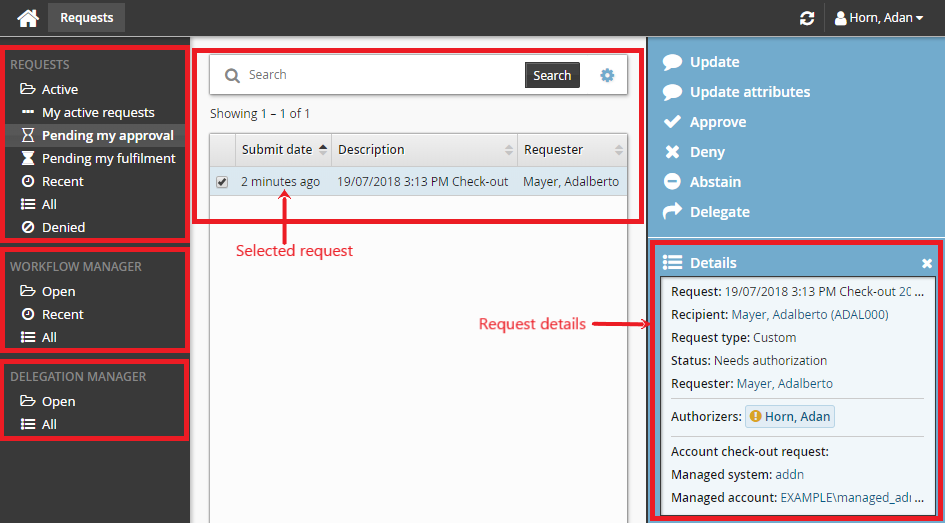
Use the links under REQUESTS in the Filter panel to display requests where you are assigned as the authorizer.
If you are a workflow manager, you can also view requests assigned to other authorizers using the links under the WORKFLOW MANAGER heading in the Filter panel.
If you are a delegation manager, you can view requests assigned to other authorizers using the links under the DELEGATION MANAGER heading in the Filter panel.
From the Results panel, select the request you want to review. The details will appear in the Actions panel.
See Searching in an app for information about searching in the Requests app.
Authorizing requests for exception to SoD rule
Requests may include exceptions to SoD rules. In the example below, the rule disallows users from having both the QA tester and Developer roles. The request is that the user retains the Developer role, while requesting an exception to also have the QA tester role.
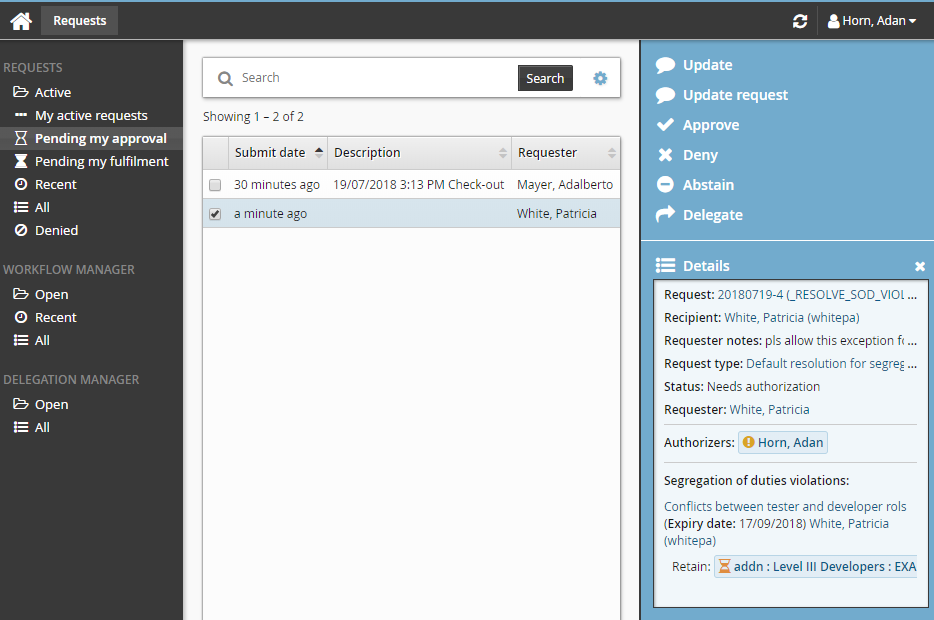
If you click on a resource available in the Retain section, additional details about the group that caused the rule violation are displayed, including indirect membership details, if applicable.
Acting on behalf of another authorizer
If you are acting as a delegate, or you are workflow or delegation manager, you can change who you are acting on behalf of:
Use the links under the WORKFLOW MANAGER or DELEGATION MANAGER heading to view the requests.
Select the request from the Results panel.
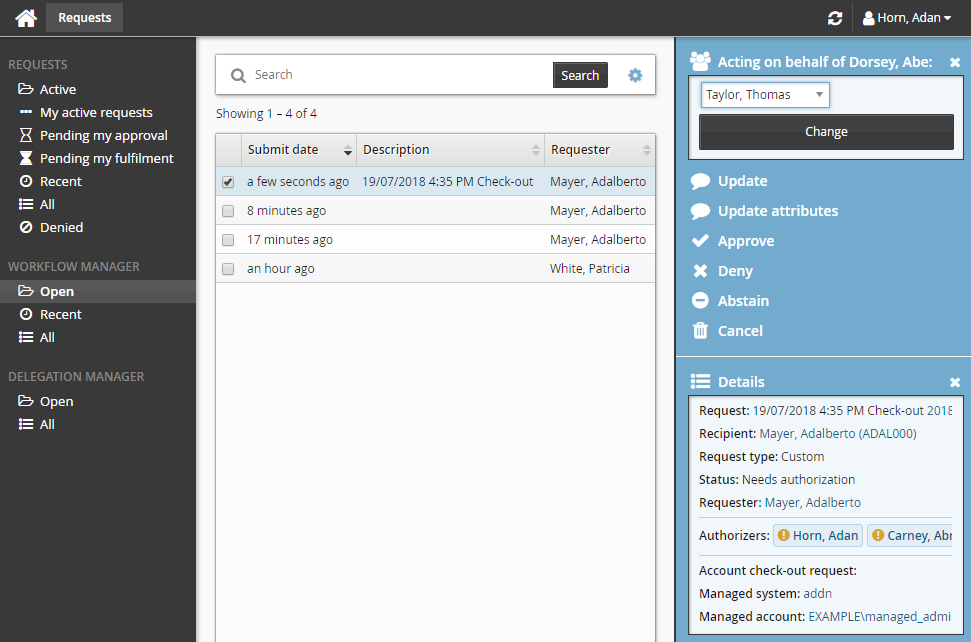
The Actions panel will display who you are acting on behalf of.
To change who you are acting on behalf of:
Click Acting on behalf of <user>.
Choose the required user from the drop-down list.
Click Change.
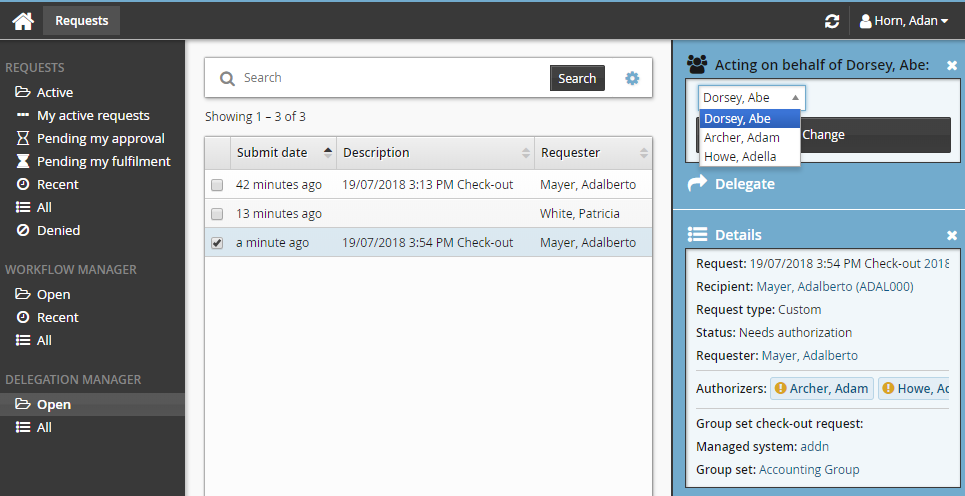
If you are acting on behalf of different users for different requests, those requests must be actioned individually.
Acting on requests
After reviewing the requests, select the request you want to act on. You can act on multiple requests at a time by selecting more than one request from the Results panel.
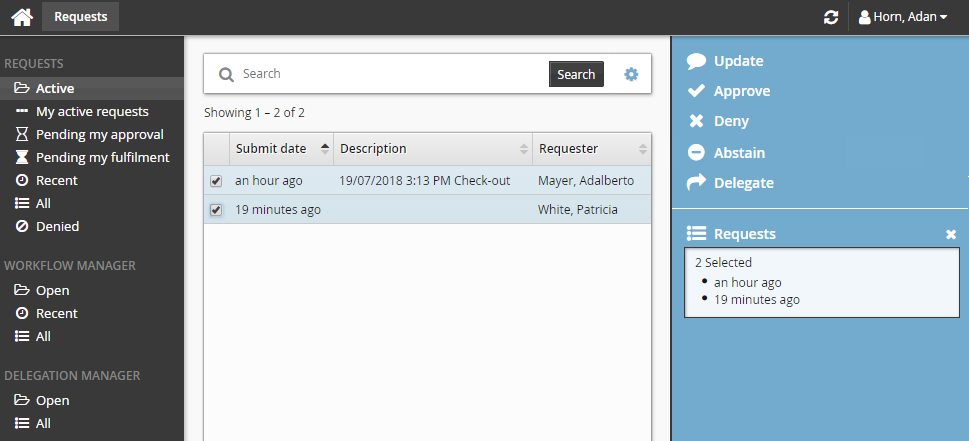
Click the action from the available actions in the Actions panel.
Update request notes
As an authorizer you can add a note to the request:
Click Update.
Enter the information you want to add.
Click Update.
Update attributes and entitlements
The Edit request button is available to users if both the following conditions are met:
The request includes changes to profile attributes; for example if the request only includes group operations, the button will not be displayed.
The user has read and write permissions for at least one attribute group included in the request.
To update information and entitlements requested:
Click Edit request.
Bravura Security Fabric displays the request wizard.
You may be required to choose to make the updates as a requester, recipient, authorizer, or implementer. Select your choice and click Update.
Modify attributes that you want to update in the first attribute group.
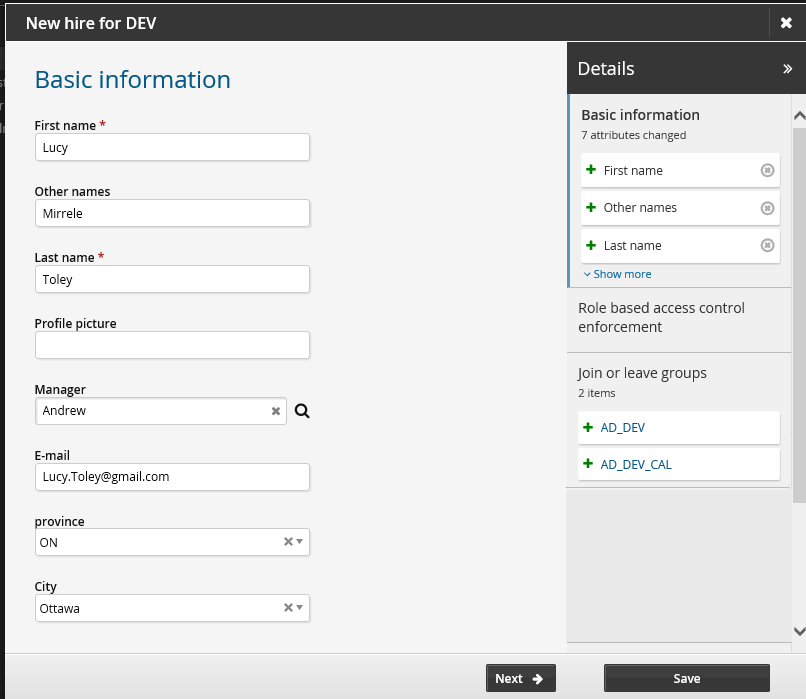
Click Next to update values in the next attribute group if applicable.
Click Next to go to the Join or leave groups wizard if applicable and change groups.
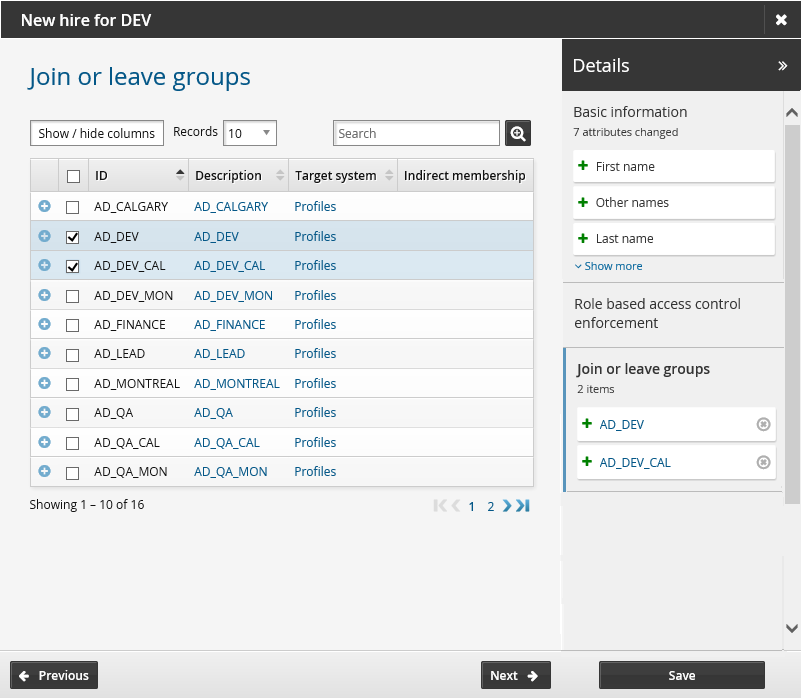
Click Next to go to the Change role membership wizard if applicable and change roles.
Click Save to save the changes for the request.
Bravura Security Fabric displays a notification that your update was successfully submitted. Click the View request link next to the message to view changes in the request.
Approve a request
Once you have selected the requests you want to approve you can:
Click Approve to approve the request.
If applicable, provide a reason for your actions.
Bravura Security Fabric can be configured to require an authorizer to provide a reason when they approve or deny a request.
If required, enter your digital signature.
Bravura Security Fabric can be configured to require an authorizer to use a digital signature to sign-off on the requests.
Act on individual entitlements
Bravura Security Fabric can be configured to allow you to act on individual entitlements in a request (by enabling IDP APPROVE SINGLE RESOURCE at Manage the system > Workflow > Options > General). When enabled, you can select an action for each entitlement.
Select the request you want to action:
Click Approvals.
For each entitlement select one of the following:
Set Later The individual entitlement request will be left in a pending state until approved, denied or expired.
Approve The individual entitlement request will be approved.
Deny The individual entitlement request will be denied.
Abstain The user is removed from the authorizer list for the individual entitlement.
Click Finish to commit the changes.
Deny a request
Click Deny to deny the request.
If applicable, provide a reason for your actions.
Bravura Security Fabric can be configured to require an authorizer to provide a reason when they approve or deny a request.
Abstain from a request
You can abstain from approving or denying a request where it would be inappropriate due to a conflict of interest. If the number of authorizers left to review the request falls below the number required to approve it, then it will be automatically denied due to lack of approvals.
Click Abstain.
Provide a reason for your actions.
Carry out implementation tasks
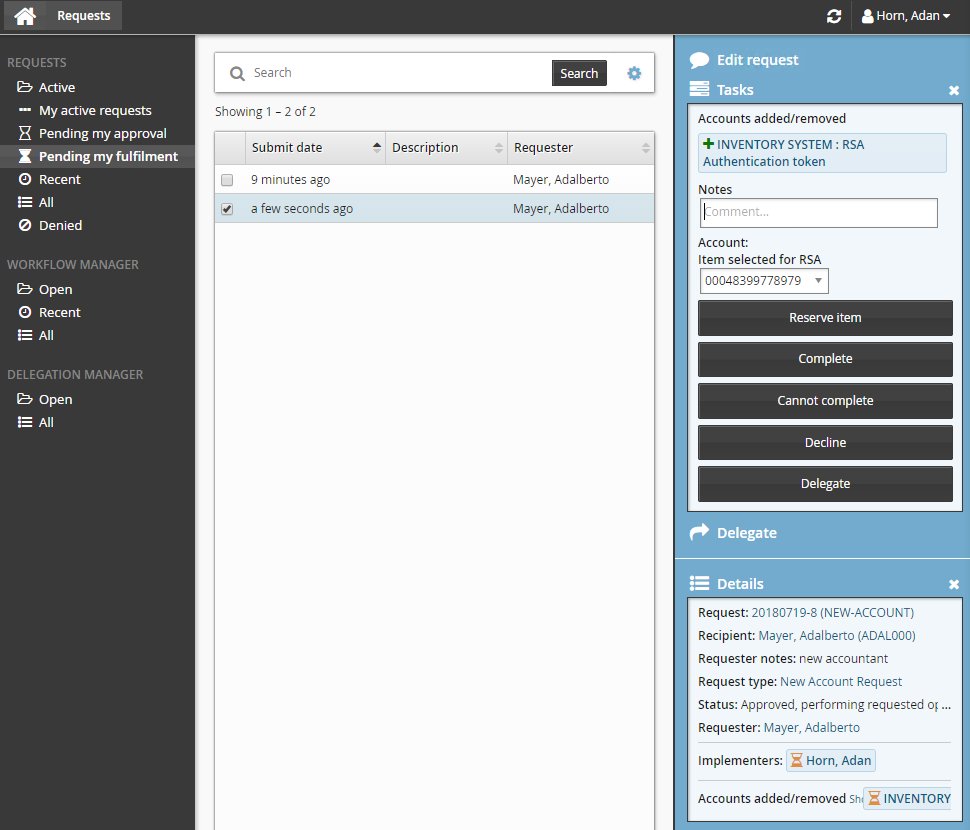
If you are an implementer that is also an inventory manager, you can click on Pending my fulfillment to choose inventory items for account creation requests. For example, to choose an RSA Authentication Manager 7.1/8.2 token when provisioning a new token for a user.
The inventory item may be selected from the drop down list. Click Reserve item to reserve the item for the request to use for the account creation.
Click Release item to choose a different inventory item for the request.
Delegate requests
If you choose to delegate a request, on the page, set the delegation options as described below.
Cancel requests
If you are a workflow manager, you can click Cancel and cancel the request.
Example: Act on behalf of another user
This example demonstrates the typical steps followed when a workflow manager reviews several requests and then authorizes a request on behalf of another user. Reviewing requests as a workflow manager
The workflow manager regularly checks requests to ensure none have been sitting for too long waiting for action.
Log into Bravura Security Fabric as a workflow manager.
From the main menu , click Requests.
Click Open underneath WORKFLOW MANAGER from the Filter panel .
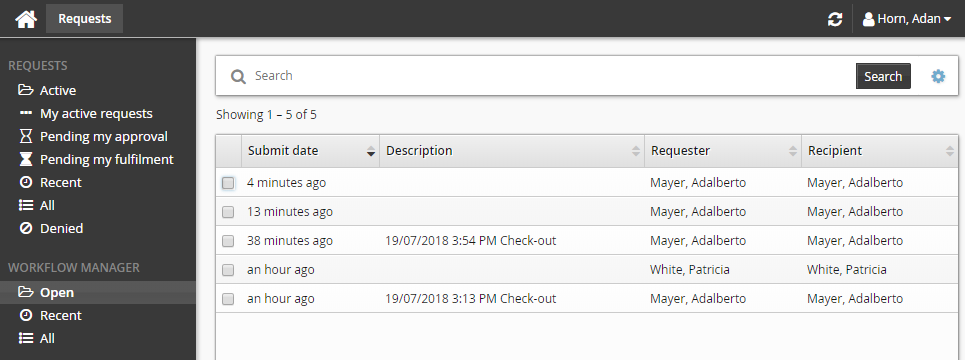
Select each of the requests, one at a time, from the Results panel and review the details that appear in the Actions panel .
Authorize a request
The workflow manager finds one request that has been waiting for authorization for 24 days and knows the authorizer has been away on sick leave so authorizes the request.
Select the request from the Results panel.
Change who you are acting on behalf:
Click Acting on behalf of Dorsey,Abe.
Choose "Taylor, Thomas" from the drop-down list.
Click Change.
Click Approve.
Type a note in the available box. For example, enter
user away on sick leave, authorizing on behalf of.Click Approve.
The request has now been authorized.