Lotus Notes Extension
Changing passwords on Lotus Notes ID Files offers many challenges. These include:
There is no mechanism for an administrative password reset. If a user forgets his password, a new ID file must be issued – therefore any certificates in his current ID file are lost.
Once a new ID file is issued, it must be delivered to the user. Since ID files can be located anywhere, such as a floppy disk, local hard-drive or network share, this can be quite difficult.
Bravura Security has developed a technology to solve both these problems. The Bravura Security Lotus Notes Extension successfully simulates an administrative reset using a copy of the ID file and its known (archived) password, and transparently delivers it to the user. This solution uses Bravura Pass’s password reset technology, an internal ID file repository, and a delivery DLL which is installed on each workstation. The Notes Extension DLL (psns.dll) supports Lotus Notes 8 and later versions.
Read this chapter to learn more about the Bravura Security Lotus Notes Extension. This chapter also shows you how to set up Bravura Pass , the Notes Extension DLL (psns.dll) and other client tools for ID file password management.
The Notes Extension DLL
The Notes Extension DLL (psns.dll) is triggered by open and close events in the Lotus Notes client. It ensures that both the ID file on a user’s workstation and in the Bravura Security Fabric repository are current. The DLL is also responsible for the initial registration of Notes ID files in the Bravura Security Fabric repository.
Install the Notes Extension DLL on each workstation using a Windows Installer package (psns.msi). See Installing client components to learn how to do this.
Prior to performing the initialization procedure, ensure that you can access Bravura Pass using Internet Explorer.
Once the Notes Extension DLL is installed, the user must perform the following initialization procedure:
Log in to the workstation.
Open up Lotus Notes.
When Lotus Notes is launched for the first time it creates the user’s configuration file (notes.ini).
Close Lotus Notes.
Log out of the workstation.
Log back into the workstation.
Logging back into the workstation triggers a Notes Extension DLL program that modifies the user’s notes.ini file, so that Lotus Notes will load the psns.dll when it is launched.
The purpose of the initialization procedure is to force the creation of the user’s configuration file and to modify it so that Lotus Notes will load the psns.dll when it is launched. Once the user’s notes.ini file is initialized, the Notes Extension DLL manages ID files as follows:
Initial registration
User: opens the Lotus Notes client software.
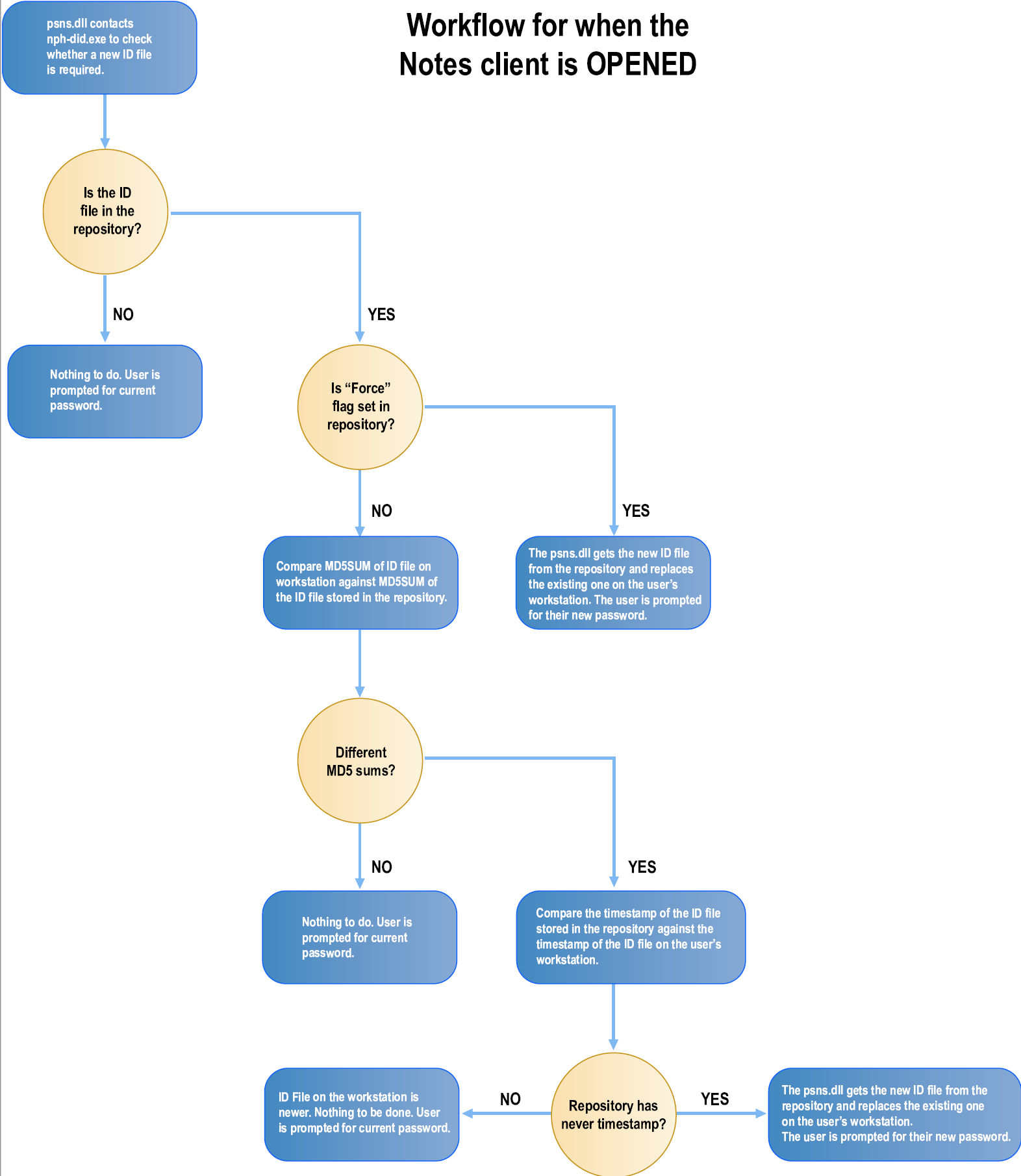
DLL: connects to the ID file repository - See Figure 1, “Opening the Lotus Notes client software”.
DLL: checks if the ID file is in the repository.
User: types his ID file password.
DLL: captures the user’s initial password.
User: closes the Lotus Notes client software.
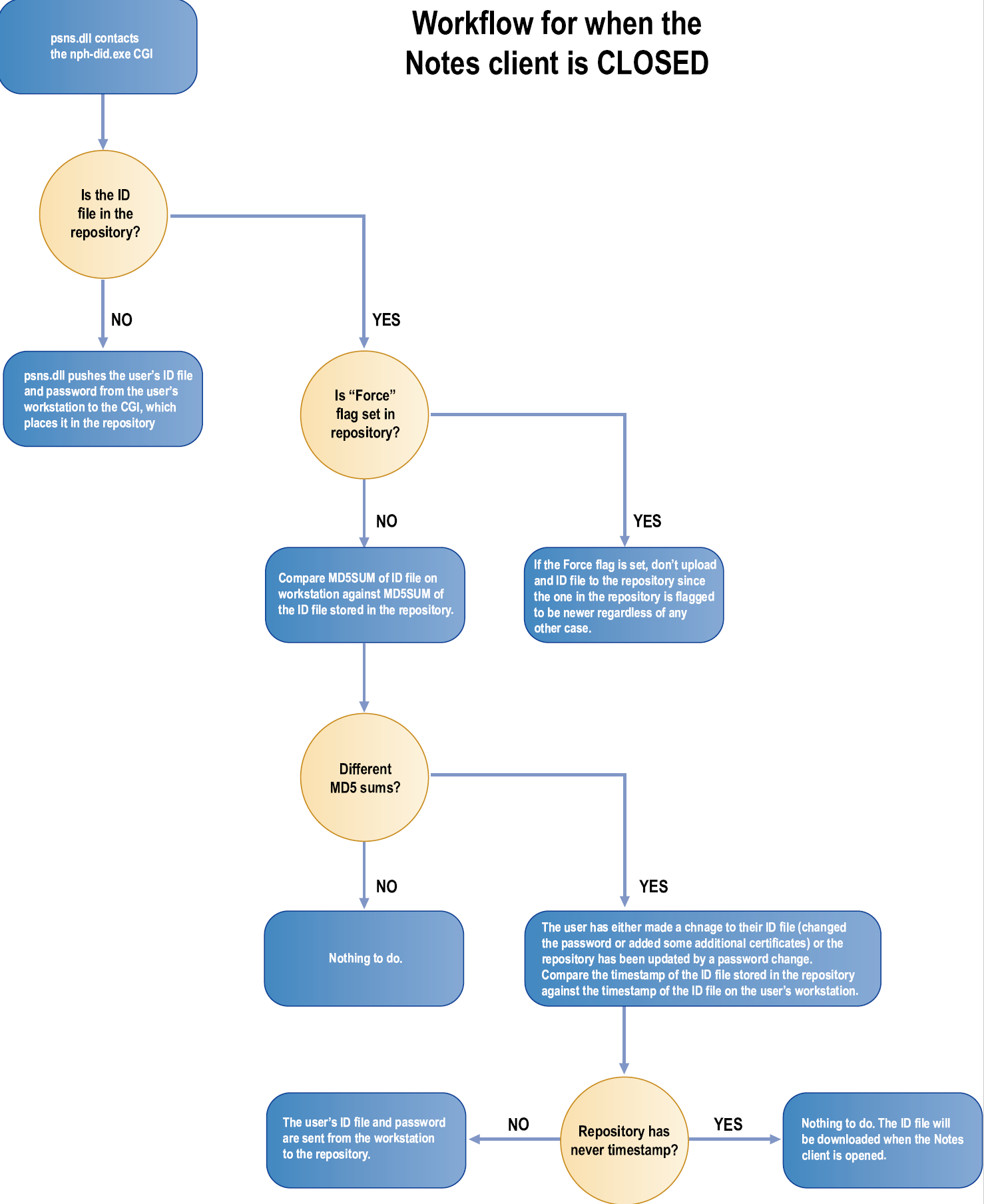
DLL: re-connects to the ID File repository - See Figure 2, “Closing the Lotus Notes client software” .
DLL: sends a copy of the user’s ID file and password to the ID file repository.
Post registration
User: opens the Lotus Notes client software.
DLL: connects to the ID File repository. See Figure 1, “Opening the Lotus Notes client software” .
DLL: checks if a new ID file is available and downloads it to the local workstation.
User: types his ID file password.
DLL: captures the user’s password.
User: closes the Lotus Notes client software.
DLL: re-connects to the ID File repository. See Figure 2, “Closing the Lotus Notes client software” .
DLL: checks if the ID file has been modified by the user and sends a copy of the ID file and password to the ID file repository.
When a password change occurs, the Notes connector on the Bravura Pass server pulls the user’s ID file from the did database table located on the Bravura Pass server, changes it’s password and updates the repository in the did database table on the Bravura Security Fabric server. The user’s record in the Bravura Security Fabric repository is flagged, which will cause the ID file to be downloaded to the user’s workstation once he opens the Lotus Notes client software.
If a user resets his password in Bravura Pass , the new password will be usable only after the user logs into Windows with his own account. For example:
JDOE is currently logged into a workstation.
BSMITH from somewhere, resets his Lotus Notes password using Bravura Pass .
BSMITH goes to use JDOE’s current workstation; however, he is unable to start Lotus Notes with the new password.
JDOE must log out of the workstation so that BSMITH can log in. BSMITH can then log into Lotus Notes with his new password.
If a user’s ID file cannot be found on the user’s workstation, for example if it is lost or accidentally removed, then the Lotus Notes Extension DLL can download an archived copy from the Bravura Security Fabric repository.
Lotus Notes with single logon
The Client Single Logon Feature, available with Lotus Notes, is a service that runs on workstations and synchronizes Windows passwords with Lotus Notes passwords.
When a user launches Lotus Notes with this service activated, he is not prompted for his ID file password. This causes an issue for the Notes Extension DLL (psns.dll), which normally captures the password as typed by the user when he logs into Notes. Without this password, initial ID file registration and updates to the Bravura Pass ID file repository will fail.
To solve this problem, you can install Bravura Security’s Lotus Notes SSO Support service on each workstation to capture a users’ passwords when they log into Windows. The psns.dll can then retrieve the ID file password from the support service instead of the Lotus Notes client.
You install Bravura Security’s Lotus Notes SSO Support service, along with Notes Extension DLL, on each workstation using the psns.msi installer package. See Installing client components to learn how to do this.
Client programs with Lotus Notes login
After users reset their passwords with Bravura Pass , they:
Log out of Windows.
This ensures that the workstation does not try to access anything on the network using an old password.
Log back into Windows using their login ID and new password.
Open the Lotus Notes client.
The Notes Extension DLL then downloads the new ID file from the repository in Bravura Security Fabric to the workstation.
In some cases, it may be necessary to download the new ID file before users log back into Windows. This allows programs launched at startup to access the new ID file.
For example, the Blackberry Manager (client), launched through the Startup Tasks folder, prompts users for their Lotus Notes password before they have a chance to open the Lotus Notes client. As a result, users cannot login to the Blackberry Manager using their new password.
To ensure that client programs with Lotus Notes login have access to the most current ID file at startup, you can install the Notes Extension EXE (psns.exe) on each workstation. This program executes during log off, checks if a new ID file exists in the Bravura Security Fabric repository, and downloads the new ID file to the workstation. When users log back into Windows, their ID file is already in place.
You install the Notes Extension EXE, along with Notes Extension DLL, on each workstation using the psns.msi installer package. See Installing client components to learn how to do this.
Setting up ID file synchronization
To set up for ID file synchronization, do the following before testing:
Configure the Lotus Notes client software on the Bravura Pass server. See Lotus Domino Server .
Lotus Notes versions up to 8 are supported for ID file synchronization. A test server is recommended.
Set up a test server on which Bravura Security software can be installed.
The Lotus Notes client software must also be installed on this server. The admin ID file must be located on this server.
Set up a test workstation with the Lotus Notes client software installed, and 2 test ID files (no special privileges).
Installing client components
Once the prerequisites are met, install the client components on each workstation. Client components are supported on Windows 7 and newer. This section shows you how to install the:
Notes Extension DLL
See The Notes Extension DLL for more information.
Lotus Notes SSO Support
This is required only when native Lotus Notes single sign-on is enabled. See Lotus Notes with single logon for more information.
Notes Extension EXE
This is required for Lotus Notes 8 and later. See Client programs with Lotus Notes login .
Notes Extension Shortcut (optional)
This allows you to manually run the Notes Extension EXE on the workstation via All programs > Startup > Notes Extension EXE.
The Notes Extension DLL is not supported on Windows Server 2008 systems.
Note
If you are installing for multiple users on Lotus Notes 6.5 client workstations, ensure that the directory for the nnotes.dll (usually C:\Program Files\lotus\notes\) is in the system PATH.
To manually install the Bravura Pass Lotus Notes Extension:
Copy the psns.msi installer package from the <addondir> directory to a scratch directory (C:\temp) on the local workstation, or to a publicly accessible share.
Launch the MSI.
The installer displays a welcome dialog.
Click Next to view the license agreement.
Accept the license agreement, then click Next.
The installer displays the Choose Setup Type dialog.
Click:
Typical to install typical components (Notes Extension DLL and Notes Extension EXE).
Custom to choose which components to install, including Lotus Notes SSO Support.
It is recommended that you do not change the installation location.
Set up the Notes Extension DLL on the Installation configuration page.
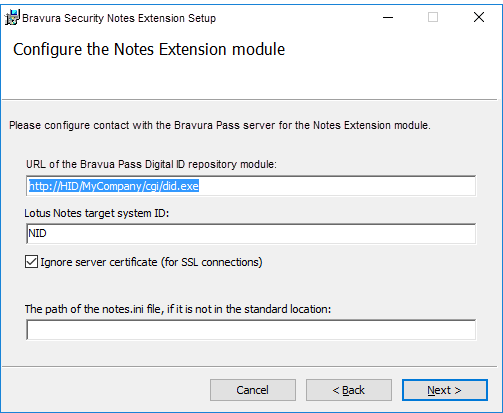
Type values for the:
URL of the Bravura Pass Digital ID repository module
For example:
https://HID/MyCompany/cgi/did.exeLotus Notes target system ID
This is unique identifier of the Lotus Notes target in Bravura Pass .
If your Bravura Security Fabric server uses SSL, and you want to ignore the server’s SSL certificate, select Ignore server certificate.
Click Next .
Click Install.
The wizard notifies you when the installation is complete.
Click Finish to exit the installation wizard.
Installation is now complete.
Automatically installing client components on multiple workstations
You can use the MSI installer package and other Windows Installer technologies to automate client component installation on multiple workstations (for example, using a group policy).
If you choose to configure installation options by applying a transform to psns.msi, modify the following properties as necessary:
psns.msi
Feature | Description |
|---|---|
PSNSFEATURE | Parent feature – Installs the Lotus Notes Extension. |
PSNSSCRIPTFEATURE | Installs the Lotus Notes Extension EXE. |
PSNSSCRIPTSHORTCUT | Installs a shortcut to the EXE in the Startup folder. |
PSNSCREDSERVICEFEATURE | Installs the Lotus Notes SSO synchronization service. |
Property | Description |
|---|---|
INSTALLDIR | The directory in which the Lotus Notes Extension will be installed. The default is |
INSTALLLEVEL | This parameter is used in a silent installation and is mutually exclusive with ADDLOCAL. Set to a value from 1 to 100 for a typical installation: PSNSFEATURE, PSNSSCRIPTFEATURE, PSNSSHORTCUT. Set to a value greater than 100 (up to 32767) for complete installation. The default is 1. |
CODEPAGE | Sets the code page for Lotus Notes API calls. The default is 850 – OEM Multilingual Latin 1; Western European (DOS). |
CGIURL | The URL to |
CGIIGNORECERT | 0|1 Set to 1 to ignore security certificates. |
NOTESTARGET | The Bravura Security Fabric target system ID for the Lotus Notes server. |
NOTESINIPATH | The path to the notes.ini file; for example, This argument is required when the Notes desktop shortcut has been modified to explicitly specify the path to the notes.ini file. If not specified on the command line, then |
Enabling WinInet
By default, the Notes Extension DLL uses WinHTTP to communicate with Bravura Pass . Create the following registry key to use WinInet:
HKLM\SOFTWARE\Bravura Security\Bravura Security Fabric\Notes Extension
Entry name WinInet
Value <0—1>
Data type REG_DWORD
Default value 1
Utility programs for Lotus Notes
The following programs are shipped with Connector Pack.
Use the didtovault program to move ID files from the Bravura Security s DID table to a Lotus Notes ID vault. This program is installed with Bravura Security Fabric .
didtovault.exe -s <server> -t <target> -vault <vault>
               [-ai <IDfile> -ap <password>]
               [-all | -ei <longID> | -ui <longID>]
               [-r] [--retries <N>] [-verbose]
Argument | Description |
|---|---|
-s <server> — --server <server> | The name of the Domino server containing the ID vault. (required) |
-t <target> — --target <target> | The target system ID of the Domino server. (required) |
-vault <vault> | Specify the name of the vault database, including relevant path information as required. For example, |
-ai <IDfile> — --adminfile <IDfile> | An administrator’s ID file with permission to access the Notes ID vault. Must be used in conjunction with the - -adminpass option. |
-ap <password> — --adminpass <password> | The password for the administrator’s ID. Must be used in conjunction with the --adminfile option. |
-all | Move all accounts; this is default behavior. This option cannot be used with --userid or --excludeid . |
-ei <longID> — --excludeid <longID> | Exclude the specified account ID of a specific user in the DID table; specify an account using the longid. Use --excludeid multiple times to specify multiple users. All users that are not specified with --excludeid are processed. This option cannot be used with -all or --userid . |
-ui <longID> — --userid <longID> | Move the specified account ID of a specific user in the DID table; specify an account using the longid. Use --userid multiple times to specify multiple users. Only users that are specified with --userid are processed. This option cannot be used with -all or --excludeid . |
-r — --remove | Remove ID files from the DID table upon successful transfer. |
--retries <N> | Specify the number of retry attempts for failed inserts. Specify a value between 0 and 1000; the default is 3. |
-verbose | Write verbose output. |
Move all users to the vault:
didtovault.exe -ai admin.id -ap p455w0rD -s 10.0.1.68 -t LOTUS4 -all -vault "IBM_ID_VAULT\vault.nsf" -verbose
Move specified users to the vault:
didtovault.exe -ai admin.id -ap p455w0rD -s 10.0.1.68 -t LOTUS4 -ui "CN=user1 vault/O=hrnyc" -vault "IBM_ID_VAULT\vault.nsf" -verbose
Exclude specified users from being moved to the vault:
didtovault.exe -ai admin.id -ap p455w0rD -s 10.0.1.68 -t LOTUS4 -vault "IBM_ID_VAULT\vault.nsf" -verbose -ei "CN=user1 vault/O=hrnyc"
Remove users from the DID table after a successful move:
didtovault.exe -ai admin.id -ap p455w0rD -s 10.0.1.68 -t LOTUS4 -ui "CN=user1 vault/O=hrnyc" -vault "IBM_ID_VAULT\vault.nsf" -verbose -r
Exclude specified users from being moved to the vault, then delete the successfully moved DIDs:
didtovault.exe -ai admin.id -ap p455w0rD -s 10.0.1.68 -t LOTUS4 -ei "CN=user1 vault/O=hrnyc" -vault "IBM_ID_VAULT\vault.nsf" -verbose -r
The dumpdmno program is used to dump a Lotus Notes database.
Usage
dumpdmno.exe -d <server>!!<databasename> [-ai <adminfile> -ap <password>]-a <attribute> [-all][-preserve] -o <outputfilename> [--instance <instance>][-verbose]
Argument | Description |
|---|---|
-d <server>!!<database> | The server address and database name separated by !!. |
-ai <adminfile> | The administrator’s Notes ID file. Provide the path to the file. Used with -ap. |
-ap <password> | Administrator ID password. Used with -ai. |
-a <attribute> | Used to specify an attribute to dump. You can specify multiple attributes. |
-all | Used to dump all fields in the specified .nsf database. |
-preserve | Preserves columns for attributes that are not found. |
-o <outputfilename> | The output file to dump the database information to. |
–instance <instance> | The name of the Bravura Security Fabric instance on which to run this utility to get log information. If not specified, the program looks for the default instance. |
-verbose | Write a verbose dump of a table. |
Examples
dumpdmno -d win2k4!!psidfile.nsf -ai c:\idfiles\admin.id -ap haikou02-o c:\tmp\domino -a UserID -a Password
Use the nidcopy program to check for differences between a Lotus Notes ID file on a user’s local workstation and a file in a shared folder. If there are differences, nidcopy copies the newest file and overwrites the older version. No action will occur if there are no differences between files on different locations or the shared folder is empty.
Requirements
This program is a Win32 executable and run on the Bravura Security Fabricserver.
The shared folder must have at a minimum Change and Read permissions set for "everyone".
To enable logging for this program, you must add a system environment variable, IDM_SUITE_INSTANCE, to define the instance to log; for example: IDM_SUITE_INSTANCE = default . See your operating system documentation to learn how to do this. The program will be logged in <Program Files path>\Bravura Security\Bravura Security Fabric\Logs\<instance> idmsuite.log.
Usage
nidcopy -i <N> <Dir1> ... <DirN> -server <server> <shrfldr>
Option | Description |
|---|---|
i <N> <Dir1> ... <DirN> | <N> specifies the number of ID files you wand to update. <Dir1> ... <DirN> are the directories that contain the notes.ini files. You must provide the same amount of locations as the number of ID files you specify. |
-server <server> <shrfldr> | Specify the name of server and the directory of the shared folder on the server. |
Examples
To update a user’s ID file on a local workstation from a server with a shared folder, copy nidcopy to the workstation and type on one line:
./nidcopy -i 1 "c:\Program Files\lotus\notes\" -server 10.0.45.1 sharedIDfolder
This looks in the folder c:\Program Files\lotus\notes, then parses the notes.ini file for the location of the ID file. Next, the local ID file is compared with the ID file found in the shared folder on the workstation with the address 10.0.45.1, and the appropriate transfer occurs. Note that the shared folder must be mapped to any workstation that will be using it to update ID files.
If the user has multiple notes.ini files on the workstation, run nidcopy as follows to update both ID files associated with the .ini files:
./nidcopy -i 2 "c:\Program Files\lotus\notes2\" "c:\Program Files\lotus\notes\" -server 10.0.45.1 sharedIDfolder