Managed accounts
Product administrators can be granted access via user groups to view managed system information, access current and old managed system passwords, modify groups, and modify managed system passwords.
A superuser cannot access administrative passwords on managed systems by default; however, they must be explicitly granted administrative privileges.
Getting started
To access and manage passwords for privileged accounts, from the main menu, click Manage the system > Privileged access , then:
Managed accounts
All managed accounts are displayed, included those within the HISTORICAL_DATA_GRP managed system policy .
Managed systems > <system> > Managed acccounts
These accounts may be subject to different managed system policies.
Managed system policies> <policy> > Managed accounts
These accounts are being managed by the managed system policy on member systems.
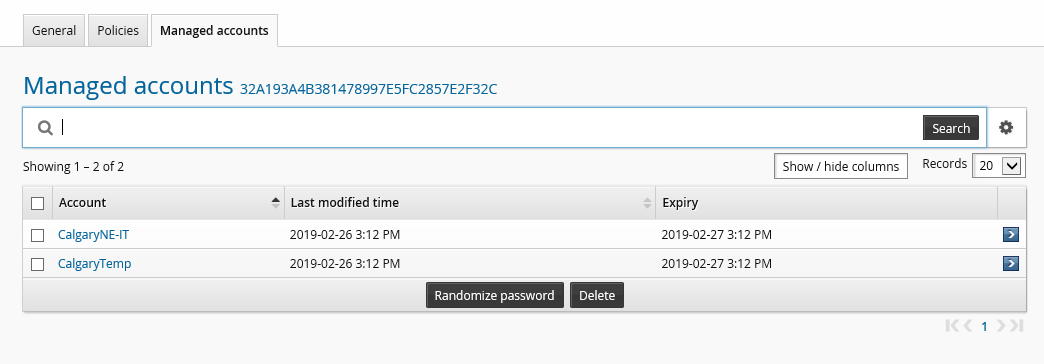
Accessing administrative passwords
Product administrators, by default, are members of the ALLSUPERUSERS group which have the following hard coded restrictions:
Access to the "current password" is blocked on all managed system policies, regardless of whether the UI indicates that the permission boxes are checked.
Candidate passwords within the details view of a password conflict are blocked.
These hard-coded restrictions are in place so that all password requests are made via the Requests or OTPAPI to ensure an accurate audit trail. Product administrators can be granted access to passwords for a managed system policy in the rare case this is required. Product administrators must have the "Create managed systems" administrative privilege and belong to a separate, non-ALLSUPERUSERS user group, with the following permissions on a given managed system policy :
View properties for this policy or Modify properties for this policy
Pre-approved check-out of managed accounts
Warning
It is recommended that you limit product administrator access to passwords because it bypasses authorization workflow and does not leave an audit trail.
Do not use superuser accounts to access privileged accounts once regular user access has been configured, as it can cause conflicts with normal user access.
To access managed system passwords as a product administrator :
Select the account whose passwords you want to access.
Click View to reveal the password.
This option requires a browser with ActiveX or JavaScript enabled. You have a limited time to access the password.
The Display disclosure must be configured to view the password on this page. This disclosure will be unavailable if it was only configured to access SSH keys.
The Current password status field indicates whether the password has been updated on the managed system (password confirmed) or is awaiting a successful reset (password pending confirm).
If your permissions allow it, you can click the Show button to display a list of historical passwords for the account. Click Hide to close the list.
The passwords are hidden behind View buttons. Click on a button to access the password.
Warning
Any time you reveal a password, ensure that you are the only one who can see the screen.
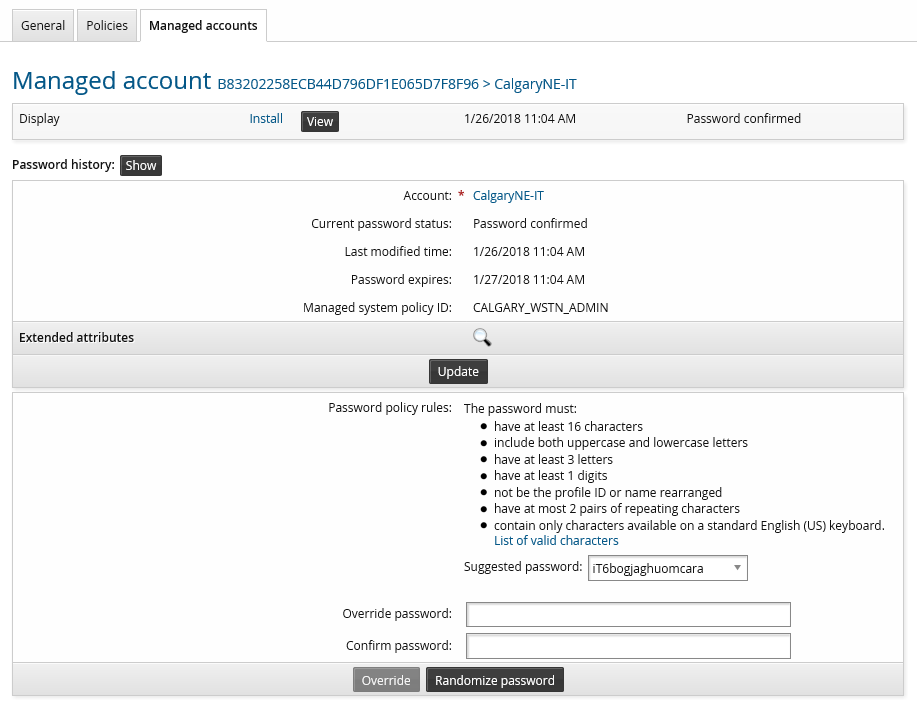
Overriding passwords
Product administrators can override passwords on member managed systems with a specified value. Product administrators must have the "Create managed systems" administrative privilege, and belong to a user group with the following permissions on a given managed system policy :
View properties for this policy
Modify properties for this policy
Randomize/override password of managed accounts
To override a password:
Select
 the account whose password you want to override.
Bravura Privilege displays the page.
Type the new password in the
Override passwordfield. Re-type it to confirm it.The new password must satisfy the password policy rules displayed on the page.
Click Override.
When you override a push mode managed system account password, the change takes effect immediately. Overriding a local service mode managed system account password takes effect at the next poll interval.
Users who belong to a user group with permission to override passwords can do this after checking out a password.
You cannot manually override a password on a managed system within 15 minutes (900 seconds) of a regularly scheduled password change. This is to prevent conflicts with the password change mechanism.
See also
Password randomization shows you how to reset passwords with a new randomized value.
Storing administrative passwords manually
Product administrators can be granted access to manually manage passwords and information on vault-only managed systems. There is no communication between the Bravura Security Fabric server and vault-only managed systems, and Bravura Security Fabric does not randomize passwords on vault-only managed systems.
To store managed system passwords manually:
Click Manage the system > Privileged access > Managed systems.
Select the managed system you want to view or modify.
Click the Managed accounts tab.
Click Add new… at the bottom of the page.
Type the ID of the account in the Account field.
Type a password in the Password and Confirm password fields.
Click Add.
You can later change the password by following the instructions in Overriding passwords .
To stop storing passwords for an account on a vault-only (user-managed) managed system :
Click Manage the system > Privileged access > Managed systems.
Select the managed system you want to view or modify.
Select the Managed accounts tab.
Click Delete at the bottom of the form.
Bravura Security Fabric displays a confirmation page.
Click Delete to continue.