Group attributes
The term group attributes refers to the attributes of groups on target systems.
Each target system type has a different list of group attributes. Each target system also has its own set of requirements for each of its group attributes; for example, an attribute may:
Be required (it cannot be blank)
Contain multiple values
Be writable only by the underlying OS
Have formatting constraints (date, phone number, email)
Require a specific data type (binary, boolean, character, memo, numeric)
Be dependent on other attributes
Read this chapter to learn about how Bravura Security Fabric handles group attributes and pseudo-attributes when managing groups on a target system, and how you can override its default configuration.
See also:
The for information about each target system.
The documentation provided with your target system software for more information about attributes specific to that system.
Handling group attributes
Bravura Security Fabric includes a “catalog” of shipped default attributes for each target system type. The catalog includes each attribute’s native name, and default requirements, configured actions, and resource attribute mappings.
Note
Attribute information may not be available for some target system types (Telnet, Win32 Console, database script target systems), this is because these target systems are generally custom applications unique to each environment.
Bravura Security Fabric uses the attribute catalog to determine rules for “handling” each attribute when managing groups on a target system. The catalog also determines which attributes’ values should be loaded during auto discovery .
Bravura Security Fabric enables you to override the default rules for handling group attributes. Using the Manage the system (PSA) module you can:
Control how groups are created, updated, or deleted
Determine which attributes to load during auto discovery
Add new attributes
Map group attributes to resource attributes, or change existing attribute mappings
Example: Mapping a group attribute
The following example demonstrates how to map a group attribute values pulled from an Active Directory target system to a resource attribute created in Bravura Security Fabric .
This example assumes that an Active Directory target system has been added with the List group attributes option enabled, and that auto discovery has been run.
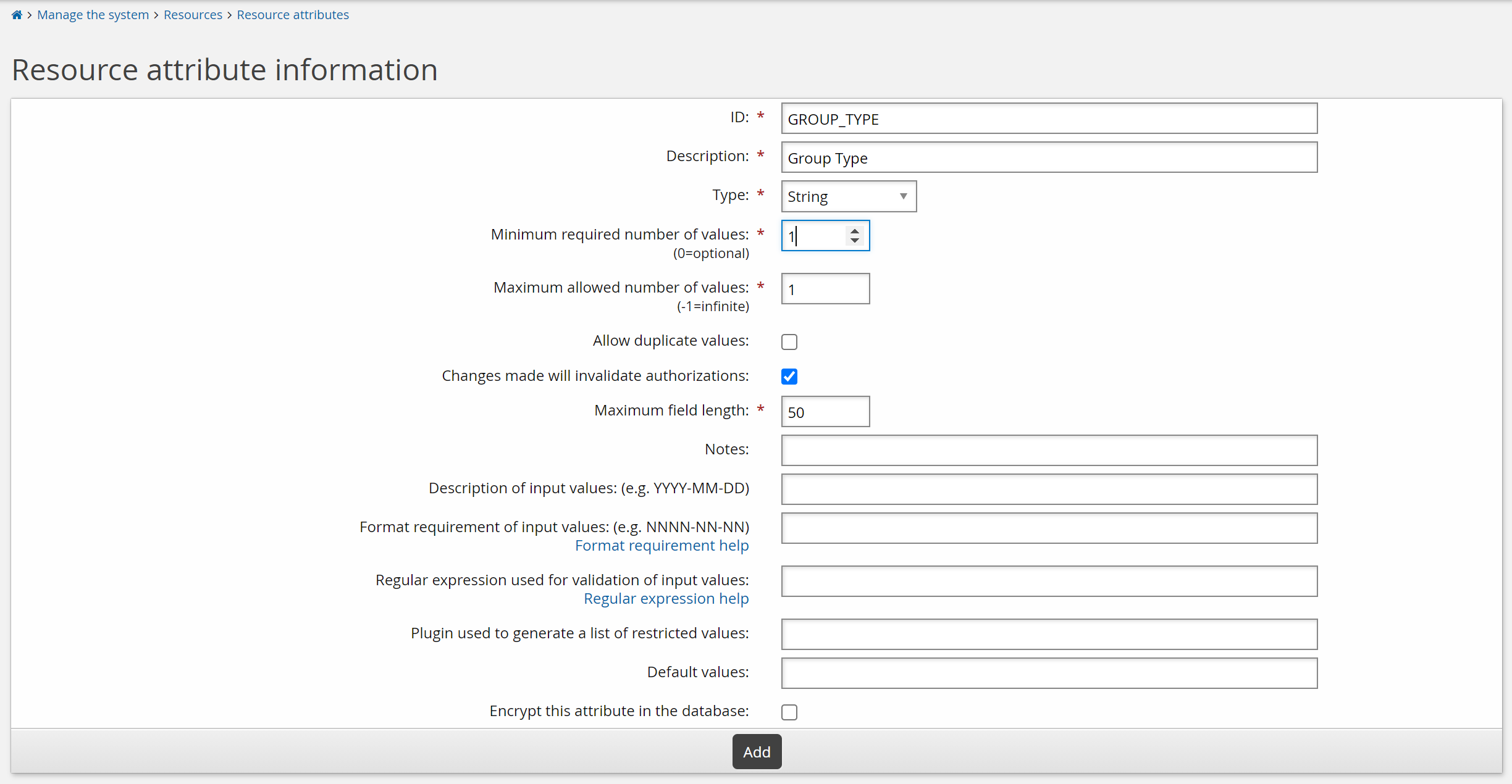
Add a new resource attribute
Click Manage the system > Resources > Resource attributes.
Click Add new…
Enter the following values:
ID
GROUP_TYPE
Description
Group type
Type
String
Minimum required number of values
1
Add restricted values:
Click the Restricted values tab.
Type
Securityin the Actual value and Displayed value fields, then click More.Type
Distributionin the Actual value and Displayed value fields.Click Update.
Set resource attribute access controls
To set access controls for the new resource attribute, add it to a resource attribute group:
Click Manage the system > Resources > Resource attribute groups.
Select GROUP_INFO_CREATE.
Click the Members tab.
Click Select…
Select the checkbox for GROUP_TYPE then click Select.
The resource attribute can now used in group creation requests.
Repeat this procedure for the GROUP_INFO_UPDATE resource attribute group if you want to allow users to update the attribute.
Map a group attribute to the new resource attribute
Override the default action for the Active Directory target system’s _groupType attribute:
Click Manage the system > Resources > Group attributes.
Select the Target system override level.
Select the Active Directory target system.
Click the Defaults tab.
Search for and select the _groupType attribute.
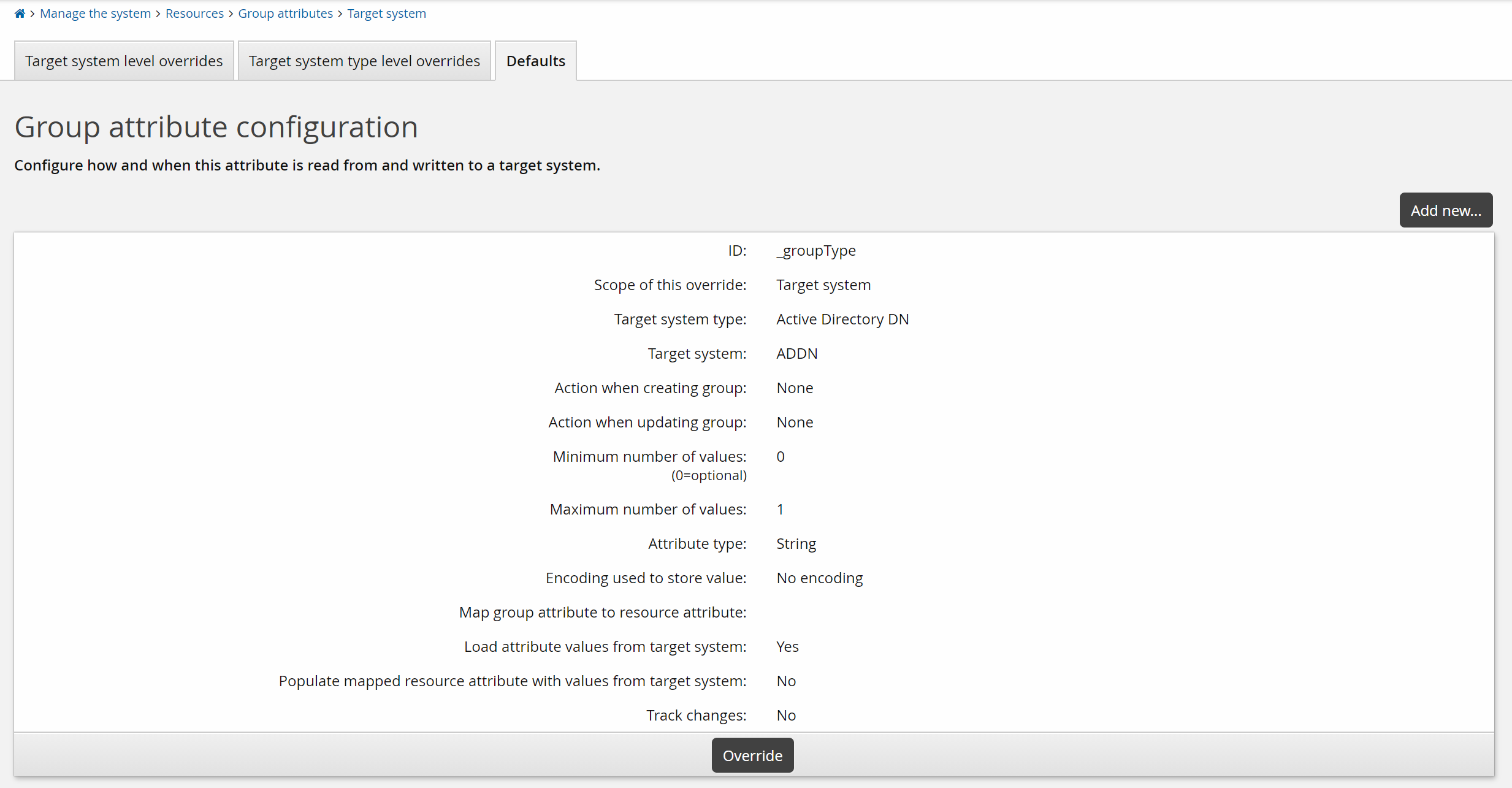
Click Override.
Set Action when creating group to ”Set to specified value”.
Set Action when updating group to ”Set to specified value when mapped profile attribute changes”.
Click the search
 icon in the Map group attribute to resource attribute field.
Select GROUP_TYPE.
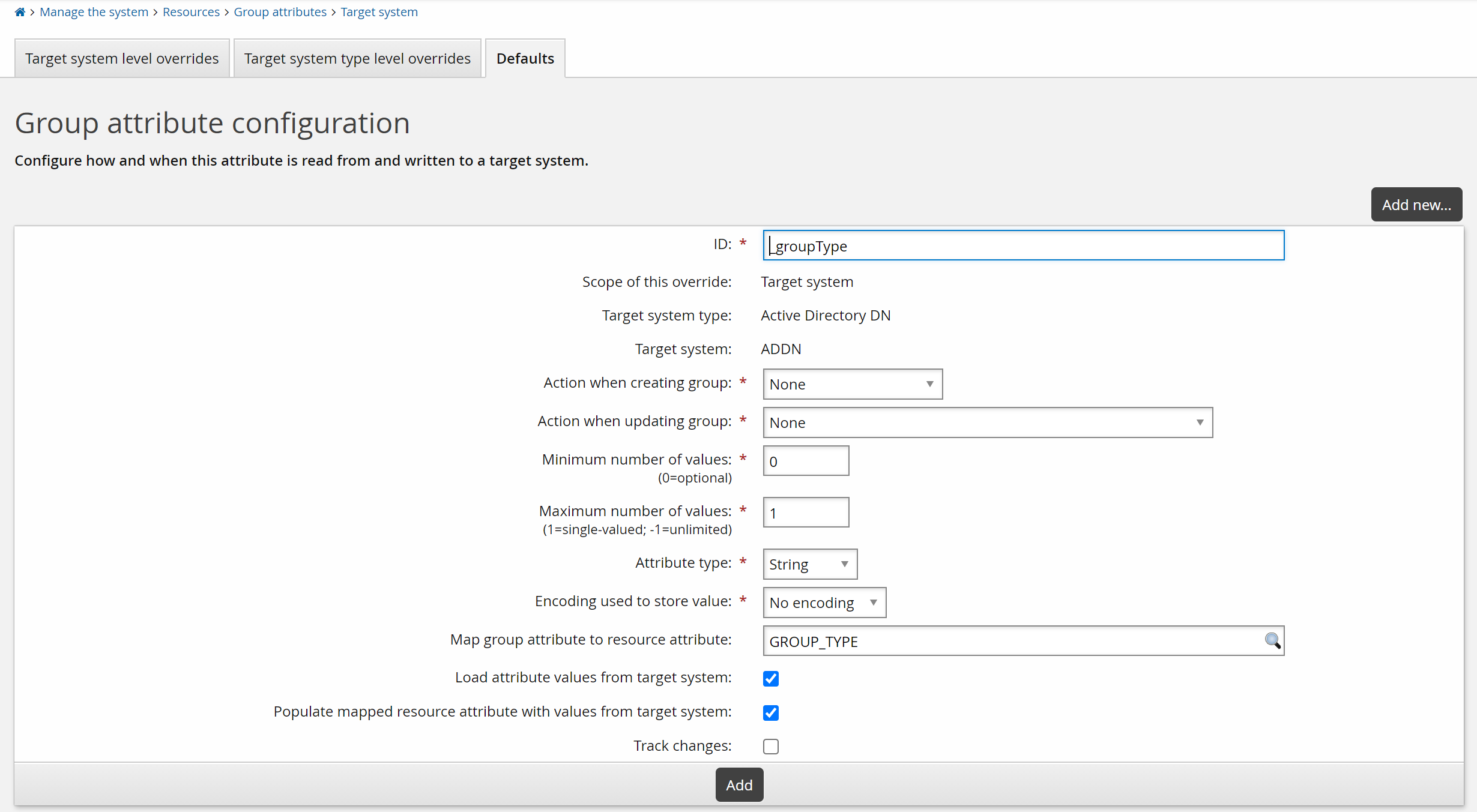
Click Add.
Confirm the attribute mapping changes.
The Active Directory target system’s group attribute is now mapped to the Bravura Security Fabric resource attribute.
The following sections describe options and steps in more detail.
Selecting a group attribute configuration level
There are two levels at which group attribute values can be overridden. Use the following override levels to modify attribute behavior:
Target system | Modify the attribute configuration for a specific target system. |
Target system type | Modify the attribute configuration for all target systems of a given type. |
Target-system level overrides take priority over target-system-type overrides. If you change the default action for a target system type, and change the same action for a specific target system, the target-system level override determines the attribute action when groups are created on the specified target system. All other target systems of that target-system-type will use the target-system-type override.
To select an override level:
Click Manage the system > Resources > Group attributes.
Select:
Target system type: select the target system type from the drop-down list, then click Select.
Target system: then select the target system you want to modify.
Use the search function if necessary.
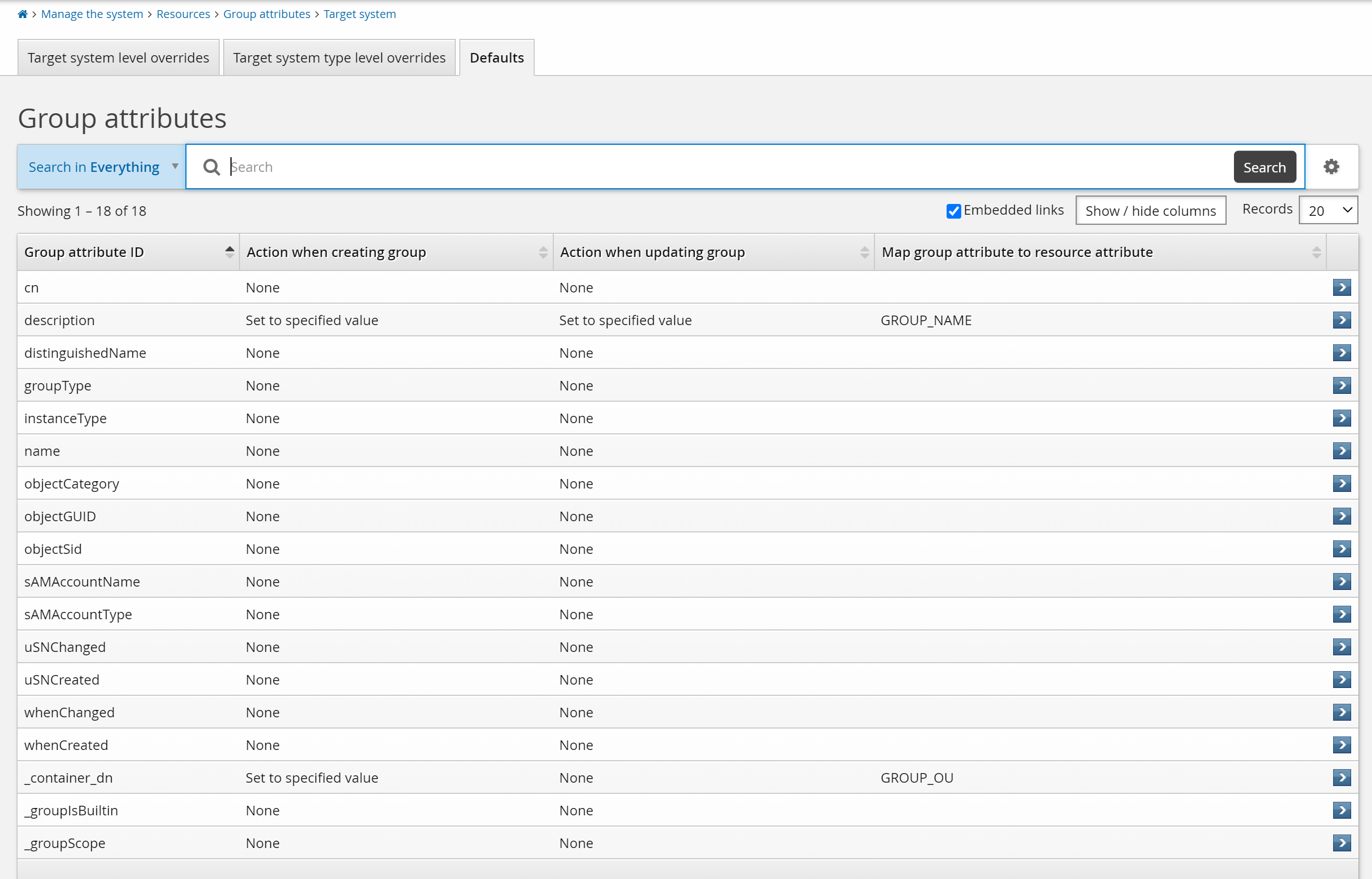
Bravura Security Fabric displays the page for the level. Attributes for which default settings apply are listed in the Defaults tab. When you make changes to the group attribute configuration, the attribute is listed in the Target system type level overrides or Target system level overrides tab.
Overriding default group attribute configuration
To override the default configuration for an individual group attribute:
Select an override level.
Select the Defaults tab.
Browse to select the attribute you want to override.
Bravura Security Fabric displays a page containing configuration information for the attribute.
Click Override to display the override configuration page.
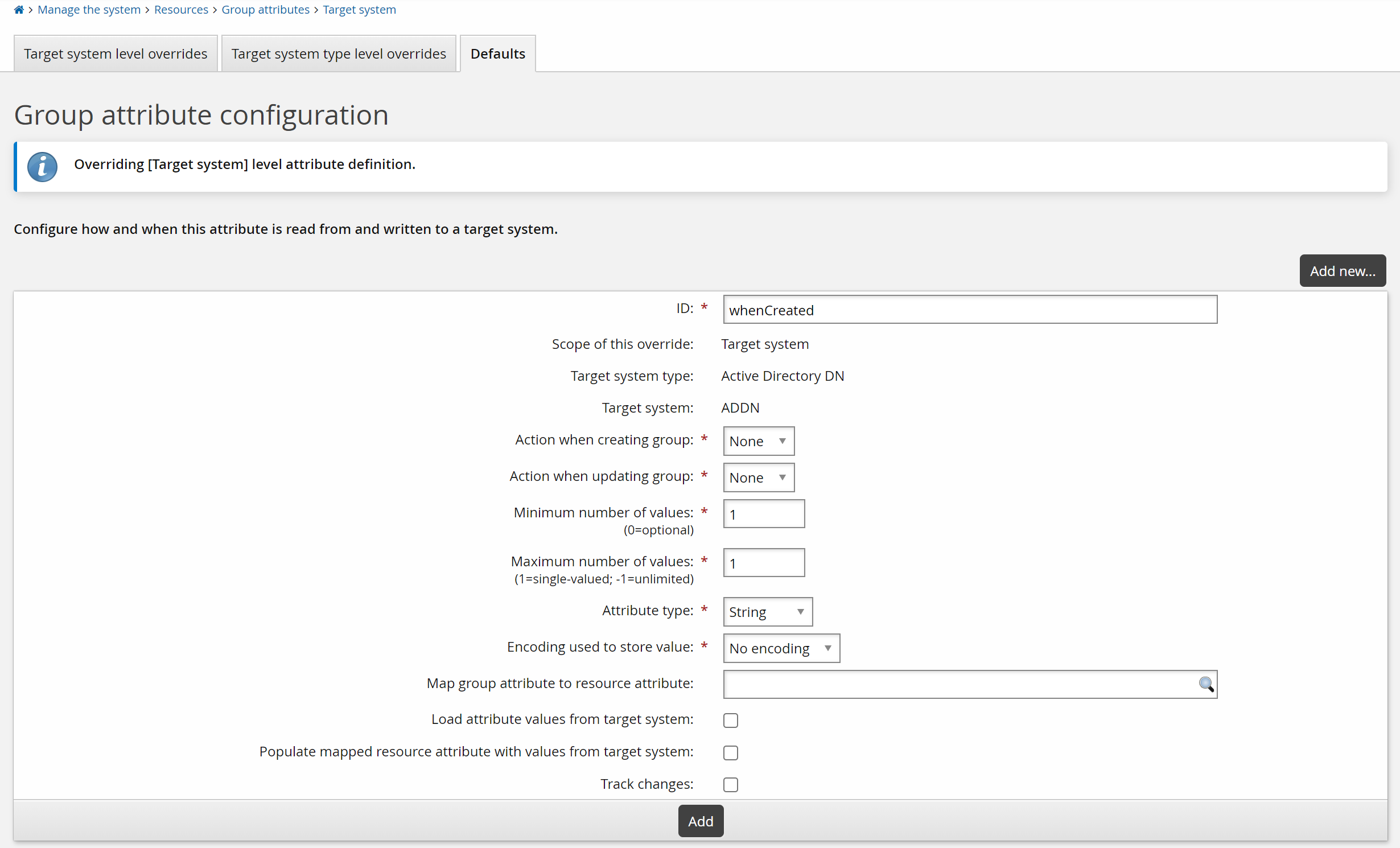
Click Add at the bottom of the form.
Additional configuration options are now available to you.
Proceed to:
Changing the configured action
The configured action determines how Bravura Identity should create the group attribute during the “create group” and “update group” operation.
To change the configured action for individual group attributes:
Navigate to the override configuration page.
Select the appropriate action from the Action when creating group drop-down list:
None – Ignore the attribute when setting up a new group.
Set to specified value – Set the attribute to specific values or according to resource attributes.
You cannot select an action that is not supported for the attribute.
Select the appropriate action from the Action when updating group drop-down list:
Set to specified value – Set the attribute to specific values or according to resource attributes.
Set to specified value when mapped profile attribute changes – Set the attribute to specific values or according to resource attributes only when the profile attribute has changed.
None – Ignore the attribute when updating the group.
You cannot select an action that is not supported for the attribute.
Click Update.
Next:
If the set action for the attribute is Set to specified value, do of the following:
Modifying attribute value constraints
Group attribute value constraints determine rules for attribute-value composition. By default, attributes are loaded as single-valued.
Note
Group attribute value constraints must be compatible with the mapped resource attribute or the attribute values you specify. For example, you cannot map a required group attribute to an optional resource attribute, or a single-valued group attribute to a multi-valued resource attribute.
To modify attribute value constraints:
Navigate to the override configuration page.
Change the following fields as required:
Minimum number of values – determines whether an attribute is required. Type 0 to make this attribute optional or type a number greater than zero to require a minimum number of values.
Maximum number of values – determines whether more than one value is allowed. Type -1 to indicate that there is no maximum or type a number greater than zero to set the maximum number of values.
The maximum number of values must be at least as big as the minimum number of values.
Attribute type – select one of the following types: Binary, Boolean, String, Memo, Integer or File.
Encoding used to store value – select: No encoding, or Base 64.
Click Update.
Loading attributes
During auto discovery , Bravura Security Fabric loads a list of groups on target systems into its internal database. By default, Bravura Security Fabric also loads the most commonly used group attributes.
You can configure Bravura Security Fabric to load group attributes at the target type or target override levels. To do this:
Navigate to the override configuration page.
Enable the Load attribute values from target system checkbox.
Click Update.
Attributes must be listed before they can be loaded. If the List groups and List attributes options are not enabled for a target system, you must provide a list.
If you want users to be able to view or edit the attribute value, map the group attribute to a resource attribute.The Load attribute values from a target system option is automatically set when you map to a resource attribute.
Note
Mapping a group attribute to a resource attribute will enable a user to edit the attribute value, and the value will be updated on the target system. However, only the values from the most commonly used group attributes are loaded from the target system back to Bravura Security Fabric.
Mapping group attributes to resource attributes
Resource attributes allow any number of group attributes to be mapped to a single value in groups’ data. Several attributes are mapped by default; for example, the Active Directory _container_dn attribute is mapped to the GROUP_OU resource attribute. Attributes that are mapped to resource attributes are listed by default when the target system’s List group attributes setting is enabled.
In order to map an group attribute to a resource attribute, the attributes’ requirements (number of values, attribute type, encoding) must be compatible.
To map an group attribute to a resource attribute:
Select an override level .
Select a group attribute.
Choose the resource attribute to map to. You can either:
Search for the resource attribute
Type the resource attribute ID in the Map group attribute to resource attribute field.
The Populate mapped resource attribute with values from target system option will automatically be selected when the Map group attribute to resource attribute field is filled in and when the Load attribute values from target system has been checked. You can disable the mapping of attributes by deselecting this box.
Click Update.
Mapping target system boolean attribute values
Profile and resource attributes in Bravura Security Fabric represent boolean values internally using T and F for true and false, respectively. However, target systems may use values other than T and F to represent boolean attribute values. Use the configuration settings Target system attribute value that represents [True] and Target system attribute value that represents [False] to ensure that target system boolean attribute values are converted correctly to mapped profile or resource attributes. For example, if a target system attribute uses 1 for true and 0 for false, then set Target system attribute value that represents [True] to 1 and Target system attribute value that represents [False] to 0.
Tracking group attribute changes
Changes to group attribute values can be tracked.
Navigate to the override configuration page.
Select the Track changes option.
Click Update.
Specifying attribute values
Specifying fixed values will apply to group creation and update.
The steps to specify attribute values for the "set” action, when not mapping them to resource attributes, vary according to the attribute type.
Values set for Map group attribute to resource attribute will override specified values.
To specify a character or number value for an group attribute:
Navigate to the override configuration page.
Set the Value type to
Literal valueorPSLang expressionas appropriate.Type a value in the field under the Attribute value header.
For boolean type values, select
True,False, orUnsetfrom the drop-down list in the Attribute value column.For PSLang expressions, you can select an available expression from the auto-completion list.
Click Update.
If more than one value is allowed by the Maximum number of values, Bravura Security Fabric adds more fields below the one you just entered.
If applicable, add more values, and click Update.
Deleting specified attribute values
To delete an attribute value that you have specified:
Navigate to the override configuration page.
Select the checkboxes next to the values you want to delete.
Click Delete at the bottom of the ”values” form.
Confirming and testing changes
After you have made changes on the override configuration page:
If required, confirm your changes. Click:
Yes (recommended), if you want to reload attribute values during the next auto discovery .
In this case, Bravura Security Fabric updates the SQLite-based list files that correspond to the affected target systems (for example, WINDOWS1.db) with a full attribute list.
No, if you want to reload attribute values only when the attribute changes on the target system.
This may help to speed up auto discovery ; however, it may also result in empty or out-of-date attributes in the Bravura Security Fabric database.
Click Back to return to the page.
The attribute now appears in one of the level overrides tabs.
If required, run auto discovery to update your system.
Test your changes.
Ensure that attribute information can be listed (if applicable), and that groups can be created, updated, and deleted successfully.
Adding group attributes
You can add a group attribute manually if the attribute you want to use is not included in the ”catalog” of shipped attributes. You can also add group attributes for custom applications or systems with modifiable schemas. Adding an group attribute allows you to override the default action.
To add a group attribute:
Select an override level .
Click Add new… at the bottom of the Group attributes page.
Bravura Security Fabric displays the configuration page.
Type a descriptive value in the Attribute name field.
If required, override the default settings. See:
Click Add.
Deleting overrides and non-shipped attributes
To undo the changes you have made to a shipped group attribute and return it to its default setting, or to remove an attribute that was not shipped with Bravura Security Fabric :
Select an override level , then select the attribute.
Click Delete at the bottom of the form. If required confirm your actions.
Bravura Security Fabric displays a confirmation page and asks you whether you want to:
Reload all attribute values during the next auto discovery – click Yes (recommended).
In this case, Bravura Security Fabric updates the SQLite-based list files that correspond to the affected target systems (for example, WINDOWS1.db) with a full attribute list.
Reload attribute values only when the attribute changes on the target system – click No.
This may help to speed up auto discovery ; however, it may also result in empty or out-of-date attributes in the Bravura Security Fabric database.
If the attribute was shipped with Bravura Security Fabric , the overrides for the current level are removed, and the attribute is re-listed under the Defaults tab. If the attribute was not shipped with Bravura Security Fabric , it is deleted from the system.