Login policy and behavior
The login sequence in Bravura Security Fabric is by default broken down into two parts:
Identification: Who is trying to log in
This must be an identifier that is unique across the entire set of profiles.
Authentication: Do they know or have what they need to log in
This can utilize several factors, and the required factors may vary depending on various criteria, such as login network location, user category, and others.
Identifying users
In order to log in to Bravura Security Fabric using the Front-end , users must provide an identifier. By default, this is their login ID from the first target system that you added as a source of Profile IDs.
The Front-end PROFILE ID TAG is disabled by default. When the tag is disabled, users can only identify themselves with their login ID on a target system. When the PROFILE ID TAG is enabled, users can identify themselves with their Bravura Security Fabric profile ID, or their login ID on a target system.
The identifier is searched for in the following order until a match is found:
Target – the user’s account ID on the target system
Profile – the profile ID for the user’s Bravura Security Fabric profile
Admin – product administrator ID defined within the Manage the system (PSA) module
You can allow users to identify with a profile attribute value, such as email address, by specifying them in the AUTH IDENTITY ATTRIBUTES setting.
If more than one option is available, users select how they want to identify themselves from the identification priority list . When you add your first target system, if PROFILE ID TAG is disabled, the target is automatically added to the identification priority list. You must manually add any additional target systems.
Product administrators do not require an account ID on a target system. In this case, their credentials are stored in Bravura Security Fabric ’s internal database.
Set up the identification priority list
To set up the identification priority list:
Click Manage the system > Policies > Identification priority.
If necessary, search to narrow the list of target systems.
Drag and drop one of the double direction arrows in the Target system description field to change the target systems’ order in the list.
Click Update.
You can also configure this list by entering a colon-separated list in the PSF HOST LIST variable in the Manage the system > Maintenance > System variables menu.
Identification examples
Users choose an identification target system
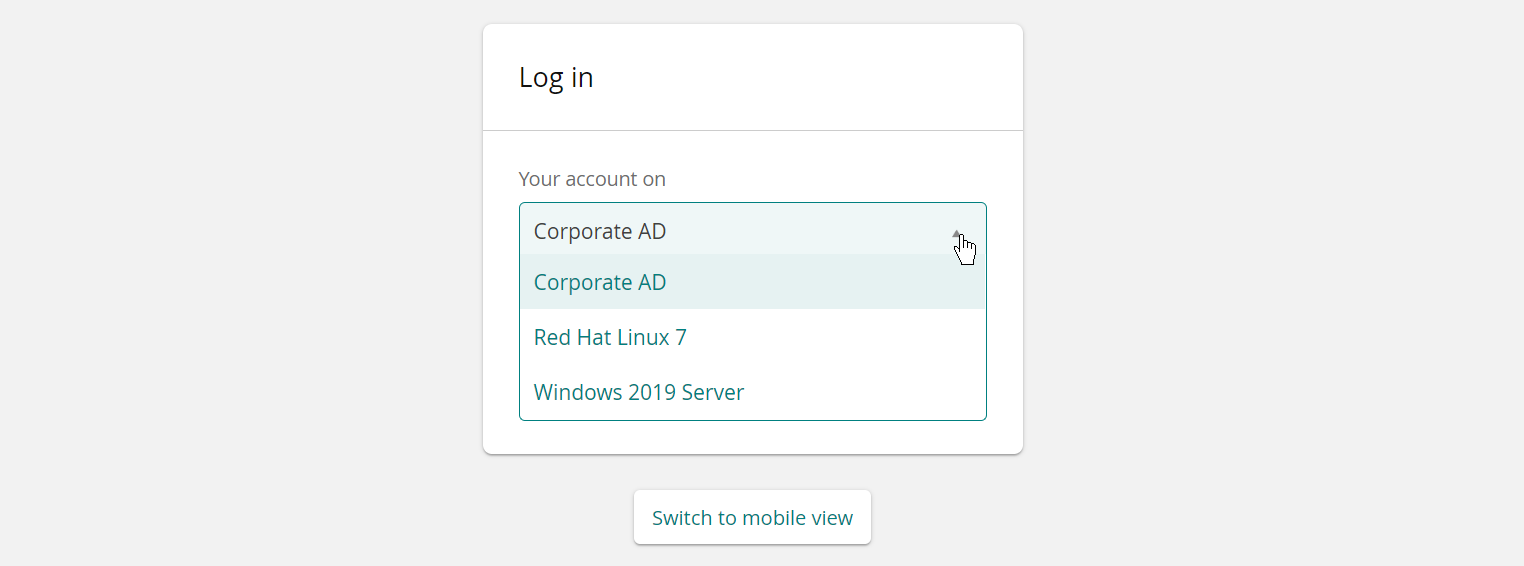
If the system is configured as shown below, and the PROFILE ID TAG is disabled, users are provided with a drop-down menu to choose how they want to identify themselves:
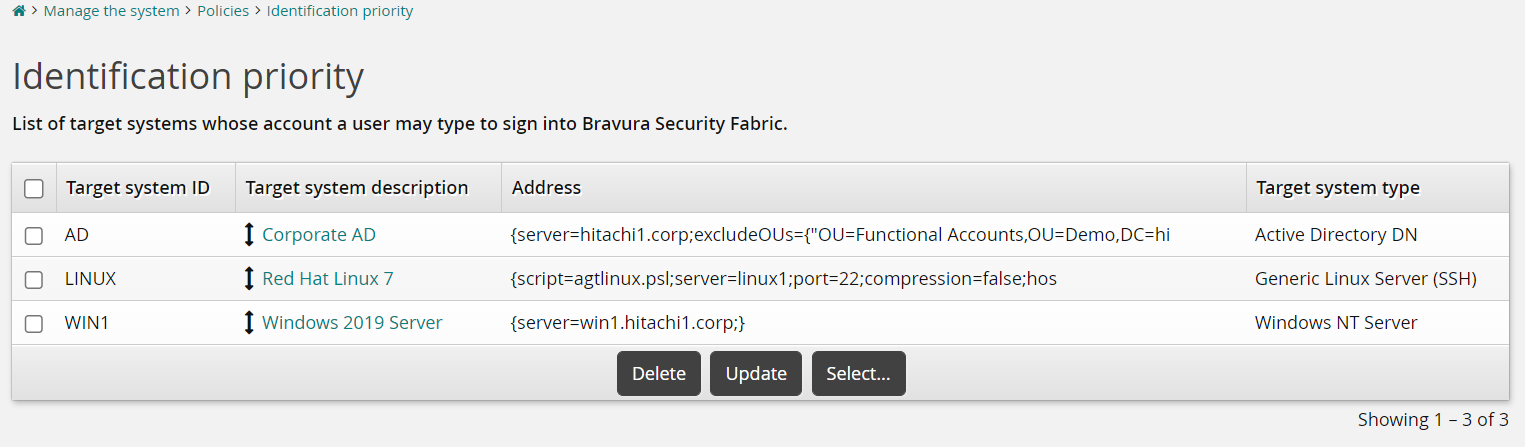
In this case, users see the following options:
Users choose Profile ID as an identification target system
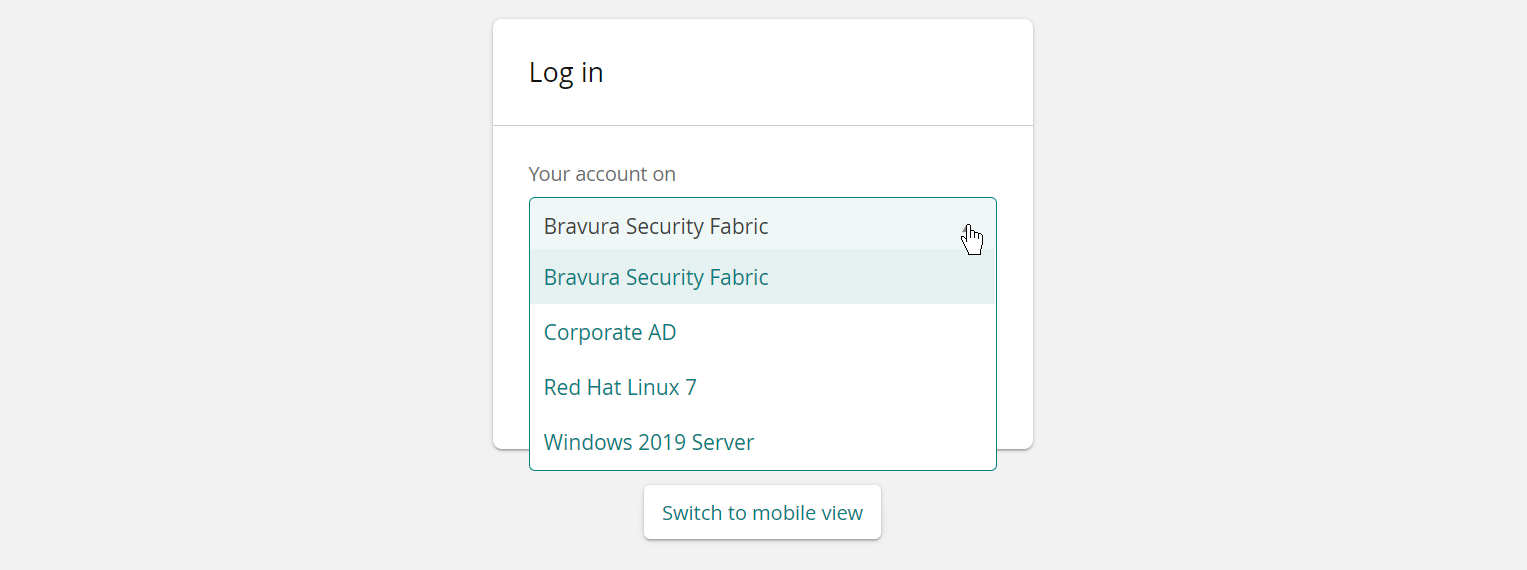
When the PROFILE ID TAG is enabled (Modules > Front-end (PSF) ) users see the following options:
Users must use Profile ID
You may want to limit choices and just allow the user to logon with their Profile ID. You can do this by enabling the PROFILE ID TAG and removing all target system identification priorities:
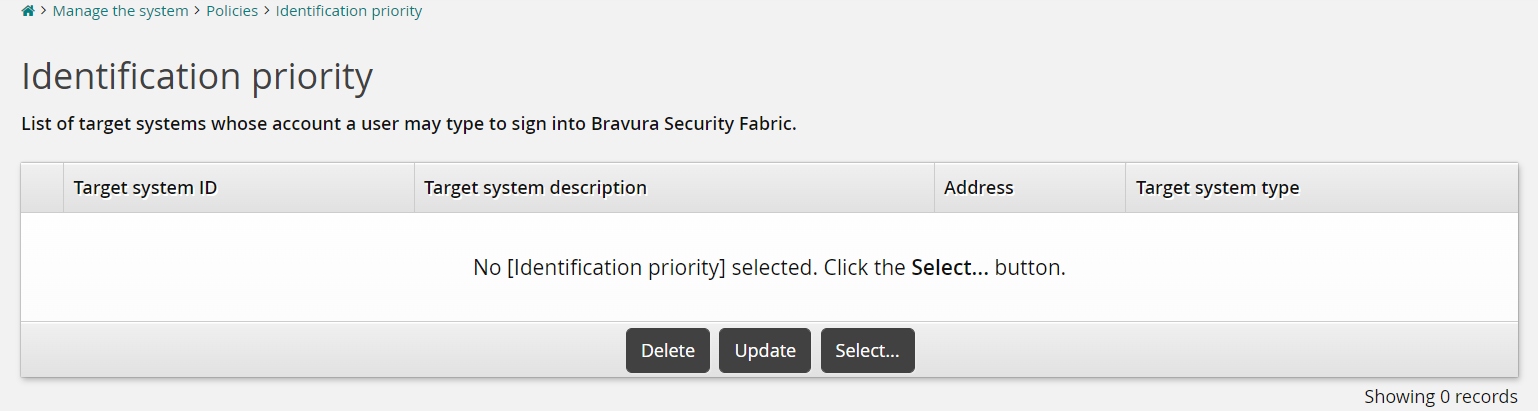
In this case, users are only asked for their Profile ID:
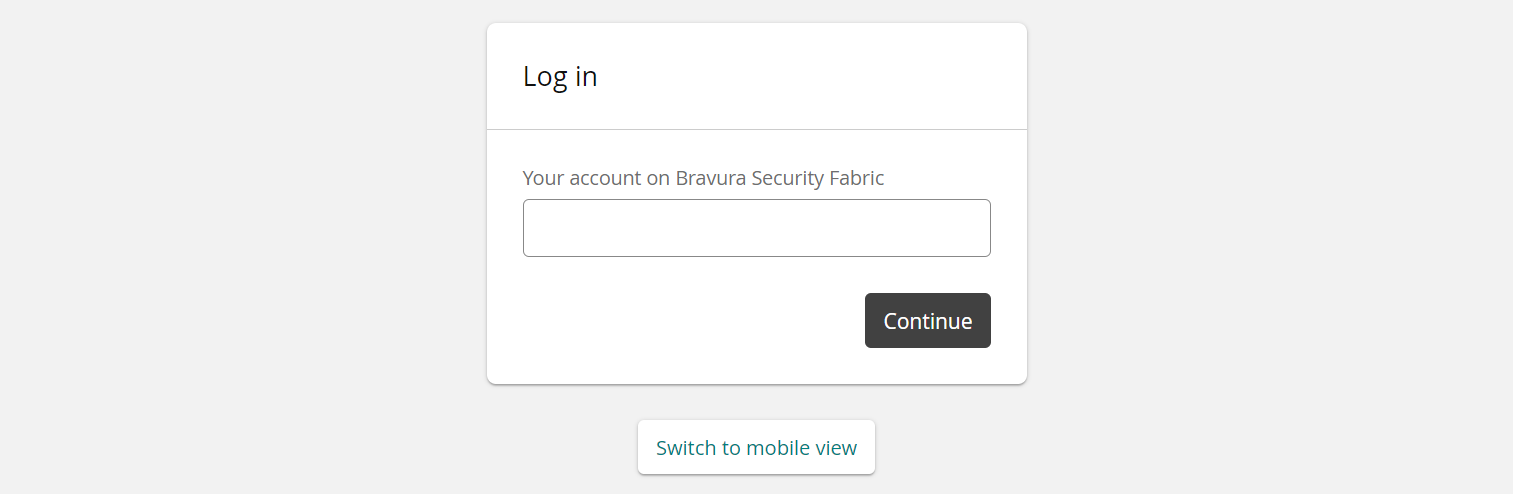
See also:
Authenticating users
The Bravura Security Fabric Front-end supports multiple, configurable methods of authentication.
Basic configuration
By default, when you add your first target system, Bravura Security Fabric automatically configures itself to identify imported users by their ID on the target system, and to authenticate them using the password for their associated account on the target system. No additional configuration is required.
Bravura Security Fabric can also be set up to use security questions, where users type answers to personal questions. This option is only available to users after they complete their security question profiles.
Caution
Bravura Security strongly recommends configuring additional or advanced authentication factors. Relying on security questions is not safe, nor easily maintainable, so Bravura Security Fabric offers a larger set of authentication factors.
Bravura Security does not recommend security questions as an authentication factor for Bravura Privilege.
Modified configuration
You can modify the basic authentication configuration to:
Advanced configuration
Authentication chains offer the most flexible and secure authentication options. You can install components to streamline configuration.
Authentication chains allow for multiple combination of different methods, such as:
Password validation by integrated system. For example: Active Directory, LDAP, Mainframe, UNIX/Linux (different flavors), SAP, etc.
Security questions, such as pre-defined in application configuration, user-defined or loaded and validated in real time from a 3rd party system.
Caution
Relying on security questions is not safe, nor easily maintainable.
One time passwords (OTP) delivered by means of SMS or email .
Email address and phone number values required for this authentication are typically loaded from the Source of Profiles or System or Records.
Hardware/software tokens , for example:
Bravura OneAuth
RSA Authentication Manager
Duo
Integration with each specific token system may be implemented using the native API (such as Bravura OneAuth , RSA Authentication Manager, Duo, etc) or via RADIUS protocol .
Using SAML protocol against client's federated access server acting as Identity Provider (IdP), for example:
Okta
SecureAuth
Different authentication options can be chained into a Multi-Factor Authentication model, where sign-in process always requires two factors: something the user has (phone, hardware token, etc) plus something the user knows (password or security questions).
See Authentication chains Use cases for more detail descriptions.
Caution
Do not make any changes before backing up the current configuration.
Authentication priority list
Bravura Security Fabric uses the authentication priority list to determine:
Which target systems are trusted systems.
Only target systems that have been added to the authentication priority list are trusted and can be used to validate users’ passwords.
The order in which to attempt to validate a password on target systems.
Each target system in the authentication priority list is assigned a ranking value depending on their placement in the list. By default, Bravura Security Fabric first attempts to validate a user’s password against the highest-ranked target system on which the user has an account.
The number of target systems on which to attempt to validate a password is determined by the NUM HOSTS VERIFY setting. The default is one.
This is explained in greater detail in Configuring password authentication .
When you add your first target system, if the Allow users to verify passwords setting is enabled, the target system is automatically added to the authentication priority list. You must manually add additional target systems if required.
Click below to view a demonstration of adding a second target system to authenticate against and then setting the target system authentication order.
Set the target system authentication order
To set up the authentication priority list:
Ensure that your target systems are set up to verify passwords.
That is, ensure the Allow users to verify passwords checkbox is selected on each applicable targets’ page (default).
Click Manage the system > Policies > Authentication priority.
If necessary, search to narrow the list of target systems.
Drag and drop one of the double direction arrows in the Target system description field to change the target systems’ order in the list.
Click Update.
You can also configure this list by entering a colon-separated list in the AUTH HOST LIST variable in the Manage the system > Maintenance > System variables menu.
Configuring password authentication
Users can prove their identities by validating their passwords against:
A target system that is set up as a trusted system.
These users’ passwords are not stored in the Bravura Security Fabric database.
A value stored in Bravura Security Fabric .
This only applies to product administrators whose passwords are stored in Bravura Security Fabric .
In order to set up password authentication for users whose passwords are not stored in Bravura Security Fabric , configure the following:
Authentication priority list | The authentication priority list (Manage the system > Policies > Authentication priority) controls the target systems that can be used to validate passwords and the target system authentication order. |
NUM HOSTS VERIFY (optional) | This setting (Manage the system > Policies > Options) controls the number of target systems for authentication. Increase the value of NUM HOSTS VERIFY if the authentication priority list contains more than one target system, and if you want Bravura Security Fabric to retry the supplied password on additional target systems before concluding that the user simply entered an incorrect password value. |
PSF IDENT AS AUTH (optional) | Enable this setting (Manage the system > Modules > Front-end (PSF) ) if you want Bravura Security Fabric to attempt to authenticate the user by verifying the supplied password against the target system chosen for identification. |
PSF EXT | Set this value to See Enabling authentication methods via Front-end configuration for details. |
PSFEXT VALUES | Include |
Login process with password authentication
The following example login process illustrates how the above settings affect the Front-end :
A user visits the login page for the Front-end and enters an identifier (a login ID on a trusted system or a profile ID) and a password.
If PSF IDENT AS AUTH is enabled, the Front-end attempts to authenticate the user by verifying the password against the target system chosen for identification.
If PSF IDENT AS AUTH is not enabled, or if the user entered a profile ID, Bravura Security Fabric attempts to authenticate the user by validating the password against the first target system in the authentication priority list.
If password verification fails, and if NUM HOSTS VERIFY is greater than one, Bravura Security Fabric contacts the next target system in the authentication priority list.
The verification process continues until authentication succeeds or the number of failures equals the value contained in NUM HOSTS VERIFY in which case authentication fails.
The process for the administrative consoles is similar; however, Step 2 does not apply. In all cases Bravura Security Fabric uses information from the user’s profile to determine the correct login ID for each target system that it validates the password against.
See also
Configuring security question authentication
You can use multiple Bravura Security Fabric question sets to authenticate users. You can require users to have a set that is user defined, in which the user defines both the questions and the answers, and a pre-defined set, in which users define only the answers.
Users can define the questions and answers in their profile in one of two ways:
Assisted by a help desk user using the Help users (IDA) module.
For themselves using the Update security questions (PSQ) module.
In order to set up security question authentication, configure the following:
Question sets | Bravura Security Fabric includes default question sets that can be used to authenticate users. You can modify the default sets or add your own. |
PSQ ENABLED | The Update security questions (PSQ) module – where users populate their personal information – must be enabled if the DEFAULT_LOGIN authentication chain has been disabled. You can enable it by setting this value to |
PSF EXT | Set this value to See Enabling authentication methods via Front-end configuration for details. |
PSFEXT VALUES | Include |
See also
You can enable authentication methods with greater flexibility and security by configuring authentication chains .
You can also set up enforced enrollment to force users to complete the security question profiles.
Bravura Security Fabric can use external programs to retrieve security question data , and to validate answers in order to authenticate Bravura Security Fabric users.
Enabling authentication methods via Front-end configuration
An authentication method must be enabled to make it available to users. By default, password authentication and security question authentication are enabled. You can enable or disable methods by configuring the Front-end.
Alternatively, you can enable more complex authentication methods by configuring authentication chains.
To enable authentication methods via Front-end configuration:
Click Modules > Front-end (PSF).
Select the appropriate choice from the PSF EXT drop-down list:
Password authentication
Users can only authenticate using a password.
Security questions
Users can only authenticate using security questions.
User-selectable
Allow users to select from authentication methods listed in PSFEXT VALUES or custom authentication chains.
Enable authentication methods by including the names of programs or scripts in the PSFEXT VALUES field.
The field accepts a comma-delimited list, which can include:
password.pss– password authenticationresponse.pss– security questions
Click Update.
Adding options to the authentication menu
When more than one authentication method is enabled, the Front-end displays a menu of available authentication methods to users after they have been identified.
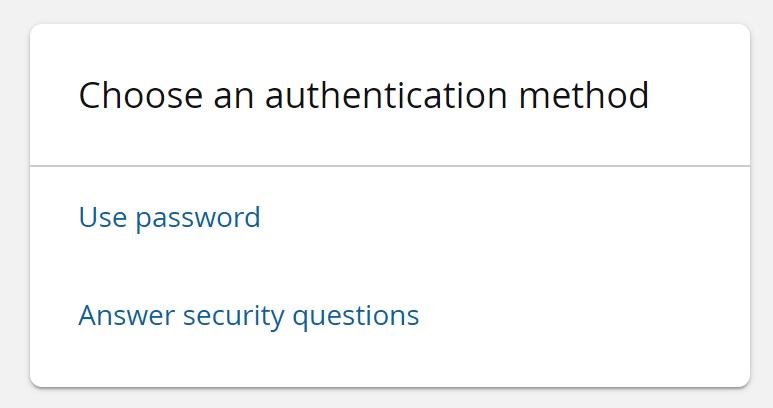
When password or security question authentication is enabled in PSFEXT VALUES, the option is automatically included in the menu.
If you enable a custom authentication method by including it in PSFEXT VALUES, you must edit the Bravura Security Fabric skin files to include the option in the authentication menu. See Adding to the authentication menu to learn how to do this.
Alternatively, you can add a custom authentication method to an authentication chain and make that available in the default authentication chain.
Click below to view a demonstration of an authentication chain being altered. In this example, a product administrator corrects an undesirable authentication chain to one using unique authentication methods. Currently, users are prompted with a choice of password or security questions as a first authentication factor, and then required to use security questions again as a second factor. This authentication chain is not best practice, as each method should be unique. Therefore, the product administrator removes the selectable security-questions option for the first authentication factor. As a result, the user is only prompted to provide password authentication as the first factor, followed by security questions as the second factor.
Specifying authentication methods within URLs
Once enabled, you can direct users to a preferred method of authentication by specifying it in the Bravura Security Fabric URL, rather than providing a menu.
You can direct a user to:
A built-in authentication module, such as password authentication
An external authentication method
An authentication chain
For example:
The specified user is directed to a page to verify their password:
https://<server>/<instance>/?LANG=en-us&USERID=<user>&PSF_EXT=password.pssThe specified user is directed to a page to enter responses to their security questions:
https://<server>/<instance>/?LANG=en-us&USERID=<user>&PSF_EXT=response.pssThe specified user is directed to the first page of the specified authentication chain:
https://<server>/<instance>/?LANG=en-us&USERID=<user>&PSF_EXT=<authchain>Where:
<server>is the Bravura Security Fabric server<instance>is the name of the Bravura Security Fabric instance<user>is the user for whom you are creating the URL<authchain>is the name of the authentication chain to which you are directing them.
Generally, organizations set up a customized intranet page with links to Bravura Security Fabric so that users do not have to type the URL.
Users can only select custom authentication methods if the method is enabled. Methods that are not enabled do not appear in the authentication menu and cannot be passed in the URL.
Login options
The following identification and authentication options can be accessed via Manage the system > Policies > Login options .
Identifying users with profile attributes instead of login IDs
You can use the AUTH IDENTITY ATTRIBUTES setting (Manage the system > Policies > Login options) to define a comma-delimited list of profile attributes that can be used to login into Bravura Security Fabric . A profile attribute can be set as a secondary identifier that will be treated the same as a normal login ID. When configured, users can login using either their profile ID or profile attribute, such as email address. In the event that multiple users share the same profile attribute value, Bravura Security Fabric will prompt the user to select their user profile from a list.
Click below to view a demonstration of adding an employee number as an accepted login ID. The demo includes the following steps:
Create an EMPLOYEE-NUMBER profile and request attribute.
Map the EMPLOYEE-NUMBER profile and request attribute to the AD employeeNumber account attribute.
Run auto discovery to apply the override on the account attribute action and populate the EMPLOYEE-NUMBER profile attribute.
Confirm the attribute has been mapped by running a Profiles report.
Allow the EMPLOYEE-NUMBER profile attribute to be treated as a login ID.
Test the configuration by logging in an employee using their Profile ID and then their employee number.
Redirecting users on logout
The Bravura Security Fabric front-end includes a plugin architecture. You can use a plugin defined by the LOGOUT REDIRECT PLUGIN setting to redirect users on log out from Bravura Security Fabric . This is useful if you want to pass parameters that are used for users’ subsequent login to Bravura Security Fabric .
To configure the logout redirection plugin to run every time a user logs out:
Click Manage the system > Policies > Login options .
Type the name of the plugin in LOGOUT REDIRECT PLUGIN.
Click Update.
The logouturl.psl sample script, found in the samples directory, provides a simple demonstration of a logout redirection plugin. After logging out, the plugin passes the user’s ID. Depending on whether the user is a superuser or not, the next login will take the user to the PSA or PSF module.
Requirements
This plugin is run on the Bravura Security Fabric server. See Writing plugins for general requirements.
Execution points
When configured, the plugin is run when a user attempts to log out from any Bravura Security Fabric module.
Input
The input includes:
The address of the instance
The name of the CGI module from which the user logs out
Encoded error message which causes the logout
The current session id of the user
The profile ID of the end user who is logging out
The input is passed as plain text, in KVGroup format.
For example, if the log out was done by superuser from the following URL:
https://mercury/default/manage_the_system
the plugin would receive input in the format:
"" "" = {
  "address" = "https://mercury/default"
  "module" = "psa"
  "sessionid" = "S6542aa5d-ab83-422a-bda4-870a5376dd15"
  "userid" = "superuser"
}
Output
The output includes:
The address to which a user will be redirected
Parameters to be appended to end of the redirect address. For instance, this may be the <userID> parameter.
For example, if the log out was done by superuser from the following URL:
https://mercury/default/manage_the_system
the following would be an expected output from a log out redirection plugin:
"" "" = {
  "redirect_url" = "https://mercury/default/cgi/psa.exe"
  "parameters" "" = {
    "USERID" = "superuser"
  }
  "retval" = "0"
}
Caution
The input address and output address must have identical base addresses. The plugin cannot be used to redirect between a URL containing a DNS name and a URL containing an IP address even if they are equivalent, since most browsers prevent this as a security measure.
Login events (exit traps)
Login events
The following identification and authentication events apply to all modules and can be accessed from the Configure event (ITSM) module or Manage the system > Policies > Login options :
Option | Description |
|---|---|
USER IDENTIFY SUCCESS | A user is successfully identified by Bravura Security Fabric . |
USER IDENTIFY FAILURE | A user could not be identified by Bravura Security Fabric . |
FEDIDP IDENTIFY SUCCESS | A federated login attempt had its SAML request successfully parsed by Bravura Security Fabric . |
FEDIDP IDENTIFY FAILURE | A federated login attempt SAML request could not be parsed by Bravura Security Fabric . |
AUTH MODULE FAILURE | A user fails authentication for a module configured as part of an authentication chain. |
AUTH CHAIN SUCCESS | An authentication chain step successfully authenticates a user. |
AUTH CHAIN FAILURE | A user fails an authentication chain step. |
USER LOGIN CHANGED | The user was successfully changed to another profile via an authentication chain. |
IDAPI LOGIN FAILURE | A script fails to authenticate via API Service ( |
IDAPI LOGIN SUCCESS | A script successfully authenticates via API Service. |
USER LOGIN SUCCESS | A user is successfully authenticated by Bravura Security Fabric . |
USER LOGIN FAILURE | A user fails authentication. |
USER LOGIN LOCKOUT | Too many invalid login attempts to the end module causes the account to be locked out. |
FEDIDP AUTH SUCCESS | A user attempting federated login was successfully authenticated, and the outgoing SAML assertion was successfully signed and issued. |
FEDIDP AUTH FAILURE | A user attempting federated login was successfully authenticated, but the outgoing SAML assertion could not be signed and issued. |
FEDIDP SSO SESSION CREATE | A single sign-on session was successfully initiated as part of a federated login. |
FEDIDP SSO SESSION DESTROY | A single sign-on session was successfully terminated. |
FEDSP SAMLAUTH ISSUED | A SAML authentication request has been submitted by Bravura Security Fabric to an external identity provider. |
FEDSP SAMLAUTH ASR SUCCESS | A SAML assertion from a trusted identity provider was successfully received and parsed. |
FEDSP SAMLAUTH ASR FAILURE | A SAML assertion from a trusted identity provider could not be parsed. |
See Event Actions for more information about event configuration.
Authentication policy options
This section describes the general authentication options on the Manage the system > Policies > Options menu.
Option | Description |
|---|---|
ACL DENY ENABLE | Enable this to allow product administrators to deny users access to certain objects. |
ADMIN PASSWORD EXPIRE | Set the number of days until product administrator s’ passwords expire. If this is not set, then the product administrator ’s password is checked against the default password policy’s expiry interval. |
CHECK LOCKED ACCOUNTS | Tests the intruder lockout status of user accounts before giving the user the option to sign into Bravura Security Fabric. If enabled, each account a user has on systems in the authentication priority list is tested before giving the user the option of signing in with the password for that account. |
DISABLED ACCOUNT DENY | Enable this to not list a user’s disabled accounts in account searches. Disabled accounts will not be shown in modules and they will also not be included in transparent synchronization requests |
EXPIRY FOR EXCEPTIONS TO SOD RULES | The default expiry of exceptions to segregation of duties (SoD) rules. After 60 days, a user who is granted an exception will be in violation again. This value can be overridden in the configuration of individual rules. Requesters can change the value when submitting a request for exception. |
GENERIC LOGIN FAILURE | Enable this to provide a generic message upon login failure, to make it more difficult for an attacker to deduce valid login IDs. |
GLF ALLOWED PROXIES | Specify a comma-delimited list of CIDR bitmasks of allowed upstream HTTP proxies. This controls which remote IP addresses are allowed to set the X-Forwarded-For HTTP request header. |
IP LOCKOUT DURATION | Set the duration (in seconds) that an IP address will be locked-out of the Front-end (PSF). If left blank, the default value is 60 seconds. You can also use the ipunlock program to immediately unlock an IP address. |
IP LOCKOUT INTERVAL | Set the number of seconds that must pass between failed login attempts in order to reset the lockout counter for an IP address. The lockout counter increases if another failed login attempt occurs within this interval period. The lockout counter is reset once the specified number of seconds has elapsed. If left blank, the default value for this option is 5 seconds. |
LOCKOUT DURATION | Set this to re-enable accounts, after they have been disabled because of authentication failure, automatically after the defined number of minutes. |
LOCKOUT INTERVAL | This option is only applicable when authentication chains are enabled. Set the number of minutes between failed login attempts that would affect the lockout counter. If the number of minutes between failed login attempts is greater than this interval, then the lockout counter is reset. |
MAX IP FAILURE | Set the maximum number of failed login attempts that are allowed before the IP address is locked-out of the Front-end (PSF). A value must be set for this option in order to enable the ability to lock out IP addresses. This option is disabled if left blank. |
MAX REJECTIONS | Set the default maximum number of denials by an authorizer required to deny a access change request. When this number is reached, the request is canceled even if approval from the minimum number of authorizers is reached. You can set a maximum number of denials for requests based on templates, roles, segregation of duties rules, managed groups and target systems. |
MAX USERAUTH FAILURE | To prevent security violations, you can disable a user after a pre-defined number of authentication failures. Enable this option and type your required maximum number of failures in the adjacent field. If undefined, the user is locked out as soon as authentication fails. |
MIN AUTHORIZERS | Set the default number of authorizers required to approve a access change request before it is implemented. If you do not assign enough authorizers to a resource to meet the minimum requirement, requests based on the resource will be automatically denied unless authorizers are assigned by a workflow plugin. You can set a minimum number of authorizers for requests based on templates, roles, segregation of duties rules, managed groups and target systems. |
MIN DICTWORD LENGTH | Sets the minimum length of dictionary words loaded for password strength rule checks. Changing this value can speed up password checks by eliminating small words from the dictionary. It can be used in conjunction with the Minimum length of dictionary word to check against strength rule. |
NUM HOSTS VERIFY | Set the number of systems from the authentication priority list that Bravura Security Fabric should contact and ask for authentication before concluding that the user simply entered an incorrect password value. |
PASSWORD HISTORY IGNORE | Skip the checking of password history when creating a new account. The initial password for a new account will not enforce the password history when enabled. The default setting for this value is Enabled. |
SOD VIOLATIONS LIST LIMIT | Set the maximum number of segregation of duties rules violations to show when issuing a request. 0 means infinite. Default is 10. |
USERCLASS CACHE EXPIRY | This sets the number of hours before the user class cache expires. Default is 72 hours. |
Setting a default password when changing passwords from the Help desk module
You can use a plugin to retrieve a pre-defined password value when the help desk performs a password change.
The plugin point is set by the GET PASSWORD EXT plugin point on the Manage the system > Maintenance > System variables configuration page.
To keep the user’s password secure, the help desk user sees only the description of the new password on the Change passwords page. The help desk user can then provide this password description to the caller. The actual password is kept secret from the help desk user , but is known to the caller from its description. For example, “the new password is the first 6 characters of the user’s social security number.”
The caller should be instructed to change their password to a different value as soon as possible, using one of the Bravura Pass self-service modules, or transparent password synchronization.
There are no shipped programs for this plugin point.
Requirements
See Writing plugins for general requirements.
Input
Input to the plugin includes only the following:
"" "" = {
  "sessionid" = "<session ID>" # The session ID of the logged in viewer/requester
  "recipient" "user" = {} # The user being assisted

  "viewer" "user" = {} # The help desk user providing assistance
}
Output
The plugin should provide the following output:
"" "" = {
  "password" = "<the new password>" # The password used in the password reset
  "description" = "<description>" # The notice to display to the help desk user
}
Denying access
In some cases it may be easier to prevent certain users from accessing specific objects, rather than trying to find a way to grant limited user access. Use the ACL DENY ENABLE setting on the Manage the system > Policies > Options page to allow product administrators to deny read and write permissions to objects by selecting appropriate checkboxes under the Access control tab.
It is possible for users to belong to more than one group with configured access controls for the same object. Set ACL DENY ENABLE to:
Allow permissions to take precedence | to allow a user’s allowed access to override denied access. |
Deny permissions to take precedence | to allow a user’s denied access to override allowed access. |
For example, a user belongs to group A with permission to read object C, and also belongs to group B which is denied all access to object C. The Allow permissions to take precedence setting means the user does have read permission for object C.
Expiring product administrators’ passwords
You can use the ADMIN PASSWORD EXPIRE setting (Manage the system > Policies > Options) to configure a global value for the number of days until product administrator s’ passwords expire. If this setting is not configured, then the product administrator ’s password uses the default password policy’s expiry interval. You can override both of these settings for individual product administrators by setting the Password never expires option on the user’s configuration page.
ADMIN PASSWORD EXPIRE only applies to product administrators whose passwords are stored in the Bravura Security Fabric database. It does not apply to product administrators whose passwords are verified against a target system.
Failing invalid login IDs
Normally, when an invalid user or account ID is entered in the login screen Bravura Security Fabric displays a message informing the user that the account could not be found.
This behavior can be modified to make it more difficult for an attacker to deduce valid IDs from the login process, by enabling the GENERIC LOGINFAILURE option (Manage the system > Policies > Options). If enabled, users are allowed to proceed to the screen and enter a password, despite having entered an invalid ID. Bravura Security Fabric simulates an attempt to verify the password, waiting 10 seconds before returning with the message:
"Please verify that you entered your password correctly, otherwise contact your administrator."
Note
This feature is scheduled to be removed in a future release.
Triggering IP lockout
You can configure a lockout of an IP address for authentication attempts using the IP LOCKOUT DURATION , IP LOCKOUT INTERVAL , and MAX IP FAILURE system variables at Manage the system > Policies > Options.
The IP lockout applies to all failed authentication attempts.
To set up an IP lockout, you must set a value for MAX IP FAILURE to indicate the maximum number of failed login attempts.
You can enter a custom value for the IP LOCKOUT DURATION to determine the number of seconds for which the IP will be locked out. The default value is 60 seconds. After the configured amount of time has elapsed, authentication attempts can resume once again for any account from this IP address.
You can also use the ipunlock program to immediately unlock an IP address.
You can set IP LOCKOUT INTERVAL to change the number of seconds to wait between a failed login attempt and the next login attempt. The default value is 5 seconds. The lockout counter is increased for each failed authentication attempt during this interval period and then reset once the configured number of seconds has been reached.
When disabling the IP lockout functionality, disabling MAX IP FAILURE alone does not automatically clear any outstanding IP locks. The configured IP lockout duration as defined by IP LOCKOUT DURATION must be reached, or you must run ipunlock to allow authentication attempts once again for an IP address.
See usage information for ipunlock .
IP lockout events
The following IP lockout options can be accessed from Manage the system > Maintenance > System variables or Manage the system > Policies > Options.
Option | Description |
|---|---|
REMOTE IP LOCKED | Program to execute when an IP address is locked out. |
REMOTE IP UNLOCKED | Program to execute when an IP address is unlocked. |
See Event Actions for more information about event configuration.
Controlling IP addresses from setting X-Forwarded-For
You can restrict which source IP addresses are allowed to set the ’X-Forwarded-For’ HTTP request header. The GLF ALLOWED PROXIES variable (Manage the system > Policies > Options) uses a comma-delimited list of CIDR bitmasks of connection source IP addresses and ranges from which an ’X-Forwarded-For’ HTTP request header is to be trusted. This prevents any HTTP client from avoiding IP lockout by pretending to forward to random IP addresses.
If a connecting peer does not specify the HTTP request header, its IP address is considered the true source address for IP-lockout considerations.
If a connecting peer specifies the HTTP request header, and its IP address is specified in GLF ALLOWED PROXIES , then the HTTP request header value is considered the true source IP address, rather than the connecting peer’s IP address.
If a connecting peer specifies the HTTP request header, but its IP address is not specified in GLF ALLOWED PROXIES , then the connecting peer’s IP address is considered the true source address for IP-based lockout policy, and a warning is written to the Logging Service regarding a possible spoofing attack.
Configuring lockout interval
This option is only used when authentication chains are enabled.
The LOCKOUT INTERVAL variable (Manage the system > Policies > Options) allows you to specify a number of minutes between failed login attempts that would affect the lockout counter.
If the number of minutes between failed login attempts is greater than the lockout interval, then the lockout counter is reset.
If the number of minutes between failed login attempts is less than the lockout interval, then the lockout counter increases.
If the lockout interval is unspecified, then the lockout counter increases with each authentication failure and is not reset until authentication is successful, or the user’s profile has been re-enabled after a lockout.
Authentication requirements
Authentication requirements depend on several factors:
New hires may not yet have a password or security questions defined. Capture some personally identifying information and/or a mobile number during onboarding, and use it to authenticate new hires for the first time. New hires should then read and accept any policy documents, enroll security questions, activate Bravura One on their phone, and set their own initial password.
Wherever possible, ask users for two credentials to increase authentication strength through multi-factor authentication (MFA). Passwords or security questions should only appear after another credential has been successfully validated, to protect against guessing attacks.
A browser fingerprint can serve as a second authentication factor in most circumstances, because it provides some assurance that the person signing in is a returning user. If there is a good match on the browser fingerprint, asking for a single credential is both convenient and reasonable.
If a user has already registered a second authentication factor, such as a mobile phone number or security questions, use it first.
The figure below shows these considerations integrated into a single process.
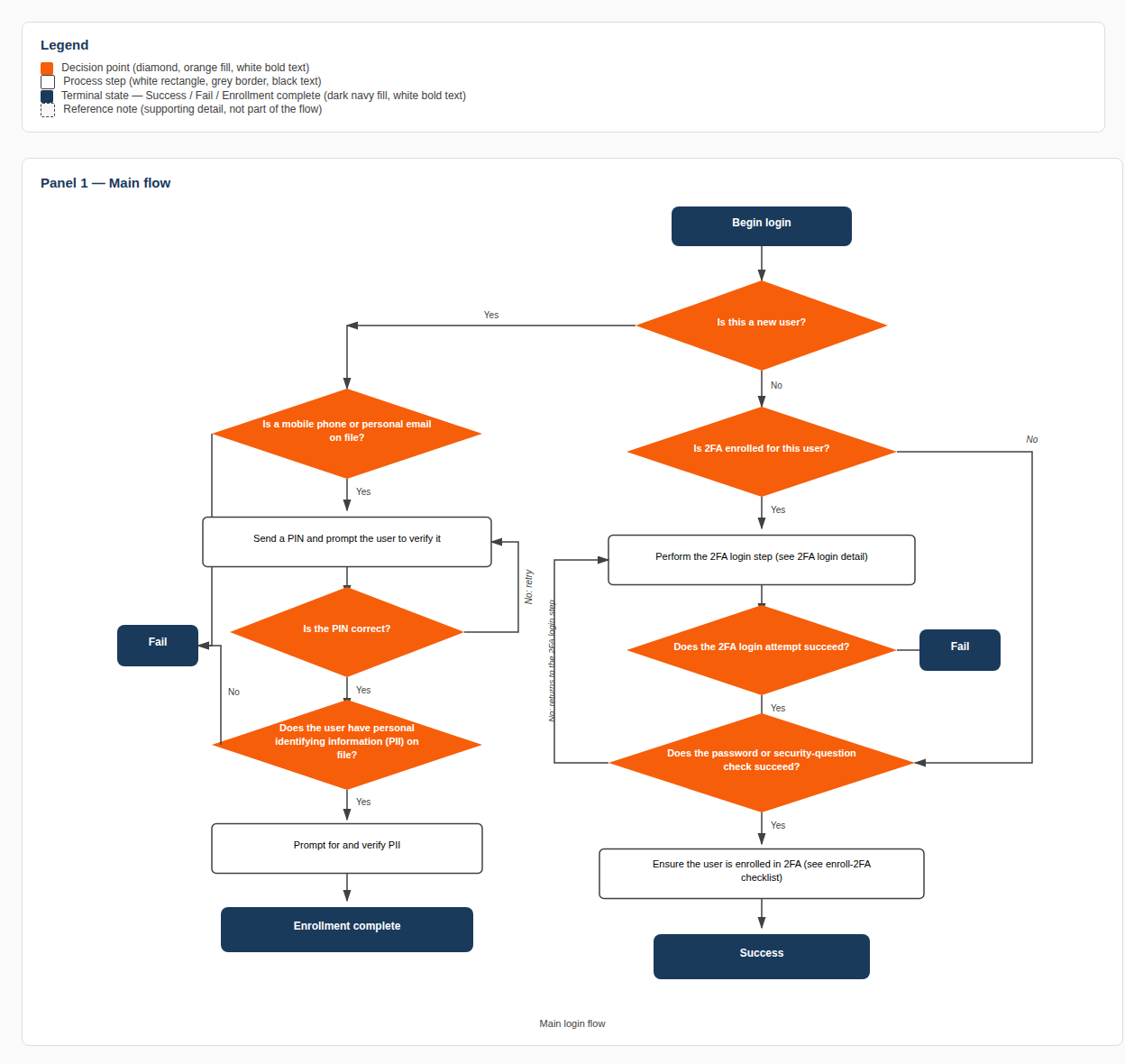
Detail is shown in the panels below.
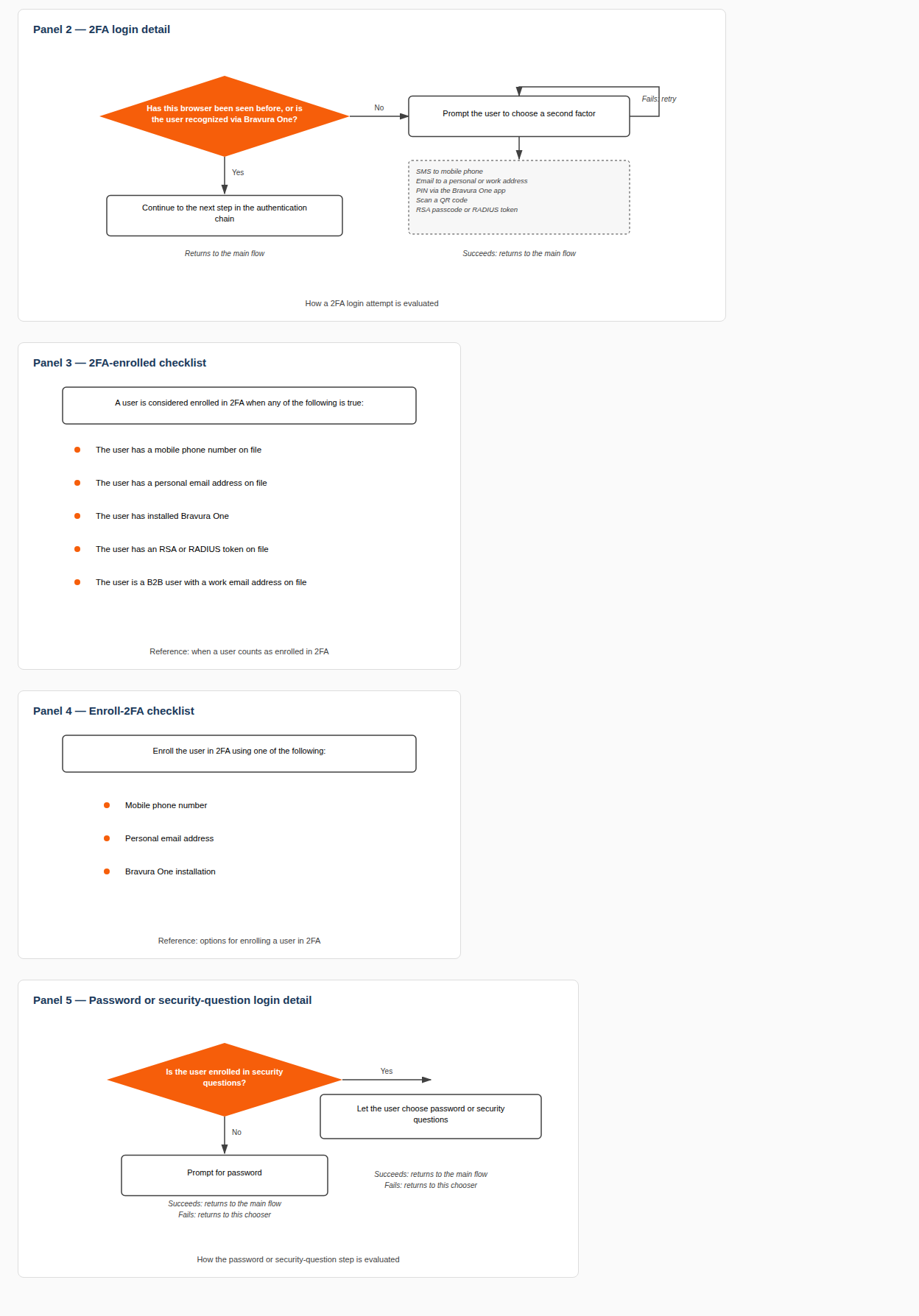
When security questions are used:
Prompt users to answer a random subset of pre-defined questions first, such as two of five, and a random subset of self-defined questions second, such as one of two. This hides self-defined questions from attackers, who must first correctly answer standard questions.
Once a random subset of questions is chosen for a user, continue prompting for the same questions until authentication succeeds. Do not allow attackers to "shop" for questions they happen to know answers to.
Use approximate string matching on answers, since users often type the same answer with different capitalization, punctuation, spacing, or spelling.
Bravura Security recommends using security questions only as a second authentication factor in a 2FA or MFA setup.
Automatically unlocking users
By default, when attempting to authenticate a user, there is a maximum number of authentication failures allowed before the user is locked-out from Bravura Security Fabric . This is controlled by the the MAX USERAUTH FAILURE setting (Manage the system > Policies > Options).
To enable a user profile, locked-out users can contact the help desk and request re-activation, or if the LOCKOUT DURATION has been set, Bravura Security Fabric automatically re-enables the account after N minutes.
Note
Users manually disabled by a product administrator will not be automatically re-enabled. A product administrator must re-enable these users.