Bravura OneAuth
Connector name |
|
Connector type | Python script |
Type (UI field value) | Bravura OneAuth |
Connector status / support | Bravura Security-Verified This connector has been tested and is fully supported by Bravura Security. |
Installation / setup | The agthypr connector for the Bravura OneAuth target type consists of a Python script, agthypr.py and a scripted platform definition file, agthypr.con , that associates the script with the Python connector ( It also has an agthypr_requirements.txt file that is used to install the Python requirements for this connector. To install the Python packages required by the agthypr connector, run the following command from a command prompt: py -m pip install -r agthypr_requirements.txt |
Upgrade notes | Added the Bravura OneAuth connector in Connector Pack 4.4.0. |
Bravura OneAuth is powered by HYPR and accomplishes passwordless MFA by using the challenge response operation and authenticating against the user's previously registered HYPR mobile app. An authentication chain configured for the agthypr connector sends a push notification to the user’s mobile app and on approval of the mobile app request, authentication is then granted for the user.
The following Bravura Security Fabric operations are supported by the Bravura OneAuth connector:
challenge response authentication
List:
accounts
attributes
For a full list and explanation of each connector operation, see Connector operations.
Preparation
Before you can target Bravura OneAuth , you must:
Bravura OneAuth supports mobile versions iOS13+ and Android 9+.
Log in to the HYPR Control Center
These instructions assume that the following steps have been completed:
Set up biometric authentication (Touch ID or Face ID) on your mobile device
Pair your phone to Bravura OneAuth via web
To log in to the HYPR Control Center:
From your browser, navigate to your tenant HYPR Control Center URL.
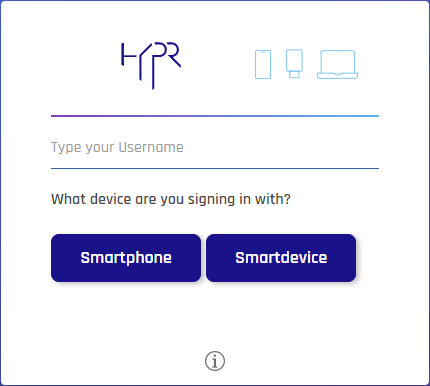
Enter your Username.
Click the button corresponding to the device you registered during onboarding (e.g. Smartphone).
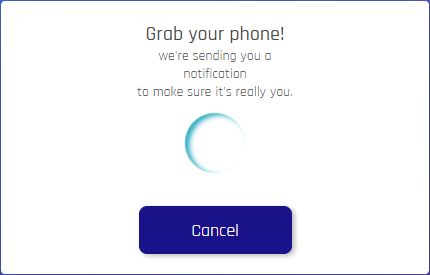
On the selected device:
Tap the authentication notification; HYPR Tap to Authenticate.
Tap Login.
Authenticate using a biometric method configured for your device.
You are logged in to the HYPR Control Center website on your computer.
Set up a target administrator
The following steps demonstrate how to configure the target administrator credentials on the HYPR server:
From the HYPR administrative Control Center, select the application that you will be using to target Bravura OneAuth in Bravura Security Fabric .
Under Advanced Config, click Access Tokens.
Click Create Token.
Enter a name for the token and choose API Token.
Click Next .
Click Select All to choose all permission types.
Click Next .
A Token Value will be displayed.
Copy this value down and store it in a safe place.
Caution
This value will not be visible after dismissing this prompt.
This value will be used for the administrator password for the Bravura OneAuth target in Bravura Security Fabric .
Check the checkbox and click Done .
When listing users from auto discovery, if you get an error message such as " Error: Failed to get users ", check the expiry date of the API Token to ensure that it is still valid.
See also
Refer to the following HYPR documentation:
https://docs.hypr.com/installinghypr/docs/control-center-users
Includes the following topics:
Control Center User Roles
Adding a Control Center User
Modifying a Control Center User
Set up policy management
Ensure that biometric authentication is enforced when using the HYPR mobile app.
The following steps demonstrate how this is enforced on the HYPR server for the native management settings:
From the HYPR Control Center, select the application that you will be using to target Bravura OneAuth in Bravura Security Fabric .
Click on Policy Management for the HYPR application.
Ensure that Native Management is set to On.
Ensure that the listed native authenticators for iOS and Android are also set to On .
There is also a Policy Management section on this page that allows you to set policies for using the mobile app native authentication and for PINs for 6-digit codes for use with the authentication and registration of the HYPR app.
For example, you can set policies for the following for the native authentication and PIN management:
completeMediumTransaction
defaultRegAction
defaultAuthAction
Use these policies to set single or multiple authenticators to match your policy requirements. The following is an example:
completeMediumTransaction
(1) **** PIN
defaultRegAction
(1) NATIVE + **** PIN
defaultAuthAction
(1) NATIVE(2) **** PIN
Install the mobile app and register users
Ensure that the HYPR mobile app has been installed on a user’s mobile device from the mobile device’s app store.
The following steps demonstrate how to register a user for Bravura OneAuth authentication:
From the menu panel on the left, click Choose an App.
Select Bravura OneAuth .
Under ADVANCED CONFIG, click Magic Links.
Enter the Username (email address) of the person for whom you want to generate a magic link.
The Token Validity Time In Seconds and Domain Prefix will be filled in for you.
Click Create Magic Link.
A "LINK CREATED" pop-up appears.
Under Web Link, click the Copy icon that follows the URL.
This will copy the magic link to your clipboard.
Paste and send the URL to the user via email or other method such as a Bravura Safe Share.
Tip
Do not send the magic link URL via chat, as the one-use link will be consumed and expire prematurely.
On the "LINK CREATED" pop-up, click Close.
Once the new user successfully pairs their mobile device using the magic link, they will be able to use Bravura OneAuth as a second factor (along with their master password) to authenticate to Bravura Security Fabric .
If a magic link expires, repeat the steps above to generate another magic link for the same user.
As the user, open the URL then click on the device that you want to pair (for example, smartphone) .
Targeting the system for Bravura OneAuth
For each HYPR system, add a target system in Bravura Security Fabric (Manage the System > Resources > Target systems):
Type is Bravura OneAuth
Address uses options described in the table below:
Options marked with a  are required.
Option | Description |
|---|---|
Script file: | The hard-coded script file that is used by the Bravura OneAuth connector (agthypr.con). (key: script) |
Server: | The domain name URL for the HYPR instance. (key: server) |
HTTP Network Proxy: | Specifies a network proxy URL to use for connecting. (key: proxy) |
Application ID: | The application ID within the HYPR instance that will be used to target. (key: appId) |
The full list of target parameters is explained in Target system options .
List groups is not supported for the Bravura OneAuth connector; ensure that it is unchecked.
Setting the administrator credentials
Set the administrator ID to any value since it is not used.
Set the administrator password to the token value from the API Access Token that was previously configured for the HYPR Application that will be used for the Bravura OneAuth target in Bravura Security Fabric , as outlined above in the section to set up a target administrator.
Adding Bravura OneAuth authentication to Bravura Security Fabric
Configure a custom authentication chain for Bravura OneAuth
You can integrate Bravura OneAuth authentication in Bravura Security Fabric by configuring a custom authentication chain, using the agent.pss authentication module with the Bravura OneAuth connector agthypr , to perform a challenge response operation.
The following steps demonstrate how to integrate Bravura OneAuth in Bravura Security Fabric :
Add the Bravura OneAuth target system.
Add a new custom authentication chain:
Add the Connector package agent (
agent.pss) module to the chain.In the module’s settings:
Set Target system to use for address and credentials to the target you created.
Set Password verification operation to ”Challenge response authentication”.
Enable the custom authentication chain.
Add the new custom authentication chain to the DEFAULT_LOGIN chain:
Click Policies > Authentication chains > Front-end login .
Disable the chain so that you can edit it.
Edit the
select_chainmodule to add the new custom authentication chain to the list of Available chains .Update and enable the DEFAULT_LOGIN chain.
Test challenge response authentication with Bravura OneAuth
The following steps demonstrate how to authenticate with Bravura OneAuth in Bravura Security Fabric :
Test the authentication by logging in as an end user associated with the target system.
You will be notified that an authentication request will be sent to the HYPR app on the user’s registered device,
Click Continue.
A Bravura OneAuth push notification for the authentication request will appear on the HYPR app for "Login" or "Deny" to approve or deny the request.
Tap Login to approve the authentication request.
The app will indicate that login is successful.
Access is then granted on Bravura Security Fabric .
Handling account attributes
You can view the complete list of attributes that Bravura Security Fabric can manage, including native and pseudo-attributes, using the Manage the system (PSA) module. To do this, select Bravura OneAuth from the Manage the system > Resources > Account attributes > Target system type menu.
For information about the native HYPR attributes managed by Bravura Security Fabric , consult HYPR documentation.
Bravura OneAuth user experience
The following topics show you how to install the HYPR app that powers Bravura OneAuth, pair your phone to Bravura OneAuth during login, and manage paired devices.
The HYPR  mobile app allows you to securely authenticate to Bravura Security Fabric from anywhere.
Download and install the HYPR mobile app by using one of the following links:
The HYPR app for Android is available for download from Google Play.
The HYPR app for Apple iOS is available for download from the App Store.
Follow the instructions on your mobile device to set up biometric authentication (Touch ID or Face ID).
After you have installed the HYPR app on your device and set up biometric authentication (Touch ID or Face ID) you can pair your phone to Bravura OneAuth during Bravura Security Fabric login.
Go to the Bravura Security Fabric login page in your browser. See Front-end login.
Log in.
Bravura OneAuth automatically detects if you do not yet have a mobile device registered for authentication.
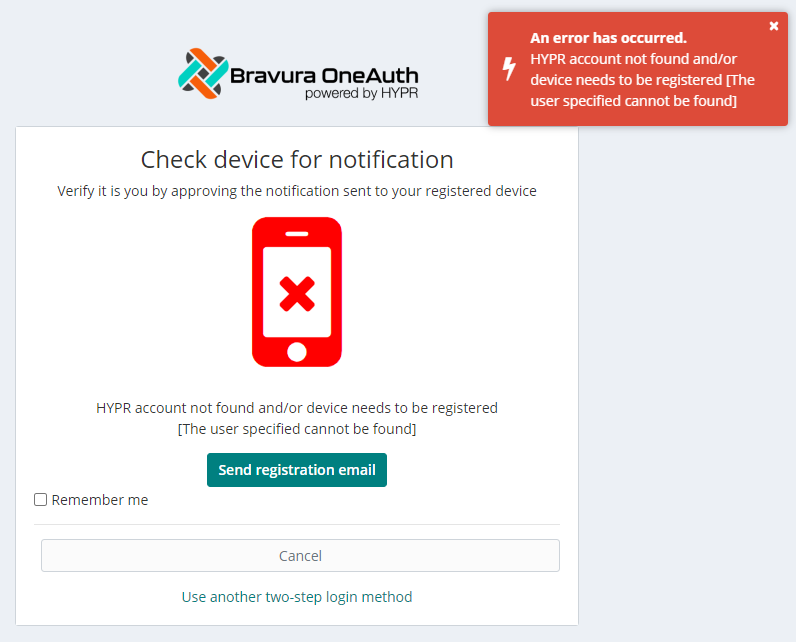
Click or tap Send registration email.
On your mobile device:
Open the Bravura Security Fabric " Bravura OneAuth device registration" email.
Tap Register Device.
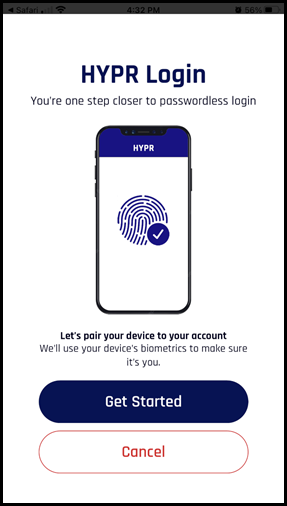
Tap Get Started.
A Bravura OneAuth web account is created using your email address, and your mobile device begins pairing:
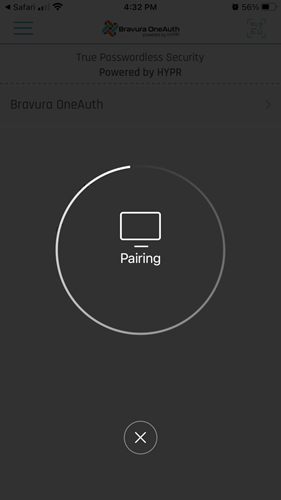
A prompt appears for biometric authentication:
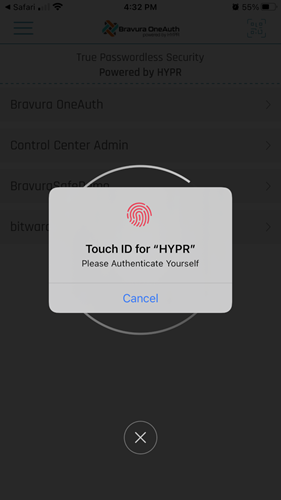
Note
In this example, the user has configured Touch ID. You may also use Face ID.
Authenticate to Bravura OneAuth using your mobile device's configured biometric method.
You may be prompted with PIN enrollment.
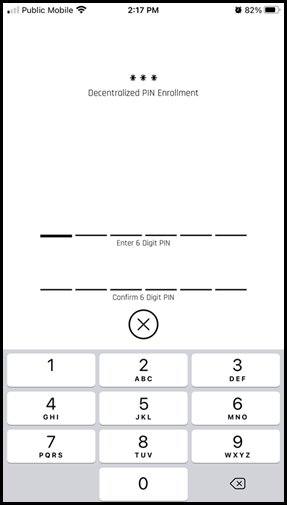
Enter and confirm a 6-digit PIN.
Pairing continues.
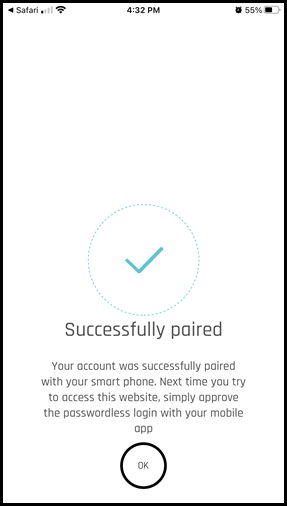
After successful biometric authentication, your device is successfully paired to your Bravura OneAuth web account.
Tap OK.
Bravura OneAuth displays your application web account.
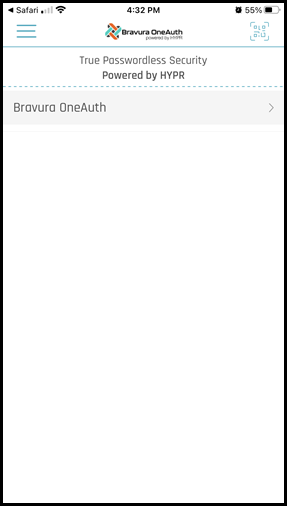
Tap the account row to view details; for example, the associated email address.
Note
You may register/pair multiple devices to your Bravura OneAuth web account via the Bravura OneAuth Device Manager.
You may now log in to Bravura Security Fabric using Bravura OneAuth and/or other authentication methods if configured by your product administrator.
After you have installed the HYPR app on your device and set up biometric authentication (Touch ID or Face ID) you can pair your phone to Bravura OneAuth via a magic link on your web browser. A magic link is usually sent by email from your product administrator.
On your computer:
Open your email to locate the message containing the magic link (URL) that was sent to you by your Bravura OneAuth administrator.
Click the link.
Bravura OneAuth opens.
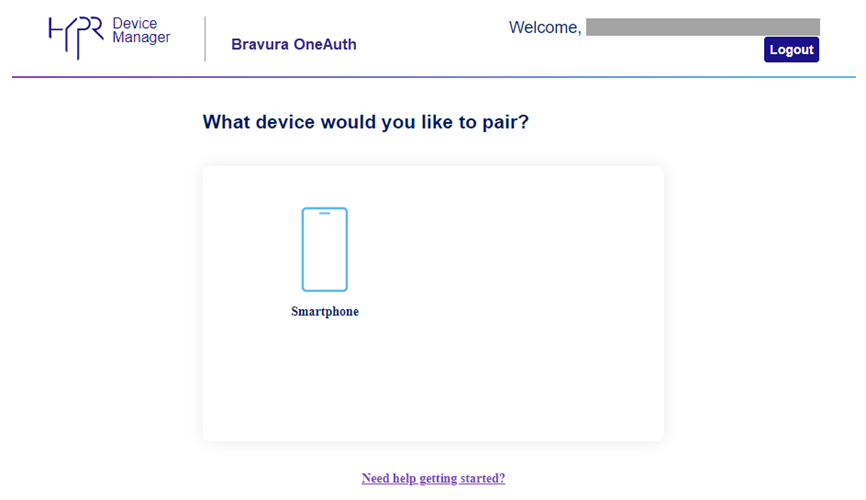
Under "What device would you like to pair?" click Smartphone.
A QR code and instructions are displayed.
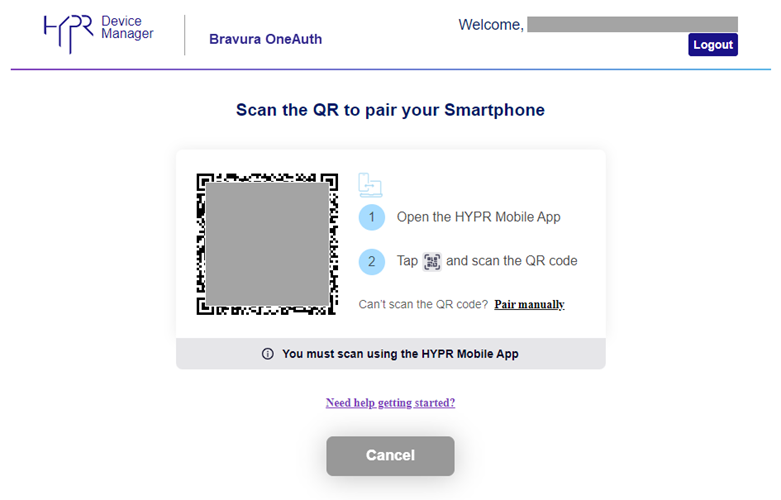
On your phone:
Open the HYPR
app.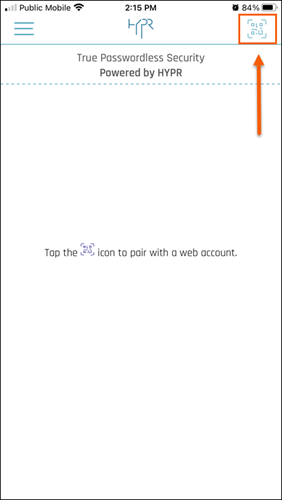
Tap the scan icon located at the top right.
Aim your phone's camera at the QR code on the computer screen.
Your phone will begin pairing to Bravura OneAuth and then prompt for biometric authentication.
Note
In this example, the user has configured Touch ID. You may also use Face ID.
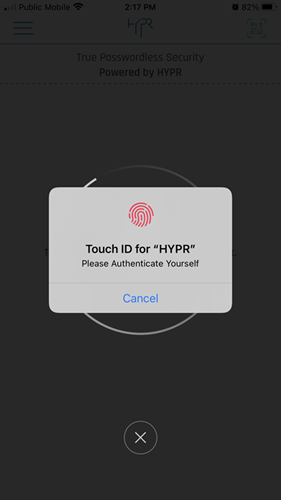
Authenticate to the HYPR app using a biometric authentication method configured for your device (Touch ID, Face ID).
You may be prompted with PIN enrollment.
The HYPR app will indicate that your phone has been successfully paired to your Bravura OneAuth account.
Tap OK.
The HYPR app shows the paired application account. If your phone is paired to more than one Bravura OneAuth account, they will all be listed here.
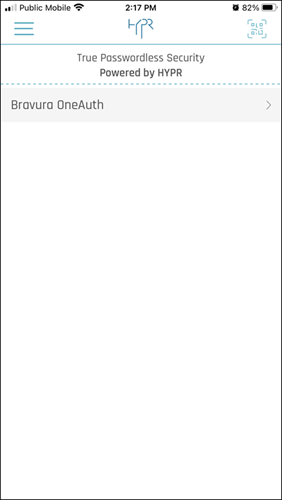
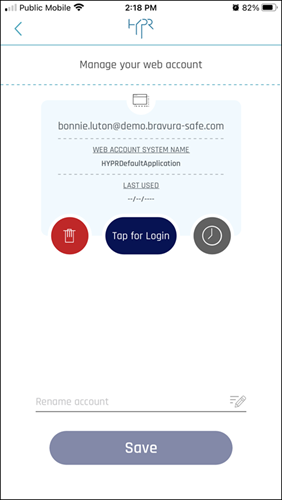
Click on an account to view details (such as your Username/email address).
Tip
You can delete an account from this screen.
On your computer:
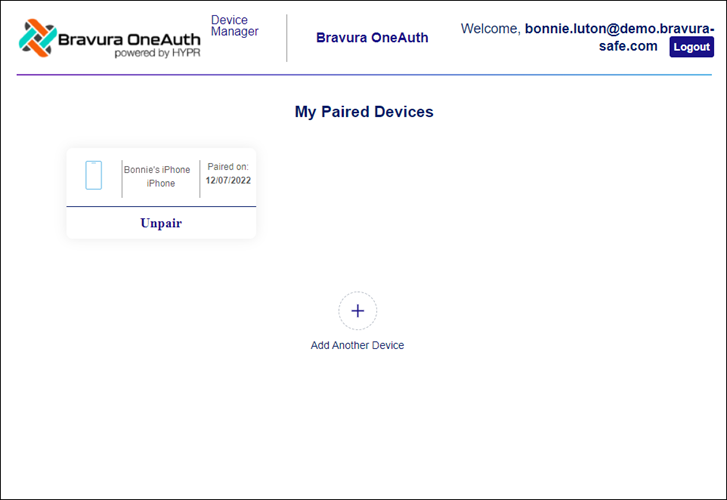
The Bravura OneAuth will display your paired device.
Tip
From this page, you can Add Another Device to your Bravura OneAuth account, or Unpair an existing device.
Click Logout to log out from Bravura OneAuth Device Manager and then close the browser tab.
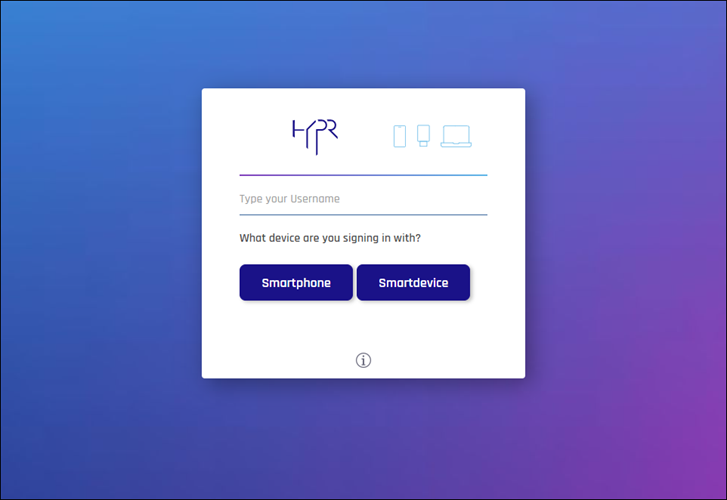
Once you have successfully paired your phone to your Bravura OneAuth account using the magic link, you will be able to use Bravura OneAuth as a second factor to authenticate to Bravura Security Fabric.
These instructions assume that Bravura OneAuth has been enabled for your enterprise and the following steps have been completed:
Set up biometric authentication (Touch ID or Face ID) on your mobile device
On your computer or mobile device
The steps that you take to identify yourself and authenticate and then carry out tasks can vary according to how your organization customizes the interface between Bravura Security Fabric , the corporate intranet, and other applications.
In general, the front-end login process works as follows:
Go to the URL for the Bravura Security Fabric Log in page in your browser.

At the login page, type your:
Login ID on a system on which you have an account (for example, your Windows user name)
or
Profile ID (this is your unique ID in Bravura Security Fabric )
Depending on the configuration, you might be able to select a system from a drop-down list.
Click Continue.
Authenticate to Bravura Security Fabric .
Depending on configuration and your access privileges, Bravura Security Fabric may display a list of authentication methods to choose from, or direct you to a particular method.
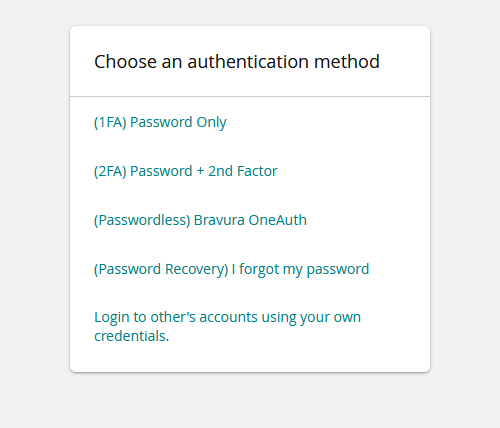
Click the Bravura OneAuth option.
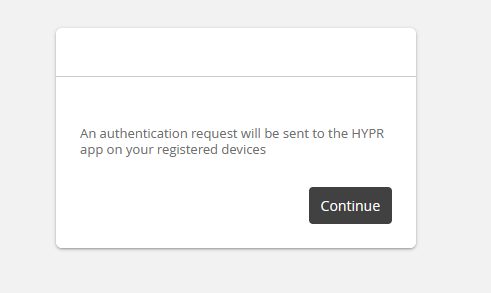
Click Continue.
The authentication request is sent to the HYPR app on your registered device.
If you have not yet paired your mobile device, see Pair your device to Bravura OneAuth during Bravura Security Fabric web login.
On your phone
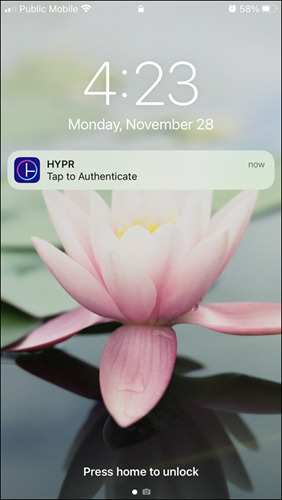
Tap the HYPR authentication notification; HYPR Tap to Authenticate.
If the notification appears on your phone's lock screen, open the HYPR app and unlock your phone to proceed.
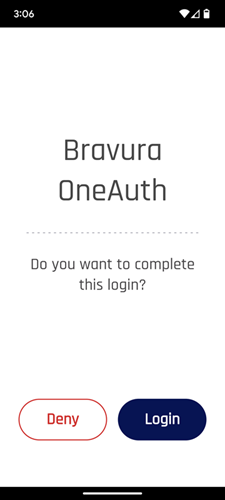
Tap Login.
To cancel, tap Deny.
You are prompted for biometric authentication (Touch ID or Face ID).
Authenticate to the HYPR app using a configured biometric method for your device.
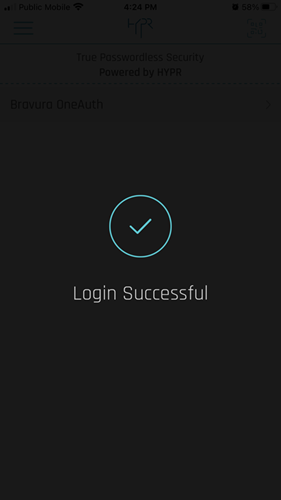
After successful multi-factor authentication including Bravura OneAuth, you are logged in to Bravura Security Fabric on your computer.
This topic shows you how to replace a device paired with Bravura OneAuth, either as a planned replacement or after an unplanned loss of the old device.
If you want to replace a mobile device and still have access to the old one, follow these steps.
Transfer all data from your old device to your new device. The exact procedure will vary depending on the operating system.
Set up biometric authentication (e.g. Touch ID, Face ID) on your new device.
This is typically done in device settings. Instructions vary by operating system.
If you have been using an authenticator app (e.g., Google Authenticator, Microsoft Authenticator, etc.) for two-step login (2FA), check that TOTP codes were automatically transferred to the new device.
If the codes were not automatically transferred to the new device, manually transfer/export authenticator accounts from your old phone to your new phone. Instructions vary based on the authenticator app(s) you are using. Perform this task for each authenticator, as required.
Access the Bravura OneAuth Device Manager to de-register your old device and register your new device:
You may register/pair multiple devices to your Bravura OneAuth web account.
If you want to replace a mobile device and do not have access to the old one, follow these steps.
Set up biometric authentication (e.g. Touch ID, Face ID) on your new device.
This is typically done in device settings. Instructions vary by operating system.
If you were using an authenticator app(s) for two-step login (2FA) on your old device; for example, Google Authenticator, Microsoft Authenticator, etc.:
Install the desired authenticator app(s) on your new device.
Set up authenticator accounts/ TOTP codes again for use in 2FA.
Log into Bravura Safe using another two-step login method.
Warning
If do not have an EMAIL option and any previously used AUTHENTICATOR APP accounts/TOTP codes were not successfully transferred from your OLD device to your NEW device, you will not be able to log in to Bravura Security Fabric . Please contact Bravura Security Support. A manual change to the Bravura Security Fabric database is required to restore Email PIN as an available two-step login (2FA) method, after which you can select EMAIL.
Access the Bravura OneAuth Device Manager to de-register your old device and register your new device:
You may register/pair multiple devices to your Bravura OneAuth web account.
This topic shows you how to manage mobile devices that are registered/paired to your Bravura OneAuth account.
Access the Bravura OneAuth Device Manager. If you have access to Bravura Safe, use the following procedure. If you do not have access to this feature, contact your product administrator to send you a magic link to register a device.
To access Bravura OneAuth Device Manager from Bravura Safe:
Log in to the Bravura Safe web interface.
Click Teams.
Select the Enterprise Team from the Team drop-down (i.e., your main/global company team).
Click the Options tab.
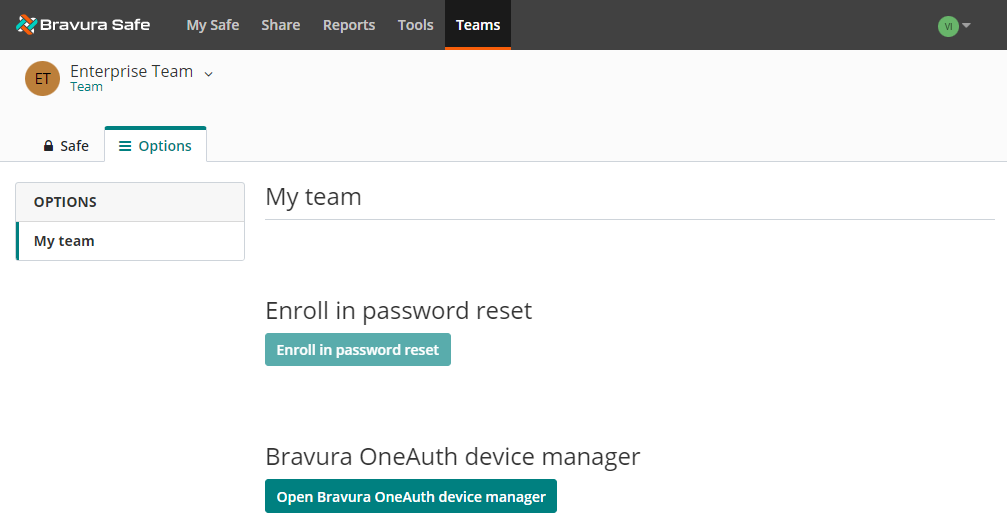
Click Open Bravura OneAuth device manager.
A confirmation message appears.
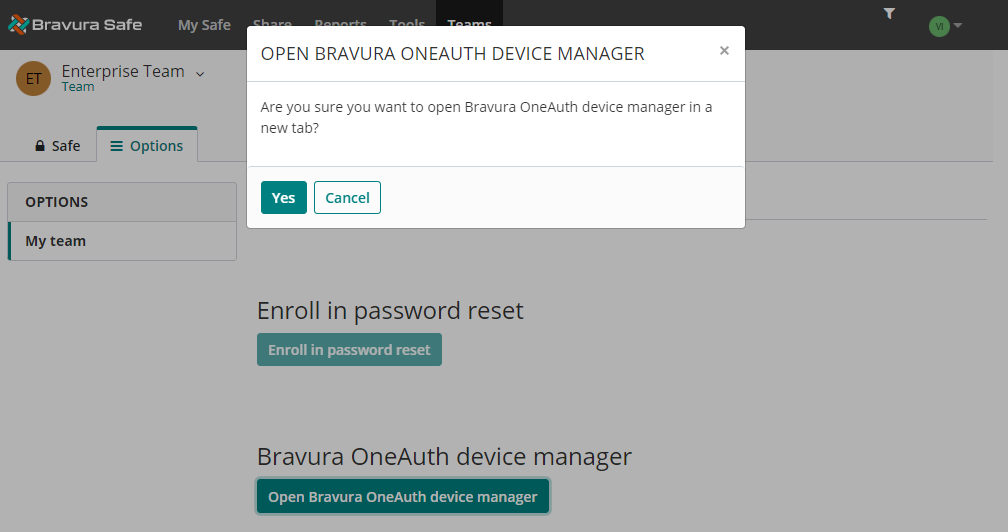
Click Yes.
The Bravura OneAuth Device Manager opens in a new browser tab showing all devices currently paired to your Bravura OneAuth account.
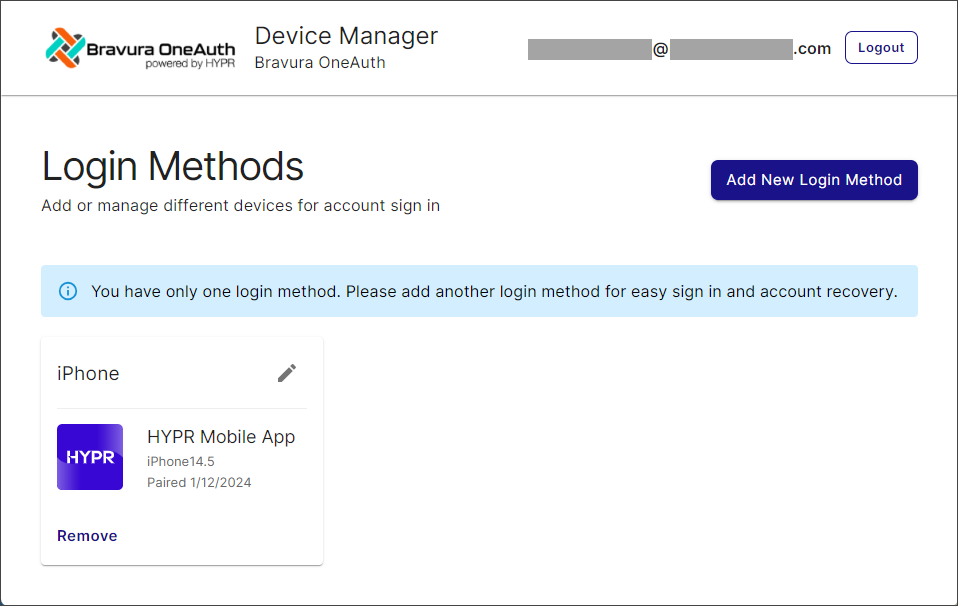
From here you can De-register/unpair a device and Register a new device.
To de-register/unpair a device:
Click Remove beneath the desired device.
A confirmation message appears.
Click Remove.
The selected device is de-registered/unpaired from your Bravura OneAuth account, removed from your Device Manager Login Methods list and removed from MY WEB ACCOUNTS in the Bravura OneAuth app on your mobile device.
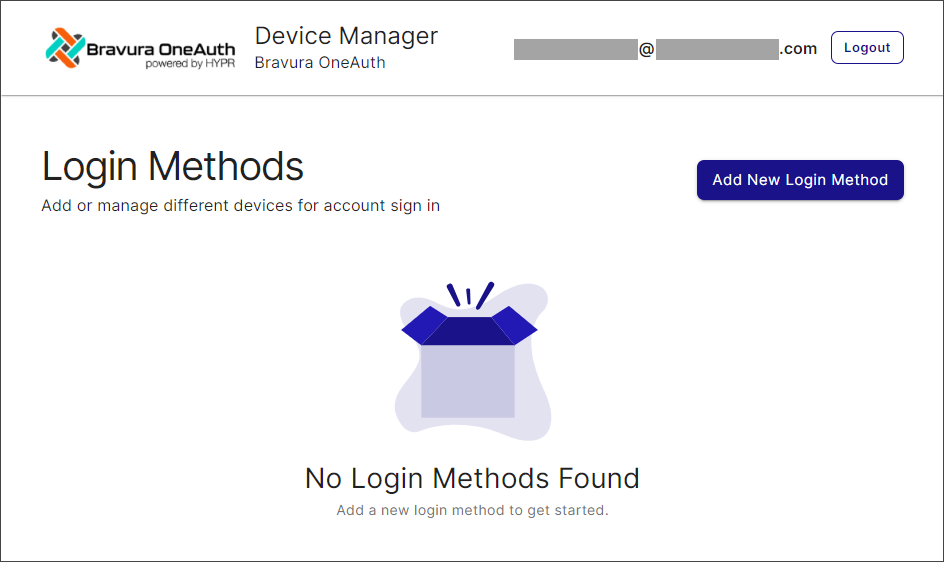
If the removed registered device was your only one, the Device Manager UI displays "No Login Methods Found":
This procedure assumes you have installed the HYPR app on your new mobile device.
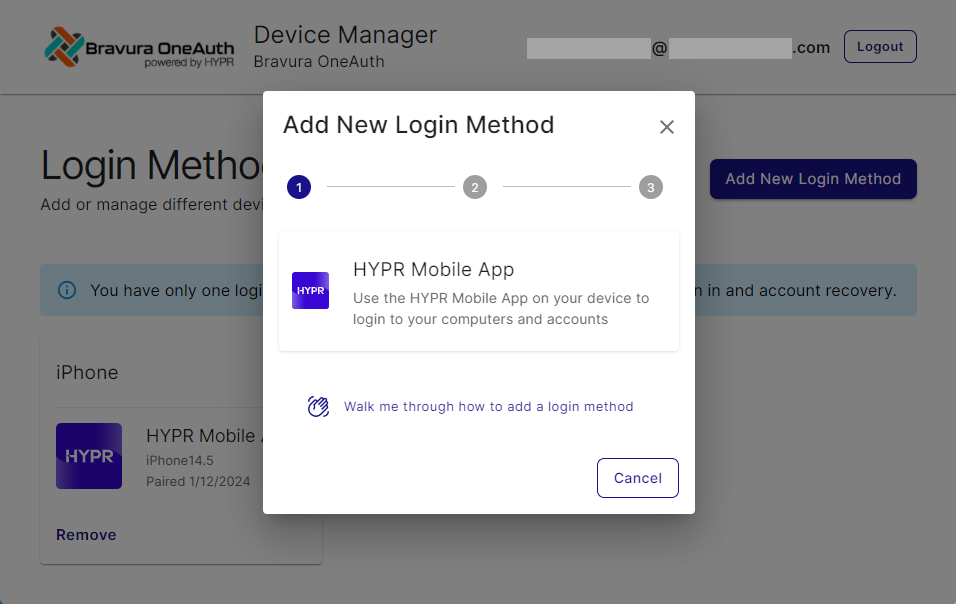
From the Bravura OneAuth Device Manager, click Add New Login Method.
A pop-up appears:
Tip
To see a walk-through of all steps included here, click Walk me through how to add a login method.
To proceed with adding a new login method, click HYPR Mobile App.
A QR code appears:
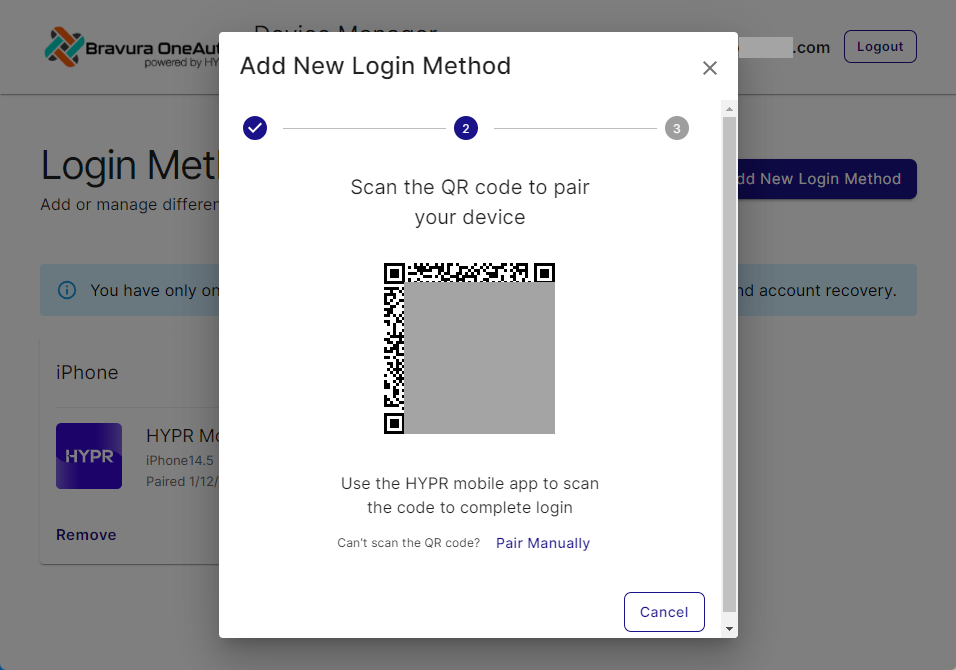
Follow on-screen instructions to pair your device.
Note
If you are having an issue scanning the QR code, click Pair Manually and follow the on-screen instructions:
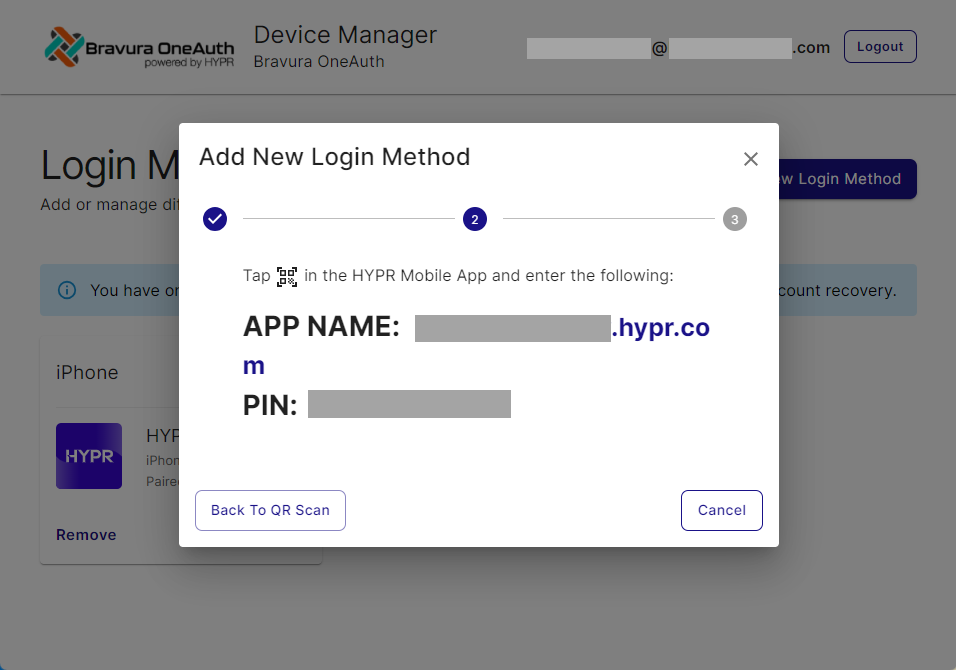
Once your mobile device is successfully paired to your Bravura OneAuth Device Manager displays the "Login Method Added Successfully!" message.
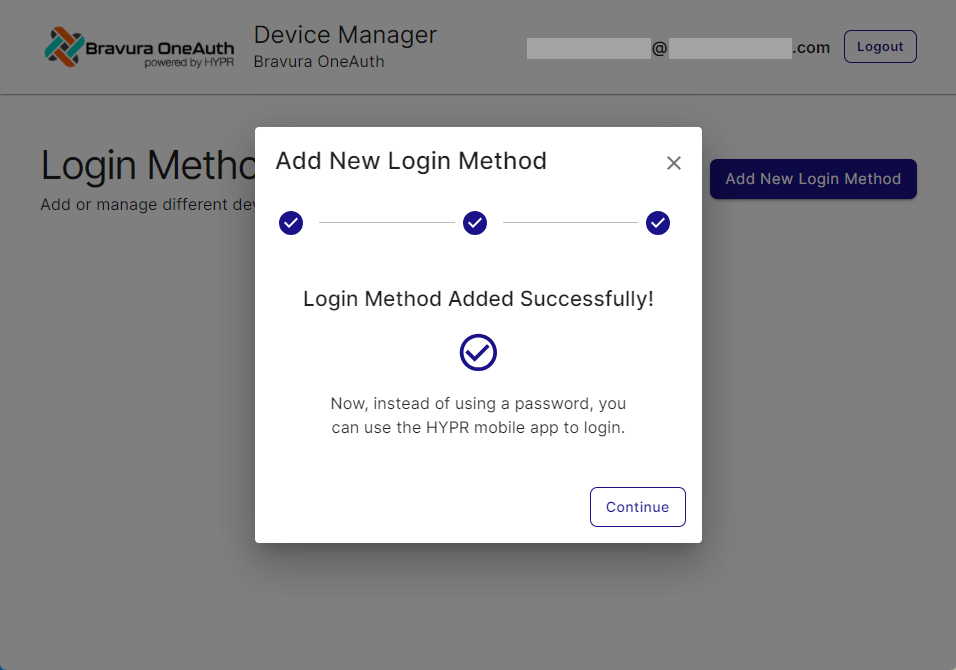
Once pairing is successful, your new device will appear listed under Login Methods. You may now use this device for passwordless authentication to Bravura Safe using Bravura OneAuth.