About Login Assistant
Login Assistant enables password reset and account unlock from the Windows login screen by launching a restricted browser session associated with a secure kiosk account. It supports both on-network and remote users, and integrates with multi-factor authentication as configured in Bravura Pass.
Login Assistant components and architecture
Login Assistant is composed of several components that work together to provide secure password reset from the Windows login screen:
The secure kiosk account (SKA), a restricted Windows account used to launch the password reset session.
Windows Credential Provider extensions, which present a Change my password tile or link on the login screen.
The
runurlclient, which manages connectivity and starts the locked-down browser.The Local Reset Extension (pslocalr), which refreshes the local password cache after a successful password change.
The following sections describe each component in detail.
Credential Provider
The Credential Provider (pscredprov.dll) adds a Change my password tile to the Windows login screen on Windows 8 and later. When a user selects the tile:
Windows logs in to the secure kiosk account (SKA).
The
runurlprogram starts within the SKA session.A locked-down browser opens at the configured Bravura Pass URL.
Because the Credential Provider runs under the SKA, it can launch additional programs such as VPN clients and the Local Reset Extension (pslocalr). However, it requires an extra click to access (users must select Switch User or Other Credentials first) and does not appear on the Unlock screen if Fast User Switching is disabled.
Credential Provider Wrapper
The Credential Provider Wrapper (pscredprovwrap.dll) wraps the built-in Windows credential provider and adds a Forgot my password link to the login screen. It provides a more seamless user experience similar to the legacy GINA integration and works on the Unlock screen.
The Credential Provider Wrapper runs under the SYSTEM account rather than the SKA. This means it cannot launch VPN clients or other programs that require the SKA context. Use the Credential Provider Wrapper only when VPN integration and local password cache reset are not required.
Note
The Credential Provider Wrapper filters out other third-party credential providers (except the RSA credential provider). If other credential providers are required alongside Login Assistant, use the Credential Provider instead.
The runurl program
The runurl program is the core Login Assistant client. It performs the following functions:
Restricts keyboard and mouse input to lock down the workstation during the password reset session.
Detects available network connections, including wired, WiFi, and aircard or USB Internet devices.
Starts and stops VPN connections using the configured VPN client.
Tests connectivity to the Bravura Pass server before opening the browser.
Opens a locked-down browser window pointed at the Bravura Pass password change URL.
In version 12.5.0 and later, runurl and the notification client use the Microsoft Edge WebView2 Runtime for the browser window. In versions before 12.5.0, runurl uses an embedded Internet Explorer browser (webbrowser.dll) that must match the version of the Login Assistant installation. The embedded browser uses the Internet Explorer Options from the operating system for configuration, which in domain-joined workstations can be managed through Group Policy.
Local Reset Extension (pslocalr)
The Local Reset Extension (pslocalr.ocx) is an ActiveX control that refreshes the local password cache after a successful password change. It does not directly reset the cached password. Instead, it calls a helper DLL that uses the Windows usercheck.exe utility to perform a login as the user with the new password. If the workstation can reach a domain controller that has already received the updated password, the local cache is updated.
For more information about how the cache update process works, see Local password cache behavior.
VPN client integration
Login Assistant does not include a VPN client. The stock Login Assistant requires a command-line VPN client or a VPN that runs as a Windows service. The following VPN integrations are available:
Cisco AnyConnect — supported in the stock Login Assistant since version 11.1.1.
Palo Alto GlobalProtect — available as a custom build. Contact Bravura Security support for details.
OpenVPN and Windows built-in SSTP — available as a custom build.
For VPN clients that run as a service (such as AnyConnect or GlobalProtect), the SKA help account must be granted permission to start and stop the service. See Configure VPN on client side for VPN configuration details.
When specifying the VPN connect and disconnect programs in the registry or at install time, use the absolute path to the binary. If a relative path is used and the executable is not in the system PATH, runurl may fail to start the VPN.
Secure kiosk account deployment options
There are two main methods that you can use to implement a secure kiosk account (SKA):
Domain-level SKA
A domain-level account is created in Active Directory, typically with a
helplogin ID. A restrictive security policy is applied to prevent access to operating system features and network resources. Users authenticate to this account only indirectly through the Login Assistant tile.With a domain-level SKA, the Login Assistant binaries and most configuration are stored in a network share accessible from all workstations. Only the help account creation and optionally its startup script or registry configuration need to be propagated to individual workstations. This centralizes maintenance and simplifies updates. A domain-level SKA does not require a VPN connection, which reduces the number of potential failure points.
Workstation-level SKA
A local help account is created on each workstation. The account is granted the Log on locally right and configured so that logging in launches the secure kiosk environment. This avoids dependency on domain connectivity at login time.
A workstation-level SKA is the more common deployment for remote users who need to reset passwords while off the corporate network. It requires a VPN connection to reach the Bravura Pass server and domain controllers, which adds configuration complexity but supports the full Self Service Anywhere use case.
Both SKA types work with the Credential Provider extension.
Credential Provider integration for Windows
The Bravura Pass Credential Provider extension provides a Change my password tile on the Windows login screen. Users can click Switch User or Other Credentials to access the tile.
Selecting the tile or logging in directly with the help account launches:
A restricted SKA session
The runurl program
A locked-down browser pointed at the Bravura Pass password change URL
Bravura Pass detects the request as originating from an SKA and loads a special constrained interface. Users then authenticate using configured methods (e.g., security questions, mobile QR verification).
The Credential Provider extension works with both the local and domain-level help accounts.
Note
Password-expiry prompts, account-locked prompts, and similar scenarios are not supported by the Credential Provider tile, but are supported when users attempt to log in directly and are redirected to Login Assistant.
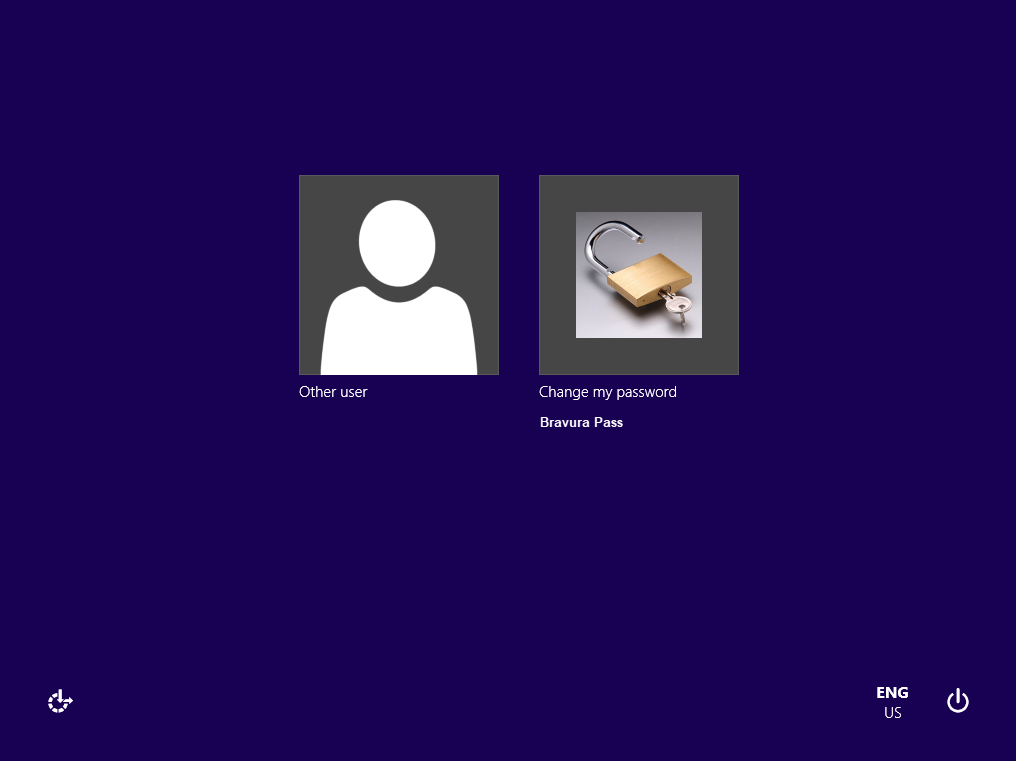
When the user clicks on the tile or logs in with the help account, Login Assistant starts a web browser with the help account’s limited permissions and security profile.
Remote access support
Login Assistant supports off-network scenarios where users cannot authenticate to the corporate domain. When launched, the client checks for Internet connectivity using the external URL configured during installation.
If no connection is detected, users are prompted to choose a connection method:
Wired - attempt another direct connection
WiFi - allow the user to select a WiFi network
AirCard - open the third-party connection utility for a wireless broadband device
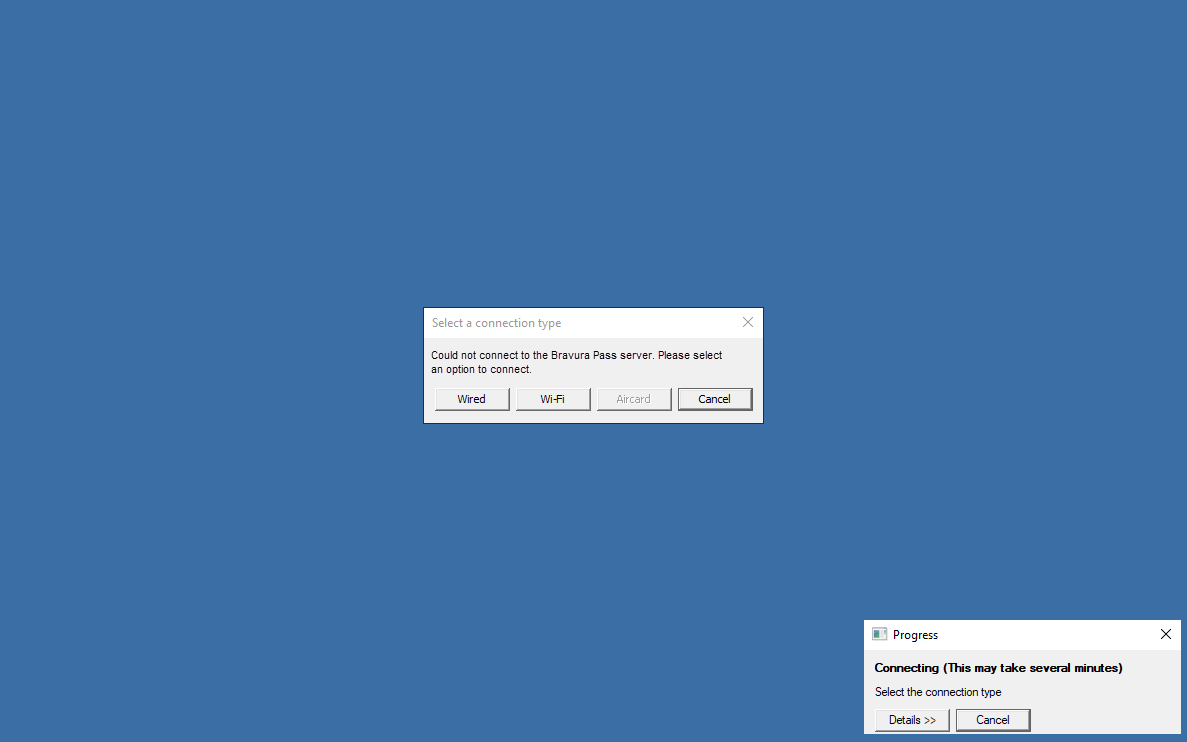
If WiFi is selected, the Login Assistant displays a list of detected networks, allowing the user to select one and potentially enter a network key.
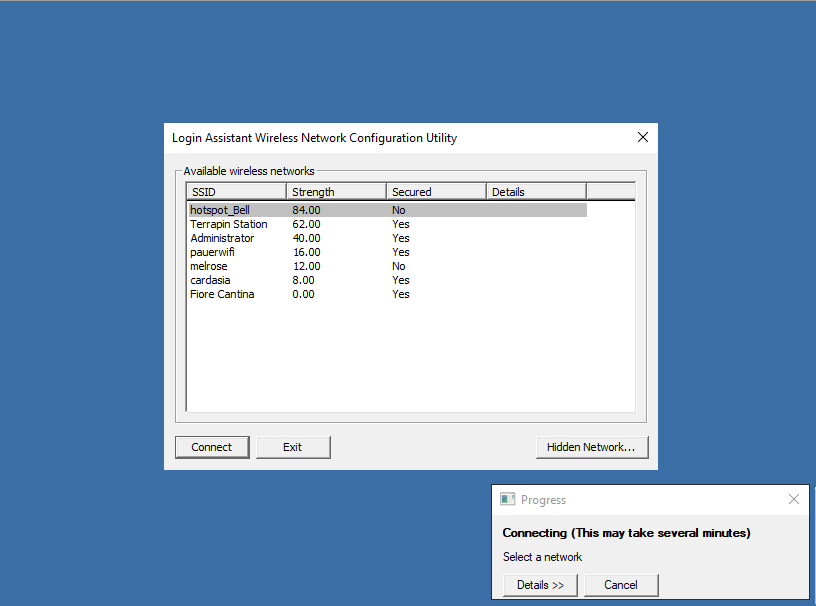
A Hidden Network... button allows the user to specify an SSID and password for a hidden wifi connection.
If AirCard is selected, the Login Assistant will display the third party application. Once the user has connected the application will disappear.
Once connected, Login Assistant operates normally and opens the Bravura Pass web interface.
What happens when users log in
When Login Assistant is triggered:
The
runurlprogram starts from either a shared network location (domain-level SKA) or the local workstation (workstation-level SKA).The
runurlprogram restricts input events (keyboard, mouse) to lock down the workstation.A browser opens in kiosk mode at the designated Bravura Pass URL.
The user is authenticated using the configured MFA sequence (e.g., security questions + mobile app).
The user resets their password or unlocks their account.
Bravura Pass synchronizes the password with the corporate domain and any connected systems.
The browser closes, returning the user to the Windows login screen.
The user logs in with their new password.
For a detailed technical view of the connection sequence, including connectivity checks, VPN retry logic, failure points, and error codes, see Login Assistant connection process.
Login ID passthrough
When possible, Windows passes the user's domain login ID to Login Assistant so users do not have to re-enter it. This occurs when:
Users press Ctrl+Alt+Del then click Change a Password .
The workstation is locked and users enter an incorrect password.
Users attempt to unlock an account that is locked.
Users enter their (soon-to-expire or expired) password to log in.
Note
The soon-to-expire, expired, account-locked and password-change cases are not supported by the Credential Provider.
Since Login Assistant is most often used for forgotten passwords, a secure and easy-to-use second authentication method should be configured for Login Assistant users that does not include password authentication. One example is requiring users to answer their security questions, followed by QR code verification using the mobile Bravura One app.
The figure below illustrates the workflow when the Login Assistant with Credential provider is deployed.
User experience
When using the Login Assistant on a corporate network:
The user opens their workstation to the user login screen.
The user triggers the Login Assistant by clicking a "forgotten password" tile or link on the user login screen.
Login assistant opens a restricted browser session with the appropriate Bravura Pass application URL.
The user authenticates to Bravura Pass using the configured multi-factor authentication.
The user clicks Change Passwords on the Bravura Pass home page and successfully changes their password.
Bravura Pass synchronizes the new password with the corporate domain and any other accounts attached to the user’s Bravura Pass profile.
The user closes the web browser and is returned to the user login screen.
The user logs in to their workstation using the new password.
The workstation validates the new password against the domain and updates the locally cached credential (if the Local Reset Extension is installed).
Local password cache behavior
When the Local Reset Extension is not installed, a user must manually log out of Windows and then log back in to reset their locally cached password after using the SKA to change their password within Windows by pressing Ctrl+Alt+Delete and then clicking Change password.
If a user uses the SKA to change their password and the Local Reset Extension is installed, they are not required to log out of Windows and then log back in.
How the local password cache update works
When a user changes their password through Bravura Pass from the Login Assistant, the following sequence occurs:
The user enters the new password in the Bravura Pass browser session.
Bravura Pass sends the password change to the configured target systems, including the Active Directory domain to which the workstation is joined.
If the password change succeeds on the AD target, the Local Reset Extension (pslocalr) ActiveX control is rendered on the password change results page. The control receives the encrypted new password in its metadata.
The Local Reset Extension loads and executes (if permitted by the workstation Internet Options or browser security settings).
The extension performs a login system call using the new password. If the workstation can reach the domain controllers through the local network or an established VPN connection, and the contacted domain controller has already received the updated password, the local password cache is updated.
After a successful cache update, any running programs and services may still use the old password. It is recommended to restart the workstation or at least log out and log back in after a password reset. To have the Local Reset Extension automatically log out the user and return them to the login screen after a successful cache update, add the following setting to cgilocalr.cfg:
"useLockWstn" = "true";
The cache update can fail if:
The workstation is not joined to the domain configured in Bravura Pass as the target for the user's account.
The VPN tunnel does not allow traffic to the domain controller ports required for password synchronization.
The domain controller contacted by the workstation has not yet received the password change notification from the domain controller where Bravura Pass performed the reset. See Password propagation delays between DCs for mitigation strategies.
Domain controller port requirements
For the local password cache resync to succeed, the workstation must be able to reach the domain controllers on the following ports through the VPN tunnel or local network:
Port 443 (HTTPS) — connection from the SKA browser to the Bravura Pass server (or port 80 for HTTP).
Port 53 — DNS, for resolving the domain controller hostname.
Ports 88 and 464 — Kerberos authentication. Port 464 carries the actual password synchronization.
Ports 389 and 636 — LDAP and LDAPS. Ports 3268 and 3269 for Global Catalog.
Port 123 — NTP (network time synchronization).
Port 135 and the dynamic RPC range (49152–65535) — RPC.
Port 445 — SMB.
To determine which domain controller the workstation connects to, run echo %LOGONSERVER% on the workstation under both the administrator account and the help account. Use nltest /dsgetdc: /force if the results differ.
Login Assistant connection process
When a user selects the Login Assistant tile on the Windows login screen, the runurl program follows a multi-step process to establish connectivity and open the Bravura Pass interface. Understanding this process helps identify where failures occur.
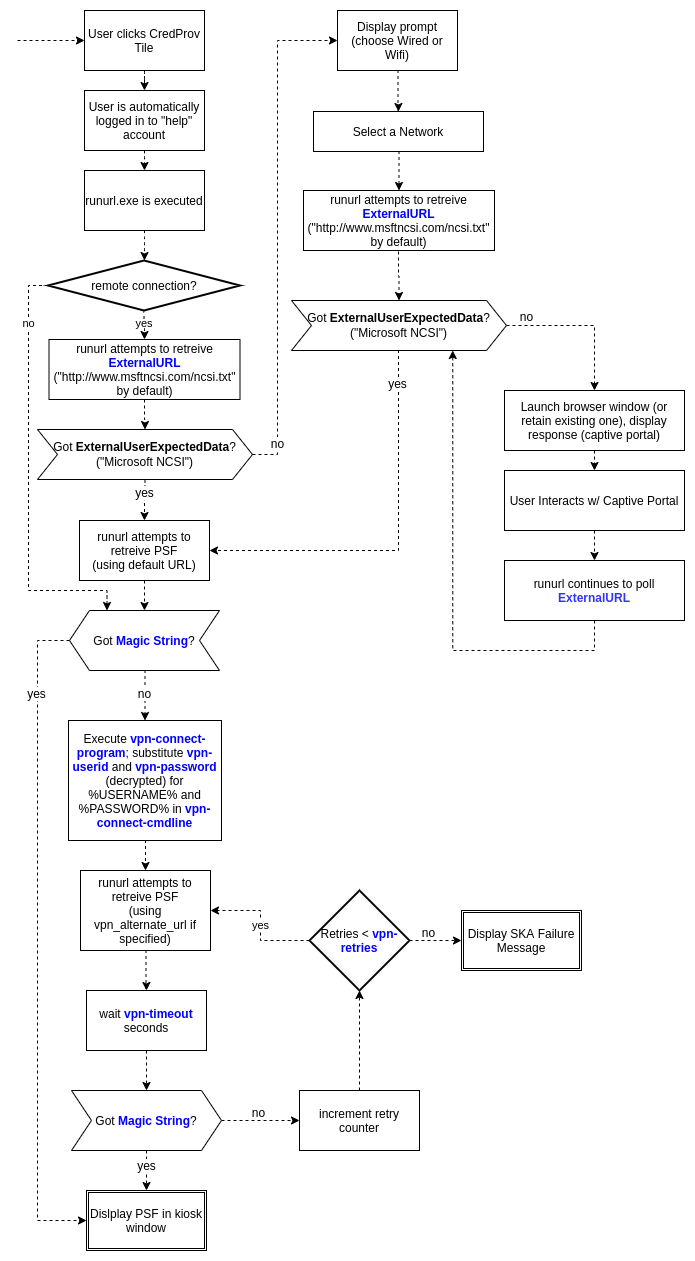
External URL connectivity check
The runurl program first checks whether the workstation has Internet connectivity by requesting the configured external URL. If the request succeeds, runurl determines that a network connection is available and proceeds to check for the Bravura Pass server.
The default external URL changed between product versions:
Before version 10.1.1:
https://google.caVersion 10.1.1 and later:
https://www.msftconnecttest.com/connecttest.txt
If the external URL is not reachable in your environment (for example, if the Login Assistant is deployed only on an internal network that is firewalled from the Internet), you can specify a different URL at install time using the msiexec EXTERNALURL property, or after installation by changing the value in the Login Assistant registry key.
Bravura Pass server detection
After confirming network connectivity, runurl attempts to reach the configured Bravura Pass URL. It downloads the login page and checks for specific marker strings that identify the page as a valid Bravura Pass instance. These marker strings change between product versions.
If runurl cannot reach the Bravura Pass server directly, it starts the configured VPN client and retries the connection. The number of retries and the delay between attempts are controlled by the VPN_TIMEOUT and VPN_RETRIES parameters configured at install time or in the registry.
If all retries are exhausted without a successful connection, runurl displays an error page (error 8) in the browser.
Common failure points
Failures can occur at several points in the connection process:
External URL check fails - The workstation has no network connectivity. The user is prompted to select a connection method (wired, WiFi, or aircard).
VPN does not start - The SKA help account does not have sufficient privileges to start the VPN client or service. See Configure VPN on client side for VPN configuration requirements.
VPN connects but server is not reachable - The VPN tunnel may not route traffic to the Bravura Pass server, or DNS resolution may fail within the tunnel.
Server is reachable but marker strings are not found (error 8) — The Bravura Pass instance may be a different version than the Login Assistant, or IIS may not be rendering the login page correctly. There is no separate log entry distinguishing a connection failure from a marker string mismatch; both result in a "Failed to call HttpGetData" message in the
runurllog.TLS certificate error (error 25) - The workstation does not trust the TLS certificate on the Bravura Pass server, load balancer, or WiFi captive portal. This can also occur if the certificate revocation list (CRL) server is not accessible, causing a timeout before the error is displayed.
Browser opens but page has no CSS or JavaScript - In versions before 12.5.0, this can be caused by a mismatched version or incorrect bitness (32-bit vs 64-bit) of
webbrowser.dll. Check the IIS logs on the Bravura Pass server to determine why static files are not being served.
To diagnose connection issues, enable debug logging by setting the debugska registry value to 1 under HKLM\Software\Bravura Security\Login Assistant. This increases the verbosity of the Details panel in the runurl progress window. You can also use the logutil program to capture detailed log output. See Logging SKA remote connection failure for more information.
Expected Login Assistant behaviors
The following behaviors are by design and do not indicate a problem with the Login Assistant installation.
RDP auto-login is disabled
When the Credential Provider is installed, Windows disables auto-login for RDP sessions, even if the RDP client has saved credentials for the workstation. This is required for the Credential Provider tile to appear during RDP sessions.
Saving RDP credentials is not recommended in production environments. Cached RDP passwords can be compromised if an attacker gains even momentary access to the machine that stores them.
VPN connection does not start when Bravura Pass is Internet-accessible
If the Bravura Pass URL configured in Login Assistant is accessible over the Internet, Login Assistant does not start the VPN connection. This is expected behavior: Login Assistant starts the VPN only when it cannot reach the Bravura Pass server directly.
To force VPN usage for remote users, configure the Login Assistant URL to use a fully qualified domain name (FQDN) that resolves only within the VPN tunnel. This FQDN should point to the internal IP address of the Bravura Pass server or load balancer.
VPN credential variables are case-sensitive
When specifying VPN credentials in the VPN_CONNECT_CMDLINE parameter, the placeholder variables %USERID% and %PASSWORD% must be in uppercase. These variables are case-sensitive and are not recognized in lowercase or mixed case.
Error page appears without CSS styling
When the VPN connection is interrupted, or a TLS certificate error occurs, the runurl error page may appear without CSS styling. This is expected because the error page is displayed when there is no active connection to the Bravura Pass server, so the stylesheets cannot be loaded.
To provide a styled error page, implement a local noconnect.html file that contains embedded CSS and images. See Modify the noconnect page for instructions.
Transient errors in logs during startup
During startup, runurl may log errors as it repeatedly attempts to access busy system resources such as registry entries. If the errors are followed by a successful result, they can be safely ignored.

In this example, runurl attempted to read a registry entry four times before succeeding. The initial failures do not indicate a problem.
Testing Login Assistant over RDP
When testing Login Assistant on a remote workstation or virtual machine over RDP, keyboard shortcuts such as Ctrl+Alt+Del are intercepted by the local workstation rather than being sent to the remote session. To send this key combination to the remote workstation:
On the remote workstation, open the on-screen keyboard: click Start, type
osk, and press Enter.Hold Ctrl+Alt on the physical keyboard, then click Del on the on-screen keyboard.
Minimize the on-screen keyboard so it does not cover the Login Assistant interface.
Click Change a password (or the appropriate option for your configuration) to access the Login Assistant.
Login Assistant best practices
Deploy Login Assistant to all workstations to provide consistent access to self-service resets.
For remote workforces that rely on cached credentials, integrate Login Assistant with the corporate VPN and deploy the Local Reset Extension.
This process is further described in Self Service Anywhere: Login Assistant for remote users.
Configure a secure second factor that does not rely on password authentication (e.g., security questions + QR code via the mobile Bravura One app).
Maintain strict lockdown policies for SKA accounts to minimize the attack surface.
When VPN client software is updated on the server or workstations, retest the Login Assistant integration in all deployed environments. VPN vendors regularly update their clients and servers for security, which can change startup arguments, permissions, or routing behavior and break a previously working configuration.
Exclude the SKA help account from any Group Policy Objects (GPOs) that delete inactive local accounts. If a cleanup GPO removes the help account, the Credential Provider tile logs the user into an unsecured guest account with the same name. The Login Assistant must be reinstalled to recover.
The first time the help account logs in after installation, Windows creates the account profile (user directory and registry hive), which can take 1 to 10 minutes depending on hardware. To reduce this delay for end users, run a command under the help account after installation (for example,
runas /user:help calc.exe) to trigger profile creation before deployment.To hide the last logged-in username from the Windows login screen, set the registry value
HKLM\SOFTWARE\Microsoft\Windows NT\CurrentVersion\Winlogon\DontDisplayLastUserNameto1(REG_SZ or REG_DWORD).After a successful password reset, the SKA logout may take longer than expected if Windows is attempting to install operating system updates. This is normal behavior. The reduced privileges of the secure kiosk account can delay the update process.