Implementing access certification
To implement access certification using Bravura Security Fabric:
Add target systems that you want to be able to include in the certification process.
Enable the Allowed in the certification process option for each target system whose users can be reviewed.
Ensure that target systems have appropriate descriptions and help URLs specified, to assist reviewers in identifying appropriate entitlements.
Manage groups if you want them to be included in the certification process.
The Allowed in the certification process target system option determines whether the system’s managed groups are selectable when starting a certification campaign . The target system option is disabled by default. You can apply a global override or individual target system override to allow managed groups to be included in certification, regardless of whether the parent target system is allowed in the certification process.
Note
The target system option is not accessible in Bravura Privilege, and target systems are not allowed in the certification process by default, so you must apply either the global override or an individual target system override. You can enable managed groups to be certified when a target system is not allowed in certification process .
Optional: Define user classes to divide the user population into segments, so that you can assign a reviewer for each segment.
Optional: Set up roles and segregation of duties rules to be certified.
When entitlements are assigned to a user via a role, they can only be certified through that role. Reviewers cannot view or certify the member entitlements individually.
Optional: Define profile information that you want reviewers to review.
Reviewers can view user profile information to help them in their review. You can include basic information, such as name, email address, manager, by default.
If you define additional profile and request attributes, you must ensure that reviewers have permission to view information about users they are reviewing, by defining the control of user groups over attribute groups .
Optional: Configure pre-defined requests to be used for remediation.
You can specify remediation requests to determine what happens when a review revokes an entitlement, transfers a user, or resolves an SoD violation. Pre-defined requests are set up by default in most cases. Reviewers can also be enabled to create new profiles from within a certification campaign. In this case, you must set up a pre-defined request for this purpose.
Optional: Enable consistency calculations and automatic actions .
These options can ease the burden on reviewers by identifying consistent or inconsistent items, and automatically certifying or revoking items based on consistency and risk.
Enabling managed groups to be certified when a target system is not allowed in certification process
To allow all managed groups to be selectable when starting a certification campaign , regardless of whether the parent target system is allowed in the certification process, enable CERT OVERRIDE TARGET CERT ENABLED FOR GROUPS in the Manage the system > Modules > Modules > Manage certification process (CERT) option menu.
Alternatively you can apply an override to individual target systems by configuring a boolean-type resource attribute identified by CERT ATTRIBUTE GROUP CERT. The managed groups of the target system can be certified when the attribute value is set to True.
The following example illustrates:
Define a resource attribute:
Click Manage the system > Resources > Resource attributes > Add new...
Enter the ID; for example GROUP-CERTIFY.
Enter the Description.
Select Type: Boolean.
Set the Default values for the attribute: (None).
Click Add.
Define a resource attribute group:
Click Manage the system > Resources > Resource attribute groups > Add new...
Enter the ID; for example ALLOW-GROUP-CERTIFY.
Enter the Description.
Select Type: Target systems .
Click Add.
Click the Members tab.
Click Select then select the resource attribute you created previously; for example GROUP-CERTIFY.
Configure the option in the Manage certification process (CERT) module:
Click Manage the system > Modules > Manage certification process (CERT) .
Type
GROUP-CERTIFYin the CERT ATTRIBUTE GROUP CERT field.
Enable managed groups to be certified for a target system that is not allowed in certification process.
Click Manage the System > Resources > Target systems .
Select the target system.
Set the ALLOW-GROUP-CERTIFY option to ”True”.
Click Update.
Next:
Once you have defined which entitlements, users, and information may be included in the certification process, you can configure and start an access certification campaign .
Example: Segregation of duties
A simple example of a certification campaign is where sensitive groups are managed on an Active Directory target system. A product administrator defines SoD rules, and periodically starts a certification campaign to invite group owners to log into Bravura Security Fabric and certify the group members.
The group owner can remove inappropriate group membership. If a user is in violation of an SoD rule (due to having too many group memberships for example) the reviewer can either request an exception or remove group membership in order to resolve the SoD rule violation.
Configuration
To set up this certification campaign, the administrator would:
Log into Bravura Security Fabric as an administrator with the ”Manage certification process” right.
Click Manage certification process.
Click Start entitlement certification campaign .
On the Items to review tab, select Segregation of duties rules, then select the checkbox next to the applicable rule to review.
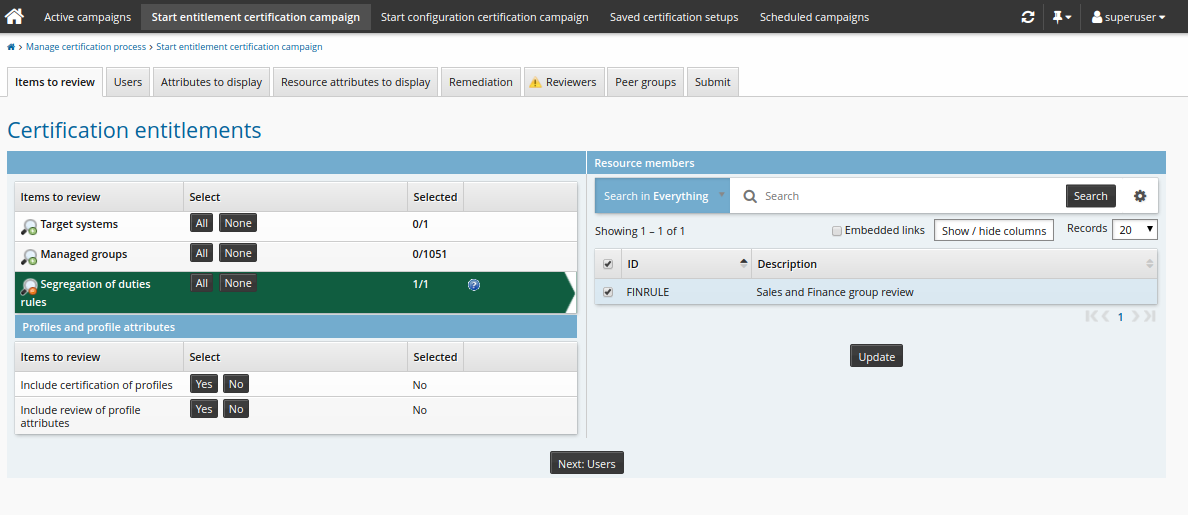
Click the Reviewers tab to choose reviewers for the campaign.
Click Continue to choose a single reviewer.
Click Select… .
Search for and select the appropriate user.
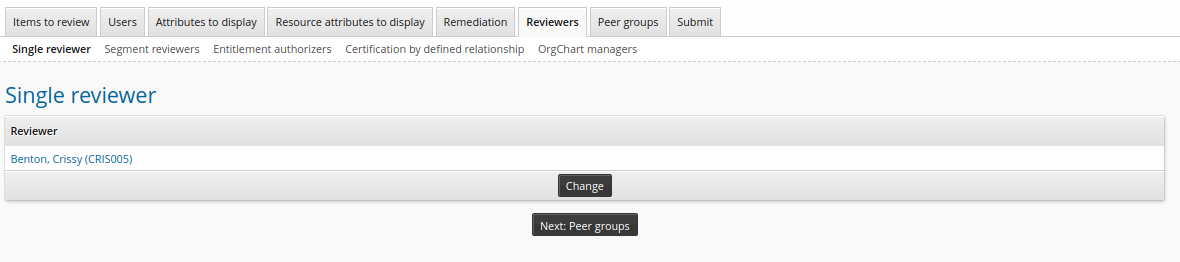
Click the Submit tab.
Enter a Certification campaign description.
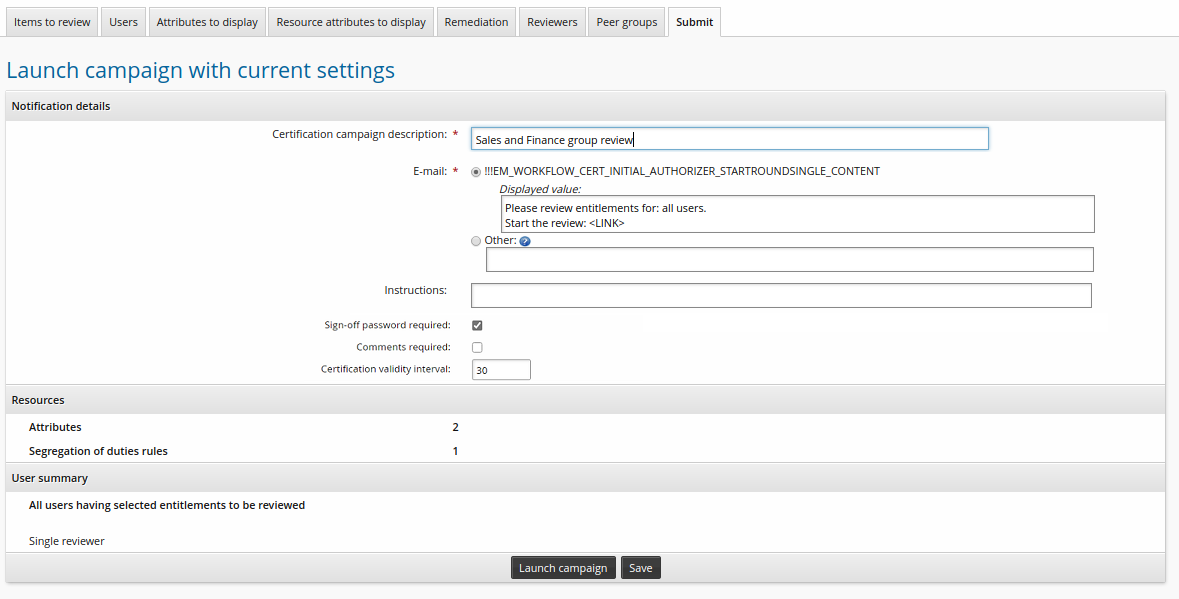
Click Launch campaign.
Click Start new campaign.

Review
To complete the review, the reviewer would:
Log into Bravura Security Fabric .
Click the notification link or Review entitlements and configurations.
The certification app shows a list of users in violation of the rule.
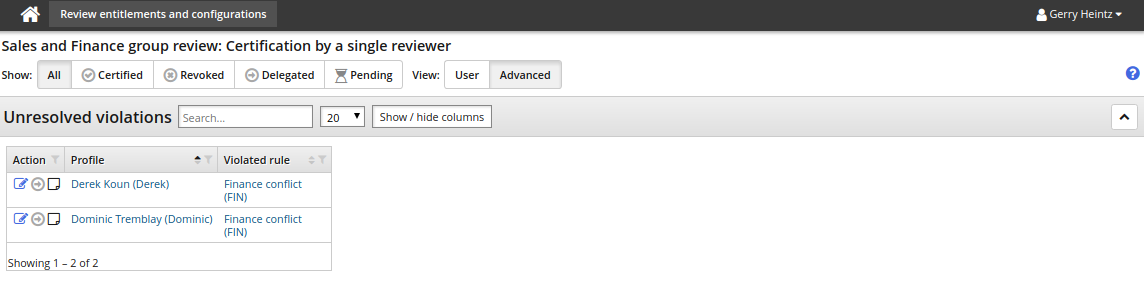
Click the resolve icon
 next to a user’s name to open the request wizard.
The default pre-defined request is ”Default resolution for segregation of duties rules”.
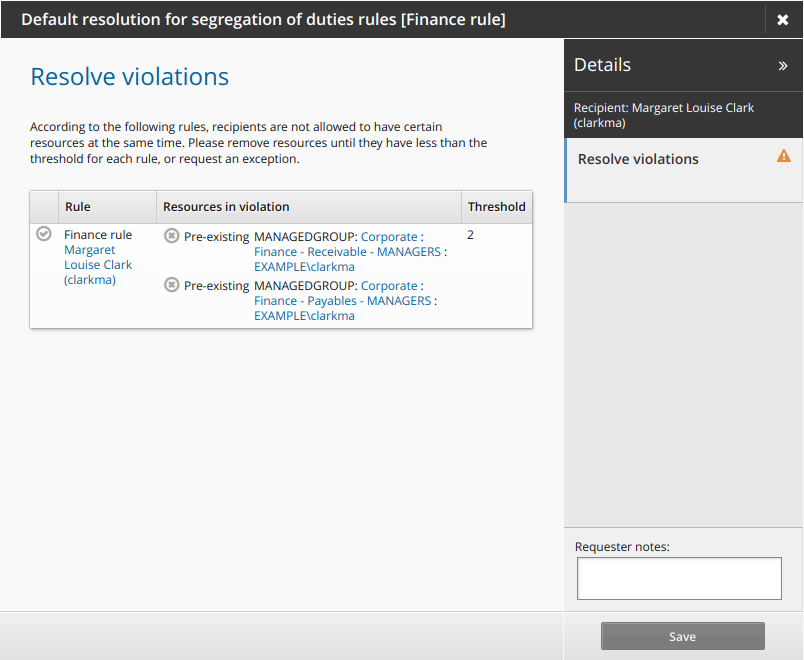
Click the request exception icon
 to submit a request to allow the user to keep the conflicting entitlements.
Type a reason for the exception and modify the expiry date if necessary.
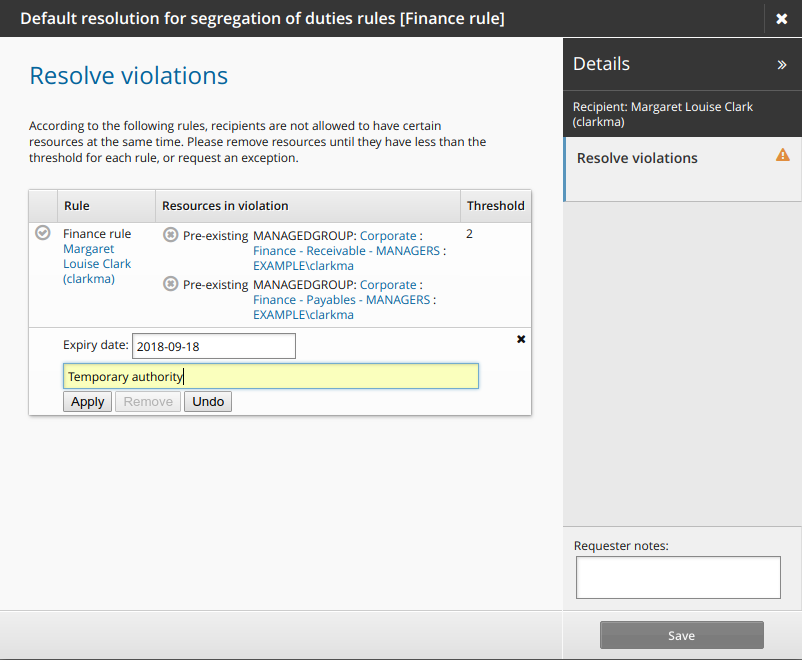
Click Apply .
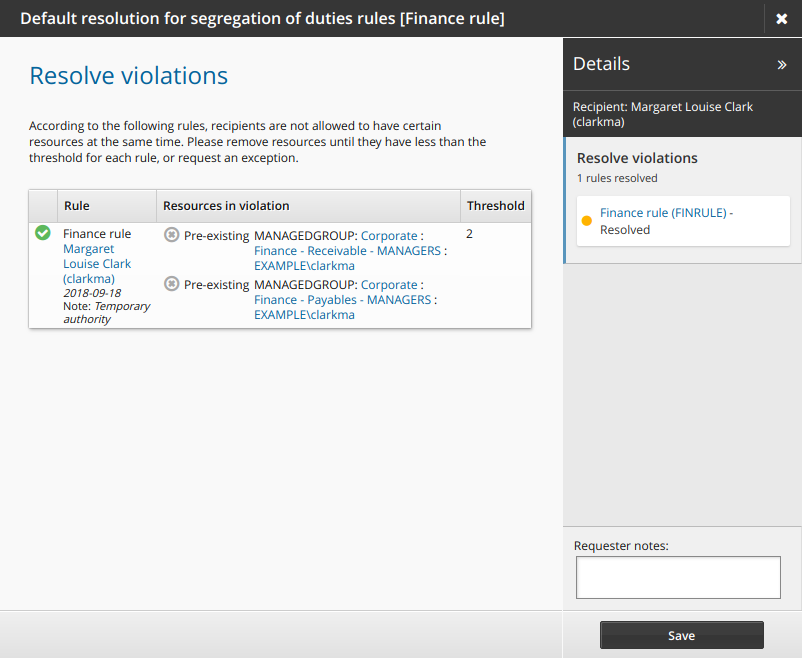
Click Save.
The request is now saved and will be submitted upon sign off.
Click the resolve icon
next to another user’s name to open the request wizard.Click the revoke icon
 to remove one of the conflicting entitlements.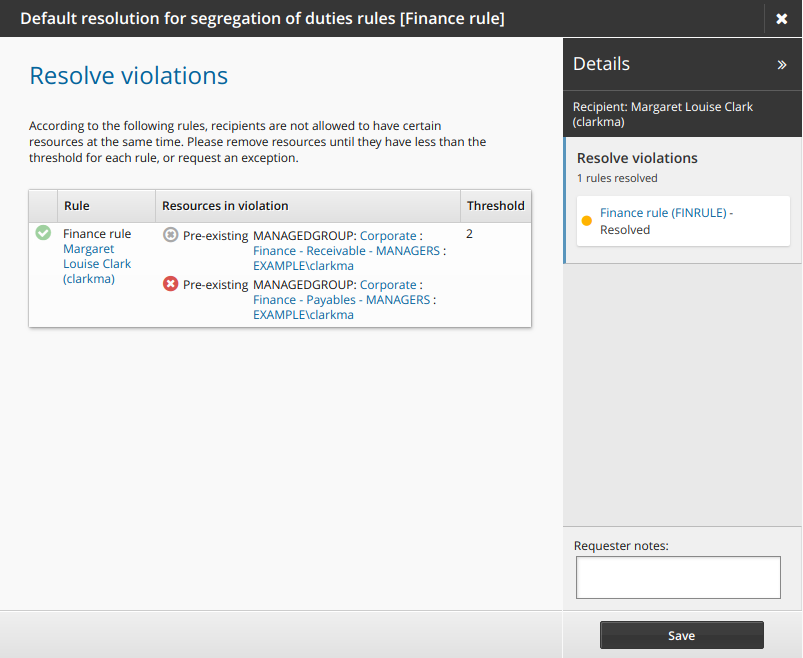
Click Save.
Click Finish to complete the review.
Enter My password.
Click Sign off.
Bravura Security Fabric notifies relevant authorizers to review the request.
Example: Saved certification setup
This example demonstrates how to use saved searches to simplify and speed up the processes of starting a certification campaign. It also demonstrates how to save and modify a certification campaign setup.
Configuration
To set up this certification campaign, the administrator would:
Log into Bravura Security Fabric as an administrator with the ”Manage certification process” right.
Click Manage certification process.
Click Start entitlement certification campaign .
On the Items to review tab, select Managed groups.
In the group list section, click the advanced search icon
 next to the Search button.
Search on groups with a description that contains ”finance”.
Searches can use any resource criteria.
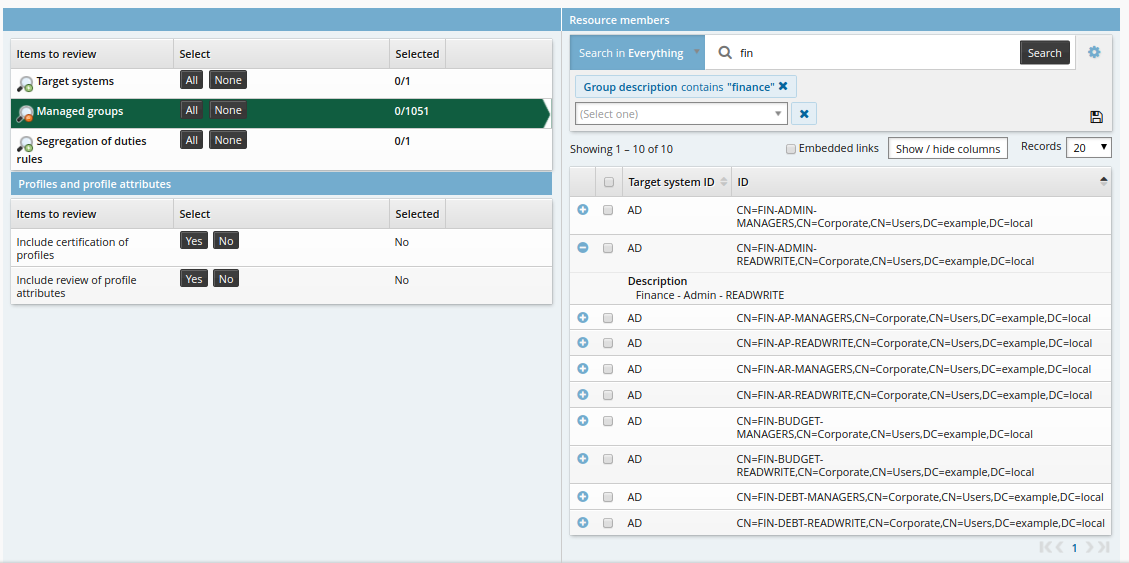
Click the ”Save search” icon.
Enter a name for the new search.
Click Create.
Click the ”Select all” checkbox at the top of the list.
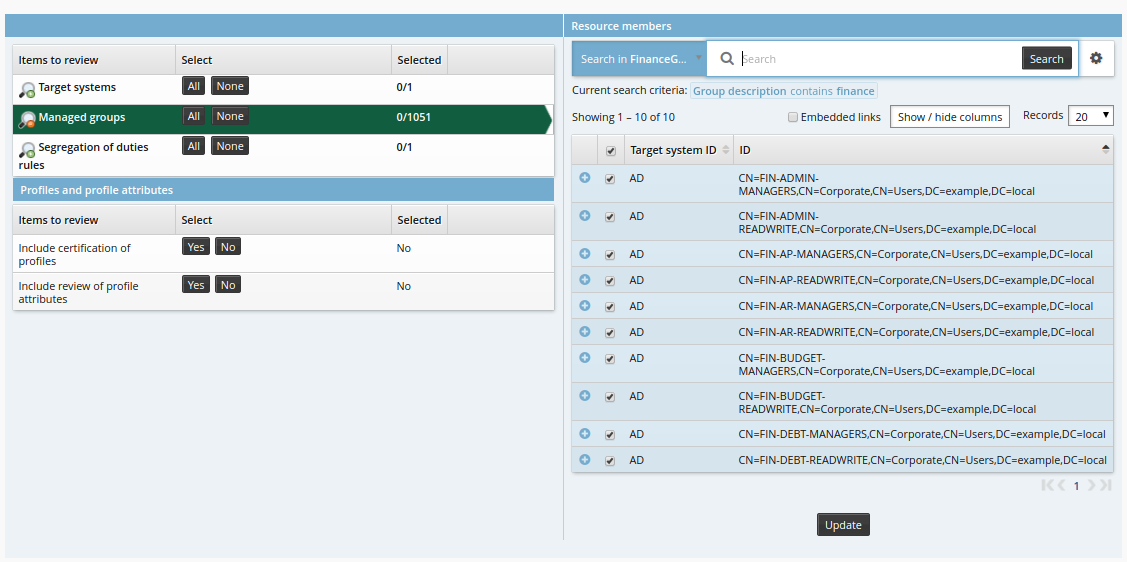
Click Update.
Click the Reviewers tab to choose reviewers for the campaign.
Click Continue to choose a single reviewer.
Click Select… .
Search for and select the appropriate user.
Click the Submit tab.
Enter a Certification campaign description.
Click Save to save the certification campaign setup.
You cannot make the setup shareable, since you saved the search for ”finance” groups, and custom saved searches cannot be shared. Saved searches are recalculated when modifying or initiating a saved campaign is automatically enabled. For this case, this means that if groups that match the search terms are added or deleted, the changes will be reflected in the list of items to be reviewed.
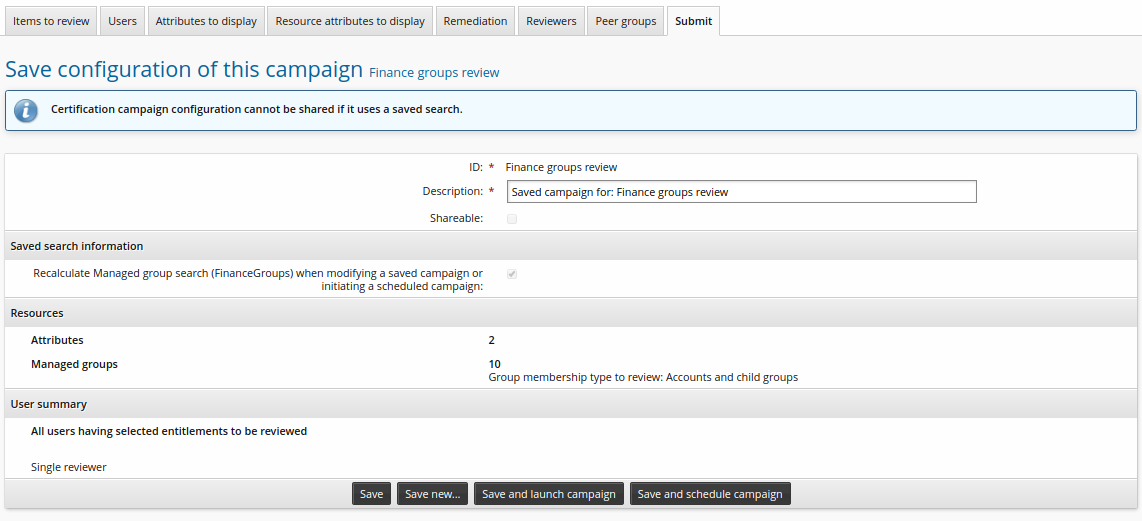
Click Save and schedule campaign.
Enter schedule information:
Enabled
checked
Repeat type
Semi-annually
Period mode
Start date
Period start date and time
<future date>
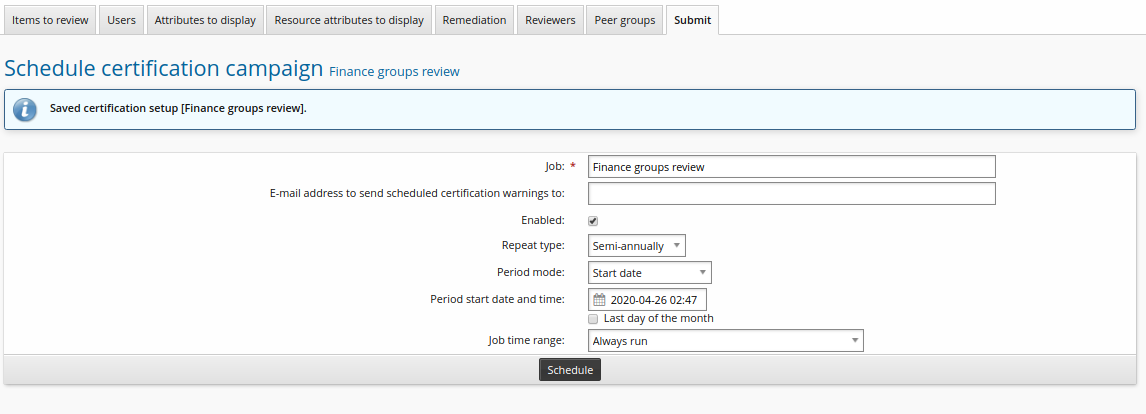
Click Schedule.
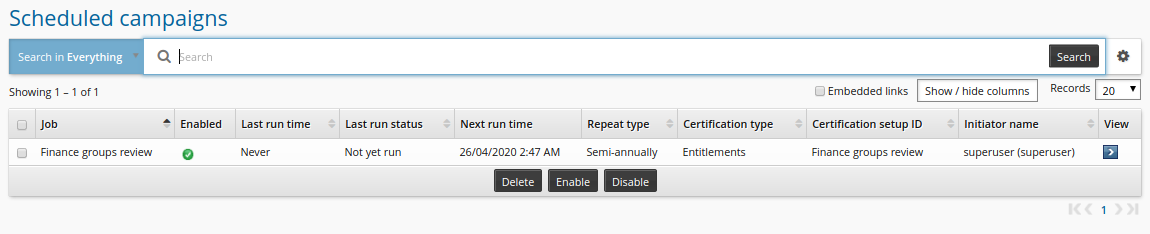
Modify a saved setup
To modify up this saved certification campaign setup, the administrator would:
Log into Bravura Security Fabric as an administrator with the ”Manage certification process” right.
Click Manage certification process.
Click Saved certification setups .
Select the saved setup.
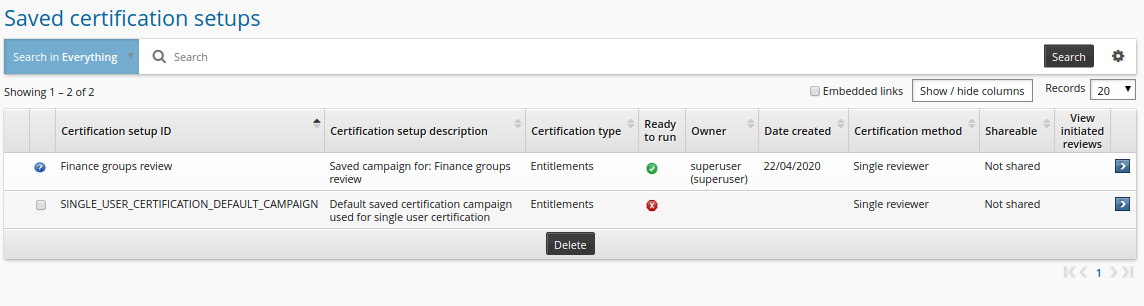
On the Items to review tab, select Managed groups.
Deselect one of the items.
Click Update.
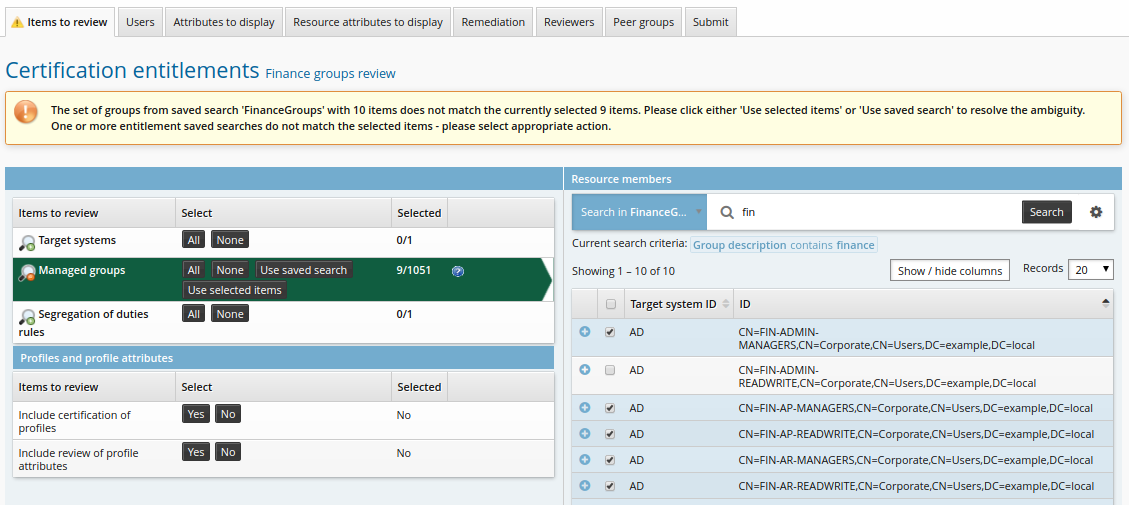
Note that two new buttons appear in the Select column in the left item type table. This is so that you can confirm that you want to use only the selected items, or restore the saved search criteria.
Click Use selected items.
Click Launch campaign.
Click Start new campaign.
The reviewer will be notified to review the entitlements.
Review
To complete the review, the reviewer would:
Log into Bravura Security Fabric .
Click the notification link or Review entitlements and configurations.
The certification app shows a list of users who are members of finance groups.
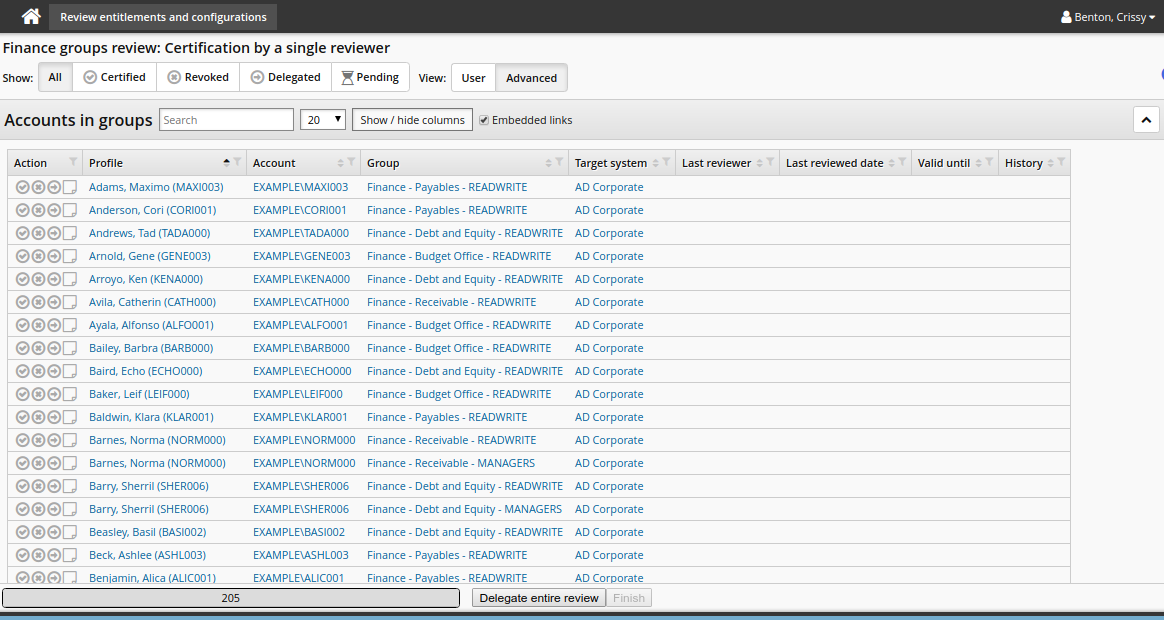
Click the certify icon
to allow the user to keep the entitlement.Click the revoke icon
to remove one of the entitlements from a user. Add a note to add to the change group membership request that will be issued when the reviewer signs off.Click the delegate icon
 to delegate the review of an entitlement.
Search for and select a user you want to make your delegate.
Click Delegate.
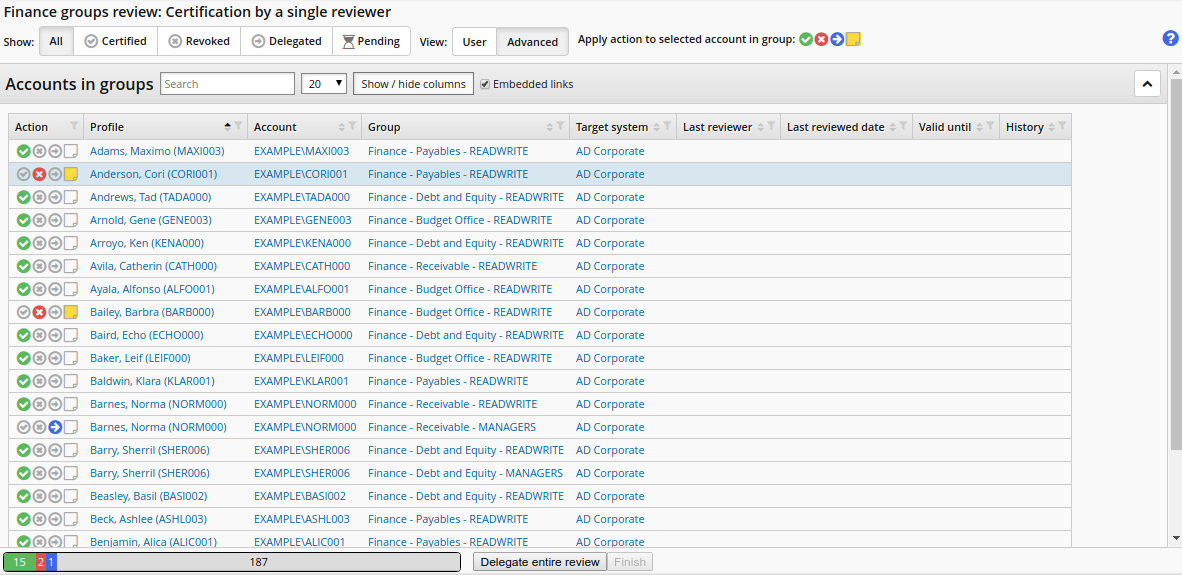
Continue until all items have been reviewed.
Click Finish to complete the review.
Enter My password.
Click Sign off.
Bravura Security Fabric notifies relevant authorizers to review requests to change group membership.
Example: Certification remediation
This example demonstrates how to create a certification remediation to enable the reviewer to create a new user while reviewing a certification campaign.
This is the only remediation type that is not pre-configured with a default pre-defined request.
Create a pre-defined request
Log in to the front-end as superuser.
Click Manage the system > Workflow > Pre-defined requests .
Click Add new…
Configure the following:
ID ADDUSER
Description Add user
Enabled selected
Accessible from certification selected
Remediation type Add profile
Intended recipients New users
Click Add.
Click the Operations tab.
Select Create account in the Operations on user-selected resources section.
Click Update.
Click the Attributes tab.
Click Select… .
Select BASEATTRIBUTE.
Click Select .
Create a certification campaign
To set up this certification campaign, the administrator would:
Log in to Bravura Security Fabric as an administrator with the ”Manage certification process” privilege.
Click Manage certification process from the ADMINISTRATIVE OPTIONS section.
From the main menu, click Start entitlement certification campaign .
On the Items to review tab, click
 next to Target systems.
Select a source-of-profiles target system from the list of target systems available.
Click Update.
Click Yes next to Include review of profile attributes.
Click the Remediation tab.
Click the input field for Add profile and select the "Add user" request you created above.
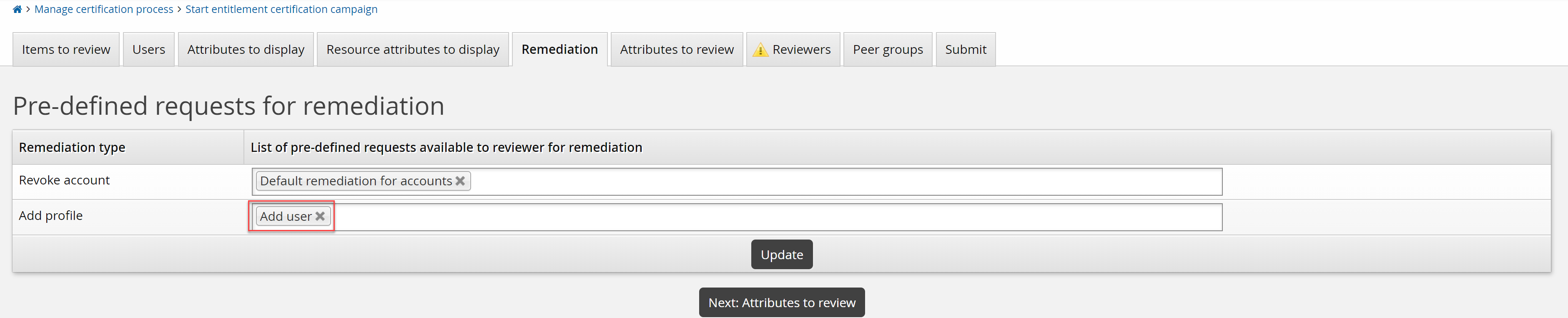
Click Update.
Click the Reviewers tab to choose reviewers for the campaign.
Click Continue to choose a single reviewer.
Click Select… .
Search for and select a reviewer.
Click the Submit tab.
Enter a Certification campaign description.
Click Launch campaign.
Click Start new campaign.
Review and create a new user in the certification campaign
Log in as the reviewer.
Click the link Please review access for <campaign description> to commence the certification campaign.
The New user button is displayed in the campaign form.
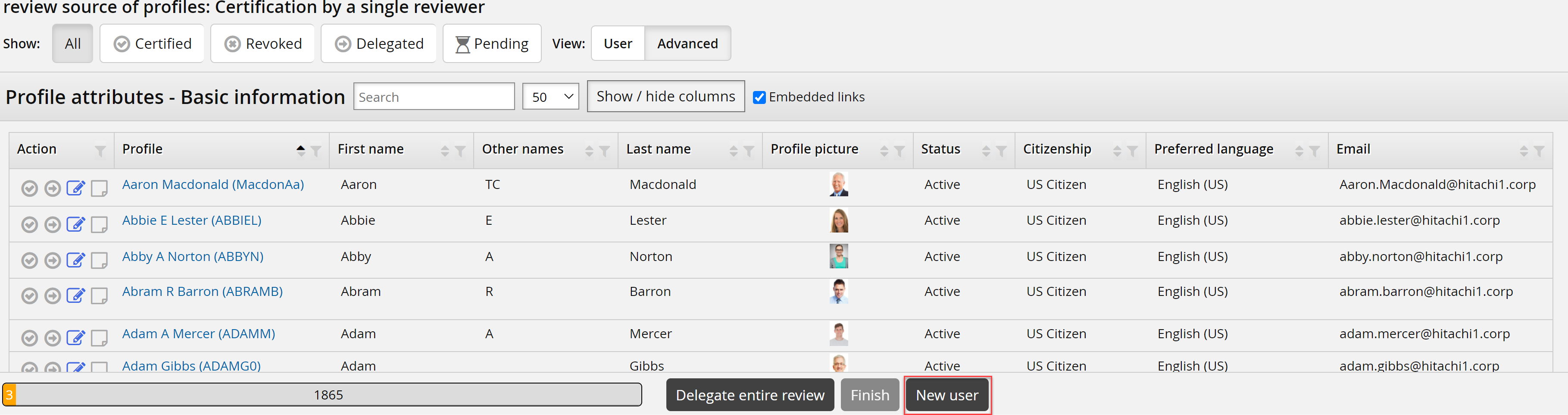
Click New user to open the request wizard.
Complete the wizard and submit.
The request for a new user is submitted immediately.
Other remediation requests, for example to remove entitlements, are submitted once the reviewer has completed their review.
Review the remaining items and sign-off the certification.
Peer groups, consistency calculations and automatic actions
Reviewer fatigue can be a problem in cases where reviewers must review many users and entitlements in a campaign; the danger is that reviewers may start to pay less attention and certify items that should be revoked. To alleviate this problem, you can configure entitlement certification campaigns to:
Display consistency among peers.
Automatically certify entitlements, or identify entitlements that are candidates for revocation, based on risk.
Consistency among peers
You can configure entitlement certification campaigns so that reviewers see recommendations of items to pay particular attention to, based on consistency among peers.
A peer group is a group of users with some attribute in common; for example, users working at the same location or department, or having the same manager.
When configured for a round, a Consistency column is displayed in the certification campaign review page. Consistency is visually represented by a color bar with a number stating the percentage of peers having the same entitlement. This can help the reviewer to decide whether to retain or revoke a user’s entitlement.
The consistency color bar is:
Red, where an entitlement is inconsistent, or out-of-pattern ; that is, most of a user’s peers do not have this entitlement.
This is indicated where the number of users with the entitlement is between 0% and a lower threshold.
Yellow, where an entitlement is possibly out-of-pattern: that is, some of the user’s peers have the entitlement, and some don’t.
This is indicated where the number of users with the entitlement is between a lower threshold and an upper threshold.
Green, where an entitlement is consistent, or in-pattern ; that is, most of a user’s peers have the entitlement.
This is indicated where the number of users with the entitlement is between an upper threshold and 100%.
The lower and upper thresholds can be set globally and when submitting a campaign.
The entitlement consistency calculation is done every time the reviewer opens the certification app to review.
If you disable the global CERT CONSISTENCY CALCULATION setting, consistency calculations are turned off for active campaigns. When CERT CONSISTENCY CALCULATION is enabled, you can configure consistency calculations at the global level or at the campaign level.
The setup and usage of consistency calculations are demonstrated in Use case: Entitlement consistency recommendations .
Automatic action based on risk
If entitlement consistency calculations are enabled for a certification round, entitlements can also be automatically certified or revoked based on a resource attribute comparison. This can reduce the number of items that reviewers must act on, although they can still override the calculated action if they prefer.
The resource attribute to compare may be a boolean, string, integer, or date that indicates that an entitlement is a low risk, and so can be automatically certified, or high risk, and so should be revoked.
As an example, if 85% of a support analyst group has an account on a target system that is a low security risk, it will be marked in the certification app as automatically certified.
The setup and usage of automatic actions are demonstrated in Use case: Automatic actions .
Use case: Entitlement consistency recommendations
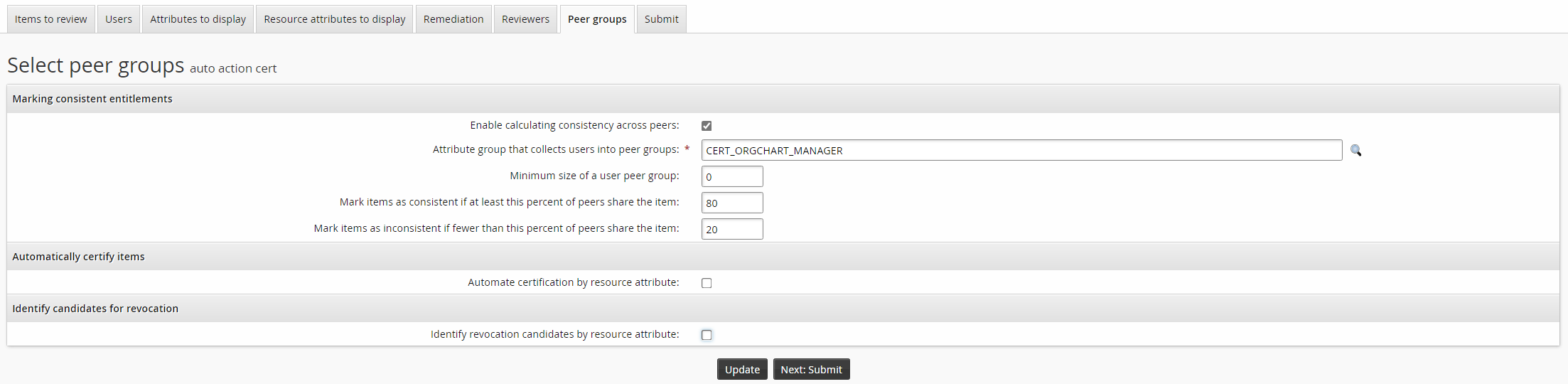
This use case illustrates how to set up the entitlement consistency recommendations when certifying group memberships. The peer group is users that have the same manager, calculated based on the ORGCHART_MANAGER attribute, which is a member of the CERT_ORGCHART_MANAGER group.

Configure global settings
To configure global settings for the recommendation engine:
Click Manage the system > Modules > Manage certification process (CERT) .
Set the following:
CERT CONSISTENCY ATTRIBUTE GROUP
CERT_ORGCHART_MANAGER
CERT CONSISTENCY CALCULATION
Enabled
CERT CONSISTENCY MINIMUM
5
CERT CONSISTENCY USERS LOWER THRESHOLD
20
CERT CONSISTENCY USERS UPPER THRESHOLD
80
Click Update
Start an entitlement certification campaign
To start an entitlement certification campaign:
From the main menu, click Manage certification process.
Click Start entitlement certification campaign .
Select entitlements to be reviewed.
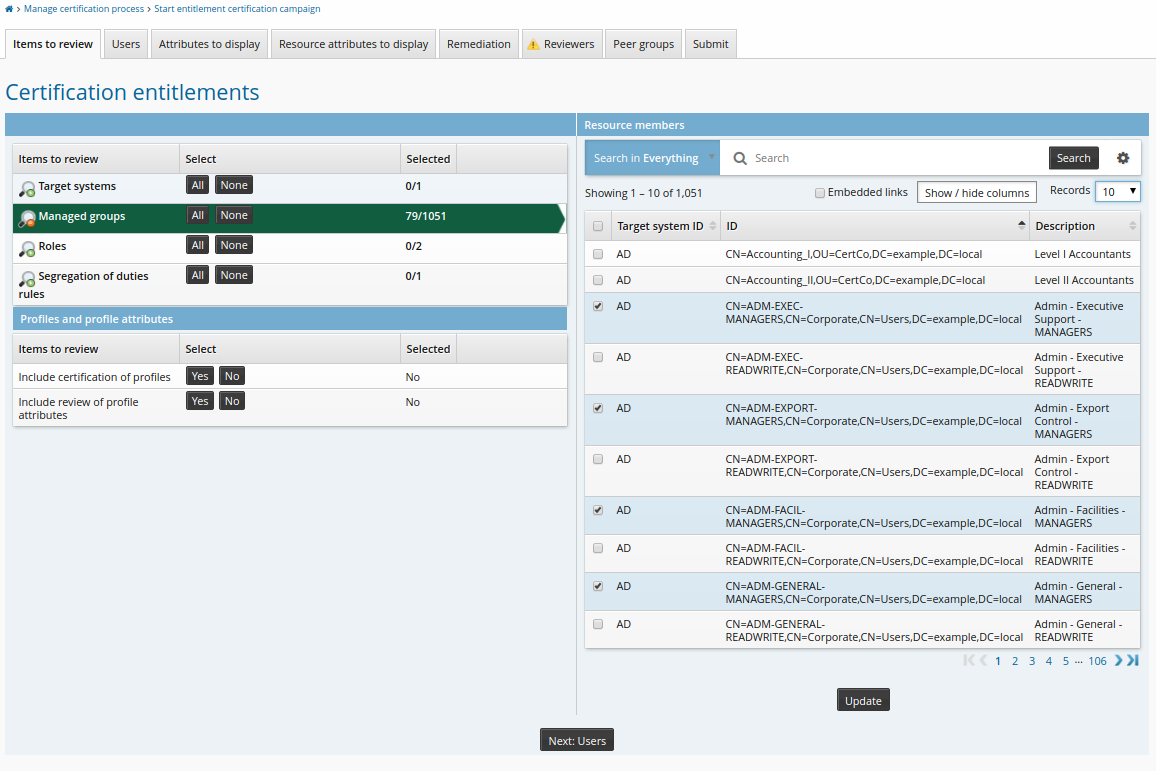
Click Next: Users.
Select users to be reviewed.
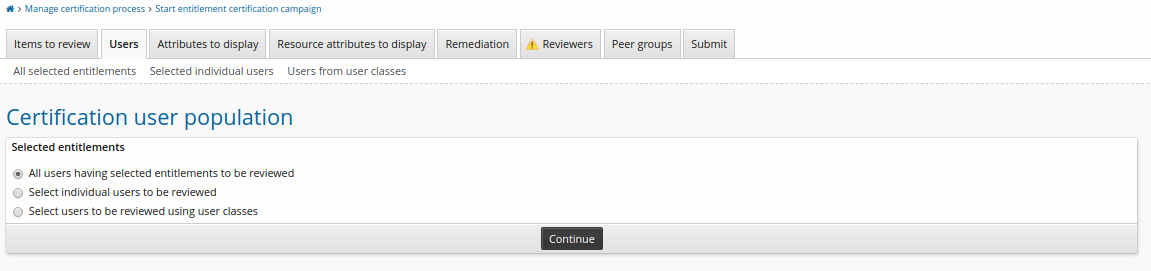
Click Continue.
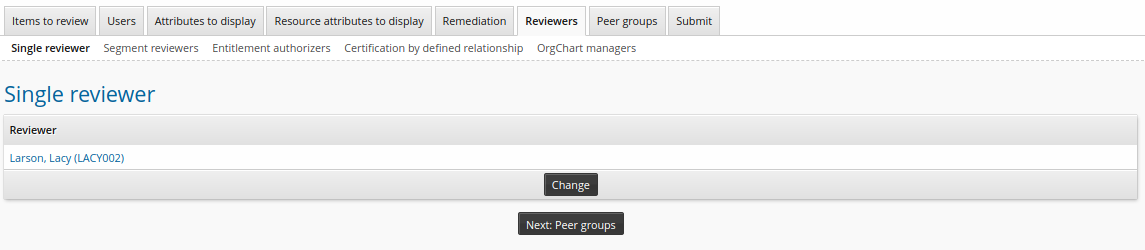
Click the Reviewers tab to choose reviewers for the campaign.
Click Continue to choose a single reviewer.
Click Select… .
Search for and select the appropriate user.
Click the Peer groups tab to review the settings for marking consistent entitlements.
Note that the Enable calculating consistency across peers checkbox is enabled by default.
Modify settings to mark items for consistency as required.
Click the Submit tab.
Type a Certification campaign description.
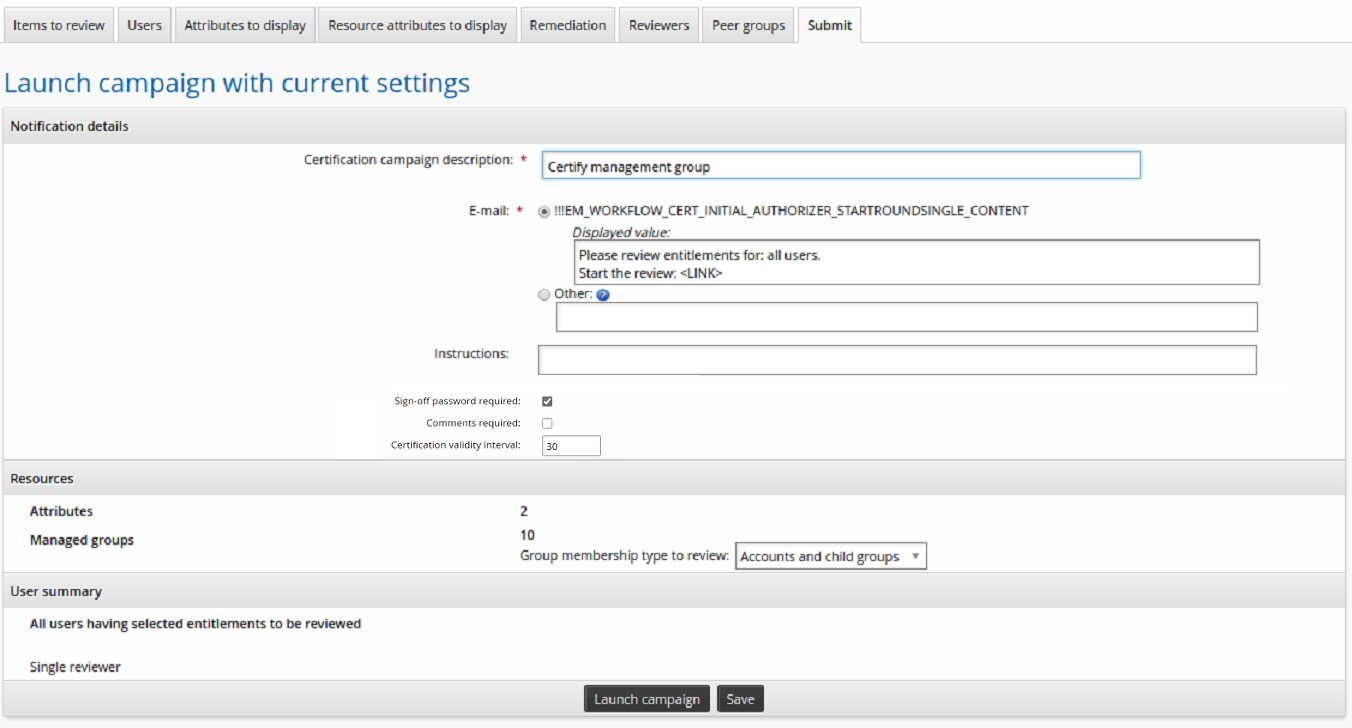
Click Launch campaign.
Click Start new campaign.
Review in certification app
To review items in the certification app:
Log into Bravura Security Fabric as the reviewer.
Click the notification link or click Review entitlements and configurations to view the campaign review page.
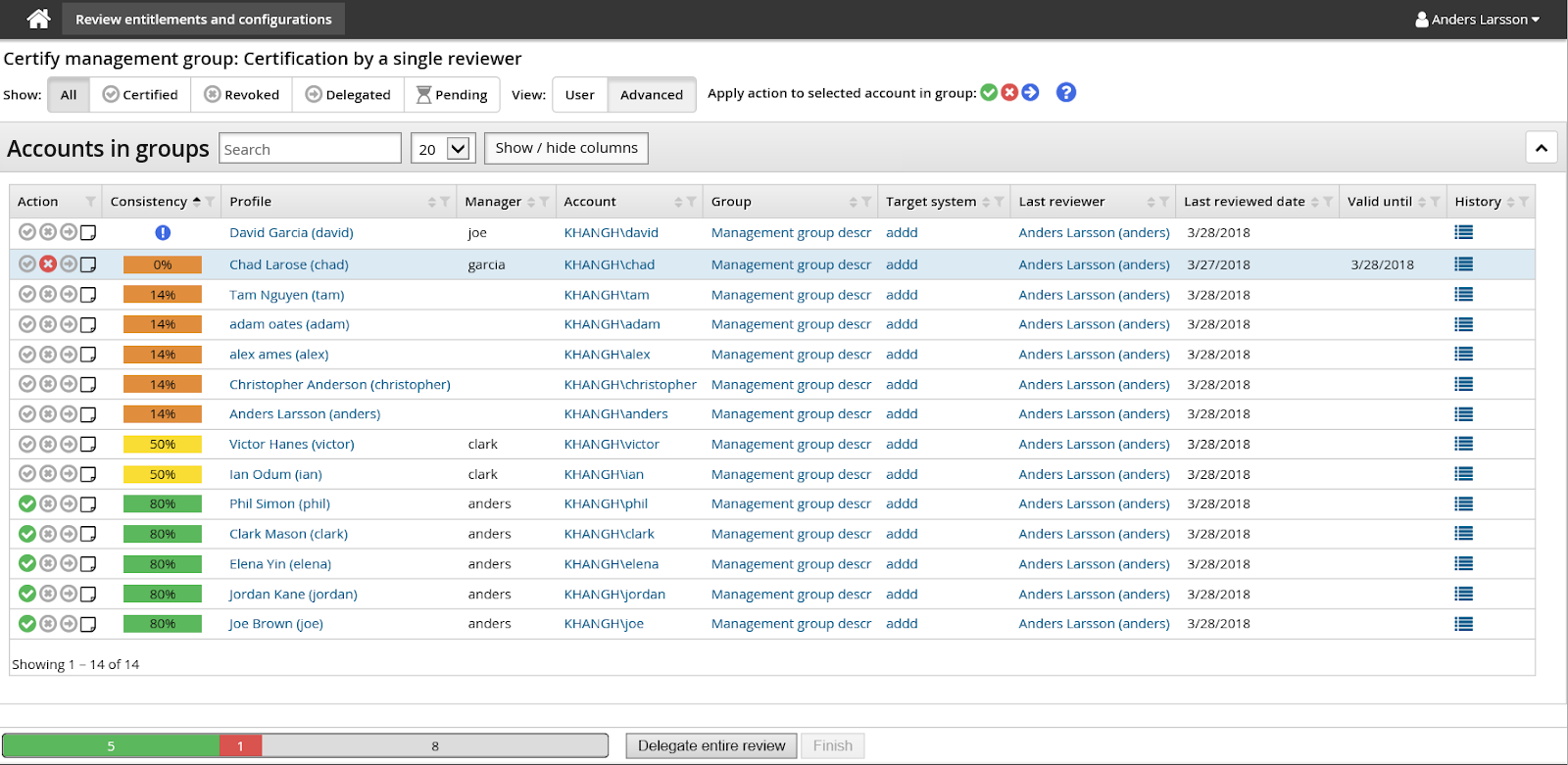
In the above screenshot:
 This peer group is too small for calculations.
 This entitlement is out-of-pattern. Only 14% of the user’s peers have this entitlement.
 This entitlement is possibly out-of-pattern. 50% of the user’s peers have this entitlement.
 This entitlement is in-pattern. 80% of the user’s peers have this entitlement.
You can hide the Consistency column by toggling Hide / show columns .
Use case: Automatic actions
This use case illustrates how to use entitlement consistency calculations and resource attribute comparison to automatically certify items or identify revocation candidates in a certification campaign.
This use case assumes the following global settings under Manage the system > Modules > Manage certification process (CERT) :
CERT CONSISTENCY ATTRIBUTE GROUP | CERT_ORGCHART_MANAGER |
CERT CONSISTENCY CALCULATION | Enabled |
CERT CONSISTENCY MINIMUM | 5 |
CERT CONSISTENCY USERS LOWER THRESHOLD | 20 |
CERT CONSISTENCY USERS UPPER THRESHOLD | 80 |
Create a resource attribute to compare to trigger automatic actions
To set up a resource attribute to compare:
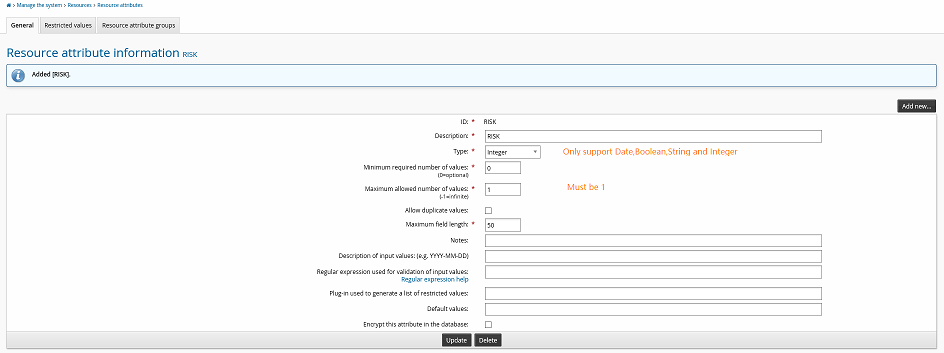
Click Manage the system > Resources > Resource attributes.
Click Add new…
On the page, enter the following values:
ID
RISK
Description
RISK
Type
Integer
Leave other values as default.
The resource attribute must be date, boolean, string, or integer type. For string and integer types the maximum number of values must be
1.Click Add.
Create a resource attribute group
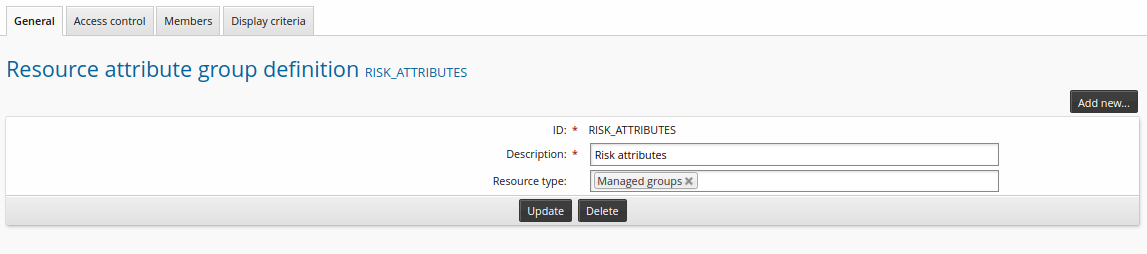
Click Manage the system > Resources > Resource attribute groups.
Click Add new…
On the definition page, enter the following values:
ID
RISK_ATTRIBUTES
Description
Risk attributes
Resource type
Managed groups
For this feature, only template accounts, roles, and managed group types are applicable.
Click Add.
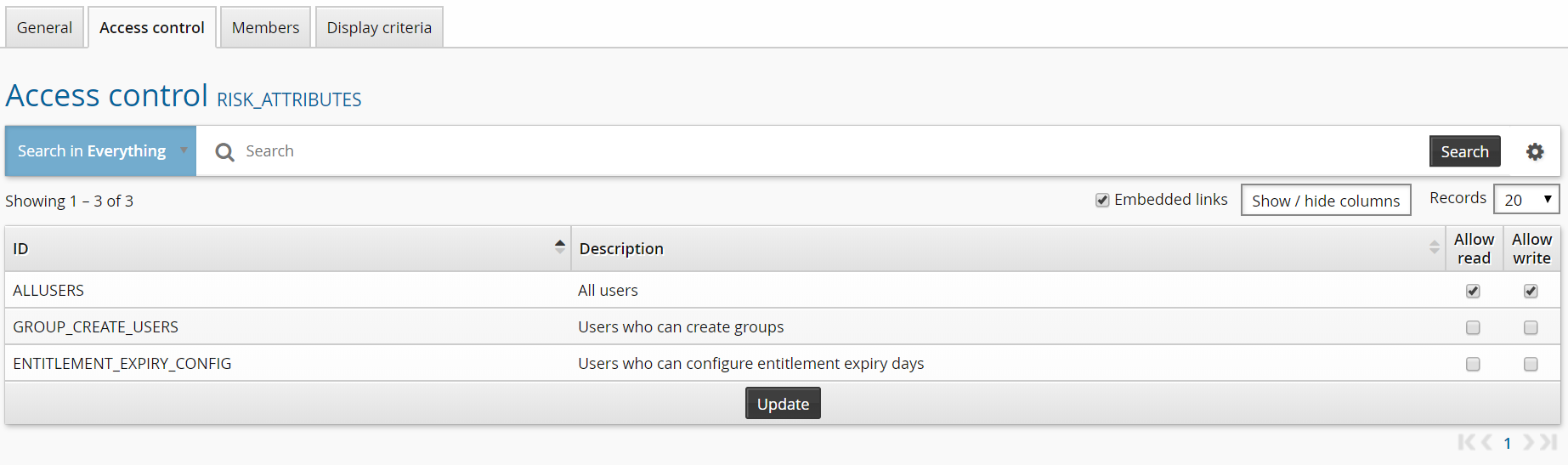
Click the Access control tab.
Give the ALLUSERS group read and write permission.
Click the Members tab.
Click Select…
Click the checkbox for RISK and click Select.
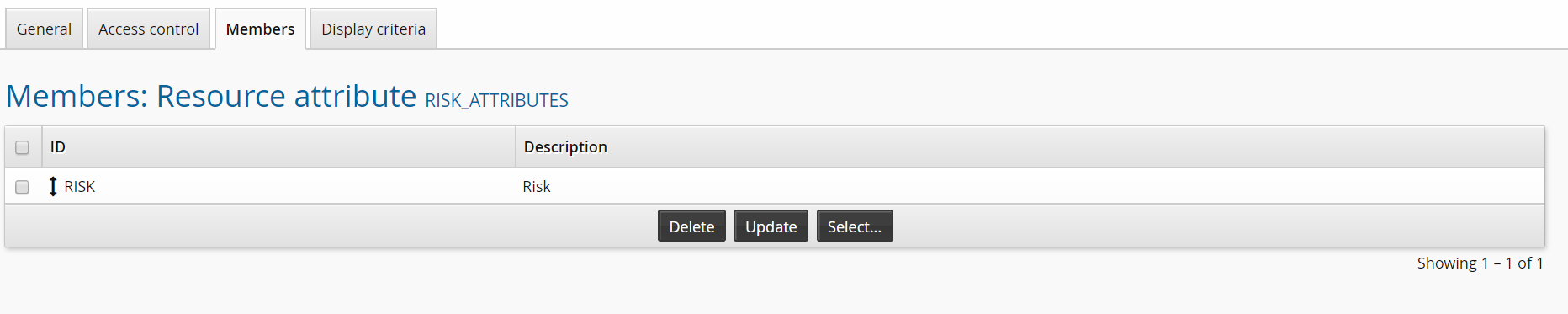
You can repeat this process to add other types of risk attribute if you like. The supported types are integer, string, date, and boolean.
Give the group attribute a value
Click Manage the system > Resources > Groups.
Select a group.
Give the Risk attribute a value.
Click Update.
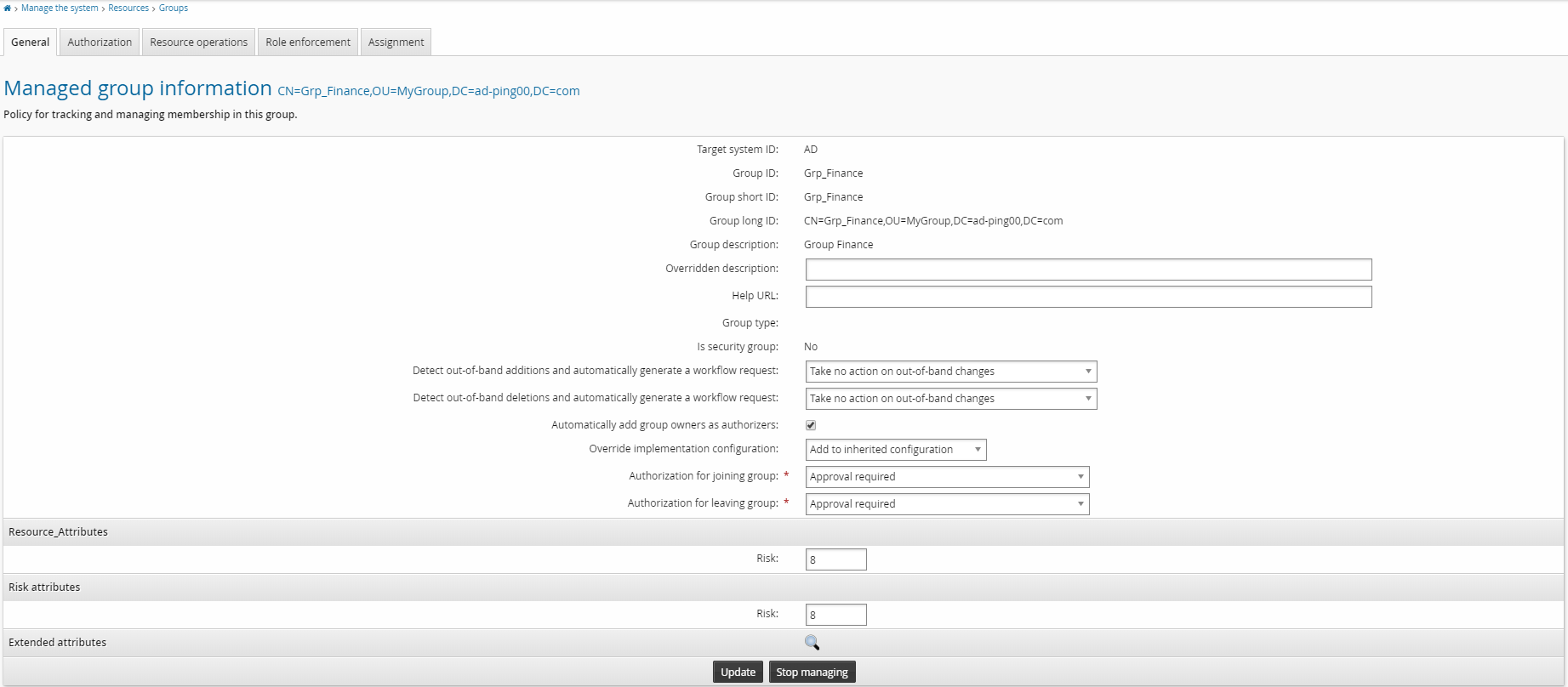
Repeat this process for other groups if you like.
Start an entitlement certification campaign
To start an entitlement certification campaign:
From the main menu, click Manage certification process.
Click Start entitlement certification campaign .
Select entitlements to be reviewed.
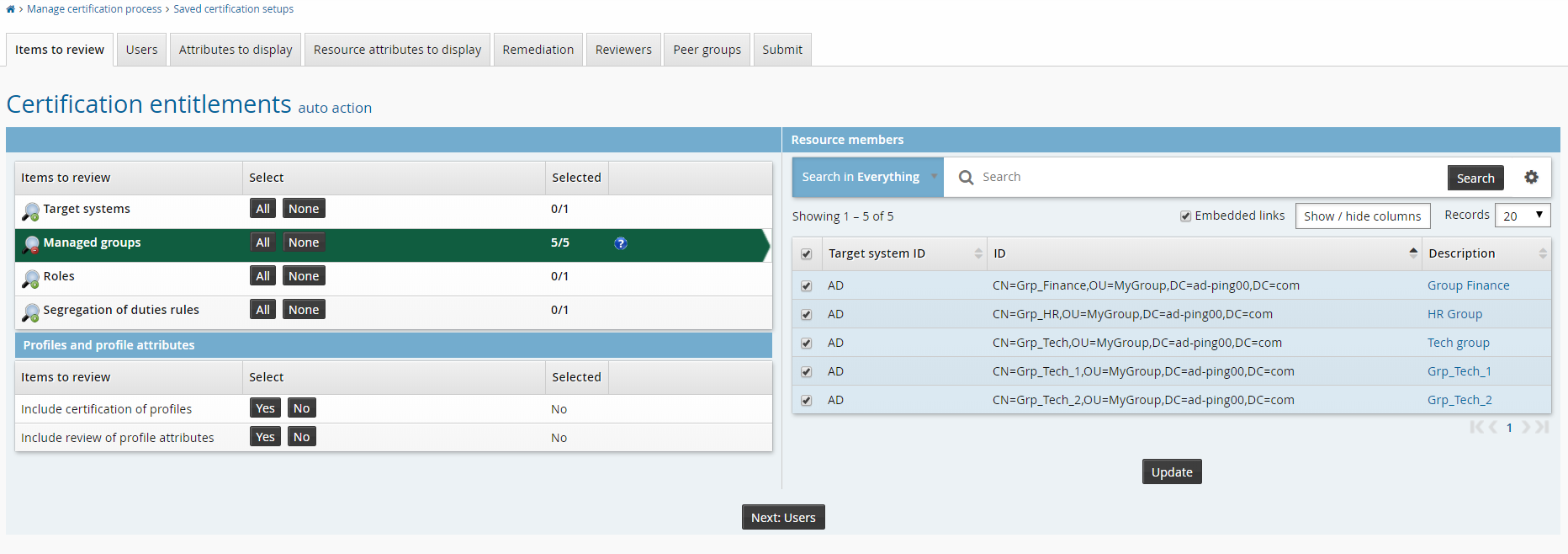
Click the Reviewers tab to choose reviewers for the campaign.
Click Continue to choose a single reviewer.
Click Select… .
Search for and select the appropriate user.

Click the Peer groups tab to review the settings for marking consistent entitlements.
Note that the Enable calculating consistency across peers checkbox is enabled by default.
Modify settings to mark items for consistency as required.
Configure auto-certification:
Click the Automate certification by resource attribute checkbox.
Click the magnifying glass icon to select ”RISK” as the Resource attribute to compare.
Set the Comparison method to ”is less than”.
Set the Resource attribute value to
5.
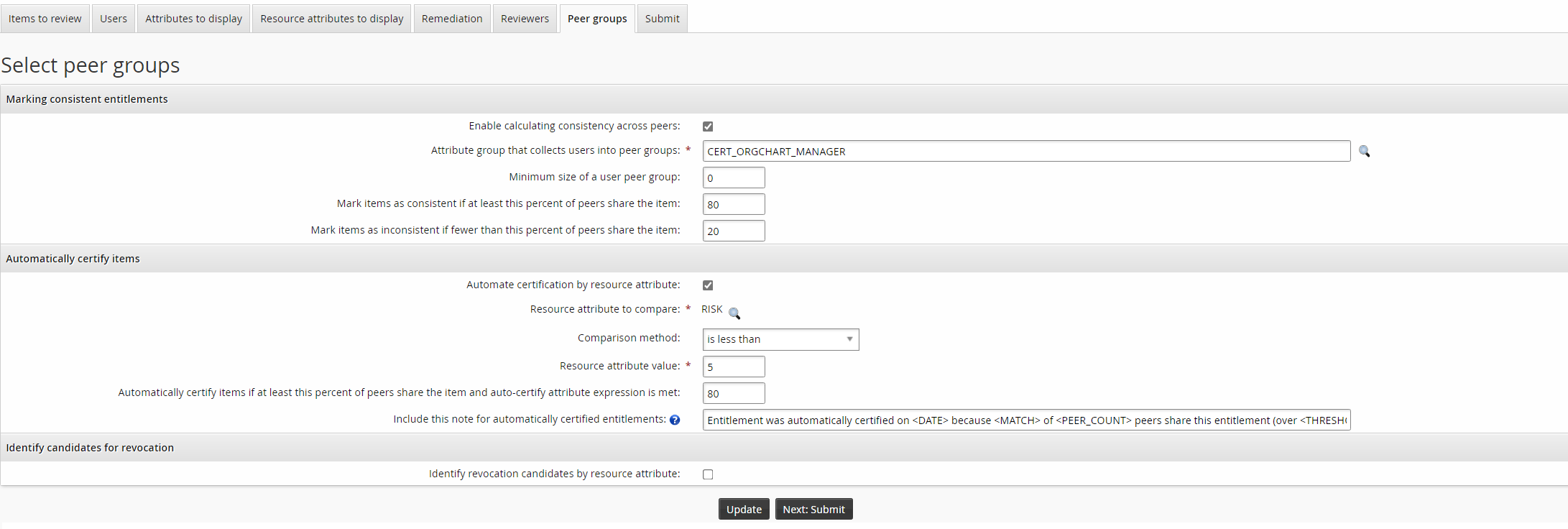
Note that the value for Automatically certify items if at least this percent of peers share the item and auto-certify attribute expression is met must be greater than or equal to the value for Mark items as consistent if at least this percent of peers share the item.
Configure auto-revocation:
Click the Identity revocation candidates by resource attribute checkbox.
Click the magnifying glass icon to select ”RISK” as the Resource attribute to compare.
Set the Comparison method to ”is greater than or equal to”.
Set the Resource attribute value to
7.
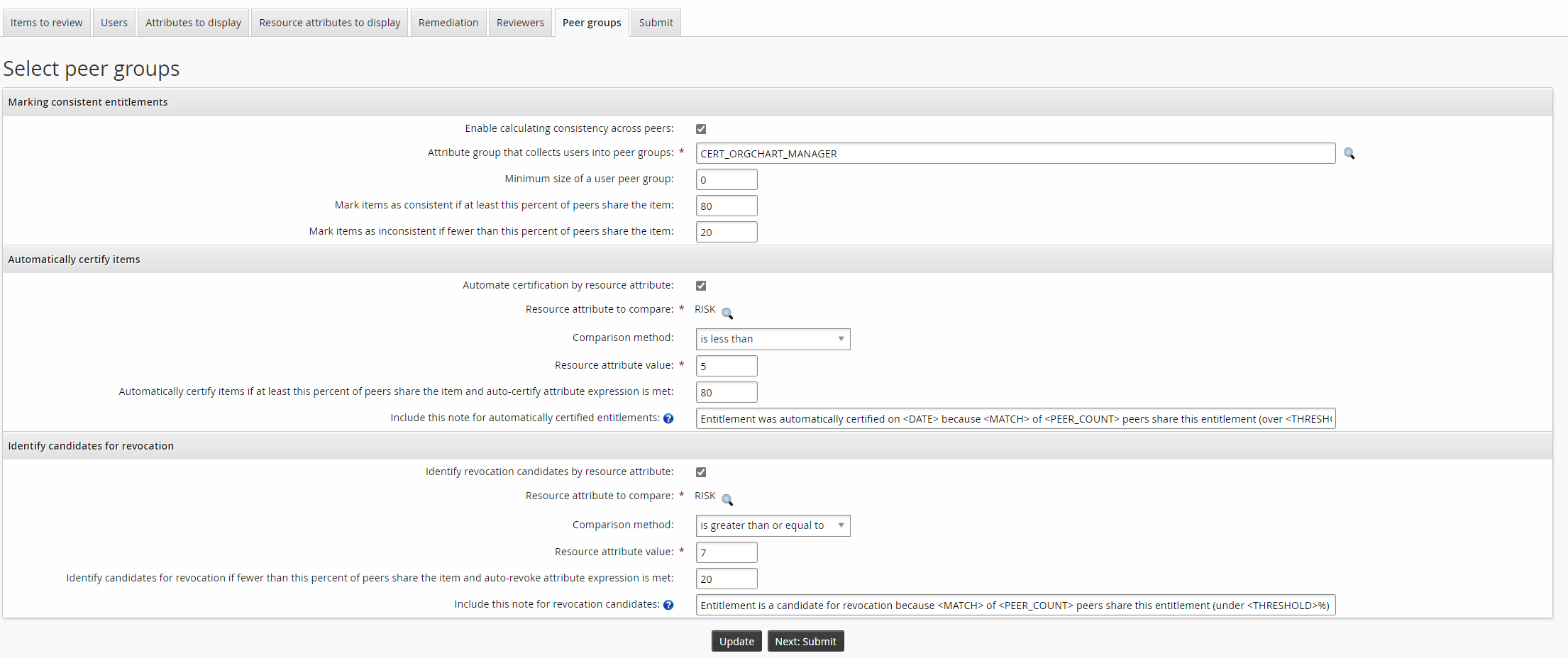
Note that the value for Identify candidates for revocation if fewer than this percent of peers share the item and auto-revoke attribute expression is met must be less than or equal to the value for Mark items as inconsistent if fewer than this percent of peers share the item.
While auto-certification is simply recorded in the Bravura Security Fabric database, auto-revocation requires an action on the affected target system. Depending on the type of items included in the campaign, you can select from available pre-defined requests to revoke items.
Click the Submit tab.
Type a Certification campaign description.
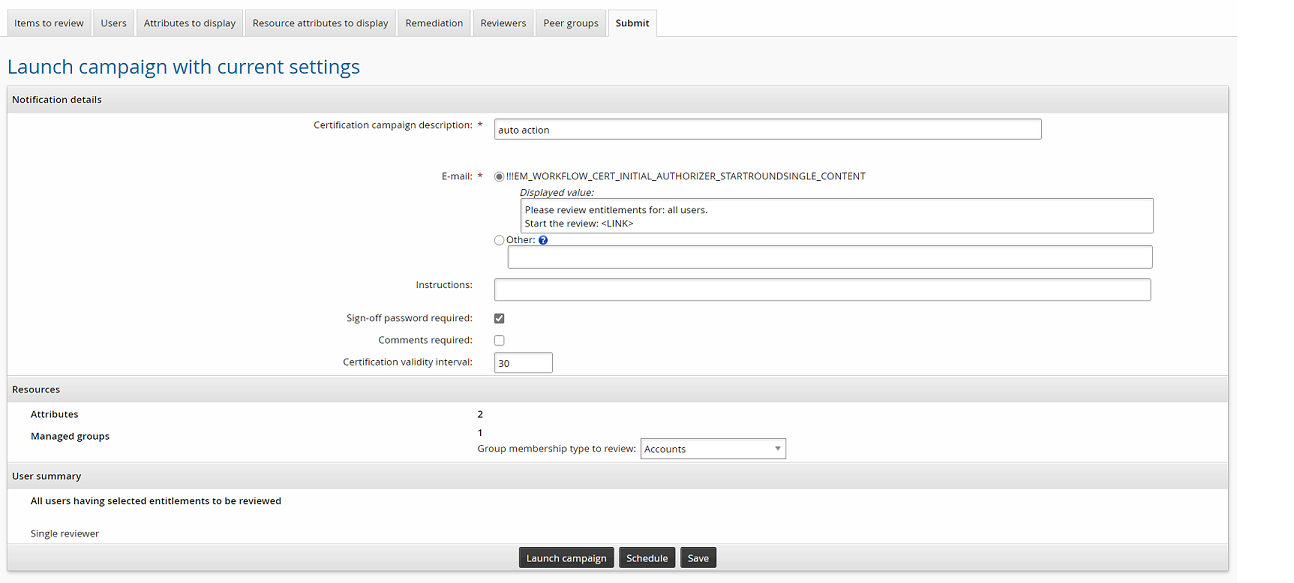
Click Launch campaign.
Click Start new campaign.
With the above configuration, an item with a peer group consistency of above 60% and a risk integer value less than 5 will be automatically certified. An item with a peer group consistency of less than 50% and a risk integer value greater than or equal to 7 will be automatically revoked. Reviewers can override these actions when they review items.
Review in certification app
To review items in the certification app:
Log into Bravura Security Fabric as the reviewer
Click the notification link or click Review entitlements and configurations to view the campaign review page.
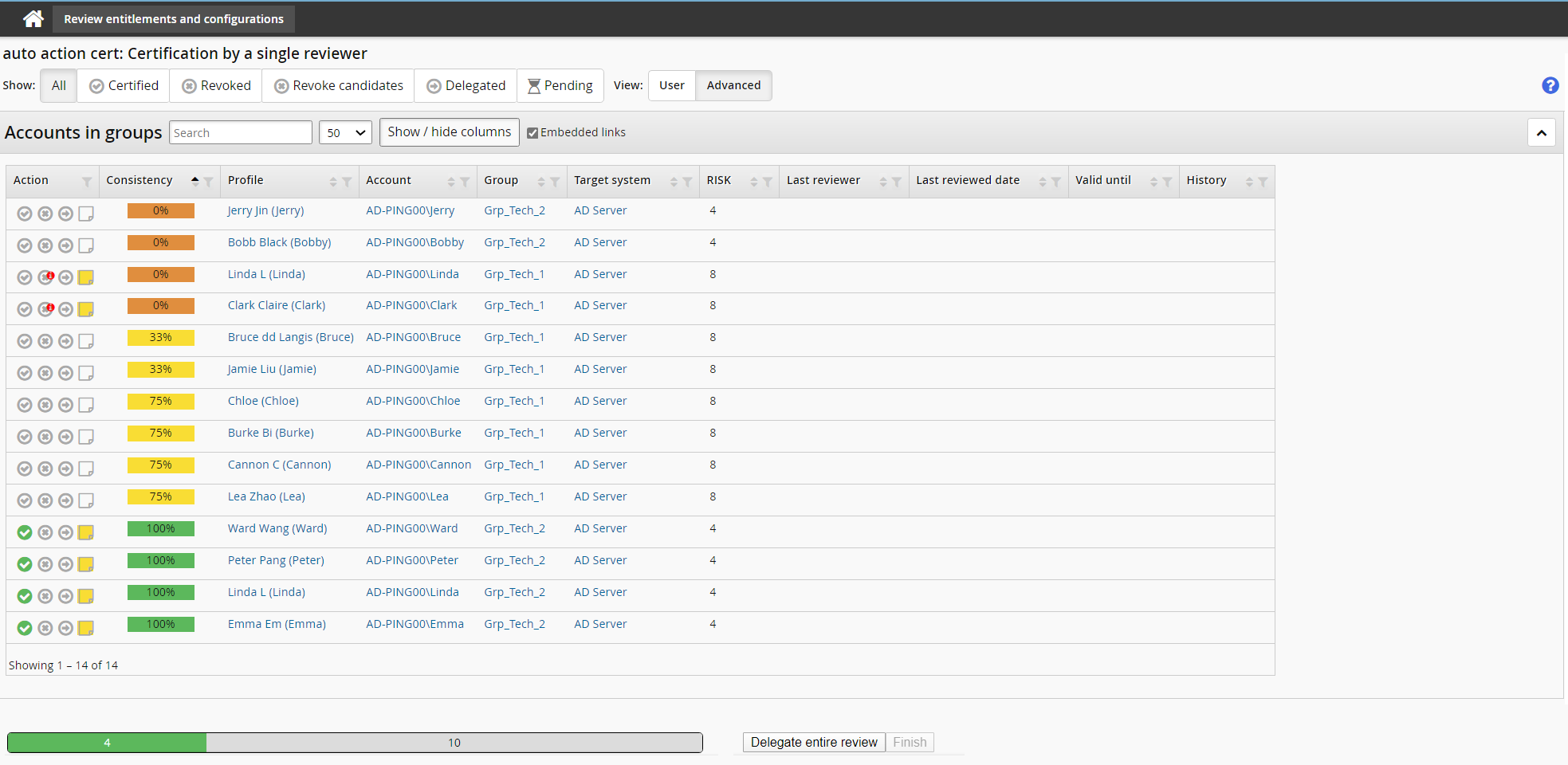
In the certification app:
These items have been automatically certified, because they have a high consistency score and a low risk attribute value:

These items have been flagged as risky, because they have a low consistency score and a high risk attribute value, and are identified as revocation candidates with a small red flag on the upper right part of the revoke action icon:

As reviewer you can choose to click on the alert icon to open the request wizard and complete the request.
As reviewer you can override any of the above actions or edit the note by clicking the appropriate symbol.
Setting up for single user certifications
Product administrators with relevant privileges can manage or initiate certifications involving multiple users. You can set up Bravura Security Fabric to allow end users to quickly review the entitlements of a single user via the user’s profile page.
Bravura Security Fabric applies a two-participant user class, for example _MANAGER_DIRECT_, to determine whether user X can initiate a certification of user Y. If permitted, then an Initiate a review of all entitlements option is available on user Y’s profile page.
To set up to allow single user certifications:
Click Manage the system > Security> Access to user profiles > Delegated administration rules > Add new….
Enter an ID and Description for the new rule.
Select the Initiate a review of all entitlements privilege.
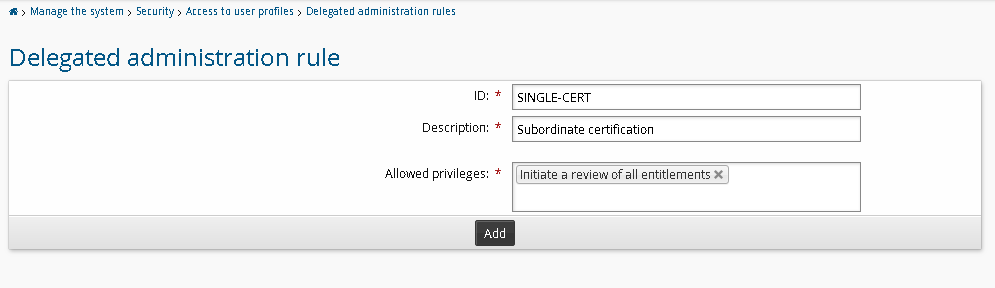
Click Add.
Select Membership criteria.
Click Select… to use an existing user class, for example, _MANAGER_DIRECT_, or click
 Add new… to create a new user class.
The user class must be a two-participant user class.
Configure the participant mapping; for example, if using the _MANAGER_DIRECT_ user class, map MANAGER to REQUESTER and SUBORDINATE to RECIPIENT to allow managers to initiate a review of entitlements of their direct subordinates.
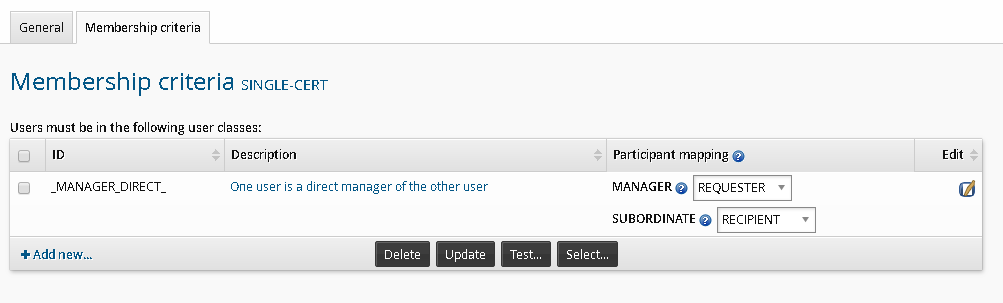
Click Update.
To test this setup:
Log in to Bravura Security Fabric as a user who satisfies the requester participant criteria; for example a manager if you are using the MANAGER_DIRECT user class.
Click View and update profile in the Other users section.
Select a user who satisfies the recipient criteria to view their profile information and resources page.
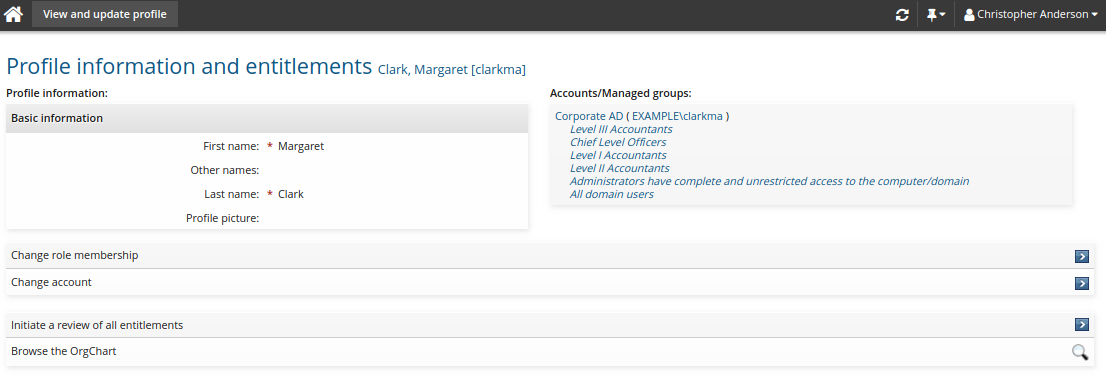
Click Initiate a review of all entitlements.
It can take a moment before the certification campaign is ready for review. Click Refresh to refresh the page.
Bravura Security Fabric displays a link based on the saved setup:
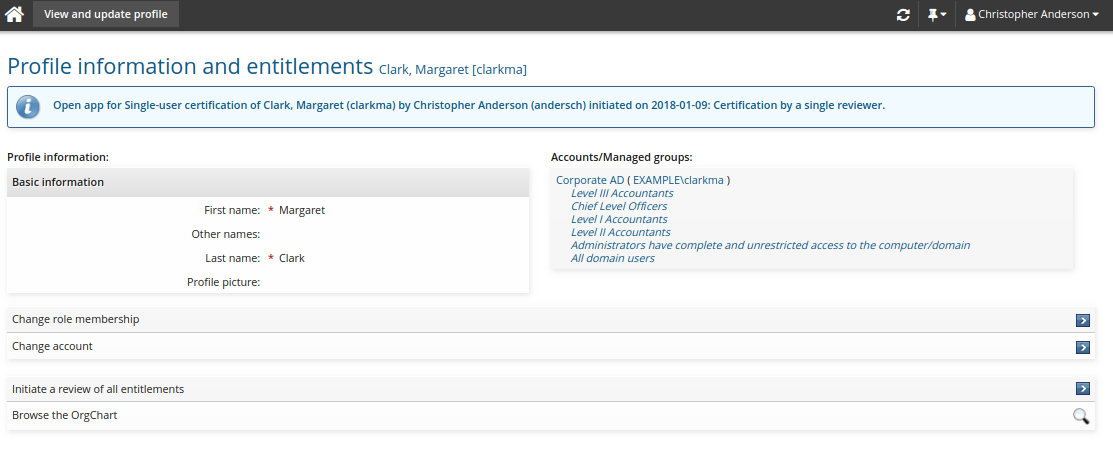
Click the link to open the certification review app.
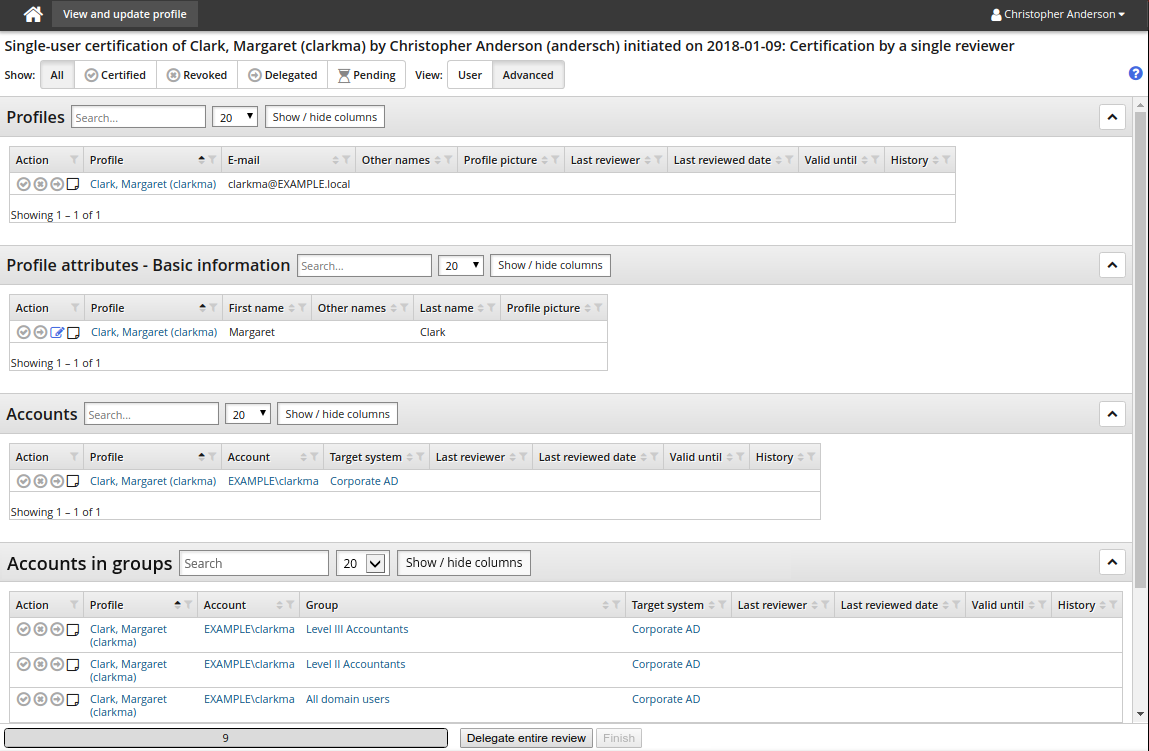
You can run the Entitlement review privileges report to list who can run a single user certification for which users.
Save a default configuration
SINGLE_USER_CERTIFICATION_DEFAULT_CAMPAIGN is the default setup for a single user certification campaign. You can modify this setup on the Saved certification setups page. To use another setup, type the ID of the saved setup in the CERT SINGLE USER CONFIGURATION field at Manage the system > Modules > Manage certification process (CERT) .