Example process
Use case: Mobile device enrollment invitations via email
This use case shows you how to configure Bravura Security Fabric to automatically detect users without enrolled mobile devices registered and send an email encouraging them to register.
Requirements
This use case assumes that:
Bravura Security Fabric and the Connector Pack are installed.
An Active Directory target has been configured.
The email settings within Bravura Security Fabric have been configured.
A Bravura One mobile proxy is running and its corresponding service within Bravura Security Fabric is configured.
A target system has been added as a source of profiles with individual email addresses.
Create a batch notification
To create and configure a batch notification for mobile device enrollment:
Log in to Bravura Security Fabric .
Click Manage the system > Policies > User notifications > Batch notifications .
Click Add new… to create a new batch notification..
Enter an ID and Description.
Leave Severity set to
Info.Select
Mobile enrollmentas the plug-in to determine compliance.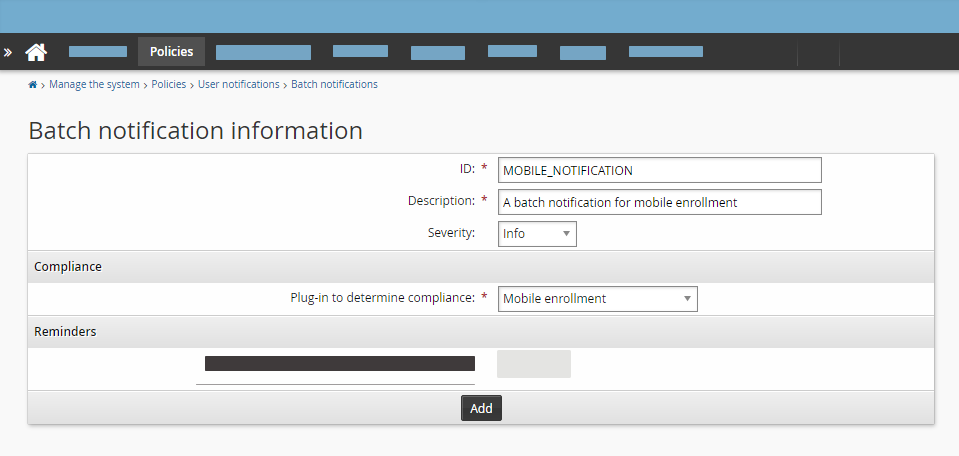
Click Add.
Click
 next to Global email plug-in.
Enter an email subject and mail message; reminding the user to register a mobile device. For convenience, put the URL of the Bravura Security Fabric instance as part of the message. You can use Available variables to personalize the message. For example:
Subject Reminder: Mobile device enrollment
Mail Message Hello %USERID%
You have not yet enrolled a mobile device. Please do so at your earliest convenience.
http://localhost/default/
Thank you
%MGRID%
Click Update.
Click on the Schedule tab.
Configure the settings of the schedule as desired and then click Add.
Once the batch notification has been created and properly configured with a message and schedule, Bravura Security Fabric will automatically begin sending emails according to the set schedule.
It is also possible to send an email immediately using the Run now button on the notification’s schedule tab.
Use case: Install the Bravura One app and register a profile
This use case shows you how to install the Bravura One app on a mobile device, and then register a profile with the app.
Requirements
This use case assumes that:
Bravura Security Fabric and the Connector Pack are installed.
An Active Directory target has been configured.
A Bravura One mobile proxy server is running and its corresponding service within Bravura Security Fabric is configured.
A target system has been added as a source of profiles with individual email addresses.
The user is an end user intending to use the publicly released version of the Bravura One app .
User self-service rules within the instance have been set to allow mobile registration.
Download and install the Bravura One app
Before you install the Bravura One app , ensure that your mobile device is compatible. The Bravura One app is available for both Android (11.0 or higher) and iOS (12.0 or higher).
Open the app store on your device, either the Google Play Store or the Apple Store as appropriate.
Search for the Bravura One app in the store using the search bar.
Choose to install the application.
Register and active a mobile device
To add the first profile to your device:
Log in to Bravura Security Fabric on a desktop browser as an end user.
Click the Register mobile devices link.
Click the Register button to display a QR code.
On your mobile device open the Bravura One app .
Tap SKIP INSTRUCTIONS and then the + button on Android or the Register Device button on iOS.
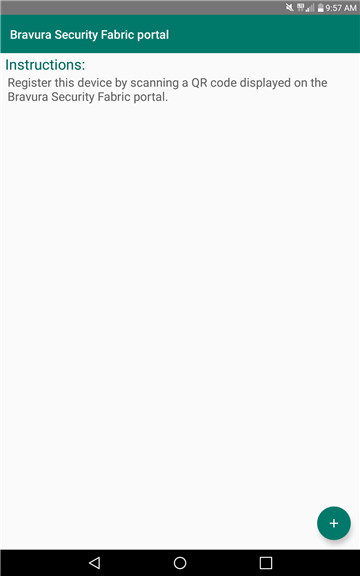
In the case of a device that already has a profile saved, add a new profile:
Tap the rocket icon.
Select the profile name at the top left of the main screen to access the profile list.
Select ADD SERVER.
Tap the + button on Android or the Register Device button on iOS.
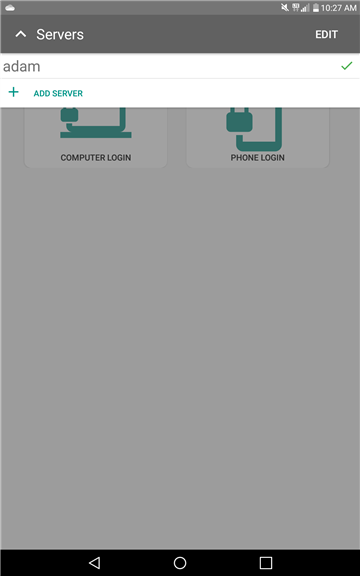
Tap OK to allow Bravura One to access the camera.
Aim the device’s camera at the unobstructed QR code being displayed on the desktop monitor.
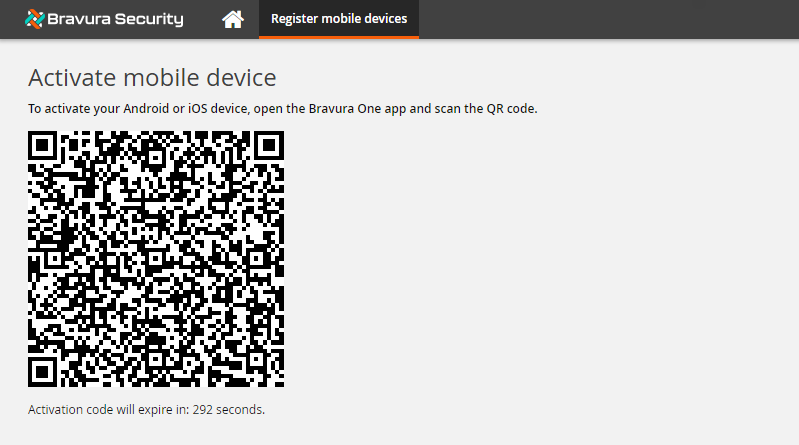
Once the code has been recognized, tap Save.
Enter a Connection profile name and tap OK.
The Bravura One mobile proxy communicates back to the Mobile Worker Service on the Bravura Security Fabric instance and authenticates the activation code.
The Bravura One app passes in the userid of the registered user and opens the page for the user’s available authentication methods to log in.
You can also use the menu at the top left of the main screen to switch between profiles on the device.
Use case: Self-service password reset
This use case explains how to use the Bravura One app to reset a user’s password.
Requirements
This use case assumes that:
Bravura Security Fabric and the Connector Pack are installed.
An Active Directory target has been configured.
A Bravura One mobile proxy is running and its corresponding service within Bravura Security Fabric is configured.
A target system has been added as a source of profiles with individual email addresses.
A user has installed the Bravura One app and registered a device to their profile.
Reset a user’s password from the Bravura One app
Open the Bravura One app. The ID of the user who activated the mobile device is automatically passed in.
If there are multiple profiles registered to the device, tap the top left area and select the correct profile.
If needed, tap the rocket icon to access the main menu.
Select Phone login from the main menu.
If multiple authentication chains exist, select the desired authentication method from the choices presented.
Enter the authentication information as requested.
The main login page of the Bravura Security Fabric instance is displayed, similar to what would be on a standard desktop browser.
Tap Change passwords.
Tap Show [Password policy rules] to view the password requirements.
Type a new password and confirm. Make sure the chosen password fulfills all listed requirements.
Tap Change passwords.
Turn your mobile device to landscape mode to view the entire Results table, including the Password changed? column. Any failed password changes will be queued and retried.
Use case: Privileged access check-out
The following example illustrates how end-users can check-out a password for a managed account:
User: is away from the network but has access to an Internet connection. He wants to login to a managed system to perform some tasks but needs the administrator credentials.
User: launches the Bravura One app on a mobile device.
Bravura One app: opens the page for the user’s available authentication methods to log in.
User: chooses one of the authentication methods such as answering security questions or providing a password.
Bravura One app: authenticates the user to Front-end (PSF).
User: scrolls through the application and taps on the Privileged access link.
User: selects the type of privileged access to request.
User: selects a managed account to request access for.
User: specifies a recipient, check-out/check-in time, emails for recipients and submits the request.
Authorizer: reviews and approves the request.
Bravura Security Fabric server: processes the request.
User: goes back to the Front-end (PSF) and clicks the Your privileged access request has been approved. link.
Bravura One app: navigates the user to the approved request in the Privileged access application.
User: clicks Check out button to check out the account access.
User: clicks View button to view the managed account password.
User: logs in to the managed system with the credentials and performs his tasks.
User: clicks Check in when he is finished accessing the managed system.
Use case: View recorded session
The following example illustrates how end-users can view a recorded session of a user’s check-out:
User: is away from the network but has access to an Internet connection. He wants to quickly check the data captured for a specific session.
User: launches the Bravura One app on a mobile device.
Bravura One app: opens the page for the user’s available authentication methods to log in.
User: chooses one of the authentication methods such as answering security questions or providing a password.
Bravura One app: authenticates the user to Front-end (PSF).
User: scrolls through the application and taps on the Session monitor link.
User: makes a request to search a specific set of sessions.
Authorizer: reviews and approves the request to search sessions.
User: finds the session and selects it to view more details.
User: makes a request to view the session.
Authorizer: reviews and approves the request to view the session.
User: selects the session again, a View button is now available.
User: clicks View button to view the captured data from the session.
Use case: Request authorization workflow
The following example illustrates how an authorizer can review and approve a request:
Authorizer: launches the Bravura One app from their mobile device and logs in.
Authorizer: clicks on the link to review their open requests.
Authorizer: may optionally click on other Requests menu options to access and search request pages such as Active, Recent, All , etc, in addition to Pending my approval .
Authorizer: chooses or searches for an open request.
Authorizer: clicks on the Approve button to approve the request (they may also optionally reject, update, or delegate the request).
Bravura Security Fabric server: processes the request.
Use case: Tracking requests
The following example illustrates how a user can review their own requests:
User: launches the Bravura One app from their mobile device and logs in.
User: clicks on the link to review their open requests.
User: may optionally click on other Requests menu options to access and search request pages such as Active, Recent, All , etc, in addition to My active requests.
User: chooses or searches for an open request.
User: views an open request and may optionally update or cancel the request.
Use case: Downloading a contact record
The following example illustrates how a user can download a user profile as a vCard and import the contact record into the native contacts list for Android or iOS mobile devices.
User: launches the Bravura One app from their mobile device and logs in.
User: clicks on the View and update profile link under the Other users section.
User: chooses or searches for a user that has the vCard profile attributes filled in for them.
User: scrolls down to the bottom of the page for the selected user.
User: clicks on the Add to contacts link.
User: clicks OK for the confirmation prompt that the contact has been added.
User: opens the mobile device’s Contacts list and searches for the user.
User: finds the user in the mobile device’s Contacts list that was added from the Bravura One app . It contains the contact record from the vCard profile attributes.
User: calls the user using the mobile device.