Installing a proxy server
This section shows you how to install software on a Bravura Security Fabric proxy server.
Proxy server requirements
The Bravura Security Fabric server and Bravura Security Fabric proxy server must be installed on separate machines.
Each Bravura Security Fabric proxy server requires the following:
Bravura Security Fabric requires one of the following operating systems:
Windows Server 2025.
Windows Server 2022.
Windows Server 2019.
Windows Server 2016.
It is recommended that the server is not a domain controller.
Bravura Security Fabric uses 64-bit binaries. If both 32-bit and 64-bit software is available, only install 64-bit unless mentioned otherwise in our documentation. Do not install Microsoft's SDK, only the items mentioned below.
TCP/IP networking, with a static IP address and DNS name entry
Cryptographic certificate
Microsoft .NET Framework 3.5 and 4.5+
.NET Runtime 8.0 with the following:
ASP.NET Core Hosting Bundle 8.0.x (latest. Use 'Hosting Bundle', not x86 nor x64)
.NET Desktop Runtime 8.0.x
The .NET Runtime is from:
Web Service Enhancements (WSE) 2.0 SP3 for Microsoft .NET or greater
Note
This requirement is only needed for the "SOAP Web Service (
agtsoap)" and "XML-RPC Web Service (agtxml)" connectors.
The Connector Pack contains connectors which integrate Bravura Security Fabric with target systems.
The setup of the proxy server’s Connector Pack must match the setup of the Bravura Security Fabric ’s Connector Pack; for example, if the Bravura Security Fabric install has an instance-specific Connector Pack, the proxy server must be instance-specific also. Or, if the Bravura Security Fabric is using the global Connector Pack , the proxy server must have the global Connector Pack .
Native clients for the systems that Bravura Security Fabric will interface with. Refer to the Connector Pack documentation for information specific to each type of target system.
Microsoft Visual C++ 2015 Redistributable (x64 and x86)
Microsoft Visual C++ 2015 Redistributable Package is required for Bravura Security Fabric 10.0 and higher. It is required for certain Bravura Security Fabric run-time components that use Visual C++ libraries. This is automatically installed during setup , if prerequisites are met.
Python 3.11.2+ must be installed before installing Bravura Security Fabric. It is required for certain components, including the Python IDMLib library used to help create plugin programs, the Health check monitor, and the Pattern components (reference builds).
Ensure that Python is installed for all users to allow the Bravura Security Fabric service user (psadmin) account appropriate access to the Python installation.
It is recommended to add Python to the system PATH. This may also be added by selecting the Add Python 3.11 to PATH option during the Python installation.
Python 3.11.2+ is optional for Connector Pack installations. It is however required for the agtpython and pxpython connectors.
For older versions of Bravura Security Fabric, there are alternate versions of the agtpython connector located in the agent\alt directory and alternate versions of the pxpython connector located in the interface\alt directory that are compatible with specific versions.
Below is a compatibility matrix that should be taken into consideration when upgrading Bravura Security Fabric and Connector Pack in regards to Python requirements and compatibility.
Python is optional for Connector Pack 4.3.x+ installations but is required for the agtpython and pxpython connectors. For older versions of Bravura Security Fabric, there are also alternate versions of the agtpython and pxpython connectors located in the agent\alt and interface\alt directories that are compatible for specific Python versions.
Y denotes that the versions are compatible and N denotes that the versions are not compatible. Y* indicates that there are alternate connectors for agtpython or pxpython that are shipped with the noted Connector Pack .
3.3.x | 3.4.1 | 3.4.3 | 3.5.3 | 3.7.x | 3.8.x-3.9.x | 3.10.x | 3.11.x | |
|---|---|---|---|---|---|---|---|---|
Instance version ↓ | Python version | |||||||
12.9.x / CP 4.8.x | N | N | N | N | Y* | N | Y* | Y |
12.8.x / CP 4.7.x | N | N | N | N | Y* | N | Y* | Y |
12.7.x / CP 4.6.x | N | N | N | N | Y* | N | Y* | Y |
12.6.x / CP 4.5.x | N | N | N | N | Y* | N | Y* | Y |
12.5.x / 4.4.x | N | N | N | N | N | N | Y | N |
12.4.x / CP 4.3.x | N | N | N | N | Y* | N | Y | N |
12.0 - 12.3.x / CP 4.0.x - 4.2.x | N | N | N | N | Y | N | N | N |
10.0.4 - 11.1.3 / CP 3.1.4 - 3.3.2 | N | N | N | Y | N | N | N | N |
9.0.3 - 10.0.3 / CP 3.1.0 - 3.1.3 | N | N | Y | N | N | N | N | N |
9.0.0 - 9.0.2 / CP 3.0.0 - 3.0.2 | N | Y | N | N | N | N | N | N |
8.2.8 / CP 2.4.0 - 2.5.2 | Y | N | N | N | N | N | N | N |
See also
Install the 64-bit version of Python 3.11.2, before installing Bravura Security Fabric or Connector Pack.
Ensure that Python is installed for all users to allow the Bravura Security Fabric service user (psadmin) account appropriate access to the Python installation.
To install Python 3.11.2+:
Download and run the 64-bit installer from python.org .
On the first screen, check the Add Python 3.11 to PATH option.
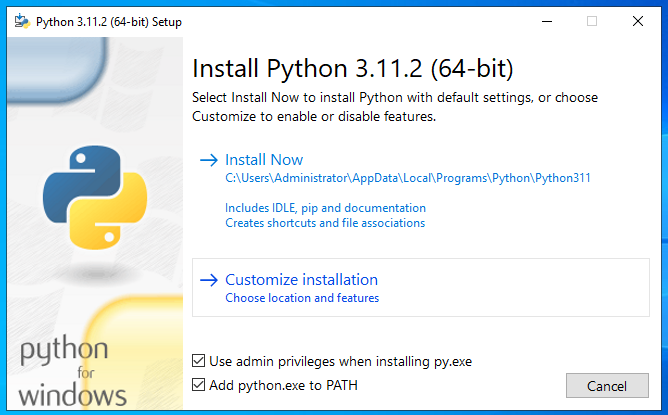
Click Customize installation.
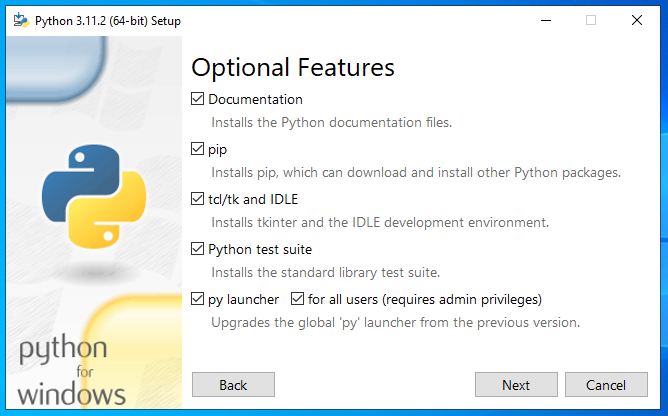
Use all Optional Features.
On the Advanced Options screen, select Install for all users, and ensure that the path is correct in the Custom install location.
Do not select Download debugging symbols or Download debug binaries.
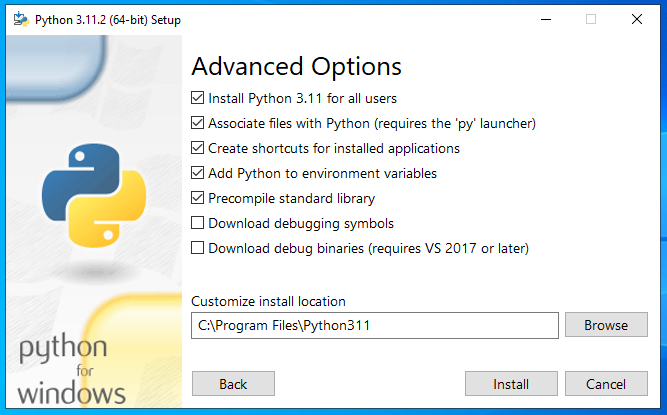
Click Install.
Installing a proxy server using idmsetup.inf
When you install Bravura Security Fabric on the main server, an idmsetup.inf file is created in the psconfig directory. You can use this file to aid the installation of proxy servers. It contains the encrypted communication key (or Master Key), the Connector encryption key, and other correct default values for prompts during installation.
It is highly recommended that you:
Copy the
idmsetup.inffile to each proxy server and place it in the same directory from which you will run the installer (proxy.msi).Ensure the architecture of the proxy server matches the architecture of the primary server. For example, if the primary instance is installed on a 64 bit operating system, then
idmsetup.infshould be used on a 64 bit operating system.Your proxy server configuration must match that of your Bravura Security Fabric server.
Installation stages
To install a proxy server using the idmsetup.inf configuration file:
Configure proxy tunnel clients (Websocket Connector Proxy)
During installation of Proxy server there is an option to install the Proxy Tunnel feature (Websocket Connector Proxy) and the Persistent Connector Service. These features are explained in Proxy servers.
Before running setup, generate a port and password to use during the installation to configure Proxy Tunnel clients on the proxy server.
To generate these values:
Log in to the main Bravura Security Fabric server as a superuser.
Click Manage the system > Resources > Proxy tunnel clients.
Click Add new.
Assign the name to the tunnel client and port number that the proxy server will listen to.
If configuring persistent listing on the proxy server, assign the port number that the proxy tunnel client will listen on.
Ensure you choose a port that is not already in use as all nodes need to be able to listen on it. Also, ensure that it is not the port used by the Persistent Connector Service (agtsvc), which uses port 4567 by default. The port only needs to be available locally and does not require access through the firewall.
Click Add new.
Click Generate password to generate a password that will be used when installing the Proxy Tunnel on a proxy server.
Once the password is generated, copy it and save it in a safe location. The password is not recoverable if the page times out or you navigate away from the page. If that happens, a new password must be generated.
The password binds you to the chosen port, so a new password is required when installing another client.
Download Bravura Security Fabric and copy idmsetup.inf
To install the required files on the proxy server:
Log in to the host Windows server as member of the Administrators group.
If required, download and unzip the Bravura Security Fabric distribution folder.
Contact your Bravura Security account representative for details.
Copy
idmsetup.inffrom the psconfig directory on the primary server to the proxy server and place it in the root of the distribution folder.
Run setup to install Proxy Server
To install Proxy Server:
If configuring the Websocket Connector Proxy (Proxy Tunnel feature) complete prerequisite tasks.
These steps are necessary to configure the port being used and generate a password for the installation.
Launch the
setupprogram located at the root of the distribution folder.If you already have a Bravura Security Fabric instance installed on the Windows server,
setupdisplays the page. Click Install New to proceed.The
setupprogram asks you to choose a product to install.Select Bravura Security Fabric Proxy Server.
Click Next .
Verify that instance name is already filled in and optionally enter a description.
Click Next .
Click Next .
The setup program performs a pre-installation check and verifies all installation requirements.
If all of the checks are successful, click Next to proceed with the installation.
If any of the pre-install checks produce warnings or errors, click Report for details. See Troubleshooting for additional troubleshooting information.
The setup program launches
proxy.msi.Click Next .
Read and accept the license agreement.
Click Next .
Choose the setup type:
Typical to accept recommended default settings.
If the default port 3344 is in use, setup increments to the next available port. Ensure the port is open.
Custom to select:
Components to install – By default, Proxy Server is selected. The Proxy Tunnel and Persistent connector service are optional.
Install the Proxy Tunnel feature (Websocket Connector Proxy) to avoid having to open inbound TCP ports. The Proxy Tunnel service tunnels communication between the proxy server and the instance server using outbound HTTPS.
Install the Persistent connector service to configure persistent listings to run on the proxy server.
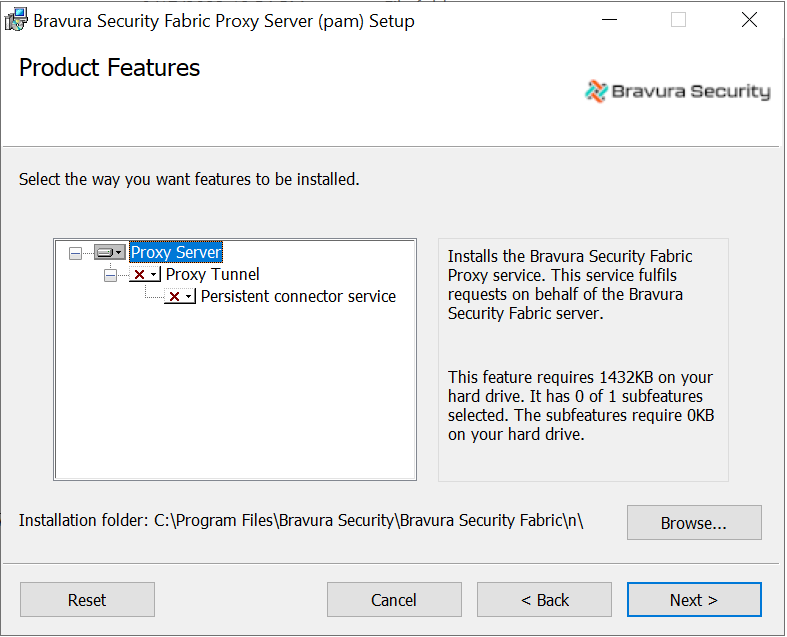
Installation, log file, and lock file paths – must be the same relative paths as configured for the main Bravura Security Fabric server
Proxy port – default is 3344
Persistent Connector Service port – persistent listing tunnel port for the proxy tunnel client
Verify that the psadmin passwords are already filled in (masked with stars).
Click Next .
Verify that the communication key (or Master Key) and Connector encryption key are the same as those entered for the main Bravura Security Fabric server.
Click Next .
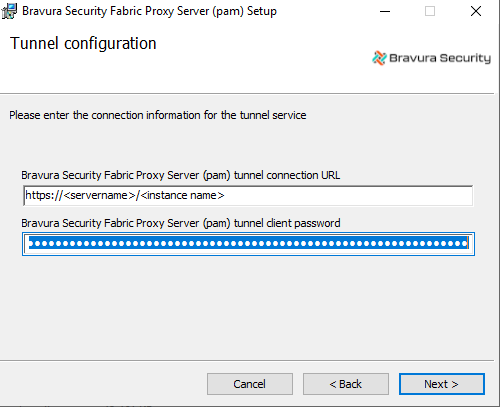
If you installed Proxy Tunnel, verify that Bravura Security Fabric Proxy Server tunnel connection URL and tunnel client password are filled.
Use your load balancer URL for theBravura Security Fabric Proxy Server (<instance>) tunnel connection URL field.
The proxy tunnel client will use that URL to retrieve the list of nodes to directly connect to. This is obtained through the node's external address, which must be reachable.
If you installed Bravura Privilege, verify that the Data Key is the same as the one entered for the main Bravura Security Fabric server.
Click Next .
The installer displays the page.
Click Next to start the installation.
The installer begins copying files to your computer. The page appears after the Proxy Service (
psproxy) has been successfully installed.Click Finish to exit.
Next:
Install Connector Pack and client software for the systems that Bravura Security Fabric will interact with.
Installing Connector Pack on a proxy server
After installing the proxy server, install the same version of Connector Pack that the Bravura Security Fabric server uses. The setup of the proxy server’s Connector Pack must match the setup of the Bravura Security Fabric ’s Connector Pack ; for example, if the Bravura Security Fabric install has an instance-specific Connector Pack , the proxy server must be instance-specific also. Or, if the Bravura Security Fabric is using the global Connector Pack , the proxy server must have the global Connector Pack .
Click below to view a demonstration of installing all connectors and sample files for a Bravura Security Fabric instance.
Navigate to the folder containing the setup program for Bravura Security Fabric .
Double-click
setupto start the setup wizard.You should see that the proxy server software is already installed.
To match your Bravura Security Fabric installation:
If you need to install an instance-specific connector pack, select your instance so that the installer displays options, and click Install a connector pack.
If you need to install a global connector pack, click Install new to see that option.
Choose Connector Pack 64-bit.
Click Next .
The setup program performs a pre-installation check. There should be no errors. A warning may be shown for some components, such as .NET WSE test, that are required for certain targets.
Click Next .
After some time, the MSI should launch.
Click Next to start the setup wizard.
Select the I accept the terms in the License Agreement checkbox, then click Next .
Choose the setup type to match the Connector Pack installed for Bravura Security Fabric .
Click Install.
You may be notified that the system will need to reboot to complete the installation. If you do, click OK to continue.
After some time, the installation should complete.
Click Finish.
Once the installer has finished its tasks, the Bravura Security product setup program will complete the post-installation process.
Click Finish to complete the installation.
Ensure that you install all native clients for the systems that Bravura Security Fabric will interface with. Refer to Connector Pack documentation for information specific to each type of target system.