Upgrading Connector Pack
The Connector Pack upgrades are released independently of other Bravura Security product releases, which allows the connectors to be updated easily and frequently.
When multiple Connector Packs exist on the same system, the upgrades must be run individually. For example, if your system has multiple instance-specific Connector Packs, then the upgrade must be separately installed for each Connector Pack.
Upgrading the Connector Pack will only upgrade the previously installed connectors. New connectors will only be installed by re-running setup, modifying the Connector Pack, and manually selecting the new connectors for installation. See for additional information. See Adding and removing connectors for additional information.
Upgrading to Connector Pack 3.1.0 or later and using a Bravura Security Fabric instance prior to 10.0 will result in the official scripted connectors failing to load during either the post-upgrade tasks or when querying the connector using loadplatform . The official scripted connectors are only compatible with Bravura Security Fabric 10.0 and above.
New connectors, especially Customer-Verified connectors, should be confirmed and tested in development environments for required use cases before being installed in production environments, as their features, functionality and implementation may have changed from one version to the next.
Upgrading Customer-Verified connectors
Starting with Connector Pack 4.6.0, the Connector Pack is separated between Bravura Security-Verified and Customer-Verified connectors .
Bravura Security-Verified connectors have been tested and are fully supported. They are the core connectors that are installed by connector-pack-x64.msi . Customer-Verified connectors are not shipped with the core Connector Pack and are distributed and installed separately.
When upgrading the instance-specific or global Connector Pack from 4.5.x or earlier using setup to Connector Pack 4.6.0 or later:
Only Bravura Security-Verified and connectors are upgraded.
Customer-Verified connectors from previous versions of the Connector Pack that are not upgraded by setup are removed during the upgrade.
When upgrading the instance-specific or global Connector Pack from version 4.6.0 or later using setup to 4.9.0:
Only Bravura Security-Verified and connectors are upgraded.
Customer-Verified connectors manually installed from the previous version prior to the upgrade are retained from that version after the upgrade. There will therefore be a mix of the upgraded Bravura Security-Verified connectors alongside the older Customer-Verified connectors.
In both cases, Customer-Verified connectors must be copied and installed manually to be upgraded to the latest Connector Pack version.
When the instance-specific or global Connector Pack is upgraded using setup, the Bravura Security-Verified connectors will be upgraded.
Any in-use Customer-Verified connectors are only upgraded during either the post-upgrade (or post-installation) tasks when loading connectors or by the loadcvagents utility. They are provided separately in the connector-pack-customer-verified.zip file.
During an installation or upgrade, only the Customer-Verified connectors that are currently configured as target systems on the Bravura Security Fabric instance are copied and loaded for this action.
You can also run loadcvagents separately to copy additional Customer-Verified connector files if needed. In this case, you still need to run loadplatform manually in order to load the connector for the instance.
The loadcvagents utility is only available for Bravura Security Fabric 12.7.1 and up.
For backwards compatibility between Connector Pack 4.6.1 and up, with Bravura Security Fabric 12.7.0 and below, you must manually copy Customer-Verified connectors to the Bravura Security Fabric instance; since the loadcvagents utility is not available in this case.
In this case, do the following:
From the connector-pack-customer-verified.zip file, locate directories and files for each of the platforms for the required Customer-Verified connectors.
Read notes, including instructions on where to copy the directory structure, contained with each of these directories.
Manually copy required files to the relevant directories for the Connector Pack located on the Bravura Security Fabric server.
Run
loadplatformfor each of the connectors as well as any other requirements:loadplatform -a agt<xxx>
The loadcvagents utility runs automatically during the post-installation or post-installation tasks when loading connectors from an installation or upgrade. It copies the contents of the provided connector-pack-customer-verified.zip file for the Customer-Verified connectors to the relevant locations for the Connector Pack. Only Customer-Verified connectors currently configured as target systems on the Bravura Security Fabric instance will be copied and loaded for this action.
You can run loadcvagents separately. In this case, it only copies the Customer-Verified connector files. You must also run loadplatform manually in order to load the connector for the instance.
Note
The loadcvagents utility is only available for Bravura Security Fabric 12.7.1 and up.
loadcvagents.exe -mode [single|used|all] [-platformName <platformName>] [zip <zipName>]
Argument | Description |
|---|---|
-h, --help | Print out help/usage message and exit |
-v, --version | Print out version and exit |
-mode <single|used|all> | REQUIRED
|
-platformName <platform to load> | Use this option in combination with the "-mode single" option to copy Customer-Verified connectors for a specific connector platform. Specify the platform id for the Customer-Verified connector to copy from the zip file. |
-zip <zipfile containing agents> | Specify the full path to the |
Copy only the Customer-Verified connectors for configured targets on the Bravura Security Fabricserver, type:
loadcvagents.exe -mode used -zip c:\temp\connector-pack-customer-verified.zip
Copy only a specific connector (such as for XML-RPC Web Service) from the zip file, type:
loadcvagents.exe -mode single -platformName XML -zip c:\temp\connector-pack-customer-verified.zip
Copy all of the Customer-Verified connectors from the zip file to the Bravura Security Fabric server, type:
loadcvagents.exe -mode all -zip c:\temp\connector-pack-customer-verified.zip
After running the loadcvagents command, ensure to also run the loadplatform command for the added Customer-Verified connector; for example:
loadplatform -a agt<xxx>
Connector encryption key
The Connector encryption key is used as a 256-bit encryption key for sensitive data passed to connectors.
For example, Bravura Security Fabric uses the Connector encryption key to encrypt and decrypt passwords and administrative credentials used by connectors and exit traps as well as all communication and operations run by the connectors.
The Connector encryption key is installed for Bravura Security Fabric 10.1.x or higher installations or upgrades.
Note
The Connector encryption key is only compatible with Bravura Security Fabric 10.1.x and Connector Pack 3.2.0 and higher.
Deprecated and removed connectors and replacements
Removed connectors | Replaced by | Removed from Connector Pack | Notes |
|---|---|---|---|
Python Script - agtpython-3-10.exe and agtpython-3-7.exe Python Script (Ticket) - pxpython-3-10.exe and pxpython-3-7.exe | agtpython-3-14.exe and agtpython-3-11.exe pxpython-3-14.exe and pxpython-3-11.exe | 4.9.0 | Older alternate python connectors from the agent\alt and interface\alt directories are removed for Python versions that are no longer in support. |
SAP Server - agtsap.exe SAP Human Capital Management (HCM) - agtsaphr.exe | SAP Server - agtsapnw.exe SAP Human Capital Management (HCM) - agtsaphrnw.exe | 4.9.0 | The agtsap and agtsaphr connectors use a version of the API that SAP has deprecated and may no longer work with future SAP updates. See the agtsapnw and agtsaphrnw connectors for more information. |
Bravura Safe - agtbsafe | Bravura Safe (2025+) - agtbsafe | 4.8.0 | |
Bravura Safe User Management - agtbsafe-user | Bravura Safe User Management (2025+) - agtbsafe25-user | 4.8.0 | |
Bravura Security Fabric - agtidm | 4.7.0 | ||
Unix server - aix6.1.ppc64 aix7.1.ppc64 linux-glibc-2.5.x64 linux-glibc-2.12.x64 solaris11.sparc64 solaris10.sparc64 solaris10.x86 rhel-el7.x64 debian-9.x64 | Unix server - psunix-linux-glibc-2.28.x64 | 4.6.0 | Support can be provided at an additional cost. |
Legacy Active Directory - agtad | Active Directory DN - agtaddn | 4.6.0 | Use the adtoaddn.exe utility to convert a Legacy Active Directory target system over to using the Active Directory DN |
SMB Protocol for Legacy Active Directory - nrsmb | SMB Protocol for Active Directory DN - nrcifs | 4.6.0 | |
BlackBerry Enterprise Web Service 12 - agtbes12 | 4.6.0 | ||
BlackBerry Enterprise Web Service - agtbes-ws | 4.6.0 | ||
Checkpoint NGX networking equipment (SSH) - agtchkpt-ngfw | 4.6.0 | ||
RSA Access Manager - agtct5.exe | 4.6.0 | ||
Hitachi Data Systems Hi-Track Monitor - agthitrack | 4.6.0 | ||
JD Edwards EnterpriseOne 8.1 - agtjdeow81-co JD Edwards EnterpriseOne 9.0 - agtjdeow90-com | JD Edwards EnterpriseOne 9.0 (Java) - agtjdeow-java.exe | 4.6.0 | |
LinkedIn account - agtlinkedin | 4.6.0 | ||
Twitter account - agttwitter | 4.6.0 | ||
WebEx Connect - agtwebex-conn | WebEx - agtwebex | 4.6.0 | |
SAP Server - agtsapgrc agtsapnwgrc | SAP Server - agtsapnw | 4.5.0 | |
Microsoft Office 365 - agtoffice365 | Merged with Azure Active Directory - agtazure | 4.1.0 | |
Unix server - psunix-hpux11iv23.hppa64 | 4.1.0 | ||
Unix server - psunix-linux-glibc-2.7.x64 | psunix-linux-glibc-2.12.x64 | 4.1.0 | |
Sophos Safeguard Enterprise Server 7 - agtsge7 | Merged with Sophos Safeguard Enterprise Server - agtsge | 3.3.2 | |
BlackBerry Enterprise Web Service 10 - agtbes10 | BlackBerry Enterprise Web Service 12 - agtbes12 | 3.3.1 | |
BMC Service Desk Express Suite - agtmgccli agtmgcsta | 3.3.1 | ||
BMC Service Desk Express Suite - pxmagic70 pxmagic75 pxmagic90 | 3.3.1 | ||
Linux key management - agtlinux-keymgmt | Merged with Linux - agtlinux | 3.3.0 | |
SSH - agtssh samples | Individual SSH connectors | 3.3.0 | |
RSA Authentication Manager 7.1/8.x / SecureID - valiace | RSA Authentication Manager 7.1/8.x - rsaam challenge response authentication | 3.3.0 | |
Password Manager interface - pxpsynchv6 | 3.3.0 | ||
Unix Server - psunix-hpux11iv23.ia64 | 3.3.0 | ||
BlackBerry Enterprise Web Service - agtbes | BlackBerry Enterprise Web Service 10 - agtbes10 | 3.2.0 | |
McAftee Endpoint Encryption - agtmcee | McAftee Endpoint Encryption - agtmcee6 | 3.2.0 | |
Hitachi IT Operations Analyzer - agtopan | 3.2.0 | ||
addnid utility | 3.2.0 | ||
Unix server - psunix-solaris9.sparc64 | psunix-solaris10.sparc64 psunix-solaris11.sparc64 | 3.2.0 | |
Mobile proxy - mobproxy.linux-glibc-2.3.x64 mobproxy.linux-glibc-2.5.x64 mobproxy.linux-glibc-2.7.x64 | Replaced by rpm distributions in Bravura Security Fabric 10.0 and above | 3.1.2 | |
cert8gen utility | 3.1.2 | ||
RSA Authentication Manager 5.x/6.x - agtace psace | RSA Authentication Manager- agtrsaam | 3.1.0 | |
Unix server - psunix-aix5.3.ppc psunix-aix6.1.ppc | Unix server - psunix-aix6.1.ppc64 psunix-aix7.1.ppc64 | 3.1.0 | |
psunix-hpux11iv1.hppa psunix-hpux11iv23.hppa psunix-hpux11iv23.ia32 | psunix-hpux11iv23.hppa64 psunix-hpux11iv23.ia64 | 3.1.0 | |
psunix-linux-glibc-2.3.x86 psunix-linux-glibc-2.4.x86 psunix-linux-glibc-2.5.x86 | psunix-linux-glibc-2.3.x64 psunix-linux-glibc-2.5.x64 psunix-linux-glibc-2.7.x64 | 3.1.0 | |
psunix-solaris9.sparc psunix-solaris10.sparc psunix-solaris11.sparc | psunix-solaris9.sparc64 psunix-solaris10.sparc64 psunix-solaris11.sparc64 | 3.1.0 | |
RADIUS authentication - valirad | RADIUS - agtradius challenge response authentication | 3.1.0 | |
SSH - various sample scripts | agtaix.con agthpux.con agtlinux.con agtsolaris.con agtjunos9x.con agtchkpt-ngfw.con agtcisco-ios-ssh.con agtcisco-ios-telnet.con | 3.1.0 | These scripted connectors are a replacement for sample scripts. They make use of the agtssh, agttelnet, and agtdos connectors. They are compatible only with Bravura Security Fabric 10.0 and above. |
Exchange Server 2000 - agtex2k | Exchange Server 2007 - agtexg2k7 | 3.0.0 | |
JD Edwards 8.0 - agtjdeow80-com | JD Edwards - agtjdeow81-com, agtjdeow90-com, agtjdeow-java | 3.0.0 | |
agtolap | 3.0.0 | ||
agtsyb | agtsybct | 3.0.0 | |
agtsybscript | agtsybctscript | 3.0.0 | |
agtrem6 agtrem7 agtrem75 agtrem76 pxrem6 pxrem7 pxrem75 pxrem76 | agtrem pxrem (2.5.0) agtrem pxrem pxrem9 (3.3.0) | 2.5.0 | |
agentv6tov7 | 2.1.0 |
DLL files
Connectors require cryptographic dll files (mtcspi-*.dll) to be present on the system. When you install the connectors using setup, these DLLs are automatically installed into the correct location. If you are manually copying the connectors, you must copy the cryptographic DLLs too.
This also affects proxy servers. While the connectors will be automatically copied, the cryptographic DLLs will not. When upgrading from a version earlier than 2.4, it is recommended that you perform an installation using setup on all instance and proxy servers.
If a DLL fails to be loaded for a connector, verify the PATH, ensuring that only DLLs from <Program Files>\Common Files\Bravura Security\ are defined.
Connector Pack 3.1.0 requires the latest Microsoft Visual C++ Redistributable. If you manually copy the connectors and the installed Connector Pack is earlier than 3.1.0, you must first install the latest Microsoft Visual C++ Redistributable. Download it from the Latest supported Visual C++ Redistributable downloads page.
Requirements
Windows Server 2025 (for Bravura Security Fabric 12.9+,CP4.8+), 2022, 2019, or 2016 (12.8 or earlier)
Python 3.11.2+ (for use with
agtpythonandpxpython)Ensure that Python is installed for all users. Python installs in the context of the current user by default. You must choose a custom install, then select "all users" when the option becomes available. This will allow the Bravura Security Fabric service user (psadmin) account to have appropriate access to the Python installation.
It is recommended to add Python to the system PATH. This may also be added by selecting the option for "Add Python 3.11 to PATH" during the Python installation.
Python 3.11.2+ is optional for Connector Pack installations. It is however required for the
agtpythonandpxpythonconnectors.For older versions of Bravura Security Fabric , there are also alternate versions of the
agtpythonandpxpythonconnectors located in the agent\alt and interface\alt directories that are compatible for specific Python versions.Note
Alternate
pxpythonconnectors were added in Connector Pack 4.5.0.The installer will install the following automatically:
Microsoft Visual C++ 2015-2022 Redistributable (x86)
Microsoft Visual C++ 2015-2022 Redistributable (x64)
Upgrade Connector Pack using setup
When upgrading the connector pack, you must use the setup program that comes with the connector pack.
To upgrade Connector Pack from 3.2.2 or later to 4.7 using the setup installer:
Run
setupwith the 12.x msi.The program displays the list of existing Connector Pack installations on the server.
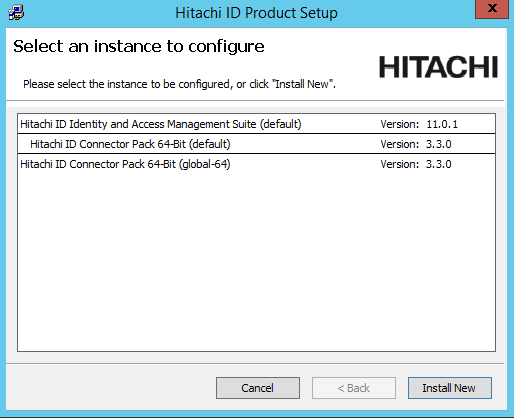
Select the Connector Pack you want to upgrade and click the Upgrade link.
During the upgrade, if prompted, click Yes to stop all services in order to install an updated Visual C++ Runtime.
Click Next .
Select Backup files if you would like the installer to do a backup.
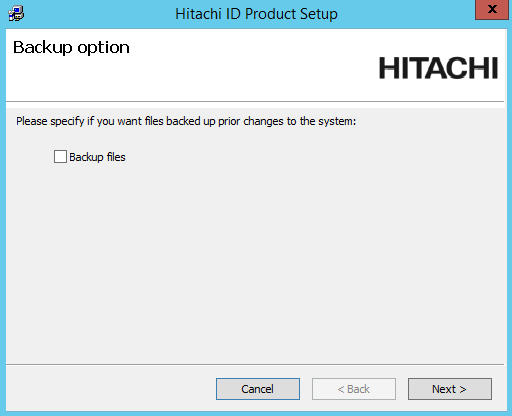
Click Next .
Follow the prompts to finish the upgrade.
Troubleshooting Connector Pack installation or upgrade
This section describes solutions to problems that may occur during the Connector Pack installation or upgrade, including issues with connectors not loading and attribute or template conflicts.
Manually loading the connectors
If connectors fail to load during install / modify procedure:
Click Report to list which connectors failed.
Execute
loadplatform.exefrom the command line to manually load the missing connectors.You can load specific connectors using the following command:
loadplatform.exe -a <connector name>You can also load all connectors available to the instance by running this command:
loadplatform.exe -targetThe
-targetargument examines both the global and instance specific Connector Pack s.
Attribute or template conflicts
Attribute or template conflicts can occur when Bravura Security Fabric or the Connector Pack is upgraded. During a Connector Pack upgrade, the installer runs loadplatform as a post-installation task to load connector-specific data (including attribute definitions) into the Bravura Security database. If the new attribute definitions differ from the existing ones, loadplatform reports a conflict.
A typical conflict warning looks like this:
Conflicting template(s) found for agtnt.exe. Please review the log, resolve any conflicts and then run "loadplatform -force -a agtnt.exe" to apply the changes.
The idmsuite.log file describes which attributes or templates are at fault and shows the proposed and existing values. For example:
attrdef = {
conflicts = {
accountNameHistory 632328ff-c281-41cb-9545-9e753dd4d48e = {
"proposed data" =
632328ff-c281-41cb-9545-9e753dd4d48e,accountNameHistory,0,AD,1,1,1,I,0,0,N,S,,0,-1,0,50,0,0;
"existing data" =
632328ff-c281-41cb-9545-9e753dd4d48e,accountNameHistory,0,AD,1,1,1,C,0,0,N,S,,0,-1,0,50,0,0;
};
In this example, the proposed data changes the attribute action from "C" (copy) to "I" (ignore). Forcing the update would revert the attribute to the default "ignore" action, which may break existing behavior that depends on the attribute value being copied.
Warning
Do not run loadplatform -force without first reviewing the conflicts. Bravura Security recommends keeping pre-existing attribute overrides unchanged in most cases. Forcing the default definitions can revert customized attribute actions and break PSLang scripts or automation that depend on those values.
It is the responsibility of the Bravura Security Fabric administrator to determine which portions of the Bravura Security Fabric instance may be affected by changes to default attribute values or characteristics; for example, the attribute's value may no longer be queried by default. If PSLang scripts make decisions based on this attribute's value, the decisions may no longer be correct.
Note
The Connector Pack upgrade process does not modify any existing attribute definitions used by the instance. You must decide which, if any, attributes should be modified when upgrading the Connector Pack.
If you choose to apply the update, back up the attrdef and attrdefval tables before updating the values. The attrdef and attrdefval CSV files are located in the agent\dat directory.
There are two ways to update the attribute default values:
Run
loadplatformwith the-forceflag. This applies all changes for the connectors you specify. See the loadplatform usage information for details.Override individual attributes from the page. You can override attributes at the target system or target system type level. See Account attributes in the Bravura Security Fabric documentation for details.
To forcibly update the attributes or templates, run loadplatform with the -force flag. For example:
loadplatform.exe -force -a <connector name>
To see a list of all loadplatform arguments, run:
loadplatform.exe --help
See usage information on loadplatform.
Note
In most Connector Pack upgrade scenarios, the conflict warnings can be safely ignored. The pre-existing attribute definitions remain in effect and the connectors operate with the existing configuration.