Managing the OrgChart
The following sections detail how to create and maintain the OrgChart as a product administrator .
The Bravura Security Fabric OrgChart construction process either begins with:
A list of users and no data about their relationships.
In this case, the organizational relationships must be identified and configured. You must identify the top-level manager, then either manually identify relationships, or start an Org building round.
A list of users with their organizational relationships already defined.
In this case, the organizational information was already defined on the target system and has been imported into Bravura Security Fabric . The process in this case will consist of verifying the organizational data and adjusting it if necessary.
See Mapping attributes for OrgChart management to learn how to import relationship data from a target system.
The following terms are important:
Manager | In the OrgChart, this is a user who has subordinates. |
Subordinate | This is a user who reports to another user. |
Top-level manager | This manager is the root of the OrgChart, and does not report to anyone. |
Org building round | This is a server-driven process that invites managers to name their subordinates in a top-down sequence. Managers login to Bravura Security Fabric to identify their subordinates and which of them are managers themselves. The process cascades down until all levels of management have been involved. You can start Org building rounds to initially build the OrgChart, or to periodically verify data. |
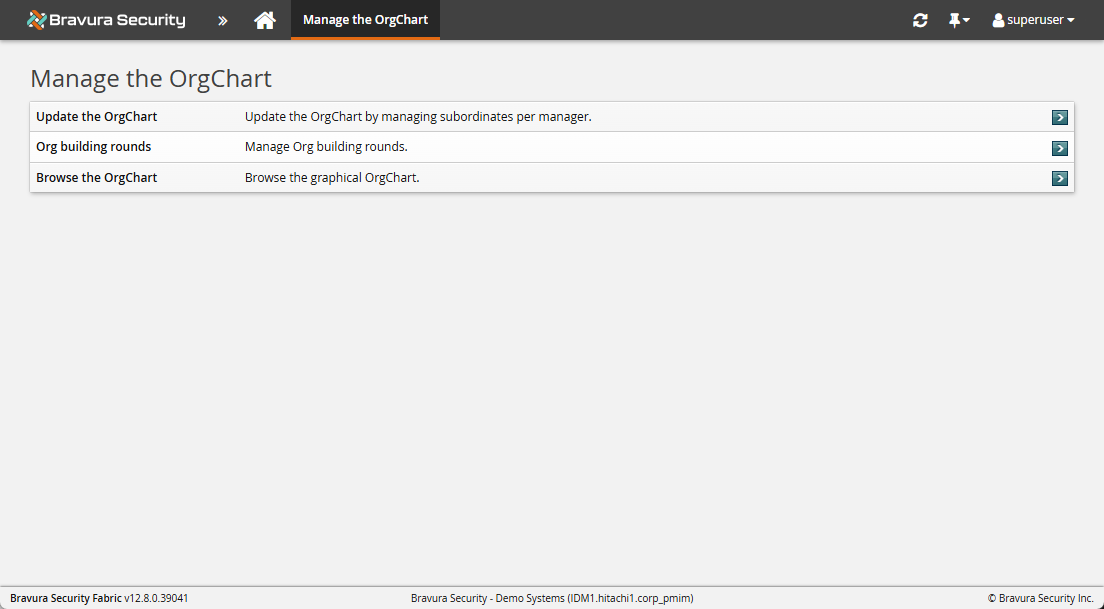
Starting with no data
If you import initial organization chart data from a target system or other source, the top manager should already be defined. If you are beginning with no relationship data, you must begin OrgChart construction by identifying the top-level manager.
The following security privileges control access to the Manage the OrgChart (IDG) module:
Product administrators with the ”Manage the OrgChart” administrative privilege can update the OrgChart and view the OrgChart structure.
Product administrators with the ”Start Org building rounds” administrative privilege can initiate OrgChart-building rounds and invite managers to update their list of subordinates.
This section shows you how to build the initial OrgChart by:
Identify a top-level manager and start an Org building round
To identify the top-level manager and start an Org building round:
Click Manage the OrgChart.
Click Update the OrgChart.
Browse or search the list of users, then select
 the user you want to make the top-level manager.
Bravura Security Fabric displays the Subordinates [<User>] page.
Click Start to begin an Org building round.
The Initiate Org building round page loads, and indicates that the top-level manager will be invited to login and identify his subordinates.
Click Continue.
Optionally, update the values for:
OrgChart round description
Segment description
If you make changes, click Update.
Click Continue.
Bravura Security Fabric displays a summary of the descriptions.
Click Submit.
Bravura Security Fabric notifies the top-level manager to start the process.
Identify a top-level manager and subordinates
To identify the top-level manager and their subordinates:
Click Manage the OrgChart.
Click Update the OrgChart.
Browse or search the list of users, then select
the user you want to make the top-level manager.Bravura Security Fabric displays the page.
Click Attach subordinates.
Browse or search the list to find the users who report to the manager.
Select the appropriate checkbox for each user you want to add to the manager’s list.
Click Attach subordinates.
Bravura Security Fabric displays the top manager’s list of subordinates.
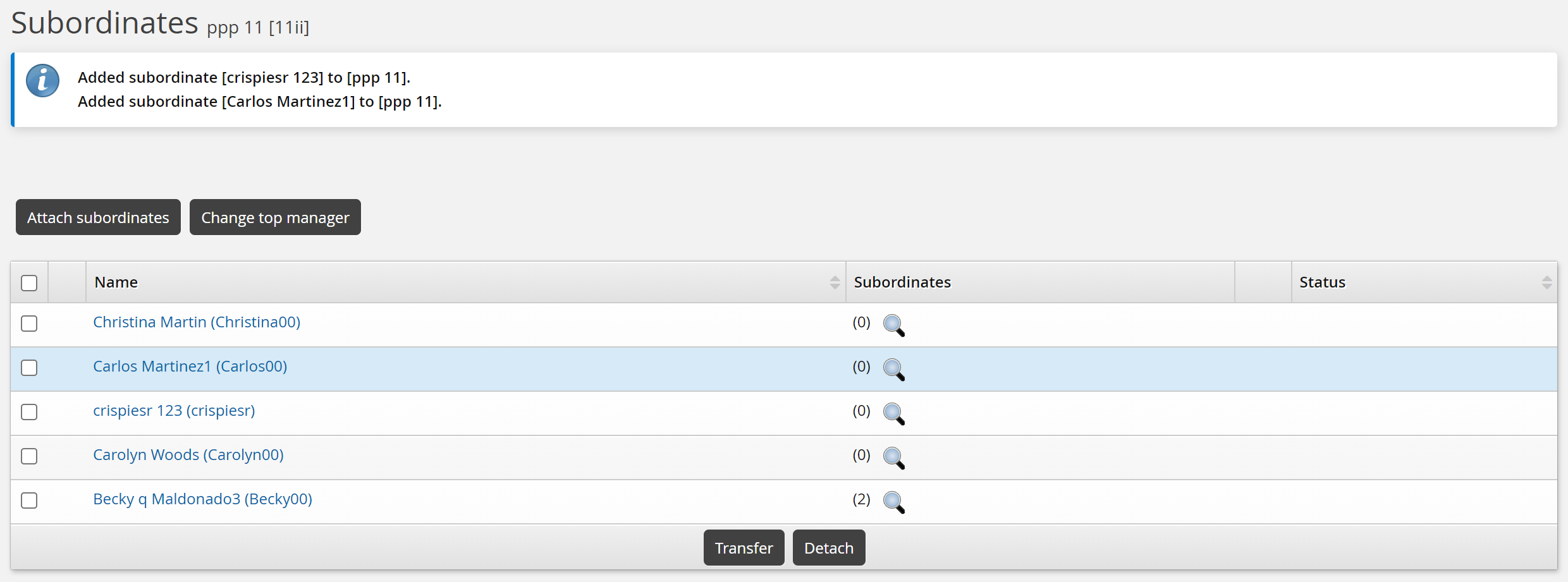
You can now attach the next level of subordinates by clicking the display icon in the user’s Subordinates column.
Continue this process until you have built the OrgChart to the level that you want.
Next:
You can now: start an Org building round to continue building, or to verify data
Changing the top-level manager
You can change the top level manager at any time; for example if the CEO is replaced or in the case of a merger.
You must be a product administrator with the ”Manage the OrgChart” administrative privilege.
To change the top-level manager:
Click Manage the OrgChart.
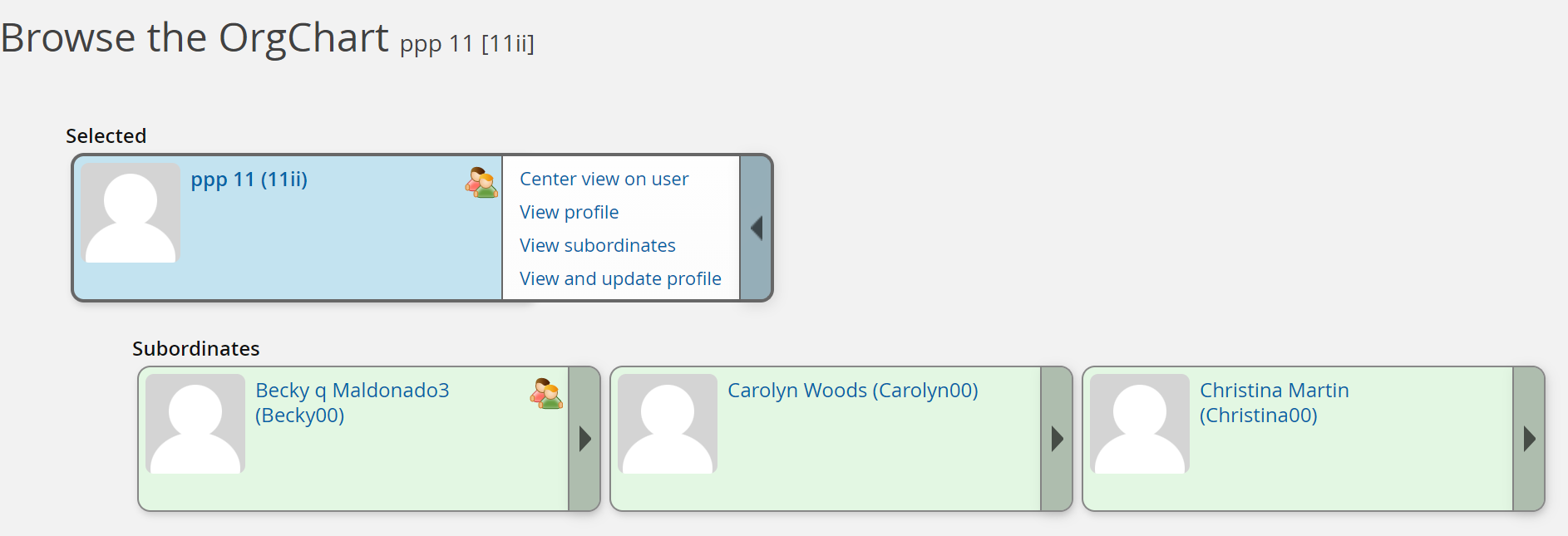
Bravura Security Fabric displays the Browse the Orgchart page with the top level manager selected, with direct subordinates below. Users who have subordinates are identified with a manager icon
 .
.To see other menu options available to product administrators in the Manage the OrgChart (IDG) module, click Manage the OrgChart in the navigation bar.
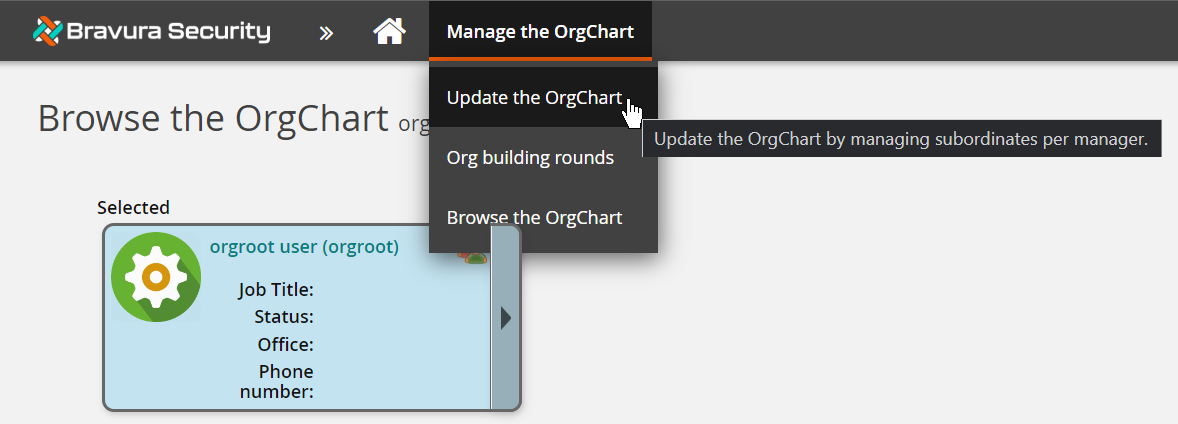
Bravura Security Fabric displays options to update the OrgChart or start org building rounds.
Click Update the OrgChart.
Browse or search the list of managers, then select
the current top-level manager.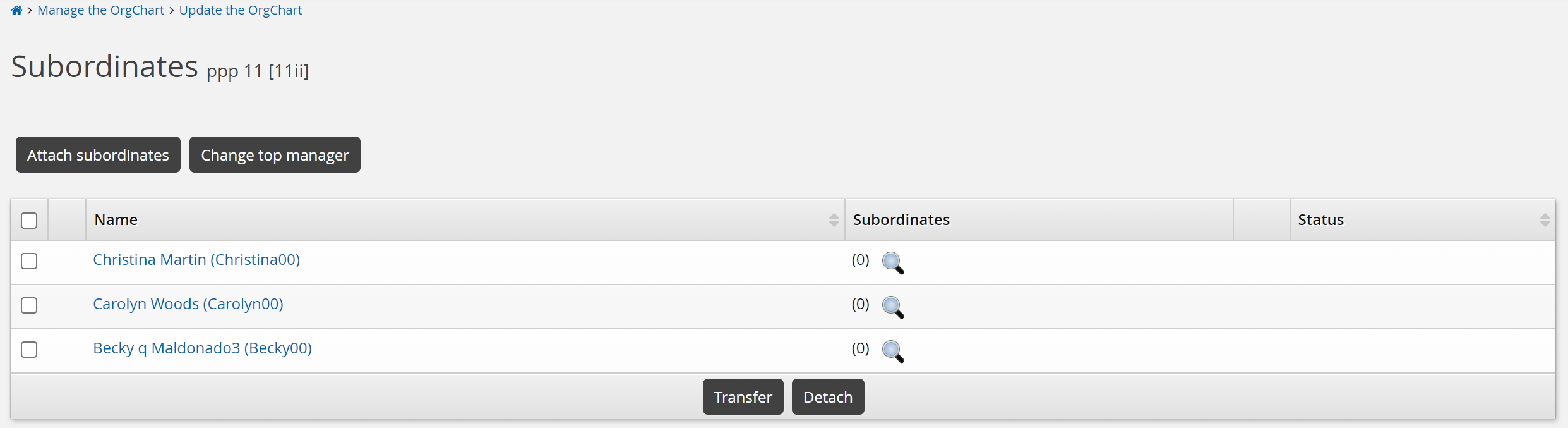
Click Change top manager.

Click the appropriate
button to:Replace the top manager with another user who is not currently in the OrgChart.
Swap the top manager with another manager in the OrgChart.
Attach the top manager to another user who is not currently in the OrgChart, and that user will become the new top manager.
In other words, the current top manager becomes the subordinate of the new top manager.
Remove the top manager from the OrgChart.
You can only do this if the top-level manager has no subordinates.
Browse or search the list of users, then select
the user you want to make the top-level manager.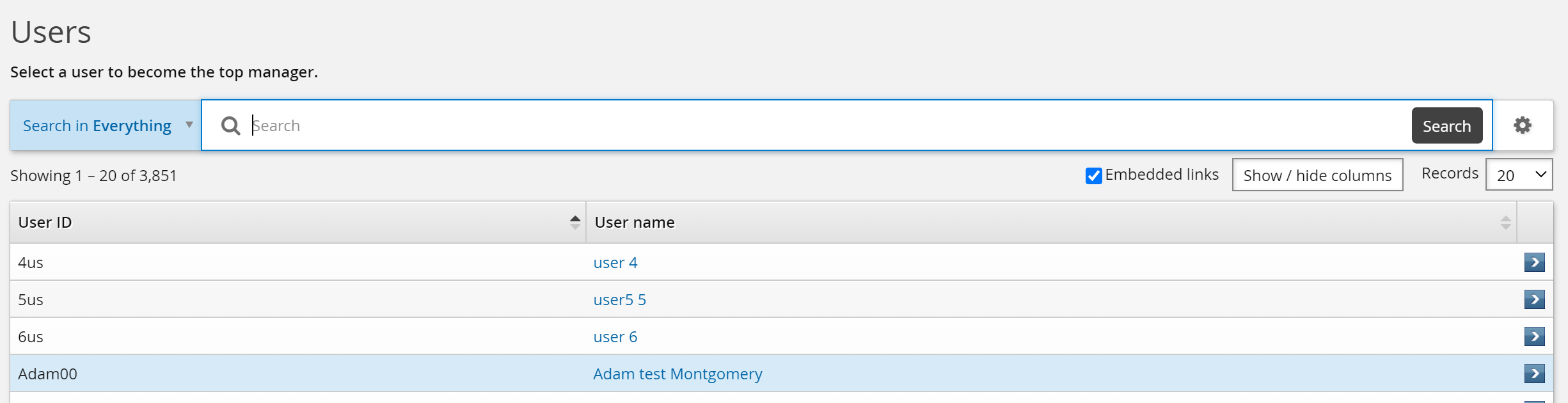
Next:
Updating the OrgChart
This section shows you how to carry out OrgChart maintenance tasks as a product administrator .
You must be a product administrator with the ”Manage the OrgChart” capability.
Select a manager to begin updates
To update the OrgChart, select the manager you want to start with:
Click Manage the OrgChart.
Bravura Security Fabric displays the Browse the Orgchart page with the top level manager selected, with direct subordinates below. Users who have subordinates are identified with a manager icon
.To see other menu options available to product administrators in the Manage the OrgChart (IDG) module, click Manage the OrgChart in the breadcrumb links.
Bravura Security Fabric displays options to update the OrgChart or start org building rounds.
Click Update the OrgChart.
Browse or search the list of managers, then select the manager whose portion of the OrgChart you want to update.
On this page, you can select a different manager at any time by clicking the display icon next to a user in the list of subordinates, or next to the user that the selected manager reports to.
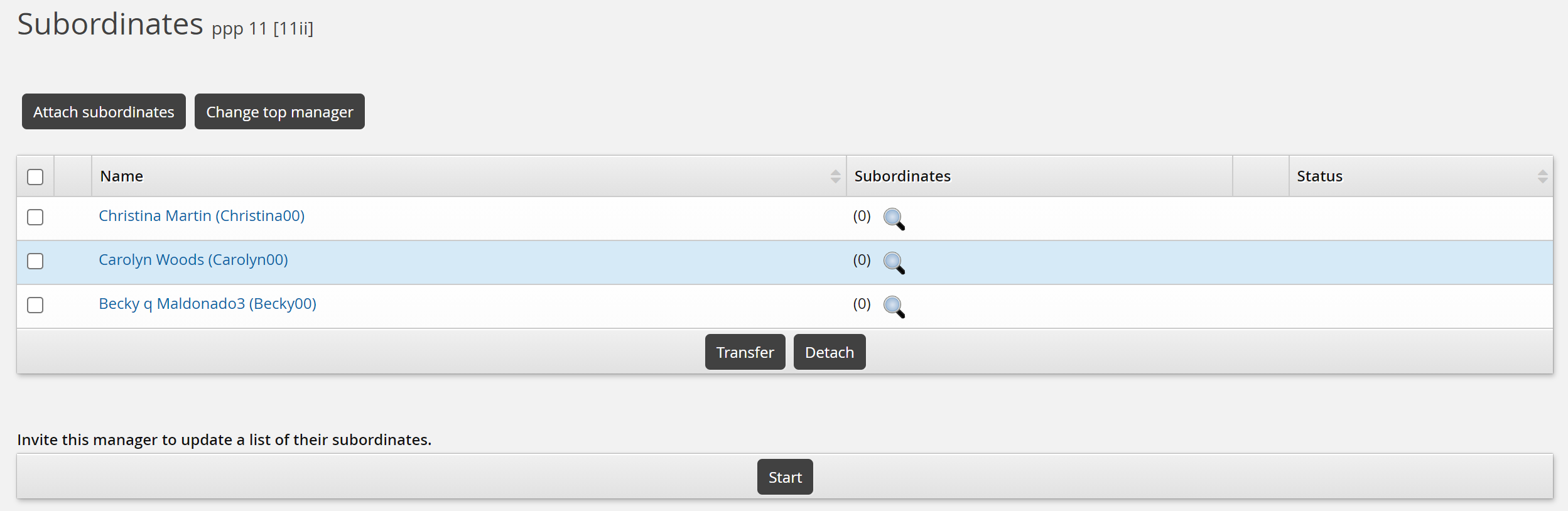
Attach subordinates
The process of identifying users as subordinates of a manager is called “attaching” subordinates.
To attach subordinates:
Select the manager whose list of subordinates you want to update.
Click Attach subordinates.
Browse or search the list to find the users who report to the manager.
You can also click ’Show all users’ on the top right to view users that already have a manager. If those users are selected, a transfer request will be submitted.
Select the appropriate checkbox for each user you want to add to the manager’s list.
Click Attach subordinates.
Detach subordinates
Detach a subordinate from the manager’s list if all of the following conditions are true:
The user does not report directly to the manager.
The user still works for the organization.
If the user no longer works for the organization, you should use Bravura Identity to remove that user’s access.
The manager for the user is not known.
If the manager for the user is known, you should transfer the user to that manager. See Transferring subordinates for details.
To detach subordinates from a manager’s list:
Select the subordinates, then click Detach.
If any of the subordinates that you want to detach are also managers with subordinates, Bravura Security Fabric displays a list of subordinates that will be affected by the operation.
Depending on module configuration you can then select:
Detach all affected subordinates. Confirm the action.
Find new managers.
Proceed to Transfer subordinates .
Transfer subordinates
To transfer subordinates to a new manager:
Select the subordinates on the page, then click Transfer.
Type a reason for the transfer.
The text is displayed in request status and authorization pages.
Click Find new managers to continue.
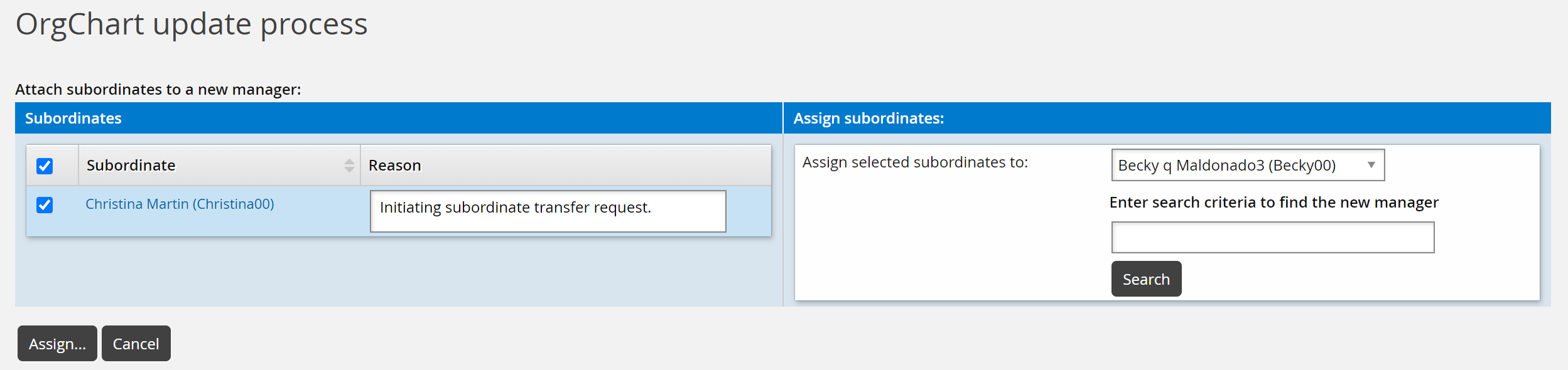
Select the subordinates to transfer, and select a new manager from the drop-down list. The drop-down list contains the following users:
The direct manager of the old manager
Other subordinates of the direct manager
Other subordinates of the old manager
Alternatively, use the search function to select from all users in the OrgChart; including users who currently do not have any subordinates.
You can also specify a reason for transferring each subordinate.
Click Assign... to view the transfers.
Repeat Steps 4-5 until you reassign all the subordinates to their new managers.
Click Confirm to transfer the subordinate(s).
Managing Org building rounds
An Org building round is a server-driven process that invites managers to name their subordinates in a top-down sequence. You start the process by identifying a level of management. Org Manager emails managers and invites them to to create, modify, and verify the OrgChart data. The process cascades down to the next level until all levels of management have been involved. The end result is a verified OrgChart that has been signed off by all the managers participating in the process.
After the OrgChart has been defined you should continue to maintain it by periodically reviewing/validating either the OrgChart itself or sections of it. This is especially applicable for sections of your organization that are experiencing high growth, turnover, or have been reduced by layoffs. You can carry out multiple Org building rounds on different sections of the organization at the same time, as long as those sections of the organization do not overlap each other.
You must be a product administrator with the ”Start Org building rounds” capability.
Start an Org building round
To start an Org building round:
Click Manage the OrgChart > Org building rounds > Add new....
Or,
Click Manage the OrgChart > Update the OrgChart.
Select
the manager with whom you want to start the Org building round.Click Start.
The Initiate page loads.
Optionally, update the notification details:
Select the “Other” radio button for the notification detail you want to modify.
Type the new notification details. You can include the following variables, the values of which will be replaced in the actual notification message:
<DATETIME>
<MANAGER_ID>
<LINK >
If you make changes, click Update.
Click Continue.
Bravura Security Fabric displays a summary of the descriptions.
Click Submit.
Bravura Security Fabric notifies selected managers to start the process.
Click below to view a demonstration.
Cancel an Org building round
To cancel an Org building round:
Click Manage the OrgChart > Org building rounds.
Enable the checkbox for one or more rounds, then click Cancel.
When a manager involved in an OrgChart building round has been removed, their segment will be escalated and the manager acting as the delegate will now be able to sign-off the round.
Viewing the OrgChart structure
You can view the OrgChart structure graphically by clicking Manage the OrgChart > Browse the OrgChart. The OrgChart structure displays the selected user, his manager, the peers in his branch, and his subordinates. From here you can click the user’s name to view his profile, or click the arrow for a slide-out card to display additional links.
Click below to view a demonstration.