Login Assistant: Installing software on workstations
The following sections outline the steps to install the Login Assistant client software and configure the help account on local workstations. Before you start, read the general information about Login Assistant .
Bravura Pass provides installer packages to create the help account and install the required software on users’ workstations for Windows version 8 and newer (ska.msi or ska-x64.msi for 64-bit systems).
Note
You cannot install Login Assistant on a Domain Controller. The installer will abort safely if a DC is detected.
After ensuring requirements are met, install the software using the setup program or via the command line.
Click below to view a demonstration:
Warning
This video was created in a secure internal test environment for demonstration purposes. Turning off Network Level Authentication (NLA) is not recommended. Please take all required security measures to protect your network from unauthorized access.
Windows requirements
The installer package can be executed on the following client operating systems:
Windows 11 (64-bit)
Windows 10 (32-bit or 64-bit)
Windows 8.1 (32-bit or 64-bit)
Windows 8 (32-bit or 64-bit)
To create the help accounts and install the software on Windows workstations, you must launch the appropriate Windows Installer package with elevated privileges.
If you need to launch the Windows Installer package from an account without the necessary elevated privileges, you can specify a privileged administrative account to perform the installation using the ADMIN_USERNAME and ADMIN_PASSWORD installation options.
Ensure that the CleanupPolicy GPO ("Delete user profiles older than a specified number of days on system restart") is disabled before installing Login Assistant. This policy is incompatible with the use of the secure kiosk account.
If users must use a domain help account, rather than a local workstation account, ensure that you set up the domain-level secure kiosk account according to requirements outlined earlier.
Caution
Before installation on a Windows workstation, you must assign the "SeBackupPrivilege" to the Windows Installer service.
If "SeBackupPrivilege" is not assigned, the installer provides the warning message: "Failed to load profile for user help: A required privilege is not held by the client."
If you are using a Cisco anyConnect VPN connection, there are additional settings that can only be set by running the MSI on the command line. See Command-line Cisco anyConnect VPN.
Install or upgrade Login Assistant manually
Upgrade note
When upgrading Login Assistant from 12.5.0 - 12.8.0 and then to 12.8.1 and up, and when the VPN test page URL and VPN test page search words configuration options are used for the Login Assistant, additional steps must be performed before running the upgrade for ska-x64.msi. See Upgrading Login Assistant from 12.5.x to 12.8.1 and up using VPN test page options.
To manually install or upgrade Login Assistant on a workstation:
Copy the
ska.msiinstaller, orska-x64.msiinstaller for 64-bit systems, from the addon directory to a scratch directory (C:\temp) on the local workstation or to a publicly accessible share.Launch the installer.
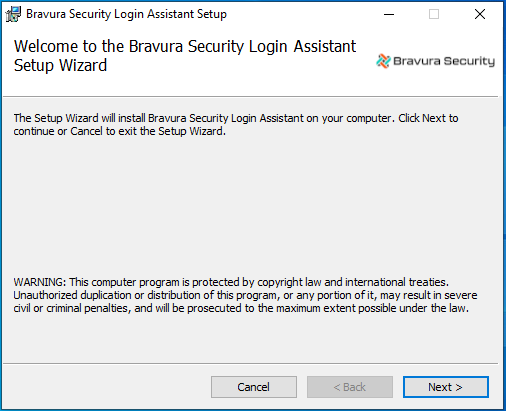
Click Next .
Read and accept the license agreement.
Click Next .
Click Typical, then click Next .
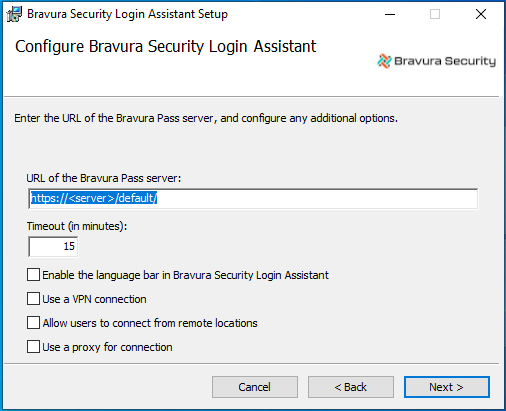
Configure the Login Assistant:
URL of the Bravura Pass server The full path to the Bravura Pass server. The URL can include skin name or other parameters. Do not set this URL to a redirect page.
Timeout This is the maximum amount of time the Login Assistant secure kiosk account can be used before it automatically closes. Default is 15 minutes.
Enable the language bar in the Login Assistant Select this option if you want users to be able to select a different language while using the Login Assistant.
Use a VPN connection Select this option if you want to establish a VPN connection before opening the Bravura Pass login page in a kiosk browser.
Allow users to connect from remote locations Select this option if you want users to be able to connect from remote locations, using direct connection, WiFi hotspot, or AirCard. This is generally used along with a VPN connection.
Use a proxy for connection Select this option if you want the secure kiosk account browser to use the Edge proxy server to connect to the Bravura Pass instance. You can configure settings for the proxy later.
Click Next .
Set up the help account.
Type the User ID (default is help). The help account is used to login and launch
runurl.Use the format
<User ID>@<Domain> or <Domain>\<User ID>if the help account is a domain user.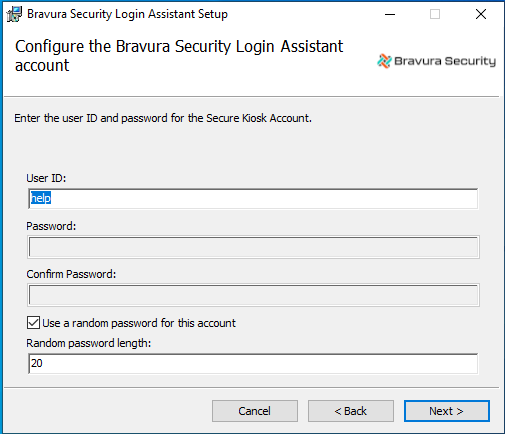
If the Use random password for this account checkbox is selected, you do not need to enter a password. A random password will be used instead. You must specify a password if you are only installing the Login Assistant and not the Credential Provider, or if you are using a domain account.
Click Next .
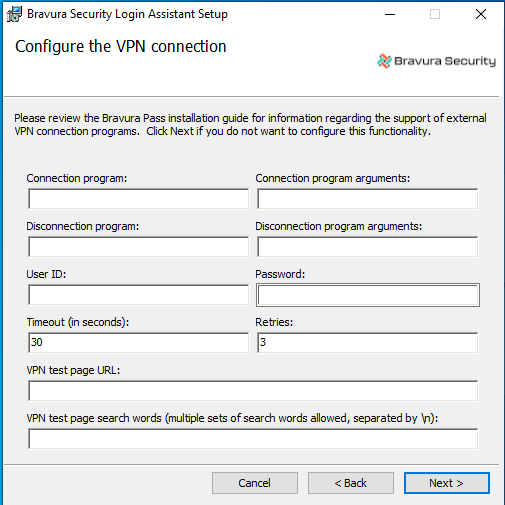
Configure a VPN connection program if you selected that option earlier:
Connection program: Name and full path of the program to run in order to establish a VPN connection.
Connection program arguments: Command-line arguments for the VPN connect program; for example -u %USERID% -p %PASSWORD% .
Disconnection program: Name and full path of the program to run to disconnect from the VPN.
Disconnection program arguments: Command-line arguments for the VPN disconnect program; for example -u %USERID% -p %PASSWORD% .
User ID: To be used with the VPN connect and disconnect programs.
Password: For the VPN user ID.
Timeout: The period in seconds that the runurl program should wait before checking to see if connectivity has been established after the VPN connect program has run. Default value is 30.
Retries: Number of times to test for connectivity after the VPN connect program has run. If this value is blank, there will only be one retry attempt. Default value is 3.
VPN test page URL: This option may be used when the Bravura Pass server is in a SaaS environment and accessible directly from the internet and the VPN must still be established. This would be for a case such as connecting to an Active Directory server that is behind the VPN and is required by the local reset extension when resetting a user's password using the Credential Provider. If this URL cannot be reached by the SKA / Credential Provider, then a VPN connection will be established to access it. For example, a Bravura Pass server may exist behind the VPN.
VPN test page search words (multiple sets of search words allowed, separated by \n): This is a marker that is in the HTML source code for what to search for in the page from VPN test page URL. For example, if there is a Pass server behind the VPN, you can search for an HTML tag that contains a GUID that can be used for the search such as:
SKA MARKER 81A84EBD-2CE5-4794-8341-E1828711FFBC.
Note
If you are using a Cisco anyConnect VPN connection, there are additional settings that can only be set by running the MSI on the command line.
Click Next .
Configure the remote account access if you selected that option earlier.
External URL to test for connectivity This will be the URL of a website that used to determine if the computer is connected to the Internet, or still behind a registration screen or captive portal. This defaults to www.msftncsi.com/ncsi.txt.
Data expected from URL This is a string that is expected from the above website. It should be unique enough to ensure that a registration page will not have the data, but always present on the external URL. The default is
Microsoft NCSI.Program to use to create a connection If users will be using an AirCard or Internet stick, this is the name of the program to run in order to connect. This program will be run from the Login Assistant to allow the user to connect.
Main window title of program If the Program to use to create a connection is used, this is the main window title of the program when run. In AirCard, this is listed under the Task column on the Applications tab.
Captive portal time limit (seconds) Specify the length of time to wait to see if a connection has been established by the captive portal used to create a connection.
The time limit may be set between 0 and 600 seconds. The default is 300.
Address of the VPN server / Port of the VPN server If specified these allow the remote Login Assistant to test a connection to the VPN server to see if it can be accessed before starting the VPN. This can help with better diagnosis and faster connection times.
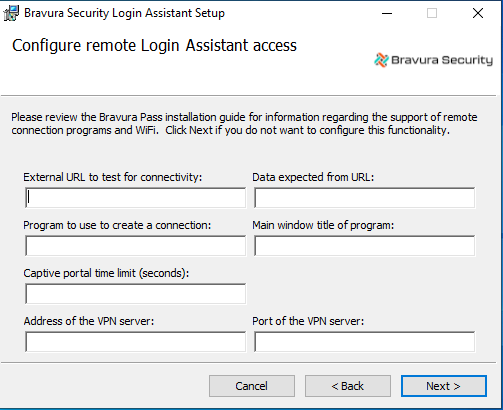
Click Next.
If you chose to use a proxy for connection earlier, configure the Edge proxy server for the secure kiosk account. These settings match those set in Edge > Internet Options > Local Area Network (LAN) Settings:
Automatically detect proxy settings Sets Edge proxy server to "Automatically detect settings".
Use automatic configuration script Sets the proxy server to use "Use automatic configuration script".
Use a proxy server Sets proxy server to use a manually defined proxy server.
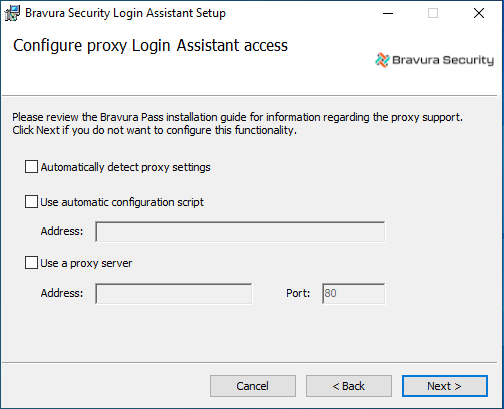
Click Next .
Select the languages to be displayed by the Login Assistant.
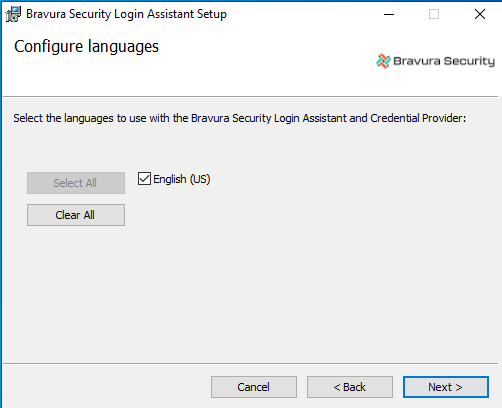
Click Next .
Once you have finished configuring the various installation options, you are prompted to start the installation.
Click Install.
The installer begins copying files to your computer. The Installation Complete dialog appears after the software has been successfully installed.
Click Finish to exit.
Depending on your installation options, you may be prompted to restart Windows.
Install or upgrade Login Assistant from the command line
You can install Login Assistant on workstations from the command line or using a Windows Installer Transform file to define parameters for ska.msi or ska-x64.msi .
Upgrade note
When upgrading Login Assistant from 12.5.0 - 12.8.0 and then to 12.8.1 and up, and when the VPN test page URL and VPN test page search words configuration options are used for the Login Assistant, additional steps must be performed before running the upgrade for ska-x64.msi. See Upgrading Login Assistant from 12.5.x to 12.8.1 and up using VPN test page options.
Login Assistant can be upgraded from the command line using the following:
msiexec /i ska-x64.msi REINSTALLMODE=amus
See Installing add-on software for general requirements for using a client MSI installer, and instructions for automatic installation using a group policy.
The ska.msi and ska-x64.msi installers require Windows Installer 4.5.
Features
Feature | Description |
|---|---|
SKA | Parent feature, installs the Login Assistant SKA (secure kiosk account). |
CREDPROV | Installs the Bravura Pass Credential Provider for Windows clients. |
Properties
Property | Description |
|---|---|
INSTALLDIR | The directory in which Login Assistant will be installed. The default is C:\Program Files\Bravura Security\Login Assistant\. |
INSTALLLEVEL | This parameter is used in a silent installation and is mutually exclusive with ADDLOCAL. Set to a value of 1 or more (up to 32767) for a complete install: SKA+CREDPROV. |
ADMIN_USERNAME | Specify the username of a privileged administrator. When you need to launch the installer from an account with insufficient privileges, use this and ADMIN_PASSWORD to specify a more privileged account to perform the installation. |
ADMIN_PASSWORD | Specify the password of a privileged administrator. When you need to launch the installer from an account with insufficient privileges, use this and ADMIN_USERNAME to specify a more privileged account to perform the installation. |
Property | Description |
|---|---|
SKATIMEOUT | The maximum amount of minutes the Login Assistant secure kiosk account will stay open before it automatically closes. Default is 15 minutes. |
URL | The full path to the Front-end (psf) on the Bravura Pass server; for example, https://server:443/instance/ . |
USEVPN | 0|1 If set to 1, use a VPN connect program. |
HELPADMINENABLED | 0|1 No longer used. |
HELPACCOUNT | The name of the Login Assistant "help" account (default is help). |
HELPPASSWORD | The password for the help account specified by HELPACCOUNT. If this option is not set, you must set RANDOM_HELPPASSWORD to generate a random password. If neither option is set, a blank password is created. |
RANDOM_HELPPASSWORD | 0|1 Set to 1 to create a random password for HELPACCOUNT. This setting is off by default. This setting defaults to 0 for Login Assistant SKA-only installations and to 1 for CREDPROV installs – it is not recommended to use a random password in Login Assistant SKA-only installations. Note that when HELPPASSWORD and RANDOM_HELPPASSWORD are both specified, the RANDOM_HELPPASSWORD setting is ignored. |
IMAGEFILE | Fully-qualified file name for the bitmap file used to replace the the Credential Provider tile for CREDPROV installations. The MSI can also be modified, using an msi editing tool, to add an "ImgFile" entry into the Binary table, where the binary file is the bitmap to use. |
LANGUAGEFILES | Specifies a pipe-separated list of gina.z files to use as additional languages for the secure kiosk account and Credential Provider. These must be fully-qualified file names. The gina.z files are generated in the 12.3.0 language packs. The list must be enclosed in double quotes. The MSI can also be modified, using an msi editing tool, to add an entry into the Binary table, of the form Lang_<language>-Rest of World, where the binary file is the gina.z file for the corresponding language. For example, Lang_fr-ca can be added with the contents of the gina.z file from the fr-ca skin. |
EN_US, <LANGUAGE>_Rest of World | 0|1 Indicates whether the specified language is enabled for use. EN_US is installed by default. Additional languages are specified with the LANGUAGEFILES setting. |
SHELLOPTIONS | Command-line options for the |
RUNURLCFG | Provide any additional options that may be required for runurl. This replaces the shell options with "-cfg runurl.cfg", and generates a runurl.cfg file that includes the shell options and any additional options specified by this property. The default is no value. |
HIDEERRORS | This setting applies only to Bravura Security Fabric 12.4 or older. |
Option | Description |
|---|---|
REMOTESKAACCESSENABLED | 0|1 Enable or disable remote access to the SKA. |
VPN_CONNECT_PROGRAM | Name and full path of the VPN connect program to run in order to establish a VPN connection. |
VPN_CONNECT_CMDLINE | Command-line arguments for VPN connect program; for example -u %USERID% -p %PASSWORD% . This value cannot be blank. |
VPN_DISCONNECT_PROGRAM | Name of the VPN disconnect program to run to disconnect from the VPN. |
VPN_DISCONNECT_CMDLINE | Command-line arguments for VPN disconnect program; for example -u %USERID% -p %PASSWORD%. |
VPN_USER | VPN user ID to be used with the VPN connect and disconnect programs. |
VPN_PASSWORD | Password to be used with the VPN user ID. |
VPN_TIMEOUT | The number of seconds to wait between retries. The default is 30. |
VPN_RETRIES | The number of VPN retries to test for connectivity. If this value is blank, there will only be one retry attempt. The default is 3. |
VPN_CONNECT_STDINPUT | Standard input lines for Cisco anyConnect connections. See Command-line Cisco AnyConnect VPN parameters for details. |
VPN_CONNECT_TERMINATE | For Cisco anyConnect, terminate any running programs before trying to launch the VPN client. |
VPN_HIDE_WINDOW | For Cisco anyConnect, hide the pop-up console window that vpncli.exe starts. |
VPN_URL | Set this to a URL to use as a test page for the SKA. If this page cannot be accessed by the SKA, then a VPN connection will be established to access it. |
VPN_URL_SEARCH | Set this to a marker in the HTML code to search for in the page set by VPN_URL. |
Option | Description |
|---|---|
RUNURL_EXTERNAL_URL | This will be the URL of a website that used to determine if the computer is connected to the Internet, or still behind a registration screen or captive portal. This defaults to http://www.msftncsi.com/ncsi.txt. Other options for the external URL are:
|
RUNURL_EXTERNAL_URL_EXPECTED_DATA | This is a string that is expected from the above website. It should be unique enough to ensure that a registration page will not have the data, but always present on the external URL. The default is Microsoft NCSI. |
RUNURL_EXTERNAL_CONNECT_PROGRAM | If users will be using an AirCard or Internet stick, this is the name of the program to run in order to connect. This program will be run from the SKA to allow the user to connect. |
RUNURL_EXTERNAL_CONNECT_PROGRAM_TITLE | If the Program to use to create a connection is used, this is the main window title of the program when run. In AirCard, this is listed under the Task column on the Applications tab. |
RUNURL_PORTAL_TIMEOUT | The number of seconds to wait for a captive portal connection. The default is 300. |
RUNURL_REMOTE_HOST | The address of the VPN server to test if the server is reachable. |
RUNURL_REMOTE_PORT | The port that the VPN server is listening on to test if the server is reachable. |
Option | Description |
|---|---|
PROXY_ENABLE | 0|1 Enable or disable the installer to modify proxy configuration. |
PROXY_AUTODETECT | 0|1 Enable or disable proxy to use "Automatically detect settings". |
PROXY_AUTOCONFIGURATION_ENABLE | 0|1 Enable or disable proxy to use "Use automatically configuration script". |
PROXY_AUTOCONFIGURATION_URL | Use this to set the URL of an automatic configuration script. |
PROXY_URL | Use this to set the proxy server’s address. |
PROXY_PORT | Use this to set the proxy server’s port number. |
The following parameters are available with ADDLOCAL=CREDPROV for Windows:
Property | Description |
|---|---|
HIDEFASTUSERSWITCHING | 0|1 Hides Fast User Switching on this machine, preventing multiple concurrent logins. The default is 1. This property is no longer used and will be removed in future releases. Fast User Switching must be enabled. |
USECLASSICLOGON | 0|1 Provides a more traditional interface for login (rather than individual tiles) for users. It prompts for a user ID and a password. The default is 1. |
If you are using a Cisco anyConnect VPN connection, the following settings can only be set by running the msi on the command line:
VPN_CONNECT_STDINPUT is a [~] separated list of lines that go to standard input. The value is written as a registry entry with multi-string value called vpn-connect-stdinput. It does not allow for empty lines as the registry value type does not either.
Run vpncli.exe manually and interactively to determine the required input. Input lines will replace %USERID% with the VPN userid and %PASSWORD% with the VPN password; for example:
<vpn profile>
%USERID%
%PASSWORD%
y
The <vpn profile> should be replaced with VPN connect profile, and the y is to accept VPN terms of use. This translates into the following MSI command line parameter:
VPN_CONNECT_STDINPUT="profile[~]%USERID%[~]%PASSWORD%[~]y"
VPN_CONNECT_TERMINATE is to optionally terminate any running programs before trying to launch the VPN client, as Cisco anyConnect will fail if vpncli.exe or vpnui.exe are running. The value is written as a registry entry called vpn-connect-terminate. This is optional but recommended. The value is a comma-separated list of process names; for example:
VPN_CONNECT_TERMINATE="vpncli.exe,vpnui.exe"
VPN_HIDE_WINDOW is used to hide the pop-up console window that vpncli.exe starts. This is written as a registry entry called vpn-hide-window. By default, it is off, as the showing of the console window is the default behavior and is required for some VPN clients. To disable set:
VPN_HIDE_WINDOW = 1
Installation examples
The following examples show common installation scenarios. Each command is a single line.
Basic installation with a random help account password:
msiexec /i ska-x64.msi ADDLOCAL=SKA,CREDPROV URL="https://server/instance/psf.exe" RANDOM_HELPPASSWORD=1
Installation with a known password and custom help account name (useful for manual testing under the help account):
msiexec /i ska-x64.msi ADDLOCAL=SKA,CREDPROV URL="https://server/instance/psf.exe" RANDOM_HELPPASSWORD=0 HELPPASSWORD="MyPassword" HELPACCOUNT="custom_help_user"
SCCM deployment with VPN support, logging, and custom tile image:
msiexec /i /quiet /l*v install-ska.log ska-x64.msi ADDLOCAL=SKA,CREDPROV URL="https://server/instance/psf.exe" RANDOM_HELPPASSWORD=0 HELPPASSWORD="***" HELPACCOUNT="help" REMOTESKAACCESSENABLED=1 USEVPN=1 VPN_CONNECT_PROGRAM="net" VPN_CONNECT_CMDLINE="start openvpn" VPN_DISCONNECT_PROGRAM="net" VPN_DISCONNECT_CMDLINE="stop openvpn" VPN_USER=myvpnuser VPN_PASSWORD=myvpnpassword VPN_TIMEOUT=10 VPN_RETRIES=10 LANGUAGEFILES="c:\skainstall\gina-en-us.z" IMAGEFILE="c:\skainstall\tile.bmp" ADMIN_USERNAME=".\Administrator" ADMIN_PASSWORD="***"
This example uses ADMIN_USERNAME and ADMIN_PASSWORD because SCCM runs the installer under the SYSTEM account, which does not have the privileges required to create the help account.
Command-line tips
When specifying
VPN_CONNECT_PROGRAMandVPN_DISCONNECT_PROGRAM, use the absolute path to the binary. If a relative path is used and the executable is not in the system PATH,runurlmay fail to start the VPN.If
msiexecdisplays a usage dialog when invoked with the/qor/quietoption, the command is most likely malformed. Check the following:If any argument value contains spaces (for example, a path name), enclose it in double quotes:
VPN_CONNECT_PROGRAM="C:\Program Files\MyVPN\My VPN Client.exe"
If an argument value contains special characters (including quotation marks), escape them with a caret (
^):VPN_CONNECT_CMDLINE="connect ^"Private Network 3^""
If
msiexecfails with exit code 12:ShellExecuteExW: process returned error (ExitCode 12)
Verify that the administrator account running the installer has a password configured, not another authentication factor such as a smart card. The installer impersonates a logon as the help account to create it, which requires the administrator to have the "log on with password" privilege.
Uninstalling
Upon uninstall, the help account and the associated profile folder will be deleted, but the registry hive still be present, especially if there were options added manually. Before installing another version of Login Assistant, check that the:
Key HKLM\SOFTWARE\Bravura Security\Bravura Security Fabric\ is deleted in the workstation’s registry
and
Folder C:\Program Files\Bravura Security\Bravura Security Fabric\ is deleted from the workstation’s file system
Troubleshooting
If you see the following errors when installing or using the Login Assistant:
Failed to open token for user help. Error 1385. Review the group policies on the domain controller to ensure that users can log into a local workstation before and after joining a domain.
Installer service failed to respond. Review the group policies on the domain controller to ensure that users can log into a local workstation before and after joining a domain.
Failed to open token for user help. Error 1314. A required privilege is not held by the client. Ensure that ska.msi is run with elevated privileges .
The system does not allow you to logon interactively Ensure that the help user is able to log in locally. In some situations Windows may apply domain policies upon reboot that cancel this right for local users.
Logon failure: the user has not been granted the requested logon type at this computer. In some situations this can happen when you are remoting in to Windows or when using a Hyper-V VM environment. Possible resolutions include adding the help user to the Remote Desktop Users group or if using a Hyper-V VM, switching from the Enhanced session mode to Basic session .
See also
You can use the
logutilprogram to enable logging , for debugging purposes.You can use the debugska registry setting to improve logging for SKA remote access.