Authentication chains: Configuration
Authentication chains offer a flexible authentication infrastructure, allowing you to customize the end-user authentication experience. An authentication chain contains authentication methods offered by available authentication modules. Authentication modules can provide a variety of authentication methods, such as password verification, internal/external security questions, or the ability to select specific chains. Using multiple modules can form a stronger authentication process and can offer alternatives to users having difficulty authenticating.
Authentication chains can:
Be specialized for certain user groups
Combine multiple authentication methods for a stronger authentication process
Extend existing authentication measures with the use of plugins
The process of authenticating users can vary dramatically for each implementation. Authentication chains make it easy to adapt Bravura Security Fabric ’s authentication process to match your organization’s business logic, and aid in secure, transparent and efficient integration of Bravura Security Fabric .
You can configure authentication chains to react differently to failures during authentication. The configuration dictates whether all modules are required for a successful and strong authentication, or if additional modules only serve as alternative means of authentication. For example, a user entering his password incorrectly could cause the entire chain to fail, or the user could be given a chance to use some other method instead.
Bravura Security Fabric comes with five built-in authentication chains:
Front-end login | The DEFAULT_LOGIN authentication chain can be configured for use with the Front-end to determine how users must authenticate. By default, this authentication chain presents authentication methods configured in the Modules > Front-end (PSF) menu. |
Help desk authentication | The HELPDESK_LOGIN authentication chain can be configured for use with the Help users (IDA) module, to configure how help desk users must authenticate on behalf of other users before accessing the user’s profile. |
Generic login failure | The GENERIC_LOGIN_FAILURE authentication chain will simulate a fake user login to fool potential intruders. This authentication chain is activated when the GENERIC LOGIN FAILURE system variable is enabled. |
User identification service | The USER_IDENTIFICATION authentication chain can be configured for use with the Front-end to configure how users are identified. |
Standard two-phase login flow | The STANDARD_TWO-PHASE_LOGIN_FLOW authentication chain handles the internal logic of when other authentication chains are called, and can be configured to enable use cases where certain chains are not required. |
Best practice
It is recommended that you do not add individual authentication modules to the DEFAULT_LOGIN or HELPDESK_LOGIN authentication chains, but instead add your own custom authentication chains that can be used with a chain selector module.
This helps prevent misconfiguring the default chains, and also helps troubleshoot any potential configuration issues that might occur.
If you misconfigure the DEFAULT_LOGIN or HELPDESK_LOGIN authentication chains, users may not be able to login.
If your environment absolutely requires modifying the default chains, then it is highly recommended that you thoroughly test the configuration before implementation, or do so under the supervision of Bravura Security support staff.
Getting started
Requirements
You require the "Manage policies" administrative privilege in order to access the men.
Navigation steps
The Authentication chains page gives you access to the configuration pages for the built-in chains, and to the Custom authentication chains page, where you can add, enable, disable, and delete your own chains.
To navigate to the page:
Click Policies > Authentication chains.
Click the appropriate link or Custom to modify an existing authentication chain .
or
Click Custom to add a custom authentication chain .
Resetting, exporting, and importing settings
Best practice
Prior to making any changes to this area of the product it is highly recommended to make a backup of your current (working) authentication configuration using the standard authcfg utility.
You can reset, export, and import authentication chain settings by using the authcfg utility.
You can export settings, for example to save a snapshot of settings to import into another instance. To do this, run the following command:
authcfg.exe -export
This exports authentication chain settings to a file named by the current date and time; for example, authcfg-20100421-123425.exp. You can also specify a filename and location:
authcfg.exe -export <path/file>
The exported configuration files can be manually edited with a plain-text editor and imported using the command:
authcfg.exe -import <file>
Reset original default settings with the following command:
authcfg.exe -reset
When you use the -import or -reset argument, existing authentication chain settings are automatically exported to a backup file before new or default values are imported.
See more information about authcfg usage.
Notes
The -export and -reset parameters only save the built-in authentication chains configuration. Any custom component configuration should be saved separately using the procedures described in Migrating component configuration and data. The reset operation will revert the DEFAULT_LOGIN configuration to defaults and leave any custom authentication chains or component configuration untouched. This is sufficient to restore the sign-in process in case it was accidentally broken by configuration changes.
If the select_module that ships with Bravura Security Fabric as part of the DEFAULT_LOGIN chain is deleted, the related unique "modguid" (CfgID) will also be deleted; this will and break the configuration of all hid_authchain_* components.
Even if a new module with the same configuration is added back, it will have a different CfgID. To override the CfgID value with defaults you may use the following steps:
Export the authentication chain configuration to file:
authcfg -export authcfg-temp.kvg
Edit the authcfg-temp.kvg file and replace the CfgID ("modguid") with a known default value.
Import the authchain configuration back:
authcfg -import authcfg-temp.kvg
If a configuration change accidentally breaks access to the instance, an already logged in product administrator (or superuser) can enable temporary access by simply disabling the front-end login via Manage the system> Policies> Authentication chains> Front-end login> Disable . This will allow access via password or security questions.
If an administrator was not logged in, and access to the WebUI is lost, a working backup of the authentication chains configuration can be restored:
authcfg -import authcfg-working.kvg
If no working version of the authchain configuration was saved, the current config can be exported and cleared, reverting access to the default choice of passwords and security questions. The non-working configuration can be inspected for errors and re-imported:
authcfg -export authcfg-broken.kvg
authcfg -reset
Modifying an existing authentication chain
In order to modify an authentication chain, you must first disable it. On the chain's configuration page click Disable.
Once a chain is disabled, you can:
Once you have modified it, click Enable to make it available.
The rest of this section provides notes on modifying built-in chains.
Disabling built-in chains does not stop users from logging into Bravura Security Fabric . It only restores default identification and authentication settings , including Front-end settings.
If there are any errors in the authentication chain that prevent regular users from logging in to the Front-end , product administrators can still login using their Bravura Security Fabric password. The Bravura Security Fabric password is either a target-specific password or a custom value, depending on how the product administrator was set up. The fail-safe login method is invoked for these cases so that product administrators can still access Bravura Security Fabric to fix or reconfigure the authentication chains to allow access for regular users.
General options
Once a chain is disabled, you can modify the following general options:
Abort login immediately if a module in this chain fails to cause the login process to abort when any authentication module fails.
Allow caching of this chain’s module results to control whether the chain’s results are cached after completion. This is enabled for most chains by default.
Front-end Login – DEFAULT_LOGIN
Modifying the select_chain module settings of the DEFAULT_LOGIN authentication chain changes the authentication methods available to the Front-end. By default, it is set to use the PSFEXT VALUES and PSF EXT settings implicitly, and it can be overridden explicitly when required.
Best practice
It is recommended that you do not add individual authentication modules to the DEFAULT_LOGIN or HELPDESK_LOGIN authentication chains, but instead add your own custom authentication chains that can be used with a chain selector module.
This helps prevent misconfiguring the default chains, and also helps troubleshoot any potential configuration issues that might occur.
If you misconfigure the DEFAULT_LOGIN or HELPDESK_LOGIN authentication chains, users may not be able to login.
If your environment absolutely requires modifying the default chains, then it is highly recommended that you thoroughly test the configuration before implementation, or do so under the supervision of Bravura Security support staff.
Help desk authentication – HELPDESK_LOGIN
Modifying the select_chain module settings of the HELPDESK_LOGIN authentication chain changes the authentication methods available to the Help users (IDA) module for help-desk users to authenticate on behalf of other users (callers) before accessing their profiles.
By default, it is set to use the score based challenge and response (scoreqna.pss) module and is configured to prompt for two questions from the user’s pre-defined question set.
If any errors are encountered in the HELPDESK_LOGIN authentication chain during the authentication process, the help desk user is denied access to the user’s profile. The authentication chain must be fixed before access is possible.
Generic login failure – GENERIC_LOGIN_FAILURE
The GENERIC_LOGIN_FAILURE authentication chain simulates a fake user login to fool potential intruders. This authentication chain is activated when the GENERIC LOGIN FAILURE system variable is enabled.
Normally, when an invalid user or account ID is entered in the login screen Bravura Security Fabric displays a message informing the user that the account could not be found. If you enable the GENERIC LOGIN FAILURE option (Manage the system > Policies > Options), users are allowed to proceed to the Verify password screen and enter a password, despite having entered an invalid ID. Bravura Security Fabric simulates an attempt to verify the password, waiting 10 seconds before returning with the message:
Please verify that you entered your password correctly, otherwise contact your administrator.
This feature is scheduled to be removed in a future release.
User identification service – USER_IDENTIFICATION
Modifying the USER_IDENTIFICATION authentication chain changes the identification methods available in Front-end . By default, it includes the fedidp_ident module, which can capture SAML requests sent by a service provider for federated login or Web single sign-on, and the user_ident module, which captures the standard Bravura Security Fabric login ID.
Standard two-phase login flow chain – STANDARD_TWO-PHASE_LOGIN_FLOW
Modifying the STANDARD_TWO-PHASE_LOGIN_FLOW authentication chain changes the logic through which all other default authentication chains are called. By default, the USER_IDENTIFICATION and DEFAULT_LOGIN chains are always called alongside each other, and the STANDARD_TWO-PHASE_LOGIN_FLOW chain and its modules can be modified or re-ordered to enable authentication methods that only require a portion of this default chain.
The ident_ctrl module of the STANDARD_TWO-PHASE_LOGIN_FLOW authentication chain is called to check whether the user has been successfully identified. If they were successfully identified, this module does nothing; if they were not, this module directs them to the chain specified in the parameter, or fails if the parameter is not set.
The glf_control module of the STANDARD_TWO-PHASE_LOGIN_FLOW authentication chain checks whether the system has generic login failure enabled, and directs users that fail USER_IDENTIFICATION to the GENERIC_LOGIN_FAILURE authentication chain.
The cgijump module of the STANDARD_TWO-PHASE_LOGIN_FLOW authentication chain checks whether the user is allowed to access the page they’re attempting to access, and the check_jump_dst parameter defines whether the results of this check are stored in the user’s session data.
The select_chain module of the STANDARD_TWO-PHASE_LOGIN_FLOW authentication chain initiates the DEFAULT_LOGIN chain by default, directing users to that chain to complete authentication.
Adding a custom authentication chain
To add a custom authentication chain:
Navigate to the authentication chain configuration page
Click Add new…
Set the ID, using only alphanumeric and underscore characters, and the Description to display to users.
Optionally, select:
Abort login immediately if a module in this chain fails to cause the login process to abort when any authentication module fails.
Allow caching of this chain’s module results to control whether the chain’s results are cached after completion. This is enabled for most chains by default.
Click Add to add the authentication chain.
Bravura Security Fabric refreshes the page and displays the Modules table.
Next:
Adding authentication modules to a chain
To add an authentication module to a chain:
From the authentication chain configuration page, under Modules, click Add new....
Bravura Security Fabric refreshes the page and displays the Module configuration section.
Choose which type of module to use at the start of your authentication chain, as listed in Table 1, “Authentication chain module types” .
Select the Control type to use for this module, as described in Table 2, “Authentication chain module control types” .
Enter a description for this module.
Click Save.
Your new module is listed under Modules, highlighted in green.
You must define question sets before creating an authentication chain which includes security questions.
Caution
Ensure that the last module in an authentication chain has its control type set to binding, required, or requisite for maximum security.
Caution
Users who select the Mobile authentication option from a mobile device will not be asked for a QR Code. Instead the user will be authenticated without being asked for any further information. Always ensure another authentication option is available to avoid users using the Mobile authentication option on mobile devices.
Next:
Configuring authentication modules
A number of configuration options are displayed in the Module configuration table, depending on the module type.
To configure a module:

On the authentication chain's configuration page, select the saved module so that it is highlighted in green, and the configuration options are displayed below.
Set options as required:
Click Update.
Password authentication module (password.pss)
The password authentication module runs the built-in password.pss authentication program. Set the following for the password authentication module:
If module succeeds, bypass this module in failed attempt retries | The module is not shown again for authentication if the authentication chain fails and is retried from a failed attempt and the module had succeeded in a previous attempt. |
Increment lockout counter when this module fails | Increments the global fail counter each time a user fails authentication for this module. It is enabled by default. The global fail counter is managed by the MAX USERAUTH FAILURE system variable. If the number of failed attempts reaches MAX USERAUTH FAILURE, then the user is locked out. Note : If a product administrator helps another user via the HELPDESK_LOGIN chain, and the Increment lockout counter when this module fails option is disabled for any of the modules in that chain, then the global fail counter will still increase if the product administrator fails to correctly answer any of the questions during help desk authentication. However, this does not cause the user to be locked-out, even if the number of failed attempts reaches or exceeds the value set by MAX USERAUTH FAILURE. |
Security questions module (response.pss)
The security questions module runs the built-in response.pss authentication program.
Set the following for the security questions authentication module:
If module succeeds, bypass this module in failed attempt retries | The module is not shown again for authentication if the authentication chain fails and is retried from a failed attempt and the module had succeeded in a previous attempt. |
Increment lockout counter when this module fails | Increments the global fail counter each time a user fails authentication for this module. It is enabled by default. The global fail counter is managed by the MAX USERAUTH FAILURE system variable. If the number of failed attempts reaches MAX USERAUTH FAILURE, then the user is locked out. Note: If a product administrator helps another user via the HELPDESK_LOGIN chain, and the Increment lockout counter when this module fails option is disabled for any of the modules in that chain, then the global fail counter will still increase if the product administrator fails to correctly answer any of the questions during help desk authentication. However, this does not cause the user to be locked-out, even if the number of failed attempts reaches or exceeds the value set by MAX USERAUTH FAILURE. |
If a user does not have a valid security questions profile | Defines which action to take when a user does not have a complete security questions profile. If a user’s security question profile is incomplete and this option is set to:
CautionIf this option is set and the module is bypassed, and the remaining modules are set to either sufficient or optional , then access is not immediately granted. At least one of the remaining modules must pass in order to gain authentication. |
Interval to re-sample questions when a user fails to provide correct answers | Controls whether or not new questions are selected for a user if they previously answered incorrectly. You can choose the period of time before the questions are re-sampled from the drop-down list. When this period of time expires, a different set of security questions are randomly chosen for the user. The default is to re-sample security questions after an hour. Question sets are often configured to select a random subset of the questions in a user’s profile. For example, a user may have 5 questions enrolled in a given question set. The question set may be configured to prompt the user for a random 2 of those questions. One of the objectives of random selection is to make it harder for an attacker to predict what questions will be presented. An attacker could respond to a displayed set of questions, which he cannot answer, by abandoning the login process and trying again. This setting allows you to prevent an attacker from ”shopping” for a set of questions to which he has gathered answers. It also prevents the attacker from getting an exhaustive list of questions which might be asked of a given user, which he can then research answers to. |
Number of questions to ask during authentication | Provides more control over how many questions to ask from each question set. If you do not change this setting, it defaults to the setting for each individual question set. You can choose:
|
Configuration notes for the Security questions module:
Modules for external security question sets should be set to the effective setting, and all other question sets should be set to (None). These modules should also have the From all question sets value set to (None).
The external question sets should be set to 0 when configuring values for other question sets, such as those for the user-defined and pre-defined question sets.
Selecting (None) for all of the question sets for a module resets all of the values for the question sets to use the default question set values.
When configuring a question set, if you deselect the Ask users to answer questions from this set setting:
Then the question is no longer available for use with the default login authentication chain.
External question sets still work via legacy Front-end configuration.
If you add a new question set, you may need to reconfigure the
response.pssmodule for an authentication chain. The new question set is added to existing response.pss modules for all authentication chains with the value for the number of questions to ask users/help desk set to the effective setting.
External program module (external.pss)
The external program module runs the built-in external.pss module, which interfaces with an external authentication program.
Bravura Security Fabric ships with several sample scripts that can be used with this module, listed below:
Sample script | Description |
|---|---|
| A simple demonstration of this kind of plugin. |
| Generic tools for web server (NTLM, SmartCard) authentication integration. |
| Provides authentication to anonymous users who do not have pre-existing credentials, allowing them to submit pre-defined requests for new users. |
| Allows authentication using profile attributes, such as date of birth and email address. |
These files are installed with a complete Bravura Security Fabric installation or if you selected Sample files in a custom installation. See Authentication Chains: Use Cases and Authentication Chains: Plugins for more information on using these scripts.
Set the following for the external program authentication module:
If module succeeds, bypass this module in failed attempt retries | The module is not shown again for authentication if the authentication chain fails and is retried from a failed attempt and the module had succeeded in a previous attempt. |
Increment lockout counter when this module fails | Increments the global fail counter each time a user fails authentication for this module. It is enabled by default. The global fail counter is managed by the MAX USERAUTH FAILURE system variable. If the number of failed attempts reaches MAX USERAUTH FAILURE, then the user is locked out. Note: If a product administrator helps another user via the HELPDESK_LOGIN chain, and the Increment lockout counter when this module fails option is disabled for any of the modules in that chain, then the global fail counter will still increase if the product administrator fails to correctly answer any of the questions during help desk authentication. However, this does not cause the user to be locked-out, even if the number of failed attempts reaches or exceeds the value set by MAX USERAUTH FAILURE. |
External program | Must be set to a plugin name |
Target system to use for address and credentials | This is the target system ID on which the user has an account. If the user does not have an account on the specified system the authentication chain will not appear. |
Interface communication protocol | Must be set to the protocol that matches the plugin you named as your external program:
|
You can customize the user interface by modifying the authchain.m4 file and recompiling the skins. See the sample files and the Customization guide for more information.
Security questions with answer scores module (scoreqna.pss)
The score based challenge and response module runs the built-in scoreqna.pss authentication program.
This module prompts users for questions from the user’s question sets. Points are provided for correct answers, and penalties are given for incorrect answers. The points are calculated to determine whether the user’s score passes the authentication threshold. A passing score is required to authenticate successfully.
If the user has not yet answered all questions, but the total score has passed the threshold, then the module immediately passes authentication.
If the user has answered some of the questions incorrectly, and the total score for the remaining questions cannot pass the threshold (even if all are answered correctly), then the module immediately fails.
Set the following for the score based challenge and response module:
If module succeeds, bypass this module in failed attempt retries | The module is not shown again for authentication if the authentication chain fails and is retried from a failed attempt and the module had succeeded in a previous attempt. |
Increment lockout counter when this module fails | Increments the global fail counter each time a user fails authentication for this module. It is enabled by default. The global fail counter is managed by the MAX USERAUTH FAILURE system variable. If the number of failed attempts reaches MAX USERAUTH FAILURE, then the user is locked out. Note: If a product administrator helps another user via the HELPDESK_LOGIN chain, and the Increment lockout counter when this module fails option is disabled for any of the modules in that chain, then the global fail counter will still increase if the product administrator fails to correctly answer any of the questions during help desk authentication. However, this does not cause the user to be locked-out, even if the number of failed attempts reaches or exceeds the value set by MAX USERAUTH FAILURE. |
If a user does not have a valid security questions profile | Defines which action to take when a user does not have a complete security questions profile. If a user’s security question profile is incomplete and this option is set to:
CautionIf this option is set and the module is bypassed, and the remaining modules are set to either sufficient or optional, then access is not immediately granted. At least one of the remaining modules must pass in order to gain authentication. |
Number of questions to ask during authentication | Provides more control over how many questions to ask from each question set. If you do not change this setting, it defaults to the setting for each individual question set. You can choose:
|
Points for correct answers | The number of points that are added to the score for each correctly answered question. You can choose:
|
Penalties for incorrect answers | The number of points that are deducted from the score as a penalty for each incorrectly answered question. You can choose:
|
Authentication thresholds |
|
Configuration notes for the Score base challenge and response module:
Selecting "(None)” for all question sets for a module resets all of the question set values to the default question set values.
When configuring a question set, if you deselect the Ask users to answer questions from this set setting, then the question is no longer available for use with the default login authentication chain.
If you add a new question set, you may need to reconfigure the
scoreqna.pssmodule for an authentication chain. The new question set is added to existingscoreqna.pssmodules for all authentication chains that have the value for the Number of questions to ask during authentication set to the effective setting.Use case: A question set (for example, the pre-defined set) is disabled and the Security questions with answer scores (
scoreqna.pss) module is configured for use with other question sets (for example, the user-defined set).If the question set that was previously disabled is now re-enabled, it cannot be used within the
scoreqna.pssmodule until the module has been re-configured. For example, a user would still only be prompted for questions from the user-defined set after the pre-defined set has been re-enabled and before thescoreqna.pssmodule has been re-configured.The
scoreqna.pssmodule would have to be modified in order to prompt for questions from this newly enabled question set.Other parameters such as the number of points for correct or incorrect answers and the values for the authentication thresholds for the passing and/or failing score should also be adjusted accordingly to account for the newly added/enabled question set.
Use case: Both the user-defined and pre-defined questions sets are enabled and the Security questions with answer scores (
scoreqna.pss) module for a custom authentication chain is configured to use questions from both of the question sets.If one of the question sets has been disabled, that particular question set will not be available for use with the
scoreqna.pssmodule.The authentication chain configured with this module will also not be usable at all until it has been re-configured to account for the missing question set that was just disabled.
Email/SMS PIN (emailsmspin.pss)
The Email/SMS PIN module runs the built-in emailsmspin.pss authentication program. This module will send a random PIN to the user via an email-to-SMS gateway or to the users email address.
Set the following for the Email/SMS pin authentication module:
Increment lockout counter when this module fails | Increments the global fail counter each time a user fails authentication for this module. It is enabled by default. The global fail counter is managed by the MAX USERAUTH FAILURE system variable. If the number of failed attempts reaches MAX USERAUTH FAILURE, then the user is locked out. Note: If a product administrator helps another user via the HELPDESK_LOGIN chain, and the Increment lockout counter when this module fails option is disabled for any of the modules in that chain, then the global fail counter will still increase if the product administrator fails to correctly answer any of the questions during help desk authentication. However, this does not cause the user to be locked-out, even if the number of failed attempts reaches or exceeds the value set by MAX USERAUTH FAILURE. |
If user hasn’t registered an email/mobile phone number: | Defines which action to take when a user does not have the required email, mobile phone number and/or SMS gateway attributes defined:
|
Target system to use for address and credentials | This is the target system ID on which the user has an account. If the user does not have an account on the specified system the authentication chain will not appear. |
Email/SMS PIN settings | Will define the composition of the PIN and how the PIN will be delivered to the user. PIN length – The length of the randomly generated PIN that is sent to the user. Can be set from 4 to 32 characters in length. Type of generated PIN – Choose Numeric , Upper and lowercase , or Alphanumeric for the PIN composition for the user. Time (in minutes) before PIN expires – The period of time hat the PIN will be valid. The default is time 10 minutes. PIN delivery method – Choose whether you want the PIN to be delivered via Email or Email/SMS gateway . Plugin to send the generated PIN – The plugin that will be used to send the generated PIN. The default is the GLOBAL MAIL PLUGIN . |
Attributes | Defines what profile attributes will be used for sending of the PIN. Note: In order for a profile attribute to be listed it must be configured with Allow for authentication chains selected. Profile attribute specifying email/mobile phone number – This attribute will determine what email address or mobile number will be used to send the PIN to the user. Profile attribute specifying mobile phone service provider – When the PIN delivery method selected is the Email/SMS gateway , this attribute will be set to the users mobile provider. |
Message settings | Defines the message content of the email being sent to the user. Sender email address for the PIN delivery message – The senders email address. The default is the SENDER EMAIL . PIN delivery message subject – The contents of the subject line being delivered to the user. PIN delivery message content – The contents of the email body being delivered to the user. PIN delivery message format – Choose the format of the email, Plain text or HTML . |
Connector package agent (agent.pss)
The connector package agent module runs the built-in agent.pss authentication program. This module will allow for authentication using either the user verify password or challenge response authentication operations directly for applicable connectors.
Set the following for the connector package agent module:
Increment lockout counter when this module fails | Increments the global fail counter each time a user fails authentication for this module. It is enabled by default. The global fail counter is managed by the MAX USERAUTH FAILURE system variable. If the number of failed attempts reaches MAX USERAUTH FAILURE, then the user is locked out. |
Target system to use for address and credentials | This is the target system ID on which the user has an account. If the user does not have an account on the specified system the authentication chain will not appear. |
Password verification operation | This is the connector operation that will be used for authentication to the target system as noted above. It may be set to one of these two operations: User verify password – Authentication will be done using the user verify password operation for the target system. Challenge response authentication – Authentication will be done using the challenge response authentication operation for the target system. Note: This may only be set for the target systems in which these are supported operations. For example, a RADIUS Authentication or RSA Authentication Manager 7.1/8.2 target system may be used for the challenge-response authentication. |
Authentication chain selector (select_chain)
The authentication chain selector module (select_chain) can run a plugin to automatically choose an authentication chain to use to log in.
Bravura Security Fabric ships with two sample scripts that can be used with this module:
chainselect.pslis a generic sample to demonstrate IP based chain selectionauthselect.pslcan be used to direct users to a single-page login page that includes ID and password fields.
For example, if the sample authselect.psl script is configured for the DEFAULT_LOGIN authentication chain, then it can be used to allow the user to enter both their user ID and password on the main page to log into the Front-end . If valid credentials are used, then the default password.pss module is used for authentication and the user is automatically logged in.
These sample files are installed with a complete Bravura Security Fabric installation or if you selected Samplefiles in a custom installation. See Authentication Chains: Use Cases and Authentication Chains: Plugins for more information.
Set the following for the authentication chain selector module:
Run this plugin to automatically select a sub-chain | Specify the name of the plugin to run to select authentication chains. The plugin accepts information from the Front-end , such as HTTP headers, posted data, and authentication chain information. |
If selected chain fails, automatically try the same chain again | Enable this checkbox to automatically reload this authentication chain if authentication to the Front-end fails. If this option is disabled (default), then users that fail authentication are redirected to the main page. |
Allow plugin to skip chain selection (plugin only) | Select this checkbox if you specified a plugin and you want to allow it to skip chain selection for users who already meet authentication requirements. |
Available chains | Select the existing authentication chains from which end users can choose. |
You can customize the user interface by modifying the authchain.m4 file and recompiling the skins. See the sample files and the Customization guide for more information.
Mobile authentication (mobileapp)
The Mobile authentication module will allow for authentication using a QR Code that is scanned from the Bravura One app that is registered for Bravura One for the user for two factor authentication.
Set the following for the Mobile authentication module:
QR code durations (default 60 seconds) | defines the amount of time that a QR Code will be displayed to the user for authentication. |
See also:
See Mobile access for more information about Bravura One and the Bravura One app.
Next:
Setting authentication module order
Once you have created an authentication chain and added modules, you can change the order that modules are executed within an authentication chain.
To set the order of modules within an authentication chain:
Enter a number in the Order field for each module in the authentication chain; for example, if the chain has four modules, then you could enter the numbers 1, 2, 3 and 4 to indicate the order for the modules to appear. The numbers do not have to start at 1; you could also use the numbers 2, 3, 4, and 5. This could be helpful if you wanted to move the first module into last position without re-numbering each module.
Each Order field must contain a unique value. If you enter the same order number for multiple modules and click Order, the Order fields revert back to their previous values.
Click Order.
Next:
Enabling and disabling authentication chains
Once an authentication chain is created and configured, you must enable it to make it available to users. On the Custom authentication chains page, the Status column indicates if the chain is  enabled or
  disabled.
Enabling authentication chains
To enable authentication chains from the authentication chain's configuration page, select the appropriate checkboxes next to the authentication chains you want to enable, then click Enable.
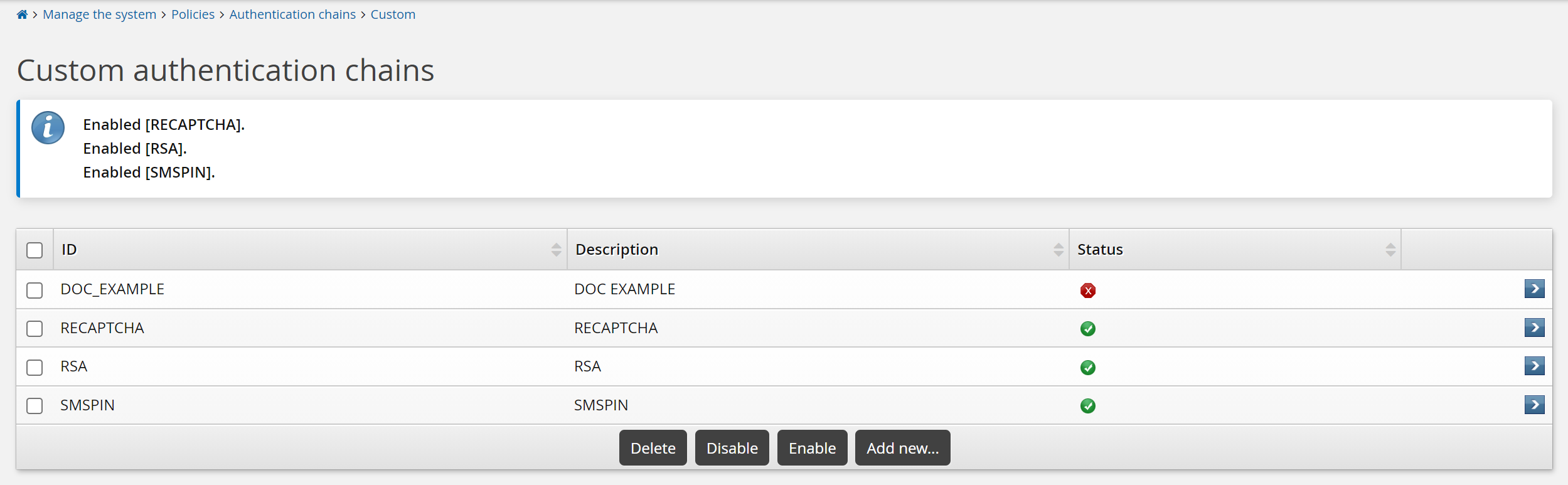
You can also enable an individual authentication chain on the Authentication chain information page by clicking the Enable button.
The built-in Front-end login, Help desk authentication, User identification service and Generic login failure authentication chains are enabled by default when Bravura Security Fabric is installed. If they have been disabled for any reason, navigate to chain’s configuration page, then click Enable.
Making authentication chains available in the authentication menu
To make an authentication chain available in the Front-end authentication menu, you must add it to the DEFAULT_LOGIN chain’s select_chain module. To do this:
From the Authentication chains menu, select Front-end login.
Click Disable.
This allows you to modify the chain.
Select the
select_chainmodule.Add the chains that you want to include in the authentication menu to the Available chains list.
The DEFAULT_LOGIN chain includes Use PSFEXT VALUES by default, to include authentication methods configured in the Front-end .
Click Update below the module settings.
Click Enable to enable the authentication chain.
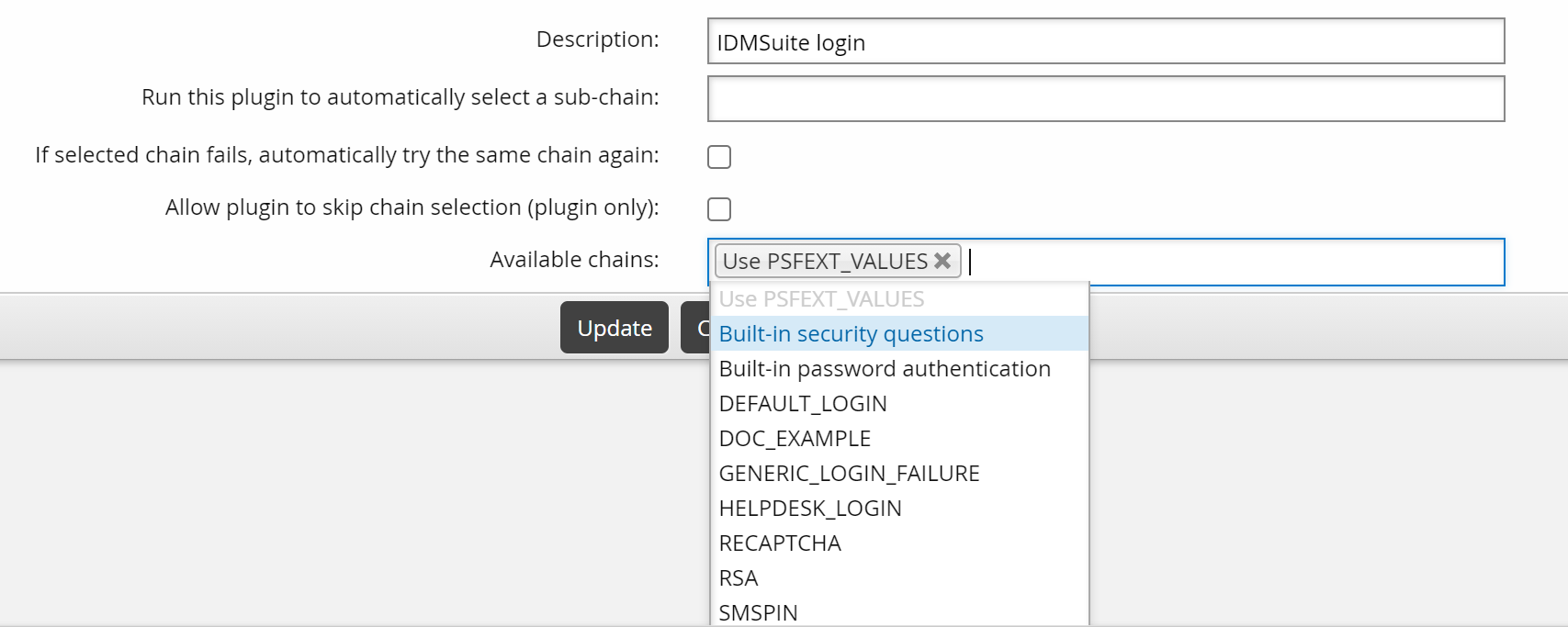
The additional authentication chains are now available to users when they log in using the Front-end .
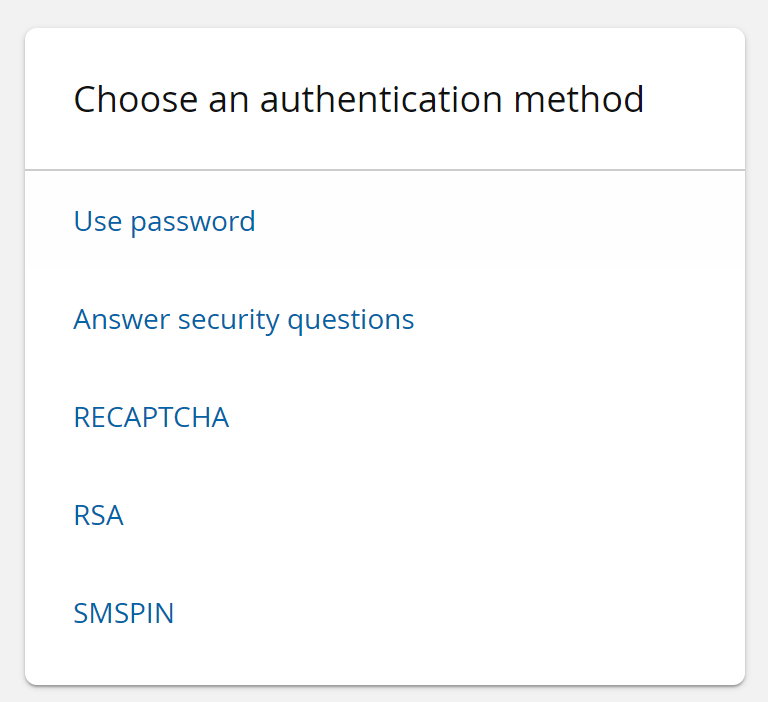
Specifying an authentication chain within a URL
You can specify a certain authentication chain within the Bravura Security Fabric URL. This allows you to direct a user to a preferred method of authentication, instead of the user being prompted to select an option on their own.
For example, the specified user is directed to the first page of the specified authentication chain:
https://<server>/<instance>/?LANG=en-us&USERID=<user>&PSF_EXT=<authchain>
Where:
<server>is the Bravura Security Fabric server<instance>is the name of the Bravura Security Fabric instance<user>is the user for whom you are creating the URL<authchain>is the name of the authentication chain to which you are directing them.
Disabling authentication chains
To disable the built-in Front-end login, Help desk authentication, User identification service or Generic login failure authentication chain, to navigate to the chain’s configuration page, and then click Disable.
To disable custom authentication chains, navigate to the Custom authentication chains page, select the appropriate checkboxes next to the authentication chain you want to disable, then click Disable.
You can also disable an individual custom authentication chain on the Authentication chain information page. Select the custom authentication chain and click Disable.
If you disable the DEFAULT_LOGIN chain, then all authentication chain functionality within Bravura Security Fabric is disabled and is replaced by legacy behavior; that is, Bravura Security Fabric only uses authentication methods configured in the Front-end . Custom authentication chains are not able to be used if DEFAULT_LOGIN is disabled.
Configuring the help desk chain
The Help users (IDA) module has its own customizable authentication chain called HELPDESK_LOGIN, enabling you to configure the way that help desk users must authenticate on behalf of other users before they are allowed to access a user’s profile.
The HELPDESK_LOGIN authentication chain uses security questions by default, but can be configured to use other authentication modules or additional authentication chains as methods of authentication. To do this, use the same method used for configuring the DEFAULT_LOGIN chain .
By default, this authentication chain is configured to force the help desk user to answer the user’s built-in security questions before they can access the user’s profile. There are two settings that work together to configure whether or not a help desk user can bypass another user’s security questions during authentication to gain access to the user’s profile:
The "Bypass security questions" user access rule
The ADMIN AUTHUSR MANDATORY system variable
When this chain is enabled the help desk user can use the main menu link to exit from a user’s security questions.
The behavior of these settings depends on whether the user’s security profile is complete or incomplete:
Incomplete security profile | When ADMIN AUTHUSR MANDATORY is: Disabled : help desk users can access a user’s profile, whether or not they have the "Bypass security questions" user access rule. Enabled : help desk users only have access to a user’s profile if they have the Bypass security questions user access rule. If they do not have this user access rule, then an error message is displayed when the help desk user accesses the user’s profile. This error message is not displayed if ADMIN AUTHUSR MANDATORY is disabled. |
Complete security profile | When the "Bypass security questions" user access rule is: Granted : help desk users can skip authentication by security questions and gain access to the user’s profile. In this case, ADMIN AUTHUSR MANDATORY can be either enabled or disabled. Not granted : help desk users cannot skip authentication by security questions. The security questions must be correctly answered before access is granted to the user’s profile. In this case, ADMIN AUTHUSR MANDATORY can be either enabled or disabled. |
Click below to view an example HELPDESK_LOGIN authentication chain configuration:
Configuration notes
By default, the HELPDESK_LOGIN authentication chain is configured to use the built-in security questions authentication method to prompt for a user’s questions.
If the HELPDESK_LOGIN authentication chain is enabled, and the Ask users to answer questions from this set option is:
Enabled for a question set, and the question set is enabled, then help desk users are prompted with a user’s security questions, regardless of the value for the help-desk permissions.
Disabled for a question set, then help desk users are not prompted with a user’s security questions, regardless of the value for the help-desk permissions; even if the question set is enabled.
If the HELPDESK_LOGIN authentication chain is disabled:
And help-desk permissions for a question set is set to Requires authentication with security questions, then the Ask users to answer questions from this set is ignored. The help desk user will be prompted for a user’s questions from this set as long as it is enabled, and the value for ADMIN AUTHUSR MANDATORY is enabled as well.
And help-desk permissions for a question set is set to either Not allowed to view security questions or Allowed to view security questions, then the help desk user is not prompted with a user’s questions from this question set, regardless of whether Ask users to answer questions from this set is enabled or disabled; even if the question set is enabled.
The purpose for this behavior is to help distinguish the question sets that are marked for help desk authentication from the question sets that are intended for use with the default login authentication to the Front-end ; for example, if:
The HELPDESK_LOGIN authentication chain is disabled, and;
The user-defined question set has the Ask users to answer questions from this set option disabled, and the help-desk permissions is set to Requires authentication with security questions , and;
The pre-defined question set has the Ask users to answer questions from this set option enabled, and the help-desk permissions is set to Not allowed to view security questions, and;
Both question sets are enabled
then the built-in security questions method would allow help desk users to authenticate (on behalf of other users) with questions from the user-defined question set, and users could log into the Front-end using the pre-defined question set.
If any errors are encountered in the HELPDESK_LOGIN authentication chain during the authentication process, the help desk user is denied access to the user’s profile. The authentication chain must be fixed before access is possible.
If a help desk user fails the help desk authentication process when attempting to access the user’s profile, then the global fail counter still increases for the user. The global fail counter only increases for failed help desk user authentication attempts if the HELPDESK_LOGIN authentication chain is enabled. If the help desk user ’s failed attempts cause the global fail counter to reach or exceed the value set by MAX USERAUTH FAILURE , this does not lock out the help desk user .
If the global fail counter reaches or exceeds the value set by MAX USERAUTH FAILURE , this does not lock out the user or prevent them from logging into the Front-end . The user can still log into the Front-end , but if the global fail counter has reached or exceeded its limit, then the user is only allowed one authentication attempt. If they fail this one attempt then they are locked out, but authenticating successfully resets the global fail counter.
If you disable the HELPDESK_LOGIN chain, then legacy behavior is used in it’s place; that is, only security questions are available as an authentication when help desk users authenticate to access a user’s profile.
When HELPDESK_LOGIN is disabled:
The ADMIN AUTHUSR MANDATORY system variable must be enabled in order for the help desk user to be prompted with the user’s security questions.
The security questions use the question set settings, not the authentication chain settings.
Deleting authentication chains
To delete an existing authentication chain:
Navigate to the authentication chain's configuration page.
Click the checkbox for the authentication chain that you want to delete.
Click Delete.
A message box asks you to confirm that you want to delete the selected items.
Note:
Only authentication chains that are disabled may be deleted. Chains that are enabled must first be disabled.
The Delete button only appears if there are one or more authentication chains that are disabled.
The built-in DEFAULT_LOGIN, HELPDESK_LOGIN, USER_IDENTIFICATION, and GENERIC_LOGIN_FAILURE authentication chains cannot be deleted. DEFAULT_LOGIN is the primary authentication chain for the Front-end , and HELPDESK_LOGIN is the primary authentication chain for the Help users (IDA) module.