Discovery service (iddiscover)
The discovery service (iddiscover) is the principal service that
Runs connector programs to list changes from systems
Loads discovered data into the database via
iddb.Merges and acts on changes.
The entities that principally communicate with iddiscover include:
The auto discovery nightly job that handles bulk listing and discovery (
psupdate)Incremental discovery events that come from Active Directory and LDAP targets when those integrations are active.
The Bravura Privilege Local Workstation service that communicates over a proprietary HTTP API to provide discovery information.
The Workflow Manager Service (
idwfm) to propagate changes from an authoritative target system to other target systems. See Automated user administration .
The types of information provided by discovery sources to the discovery service include:
Accounts being created/updated/deleted
Groups being created/updated/deleted
Group memberships being created/updated/deleted
Computers being created/updated/deleted
Subscribers to privileged accounts being created/updated/deleted.
This service runs automatically and cannot be managed from the web interface.
Discovery service events
The following Discovery service options can be accessed by clicking Manage the system > Maintenance > System variables or Manage the system > Maintenance > Options :
Option | Description |
|---|---|
IDDISCOVER BATCH COMMITTED | Program to execute after discovery data is committed to staging tables. |
IDDISCOVER OBJATTRMERGE PRE | Program to execute before staged target system object attributes are merged into the database. |
IDDISCOVER OBJMERGE PRE | Program to execute before staged target system objects are merged into the database. |
IDDISCOVER OBJRELMERGE PRE | Program to execute before staged target system object relations are merged into the database. |
Enabling discovery debugging
You may be asked by Bravura Security support to enable discovery debugging to help troubleshoot issues with discovery. The iddiscover service can archive copies of table contents at specific phases of discovery based on settings in the instance registry. These table archives can then be used to gain insight into where issues might be occurring during what would otherwise be an opaque discovery process. This topic shows you how to enable this functionality.
To get started, you need to identify a set of tables and a set of stored procedures or plugin points that need to be debugged. Generally, you will receive this set from Bravura Security support. A new registry key will need to be created and a series of values created under it.
Requirements
You will need access to the registry on the primary instance server.
Construct the strings you will need
You will need to create potentially a series of strings. This section discusses how the strings are constructed and their meaning. It provides a concrete example: the stored procedure ObjMerge , the tables targetobj and targetobjattr , and an account named administrator .
The string format is <tablename>|<when>|<filter>, for each table, where:
tablenameis the name of the tablewhenis one of BEFORE, AFTER, or BOTH, representing whether a copy of the table will be archived before or after (or both) the stored procedure runsfilteris an optional dynamic SQL expression that can be used to filter the data to be archived. If the expression compares a string literal, the string literal should be enclosed by two apostrophes (not double quotes). If no filter is to be used, leave this section empty but keep the | character
Thus the example produces two strings:
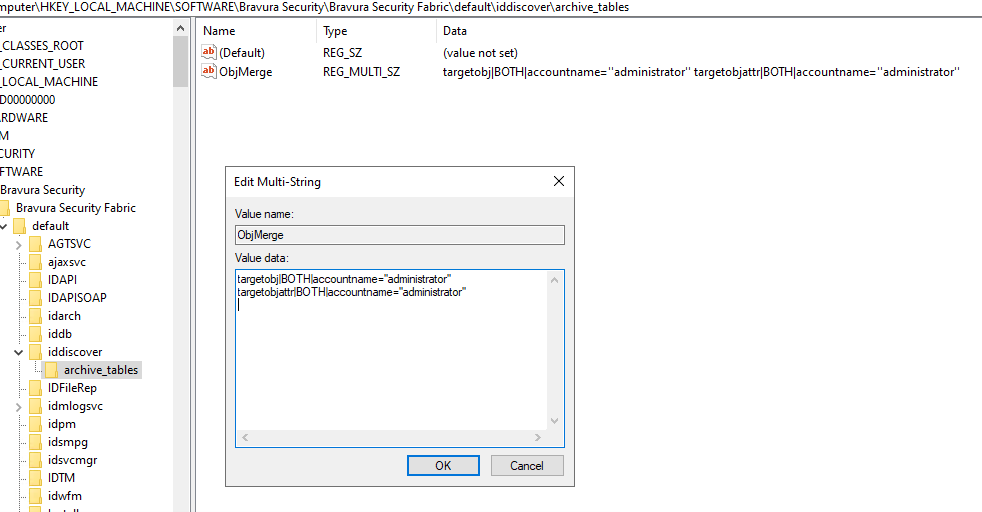
targetobj|BOTH|accountname=''administrator''
targetobjattr|BOTH|accountname=''administrator''
If no filter is to be used, the strings would instead be:
targetobj|BOTH|
targetobjattr|BOTH|
Add registry entries
Create the registry entries and run a discovery that will trigger the problem being troubleshooted:
Go to the Windows registry editor (regedit)
Expand HKEY_LOCAL_MACHINE\SOFTWARE\Hitachi ID\IDM Suite\<instance>\iddiscover
Create a new key called archive_tables if it doesn't exist already
Inside this key, create a new multi-string value for each stored procedure or plugin point. The name of the value should be the stored procedure or plugin point
Add the strings constructed in the previous section to the multi-string value
Repeat for each stored procedure or plugin point
Run discovery and retrieve results
Run the discovery that is exhibiting the issue you are troubleshooting (this is typically psupdate ). If all goes well, there will be new archive tables in your database:
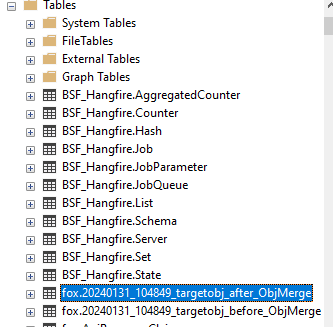
Retrieve the contents of these tables and relay them to your Bravura Security support agent.
Remove registry entries
While the registry setting is in place, every discovery will trigger the creation of new archive tables. This includes discoveries from pre-defined request scripts or the Local Workstation Services which may be quite numerous. Try to keep the registry setting in place for the smallest possible timeframe, by setting it, manually running psupdate , retrieving the archive tables, and then unsetting it. Leaving the setting in place for a long time may result in the creation of many archive tables. To mitigate this effect somewhat, Bravura Security Fabric will automatically delete an archive table if it is empty. If your filter is overly selective or incorrectly specified, you may not see any archive tables after a completed discovery.