Creating a New User
The following use cases show you how to create a new user and request resources for them using the self-service workflow feature.
There are two basic ways to create a new user:
Bravura Security Fabric administrators can set up pre-defined requests to create new user profiles for different purposes. Bravura Security Fabric displays a sequence of form pages depending on the requirements for the new profile.
Copy entitlements from an existing user.
This type of request allows you to create a new user profile by copying the desired attributes of an existing user.
Create a new user from a pre-defined request
The following example creates a new profile using a pre-defined request.
Product administrators combine template accounts and groups in a role, then set up a pre-defined request to add a new user.
To submit the pre-defined request, login as an end user:
From the main menu, click Create a new user profile.
If your administrator has set up pre-defined requests, Bravura Security Fabric displays a menu of request types.
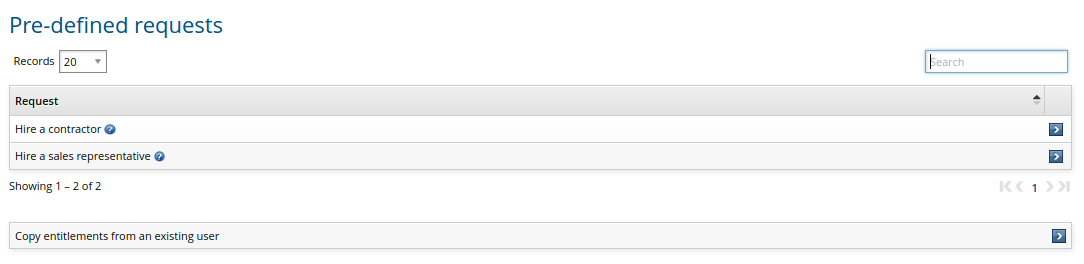
Click the link for the type of user you want to create..
Enter basic profile information.
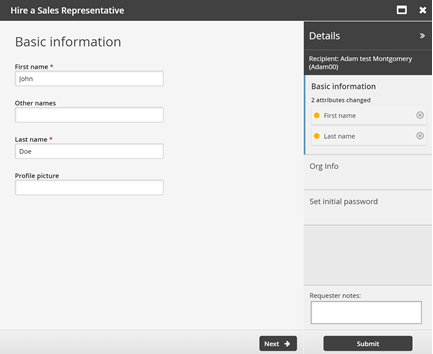
Click Next .
Enter other information.
There may be multiple forms for the information required. In this example, the information is defined by the ORG-INFO attribute group:
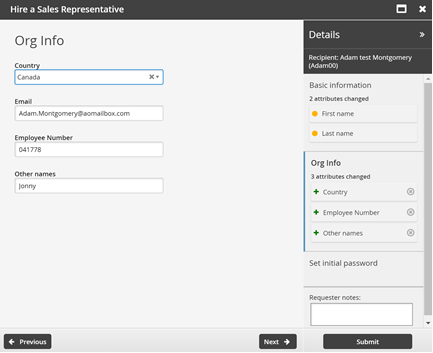
Click Next .
Set the initial password as required for new accounts.
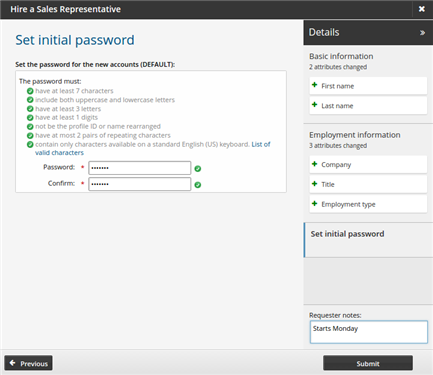
Click Submit.
Copy entitlements from an existing user
You can create a new user profile by copying entitlements from an existing user, provided that you meet certain criteria. Product administrators set up criteria defined by profile comparison rules, template accounts, and other settings.
To model a profile after another user:
From the main menu , click Create a new user profile.
Click Copy entitlements from an existing user.
Select the user you want to use as the model user.
The profile comparison page is displayed, along with the attributes configured for use on comparison pages.
Depending on your permissions, you can copy the attributes, roles, accounts and group membership.
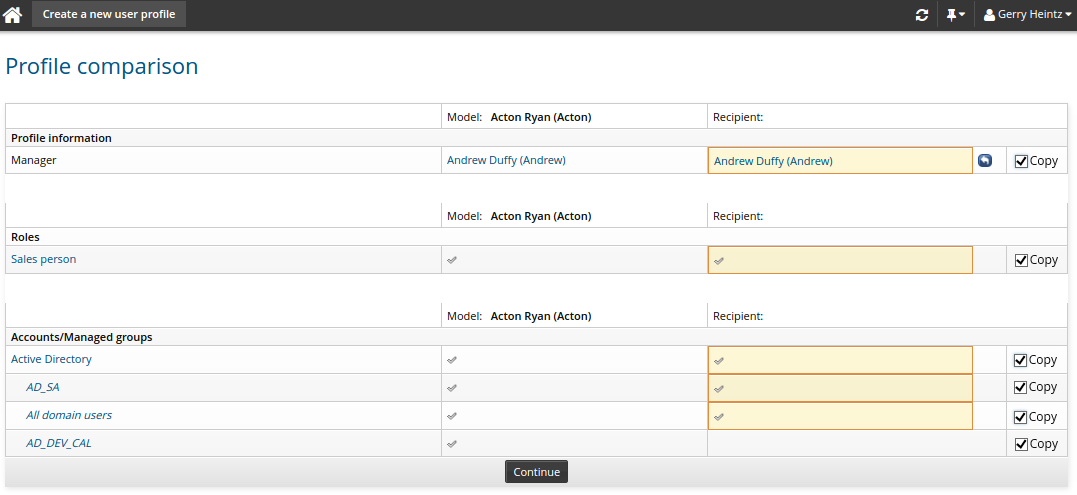
Once you have selected which items to copy, click Continue.
If you copied attributes or entitlements in the previous step, you do not have to specify them in the following forms.
Enter values for attribute fields as required.
There may be one or more forms for personal information.
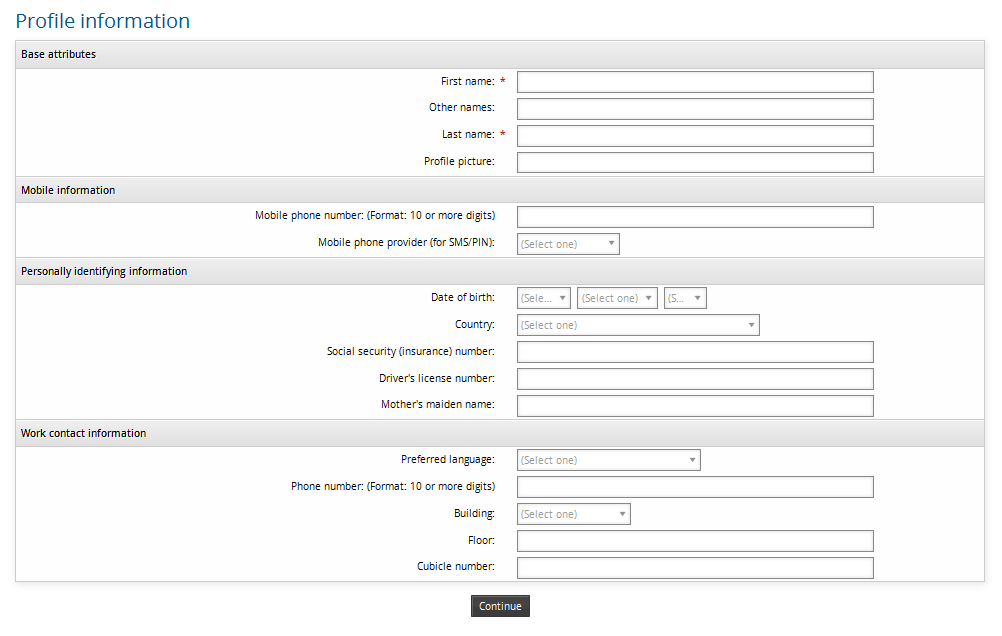
Click Continue.
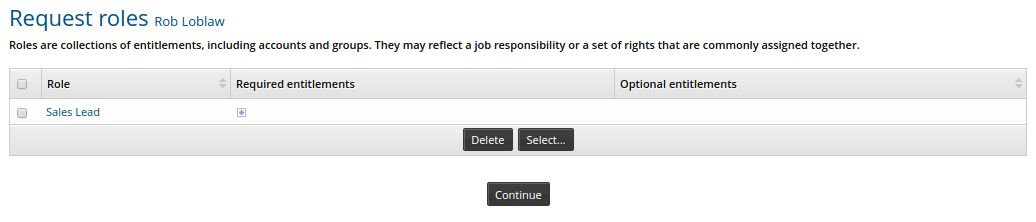
Optional: Select additional roles.
Click Continue.
Optional: Select additional template accounts to copy for the new user.
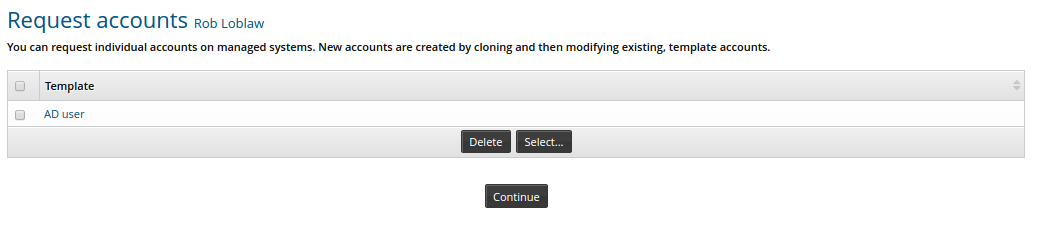
Click Continue.
Optional: modify the managed groups to join/leave.
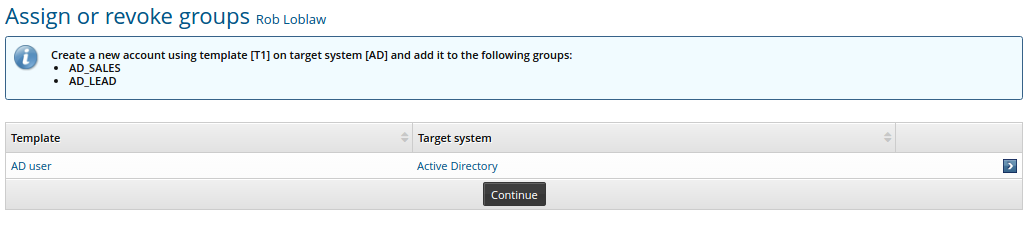
Select
 the account for which you want to manage group membership.
Enable/disable the checkboxes for the groups which you want to change in the request
Click Select .
Repeat steps 8a to 8c for each account for which you want to manage group membership.
Click Continue.
From this point, Bravura Security Fabric displays an error message if you select items that conflict with security rules .
If one or more of the accounts requires a password, type an initial password in the Password and Confirm fields.
Bravura Security Fabric provides a list of correctly formatted passwords as suggestions in the drop-down list.
Click Continue.
Define request notification information.
Click Continue.
Review the request summary.
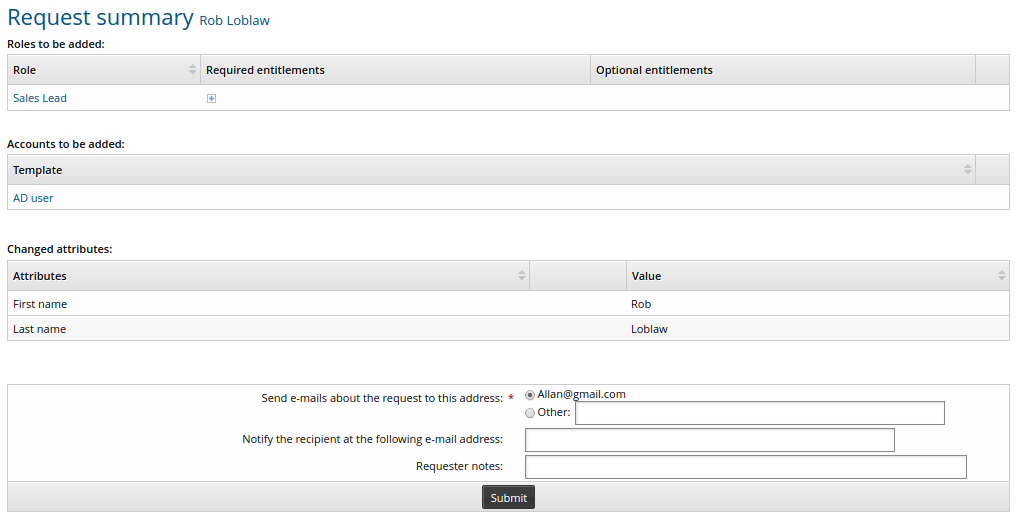
Click Submit.