Configuring web notifications
A web notification can be triggered when a single user does something to cause the Notification Client (psntfclient) on their workstation to connect to the Notification Service (psntfsvc) on the Bravura Security Fabric server. If the user requires a notification from the product, such as when their password is about to expire or they have not complied with a requirement, the Notification Client can open the user's web browser to a specified page.
Once the Notification Client has been installed, web notifications can be configured to open the user's web browser with the notification when the user logs into their workstation. If the Notification Client is not installed, web notifications can still be triggered to appear within Bravura Security Fabric after the user logs into the product.
Example: Acceptable use policy
You can use the web notification module to force all users to view, then accept or decline an agreement, such as an acceptable use policy. The following example shows you how to set up a force-level policy agreement:
Click Manage the system > Policies > User notifications > Web notifications.
Click Add new….
Type the notification ID and Description. The notification ID can only contain ASCII characters.
Set the notification Severity to
Forced.If the web browser is closed without the required action, the user must log out of the workstation.
Set the Plugin to run to determine compliance to
Query USERSTAT tag.Click Add.
Bravura Security Fabric warns you that the compliance plugin requires configuration.
Click the configure icon
 next to the compliance plugin field.
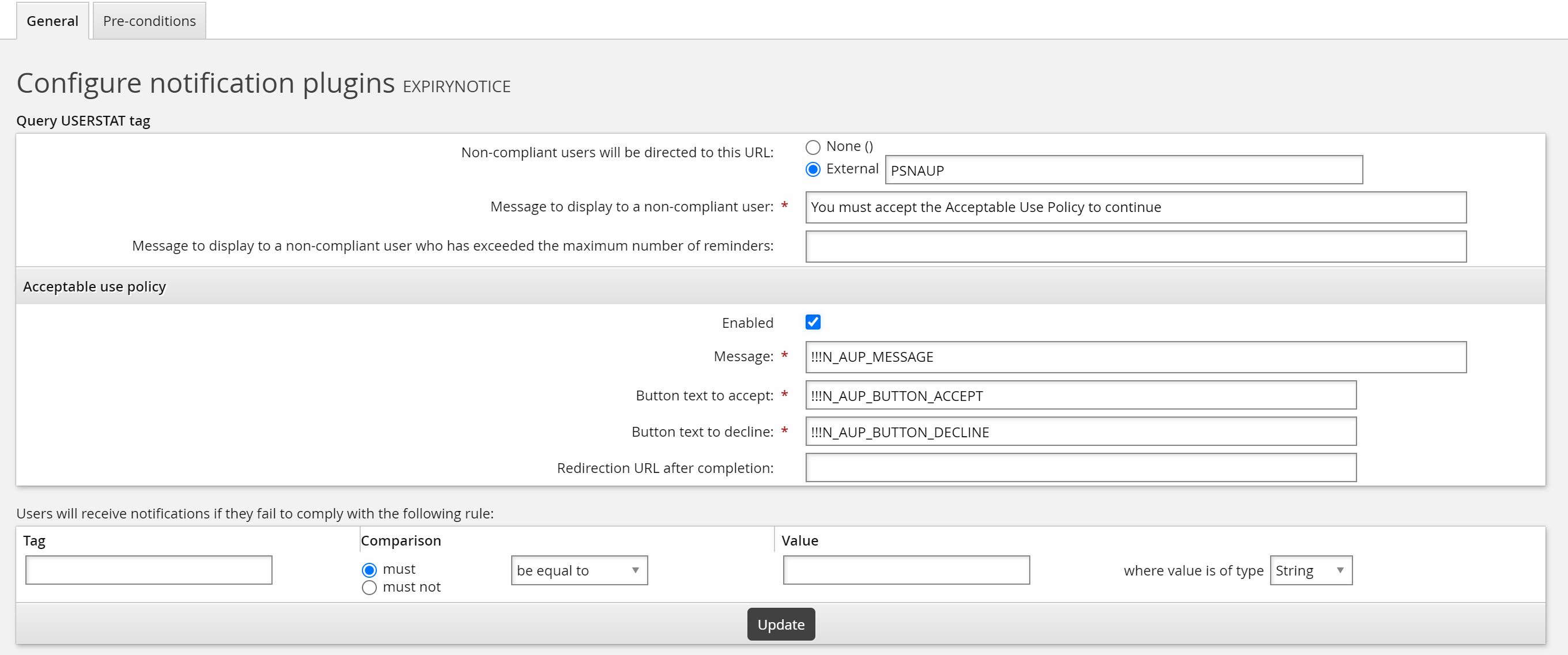
Configure parameters for agreement compliance:
Direct users to external URL with the value PSNAUP.
This is required for a policy compliance plugin and directs users to a page where they view and accept or decline agreement.
Type a Message to display to a non-compliant user.
In the Acceptable use policy section, click Enabled.
Bravura Security Fabric displays policy configuration settings. Required settings are pre-configured with m4 tags that are defined in
<instance>\design\src\z\psn.m4. The tags are mapped to macros defined in<instance>\design\src\common\<lang>-<locale>-language.kvg.m4 tag
macro
en-us-language.kvg definition
!!!N_AUP_MESSAGE
_PSN_AUP_TITLE
Acceptable use policy
!!!N_AUP_BUTTON_ACCEPT
BUTTON_ACCEPT
Accept
!!!N_AUP_BUTTON_DECLINE
BUTTON_DECLINE
Decline
Modify policy configuration settings to suit your policy.
For example, you may want to add a lengthier message in multiple languages. You could add a custom macro AUP_MESSAGE and include it under the !!!N_AUP_MESSAGE tag in
psntfsvc.m4, then define the macro in custom language kvg files.See Adding macros to messages to learn how to add custom tags and macros.
Set the Tag that you want to evaluate to determine non-compliant users.
For example, set the tag name to AUP (if the tag does not exist, the plugin creates it) and set it to ”must exist” and leave the value field blank. This will flag users who do not have the tag or the tag is blank.
Click Update.
When a user clicks Accept, the AUP DONE event action is triggered. When a user clicks Decline, the AUP NOT DONE event action is triggered. You can configure these event actions in the Manage the system > Modules User notifications (PSN) menu.
See also
Example: Password expiry notification
The following example shows you how to set up a forced-level password expiry notification:
Click Manage the system > Policies > User notifications > Web notifications.
Click Add new….
Type the notification ID and Description. The notification ID can only contain ASCII characters.
Set the notification Severity to
Forced.If the web browser is closed without the required action taken, the user is forced to log out of the workstation.
Set the Plugin to run to determine compliance to
Password expiry.Click Add.
Bravura Security Fabric warns you that the compliance plugin requires configuration.
Click the configure icon
next to the compliance plugin field.Configure parameters for password expiry.
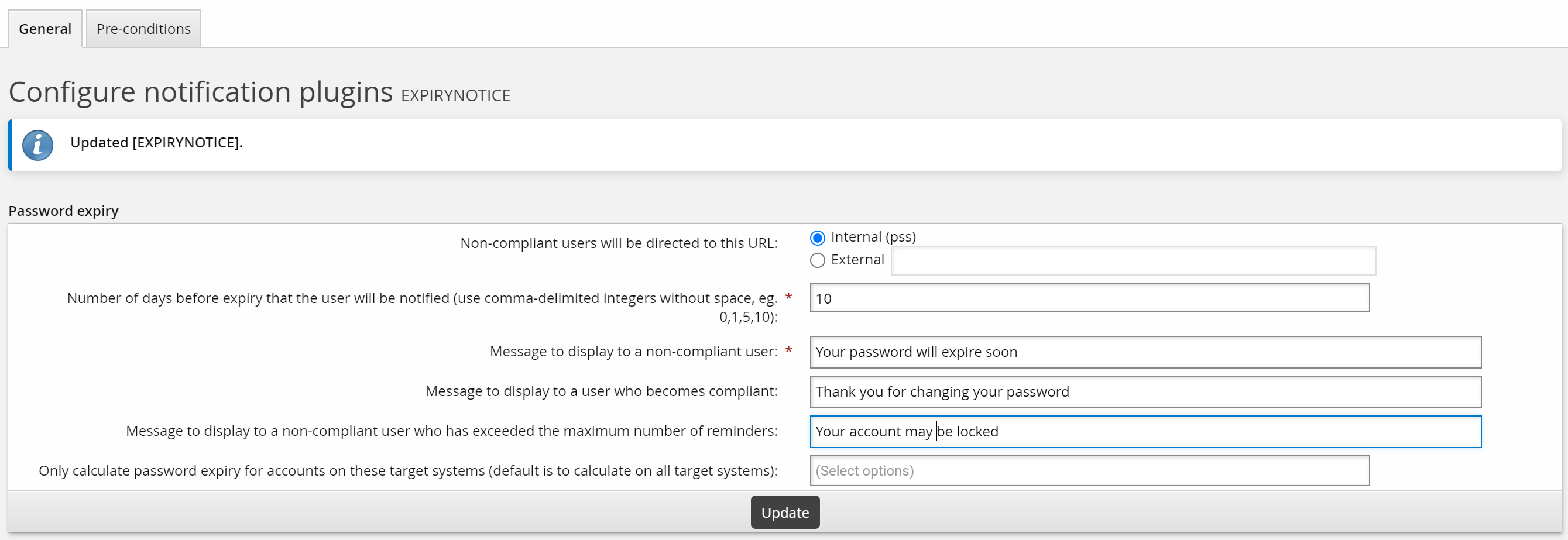
For example, select Internal link to direct users to the Change passwords (PSS) , and set the required Number of days before expiry that the user will be notified and Message to display to a non-compliant user .
Click Update.
Click below to view a demonstration of how to set up and test a warning-level password expiry notification.
Configuration detail
To configure web notifications:
Click Manage the system > Policies > User notifications > Web notifications.
Click Add new ….
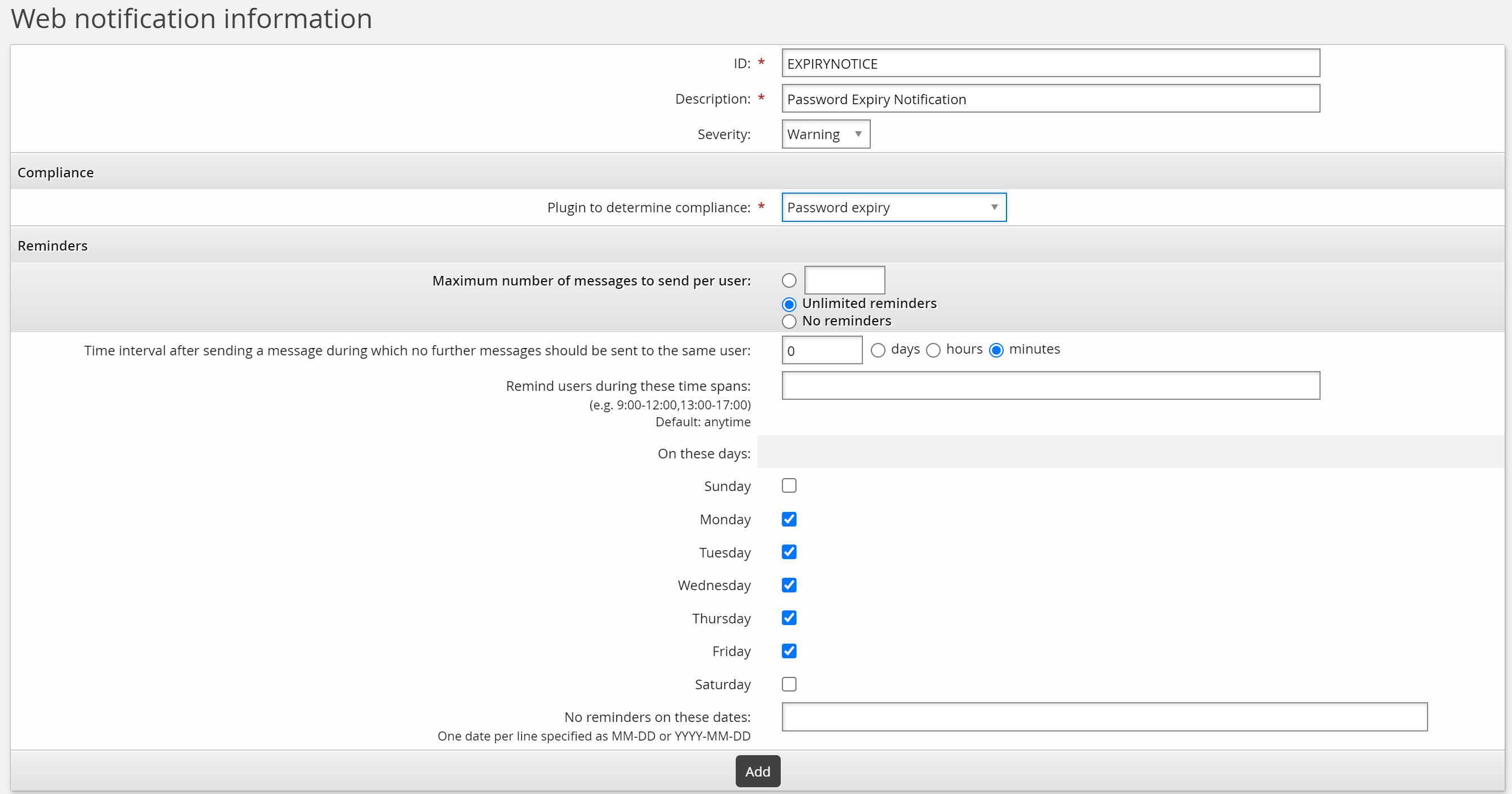
Type the notification ID and Description. The notification ID can only contain ASCII characters.
Set the notification Severity:
Info
The notification is informational. The user may be requested to take action, but if he does not respond, no further action is taken.
Warning
The notification is a warning. An action is requested but not forced at the current time. If the user does not comply after a certain number of warnings, Bravura Security Fabric can take another action.
Forced
The user is forced to act on the notification. If the web browser is closed without the required action taken, the user is forced to log out of the workstation.
Determine the compliance event to trigger a notification by choosing the Plugin to run to determine compliance:
Password expiry
Users’ passwords are about to expire.
Security question registration
Users have not completed their security question profiles.
Query USERSTAT tag
A user information query evaluates a particular value; for example, the value exists, is true, or is less than some other value. There are several built-in USERSTAT tags.
Accounts attachment
Users do not own enough accounts, as defined by the PSL MIN ACCOUNTS system variable.
Mobile enrollment
Users have not enrolled a mobile device.
For info- and warning-level notifications, select the radio button for:
Maximum number of messages to send per user and type the number of messages to send
Unlimited reminders to keep sending reminders until the user is compliant
No reminders to disable the notification
If you defined a Maximum number of messages to send per user for a warning-level notification, determine the action to take for non-compliant users by choosing the Plugin to run when reminder limit is exceeded:
Set USERSTAT tag
Sets a USERSTAT tag for a non-compliant user, and optionally deletes the tag when compliance is reached.
Global email plugin
Sends an email to the user via the plugin specified by the GLOBAL MAIL PLUGIN system variable.
Disable profile
Disables the Bravura Security Fabric profile of the particular user, and optionally re-enables the user when compliance is reached.
For info and warning-level notifications:
Set the Time interval after sending a message during which no further messages should be sent to the same user.
Enter a number and choose an interval. For example, if this is set to 10 minutes and the plugin is run twice within 8 minutes, then any users who receive the first notification will not receive it a second time.
To restrict the times of day notifications are to be displayed, type a comma-delimited list of periods. Leave this field blank to notify users at any time.
Select the checkbox for each day of the week to display notifications.
Forced-level notifications are set at any time and day.
If you want to stop reminders from being displayed on specific dates, type them in the No reminders on these dates field.
Type the dates one line at at time, in the format MM-DD or YYYY-MM-DD.
Click Add.
Next
You can now:
Configure settings for the compliance plugins by clicking the configure icon
next to the Plugin to determine compliance plugin name. Settings for built-in programs are explained in the following sections.Test the notifications using the
ntftriggerprogram.Set pre-conditions for evaluating a notification for a user.
Tag | Description | Example |
|---|---|---|
LASTPSL | The last time the user used the Attach other accounts module. The time used is the authentication time of the session. | 2021-10-28 14:40:16 (UTC-06:00) |
LASTSKIN | The last skin the user used. | default |
LASTLANG | The last language the user used. | en-us |
LASTPWCHGMODULE | The last module used to reset the user's password. | pss,ida,idpm |
PSLDONE | The user has satisfied mandatory account requirements. This is defined by the per target system setting Users must have accounts, and the global system variable PSL_MIN_ACCOUNTS. The allowed value true is set by | true |
PSQDONE | The user has satisfied the security question requirement. The allowed value true is set by | true |
Web notification compliance plugins
Compliance plugins evaluate the attributes of a particular user and determine whether that user is compliant with the notification rule or not. Compliance plugins for web notifications also determine the text of the message to be delivered, and the link that is available on the User notifications (PSN) module page. Configure built-in plugins for web notifications by clicking the configure icon next to the plugin field.
Built-in plugins available for the Plugin to run to determine compliance require the following parameters:
Option | Description |
|---|---|
Common options: | |
Non-compliant users will be directed to this URL | This is where the user is directed to when they selects the message link on the User notifications (PSN) module page. Select Internal link for:
Select External link to direct the user to an external site. Select None for Query USERSTAT tag if you do not want the notification message to link to another site. |
Message to display to a non-compliant user | This message is displayed until the user becomes compliant or exceeds the maximum number of reminders. |
Message to display to a user who becomes compliant | After the user takes action and becomes compliant, Bravura Security Fabric displays this message the next time the user visits the Front-end or User notifications (PSN) module. Note: This message does not apply to the "Query USERSTAT tag" plugin. |
Message to display to a non-compliant user who has exceeded the maximum number of reminders | This message is displayed once the Number of reminders has been exceeded, and the user has not taken action. |
Password expiry options | |
Number of days before expiry that the user will be notified | Use comma-delimited values to set multiple notifications. |
Only calculate password expiry for accounts on these target systems | Select the target systems on which account password expiry will be calculated. By default it calculates on all target systems listed. |
If password on these target systems are set to not expire, do not send notifications | Select the target systems for which you do not want to send notification if the account has ”Password never expires” enabled. |
Exclude these targets from calculating password expiry | Select the target systems to exclude from notifications.This option can not be configured at the same time with Only calculate password expiry for accounts on these target systems. |
Query USERSTAT tag options | |
Tag | The name of the USERSTAT tag value to check. |
Comparison | Select the comparison rule to determine that the tag value Must or Must not:
|
Value | Type the value used to evaluate the tag, and select the value type. |
There are several built-in USERSTAT tags.
You can type messages in Message to display … fields in plain text, and include variables that expand to user-specific information. The available user-specific variables are listed in Adding user-specific variables in notification messages.
You can use m4 tag names to define more complex notification messages that use HTML code to enhance the presentation.
Web notification action plugins
An action plugin runs when a user has received the maximum number of notifications for a specific rule. It is responsible for taking extra action in the event of continued non-compliance. Configure built-in plugins for web notifications by clicking the configure icon next to the plugin field.
Built-in plugins available for the Plugin to run when reminder limit is exceeded require the following parameters:
Option | Description |
|---|---|
Global email plugin options | |
Mail subject | The message subject line can contain M4 tags without embedded HTML. |
Mail message | The message content can contain user-specific variables, as listed in Adding user-specific variables in notification messages . You can use m4 tag names to define more complex notification messages that use HTML code to enhance the presentation. |
Set USERSTAT tag options | |
Tag | This is the field name in the USERSTAT table. If the field does not exist , the plugin creates it. |
Value | Set the field value for this user. |
Undo (if possible) when a user becomes compliant | Undo this action when the user takes action. |
Disable profile options | |
Undo (if possible) when a user becomes compliant | Undo this action when the user takes action. Re-enabling the profile is not possible if the user attempts to log in to Bravura Security Fabric after becoming compliant, since the user would not get far enough to check compliance. The user’s profile can be re-enabled by the Notification Client if compliance is fixed without the user logging into Bravura Security Fabric . |
There are several built-in USERSTAT tags.
Testing web notifications
Scheduling a web notification creates a scheduled job to run ntftrigger . Bravura Security Fabric uses the ntftrigger program to communicate with the Notification Service and send out notifications. You can use this program to test notifications rather than wait for the scheduled time.
To test web notifications, type on the command line, in the util directory:
ntftrigger.exe -getusernotification -notifyid WEBNOTE -user brownwi
See usage information forntftrigger.
Restarting notifications
To clear records of notifications sent for a particular web notification, click Restart at the bottom of the page.
You may want to do this, for example, if you change the maximum number of messages to send or other configuration settings.