Time-based role assignments
Time-based role assignments use the concept of a role validity window. The role assignment status is considered "active" or "inactive" determined by the start and end dates defined in the role validity window. Based on the role assignment status, the RBAC engine will automatically adjust the user's entitlements.
The following elements are used with time-based role assignments:
START_TIME The resource attribute that defines the start date for a role assignment.
END_TIME The resource attribute that defines the end date for a role assignment.
ROLE_VALIDITY The resource attribute group that includes START_TIME and END_TIME resource attributes.
The role validity window determines the role assignment's status. The role assignment is considered "active" during the dates specified, otherwise, it is considered "inactive".
When the start and end dates are not defined, the role assignment is considered "active" and the individual entitlements are applied immediately.
IGNORE_VALIDITY_WINDOW When enabled the role membership validity window will be ignored. -
This attribute allows for a manual override when a validity window is set by automation, based off some SoR attributes
RBACENFORCE When this boolean attribute is set to true, the user is included in the role enforcement jurisdiction. When a new user is created, or an access change request is issued for an existing user, the default value is true.
It is included in the RBACENFORCEATTR group.
RBACENFORCEATTR The attribute group used to place users in role-enforcement jurisdiction
Time-based role assignments work with the following components:
Components | Purpose |
|---|---|
View and update profile (IDR) module | Allows users to request changes to profile attributes or group membership. |
Workflow Manager Service | Handles requests to add or remove resources. The requests can be auto-approved or reviewed by authorizers. |
rbacenforce | The |
How time-based role assignments work
During PDR-initiated requests, the role assignment itself takes place immediately, however the individual entitlement assignments based on the roles definition will only be added during the validity window.
When a particular role assignment is considered active,
rbacenforceapplies entitlement assignment operations.When a role assignment is considered inactive,
rbacenforceremoves the entitlements from the user's profile. The user retains the role membership itself (in inactive status).
For example time-based role assignment might process in the following way when a user requests a change in role membership:
The user submits a request to update their role membership.
The request includes a start and end date.
The role assignment itself takes place immediately.
When the role assignment becomes "active" and
rbacenforceis run Bravura Security Fabric automatically submits additional requests to add the resource entitlements.When the role assignment becomes "inactive" and
rbacenforceis run, Bravura Security Fabric : automatically removes the resource entitlements.
Example: Adding a role with a start time
In this example the role membership will have a start time defined. When the request to change role membership is submitted, the user will not get the role entitlement immediately. The role entitlement is handled by the nightly update. When the nightly update is run and the validity window is open, the entitlements will be changed in accordance with the new role.
Requirements
The CONTRACTOR role has the group "All users at ABC Inc" set to required
The requester's profile has Role based access control enforcement set to "True".
See Create a new user using a role for an example of how to set RBAC on profiles.
Enable RBAC enforcement on the entitlements
Log in to the web app as superuser.
Click to Manage the system > Resources> Options.
Set the following:
RBAC ENFORCEMENT ENABLED Enabled
RBAC DEFICIT DEFAULT ACTION Add resource
RBAC SURPLUS DEFAULT ACTION Remove resource
RBAC AUTO PROPAGATE REQUESTER a user
Click Manage the system > Resources > Groups.
Select the AD target.
Search for and select All users at ABC Inc.
Click the Role enforcement tab
Select Enabled.
Click Update
Configure the PDR
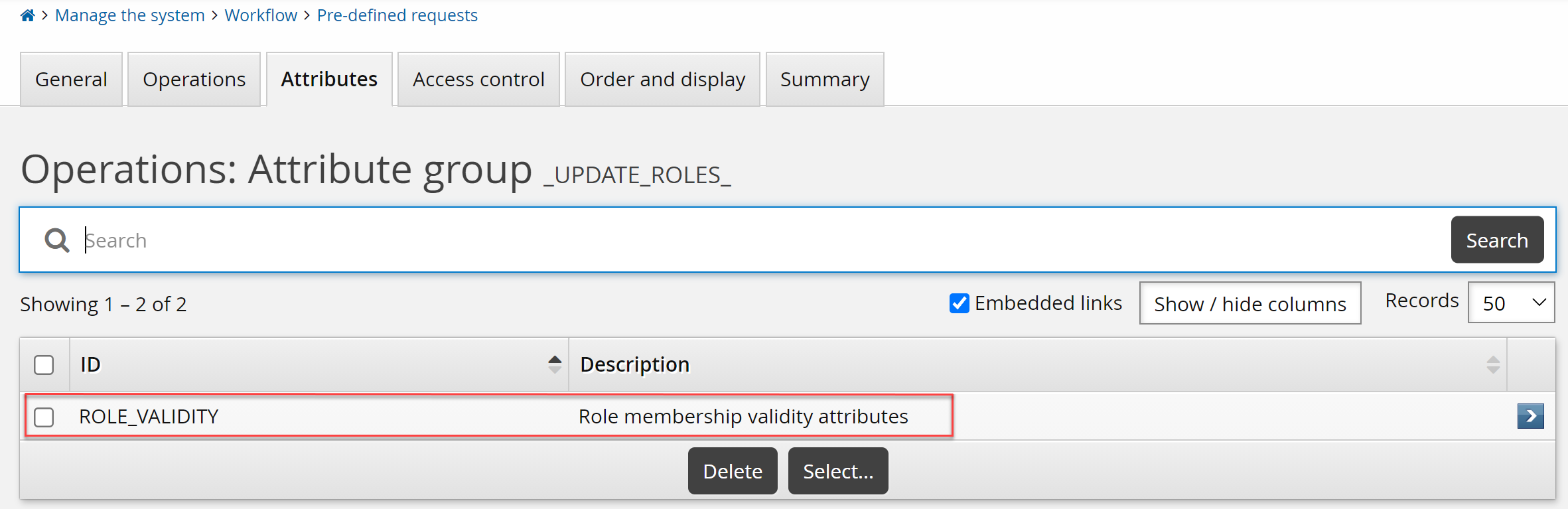
Manage the system > Workflow > Pre-defined requests
Search for and select the _UPDATE_ROLES_ PDR.
Click the Attributes tab.
Click Select.
Select the ROLE_VALIDITY attribute group.
Click Select
Submit a request for a change in role membership with a start time
Log in to the web app as a requester.
Click View and update profile.
Select the Change role membership PDR.
Select the "Basic entitlements for all contractors" role and specify the current date as the Start Date.
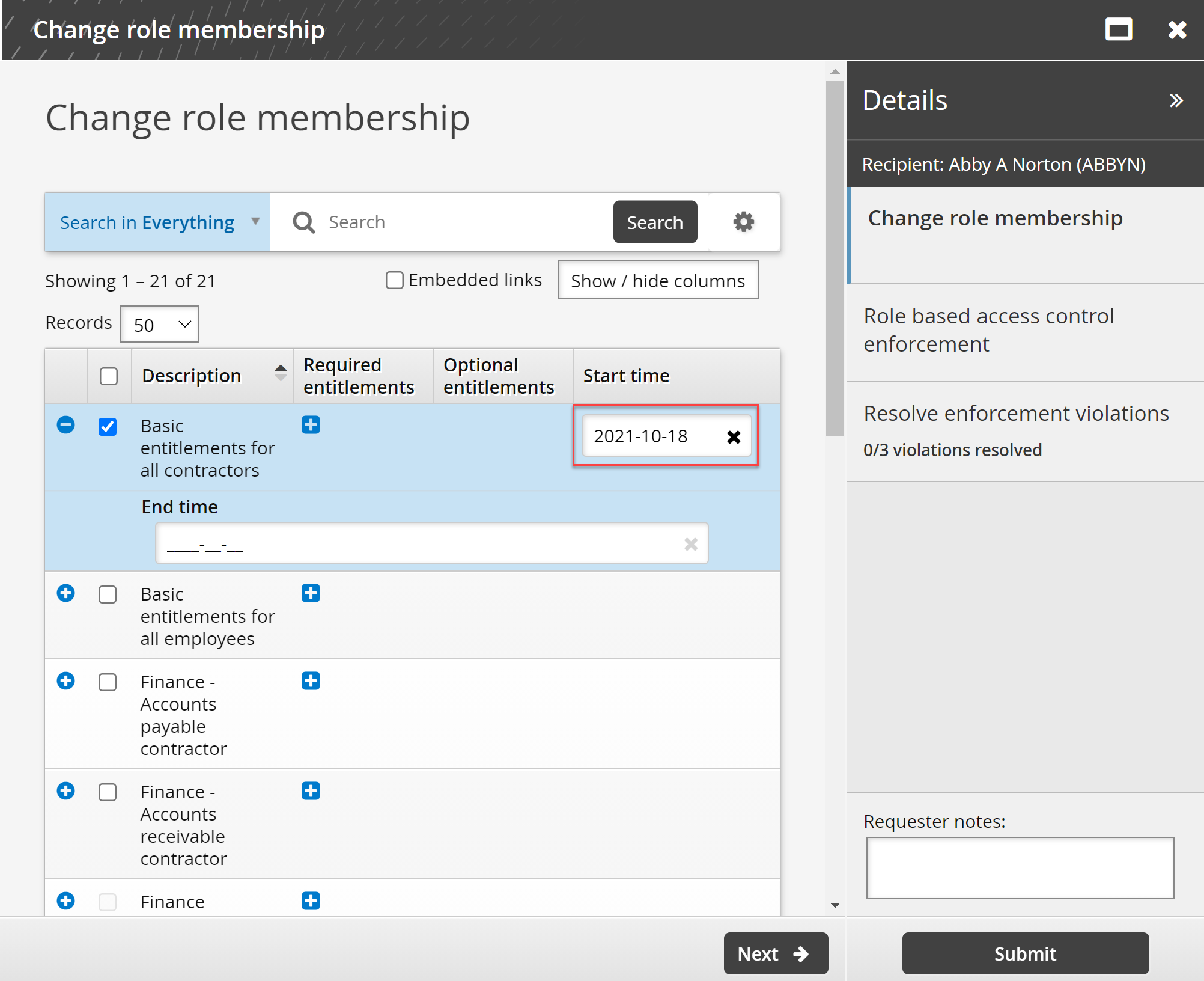
Click Submit.
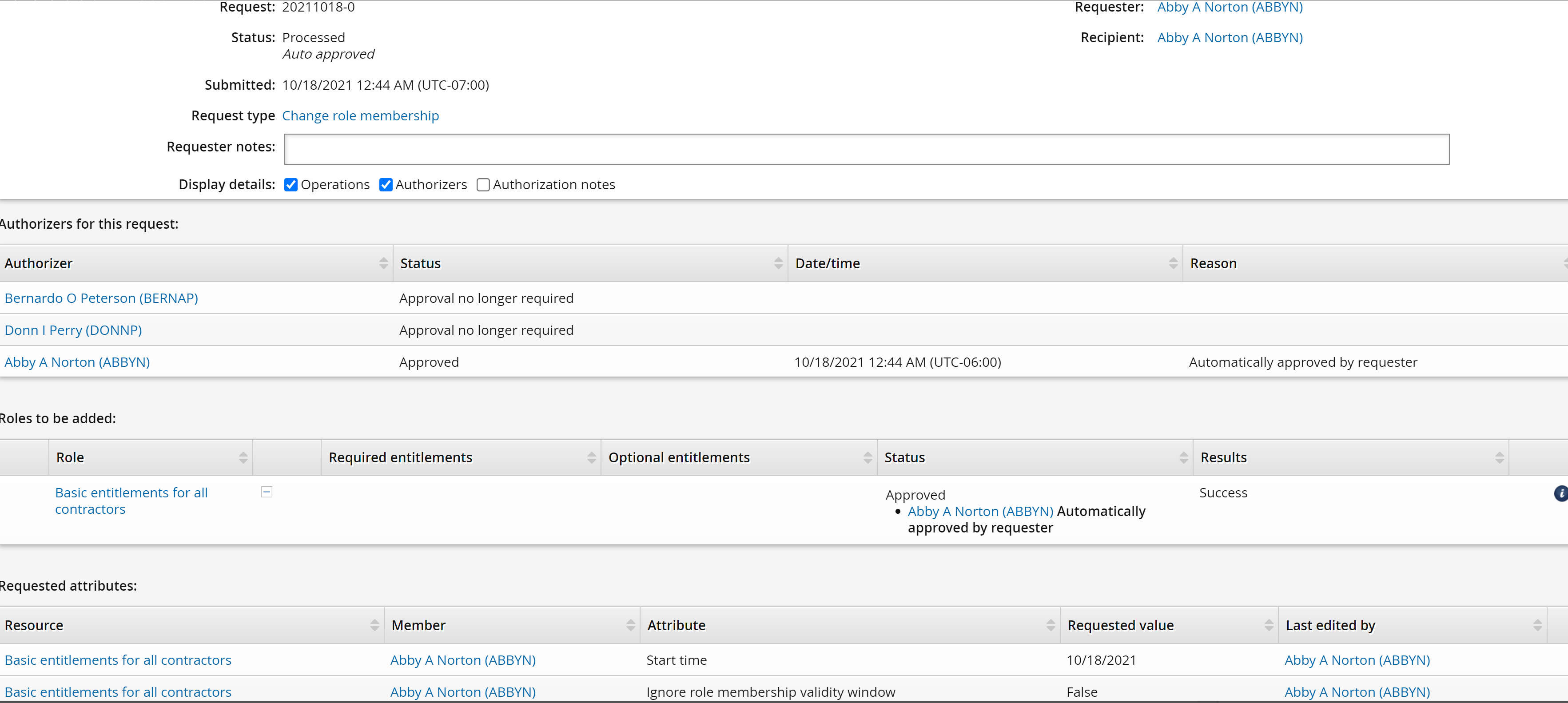
Check the request does not contain a role entitlement assignment operation
From the home page click Requests.
Click Recent from the left panel.
Select the latest request.
Click the request in the details panel.
The request details page opens.
The request does not contain a role entitlement assignment operation.
Check the PSA role user page
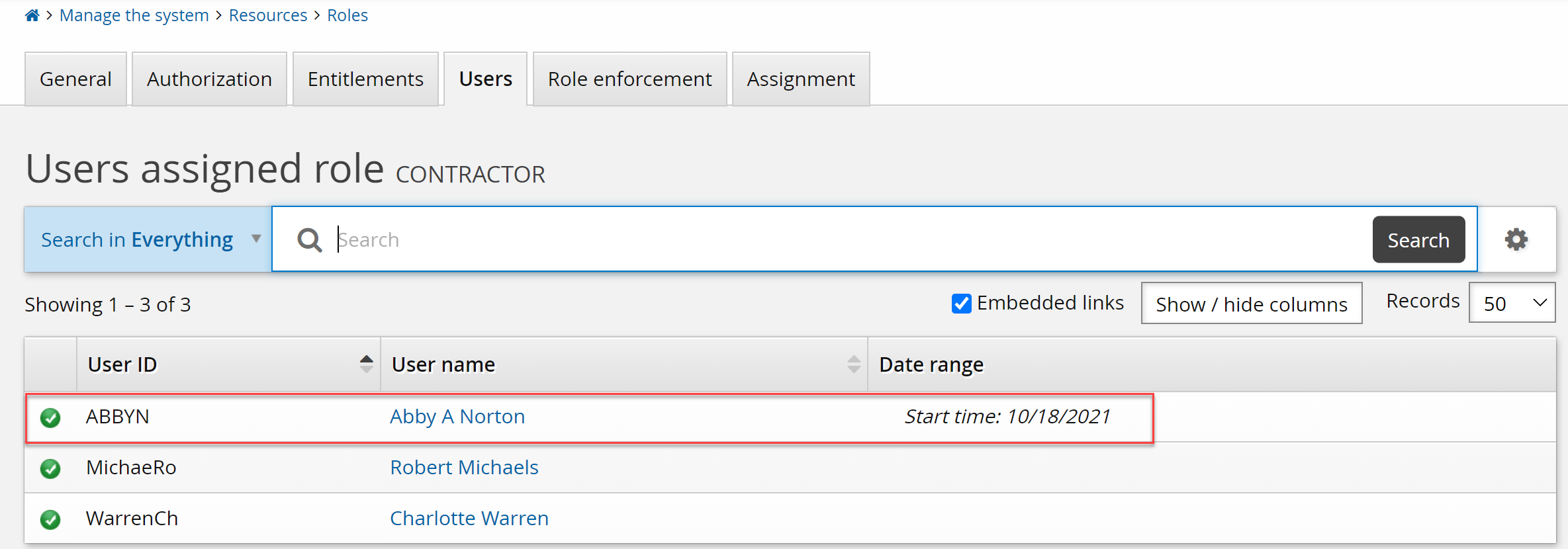
Log in to the web app as superuser.
Click Manage the system > Resources > Roles.
Select the CONTRACTOR role.
Click the Users tab.
The requester has been added with a Start time.
Run nightly update
Run auto discovery: Click Manage the system > Maintenance >Auto discovery > Execute auto discovery, then click Continue. See Auto Discovery for more information.
Log in to the web app as the requester.
Click Groups.
Click My memberships from the left panel.
The All users at ABC Inc. group is now assigned to the requester.