Managed system policies
A managed system policy is a container for managed systems and other policies. A system must be a member of a policy before it can be managed by Bravura Security Fabric .
Managed system policies control:
User access to managed systems
Password strength rules
Password change intervals
External program triggers
Which accounts can be managed and by whom
Temporary group membership access
access disclosure plugins
Set up policies to suite your requirements; for example according to organizational structure, physical location, or security level.
See also
In order to manage credentials for a managed system, you must first add it to the Bravura Security Fabric database. The way that you add a managed system depends on how it will be managed. See Managed systems for details.
Built-in policies
Push/Local service mode built-in policies
The following managed system policies are available when Bravura Privilege is installed. The Bravura Privilege Pattern does not utilize these managed system policies by default.
PULL_ADM_GRP secures access to administrative accounts on local service mode Windows systems.
This policy has a complex default password policy.
PULL_SVC_GRP secures access to service accounts on local service mode Windows systems.
This policy has a complex default password policy.
PUSH_ADM_GRP secures access to administrative accounts on push mode Windows systems.
This policy has a complex default password policy.
PUSH_SVC_GRP secures access to service accounts on push mode Windows systems
This policy has a semi-complex default password policy.
VAULT_ADM_GRP secures access to administrative accounts on push mode systems and provides the IT_SEC_USERS user group pre-approved privileges to check out accounts.
This policy has a semi-complex default password policy.
You must enable default policies by binding them to a Privileged Access Manager Service. Choose a Service ID from the Managed by drop-down menu on the page, then click Update. Passwords must be randomized before users can check out account access. See Enabling managed system policies for more information.
VAULT_ADM_GRP
The VAULT_ADM_GRP managed system policy is preconfigured for managing administrative credentials on push mode target systems. This policy provides the IT_SEC_USERS user group pre-approved privileges to check out accounts from this policy.
By default, IT security users are not able to override or randomize the passwords for the managed accounts in this policy. You must configure the permissions for IT security users to allow this. The Bravura Privilege Pattern does not utilize this managed system policy by default.
Historical data policy
The HISTORICAL_DATA_GRP managed system policy is available by default when you install Bravura Security Fabric . This policy provides access to managed systems and accounts that no longer belong to any other policy.
Bravura Privilege moves managed systems and accounts to the historical data policy automatically when they are unbound from any other managed system policy. If a managed system or account is again bound to a managed system policy, it is automatically removed from the historical data policy. If a managed system is removed as a discovered target system, it will no longer be available in any managed system policy.
Bravura Privilege must have changed the password at least once in order for it to be moved to the historical data policy.
Passwords for the managed accounts in this policy cannot be overridden or randomized.
This policy has fewer configuration options than vault-only, local service or push mode policies.
Users can click the embedded link for the ID to find out that it has been renamed and to see what it has been renamed to.
Getting started
Requirements
Product administrators with the "Create managed system policies" administrative privilege can create and manage managed system policies . Product administrators with the "Manage managed system policies" administrative privilege can be granted permission to manage existing managed system policies ; they must also belong to a user group with assigned access controls.
Navigation steps
You use the Managed system policy information page to configure the basic policy definition, and to access additional configuration settings. To navigate to this page:
Click Manage the system > Privileged access > Managed system policies.
Search for, or select the managed system policy you want to view or modify.
Proceed to Enabling managed system policies .
or
Click Add new… .
See Adding a managed system policy to learn how to add a new policy.
Adding a managed system policy
To add a managed system policy:
Click Manage the system > Privileged access > Managed system policies.
Click Add new… .
Type a unique ID containing only ASCII characters, and a Description of the policy.
Select the Mode of service to use with this policy.
Different configuration options become available depending on the selected mode. See below for details on the configuration options.
The mode cannot be changed after adding the policy. See Setting up Privileged Access Management for a descriptions and planning notes for each mode.
With a limited license you can only add vault-only mode policies. The ability to add push-mode or local-service mode policies is only available with a full Bravura Privilege license.
Click Add.
For push mode and local service mode policies, Bravura Security Fabric displays warnings
 about setup requirements that you must meet before you can reset passwords on member systems. You can now configure the policy as outlined in the following sections.
Select the Privileged Access Manager Service in the Managed by list. This is the service that will manage systems in this policy.
The service ID is automatically generated when Bravura Security Fabric is installed. There may be more than one if Bravura Security Fabric has been installed on multiple nodes using either a shared schema, or in replication.
Select the Authentication type to use during check-out and check-in:
Group set
Password
SSH key
Configuration options for the managed system policy become available depending on the authentication types selected. Authentication types cannot be removed if there are managed accounts or group sets configured for the policy.
For push mode policies with the password or SSH key authentication type, set the Scope of password synchronization:
No password synchronization – Managed accounts within this policy may have different passwords.
Synchronize all accounts in policy – All managed accounts within this policy will be synchronized to have the same password.
Synchronize accounts with same ID All managed accounts with the same ID within this policy will be synchronized to have the same password.
If managed system and managed account import rules are defined, you can associate them with new push- or local-service-mode policies, so that discovered objects are automatically added to the policy, by selecting them in the import rules section .
Select the Privileged Access Manager Service in the Managed by list. This is the service that will manage systems in this policy.
The service ID is automatically generated when Bravura Security Fabric is installed. There may be more than one if Bravura Security Fabric has been installed on multiple nodes using either a shared schema, or in replication.
Select the Authentication type to use during check-out and check-in:
Group set
Password
SSH key
Configuration options for the managed system policy become available depending on the authentication types selected. Authentication types cannot be removed if there are managed accounts or group sets configured for the policy.
If managed system and managed account import rules are defined, you can associate them with new push- or local-service-mode policies, so that discovered objects are automatically added to the policy, by selecting them in the import rules section .
Select the Privileged Access Manager Service in the Managed by list. This is the service that will manage systems in this policy.
The service ID is automatically generated when Bravura Security Fabric is installed. There may be more than one if Bravura Security Fabric has been installed on multiple nodes using either a shared schema, or in replication.
Only the password Authentication type is available for vault-only systems to use during check-out and check-in:
For vault-only mode policies, select Enforce password policy to have the option to configure a password policy for this specific managed system policy. If left deselected, the Password policy tab will be hidden, and a password policy requiring only at least one character is applied.
See Manually manage accounts on a vault-only system for a vault-only example.
Changing a managed system policy’s owner
When you add a new managed system policy, you are the owner by default. The owner of a managed system policy may edit the policy’s settings, as long as they are in a user group that has the View properties for this policy access control for that policy.
To change the owner of the managed system policy:
Navigate to the Managed system policy information page .
From the General tab, search for a new owner.
All the listed users are product administrators that have the ”Manage managed system policies” administrative privilege.
Select the new owner.
Click Update
Enabling managed system policies
Push mode and local service mode policies must be managed by a Bravura Privilege service in order to manage passwords or group membership. Push mode policies must be managed by a Bravura Privilege service in order to manage passwords.
You must update default policies to bind them to a service. On the Managed system policy information page, choose a Service ID from the Managed by drop-down menu on the Managed system policy information page, then click Update.
Once managed system policies are managed by a service, you must do the following:
Defining managed accounts to determine which passwords Bravura Privilege will manage on member systems.
Defining group sets to determine which groups Bravura Privilege will grant temporary access to on member systems.
Attaching authorizers to managed system policies to allow users to request access on member systems. to be handled by the authorization workflow system.
Defining access disclosure plugins to determine how Bravura Privilege provides users with access to a managed account.
Enabling and disabling randomization and check-outs
Users can only check out the password for accounts belonging to a managed system policy once the accounts’ passwords have been randomized. You can either wait for the managing service to poll the system, or randomize password immediately to have the policy take effect.
Account passwords do not need to be randomized to check out accounts using SSH key authentication.
You can temporarily disable randomization at any time, which also checks in and blocks check-outs unless you specify that check-outs are allowed.
Defining member systems
A managed system must belong to at least one managed system policy in order for users to be able to access or manage accounts for the system.
You define policy membership for managed systems in several ways:
Attaching a target system from the Target system information page
Attaching discovered systems to policies
Modifying membership via the Managed system policies menu
Modifying membership via the Managed systems menu
Using import rules to assign discovered managed systems.
See Import rules for more information about defining import rules.
Attaching a target system to a managed system policy
Once you have added a target system with the Automatically create a Bravura Privilege managed system setting enabled, you can attach the system to a policy by clicking Policies at the bottom of the page.
Attaching discovered systems to a managed system policy
Discovered systems include servers and workstations found on an Active Directory target system during auto discovery, as well as systems with Local Workstation Service installed that have registered with the Bravura Privilege server.
To attach discovered systems to policies:
Navigate to Manage the system > Resources > Discovered objects > Systems
Select the discovered system to manage.
Click Manage.
Select the managed system policy the discovered system will be bound to.
Click Select .
Choose the appropriate template and connection credentials.
Click Apply .
See Discovered Objects for more information about managing discovered objects.
Modifying memberships via the managed system policies menu
After managed systems have been added, you can manually add or remove managed systems’ membership to managed system policies.
You cannot remove managed system policy membership for a managed system if there are any passwords or group sets checked out from that system.
To modify managed system policy membership by adding or removing managed systems:
Navigate to the Managed system policy information page .
Select the Member systems tab.
Click Add new… to see the page.
Check the boxes next to the managed systems you want to add to the policy.
Only managed systems matching the managed system policy’s mode are listed.
Click Select .
Modifying memberships via the managed systems menu
You can modify managed system policy membership for a managed system using the menu.
A managed system must belong to at least one managed system policy in order for users to be able to access managed accounts or groups on the system.
To apply one or more managed systems to a managed system policy :
Click Manage the system > Privileged access > Managed systems.
Select the managed system you want to manage.
Click Policies .
Click Select… to view the list of available managed system policies.
Check the boxes next to the policies you want to assign to the managed system.
Only managed system policies matching the managed system’s mode are listed.
Click Select .
Defining managed accounts in a managed system policy
You must add accounts to a managed system policy to determine which passwords or SSH keys Bravura Privilege will manage on member systems. The managed system policy must have the password or SSH key authentication type in order to define managed accounts.
The accounts are identified by:
The account ID for a push mode managed system
The login ID for a local service mode managed system
A unique ID that you define for a vault-only managed system
The number of accounts managed in a managed system policy is represented by the Attached accounts column on the main Managed system policies page. This is the total number of managed accounts in the policy. You can associate accounts with a managed system policy in the following ways:
Manually, using the menu.
Attaching discovered accounts to policies via the Manage the system > Resources > Discovered objects > Systems menu.
Using import rules to assign discovered managed accounts.
You can only associate an account to a single managed system policy . If you try to attach the managed account to another managed system policy , it will be removed from the original managed system policy .
Caution
Ensure that you do not select a managed account for any other role, such as authorizer or workflow manager, in Bravura Privilege.
Manually adding an account
You can manually add an account to a managed system policy.
Only targeting credentials for managed systems can be managed accounts on a push mode policy. The ability to manage any account is enabled when Bravura Privilege is included in the product license. There are no restrictions for vault-only policies.
To manually add an account:
Navigate to the Managed system policy information page .
Select the Managed accounts tab.
Click Add new…
Bravura Privilege displays all available accounts and its associated member system.
Select the checkboxes for the account IDs you want to add, then click Select.
Manually removing a managed account from a managed system policy
You can manually remove a managed account from a managed system policy . If an account does not belong to any policy, it will be moved into the HISTORICAL_DATA_GRP policy where its passwords are stored. In this state, the passwords are still accessible, but no longer randomized. Managed accounts can be manually removed through their managed system policy or their managed system .
If a managed account is currently checked out, then it cannot be removed from a managed system policy.
Warning
It is strongly recommended that you back up managed account passwords and their password histories before removing a managed account from a managed system policy.
To remove a managed account from a managed system policy :
Navigate to the Managed system policy information page .
Alternatively, navigate to the page if removing the account from the managed system instead.
Click the Managed accounts tab.
Select the checkbox for the account ID that you want to remove from being managed, click Delete, then click OK to confirm the action.
Defining group sets in a managed system policy
You can define group sets in a managed system policy to determine which groups Bravura Privilege can grant users membership to. The managed system policy must have the group set authentication type to define group sets. A group set can specify an individual group, such as Administrators in Active Directory, or inclusion criteria to define a set that includes multiple groups. A user can check out a group set, meaning their account is temporarily added to every matching group at checkout time, and removed at check-in time. This eliminates the need to manipulate passwords when granting access.
You can organize group sets, for example, to contain privileges that may be required to access files or folders, or to perform a specific task on an Active Directory domain, a Windows server, or a Linux server.
A simple use case:
An administrator admin1 wants to perform a task on a managed system that requires group membership from groupA and groupB .
admin1 requests access to a group set groupsetX , which contains the required groups groupA and groupB .
Once approved by an authorizer, admin checks out groupsetX .
admin1 is now given membership to groupA and groupB .
admin1 performs the task with the required elevated privilege.
Once finished with the task, admin checks in groupsetX .
admin1 is detached from groupA and groupB .
If the user has membership in some groups in the group set prior to checkout of the group set, on checkin/expiry, membership in those groups will not be removed – only those added by the temporary checkout are removed.
Requirement
In order to define group sets in a managed system policy , the Authentication type on the General tab must include ”Group set”.
Adding a group set
To add a group set :
Navigate to the Managed system policy information page .
Select the Group sets tab.
Click Add new… to add a new group set .
Type a unique identifier containing only ASCII characters, and a description of the group set.
Select the Notify requesters of groups from this set that do not exist on the managed system they have selected if you want to notify requesters by email.
Click Add.
The group set should now appear in the list of Group sets.
Next:
Add groups as members of the group set.
Adding groups
You can define group members in a group set in several ways:
Selecting from a list of groups
Adding a new group
Using group inclusion rules
Selecting from the list of groups
You can choose which groups to add to the group set by selecting them from a list of groups. Each group contains a unique identifier, description, and member system the group belongs to.
To add groups from a list of groups:
From the group set page , add or select a group set and click the Explicitly attached groups sub-tab.
Click Select… to select from a list of groups to add to the group set.
Select the groups you want to include in the group set.
Click Select when you have finished selecting groups.
The groups should now appear in the list of explicitly attached groups.
Adding a new group to a group set
You can manually define a group with an identifier to be searched against the groups on members of the managed system policy. If a group has a matching ID it will be included in the group set.
For example:
A managed system policy has member systems TargetA and TargetB .
Both member systems have the same group named ManagedGroup .
If you define a new group named ManagedGroup , then Bravura Security Fabric searches for this group on all member systems of the policy. Using this common group identifier, ManagedGroup from TargetA and TargetB will be added to the group set.
To manually define a group:
From the group set page , add or select a group set and click the Explicitly attached groups sub-tab.
Click
 Add new… .
A virtual window appears.
Specify a group identifier and description.
The group identifier is case-insensitive.
Click Add.
Close the virtual window.
The group should now appear in the list of explicitly attached groups.
Defining group set members using rules
You can define groups automatically for a group set using inclusion rules. You can specify groups solely using this method, or in conjunction with explicitly attached groups. The groups are determined at request time, and are based on the groups that are currently discovered.
To add a new group inclusion rule:
From the group set page , add or select a group set and click the Group inclusion rules sub-tab.
Click Add new… to create a new inclusion rule.
Specify a unique ID, rule Type to test against, and Value.
The value can be tested against:
Long ID
Short ID
System ID
Description
Select the Use SQL ’LIKE’ expression checkbox if you want the value to match only part of the rule type.
Select Case-sensitive if you want the value to be matched as entered.
Click Add.
The rule should now appear in the list of group inclusion rules.
Testing a group inclusion rule
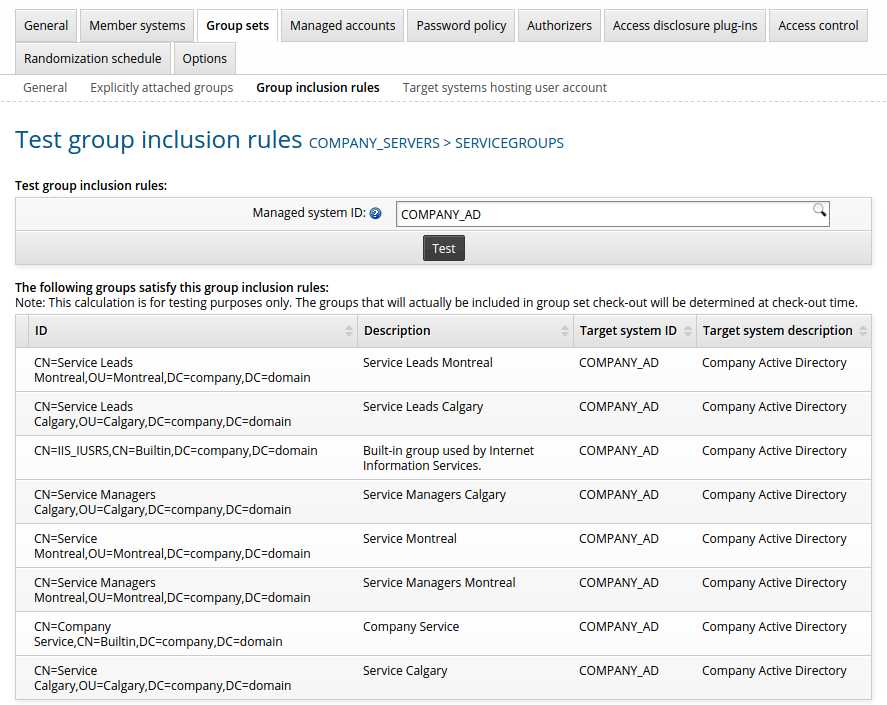
After you have added a group inclusion rule, you can test it to see if includes groups that are currently managed on member systems.
On the Group inclusion rules sub-tab, select a rule and click Test.
Bravura Security Fabric displays the Test group inclusion rules page.
Enter the Managed system ID you want to perform the test on, or leave the field blank to include all groups that satisfy the rule.
Click Test.
Specifying other target systems hosting user accounts
By default, requesters will be able to request temporary group access to a group set that contains groups on the same managed system as the account requested for. However, it is also possible to define target systems where the accounts do not belong to the same managed system as the groups in the group set .
Some examples include, but are not limited to, requesting temporary access to domain groups for a domain account on another domain in the forest, or requesting temporary access to local groups for a domain account.
If you only want to grant temporary access to the group set using an account from the managed system, then specifying a target system is not required.
To include a target system that will be used when applying group memberships:
From the group set page , add or select a group set and click the Target systems hosting user account sub-tab.
Click Select… to add a target system hosting user accounts.
Select the target system that will be added to the group set.
Click Select .
The target system should now appear in the list of Target systems hosting user account list.
Removing a group set from a managed system policy.
You can manually remove a group set and its member groups from a managed system policy. If you choose to remove a group set , all of its groups, inclusion rules and target systems defined in the group set will be removed as well.
If a group set is currently checked out, then it cannot be removed from a managed system policy.
To remove a group set from a managed system policy, select the group set and click Delete.
Associating import rules with a managed system policy
Once you have configured import rules, you can associate the rule with a managed system policy, so that discovered objects are automatically added to the policy. You can do this from the Manage the system > Privileged access > Import rules menu, or from the Managed system policies menu.
To associate an import rule with a policy from the Managed system policies menu:
Navigate to the Managed system policy information page . .
On the General tab, select:
Managed systems import rules to define discovered managed systems as members of a push-mode managed system policy .
Managed accounts import rules to define discovered accounts as managed accounts for a push-mode or local service managed system policy .
Click Update.
You can now manually evaluate the import rule, or run auto discovery to apply the rule.
Modify the password policy for a managed system policy
By default, Bravura Privilege uses semi-complex password policy to generate random passwords for push mode and local service mode managed system policies . The password policy is set for a managed system policy when the policy is created.
The managed system policy must include password or SSH key authentication types to modify the password policy. You can modify the password policy for each managed system policy. To do this:
Navigate to the Managed system policy information page .
Select the Password policy tab.
Configure the rules defined in Table 1, “Password strength rules”.
Click Update.
Note that:
If a managed system is a member of multiple managed system policies, it uses the password policy of the managed system’s primary Managed system policy option, which by default is the first policy it joined.
It is recommended that you limit the number of managed system policies (with different password policies) a system belongs to. In the event that a managed system policy is removed, all managed systems that were using its password policy will adopt the password policy of the next managed system policy to which they belong. This could result in unexpected behavior if you are not careful in how you construct your managed system policies, password policies, and managed system policy memberships.
It is highly recommended that you configure your password policies before Bravura Privilege starts managing system passwords.
You can also write a plugin to decide which password policy to apply to a managed account. The plugin must be identified in the RES PWDPOL GET setting (Manage the system > Privileged access > Options > Password randomization).
Requirements
See Writing plugins for general requirements.
Execution points
The plugin is run when a managed account’s password strength is displayed and when the password is randomized or overwritten.
Input
The plugin has access to the following KVGroup for member attributes:
"" "" = {
      "accountID" = "<account Id>"
            "managedsystem" = "<Managed system ID>"
              "resourcegroupid" = "<Managed system policy id>"
                "sessionid" = "<session id>"
}
Output
The plugin expects the following return value:
"" "" = {
      "retval" = "0"
            "passwordpolicy" = "<global password policy ID>"
            "errmsg" = "<error message>"
}
Attaching authorizers to managed system policies
Assign Authorizers to a managed systems policy to allow users to:
Request privileged access
Search recorded session data
Download recorded session data
View recorded session data
Extend a check-out
Users must be loaded into the Bravura Security Fabric database before you can define them as authorizers.
You must assign enough authorizers to meet the minimum number of authorizers requirement. If you do not do this, requests involving the resource are automatically denied unless authorizers are assigned by a workflow plug-in.
The managed accounts will not be available for check-out if insufficient authorizers are assigned to the managed system policy .
Configuring phased authorization
If phased authorization is enabled, click the Authorization tab, then:
Click Add new… if you want to add a phase.
To change the order of phases, change the numbers in the Authorization phase column and click Update.
Select a phase to define authorizers and settings.
Parallel Authorization
A parallel authorization process is one where multiple authorizers are invited to comment concurrently – i.e., the identity management system does not wait for one authorizer to respond before inviting the next.
Parallel authorization has the advantage of completing more quickly, as the time required to finish an authorization process is the single longest response time, rather than the sum of all response times.
Click below to view a demonstration of creating a LINUX-APPROVERS user class to be used as a secondary set of authorizers for parallel authorization.
Click below to view a demonstration including the following steps:
Enabling parallel authorization in Bravura Privilege
Configuring parallel authorization for a managed system policy
Adding rules to the authorization
extdbtable to include a secondary authorizer user classModifying rule actions in the team management
extdbtableRequesting to check out an account, viewing authorizers and approving the request
Setting the number of required approvals
To set authorization thresholds for a managed system policy:
Navigate to the Managed system policy information page .
Select the Authorizers tab.
Select the appropriate sub-link:
Access to managed systems
Search recorded sessions
Download recorded sessions
View recorded sessions
Extend a check-out
Select a phase if phased authorization is enabled.
Type a value for the:
Minimum number of authorizers – A value of 0 means requests for the resource are auto-approved.
The default value is set by the MIN AUTHORIZERS policy.
Number of denials before a change request is terminated – A resource request is canceled when this number of authorizers deny it, as long as the Minimum number of authorizers has not been reached.
The default value is set by the MAX REJECTIONS policy.
Click Update.
Assigning static authorizers
Caution
Ensure that you do not select a managed account when creating an authorizer. Managed accounts should not be used for any other purpose in Bravura Security Fabric .
To assign a static authorizer to a managed system policy:
Navigate to the Managed system policy information page .
Select the Authorizers tab.
Select the appropriate sub-link:
Access to managed systems
Search recorded sessions
Download recorded sessions
View recorded sessions
Extend a check-out
Select a phase if phased authorization is enabled.
Click Select… at the bottom of the Authorizers table.
Search for, or enable the checkboxes next to the authorizers that you want to assign.
Click Select at the bottom of the page.
Click Update.
Removing an authorizer from a managed system policy automatically denies any pending account check-out requests for the policy assigned to the authorizer.
Policies assigned to a predefined authorizer are also listed on the page.
Assigning authorizers by user class
To assign authorizers to a managed system policy based on user class:
Navigate to the Managed system policy information page .
Select the Authorizers tab.
Select the appropriate sub-link:
Access to managed systems
Search recorded sessions
Download recorded sessions
View recorded sessions
Extend a check-out
To define membership criteria:
Select existing user classes: Click Select… and enable the checkboxes for the user classes you want to add, then click Select.
Create new user classes: Click
Add new… . See Adding user classes for full details on how to create a new user class.
Configure Participant mapping for each user class that you add.
Select and create user classes until you have defined membership.
If your membership criteria includes multiple user classes, define whether users are required to match All of the user classes or Any of the user classes .
To remove users from membership, you can:
Edit user classes to change the participants.
Delete user classes from the membership criteria.
Navigate to the membership criteria page where user classes are listed.
Enable the checkbox next to the user classes you want to delete.
Click Delete.
Defining access disclosure plugins for a managed system policy
You must enable at least one access disclosure plugin for a managed system policy before users can access the password for accounts managed by that policy. You can set plugins for SSH key access, but this is not required; users can simply use their existing credentials with the temporary SSH trust relationship. You can set plugins for group set access, but this is not required; users can simply use their existing credentials with temporarily heightened privileges.
You can enable only one plugin to disclose old passwords for a managed system policy.
Bravura Privilege ships with the following native access disclosure plugins:
Run command:
pswcmdrunis used with account set access requests. It allows users to run commands or scripts on multiple managed systems using managed account credentials.When a user checks out an account set, Bravura Security Fabric displays a command execution window if any of the member systems support the run command operation.
Details: Run command: pswcmdrun
Command prompt:
pswxcmdprovides users with access to managed systems by executing an external program and providing credentials.There are three types of command prompt controls; one is specifically for accessing managed accounts, and the other two are for temporary group membership, where the password can either be passed onto the command line, or specified upon connection to the remote server.
This plugin is compatible with session recording.
Details: Command prompt: pswxcmd
PuTTY over SSH
This is a preconfigured
pswxcmdaccess disclosure plugin used for accessing managed accounts with SSH keys instead of passwords.This plugin is compatible with session recording.
Details: PuTTY over SSH: pswxcmd
Copy:
pswxcopyprovides users with access to a password by copying it into the clipboard of the client workstation.Details: Copy: pswxcopy
Remote desktop / Remote App RDP:
pswxtsvcprovides users with access to Windows server or client managed systems and RemoteApp programs using Remote Desktop Connection (RDC). The plugin provides automatic connection to the managed system without the need to enter the administrative credentials for the managed account.This plugin is compatible with session recording.
Display:
pswxviewprovides users with access to a password by displaying it within the browser.When the secure method is enabled, Bravura Security Fabric uses JavaScript to decrypt the privileged password embedded in the page.
If the insecure method is enabled, the browser can store passwords in plain text in the page source, and users can access the accounts in browsers that do not have JavaScript enabled. Users access the managed system by hovering their cursor over the View button.
Details: Display: pswxview
Bravura Privilege ships with the following Guacamole access disclosure plugins:
In-browser RDP:
guacamole-rdpprovides users with access to Windows server or client managed systems using Remote Desktop Connection (RDC).Details: In-browser RDP: guacamole-rdp
In-browser Remote App:
guacamole-remote-appprovides users with access to a remote application (RemoteApp) hosted on a Windows server or client managed systems.In-browser SSH:
guacamole-sshprovides users with remote access to a server using Secure Shell (SSH).Details: In-browser SSH: guacamole-ssh
In-browser telnet:
guacamole-telnetprovides users with remote access to a server using Telnet.Details: In-browser Telnet: guacamole-telnet
In-browser VNC:
guacamole-vncprovides users with remote access to a managed system with Virtual Network Computing (VNC) enabled.Details: In-browser VNC: guacamole-vnc
All Guacamole access disclosure plugins provide automatic connection to the managed system without the need to enter the administrative credentials for the managed account and are compatible with session recording.
A Guacamole gateway is required in order to use Guacamole access disclosure plugins. See Installing and configuring Guacamole on how to set up a Guacamole gateway and configure the controls to use it.
Bravura Privilege ships with the following website access disclosure plugins:
Secure browser:
securebrowserlaunches a dedicated program that automatically logs into a website using a configuration defined in a JSON file. This is compatible with session recording.Requires installation of the Bravura Security Secure Browser program.
Details: Secure browser: securebrowser .
Web app privileged sign-on:
pswxwebapplaunches a separate browser tab that automatically logs into a website using a configuration defined in a JSON file. Requires installation of the Bravura Security browser extension extension.Details: Web app privileged sign-on: pswxwebapp .
See also
Access Disclosure Plugins to learn how to configure global settings and default behavior, and to add custom plugins.
Enabling access disclosure plugins for a policy
To select and enable access disclosure plugins for a managed system policy:
Navigate to the Managed system policy information page .
Select the Access disclosure plugins tab.
Depending on the authentication types defined for the managed system policy, only applicable disclosure plugins can be added to the policy.
Click Select … .
Select the checkboxes next to the plugins you want to apply to the policy.
Click Select .
Select the checkboxes or radio buttons in the appropriate column for plugins to enable users to:
Access SSH keys – Users with sufficient privileges can use the plugin to access a privileged account using their SSH keys. One or more must be selected.
Access group set – Users with sufficient privileges can use the plugin to access a group set. One or more can be selected.
Access current password – Users with sufficient privileges can use the plugin to access a privileged account. One or more must be selected.
Access old passwords – Users with sufficient privileges can access password history. Only one plugin can be selected.
Depending on global settings, some options may not be selectable.
Select the checkboxes for plugins you want to provide access current passwords, if applicable.
Select the radio button for the plugin you want to provide access to password history, if applicable.
Click Update.
Sometimes, installing a component for a particular system type is not enough to give a managed account on that system disclosure access, and we need to add the disclosure option to the managed system policy. In the following demonstration, this was the case for installation of the Scenario.pam_system_type_winnt and Scenario.pam_disclosure_rdp_local_account components. These components were installed to provide Remote Desktop Protocol (RDP) disclosure access to managed accounts on Windows systems, but there is still configuration missing for the disclosure access to work during checkouts. The remote desktop disclosure option must be added to the ONBOARDED_ACCOUNTS managed system policy where these accounts are managed.
Click below to view the demonstration.
Detaching access disclosure plugins
To remove a plugin from a managed system policy:
Navigate to the Managed system policy information page .
Select the Access disclosure plugins tab.
Select checkboxes next to the plugins you want to remove from the policy.
Click Delete.
Overriding global settings in managed system policies
Configuration settings for access disclosure plugins can be applied globally. This includes their description, selectability, and attributes.
You can override some access disclosure plugin settings at the managed system policy level.
Overriding an access disclosure plugin description
To override basic configuration settings:
Navigate to the Managed system policy information page .
Select the Access disclosure plugins tab.
Select the plugin you want to update.
Type the Overridden description to be used when displaying the plugin option for accounts or groups managed by this policy.
Optional: Select usage options as described in Table 1, “Access disclosure plugin configuration - managed system policy options” .
Click Update.
Option | Description |
|---|---|
Use this plugin to access SSHkeys | If checked, this plugin allows users with sufficient privileges to access the managed account using SSH keys. |
Use this plugin to access group set sets | If checked, this plugin allows users with sufficient privileges to access the group set. |
Use this plugin to access the current password | If checked, this plugin discloses the privileged password to users with sufficient access privileges |
Use this plugin to access old passwords | If checked, this plugin discloses the old privileged password to users with sufficient access privileges |
The options in the table above correspond to the checkboxes and radio buttons on the policy’s access disclosure plugins page. You cannot override global settings that prevent you from selecting a plugin for a certain use.
Overriding default attribute settings
To override access disclosure plugin attribute settings to control behaviors at the group level:
Navigate to the Managed system policy information page .
Select the Access disclosure plugins tab.
Select the plugin you want to update.
Select the attribute you want to update.
Set the plugin attribute options, as described in Table 3, “access disclosure plugin attribute options” .
See Access Disclosure Plugins for detailed information about default plugin behaviors.
Click Update.
To remove an override and revert to global settings, click Remove in the Attributes for this plugin table.
Cloning access disclosure plugins within a managed system policy
You can clone an existing access disclosure plugin if you want to run multiple instances of the plugin but with different settings.
To clone a plugin from a managed system policy:
Navigate to the Managed system policy information page .
Select the Access disclosure plugins tab.
Select the checkbox next to the plugin you want to add to the policy.
Click Select .
Select to update and modify an existing plugin.
Click Clone .
Specify a description and modify other options as needed.
Click Add.
See also:
You can also clone global access disclosure plugins.
You can set up access disclosure plugins to allow end users to save sessions with their preferred settings.
Viewing attributes passed into ActiveX plugins
To view the attributes passed into the ActiveX control for debugging purposes, copy the logutil program onto the system and run it, specifying the instance "PPMClient ActiveX Controls" . You may need to generate an instance key to get logutil to capture ActiveX logs. Ensure the system initializing the ActiveX control does not have IE ESC turned on. See logutil usage details.
Use a plugin to define access disclosure plugins
You can use a plugin to determine which access disclosure plugins, and with what settings, will be available to a recipient when attempting to access a managed password. The recipient may be a product administrator with permissions to access a managed password, or a user with an approved request to access a managed password.
The PSW disclosure plugin is particularly useful when deciding what disclosure plugins should be given to which users, in scenarios where the policy-defined plugins have a conflict based on the managed system policy configuration. It is also useful to configure which disclosure plugins users can have access to based on various other attributes and values.
To use a PSW disclosure plugin:
Click Manage the system > Modules > Privileged access .
Type the name of the plugin in the PSW DISCLOSURE PLUGIN field.
By default, the following information is passed into the plugin:
Current manually configured disclosure plugins for the requested account or group set (based off of configured disclosure plugins for the managed system policies)
Managed account information (what account on which system, and which managed system policy settings its being checked out with)
Request ID
Requested plugin information (only available when users check out passwords using a URL)
Recipient of the request
Some data is not input by default. You must manually enable certain registry settings to allow the plugin to receive this information.
Caution
Ensure that you are comfortable and knowledgeable in the mechanics of the registry before you attempt to change any configuration settings. Contact support@bravurasecurity.com if in doubt.
There is a sample PSW disclosure plugin, psw-disclosure-plugin.psl, available in the samples directory. By default it displays no controls. You must initially disable built-in controls before plugin-defined controls are available.
To enable additional PSW DISCLOSURE PLUGIN input, set these entries in the following key:
HKLM\SOFTWARE\Bravura Security\Bravura Security Fabric\<instance>\idarch
default plugin attributes
This input is useful to determine what disclosure plugins are already available on the system, and what values the attributes they use are.
Entry name plugin_psw_disclosure_default_plugins
Value 0—1
Data type Reg_Dword
Default 0
discovered computer attributes
This input provides the attributes of the discovered managed system that the managed account is on.
Entry name plugin_psw_disclosure_found_comp_attrs
Value 0—1
Data type Reg_Dword
Default 0
discovered computer multi-valued attributes
This input provides the multi-valued attributes of the discovered managed system that the managed account is on.
Entry name plugin_psw_disclosure_found_comp_mv_attrs
Value 0—1
Data type Reg_Dword
Default 0
groups
This input provides which managed group the requester is a member of.
Entry name plugin_psw_disclosure_groups
Value 0—1
Data type Reg_Dword
Default 0
user profile attributes
This input provides the profile attributes of the requester.
Entry name plugin_psw_disclosure_profile_attrs
Value 0—1
Data type Reg_Dword
Default 0
Requirements
See Writing plugins for general requirements.
Execution points
The plugin is called on any page where a user is granted access to a managed password or group set that they have successfully checked out.
Inputs
The plugin will receive the following input:
"" "" = {
      "default-disclosure-plugins" "" = {
          "disclosure-plugin" "" = {
              "description" = "<plugin description>"
              "id" = "<plugin ID>"
              "name" = "<plugin name eg. pswxtsvc.ocx>"
              "attributes" "" = {
                  "<attribute key> "" = {
                      "<attribute key>" = "<attribute value>"
                      ...
                  }
                  ...
              }
          }
          ...
          # Repeats for each default disclosure plugin available.
          # if plugin_psw_disclosure_default_plugins regkey is set
      }
      "disclosure-plugins" "" = {
          "disclosure-plugin" "" = {
              "description" = "<plugin description>"
              "id" = "<plugin ID>"
              "name" = "<plugin name eg. pswxtsvc.ocx>"
              "attributes" "" = {
                  "<attribute key> "" = {
                      "<attribute key>" = "<attribute value>"
                      ...
                  }
                  ...
              }
          }
          ...
          # Repeats for each disclosure plugin configured for this managed
          # password based on the managed system policy that it is requested from.
      }
      "ead_computer_attributes" "" = {
          "mv_attributes" "" = {
              "<attribute key>" = "<attribute value>" #0 or more
              ...
          } # If plugin_psw_disclosure_found_comp_mv_attrs regkey is set
          "sv_attributes" "" = {
              "<attribute key>" = "<attribute value>"
              ...
          } # if plugin_psw_disclosure_found_comp_attrs regkey is set
      }
      "groups" "" = {
          "<targetid>" = "<groupid>"
      } # if plugin_psw_disclosure_groups regkey is set
      "managedaccount" "" = {
         "accountid" = "<Managed Account ID>"
         "msp" = "<Managed System Policy>"
         "resourceid" = "<Managed System>"
      }
      "request" "" = {
         "requestID" = "<Request ID>"
      }
      "requested-plugin" "" = {
         "address" = "<address value>"
         "name" = "<requester ID>"

      } # Only available if user checks password out using URL method. See (comment about checking out passwords using URL. ticket 120127-010)
      "viewer" "user" = {
         "id" = "<Profile ID>"
         "attribute" "<Profile attribute key>" = {
             "value" "" = {
                 "value" = "<Profile value>" # 0 or more
                 ...
             }
         }
         ...
         # if plugin_psw_disclosure_profile_attrs regkey is set
      }
}
Output
The plugin returns:
#KVGROUP-V1.0
"" "" = {
    "retval" = "0"
    "errmsg" = ""
    "disclosure-plugins" "" = {
         "disclosure-plugin" "" = {
              "description" = "<plugin description>"
              "id" = "<plugin ID>"
              "name" = "<plugin name eg. pswxtsvc.ocx>"
              "attributes" "" = {
                  "<attribute key> "" = {
                      "<attribute key>" = "<attribute value>"
                      ...
                  }
                  ...
              }
          }
          ...
          # Repeats for each disclosure plugin returned.
    }
}
Configuring policy-level options
Product administrators with the "Manage managed system policies" administrative privilege can configure options for each managed system policy to which they are assigned.
Managed system policy settings override the default global settings configured in Manage the system > Privileged access > Options. You must be a product administrator with all administrative privileges enabled (superuser) to configure global settings.
You can configure options for Bravura Privilege managed system policies to control:
Email notification intervals
Local service mode software installation and keys
Push mode initial randomization
Password randomization intervals
Authorization workflow check-in /check-out behavior
Session recording and access
Triggers for external programs
To do this:
Navigate to the Managed system policy information page .
Select the Options tab, then the appropriate sub-tab.
Clear the Use system setting checkbox to set an option as required.
Click Update.
See Privileged access management options for more information about the options.
Assigning access controls for a managed system policy
Each managed system policy has group access controls available on a per-group basis. These access controls define the privileges that attribute and user group members have for that policy. Some access controls are only available if it applies to the authentication type defined for the policy.
When a managed system policy is created, Bravura Privilege assigns default access controls for the ALLRECIPIENTS, ALLREQUESTERS, and MSP_REPORT_USERS user groups.
Regular users, via the built-in ALLREQUESTERS user group, by default have permission to:
Request check-out of managed accounts (if the policy has the password or SSH key authentication type)
View information: Managed systems/Managed accounts/Group sets/Account sets
Request check-out of group sets (if the policy has the group set authentication type)
The permissions granted by a user group work in conjunction with administrative privileges. product administrators with the "Manage managed system policies" administrative privilege have the right to manage managed system policies .
To modify managed system policy access controls:
Navigate to the Managed system policy information page .
Select the Access control tab.
Enable permissions for user groups as required.
Click Update.
Scheduling push-mode password resets
If the managed system policy is a push-mode managed system policy with password or SSH key authentication type, you can specify the days and times when password changes are allowed to occur. This is primarily used to prevent password changes from occurring when users access the managed systems.
To schedule push mode password resets:
Navigate to the Managed system policy information page .
Click the Randomization schedule tab.
Select the checkboxes to specify the days.
Specify time intervals in HH:MM-HH:MM format during which password changes are allowed to occur. More than one interval can be specified (separated by commas). Not specifying an interval means that password change can occur at any time during the day.
Click Update.
Releasing managed system policies
In order to change the service which manages a managed system policy, or delete a policy, you must first release the policy from the service currently managing it. Before releasing the policy, all checked-out resources must be checked-in.
A managed system policy cannot be released or deleted while access is checked out. However, you can switch the managing node of the policy to transfer ownership to the new service. See Changing a managed system policy’s service ID.
To release a managed system policy :
Navigate to the Managed system policy information page .
From the General tab, click Release.
Once the policy is released, the Managed by field includes a drop-down box listing available services. On the managed system policies list page, the status is indicated as Unbound .
If password resets are being processed for push mode systems, the managed system policy is released at the end of the Privileged Access Manager Service’s current database poll interval, when the service recognizes that the managed system policy is marked for release and releases it. Until this happens, the Releasing status is indicated on the policy’s configuration page and in the Managed by column on the managed system policies list page. The poll interval is controlled by Minutes to wait to re-check database field on the Privileged Access Manager Service’s configuration page.
Once a managed system policy is released, it is not applied to managed systems or accounts.
If for some reason the service is not released in a reasonable amount of time, or if the service is bound but no longer exists, you can force an unbind. While the managed system policy is in the Releasing status, a Force release button will be visible next to the Managed by field.
You can now:
Select a service to manage the policy
or
Delete the managed system policy
You can also change the Service ID associated to this policy.
Changing a managed system policy’s service ID
Product administrators with the "Maintain servers and Manage managed system policies" administrative privileges can quickly change the service ID for any managed system policy in a replication environment. You might need to do this in a recovery scenario; for example, when a replication node goes offline and its responsibilities need to be moved to another service, but the offline server is unable to release the managed system policy.
Managed accounts (including account sets) and group sets are monitored by the managing node of the managed system policy in which they reside. Each managed system policy is linked to a Service ID of a managing node, which follows the format of <servername> _ <instance name> . Changing the service ID of a managed system policy moves the management responsibility to a new node. This change will affect privileged access currently checked out from that policy or checked out later on.
To change the service linked to a managed system policy :
Click Manage the system > Privileged access > Node assignments > Node assignments.
For the managed system policy you want to change, select its node.
Check the managed system policy you want to change, and click Select.
The page is displayed.
Select a new node using the New Privileged Access service drop-down menu.
Click one of the following:
Update: if the current managing node of the managed system policy is active, and can be contacted to transfer over responsibilities to the new service.
Force update: if the current managing node of the managed system policy is decommissioned and will not be used again. This option will immediately transfer over responsibilities to the new service.
If the managed system policy is already in the “releasing” state when you change the node, it stays in this state momentarily even after you change the node. This is because the “releasing” state is required to set the managed system policy into the “unbound” state so that it can be removed.
Deleting managed system policies
You cannot delete a push-mode or local service mode managed system policy until it is released (unbound) from the Privileged Access Manager Service that they are managed by.
You can delete a vault-mode managed system policy at any time.
Warning
Deleting a managed system policy causes users to lose access to all the passwords that were managed by the policy. Passwords can no longer be viewed, but can be recovered.
You cannot delete a managed system policy if it has any checked-out passwords.
To delete a managed system policy:
Click Manage the system > Privileged access > Managed system policies.
Select the checkbox next to managed system policy you want to delete, then click Delete.
Click OK to confirm the deletion.
If required, reassign managed systems to other policies.
A managed system must belong to at least one managed system policy in order for you to view or manage account passwords.