Changing your passwords
This topic shows you how to change your passwords using the Bravura Security Fabric web interface.
In the simplest scenario, your passwords for all the accounts you own are automatically synchronized when you change your password using the Bravura Security Fabric web interface.
Bravura Security Fabric can be set up to apply different password strength and synchronization rules to different groups of accounts. You choose the group of accounts on which you want to change passwords with Bravura Security Fabric.
To change or synchronize your passwords using the Bravura Security Fabric web interface:
From the Home Dashboard, click Change passwords.
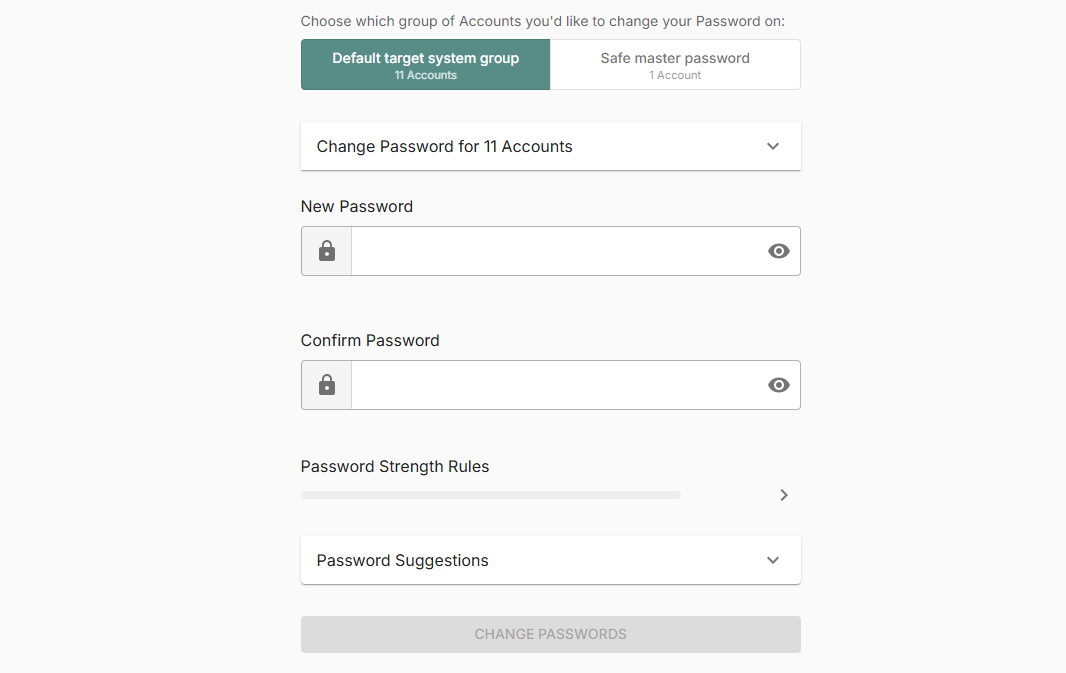
If different password policies are applied to groups of accounts, select the group that you want to change passwords for.
On the page:
Depending on the configuration, you may be able to select one or more accounts on which to synchronize your password.
Review password strength rules.
Click the > symbol to view a list of rules.
The maximum allowable length for a password is 127 characters.
Select the drop-down list to view password suggestions.
Type the new password in the New password and Confirm password fields.
Click Change passwords.
If the changes were successful, close your browser.
You should log out of your workstation, then log in again.
If the changes were not successful, try again later.
Retrying failed password changes
If changes to any of your passwords failed because the Password Manager service (idpm ) could not connect to the target system, depending on configuration, you may need to:
Try again later.
Select the accounts that you want Bravura Pass to retry now, then click Run change directly.
Select the accounts that you want Bravura Pass to queue to retry for you later, then click Queue failed changes.
Do nothing. If Bravura Pass is configured for automatic queuing of password changes, the web page displays a message: "The failed password changes are queued and will automatically be retried."