Help Desk
Helping Users
Help desk users can perform many tasks on behalf of users, such as enabling/disabling profiles, unlocking accounts, changing passwords, updating security questions, managing tokens, and viewing/deleting mobile devices. They can also view statistics on users that they or other help desk users have helped.
Getting started
To access the Help users menu for an end user:
From the main menu , click Help users.
Select the user you want to manage.
Alternatively, you can search for the user.
If required, authenticate the user by answering their security questions, and click Continue.
Depending on configuration, help desk users belonging to a user access rule that has the Bypass security questions operation enabled might be able to Skip authentication and go straight to the Help users menu for the end-user.
From this point you can (depending on licensing):
Updating profile status
Enabling and disabling profiles
Help desk users can disable a user’s profile to revoke the user’s access to Bravura Security Fabric and any access requests. They can also enable a user’s profile to restore his access to Bravura Security Fabric .
Note
Enabling or disabling a user’s profile does not affect their accounts.
To enable or disable a user’s profile:
Select the Profile status tab.
To disable the user’s profile, click Disable user profile.
or
To enable the user’s profile, click Enable user profile.
Unlocking user profiles
You can unlock the profile of a user who has been locked-out after too many failed authentication attempts.
To unlock a user’s profile:
Select the Profile status tab.
Click Unlock user profile .
See also
Users with console-only access can only have their profile status updated via the Manage the system menu.
Changing passwords for users
Help desk users can use the Bravura Security Fabric web interface to assist users who forget their passwords by changing the passwords and simultaneously clearing any password lockout flags.
In the simplest scenario, passwords for all of a user’s accounts are automatically synchronized when you change his password using the Bravura Security Fabric web interface. Depending on your organization’s password policy, you may be able to choose which passwords you want to synchronize, or may be required to set different passwords for each account.
Users may have accounts belonging to more than one group, and Bravura Security Fabric can be set up to apply different password strength and synchronization rules to different groups of accounts.
To change an end-user’s password:
Click Change passwords.
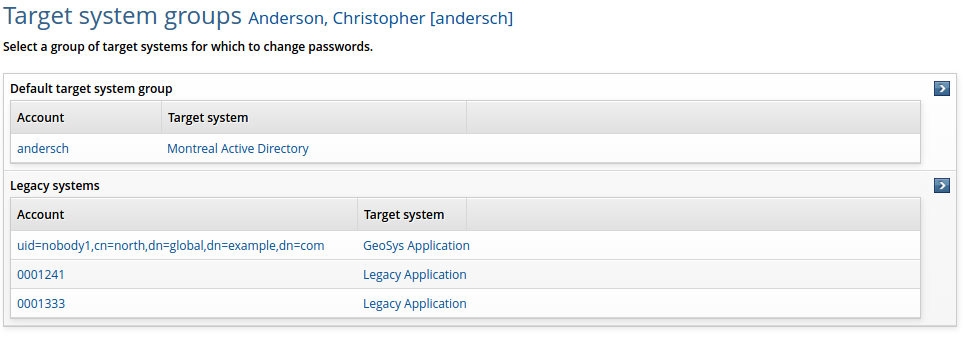
If different password policies are applied to groups of accounts, Bravura Security Fabric displays one or more groups of accounts on which you can change the user’s password.
Select the group and the accounts that you want to change the passwords for.
If the user is required to have different passwords within a group of accounts, you select one of those accounts by clicking a radio button.
If the user is able to choose more than one account on which to synchronize the password, you select the target systems by enabling the checkboxes. All target systems are selected by default. Click Clear all to clear the checkboxes.
If passwords must be synchronized within a group of accounts, all checkboxes are automatically selected.
Type a new password for the caller in the New password and Confirm fields.
Ensure that the password satisfies all the strength rules displayed on this page. The maximum allowable length for a password is 127 characters.
Click Change and expire if the target system has the functionality to expire the password after the initial login and allow the user to choose their own password.
or
Click Change passwords.
If one of the target systems is composed of multiple servers, Bravura Security Fabric displays the Select targets page:
Select the checkboxes next to the names of the servers on which you want to make the password changes. For example, you may want to make the change on servers in close proximity to the user to see the effects as soon as possible.
Click Change passwords.
If the changes were not successful, try again later.
Unlocking accounts for users
If a user is locked out of an account on a target system because of too many failed login attempts, you can unlock their accounts by using the Bravura Pass web interface. Before you can do this, you must enable the Unlock accounts (PSK) module.
Note
This feature may not be available on all systems.
You cannot reactivate accounts that were disabled by an administrator.
To unlock accounts for a user using the Help users (IDA) module:
Click Unlock accounts.
Enable the checkboxes next to the accounts you want to unlock and click Unlock.
If one of the accounts is on a target system composed of multiple servers, Bravura Pass displays the Select targets page:
Select the checkboxes next to the names of the servers on which you want to request the unlock. For example, you may want to make the change on servers in close proximity to the user to see the effects as soon as possible.
Click Unlock.
Bravura Pass displays the Account unlock results page.
See also
Users may also be able to unlock their own accounts .
To learn how to re-activate a user who has been locked out of the Bravura Pass self-service facility, see Unlocking user profiles .
Managing SecurID tokens for users
To enable the ability to manage SecurID tokens for users via the Help Desk menu, you must turn on the Modules > Manage Tokens (PSP) > PSP ENABLED setting. Once enabled, Bravura Pass allows you to:
Enable or disable a token.
Request emergency access codes for a user.
Clear previously requested emergency access codes.
Set a new PIN.
Clear a PIN.
Resynchronize a token.
Enable (activate) a new token
To enable a new token:
Click the Manage tokens tab.
If the user has more than one token, select the token you want to manage.
Select the Enable token option.
Bravura Security Fabric confirms that the token is activated.
Disable a lost or stolen token
To disable a lost or stolen token:
Click the Manage tokens tab.
If the user has more than one token, select the token you want to manage.
Select the Disable token option.
Bravura Security Fabric confirms that the token is deactivated.
You can have Bravura Pass generate secure one-time passwords for a user.
To request one-time passwords:
Click the Manage tokens tab.
If the user has more than one token, select the token you want to manage.
In the Put token into Emergency Access Mode section:
Type the number of hours for which the codes will be valid in the Number of hours before Emergency Access Mode expires field.
Enable Use one-time passwords.
Type a value in the Number of passwords to generate field. Each code may only be used once.
Type the required length of the codes in the Length of passwords to be generated (4-8) field.
Select the appropriate checkboxes so that the password is a combination of Digits, Letters, and Punctuation marks.
Select the Put token into Emergency Access Mode option.
Bravura Security Fabric confirms entry into emergency access mode, displays the access codes, and provides details on how the access codes is to be used.
Communicate the emergency access code(s) to the user.
Each emergency access code can be used only once.
Create a fixed password for Emergency Access Mode
You can specify fixed password for users to use , or have a fixed password be randomly generated for Emergency Access Mode.
To create a fixed password:
Click the Manage tokens tab.
If the user has more than one token, select the token you want to manage.
In the Put token into Emergency Access Mode section:
Type the number of hours for which the code will be valid in the Number of hours before Emergency Access Mode expires field.
Enable Use a fixed password, and type the password in the adjacent text field.
This password must conform to the password rules set by the RSA Authentication Manager server.
Enter -1 in order to have a fixed password be randomly generated.
Select the Put token into Emergency Access Mode option.
Bravura Security Fabric confirms entry into emergency access mode, displays the access codes, and provides details on how the access codes is to be used.
Communicate the emergency access code to the user.
Clear Emergency Access Mode
To clear an emergency access mode for a user:
Click the Manage tokens tab.
If the user has more than one token, select the token you want to manage.
Select the Take token out of Emergency Access Mode option.
Set a new PIN
To set a new PIN for a user’s token:
Click the Manage tokens tab.
If the user has more than one token, select the token you want to manage.
In the Set token PIN section, type a new PIN that will satisfy the requirements of the Token Policy on the RSA Authentication Manager 7.1/8.2 server or leave the PIN field empty if you want Bravura Security Fabric to select a random PIN for you.
Select the Set token PIN option.
Communicate the PIN to the user.
Clear a PIN
To clear a PIN:
Click the Manage tokens tab.
If the user has more than one token, select the token you want to manage.
Select the Clear token PIN option.
Resynchronize a token with the RSA Authentication Manager
To resynchronize a token with the RSA Authentication Manager:
Click the Manage tokens tab.
If the user has more than one token, select the token you want to manage.
Ask the user for the token displayed on his SecurID card. Type the code in the Code displaying on token now field.
Select the Resynchronize token option.
Ask the user to give you the new token when it changes on the display of the card. Type the new code in the New code displaying on token field.
Select the Resynchronize token option.
The SecurID card is now synchronized with the RSA Authentication Manager 7.1/8.2 server.
Viewing and updating profile information
You can update users profile information from the Help users menu provided you have the "Update account" privilege and write permissions for profile attributes.
Note the following:
If an attribute field allows multiple values, you can click the More icon
 or button until the configured maximum number of values has been entered.
If you do not enter values for all required attributes (marked with a red asterisk), Bravura Security Fabric will return an error.
If a field has been filled with a default value, this value will be included unless you change it. This applies to both required and optional values.
You may be required to confirm a value by re-typing it in a second text box. For example, some password-type attributes "hide" the value as you type.
The following procedure describes how to update profile information using the standard Update attributes request. Details may vary according to configuration.
Note
If Bravura Pass is combined with other products, the View and update profile tab is not available from , because it is available in the Other users section on the main menu.
To update profile information:
Click the View and update profile tab.
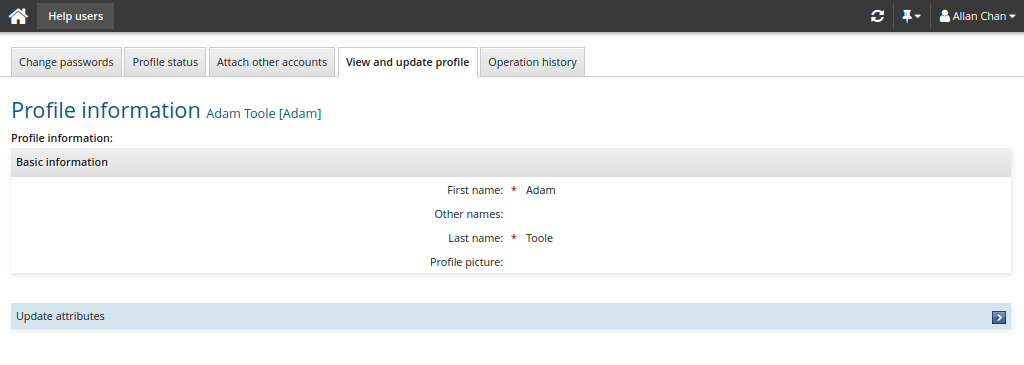
Select Update attributes in the requests section.
Bravura Pass displays the request wizard.
Make changes as required.
Click Next if available to proceed through attribute group pages.
Click Submit.
Viewing or updating user security questions
Bravura Security Fabric can be configured to authenticate users by using a security question profile. This authentication method can be used when users attempt to login using the Front-end (psf), or when a help desk user in a help-desk organization is assisting a caller, and needs to verify their identity before proceeding.
Users can define the questions and answers in their profile by themselves using the Update security questions (psq) module. Alternatively they can do it with the assistance of a help desk user using the Help users (IDA) module.
In order to view or edit a users security question profile:
Question sets must have Help-desk permissions set to "Allowed to view security questions".
Help desk users must have the "Update security questions" privileges to make changes, or the "View security questions" privilege to view questions only.
Help desk users must have the "View answers to security questions" to be able to see answers. If they have this privilege, they can click a Show answers button to view answers in plain text; otherwise answers are hidden.
To define questions and answers in a question set using the Help users (IDA) module:
Click Security questions.
Bravura Security Fabric displays any existing question and answer pairs, and tells you whether the user has enough questions defined.
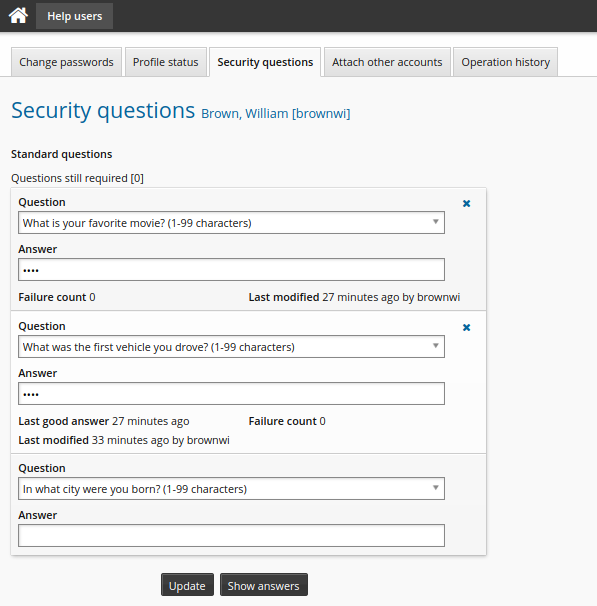
On the Security questions page:
Select pre-defined questions from the drop-down lists or, type user-defined questions in the Question text fields.
Type the answers in the appropriate fields.
If an answer confirmation is required, type the answers again in the Confirm answers field.
Following is a list of suggested questions:
First school attended
Favorite board game
Favorite song
Favorite dessert
Favorite book character
Furthest place travelled
Color of first car
Birth city
High school mascot
Childhood street name
Favorite actor/actress/celebrity
Your SSN
Favorite band
Name of first girlfriend/boyfriend
Click Update.
Deleting question and answer pairs
To delete a question and answer pair from a pre-defined or user-defined security question set, click the appropriate checkbox in the Delete? column then click Update.
Managing existing IDs
By default, Bravura Security Fabric assumes that users have the same login ID on every system. In practice, users may have different login IDs on some systems. Bravura Security Fabric allows for this using self-service login ID reconciliation, which allows each user to attach non-standard login IDs from each system.
Help desk users can enter non-standard login ID information for users using the Help users (IDA) module. To learn how users can attach accounts for themselves from the main menu , see Managing Your Existing IDs .
To update account information for another user:
Click Attach other accounts.
Type in new account login IDs in the fields beside the listed systems.
The ID is automatically added to a user’s profile. Bravura Security Fabric does not verify whether the ID exists on the target system until the next auto discovery process. Ensure that you enter the ID name correctly.
To detach an ID from a user’s profile, enable the Detach? checkbox corresponding to the system/login ID. If target systems are not set up to allow removal of accounts, this option is not available.
Click Update.
Bravura Security Fabric updates the user’s account information and re-displays the page.
Managing accounts on context target systems
Some systems, such as Novell NDS and LDAP, have login IDs with context. In these cases, what users think is a login ID, is most likely just a "common name" – the first part of a longer ID. For example, Novell NDS user johndoe.accounting.example.com may type johndoe to log in.
Because of the context, there may be multiple users with the same common name, or the same user may have multiple accounts, in different contexts, with the same common name.
To add alternate login IDs for users in a context environment, type their common name into the Attach other accounts page. If there are multiple login IDs with the same common name, Bravura Security Fabric displays a separate page to prompt you to select the ones you want to assign to the user.
Viewing operation history of users
Help desk users can view a list of past operations performed for a user seeking assistance. The information includes the operation that was performed, when the operation was performed, and the result. This enables the help desk user to get a better understanding of what the user has done in the past, and what kind of issues the user is currently experiencing.
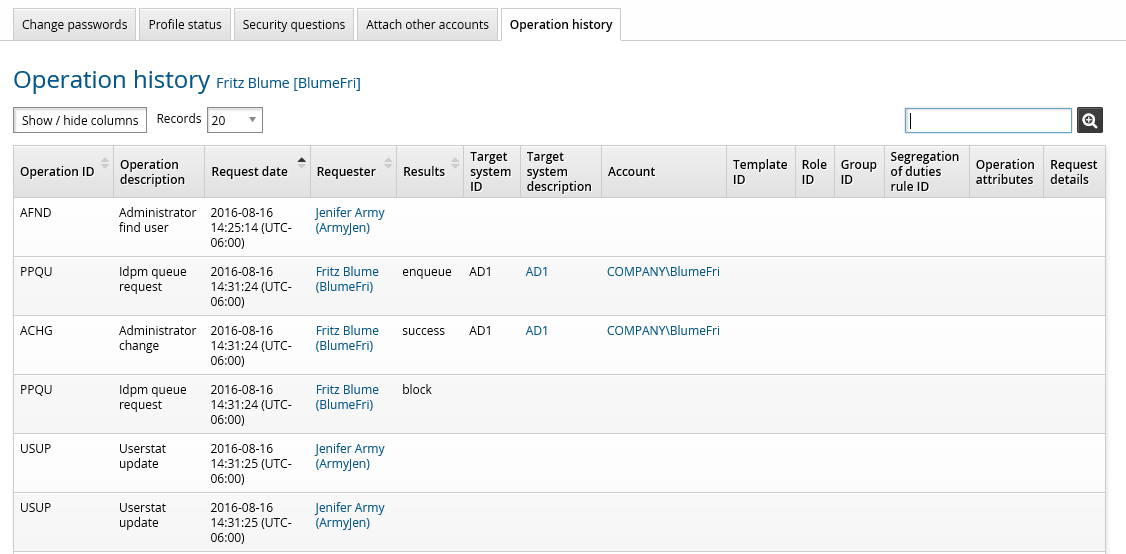
To view operation history, click Help users, select a user, then select the Operation history tab. The help desk user must belong to a user access rule that contains the View profile information privilege.
Viewing and deleting mobile devices
Help desk users can view a list of mobile devices that a user has registered using the Bravura One app .
The help desk user can also delete the mobile devices so that the Bravura One app is no longer registered and may no longer be used by the user for access to Bravura Security Fabric .
To delete mobile devices for a user:
Click Register mobile devices.
Bravura Security Fabric displays a list of the mobile devices that a user has registered using the Bravura One app.
Select the mobile device that you wish to delete.
Click the Delete button.
Click OK to confirm the deletion.
See Mobile Accessin the Bravura Security Fabric Configuration guide for more information about Bravura One and the Bravura One app .