Configuring search
Modify the number of search results per page
By default, Bravura Security Fabric will provide the choice of 10,20,50 or 100 search records per page. You can change the default list by modifying RECORDS PER PAGE LIST. There is a minimum of 2 and a maximum of 500 records per page.
Download search results
You can configure a plugin program to allow the information from a search results page to be available for download.
The plugin, set by the SEARCH DOWNLOAD PLUGIN field, can be called to determine if a download link is available to a user on the search results page, or provide the content of a file for download.
The built-in plugin, plugin-download-csv.exe, allows any user to download user search results and external data store tables as CSV files, given that they have permission to access those pages.
This plugin is not enabled by default.
Requirements
See Writing plugins for general requirements.
Execution points
This plugin is called by the View and update profile (IDR) module and the Manage external data store external data store (DBE) module. It is called once when the user list or the table is displayed to decide whether to display the download link. It is called again when the user clicks the download link.
Displaying the download link
When enabled by the plugin, a download link or button is displayed:
Below the user search results
Below an Manage external data store (DBE) module table
Input
The input presented to the plugin during the initial call includes the viewer information, plugin mode, module, and search type.
  "" "" = {
        "sessionid" = "<session GUID>" # The user session
        "queryMode" = "displayDownloadButton"
        "module" = "<module>" # The module calling the plugin, such as idr.
        "searchType" = "<type>" # The search type such as user or which table.
        "viewer" "user" = {
            "id" = "<Profile ID>"
            "name" = "<Alias>"
            "acl" "" = {
              "<list of acls the user has>"
            }
        }
    }
Output
The plugin can provide the option to display a download link. If the option returned is true, a download link is available to the user to download the file.
 "" "" = {
        "displayDownloadButton" = "<true|false>"
    }
Returning a file
When called in stream mode, the plugin will be sent a KVGroup providing the stream mode, search type and viewer. If a search query was used to limit the results being downloaded, that is also provided.
   "" "" = {
        "queryMode" = "streamResults"
        "module" = "<module>" # The module calling the plugin, such as idr.
        "searchType" = "<type>" # The search type such as user or which table.
        "searchQuery" = "<query>"
        "viewer" "user" = {
            "id" = "<Profile ID>"
            "name" = "<Alias>"
            "acl" "" = {
              "<list of acls the user has>"
            }
        }
    }
The plugin must then return information on the suggested filename and content type.
"" "" = {
        "contentType" = "<MIME type>" # The mime type being streamed such as text/plin
        "filename" = "<text>" # The suggested file name being returned.
    }
The plugin will then recieve a KVGroup for each of the items in the search results.
Example:
  "" "" = {
        "id" = "<Profile ID>"
        "name" = "<Alias>"
    }
Any output provided by the plugin following the KVGroup with filename and content type, will be streamed to the client directly.
Limit search results
You can limit the number of results returned for a search by configuring SEARCH MAX RESULTS. This forces users to be more specific in their search criteria. By default SEARCH MAX RESULTS is set to 10,000, which means that only the first 10,000 matches are displayed. If there are more matches than this value, Bravura Security Fabric warns users to refine their search criteria.
This value must be set to 100 or more.
Filtering search results
You can configure a plugin program to filter search results based on the type of search engine. You can use this plugin to set up some search criteria for an engine so that only search results that satisfy the criteria will be visible to the user.
To enable this plugin:
Click Manage the system > Modules > Options .
Type the name of the plugin in the SEARCH FILTER PLUGIN field.
Type a comma-delimited list of engines from which to call the plugin in SEARCH FILTER PLUGIN ALLOWED ENGINES.
Allowable engines are listed here.
A component extension is shipped for use with this plugin point.
Requirements
See Writing plugins for general requirements.
Execution points
This plugin is called by all search engines defined in Modules > Options > SEARCH FILTER PLUGIN ALLOWED ENGINES. It is called after a user submits a search request.
Input
The input presented to the plugin is a KVGroup that includes the viewer information, module, search type, transaction ID, CGI name, a list of advanced search keys and session ID.
"" "" = {
  "viewer" "user" = { ... }
  "module" = "ajaxsvc"
    # Where the plugin is being run from
  "searchType" = "<ROLE|NOSGROUP|MANAGER|USER|ACCOUNT|HOST|...>";
        # The search engine calling the filter plugin
  "clientIp" = "<Client IP address>"
        # The requester's client IP address

  "proxyIp" = "<Proxy IP address>"
        # The requester's proxy IP address (empty if there is no proxy)
  "transactionId" = "<Transaction ID>"
    # The transaction ID where the search engine is being run
  "searchName" = "<App search name>"
   # The app search name where the search engine is being run (optional,
   # used only in apps)
  "filterName" = "<App filter ID>"
   # The app filter name where the search engine is being run (optional,
   # used only in apps)
  "cginame" = "<psa|ajax|idr|ids|...>"
   # "recipient" "user" = { ... }

   # Recipient's data present only when cginame=psa
   # or when cginame=ajax and searchType=HOST .
  "ValidKeys" "" = {
    "<advance search key>" = "" # 1 or more keys to filter on
    "<dynamic group>" "" = {

        "<field key>" = "" # 1 or more field keys to filter on
    } # 0 or more dynamic groups available to filter fields on
  }
  # request data present only when cginame=psa. .
  # "requestID" = <request ID> present only when cginame=ajax.
  # "prequest" = "_UPDATE_ATTRS_" present only when searchType=HOST.
  # "wizardDisplayPageId" = "<wizard display Page ID" present only when searchType=HOST.
  # "wizardDisplayPageType" = "<page Type>" present only when cginame=ajax.
  "sessionid" = "<Session ID>"
    # The session ID for the viewer
}
Output
The plugin provides a criteria KVGroup to the search engine.
 "" ""  = {
        "criteria" "" = {
                "filter" "" = {
                        "position" = "<N>"; # Mandatory and must be an
                            # increasing sequence of filter items beginning at 1.
                        "key" = "<search engine advance key>";
                        "comparator" = "<comparator value>"; # See below for more detail
                        "value" = "<value>"; # Mandatory; Includes the value used in the comparison.
                        "operator" = "<operator value>" #Required when "position" > 1
                        "field" = "<field value>" #Required when using a key from a dynamic group.
                        "negate" = "0|1"; # "1" generates the logical NOT of "filter"
                }; # Must include one or more filter groups.
        ...
        };
  };
In a "criteria" group, each filter includes the following key-value pairs:
comparatorMust be one of:"EQUAL" (or "EQ")
"LESS_THAN" (or "LT")
"LESS_THAN_OR_EQUAL" (or "LTE")
"GREATER_THAN" (or "GT")
"GREATER_THAN_OR_EQUAL" (or "GTE")
"CONTAIN" (or "CT")
"START_WITH" (or "SW")
"IS"
"ON"
"BEFORE" (or "BF")
"BEFORE_OR_ON" (or "BFO")
"AFTER" (or "AF")
"AFTER_OR_ON" (or "AFO")
valueWhat is compared by comparator. When comparator is "IS", <value> must be "SET" or "EMPTY". When comparator is "CT" or "SW", <value> can contain wildcards "*" and "?". Otherwise, <value> is a wide string (can contain unicode characters).operatorRequired when "position" is greater than 1. Must be "OR" or "AND". The logical operator is applied before "filter", in order to logically connect "filter"s together, in order of "position" value. AND always has precedence over OR.fieldOptional key to specify field when the key is not sufficient; for example, when dealing with attributes, field = attribute key; when dealing with resource groups, field = resource group id.negateWhen "1", this generates the logical NOT of "filter".
The following example of criteria instructs the search engine to find records such that:
advanced key "userid" EQUALS string "ADMIN"
OR
advanced key "rolesearch" does NOT CONTAIN substring "MANAGER"
"search" "" = {
    "criteria" "" = {
        "filter" "" = {
            "position" = "1"
            "key" = "userid"
            "comparator" = "EQ"
            "value" = "ADMIN"
        }
        "filter" "" = {
            "operator" = "OR"
            "position" = "2"
            "key" = "rolesearch"
            "negate" = "1"
            "comparator" = "CT"
            "value" = "MANAGER"
        }
    }
}
Group recommendations
If the searchType is MANAGEDGROUP, the search filter can also return a recommend KVGroup to the search engine:
 "recommend" "" = {
            "attributeGroup" = "<Attribute group ID>" #Existing profile attribute

                 # group. If included, this overrides GROUP_APP_MATCHING_ATTRIBUTE_GROUP
            "showOnly" = "0|1" #If enabled, filter out results where
                 # matching users are less than the cutoff
            "cutOff" = "<0..100>" #Sets the lower threshold to filter on.
            #If included, this overrides SEARCH_FILTER_RECOMMENDATION_CUTOFF.
        }
Search filter component extension
Bravura Security Fabric ships with a Python IDMLib library plugin extension for search filters. The plugin is intended to be used via the component framework.
Basic Usage
Add an extension to your component manifest as follows:
  <extension type="plugin">

        <filename>extension_script.py</filename>
        <provides>SEARCH_FILTER_PLUGIN</provides>
        <provides_for>
            <searchtype>SEARCHTYPE</searchtype>
        </provides_for>
</extension>SEARCHTYPEshould be the type of search engine you want your filter to run forextension_script.pyis the name of your search filter extension script
The idmlib.plugins.searchfilter.criteria component contains classes pre-configured with the available search criteria for many common search engines. Look for the class with a _search_type matching the engine you defined in the manifest.
List criteria are a more limited interface that allows you to explicitly show (include) or hide (exclude) uniquely identified objects from a particular search. Although more limited, this method is much more performance efficient if the logic required to filter the objects using standard search criteria would be very complex.
Only certain search types support list criteria (generally only those where it is possible to uniquely identify every available object the search applies to), a given search criteria class supports list criteria if it has _supports_lists as True. When passing criteria to list criteria methods, you must provide a value for all the keys in _key_fields; values for any other fields will be ignored.
To get an object you can pass to the list criteria methods you should use the instance method of your criteria class. You can pass the values for the required fields either as keyword arguments to instance, or by setting them as attributes afterwards.
The two most important list criteria methods are include and exclude. Objects passed to include will be shown, and objects passed to exclude will be hidden. Here’s a short example:
from idmlib.components.extension import ExtPlugin
from idmlib.plugins.searchfilter import SearchFilter
from idmlib.plugins.searchfilter.criteria import CriteriaRole
class ListSearchFilter(ExtPlugin):
    def __init__(self, plugin: SearchFilter, state: dict):
        super().__init__()
        self.plugin = plugin
        self.state = state
    def process(self):
        for role in {"IT", "ADMIN", "MAINTENANCE"}:

            self.plugin.include(CriteriaRole.instance(roleid=role))
        for role in {"HR", "CUSTOMER\_SERVICE"}:
self.plugin.exclude(CriteriaRole.instance(roleid=role)) Search criteria allow you to filter what is visible to the user using search queries. Individual criteria are simple: A field to compare, a comparison to use, and a value to compare against. These individual criteria can be combined to build more complex queries, but the combination is limited, groups of criteria will combine with AND, and different groups will then be combined with OR. This limitation requires that you break down complex logic and think carefully about the result you want the sum of your criteria to have. Additionally, while powerful, search queries are not incredibly performant, if you find yourself emitting several hundred criteria for a particular search engine, you may want to look at refactoring to use list criteria (if supported) as filtering on that many criteria will start to slow down the UI, and hurt the experience of the end user.
Search criteria are created by operating on the provided criteria class, or by calling methods named after the particular comparison you want to use; for example: equals/==, less_than/before/<, is_/>> and so on.
from idmlib.components.extension import ExtPlugin
from idmlib.plugins.searchfilter import SearchFilter
from idmlib.plugins.searchfilter.criteria import CriteriaUser
class MySearchPlugin(ExtPlugin):
    def __init__(self, plugin: SearchFilter, state: dict):
        super().__init__()
        self.plugin = plugin
        self.state = state
    def process(self):
        for target in {"AD", "AD_TWO", "EXTERNAL"}:
            for group in {"GROUP_ONE", "GROUP_TWO"}:

                self.plugin.builder.get(
                    f"{target}-{group}-filter"
                ).add(
                    CriteriaUser.hostid == target,
                    CriteriaUser.groupid == group,
                    CriteriaUser.managerid == "ImportantManager",
                )
The resulting filter will display only Users where:
HostID: AD, and GroupID: GROUP_ONE, and ManagerID: ImportantManager
(or) HostID: AD, and GroupID: GROUP_TWO, and ManagerID: ImportantManager
(or) HostID: AD_TWO, and GroupID: GROUP_ONE, and ManagerID: ImportantManager
(or) HostID: AD_TWO, and GroupID: GROUP_TWO, and ManagerID: ImportantManager
(or) HostID: EXTERNAL, and GroupID: GROUP_ONE, and ManagerID: ImportantManager
(or) HostID: EXTERNAL, and GroupID: GROUP_TWO, and ManagerID: ImportantManager
Or 6 filters (AD-GROUP_ONE-filter, AD-GROUP_TWO-filter, AD_TWO-GROUP_ONE-filter, ...) each containing 3 criteria, for a total of 18 criteria.
Complete Interface
The FilterBuilder is the core of how to build search filters. It provides a single, restrictive, validated method for constructing search filters.
A FilterBuilder with the correct search criteria validation information is created for you at plugin.builder during the creation of the SearchFilter plugin object.
The main logic of the FilterBuilder works as follows:
Criteria under the same filter (with the same key/added to the same FilterEditor) are combined using a logical AND
Different filters (groups of criteria using different keys) are combined using logical OR
Because criteria are simple, criteria within a given filter can be reordered, and duplicate criteria removed, and because separate filters are combined with OR their order also does not matter. Example:
(a and b) or (c and d and e) == (e and d and c) or (b and a)Users are expected to create/get a filter with a unique key, and then add/remove/replace criteria within it using the
FilterEditorinterface
FilterBuilder has the following public methods:
valid_search_key(key: str, field: Optional[str] = None) -> boolChecks that a given key or key/field combination is available for the given run of the plugin, True if available, False otherwise.
Useful if you want to ensure that a given field (Account/Resource Attribute, etc.) is available in the product prior to filtering on it, as attempting to filter on a non-existent criteria/field will cause the builder to throw an exception when added.
Example:
if plugin.builder.valid_search_key('ma_attrkey', 'RESATTR_TEAM'): …
create(key: str) -> FilterEditorCreates a filter for the given key, and returns a FilterEditor object with which to manipulate the filter. (FilterEditor interface described later)
Throws KeyError if you try to create a filter that already exists.
Example:
plugin.builder.create('MY_FILTER').add(CriteriaClass.criteria == True)
get(key: str, create: bool = True) -> FilterEditorRetrieves a FilterEditor for an existing filter.
If create=True (the default) creates a filter if it doesn’t already exist, returning a FilterEditor for it.
If create=False throws KeyError if a filter with that key does not already exist.
Useful for updating/editing an existing filter, or for creating a filter if this may not be the first component to do so.
Can be used to supply incremental criteria to common filters.
Example:
plugin.builder.get('_NON_COMPONENT_ACCOUNTS_').add(CriteriaPAMResources.ma_attrkey.RESATTR_PERSONAL_OWNER >> 'EMPTY')
remove(self, key: str) -> boolRemoves a filter and all its criteria from the builder. Returns True if something was removed, False otherwise.
search_regex(pattern: str) -> Iterable[Tuple[str, FilterEditor]]Retrieves the (key, filter_editor) of any existing filters with keys matching the regular expression pattern string.
Useful if you want to edit or remove multiple filters following a specific naming convention.
Example:
for name, filter_editor in plugin.builder.search_regex('^REQUESTER_TEAM='): filter_editor.add(...)
search_expressions(⋆expressions: SearchExpression) -> Iterable[Tuple[str, FilterEditor]]Retrieves the (key, filter_editor) of any existing filters that contain all the criteria passed in.
Useful if you want to edit or remove any filters acting on certain conditions.
Example:
for name, filter_editor in list(plugin.builder.search_expressions((CriteriaClass.flag_one == True), (CriteriaClass.flag_two == False))): plugin.builder.remove(name)
The conversion to list (or some other container type) is required here, to avoid having the internals of the builder complain and throw
RuntimeError: dictionary changed size during iterationdue to the call to remove.
A FilterEditor is a collection of SearchExpressions, with public methods for adding/removing/replacing individual expressions, and validation logic to ensure an expression is valid for a given search. A SearchExpression is an individual criteria comparison, the result of using an operator on a SearchKey , more details later, but the below examples should be good enough to get an idea of how to work with them.
Any public method on a FilterEditor returns the same editor, so you can ’chain’ operations together or store the editor for later use, add and remove also support any number of arguments, allowing you to pass multiple SearchExpressions to them.
It has the following public methods:
add(self, *expressions: SearchExpression) -> SelfAdd the given expressions to the filter, the provided expressions will be validated, and duplicate expressions will be ignored.
Throws ValueError on invalid expressions.
Example:
filter.add(CriteriaClass.criteria_one == 'value') .add(CriteriaClass.criteria_two == False)(equivalent) Example:
filter.add(CriteriaClass.criteria_one == 'value', CriteriaClass.criteria_two == False)
remove(self, *expressions: SearchExpression) -> SelfRemove the given expressions from the filter, the provided expressions are validated, missing expressions are ignored.
Throws ValueError on invalid expressions.
Example:
filter.remove(CriteriaClass.criteria_one == 'value')
replace(self, old: SearchExpression, new: SearchExpression) -> SelfReplaces the old expression with a new expression, both expressions are validated.
Throws a KeyError if the old expression is not in the filter.
Throws ValueError on invalid expressions.
Example:
filter.replace((CriteriaClass.criteria_two == False),(CriteriaClass.criteria_two == True))
exclude(self, *criteria: List[SearchCriteria.CriteriaDict], tag: str = DEFAULT_TAG)include(self, *criteria: List[SearchCriteria.CriteriaDict], tag: str = DEFAULT_TAG)
List criteria passed to these methods are grouped with a ’tag’ (very similar to the builder’s filter groups). Criteria in different tags is unioned together during plugin close. The methods can accept multiple list criteria at once, making it easy to add a large number of criteria at one time.
exclude_and(self, *criteria: List[SearchCriteria.CriteriaDict], tag: str = DEFAULT_TAG, add_if_empty: bool = False)include_and(self, *criteria: List[SearchCriteria.CriteriaDict], tag: str = DEFAULT_TAG, add_if_empty: bool = False)
Two new methods were added, one for inclusion, and another for exclusion, but both function the same. These methods are designed for the use case where one component wants to reduce/further restrict the list criteria added by another, but does not want to have to re-do the same calculations as the other component in order to do so.
The _and methods are basically a set intersection (the criteria in the tag is reduced to the criteria in the input and in the tag).
Example:
plugin.include(criteria_a, criteria_b)plugin.include_and(criteria_b, criteria_c)The resulting plugin output will contain only criteria_b as include criteria.
If add_if_empty is True, and you call an _and method on an empty tag, then instead of resulting in the tag remaining empty (since it’s a set intersection), the criteria is instead added to the tag as though you had just called include/exclude themselves. In the above example, provided we always knew that both involved components would always add some number of list criteria, both could instead call include_and with add_if_empty set to True, allowing the component priorities to be re-ordered without any logic needing to be changed.
Example: (equivalent to previous example)
plugin.include_and(criteria_a, criteria_b, add_if_empty=True)plugin.include_and(criteria_b, criteria_c, add_if_empty=True)The resulting plugin output will contain only criteria_b as include criteria
Without
add_if_empty=Truethe plugin would output no include criteria, since the DEFAULT_TAG would initially contain nothing.
This is why tagging is useful, as without it it would quickly be very difficult for multiple components (operating on the same search) to take advantage of this feature if they could not adequately separate what criteria they cared about.
A SearchExpression is a Python dataclass representation of a single filter group in the KVG, minus the position and operator. It is read only, and cannot be altered once created. It has a single public method: negate() which returns a new expression with the negated value flipped, it is equivalent to doing ~SearchExpression, since it also implements the invert operator. The value of SearchExpression().comparator must be a value from the SearchExpression.Comparator enum, however you should never create expressions directly outside of testing.
A SearchKey can be thought of as a generator class for SearchExpressions. It will generate the expected SearchExpression when used with a comparison operator and a value, the SearchKey should always be the left side of the comparison. SearchKeys can be initialized a few ways:
SearchKey('criteria_key')- Generates SearchExpressions for 'criteria_key' onlySearchKey('criteria_key', field='criteria_field')- Generates SearchExpressions for 'criteria_key' with the field 'criteria_field' onlySearchKey(’criteria_key’, complex=True)- Generates SearchExpressions for 'criteria_key' but will also generate SearchExpressions for fields if operated on with SearchKey('criteria_key, complex=True).criteria_field etc. This is done by dynamically returning SearchKey('criteria_key', field='criteria_field') when you access the attribute.
To access nested attributes of complex SearchKeys that contain @ or - use _AT_ and _DASH_ instead. Example: S earchKey(’accountattr’, complex=True)._AT_accountEnabled
SearchKeys support the following operators/methods:
Equals / ==
On / ==
Only valid for datetime.date objects
Less than / <
Before / <
Only valid for datetime.date objects
Less than or equals / <=
Before or on / <=
Only valid for datetime.date objects
Greater than / >
After / >
Only valid for datetime.date objects
Greater than or equals / >=
After or on / >=
Only valid for datetime.date objects
Is / >>
Due to reserved keywords, the method version is called is_
Contains /
Accepts * and ? wildcards
Starts with / ^
Accepts * and ? wildcards
SearchCriteria is the base class for capturing the available SearchKeys for a given engine. Commonly used Criteria classes can be found in idmlib.plugins.searchfilter.criteria. A SearchCriteria class is a collection of SearchKeys, representing a single search type. However, it has a few interesting properties in order to support the use of list criteria:
If you want to use a SearchCriteria class with include/exclude you need to get a modifiable CriteriaDict instance specialized for that particular SearchCriteria subclass, this can be done by calling SearchCritera.instance()
You can set values on attributes of this returned object to specify the values to include/exclude, then pass them to the applicable function.
You can also provide values directly on instantiation by passing them as keyword arguments to
instance.
In order to support include/exclude a SearchCriteria subclass must:
Set the
_search_typeclass attribute to a valid search typeSet
_supports_liststo TrueProvide a dictionary to
_key_fieldsmapping the Python name of the class attribute to the KVG name in the list output.
Additionally, the following property helps in cases where some keys may be defined in the plugin input, but the class has not yet been updated with the new keys:
If the class does not explicitly specify a SearchKey class attribute for a given attribute, one will be created for you on access, it will automatically set complex to True, and have the same name as the accessed attribute, but _AT_ will be replaced by @, and _DASH_ with -, similar to nested members of complex SearchKeys. Example:
Accessing S earchCriteria.some_DASH_criteriawould generateSearchKey('some-criteria', complex=True).
Configure saved search plugin
You can use a plugin program to add or remove saved searches for users, based on the type of search engine. Saved searches created by plugin are known as Searches, and can be shared for all users.
Users can create saved searches for themselves from the user interface. My Searches cannot be shared across users. See Saved searches for more information about My Searches.
To enable this plugin:
Navigate to Manage the system > Modules> Options.
Type the name of the plugin in the SAVED SEARCH PLUGIN field.
Allowable engines
The plugin can be used with any search engine that supports advanced search, except for the old style advanced search pages in the Manage reports (RPT) module.
A sample component, hid_saved_search_sample, is shipped with Bravura Security Fabric for use with this plugin point.
Requirements
See Writing plugins for general requirements.
Execution points
The plugin is called by all allowable search engines when users selects the saved search drop-down menu.
Input
The input presented to the plugin is a KVGroup that includes the viewer information, module, clientIp, proxyIp, searchName, search type, cginame, a list of advanced search keys and session ID.
" " " " = {
  "viewer" "user" = { ... }
  "module" = "ajaxsvc"
  # Where the plugin is being run from
  "clientIp" = "<Client IP address>"
  # The requester's client IP address

  "proxyIp" = "<Proxy IP address>"
  # The requester's proxy IP address (empty if there is no proxy)
  "searchName" = "<App search name>"
  # The app search name where the search engine is being run (optional,
  # used only in apps)
  "searchType" = "<ROLE|NOSGROUP|MANAGER|USER|ACCOUNT|HOST|...>";
  # The search engine calling the saved search plugin
  "cginame" = "<psa|ajax|idr|rpt|...>"
  "ValidKeys" "" = {
   "<advance search key>" = "" # 1 or more keys to filter on
 }
  "sessionid" = "<Session ID>"
  # The session ID for the viewer
}
Example
The following is an example of the input KVG file:
# KVGROUP-V1.0
"" "" = {
 "viewer" "user" = {
  "id" = "superuser"

  "name" = "superuser"
 }
 "module" = "ajaxsvc"
 "clientIp" = "::1"
 "proxyIp" = ""
 "searchName" = "IDC_C_SELECT_ROLE"
 "searchType" = "ROLE"
 "cginame" = "psa"
 "ValidKeys" "" = {
  "assignable" = ""
  "deprecated" = ""
  "description" = ""
  "enabled" = ""
  "entitlement" "" = {

  "groupid" = ""
  "groupname" = ""
  "roleid" = ""
  "rolename" = ""
  "tplid" = ""
  "tplname" = ""
  }
  "id" = ""
  "rbacenforce" = ""
  "user" = ""
 }
 "sessionid" = "S56d72485-354c-4ea5-a084-de52560cc6bd"
}
Output
The plugin provides a criteria KVGroup to the search engine.
# KVGROUP-V1.0
" "  " " = {
 "savedSearches" "" = {
  "savedSearch" "" = {
  "id" = "<saved search id>" # Characters <, >, /, &, " and ' are forbidden in plugin saved search IDs as they are significant characters in XML and/or HTML.
  "label" = "<saved search label>" # Any characters can be used in plugin saved search label, just "backslash" and "quotation" characters used in Python need to be escaped.
  "isDefault" = "0|1";# When set to '1', the saved search is auto-selected when corresponding engine page is open from UI. Note, there can be only one 'isDefault'='1' returned by plugin (per engine).
  "criteria" "" = {
  "filter" "" = {
   "position" = "<N>"; # Mandatory and must be an increasing sequence of filter items beginning at 1.
   "key" = "<search engine advance key>";
   "comparator" = "<comparator value>"; # See below for more detail
   "value" = "<value>"; # Mandatory; Includes the value used in the comparison.
   "negate" = "0|1"; # "1" generates the logical NOT of "filter"
  } # Must include one or more filter groups.There is a hard limit of 5 filters for each saved search criteria.
   }
  }
  }
  "retval" = "0"
}
In a "criteria" group, each filter includes the following key-value pairs:
comparatorMust be one of:"EQUAL" (or "EQ")
"LESS_THAN" (or "LT")
"LESS_THAN_OR_EQUAL" (or "LTE")
"GREATER_THAN" (or "GT")
"GREATER_THAN_OR_EQUAL"(or "GTE")
"CONTAIN" (or "CT")
"START_WITH" (or "SW")
"IS"
"ON"
"BEFORE" (or "BF")
"BEFORE_OR_ON" (or "BFO")
"AFTER" (or "AF")
"AFTER_OR_ON" (or "AFO")
valueWhat is compared by comparator. When comparator is "IS", <value> must be "SET" or "EMPTY". When comparator is "EQ" or "EQUAL", <value> CAN be "(1—0—t—f—T—F) ". When comparator is "CT" or "SW", <value> can contain wildcards "*" and "?". Otherwise, <value> is a wide string (can contain unicode characters).operatorRequired when "position" is greater than 1. Must be "OR" or "AND". The logical operator is applied before "filter", in order to logically connect "filter"s together, in order of "position" value. AND always has precedence over OR.fieldOptional key to specify field when the key is not sufficient; for example, when dealing with attributes, field = attribute key; when dealing with resource groups, field = resource group id.negateWhen "1", this generates the logical NOT of "filter".
Example
The following is an example of the output KVG file:
Saved search name: "ROLE_DEV"
Filter: advanced key "Role ID" contains "DEV"
# KVGROUP-V1.0
"output" "saved_search_plugin_sample" = {
 "savedSearches" "" = {
  "savedSearch" "" = {
  "id" = "plugin for ROLE2"
  "label" = "ROLE_DEV"
  "isDefault" = "1"
  "criteria" "" = {
  "filter" "" = {
   "position" = "1"
   "key" = "id"
   "comparator" = "CONTAIN"
   "value" = "DEV"
   "negate" = "0"
  }
   }
  }
  }
  "retval" = "0"
}
Example: Configure sample saved search component
This example demonstrates the processes of configuring the sample saved search component:
On the Bravura Security Fabric instance server, locate the <instance>\samples\idmlib \component\Functional folder.
Copy the
hid_saved_search_samplefolder to the <instance>\component\Custom\Functional folder.As a product administrator, log onto Bravura Security Fabric .
From the main menu, click Manage components.
Click the action Reload DB and wait for the component database to reload.
Search for and install the
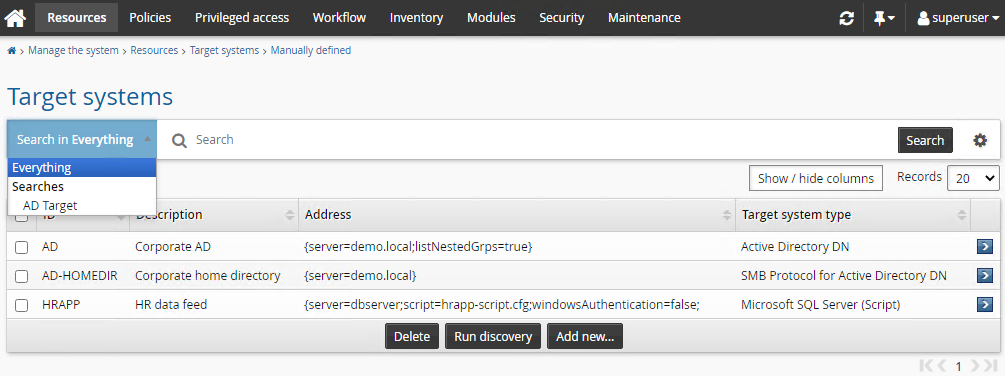
Functional.hid_saved_search_samplecomponent.Navigate to Manage the System > Resources > Target systems > Manually defined.
Click the saved search drop-down list.
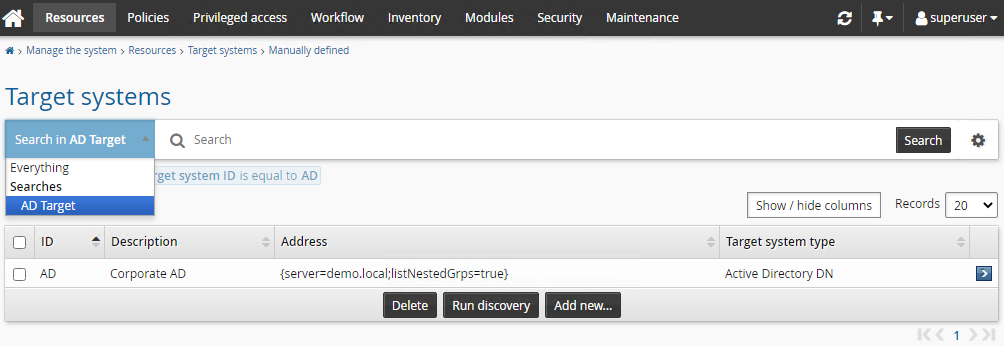
The plugin saved search "AD Target" should be listed under the "Searches" section.
Click the saved search ”AD Target”.
Configuration notes
Below are the important points when creating saved searches:
Plugin saved searches cannot be deleted from the UI (No trash can icon displays).
All saved searches have an ID (hidden) and a label (shown in drop-down list).
All saved searches must have unique IDs and labels. My Searches have unique, generated ”guid-like” IDs. Plugin saved search (Searches) IDs are defined by the plugin creator.
Plugin saved searches override my searches. When you have both a plugin and a my search with the same label, my search is not shown.
Characters
<,>,/,&,"and'are forbidden in plugin saved search IDs as they are significant characters in XML and/or HTML.There is a hard limit of five criteria for each saved search. Extra criteria are simply dropped with a log warning.
Duplicate plugin labels are detected and rejected with a logged warning.
Plugin saved search labels are not case sensitive. Labels that are identical except for capitalization will be considered duplicates, and will be skipped and logged with warnings.
Label clashes between my searches and plugin saved searches are prevented. You cannot create a saved search with a label that already exists among plugin saved searches. On the contrary, you can create a plugin saved search with a label that already exists among my searches.
Saved searches are ordered alphabetically.
Configure initial search results
You can improve the performance of certain search pages by removing the default ”search all” behavior on the initial search page, and specifying minimum search requirements. To do this, set the SEARCH NO INIT RESULT option on the Manage the system > Modules> Options page.
Type the restrictions as a comma-delimited list in the format:
<TYPE>:<MINLENGTH>[:<SESSDATA_KEY>=<VALUE>],...
where:
TYPE is one of the following:
HOST –automatically discovered target systems search
FOUNDCOMPUTER – discovered system search
FOUNDACCOUNT – discovered accounts search
NOSGROUP – managed and unmanaged groups search .
MANAGEDGROUP – managed groups search only
PAACCESS – privileged access search in the Privileged access menu
USER – user search
WSTNPWDTYPE – managed accounts search in the Request toaccess accounts menu
MINLENGTH specifies the minimum length for the search criteria; for example, if you set SEARCH NO INIT RESULT to USER:3 , then users must enter search criteria with a minimum of three characters before results are displayed.
SESSDATA_KEY=VALUE specifies session data to be used in search.
The following are currently supported:
SEARCH_HOST_TYPE=A for HOST type searches
1_CURRENT=PWDVIEWREQ for WSTNPWDTYPE type searches
To set other SESSDATA_KEY=VALUE fields, contact <SUPPORT>.
The default value for SEARCH NO INIT RESULT is:
HOST:0:SEARCH_HOST_TYPE=A,FOUNDCOMPUTER:0,FOUNDACCOUNT:0,NOSGROUP:0,MANAGEDGROUP:0,USER:0,WSTNPWDTYPE:0:1_CURRENT=PWDVIEWREQ
Restrict advanced search
You can limit the advanced search feature by enabling the SEARCH REDUCED USER ADV SEARCH option. This will restrict the searches against user ID, user name, and attributes.
Include account IDs in basic user search
By default, basic search will not search account IDs. To include account IDs in basic search where available, enable SEARCH USER WITH ACCOUNTS system variable. This may degrade performance for that search.