Reviewing entitlements
In many cases, government regulations and security policies require organizations to report on the access privileges that users have to systems and data, and also to promptly remove privileges that are no longer appropriate. This process is known as access certification.
Bravura Security Fabric ’s certification feature ensures that organizations comply with these regulations by periodically requiring accountable personnel to review user profiles, login accounts, and security group memberships.
Certification is the process by which you review the login IDs, personal information, and group memberships within one or more resources, which can include applications or groups. You identify access privileges that are appropriate and remove those that aren’t, and sign a statement that indicates that the review has been completed.
A Bravura Security Fabric administrator can define and start a certification campaign, choosing which resources to include, user information to be included, and the reviewers who will participate in the review. As a reviewer you may be asked to review your subordinates, all users for the resources selected, or a segment of the user population.
The following sections show you how to:
Access and navigate the certification app.
Flag entitlements for removal
Transfer subordinates who no longer work for you
Resolve Segregation of Duties violations
Getting started
As a reviewer, you access the certification app by:
As a manager, you may also see the following links in the Compliance and audit section of the main menu:
View active orgchart reviews – Click to show a list of active OrgChart certification campaigns.
View active subordinate reviews – Click to show a list of the active OrgChart certification campaigns of your subordinate managers. This link is hidden if your subordinate managers have no active OrgChart certification campaigns.
Responding to a certification request
If you are a reviewer who must review user access rights, Bravura Security Fabric sends you an email request when it is time for you to begin the review process.
To begin certifying access rights:
Follow the link in your email invitation or log into the main menu.
Click Review entitlements and configurations or the task link:
Please review access for: [<review description>].
If necessary, select from the list of certification campaigns.
Responding as a delegate
You may be asked to act as a delegate and certify privileges on behalf of another user. Once you have accepted the delegation request:
Click Review entitlements and configurations as a delegate or the task link:
Please review access for: [<review description>] as a delegate.
If necessary, select from the list of certification campaigns.
During an OrgChart certification campaign, if a submanager is deleted out-of-band the certifications required by the deleted submanager are automatically delegated to his manager. The manager would then have the option to delegate the campaign entirely, or certify, revoke, or transfer the subordinates of the deleted submanager.
Starting a review of a single user
Depending on configured access controls, you may be able to initiate an access certification campaign for another user from their profile page.
To initiate an access certification campaign for a single user:
Click View and update profile in the Other users section.
Click Initiate a review of all entitlements.
Bravura Security Fabric displays a link to the certification app:
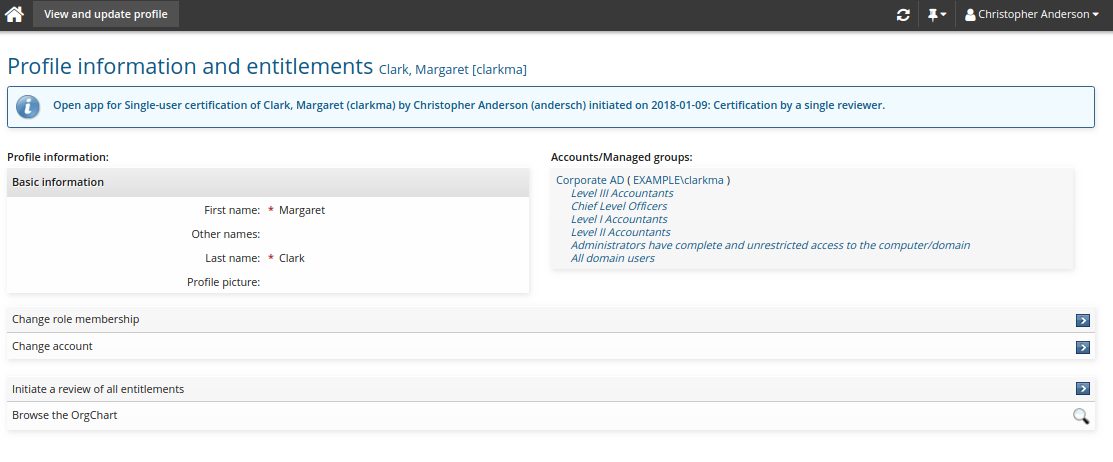
Click the link to open the certification review app.
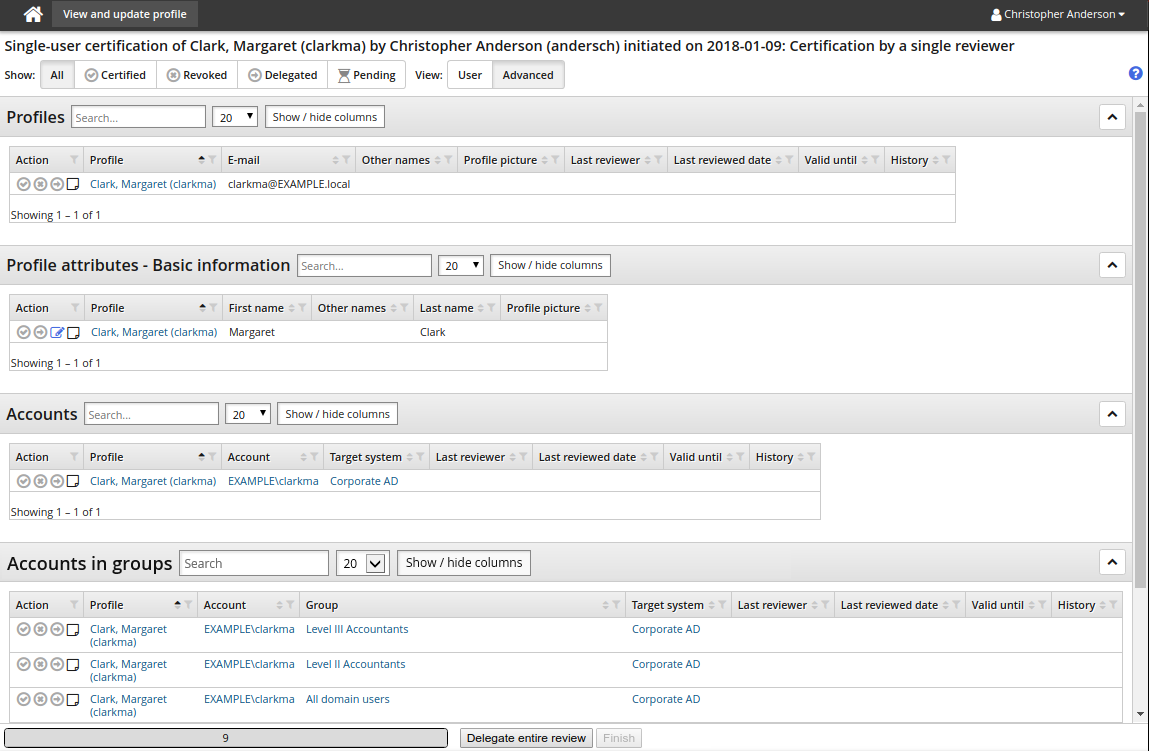
Next:
Navigating the certification app
You can customize the Certification campaign page to change the user information available, and to suit the way you work. Change the view by clicking:
Advanced to view everything included in the campaign
Non-user to view entitlements that are not associated with a user profile; child groups and orphaned accounts
User to view entitlements by user
In any view, you can filter items that are certified, revoked, delegated to another reviewer, or pending further action.

Your review page may include one or more of the following tables of items to review:
User profiles
Accounts
Account group memberships
Child group memberships
Roles
Violations of segregation of duties rules
Click  to hide a table from view.
Click  to group items according to a particular column value.
Click  to open a help window.
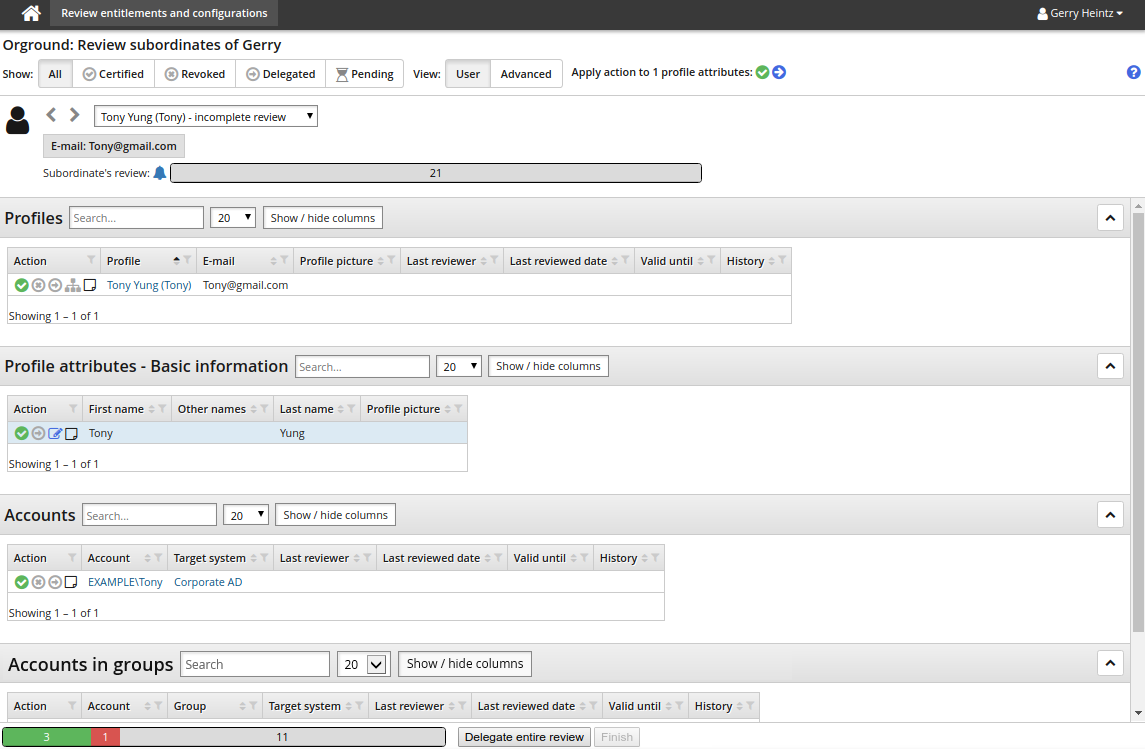
To change the information displayed in a table, click Show / hide columns. In some cases you can click Show more to add more columns. In user view, use the arrows or drop-down list to select a user profile to review.
Consistency recommendations
Product administrators can configure entitlement certification campaigns so that reviewers see recommendations of items to pay particular attention to, based on consistency among peers.
A peer group is a group of users with some attribute in common; for example, users working at the same location or department, or having the same manager.
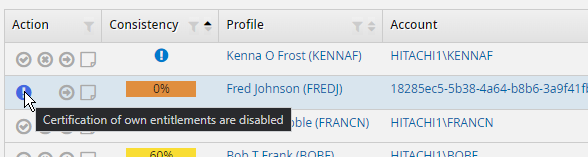
When configured for a round, a Consistency column is displayed in the certification app review page. Consistency is visually represented by a color bar with a number stating the percentage of peers having the same entitlement. This can help the reviewer to decide whether to retain or revoke a user’s entitlement.
You can hide the Consistency column by toggling Hide / show columns.
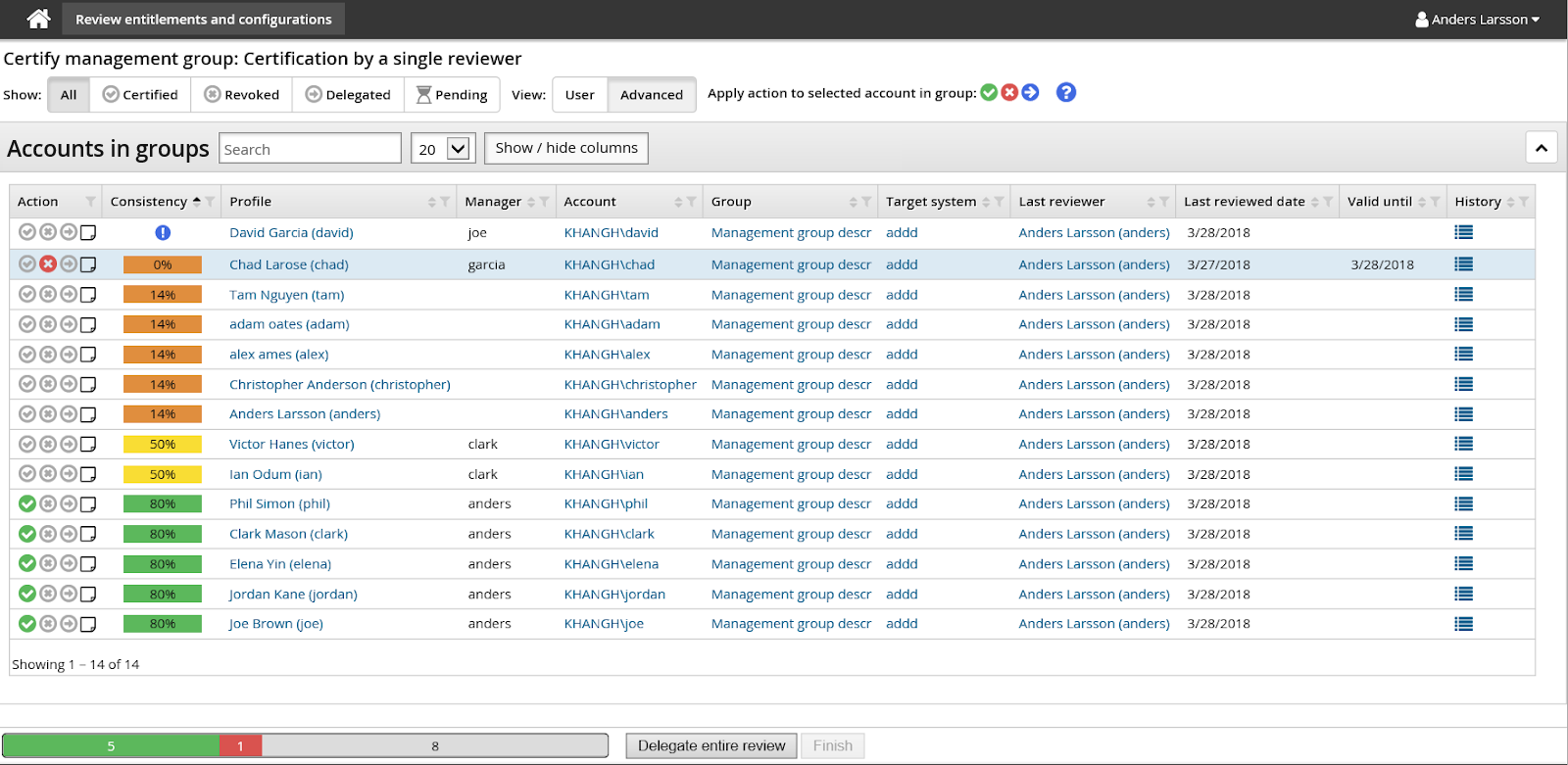
In the above screenshot:
 This peer group is too small for calculations.
 This entitlement is out-of-pattern. Only 14% of the user’s peers have this entitlement.
 This entitlement is possibly out-of-pattern. 50% of the user’s peers have this entitlement.
 This entitlement is in-pattern. 80% of the user’s peers have this entitlement.
See Peer groups, consistency calculations and automatic actions to learn how to configure consistency calculations.
Acting on user entitlements
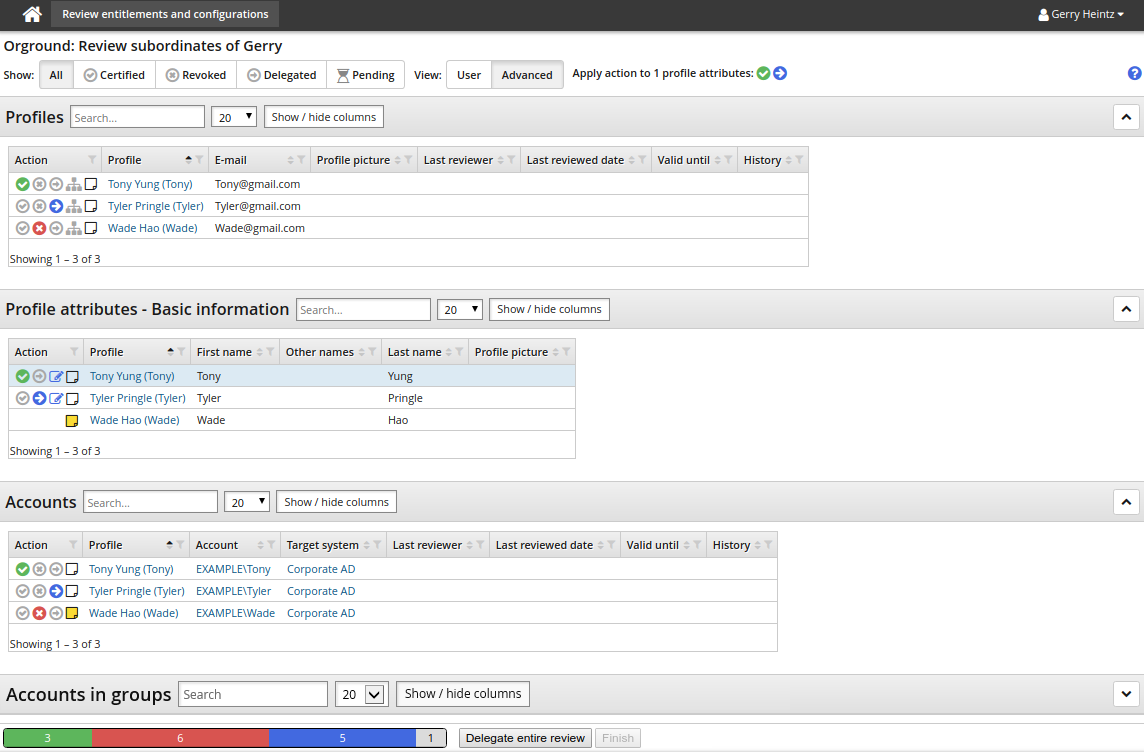
In each table of items to review, in the Action column, click:
 to certify an item
 to revoke an item
 to delegate the review of an item to another user
 to edit profile attributes or resolve segregation of duties (SoD) rule violations.
 to add a reason on your action
You can also use keyboard shortcuts to act on highlighted items. Press:
c to certify items
r to revoke items
d to delegate items
n to go to the next selection
p to go to the previous selection
If you select multiple items in one table, bulk action icons are shown in top-right corner of the review page. You can certify, revoke, delegate or input notes for the selected items.
Certification of own entitlements are disabled
If the review was initiated review of own entitlements disabled, your own entitlements are marked in the actions column. You can only delegate these items to another reviewer.
Certify entitlements
A red edit icon  is displayed when a comment is required (when CERT REQUIRES COMMENT TO CERTIFY is enabled) to certify an item. Comments you type in the reason field are saved in reports, and displayed to other authorizers or future reviewers.
You can act on multiple items in the same table by holding Shift or Ctrl and selecting the items. The action options appear in the filter bar at the top of the page.
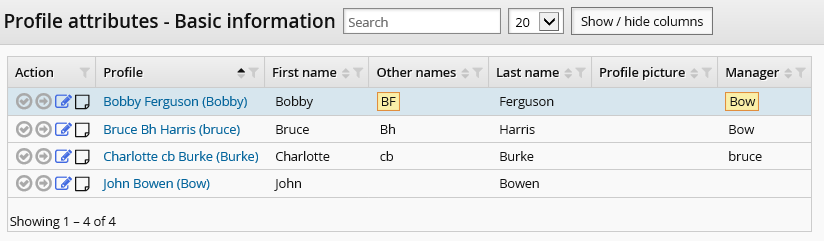
Profile attributes that you have edited during the current review are highlighted. Hover the mouse over the highlighted value to view the initial value of the attribute.
Items marked with an orange certify icon  have a valid certification from a previous review. You do not need to certify them again; however you can choose to recertify them to renew the certification expiry date.
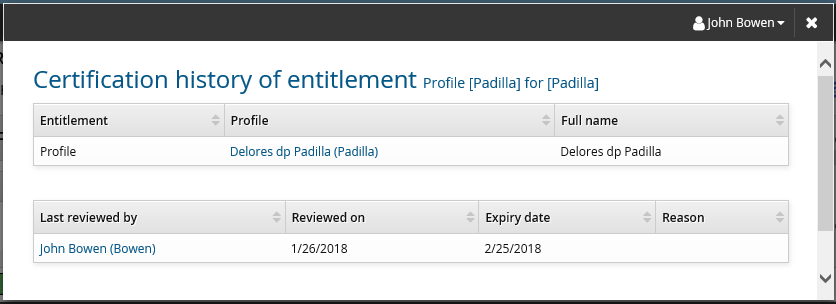
The history icon  is displayed for entitlements that have been certified before.
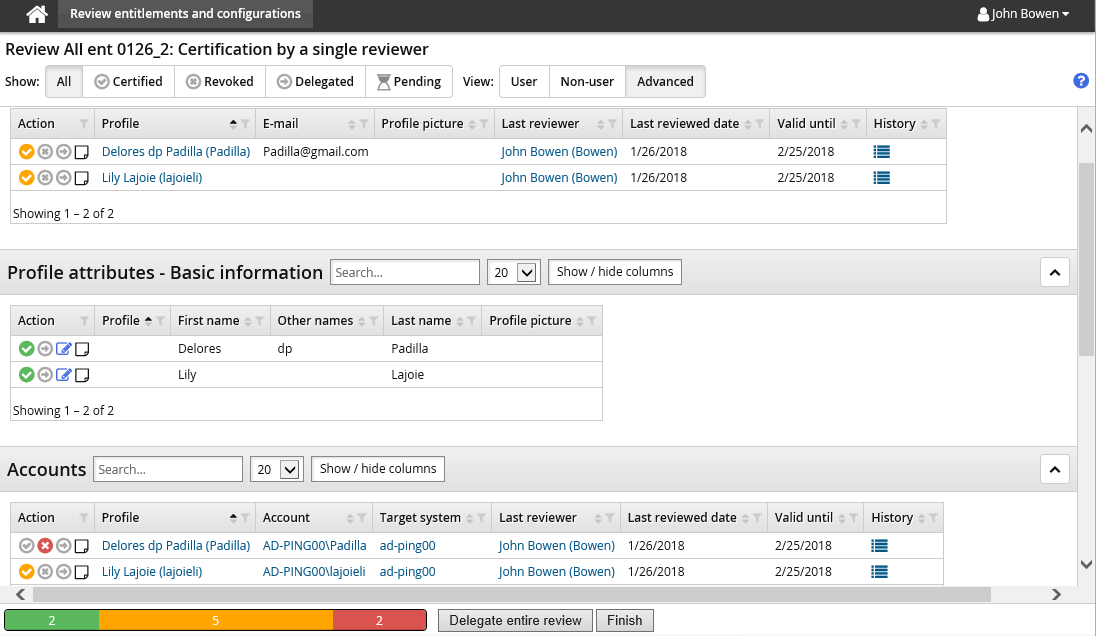
Click the history icon to view the history page, which lists reviewer ID, reviewer time, expiry time, notes and other information.
Blocked actions
Some items may have actions blocked:
If the item is revoked, and you can’t undo the revoke or certify it, the item is dependent on something else that has been revoked.
For example, if an account was revoked, all of its group memberships are considered its dependents and will also be revoked. The group memberships can be unrevoked by unrevoking the account.
If SoD rule violations are also in the review, all of the user’s entitlements (with the exception of the profile) will be blocked. This is indicated by a warning icon. The violation will have to be certified or resolved before you can certify the user’s remaining entitlements.
If there’s no warning sign, the item is a required role member. When an entitlement is assigned to a user as a requirement of a role, it cannot be reviewed independently of the role. This applies even when the role is not part of the review. Entitlements that are optional can be reviewed separately from a role.
Depending on the CERT HIDE REQ ROLE MEMBERS setting (Manage the system >Modules >Manage certification process (CERT) module) required role members may not be displayed at all.
If an entitlement was deleted or removed from a user after being listed in an active certification campaign, it is represented by the removal of all buttons, crossed-out text, and a note stating that the item has been deleted.
Revoke entitlements
When you click to revoke an entitlement in a certification campaign, the icon changes to a notification icon  when you need to take further remediation steps. For example, when you click the remediation icon for accounts, the request wizard opens to allow you to submit a request to disable the account, or take some other action depending on configuration.
’Order and display tab. Otherwise the request is submitted automatically.
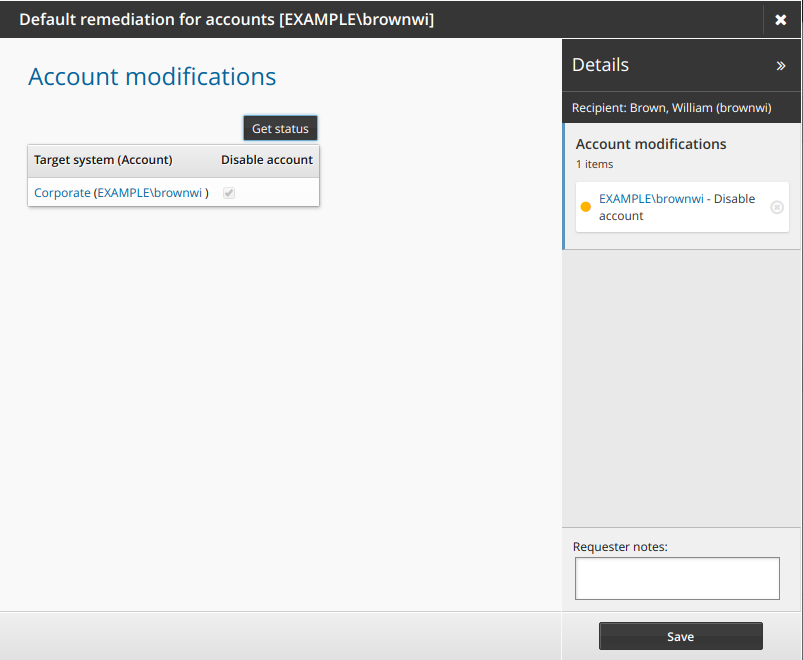
You must choose an option if there are multiple remediation pre-defined requests configured for an action.
A red edit icon is displayed when a comment is required (when CERT REQUIRES COMMENT TO REVOKE is enabled) to revoke an item.
Resolve segregation of duties rules violations
To resolve SoD violations in certification campaigns:
Click the resolve icon
next to a user’s name or rule to open the request wizard.The default pre-defined request is "Default resolution for segregation of duties rules".
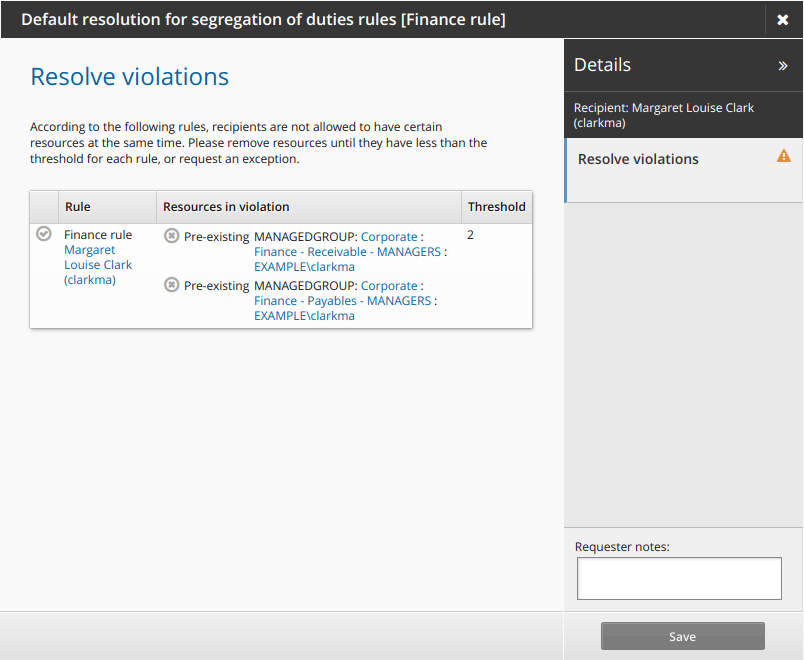
Click the request exception icon
to submit a request to allow the user to keep the conflicting entitlements.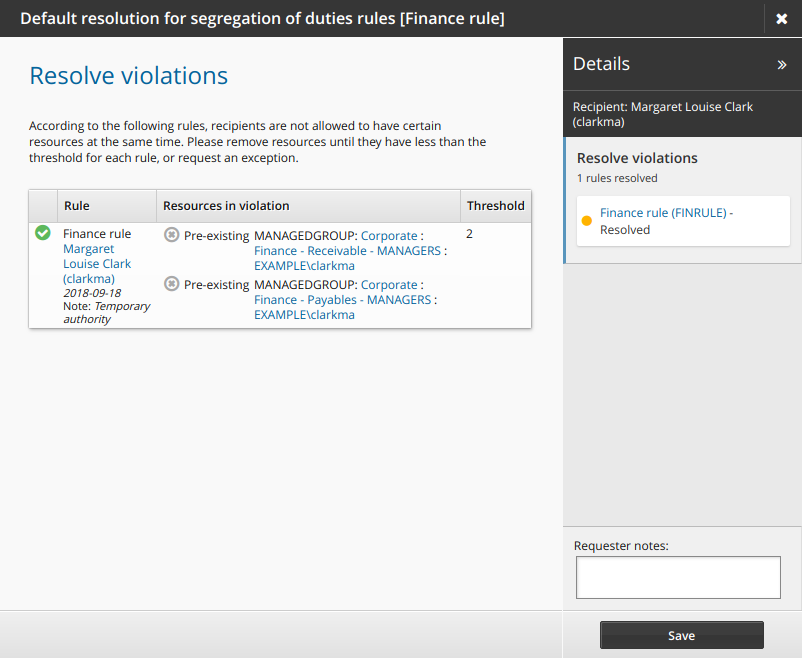
Type a reason for the exception and click Apply.
Alternatively, click the revoke icon
to remove one of the conflicting entitlements.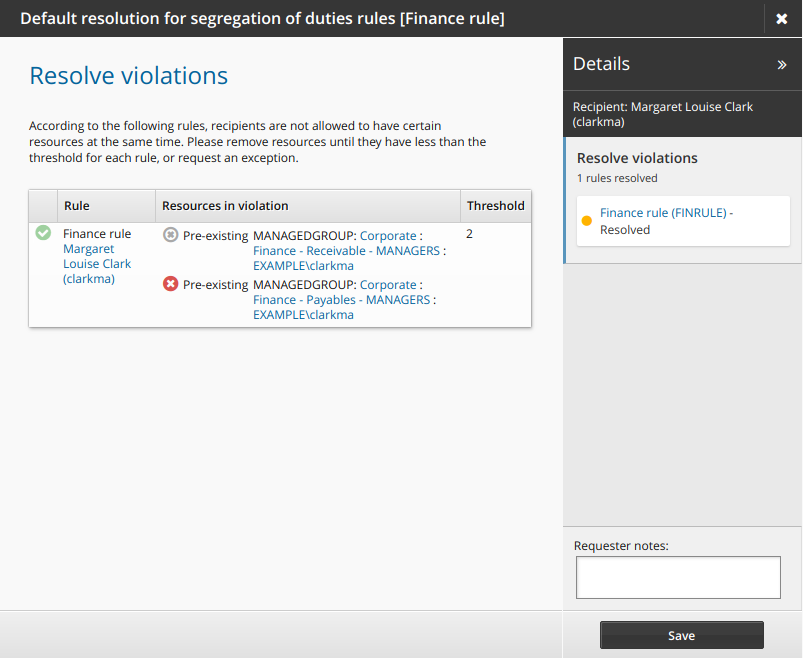
Click Save.
The request is now saved and will be submitted upon sign off. The relevant authorizers will be notified.
Caution
Once an SoD is saved in a review, it cannot be modified.
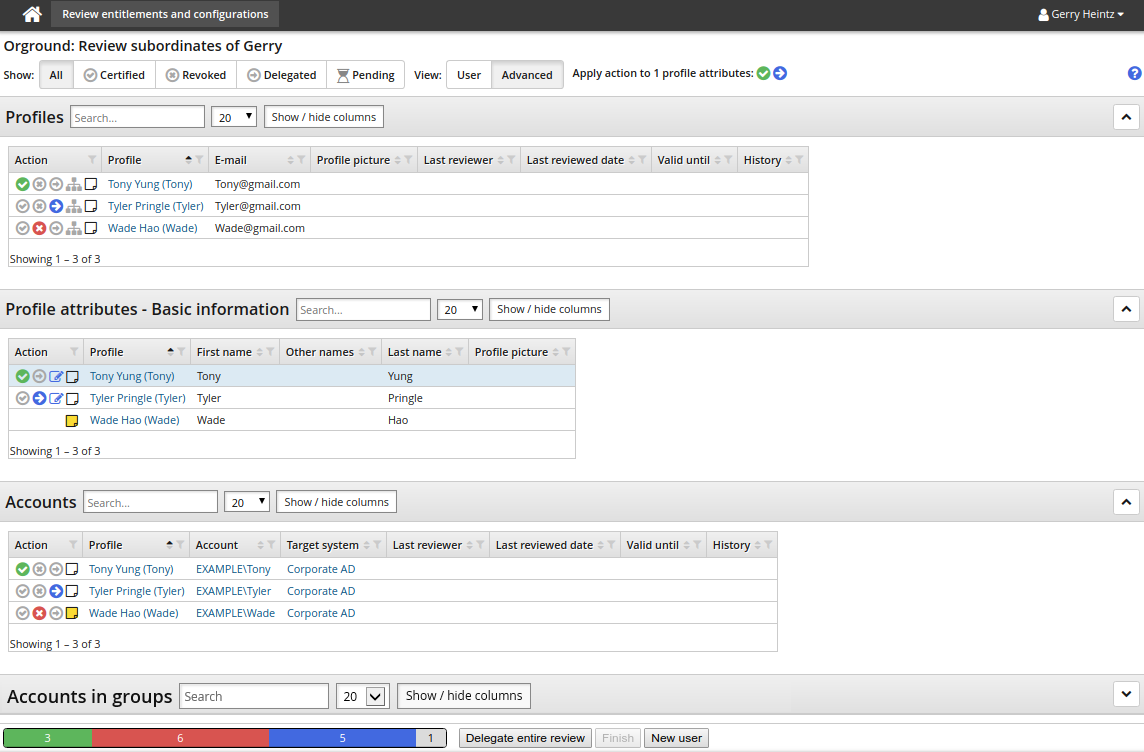
Add a new user in a certification campaign
Certification campaigns can be configured so that you can create a new user by clicking the New user button at the bottom of the certification app page.
The campaign must be configured to include profile attributes, and a remediation pre-defined request for adding profiles.
The default request wizard allows you to choose accounts and edit basic profile information.
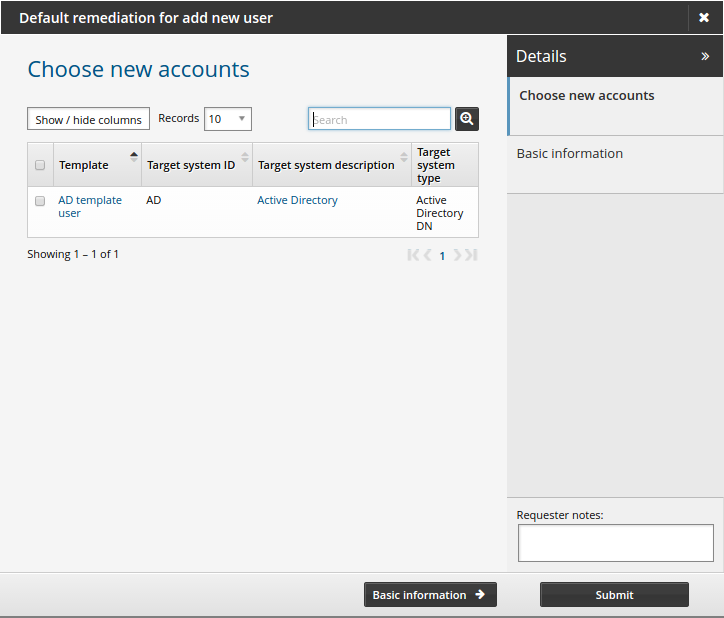
See Creating a New User for more information on creating a new user.
Undoing certification actions
To undo a certification action, click the icon again, or click another option.
Saving work in a certification campaign
Work in a certification campaign is saved automatically. No changes are made until you complete certifying the information under your control and sign off.
Transfer subordinates
You can transfer your own subordinates during a certification campaign if they no longer work for you. If you revoke a user’s profile, you must transfer any subordinates under the user.
To transfer subordinates:
In the Profiles table on the certification app page, click the transfer icon
 in the appropriate row.
Bravura Security Fabric opens a wizard to handle a request to transfer the user. The default request can be changed in the certification campaign configuration.
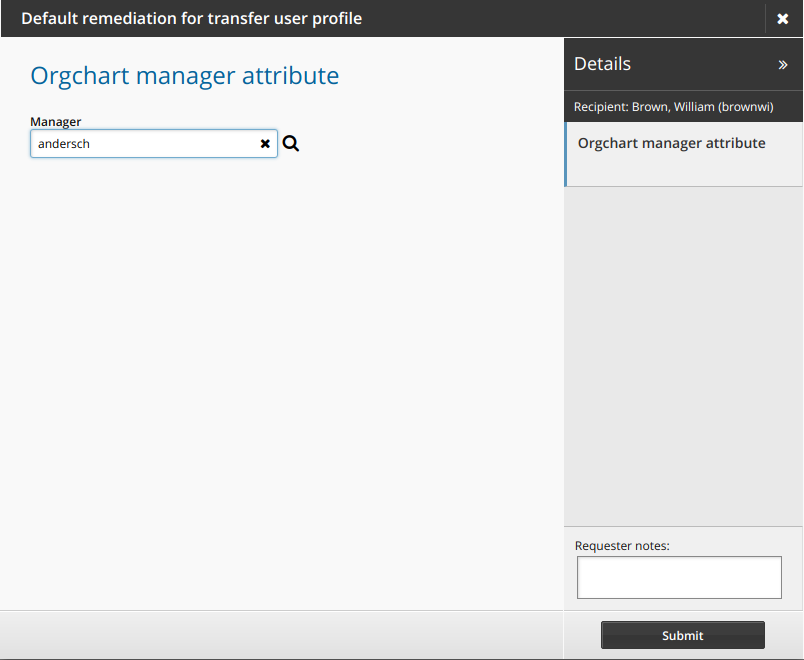
Search for and select a new manager.
Add notes on the request.
Depending on configuration this may be required.
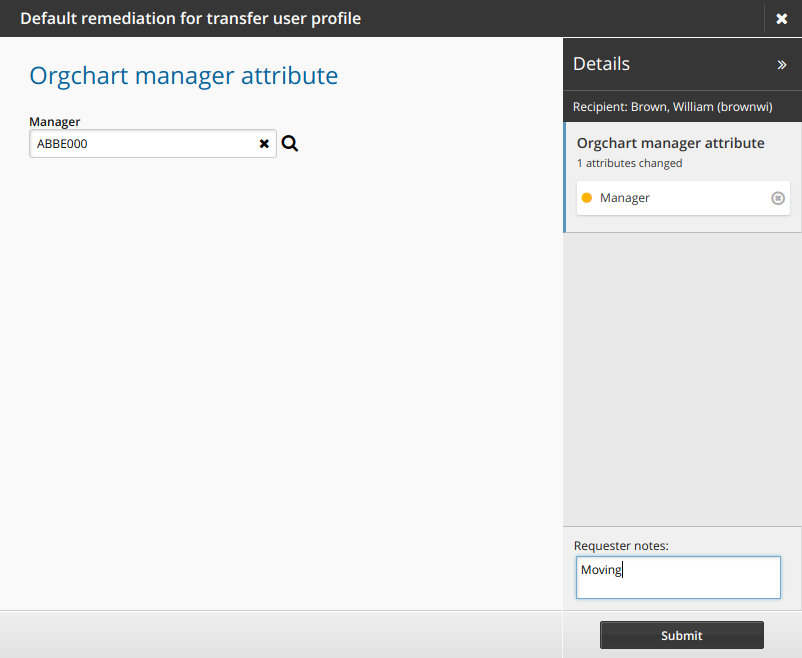
Click Submit to continue with the transfer.
Bravura Security Fabric notifies assigned authorizers to review the request.
Bravura Security Fabric changes the transfer icon to note that the status is pending.
You cannot sign off if any subordinate transfers are in pending status. Once the request is approved, the icon changes to note that the item is transferred.
Track your progress
At the bottom of the review page is a progress bar that keeps track of how many items you have certified.

Each colour represents the status of items included in the review:
Green - certified
Orange - have valid certification, but have not been certified in the current review
Red - revoked
Blue - delegated
Black - deleted after the review was started
Gray - still waiting for an action to be applied and do not have valid certification
Delegate review responsibilities
You can delegate all or part of your review responsibilities to another user. When a delegate accepts your request for delegation, he or she is given the same permissions that you have. If you delegate responsibility for part of the review, he or she will be able to view your original review but only act on certain items.
To request a delegation during a review:
Click Delegate entire review at the bottom of the certification app.
Or,
Click the delegate icon
in the Action column for a particular item.Search for and select a user you want to make your delegate.
Determine whether to Ask the delegate before starting.
If enabled, you must determine the date and time you need a response by, and the default action if the user does not respond.
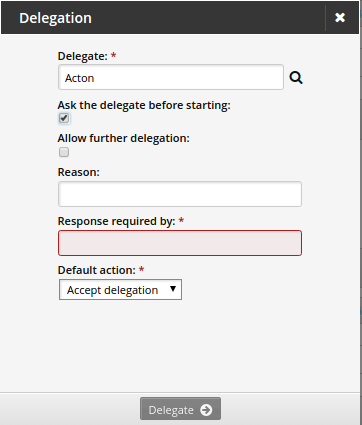
Click Delegate.
The delegate will be notified and will be able to access the certification app via links on the main menu, as described in Responding as a delegate .
Clicking an action icon triggers a resynchronization of entitlement states, so that if a delegate and original certifier are working on the same review at the same time, each can see what the other has certified or revoked.
Finish your review
If there are no more items to certify, the Finish button is displayed next to the Save button.
If there are still items to review, try changing the Current filter to view only uncertified items.
To finish your review:
Click Finish.
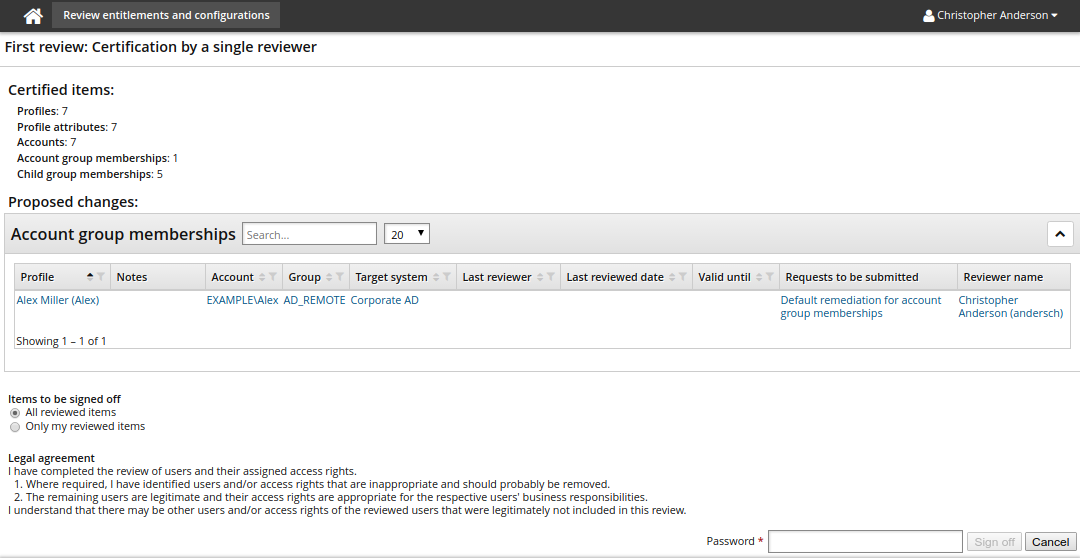
Review the summary and the legal statement.
If you delegated the review of some items to another reviewer, choose to sign off on:
All reviewed items – all items completed by you and any delegates will be signed off
Only my reviewed items – only items completed by you will be signed off.
Enter your password (if required) and click Sign-off when you are ready to submit your review.
Alternatively, if you want to make additional changes, click Cancel to return to the review list.
Bravura Security Fabric submits requests to authorizers for approval, if required, and displays a link to the Requests app so that you can view the status of your request.
Finishing OrgChart reviews
If you are reviewing subordinates, you cannot sign off while there are transfers pending approval, or your subordinate managers have not finished a review of their subordinates.
When subordinates have not finished their review:
In Advanced view, an info icon
appears to the right of the grayed-out Finish button.In User view, the drop down list of users has the text "incomplete campaign" appended to each subordinate manager that has an unfinished campaign
If you are waiting on subordinates to finish their review before you can complete yours, you can send them a friendly reminder by clicking the reminder icon  under their name in User view.
Canceling a single user review
If you have the "Initiate entitlement certification campaigns" privilege, you can cancel a certification campaign initiated for a single user:
Click View initiated entitlements reviews in the Other users section.
Select the certification campaign for a single user, then click Cancel campaign.