Password policy
Bravura Security Fabric can enforce a wide variety of rules as to what constitutes a valid new password. Use these rules to:
Enforce an enterprise-wide password security policy, or different policies for groups of target systems, or for classes of user, or different managed systems.
Ensure that passwords are strong enough to be accepted on, and compatible with, all target systems and managed systems.
Ensure that the passwords used by console-only product administrators are strong. Console-only product administrators, such as superuser, do not have an account on any target system; their passwords are validated by Bravura Security Fabric .
Control what passwords users may select when they reset their own forgotten passwords.
Control what passwords users may select when they create new accounts.
Generate random passwords.
Users can select from the list of random passwords when they type new password values. Bravura Security Fabric selects random passwords when performing resets for managed systems.
Bravura Security Fabric password policy is enforced when new passwords are created, or passwords are reset (using the web interface or via transparent synchronization).
There are three default password policies used by Bravura Security Fabric :
DEFAULT – applied to all users, including superusers
PAM_DEFAULT – applied to managed system policies, when using Bravura Privilege features
PERSONAL_VAULT – (deprecated) applied to personal vaults
These default policies are defined in Manage the system (PSA) module (Policies > Password policies).
For privileged access features, you can create a separate password policy for each managed system policy. Once created, it is used instead of the default policy for that group.
Global (default) password policy
A global password policy provides the most clear and understandable experience to users.
Essentially, a global password policy strikes a bargain with users – only one password to remember, and they can easily change it without calling the help desk; in exchange the password will be more complex and they will have to change it more often.
When Bravura Security Fabric is configured to enforce a global password policy, it will never accept or attempt to propagate a password unless it meets the strength rules set in the policy. By combining the requirements from each system affected by a global policy, Bravura Security Fabric forces users to select passwords that are accepted on every system. For instance, in the case of an organization where users may enter very long passwords on Active Directory but only 8 characters on an OS/390 mainframe, Bravura Security Fabric can require that passwords be 8 characters long, at most. Alternatively, Bravura Security Fabric can support longer passwords, but truncate them when it updates the mainframe. Users generally prefer the maximum length rule, as it is easier to understand than automatic truncation.
In general, systems enforce one of three types of password rules:
Complexity requirements ensure that users do not select easily-guessed passwords. Example rules are: disallowing any permutation of the user’s login ID, password history, requiring mixed letters and digits, forbidding dictionary words, etc.
Representational constraints limit what can be physically stored in a password field on a given system. Usually there are just two such rules: maximum length and allowable character set.
Historical constraints. Examples include max and min password age, number of passwords or days after which repetitions are allowed
The alternative, of defining different password policies for every target system or for groups of target systems, is user-unfriendly. To update their passwords, users must select a system, choose a password, wait for the password update to complete, possibly re-authenticate, choose another system, choose a different password, and so on. Users must then remember multiple passwords and will continue to experience many password problems. It has been shown that users with many passwords have a strong tendency to write down their passwords.
The default global password policy uses some heuristics to make passwords "easy-to-pronounce, easier to remember". This is particularly helpful to users in an implementation of Bravura Pass ; however in an implementation of Bravura Privilege , where a higher degree of randomness is required, additional strength rules are recommended. See Privileged access password policy for more.
Privileged access password policy
You can use Bravura Security Fabric to create credentials on target systems when managing them. The default privilegd access password policy is used for this and can be modified at Manage the system > Policies > Password policies > PAM_DEFAULT. This password policy is also used when creating a new managed system policy, which can be modified individually.
The default password policy uses some heuristics to make passwords "easy-to-pronounce, easier to remember". In an implementation of Bravura Privilege , where thousands of passwords can be generated and a higher degree of entropy is required, additional strength rules are recommended.
The simplest way around the default "easy to pronounce" heuristics and to increase the entropy of generated passwords is to use white lists at the bottom of the policy, which fit the rules a specific policy requires. For example, for the password to contain at least five uppercase letters, the whitelisted characters would be all the alphabet letters, from A to Z. The same is true for lowercase letters, numbers, and symbols. Spelling out the possible characters used in a password is also a good way to be sure you control which characters are allowed in a password, which is important for many target systems types that reduce the allowable character set.
When whitelists are used, the minimum number of characters in a password should match the total of the whitelist rule counts, and the Maximum number should also be set (its maximum value is 150).
Creating password policies
By default, Bravura Security Fabric is configured to support a single, global password policy, to ensure that all new passwords are acceptable to every system. You can create additional password policies to apply to:
Target system groups
You may want to set up multiple target system groups and password policies, for example, if subsets of target systems have incompatible password strength rules, or you want a user’s passwords to vary on two or more target systems.
Users defined by user class
You can use user classes to apply different password policies for segments of the user population on the same target system group; for example to apply stricter rules to Active Directory administrators than to regular users on the same domain.
See Target system groups for more information about target system groups and user-class-selected policies.
Click below to view a demonstration of reviewing a default password policy, defining and testing password-strength rules using a regular expression and a built-in plugin, testing the random password generator, preventing users from re-using old passwords and adding rules using a white list.
The case for alternative password policies across systems
Bravura Security Fabric allows you to create multiple alternative password policies that you can apply to subsets of target systems, defined by a target system group.
For example, you may want to create multiple policies for incompatible systems. In some cases, it is impossible to formulate a single, consistent password policy that works across two different systems. Typically this happens when one system requires strong security, and complex passwords, while another system simply cannot support complex passwords.
Click below to view a demonstration of giving Linux target system accounts a separate password policy.
Examples of weak systems include legacy applications that use very short passwords or numeric PINs, voice mail passwords, and so on.
Systems with a moderate password complexity capability typically include mainframes and DBMS servers.
Systems with a strong password complexity capability typically include Novell NetWare, Windows Active Directory, LDAP directories, and modern implementations of Unix.
Best practice
Bravura Security recommends that all target systems belong to a single target group, and are subject to a single password policy. Synchronizing passwords significantly reduces help desk call volume. Even passwords on systems notorious for "weak" passwords, such as mainframes, can be made strong with a good combination of password policy rules. Forcing users to change passwords often also strengthens security. Grouping target systems is usually only done for legacy applications or to comply with internal policy.
The case for alternative password policies across user classes
In some cases, you may want to use different password policies on the same target for different users. For example, administrative users on an Active Directory domain may have a stricter password policy than regular users on the same domain. You can implement this by defining user class points and password policy associations in target system groups, in addition to the default password policy for each target system group. Bravura Security Fabric uses these associations to find which password policy should be applied to a given user’s password changes.
Click below to view a demonstration of applying stronger password policies for only the AD accounts of help-desk users.
Add a password policy
To add a password policy:
Click Manage the system > Policies > Password policies.
Click Add new...
Type a unique password policy ID and a Description.
Click Add.
Edit password strength rules
You can edit the system password strength policy enforced by Bravura Security Fabric to include or exclude certain rules, and change values on some rules.
To edit a password strength policy enforced by Bravura Security Fabric:
Click Manage the system > Policies > Password policies.
or
Click Manage the system > Privileged access > Managed system policies.
Select the policy that you want to edit.
Click the Password policy tab.
Select an appropriate status from the drop-down list next to each rule.
If applicable, type a value in the text field next to each enabled rule.
Depending on the rule some status may not apply. The available statuses include:
Required The rule is enabled, and is strictly enforced.
If a password supplied by a user does not satisfy the rule, Bravura Security Fabric rejects it.
Warning The rule is enabled, but is not enforced.
If a password supplied by a user does not satisfy the rule, Bravura Security Fabric warns that the password is weak, but still accepts it.
The built-in random password generator only generates passwords that satisfy the rule.
Disabled The rule is not applied to new passwords.
Enabled The rule is applied to new passwords.
This status is available where enforcement does not apply.
See Table 1, “Password strength rules” below for definitions of the password strength rules supplied with Bravura Security Fabric .
Select Hide description if you want to hide the rule from users in the web interface. If their chosen password violates the rule, an error message detailing the rule will be displayed.
You can create a custom message to add to or replace the displayed rules.
Click Update.
Rule name | Type | Description |
|---|---|---|
have at least N characters | Req | The smallest number of characters that a legal password must have. |
have at most N characters | Req / Warn | The largest number of characters that a legal password can have. |
include both uppercase and lowercase characters | Req / Warn | Enable if passwords should have both uppercase and lowercase characters. |
have at least N lowercase letters | Req / Warn | The smallest number of lowercase letters that a legal password can contain. |
have at most N lowercase letters | Req / Warn | The largest number of lowercase letters that a legal password can contain. |
have at least N uppercase letters | Req / Warn | The smallest number of uppercase letters that a legal password can contain. |
have at most N uppercase letters | Req / Warn | The largest number of uppercase letters that a legal password can contain. |
have at least N special characters (not letters or digits) | Req / Warn | The smallest number of non-alphanumeric characters that a legal password must contain. Spaces are treated as non-alphanumeric characters. Leading and trailing spaces are trimmed in Bravura Security Fabric . |
Have at most N special characters (not letters or digits) | Req / Warn | The largest number of non-alphanumeric characters that a legal password can contain. Spaces are treated as non-alphanumeric characters. Leading and trailing spaces are trimmed in Bravura Security Fabric . |
have at least N special characters (not letters or digits) not at the beginning and end | Req / Warn | Same as minimum non-alphanumeric characters, but not counting the first or last character of the password. Spaces are treated as non-alphanumeric characters. Leading and trailing spaces are trimmed in Bravura Security Fabric . |
have at least N letters | Req / Warn | The smallest number of letters that a password must contain. |
begin with a letter | Req / Warn | Enable to require all passwords to start with a letter. Useful for compatibility with some systems. |
have at least N digits | Req / Warn | The smallest number of digits that a legal password must contain. |
have at least N digits not at the beginning and end | Req / Warn | Same as minimum digits, but not counting the first or last character of the password. |
have up to 8 characters, only @,#,$ special characters allowed (mainframe compatible) | Req / Warn | Intended for mainframe compatibility (can have up to 8 chars; alpha/num or @$#). |
have password rules apply to the first N characters | Disabled / Enabled | This forces the first N characters of the password to comply with the password rules, and only the first N characters are used to validate the password. The number of characters must be set. |
not be a dictionary word | Req / Warn | The password, stripped of non-letter characters, may not match a word (consisting of two or more letters) from the dictionary . For example, the passwords word123 and pa9sswor*d are not valid. The dictionary search is case-insensitive. |
not be an exact dictionary word match (e.g. word) | Req / Warn | A password may not exactly match a dictionary word consisting of four or more letters. For example, the passwords w1o2r3d or word123 are valid. The password word is not valid. The dictionary search is case-insensitive. |
not contain an exact dictionary word match (e.g. xyzword123) | Req / Warn | A password may not contain a dictionary word. For example, the password xyzword123 is not valid. The dictionary search is case-insensitive. |
not contain a dictionary word (e.g. xyzw1o2r3d) | Req / Warn | A password, stripped of non-letter characters, may not contain a dictionary word. For example, the password xyzw1o2r3d is not valid. The dictionary search is case-insensitive. |
not be a dictionary word rearranged (e.g. rdow123) | Req / Warn | A password, stripped of non-letter characters, may not be a dictionary word rearranged. For example, the password w1o2r3d4xyz is valid. The password rdow123 is not valid. |
not be the profile ID or name | Req / Warn | The user’s profile ID or name may not be used as the new password. This applies to both the full name and each word in the name. |
not be the profile ID or name reversed | Req / Warn | Same as above but with the letters in the name reversed. This applies to both the full name and each word in the name. |
not contain the profile ID or name | Req / Warn | The user’s profile ID or name may not form part of the new password. This applies to both the full name and each word in the name. |
not contain the profile ID or name reversed | Req / Warn | Same as above but with the letters in the name reversed. |
not be the profile ID or name rearranged | Req / Warn | Same as above but with the letters in the name rearranged in any way. This applies to both the full name and each word in the name. |
not contain rearranged profile ID or name | Req / Warn | The password cannot contain the user’s profile ID or name rearranged in any permutation and mixed with any number of other characters, numbers, or special characters. This is a more restrictive form than “Not a rearranged user name?”. It applies to both the full name and each word in the name. The length checked against the full name and each word in the name is decided by the MIN DICTWORD LENGTH setting in the Manage the system > Policies > Options menu. , and the punctuation marks like ’.’ are also stripped For example, with user name = Bob Jones, profile ID = JonesB the following passwords will be rejected:
|
not begin with the first N characters of the profile ID or name | Req / Warn | The new password may not contain the specified number of characters that begin the profile ID name. |
require the password to be approved by this plugin | Disabled / Enabled | An external program is called to verify that a password is acceptable. Bravura Security Fabric ships with |
generate random passwords using this plugin | Disabled / Enabled | Specify a plugin to generate random passwords instead of the built-in password generator. Used with Offer the user N random passwords. See Generating random passwords with a plugin for details. |
warn if the password is not approved by this plugin | Disabled / Enabled | A warning will be generated if the password does not pass the password policy of the specified plugin. Bravura Security Fabric ships with |
have at most N pairs of repeating characters | Req / Warn | The maximum number of pairs of the same character appearing consecutively in new, legal password values. The total possible pairs are counted in a sequence; for example, annno includes two pairs of ’n’s (the first two and the last two), and annnno includes three pairs; however, Uuno contains zero pairs, since upper and lower case letters are treated as different. |
be one of the N suggested passwords | Req / Warn | Display some randomly-selected passwords that the user may choose as a new password value. If disabled, no suggested passwords will be displayed. It is strongly recommended that this rule is set to ’Warning’. This should only be set to ’Required’ in cases where corporate policy disallows non-computer-generated passwords. Setting this rule to ’Required’ is not compatible with transparent password synchronization. See Transparent synchronization and generated passwords for details. |
contain only characters available on a standard English (US) keyboard | Req / Warn | The password is rejected or a warning is issued if the password contains non-printable ascii characters. Non-printable ascii characters can create problems with character encoding translation. The web form provides a link to a page that lists valid characters. |
not have N occurrences of the same character | Req / Warn | The password is rejected or a warning is issued if it contains any character occurring N times. N must be data-filled. |
not be an old password | Req / Warn | New passwords may not be the same as old passwords for the selected targets. The scope of validation depends on whether transparent synchronization is enabled: when enabled, validation is per-user across all accounts in the target system group; when disabled, validation is per-account. See Password History Validation Scope for details. |
allow old passwords after N days | Disabled / Enabled | Change the history rule, so that new passwords can be the same as old ones (in the history file), if they are over N days old. Ensure that this value is greater than the value of password must be changed every N days, if set. See Prevent users from re-using old passwords for more information. |
password must be changed every N days | Disabled / Enabled | Prompt the user to change passwords every N days. Ensure this value is less than the value for allow old passwords after N days , if set. |
not be one of last N passwords | Req / Warn | New passwords may not be the same as one of the last N passwords. |
be different by at least N characters from the previous password | Req / Warn | The password is rejected or a warning is issued if the password does not contain N characters that do not already exist in the previous password. |
not have been changed by you in the last N hours | Req / Warn | The password is rejected or a warning is issued if the password was changed in the last N hours. |
current password may be reused for password resets for N days after its first use | Disabled / Enabled | Allow password reuse within limited days when used in conjunction with not be an old password . |
Prevent users from using specific words in a password
There are a few built-in password policy rules which are designed to prevent using specific words in passwords such as:
The profile ID or names of the user
Selected words listed in a "dictionary"
About the dictionary
Bravura Security Fabric uses a flat file, words.dat to determine if new passwords fail dictionary-based password policy rules. This file is located in the dictionary directory on the primary application server. You can customize this file to suit your needs. Alternatively, you can also create a new dictionary file called custom.dat located in the dictionary directory. If this file presents, Bravura Security Fabric will use this file, instead of words.dat, as dictionary. The main advantage of using custom.dat file is that this file will be retained after upgrade while a customized words.dat will be replaced by the default file.
The encoding of the words.dat text file must be UTF-8
Limitations of using the dictionary
The dictionary file is designed to contain a relatively small list of banned words (like the company name, or some swear words).
It is not designed to prevent users from choosing passwords that:
Were found in breaches; for that purpose, use the haveibeenpwned component or check against Azure's compromized passwords API
Are known to be found at the top of hackers' list-based heuristics
There are some limits to keep in mind when populating words.dat :
There is a low-character-per-line limit, the product does not take into consideration dictionary words of three letters or less.
There is no fixed upper (max) limit to the number of words in the file (other than available RAM and CPUs for the services using the password policy), but there is a "soft" limit: around 10 MB. When the file is large, the pages which render password policies will become slow because the pages have to choose and verify (by default) 10 random passwords.
The impact to the rendering speed of those pages can be mitigated by reducing the number of passwords to provide as examples, but the best solution to this limitation is to use the haveibeenpwned component or Azure plugin for large data sets, and keep words.dat small, for the uses it was designed to cover.
Like any other registry-based or file-based configuration, the dictionary is read at service startup to optimize operations. So, after changing the contents of that file, restart the Ajax service (
ajaxsvc) (for the WebUI on any license), Password Manager Service (idpm) for Bravura Pass , or Privileged Access Manager Service (idarch) for Bravura Privilege when using manual overrides (though Bravura Privilege's randomization allows it to avoid the pitfalls of manually-selected passwords usually).
Prevent users from using compromised passwords
When a user attempts to update their password through the Change passwords (PSS) module, Bravura Security Fabric can be configured to check the password to a list of compromised passwords.
The Functional.hid_password_policy_haveibeenpwned component introduces an update to the Password Policy that will compare the password change to the "Have I been pwned?" (haveibeenpwned) list of known compromised passwords. The password update will not be allowed to proceed if a match is found.
Requirements
By default, the component works only for DEFAULT password policy. If you want to apply the plugin to other policies, copy the component to Custom folder and update the manifest.xml file by replacing the <resourceid> tag value from DEFAULT to the customized password policy ID (2 places). e.g.
<provides_for>
        <resourceid>CUSTOM_PWPOL</resourceid>
</provides_for>
The component code will connect to endpoint https://api.pwnedpasswords.com/range/<password hash prefix>. Ensure that the site is added into the firewall rule to whitelist the site. otherwise, the plugin will fail with timeout error.
Example
Install
Functional.hid_password_policy_haveibeenpwned.This component automatically configures the Require the password to be approved by this plugin password rule to use the
plugin_check_password.pyplugin.Optional: Click Manage external data store > hid_global_configuration to configure the component’s proxy, timeout, and reject_on_connection_failure settings to suit your environment, if necessary.
Log into Bravura Security Fabric as a user and navigate to the Change passwords (PSS) module.
Attempt to change the user’s password to one verified to be compromised and verify that the change password button is disabled.
Attempt to change the user’s password to an uncompromised one and verify that the change password button is enabled and the password update is allowed to proceed.
See Managing Components for more information on installing components.
Troubleshooting
A shipped CLI utility, cli.py, is included with the Functional.hid_password_policy_haveibeenpwned component. This calls the same library as the Python plugin and can be used to diagnose any issues testing passwords against the haveibeenpwned server.
Prevent users from re-using old passwords
A particularly useful strength rule, not be an old password prevents or warns users against reusing old passwords. This ensures that, if a user’s password was divulged in the past, it will not constitute a threat in the future.
Starting in version 12.9.1, when transparent synchronization is disabled for a target system group, password history validation is performed on a per-account basis rather than per-user. This allows users to use the same password on different accounts while still preventing password reuse on individual accounts. See for more details.
Click below to view a demonstration.
This rule is implemented as follows:
Passwords are stored in the history database table.
Users’ passwords are cryptographically hashed. Data includes the profile ID, account ID, target ID, the time the password was modified, and by whom.
Bravura Security Fabric enforces password history by matching the newly requested password against all passwords used by that user on all target systems within the selected target system group. If there is a match, Bravura Security Fabric rejects the new password request.
Users can select a password that was used on target systems in a target system group other than the ones selected for password change.
If used in conjunction with the have password rules apply to the first N characters rule, new passwords will be historically compared on only the first N characters.
Passwords in the history table that are older than a certain number of days may be accepted by Bravura Security Fabric if that has been configured by the password rule allow old passwords after N days.
Whenever a password is successfully changed by Bravura Security Fabric , it is added to the history table. This includes passwords changed by:
Users of the Change passwords (PSS) module
help desk users using the Help users (IDA) module
The Password Manager service (IDPM)
Warning
The number of days for allow old passwords after N days must be greater than the number of days for password must be changed every N days.
The recommended setting is that N = 6 x maximum age; for example, password must be changed every N days set to 30 days, and allow old passwords after N days set to 180 days.
If configured incorrectly, users are able to reset and "change" their password using their existing password.
Warning
Bravura Security Fabric does not test prospective passwords against the target system's password history. Reset operations may fail due to the target system rejecting a password it identifies as being reused. Bravura Security Fabric only identifies passwords changed through the password change (PSS), transparent synchronization (idpm ) or help desk (IDA) module.
Note for 12.9.1 and later: When transparent synchronization is disabled, password history validation is performed per-account, allowing the same password to be used across different accounts. When transparent synchronization is enabled, password history validation is performed per-user across all accounts in the target system group.
By default, Active Directory expires passwords every 42 days, and does not allow users to use the last 10 passwords. This means users will not be able to reuse a password until the 11th reset minimum, assuming they only change their password when it expires. The setting password must be changed every N days only prompts users to change their passwords when they login to Bravura Security Fabric . For use cases where Bravura Security Fabric is only accessed when users lock themselves out or forget their password, this setting is not practical. This might be the case, for example, when password synchronization is configured to be triggered from Active Directory (transparent synchronization).
Password history validation scope
The scope of password history validation for the "not be an old password" rule depends on whether transparent synchronization is enabled for the target system group:
Transparent Synchronization Enabled
When transparent synchronization is enabled, password history validation is performed across all accounts within the selected target system group. This ensures that users maintain a single password across all synchronized systems and cannot reuse a password previously used on any account in the group.
Transparent Synchronization Disabled
When transparent synchronization is disabled (starting in version 12.9.1), password history validation is performed on a per-account basis. This means:
Users can use the same password on different accounts within the target system group
Users cannot reuse a password that was previously used on a specific account
Users can change passwords for accounts individually, even if they use the same password value
Use Case: Multi-Step Password Changes
Per-account validation is particularly useful when users need to change passwords in multiple steps. For example:
A user has five accounts on five different target systems
One target system is temporarily unavailable
The user changes the password for the 4 available accounts to "NewPassword123"
Later, when the fifth target system becomes available, the user can change that account's password to "NewPassword123" as well
Without per-account validation, step 4 would fail because "NewPassword123" would already be in the user's password history
This flexibility allows users to maintain password synchronization across accounts even when systems are not all available simultaneously.
Implementing password aging
The maximum password age is controlled by the password must be changed after N days strength rule. Bravura Security Fabric uses the lastpwchgtime field in the expiry table to determine when passwords were last changed.
Bravura Security Fabric can list users with soon-to-expire passwords based on both target system password expiry and Bravura Security Fabric password policies.
If both target password expiry and Bravura Security Fabric password expiry are in effect, the earliest expiry time is used.
See also
Password expiry detection shows you how to set up user notification and enforcement upon password expiry.
Add new rules with a plugin
You can use a plugin to display and enforce additional password strength rules in Bravura Security Fabric . You can also include embedded HTML as part of a custom password strength rule. This is helpful in cases where Unix target systems make use of a text-only terminal, and objects cannot be accessed using graphical methods. For example, on systems where hyperlinks are not supported, a HTML tag containing a URL could be displayed.
Configuration
The plugin point is set by the require the password to be approved by this plugin and the warn if the password is not approved by this plugin strength rules on the Policies > Password policies configuration page.
Caution
Ensure that password strength rules enforced by the plugin do not conflict with rules enabled in Bravura Security Fabric . This will cause all passwords to be invalid. For example, a minimum password length of 7 characters in Bravura Security Fabric will conflict with a plugin-enforced minimum of 4 or a maximum of 6 characters.
Shipped plugins
There are two shipped plugins for additional password strength checking:
The passfilt.psl plugin program can be used with the require the password to be approved by this plugin and warn if the password is not approved by this plugin strength rules, whereas netvalidatepwpol can be used with require the password to be approved by this plugin only.
passfilt.psl
Bravura Security Fabric is shipped with passfilt.psl, which emulates the Windows NT passfilt.dll to enforce a combination of strength rules. The plugin point is set by the Require the password to be approved by this plugin strength rule on the Manage the system > Policies > Password policies configuration page.
Click below to view a demonstration.
For passwords to be approved by the passfilt.psl plugin, passwords must:
Be at least six characters long.
May not contain your profile ID or name or any part of your full name.
A profile ID or name value with one character, such as a middle initial, can be used in the password.
Must contain characters from at least three of the four following classes:
Class
Examples
English uppercase letters
A, B, C,... Z
English lowercase letters
a, b, c,... z
Westernized Arabic numerals
0, 1, 2,... 9
Non-alphanumeric ("special characters")
$,!,%,∧
Execution points
The passfilt.psl program is run by the View and update profile (IDR) module, Password synchronization registration (PSR) module, and the Manage the system (PSA) module. The plugin is located in the \<instance>\plugin\ directory on the Bravura Security Fabric server.
When passfilt.psl is configured as part of the Bravura Security Fabric password strength policy, it is used to approve passwords entered by users when requesting new accounts.
Input
Bravura Security Fabric makes two calls to the password strength plugin. The first call asks the plugin to display its rules. The second call asks the plugin to validate the selected password.
When Bravura Security Fabric asks the plugin to display its rules, input to the plugin is the KVGroup:
"show_rules" "show_rules" = {
 }
After a user selects a new password, Bravura Security Fabric calls the program with the following KVGroup:
 "pwcheck" "pwcheck" = {
   "accountid" = "<account id>"
   "oldpassword" = "<old password>"
   "password" = "<requested password>"
   "targetid" = "<target id>"
   "userid" = "<user id>"
   "username" = "<user name>"
 }
The accountid, oldpassword, and targetid values may not always be passed to the plugin. Verify that your plugin works under scenarios such as an initial password change (when no old password is available).
Output
When Bravura Security Fabric requests the plugin’s password rules (the show_rules KVGroup is input), the plugin may respond with a KVGroup listing the plugin’s enforced password requirements as displayed to the user. The default passfilt.psl plugin returns the following KVGroup in response to a show_rules request:
"" "" = {
    "rules" "rules" = {
      "USERNAME" = "!!!PASSFILT_RULE_USERNAME_DESC"
      "CHARTYPES" = "!!!PASSFILT_RULE_CHARTYPES_DESC"
     }
    "retval" = "0"
  }
Every value in the "rules" KVGroup will be displayed to the user. Keys must be unique between rules in this plugin and are used to associate success/failure statuses with their corresponding rule description. At least one rule description must be provided.
!!!PASSFILT_RULE_USERNAME_DESC and !!!PASSFILT_RULE_CHARTYPES_DESC are multi-language tags that will be transformed into appropriate strings. It is not necessary to use multi-language tags; for convenience, you may simply return non-tag strings, but they will not be translated.
See Add language tags for more information about multi-language tags.
When Bravura Security Fabric asks the plugin to validate the selected password, the plugin must respond with a KVGroup containing a retval (equal to 0 for success, or any other integer for failure), and a pass (true) or failure (false) for each rule defined. If the password failed validation of any of the rules, a corresponding error message must be provided. This error message is typically the description, as demonstrated by passfilt.psl, where it is the same message passed back on error and in response to the "show_rules" request. Keep in mind the description must make sense after the prompt "The password must:".
The shipped passfilt.psl plugin responds to a failure with a KVGroup similar to the following:
 "" "" = {
      "results" "results" = {
      "USERNAME" = "false"
      "CHARTYPES" = "true"
     }
     "errmsgs" "errmsgs" = {
      "USERNAME" = "!!!PASSFILT_RULE_USERNAME_DESC"
     }
     "retval" = "1"
   }
netvalidatepwpol.exe
The netvalidatepwpol password strength plugin, shipped with Bravura Security Fabric, is used to enforce Azure AD Password Protection password policy.
This plugin supports password policy enforcement for both on-prem or cloud installations of Azure AD Password Protection.
Note
On-premises Azure password policy checking is not supported when you have transparent synchronization trigger software enabled for AD on the on-prem DCs. This configuration can create a potential loop when changing passwords for a user. If transparent synchronization is required on Active Directory, follow the instructions for the "Configuration - cloud" section below.
The plugin point is set by the Require the password to be approved by this plugin strength rule.
Configuration - on premises
The netvalidatepwpol plugin can be configured to enforce on-premises Azure password policy checking with following steps:
Ensure Azure AD Password Protection is On and Enabled in On-premises mode, as described in:
Make sure it is enabled but NOT in Audit mode to avoid over logging.
On the target system configuration page, set the Active Directory target as the ”domain” on the address wizard page and specify domain target credentials, the plugin must run in the context of a domain user.
Ensure the Bravura Security Fabric server is a domain member, which is required for the above step.
Copy the sample
netvalidatepwpol.cfgfile from the samples directory to the plugin directory on the Bravura Security Fabric server.Update
netvalidatepwpol.cfgfile to point to the AD target.Go to Manage the system > Policies > Password policies configuration page; set Require the password to be approved by this plugin to
netvalidatepwpol.exe.
Configuration - cloud
The netvalidatepwpol plugin can be configured to enforce cloud Azure password policy checking with the following steps:
Ensure Azure AD Password Protection is On and Enabled, as described in:
https://learn.microsoft.com/en-us/azure/active-directory/authentication/concept-password-ban-bad
Make sure it is enabled but not in Audit mode to avoid over logging.
Configure an Azure Active Directory target system and associate its accounts to Bravura Security Fabric profiles.
The Azure AD target can also be configured to not list users since it only needs to be used as a placeholder for the target address and credentials used by the netvalidatepwpol.exe plugin. In this case for the purposes of the plugin, the only permission you should need to grant according to Microsoft is the User.ReadWrite permission.
Copy the sample
netvalidatepwpol.cfgfile from the samples directory to the plugin directory on the Bravura Security Fabric server.Update the
netvalidatepwpol.cfgfile to point to the Azure AD target.The API is in beta status as per Microsoft's documentation and we will update our solution when it leaves beta status. By default, netvalidatepwpol.cfg uses the API in beta status when the "apiver" parameter is not specified. This can also be explicity specified by setting "apiver" to "beta", for example using the following assuming the Azure AD target ID is set to "AZURE":
#KVGROUP-V2.0
netvalidatepwpol = {
apiver=beta;
target = AZURE;
};
Go to Manage the system > Policies > Password policies configuration page; set Require the password to be approved by this plugin to
netvalidatepwpol.exe.
Execution points
netvalidatepwpol is run by the Change passwords (PSS) module and the Help users (IDA) module.
The netvalidatepwpol.exe plugin program is located in the \<instance>\plugin\ directory There is also a sample configuration file, netvalidatepwpol.cfg, which is located in the samples\ directory on the Bravura Security Fabric server.
When netvalidatepwpol is configured as part of the Bravura Security Fabric password strength policy, it checks Azure password policy when Azure Active Directory is synchronized with Azure.
In netvalidatepwpol.cfg, the API version used to validate password against Azure policy can be specified as below:
apiver=beta
By default, without specifying the version, it is using beta; in the future if there is an official version that supports this validation, that beta can be the version number; for example, 2.0.
Input
Bravura Security Fabric calls the plugin program with the following KVGroup:
"pwcheck" "pwcheck" = {
"resourceid" = "<resourceid>"
"password" = "<requested password>"
"oldpassword" = "<old password>"
"userid" = "<user id>"
"username" = "<user name>"
"targetid" = "<target id>"
"accountid" = "<account id>"
"tgroupid" = "<target group id>"
}
The accountid, oldpassword, and targetid values may not always be passed to the plugin. Verify that your plugin works under scenarios such as self-service password reset or helpdesk password reset.
Add new rules using regular expressions
You can add additional rules that use regular expressions to force or prevent the use of certain passwords.
Click below to view a demonstration of reviewing a default password policy, defining and testing password-strength rules using a regular expression and a built-in plugin, testing the random password generator, preventing users from re-using old passwords and adding rules using a white list.
To add a password rule using a regular expression:
On the Password Policy tab, click Add new… in the Regular expressions form below the standard strength rules.
Select the Status (required or warning).
Type a description.
This description identifies the expression on the policy configuration page, and is also displayed to users when they enter new passwords. Depending on the status, Bravura Security Fabric prepends "The password should” or "The password must” to the message to display to users; for example:
Your password must: not begin with the letters SAPType the regular expression. For example, enter:
∧ [Ss][Aa][Pp]Select ”Accept matching passwords” or ”Reject matching passwords”.
Click Add.
To remove a rule that uses a regular expression string, ensure that you delete it. If you simply empty the text of the regular expression string, the policy will not match any password.
See also
See Regular Expressions for more information.
Add new rules using a white list
You can add additional rules that use a white lists of characters that must be used in a password. This is particularly useful when defining the Privileged access password policy , where a higher degree of entropy is required.
Click below to view a demonstration.
To add a password rule using a white list:
On the Password Policy tab, type Valid characters in the White list form below the standard strength rules; for example
aeiouAEIOU.Type the Number of valid characters that must be included in a password.
This value will be included in the rule’s description.
Select the Status (required or warning).
Depending on the status, Bravura Security Fabric prepends “The password must” or “The password should” to the message to display to users; for example:
Your password must: have at least 3 characters in [aeiouAEIOU]Click Update.
Bravura Security Fabric automatically adds a row so that you can add another white list, or you can click More to add more rows.
New passwords will be generated and tested against a combination of white lists and other rules.
To delete a white list, select the checkbox next to the list and click Update in the white list table.
Generating random passwords with a plugin
You can use a plugin to generate a list of randomly-selected passwords and display them to users. Users may then use one of these values when they choose new passwords.
Click below to view a demonstration.
To use a random password generator plugin, ensure that the plugin is located in the plugin directory, then add the plugin name to the generate random passwords with this plugin strength rule on the Manage the system > Policies > Password policies page.
Bravura Security Fabric is shipped with a default random password generator, randpasswd, that is used if this strength rule is not configured.
As of version 12.8, Bravura Security Fabric is shipped with advrandpassword, which generates more complex passwords than randpasswd. Ensure that advrandpasswd.exe is specified in the generate random passwords with this plugin strength rule, otherwise randpasswd is be used instead.
If your password policy includes complex regular expression rules, or if you use your own password strength plugin, you should use a custom random password generator, rather than randpasswd.
See below for details on how to write a custom plugin.
See also
You can also use the GET PASSWORD EXT plugin point (Manage the system > Policies > System interfaces) to generate pre-defined passwords when help desk users assist users with password changes. See Keeping passwords secret from product administrators .
You can enable a JavaScript option to automatically populate password fields when a suggested password is selected. To do this, enable the UseSuggestedPassword option in the config.js script. See Modify JavaScript behavior for more information.
Requirements
See Writing plugins for general requirements.
Execution points
This plugin is called at any time a randomly generated password is requested.
Input
Input to the plugin includes user data and a list of password strength rules; for example:
"" "" = {
     "requestpasswordnumber" = "30" # Number of passwords to generate
     "requester" "user" = { # User setting the password

       "id" = ""
       "name" = ""
     }
     "strength" "myresourcegroup" = {
       "AUTOGEN_NUM" = "10"
       "BACKWARD_UNAME" = ""
       "BACKWARD_UNAME_WITHIN" = ""
       "DICTWORD" = ""
       "DICTWORDWITHIN" = ""
       "FIRSTLETTER" = ""
       "FORWARD_UNAME" = ""
       "FORWARD_UNAME_WITHIN" = ""
       "MAINFRAME" = ""
       "MATCH_N_UNAME" = ""
       "MAXLOWER" = ""
       "MAXPAIR" = "2"
       "MAXPASSLENGTH" = ""
       "MAXPUNCTUATION" = ""
       "MAXUPPER" = ""
       "MINDIGITS" = "3"
       "MINDIGITSINSIDE" = ""
       "MINLETTERS" = "10"
       "MINPASSLENGTH" = "20"
       "MINPUNCTINSIDE" = ""
       "MINPUNCTUATION" = ""
       "NOCHAROCCUR_NUM" = ""
       "NONPRINTABLE" = ""
       "NOSTRIPDICTWORD" = ""
       "PERMUTEDDICTWORD" = ""
       "PERMUTED_UNAME" = ""
       "PLUGINCHECK" = ""
       "PLUGINGENPWD" = "myrandomizer.psl"
       "PLUGINWARNPWD" = ""
       "SIGNIFICANTNUM" = ""
       "UPPERANDLOWER" = ""
     }
   }
If a password rule has not been defined in the Manage the system (psa) module, its value is empty in the input.
Output
The plugin outputs the resulting random passwords, one password per-line; for example:
"" "" = {
     "retval" = "0"
     "randompasswords" "" = {
       "password" = "ru12"
       "password" = "ru637acotdereodicUci123"
       "password" = "ru637acotdereodicUci1234"
     }
   }
Add a customized message to users
In Bravura Security Fabric ’s user interface, password policy rules are displayed by default on password creation/reset pages. A list of complex rules can be difficult to read. You can add to or replace the list of rules with a simpler and easier-to-understand message.
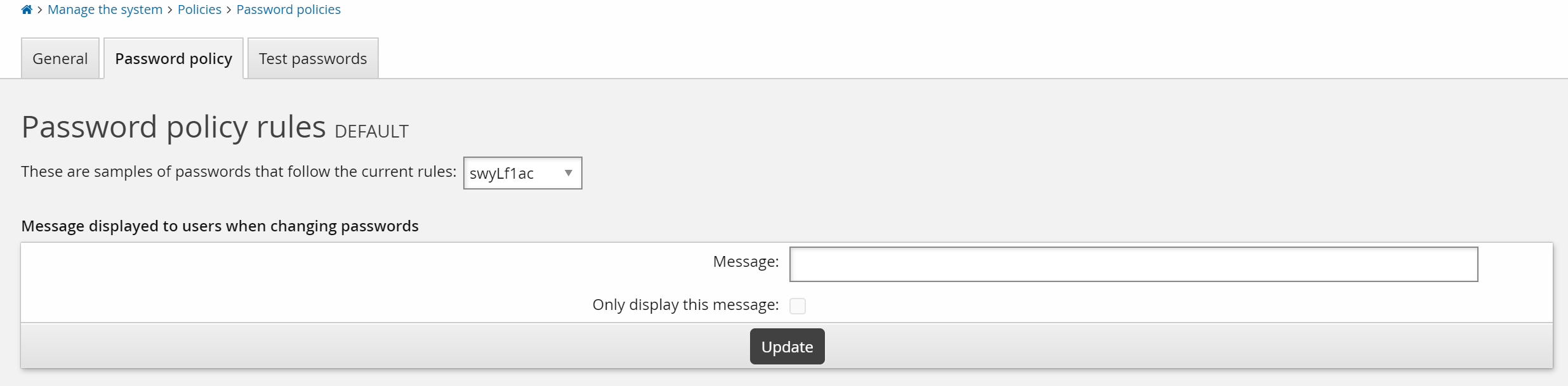
To add a customized message:
On the policy’s Password policy tab, type your customized message in the Message displayed to users when changing passwords section.
Any text in the Message field will be displayed as a single paragraph. If you would like more formatting, create a tag and use HTML formatting. See Customization for more information.
If you do not want any of the rules displayed, select Only display this message.
Users will still be informed by a warning message if their chosen password does not adhere to the password policy rules.
Alternatively, you can hide individual rules by selecting the Hide description checkbox for the rule.
Click Update.
Testing password policy
Generating passwords
You can test whether Bravura Security Fabric can generate an adequate number of random passwords based on the current password policy. To do this:
Click Manage the system > Policies > Password policies .
Select the policy for which you want to define rules.
Select the Password policy tab.
Scroll to the Test password policy form at the bottom of the page.
Type the number of random passwords for Bravura Security Fabric to generate.
This value must be between 100 and 1000. The default is 100.
Click Test.
Bravura Security Fabric displays the number of passwords that satisfy the password policy, out of the total number of passwords generated. If the success rate is too low, it may indicate that your password policy is too complex.
Checking passwords against strength rules
You can test whether a password conforms to all the configured password strength rules on the Test password tab for a password policy. This is useful to determine whether or not the rules you have defined may be too complex for end users, or if they will meet the needs of your organization.
To test a password:
Click Manage the system > Policies > Password policies .
Select the policy for which you want to define rules.
Select the Test passwords tab.
Bravura Security Fabric displays the Test passwords page, which simulates the password strength rules and messages displayed to users when they are asked to create new passwords.
Type the password in the New password field and click Test.
Bravura Security Fabric displays the results of the test.