Self-service vault management
Users with the Vault Trustees privilege can create team vaults to store account data as if it was a managed account. There is no communication between Bravura Security Fabric and the managed account; all information is stored manually. A team vault is linked to a single team. The password policy for vault accounts is simple; requiring one or more characters.
Vault trustees have access to the following pre-defined requests:
Creating a team vault
Users assigned as vault trustees can use the Team Vault: Create request to create a team vault.
From the home page, click Manage resources.
Select the Team Vault: Create request.
Enter a team vault ID and name, and select the team that will access the vault.
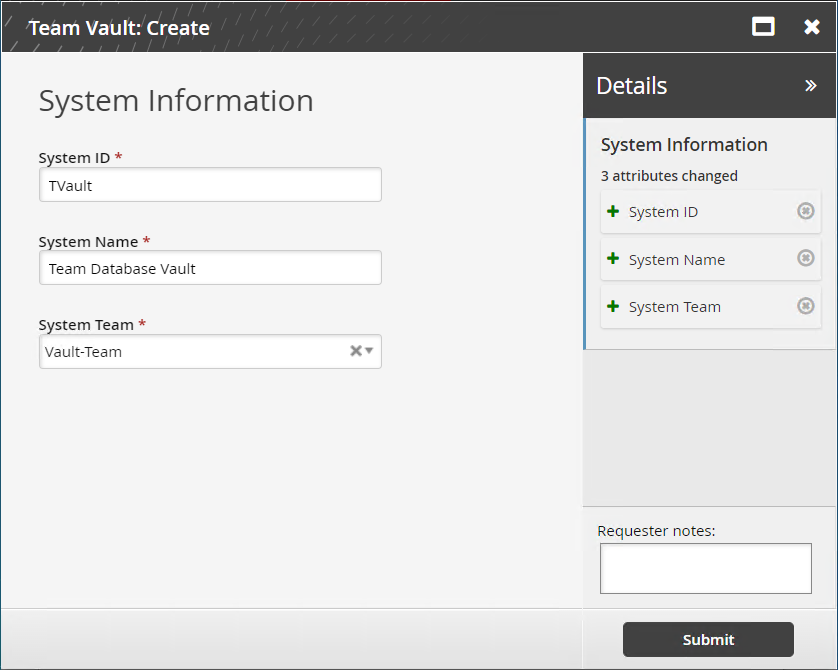
Click Submit.
Bravura Security Fabric notifies authorizers to review the request if required.
Click the View request link at the top of the page to view the status of the request.
Once created, the vault is added to the VAULT_MSP vault-only managed system policy.
API automation for team vault creation
Once the API has been configured (See "SOAP API" in Bravura Security Fabric Remote API (api.pdf) and your script has been authenticated to the API (Login or LoginEx API calls), the WF API calls can be used to create an API request.
Use the WFPDRSubmit function to create a workflow request and submit the request for publishing.
When submitting a request, use ”CREATE_VAULT_SYSTEM” as the PDR ID.
The request uses the following attributes:
attrkey | value |
|---|---|
MS_ID | The ID of the team vault. |
MS_NAME | The name of the team vault. |
MS_TEAM | The team that the team vault will be assigned to. |
CREATE_VAULT_SYSTEM batch request sample:
"MS_ID","MS_NAME","MS_TEAM"
"VAULT-000000","VAULT-000000","TEAM-000000"
Creating a vault account
Users assigned as vault trustees can use the Vault Account: Create request to create a vault account.
From the home page, click Manage resources.
Select the Vault Account: Create request.
Select a vault.
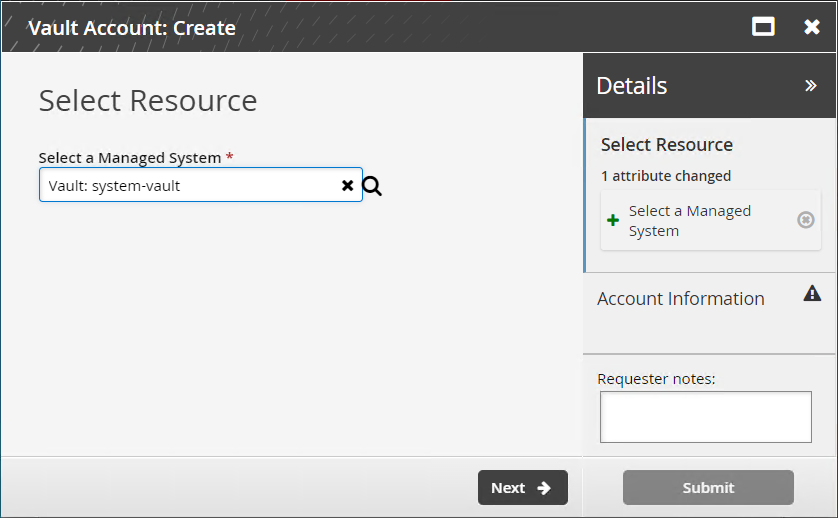
Click Next .
Enter the Account Name and Account Password.
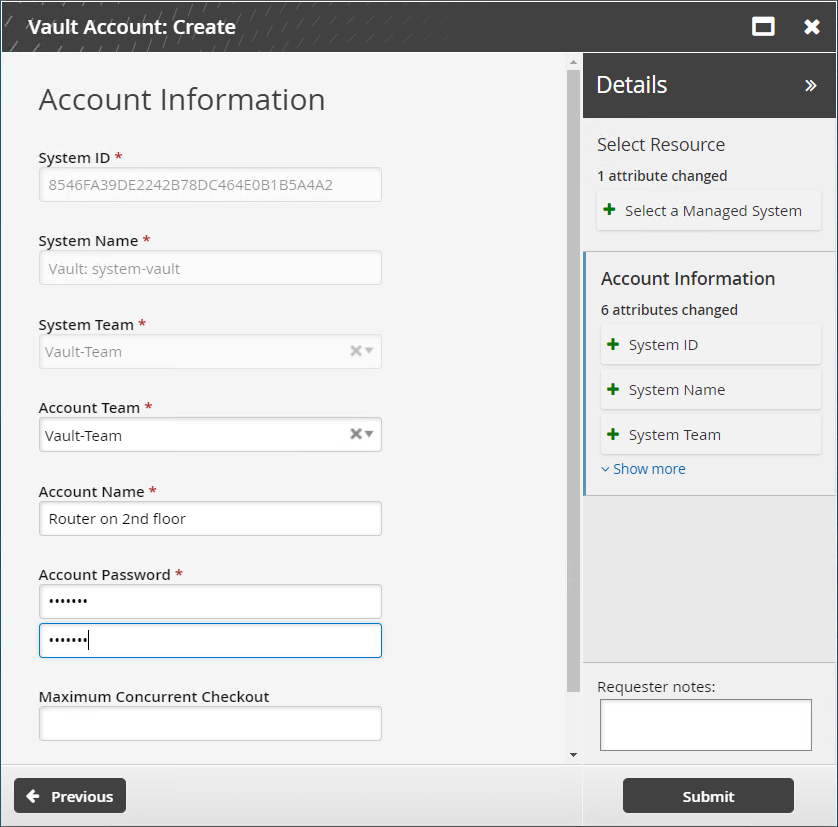
Specify the Maximum Concurrent Checkout for the account. If unspecified, this is set to 1.
Click Submit.
Bravura Security Fabric notifies authorizers to review the request if required.
Click the View request link at the top of the page to view the status of the request.
View and copy disclosure plugins are enabled for a vault account by default. Once created, you can update the account's password and disclosure attributes .
API automation for vault account creation
Once the API has been configured (See "SOAP API" in Bravura Security Fabric Remote API (api.pdf) and your script has been authenticated to the API (Login or LoginEx API calls), the WF API calls can be used to create an API request.
Use the WFPDRSubmit function to create a workflow request and submit the request for publishing.
When submitting a request, use ”CREATE_VAULT_ACCOUNT” as the PDR ID. The request uses the following attributes:
attrkey | value |
|---|---|
MS_NAME | The name of the system the vault account will be added to. |
MA_NAME | The name of the account to be created. |
MA_PASSWORD | The password of the account to be created. |
MA_TEAM | The team that the vault account will be assigned to. |
MA_RES_CHECKOUT_LIMIT | The number of concurrent checkouts for the account. |
REQUEST_TEAM | The team in which its system trustee(s) will be used to authorize the request. See REQUEST_TEAM attribute for more information. |
CREATE_VAULT_ACCOUNT batch request sample:
"MS_NAME","MA_NAME","MA_PASSWORD","MA_TEAM","MA_RES_CHECKOUT_LIMIT"
"VAULT-000000","VAULT-ACCOUNT-000004","F00bar123","TEAM-000000","1"
The REQUEST_TEAM attribute is the team in which its system trustee(s) will be used to authorize the request. This can be a different value depending on which PDR is used. In some cases, the value is auto filled and in other cases, a value is not required.
PDR ID | API submittable | REQUEST_TEAM required | REQUEST_TEAM auto-filled |
|---|---|---|---|
BATCH_REQUEST | No | N/A | N/A |
CREATE_LARGE_CREDENTIAL | No | N/A | N/A |
UPDATE_LARGE_CREDENTIAL | No | N/A | N/A |
WEBAPP_DISCLOSURE_CREATE | No | N/A | N/A |
WEBAPP_DISCLOSURE_DELETE | Yes | No | N/A |
WEBAPP_DISCLOSURE_UPDATE | No | N/A | N/A |
TEAM-CREATE | Yes | Yes | Yes |
TEAM-DELETE | Yes | Yes | Yes |
TEAM-MEMBERS | Yes | Yes | Yes |
TEAM-UPDATE | Yes | Yes | Yes |
CREATE_VAULT_SYSTEM | Yes | Yes | Not required |
ARCHIVE_VAULT_SYSTEM | Yes | Yes | Yes |
UPDATE_VAULT_SYSTEM (1 - same team) | Yes | Yes | Yes |
UPDATE_VAULT_SYSTEM (2 - transfer) | Yes | Yes | Yes |
CREATE_VAULT_ACCOUNT (1 - team vault) | Yes | Yes | Yes |
CREATE_VAULT_ACCOUNT (2 - system vault - same team) | Yes | Yes | Yes |
CREATE_VAULT_ACCOUNT (3 - system vault - different team) | Yes | Yes | Yes |
ARCHIVE_VAULT_ACCOUNT | Yes | Yes | Yes |
UPDATE_VAULT_ACCOUNT (1 - team vault) | Yes | Yes | Yes |
UPDATE_VAULT_ACCOUNT (2 - system vault - same team) | Yes | Yes | Yes |
UPDATE_VAULT_ACCOUNT (3 - system vault - transfer) | Yes | Yes | Yes |
ONBOARD_SYSTEM | Yes | Yes, but not enforced | No |
ARCHIVE_ONBOARDED_SYSTEM | Yes | Yes, but not enforced | No |
UPDATE_ONBOARDED_SYSTEM | Yes | No | If the destination team is unset or the destination team is the same as the source team |
ONBOARD_ACCOUNT | Yes | Yes, but not enforced | No |
OFFBOARD_ACCOUNT | Yes | Yes | Yes |
UPDATE_ONBOARDED_ACCOUNT | Yes | Yes, but not enforced | No |
CREATE_PAMUTIL_API_USER | Yes | No | Not required |
 improper display of the team in update/archive when the destination team's vault trustee is not in a team owning the vault system. This will be fixed in a future release.
Updating a vault account
Users assigned as vault trustees can use the Vault Account: Update request to update a vault account’s password or change disclosure options.
From the home page, click Manage resources.
Select the Vault Account: Update request.
Select a vault account.
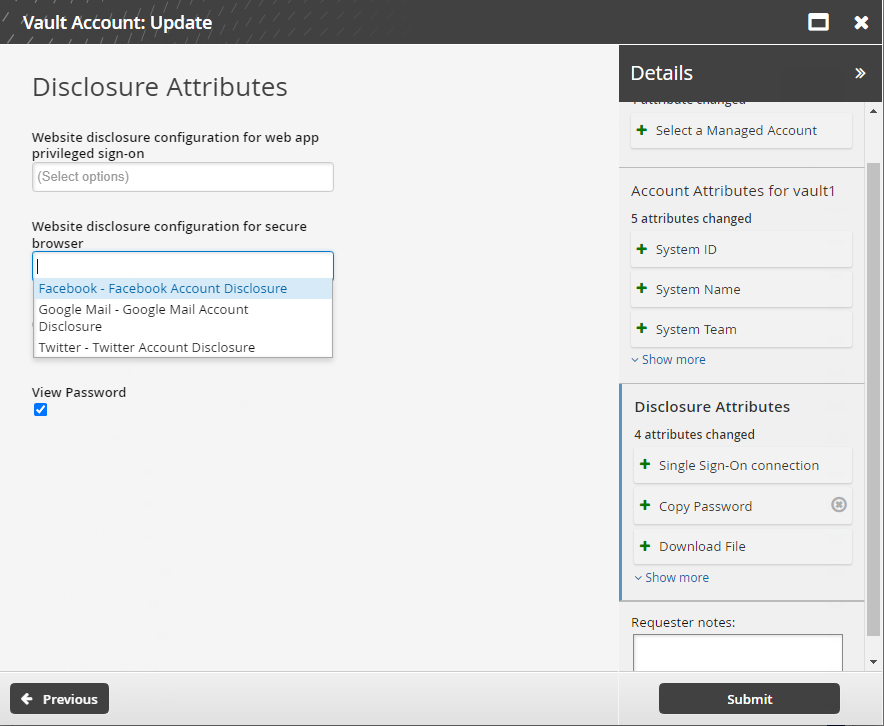
Click Next .
Enter the new account password.
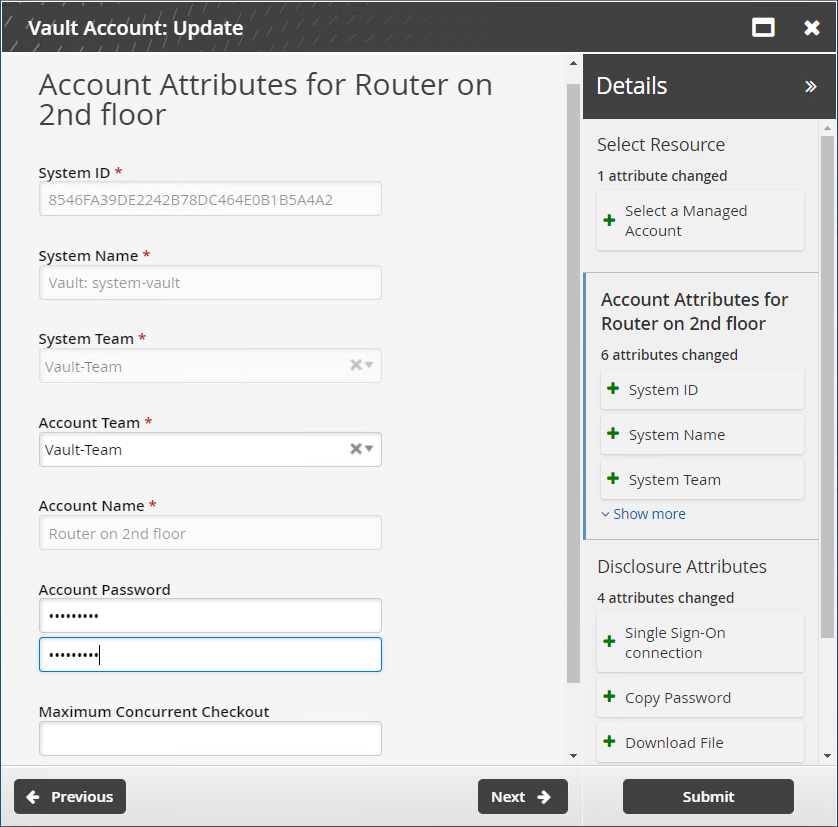
Specify the Maximum Concurrent Checkout for the account. If unspecified, this is set to 1.
Click Next .
Change disclosure attributes if required. These are the methods by which users can access the account.
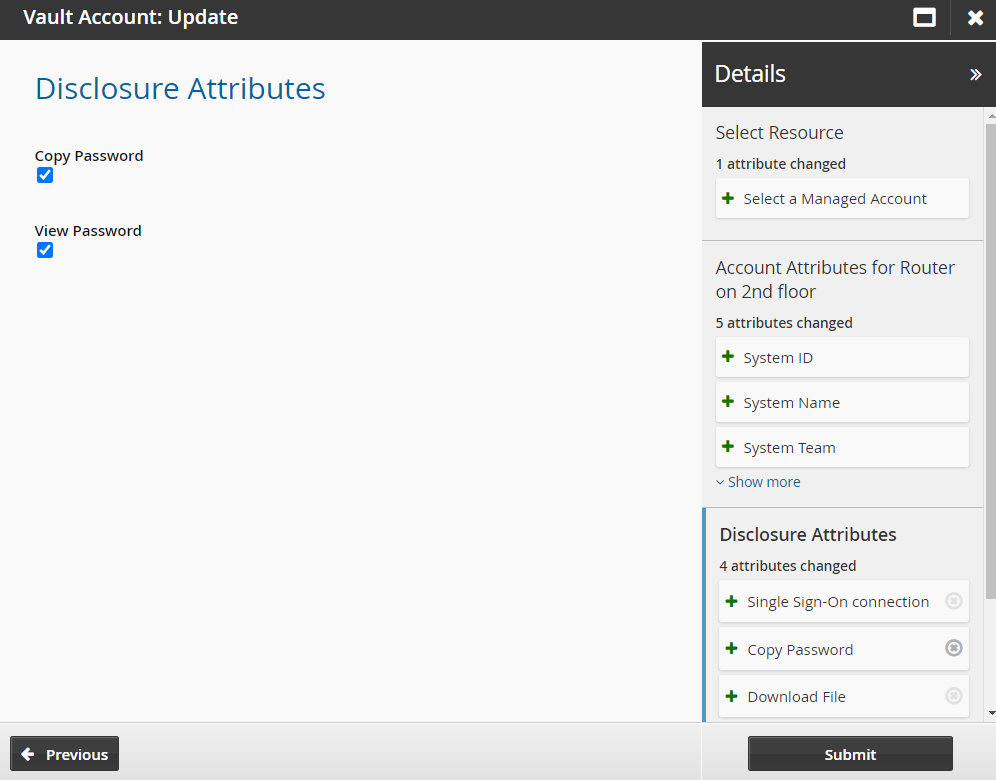
Click Submit.
Bravura Security Fabric notifies authorizers to review the request if required.
Click the View request link at the top of the page to view the status of the request.
API automation for vault account update
Once the API has been configured (See "SOAP API" in Bravura Security Fabric Remote API (api.pdf) and your script has been authenticated to the API (Login or LoginEx API calls), the WF API calls can be used to create an API request.
Use the WFPDRSubmit function to create a workflow request and submit the request for publishing.
When submitting a request, use ”UPDATE_VAULT_ACCOUNT” as the PDR ID. The request uses the following attributes:
attrkey | value |
|---|---|
MS_NAME | The name of the system the vault account is added to. |
MA_NAME | The name of the vault account. |
MA_PASSWORD | The new password of the account. |
MA_RES_CHECKOUT_LIMIT | The number of concurrent checkouts for the account. |
DISCLOSURE_VIEW | T to enable display disclosure for the account, F to disable. |
DISCLOSURE_COPY | T to enable copy disclosure for the account, F to disable. |
MA_TEAM | The team that the vault account will be assigned to. |
REQUEST_TEAM | The team in which its system trustee(s) will be used to authorize the request. See REQUEST_TEAM attribute for more information. |
UPDATE_VAULT_ACCOUNT batch request sample:
"MS_NAME","MA_NAME","MA_PASSWORD","DISCLOSURE_VIEW","DISCLOSURE_COPY","MA_RES_CHECKOUT_LIMIT"
"VAULT-000000","VAULT-ACCOUNT-000004","F00bar567","F","T","2"
The REQUEST_TEAM attribute is the team in which its system trustee(s) will be used to authorize the request. This can be a different value depending on which PDR is used. In some cases, the value is auto filled and in other cases, a value is not required.
PDR ID | API submittable | REQUEST_TEAM required | REQUEST_TEAM auto-filled |
|---|---|---|---|
BATCH_REQUEST | No | N/A | N/A |
CREATE_LARGE_CREDENTIAL | No | N/A | N/A |
UPDATE_LARGE_CREDENTIAL | No | N/A | N/A |
WEBAPP_DISCLOSURE_CREATE | No | N/A | N/A |
WEBAPP_DISCLOSURE_DELETE | Yes | No | N/A |
WEBAPP_DISCLOSURE_UPDATE | No | N/A | N/A |
TEAM-CREATE | Yes | Yes | Yes |
TEAM-DELETE | Yes | Yes | Yes |
TEAM-MEMBERS | Yes | Yes | Yes |
TEAM-UPDATE | Yes | Yes | Yes |
CREATE_VAULT_SYSTEM | Yes | Yes | Not required |
ARCHIVE_VAULT_SYSTEM | Yes | Yes | Yes |
UPDATE_VAULT_SYSTEM (1 - same team) | Yes | Yes | Yes |
UPDATE_VAULT_SYSTEM (2 - transfer) | Yes | Yes | Yes |
CREATE_VAULT_ACCOUNT (1 - team vault) | Yes | Yes | Yes |
CREATE_VAULT_ACCOUNT (2 - system vault - same team) | Yes | Yes | Yes |
CREATE_VAULT_ACCOUNT (3 - system vault - different team) | Yes | Yes | Yes |
ARCHIVE_VAULT_ACCOUNT | Yes | Yes | Yes |
UPDATE_VAULT_ACCOUNT (1 - team vault) | Yes | Yes | Yes |
UPDATE_VAULT_ACCOUNT (2 - system vault - same team) | Yes | Yes | Yes |
UPDATE_VAULT_ACCOUNT (3 - system vault - transfer) | Yes | Yes | Yes |
ONBOARD_SYSTEM | Yes | Yes, but not enforced | No |
ARCHIVE_ONBOARDED_SYSTEM | Yes | Yes, but not enforced | No |
UPDATE_ONBOARDED_SYSTEM | Yes | No | If the destination team is unset or the destination team is the same as the source team |
ONBOARD_ACCOUNT | Yes | Yes, but not enforced | No |
OFFBOARD_ACCOUNT | Yes | Yes | Yes |
UPDATE_ONBOARDED_ACCOUNT | Yes | Yes, but not enforced | No |
CREATE_PAMUTIL_API_USER | Yes | No | Not required |
improper display of the team in update/archive when the destination team's vault trustee is not in a team owning the vault system. This will be fixed in a future release.
Migrating a team vault to another team
Users who are vault trustees on multiple teams can use the Team Vault: Update request to migrate a team vault to another team.
From the home page, click Manage resources.
Select the Team Vault: Update request.
Select a vault.
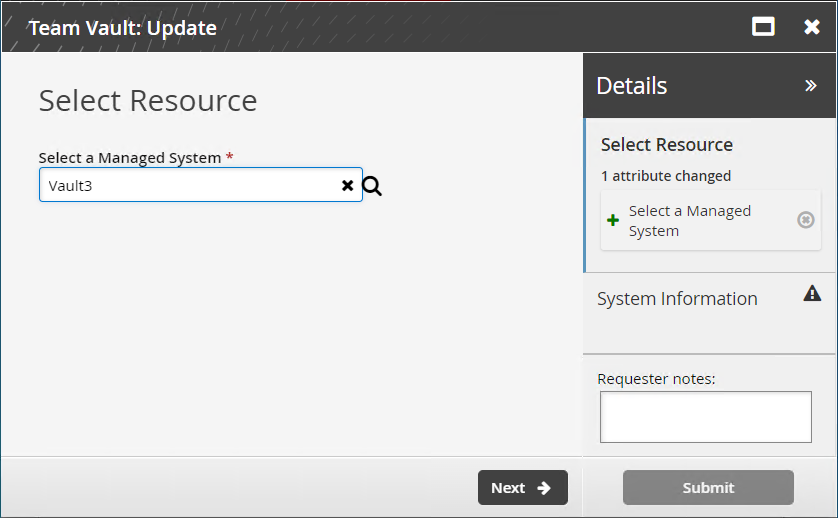
Click Next .
Select a team that will take over management of this vault.
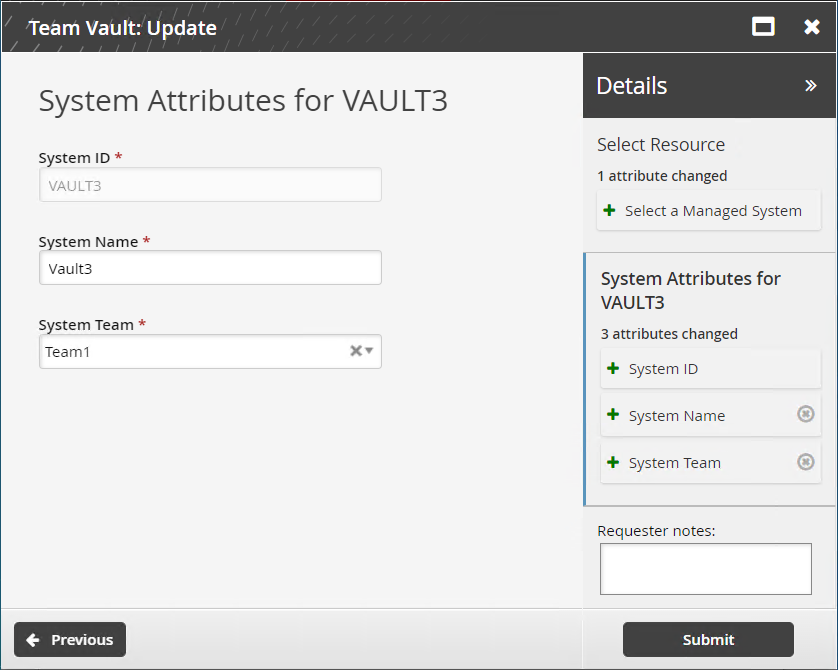
Click Submit.
Bravura Security Fabric notifies authorizers to review the request if required.
Click the View request link at the top of the page to view the status of the request.
API automation for team vault update
Once the API has been configured (See "SOAP API" in Bravura Security Fabric Remote API (api.pdf) and your script has been authenticated to the API (Login or LoginEx API calls), the WF API calls can be used to create an API request.
Use the WFPDRSubmit function to create a workflow request and submit the request for publishing.
When submitting a request, use ”UPDATE_VAULT_SYSTEM” as the PDR ID. The request uses the following attributes:
attrkey | value |
|---|---|
MS_ID | The ID of the team vault. |
MS_NAME | The name of the team vault. |
MS_TEAM | The team that the team vault will be assigned to. |
UPDATE_VAULT_SYSTEM batch request sample
"MS_ID","MS_NAME","MS_TEAM"
"VAULT-000000","VAULT-000001","TEAM-000000"
Archiving a team vault
Users assigned as vault trustees can use the Team Vault: Archive request to archive a team vault.
You cannot delete a vault that still has managed accounts associated with it.
From the home page, click Manage resources.
Select the Team Vault: Archive request.
Select a team vault to archive.
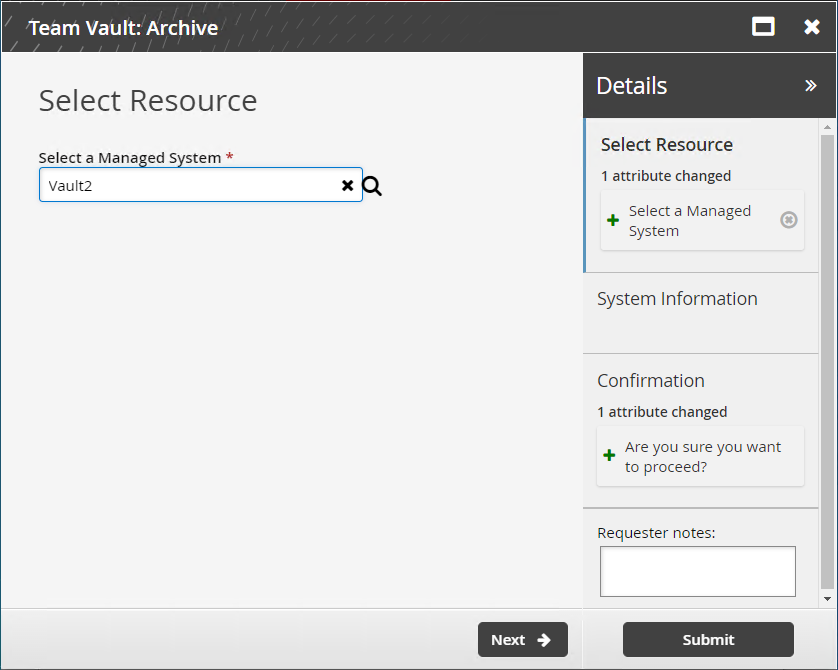
Click Next .
Confirm you wish to proceed.
Click Submit.
Bravura Security Fabric notifies authorizers to review the request if required.
Click the View request link at the top of the page to view the status of the request.
API automation for team vault archive
Once the API has been configured (See "SOAP API" in Bravura Security Fabric Remote API (api.pdf) and your script has been authenticated to the API (Login or LoginEx API calls), the WF API calls can be used to create an API request.
Use the WFPDRSubmit function to create a workflow request and submit the request for publishing.
When submitting a request, use ”ARCHIVE_VAULT_SYSTEM” as the PDR ID. The request uses the following attributes:
attrkey | value |
|---|---|
MS_ID | The ID of the team vault. |
CONFIRM_ACTION | T to confirm, F to cancel. |
ARCHIVE_VAULT_SYSTEM batch request sample:
"MS_ID","CONFIRM_ACTION"
"VAULT-000000","T"
Archiving a vault account
Users assigned as vault trustees can use the Vault Account: Archive request to delete an account. Archiving a vault account is always a delete action.
When you delete an account, all historical password data associated with the account is still available. Historical data is only deleted if the vault system is also archived.
From the home page, click Manage resources.
Select the Vault Account: Archive request.
Select a vault account to remove.
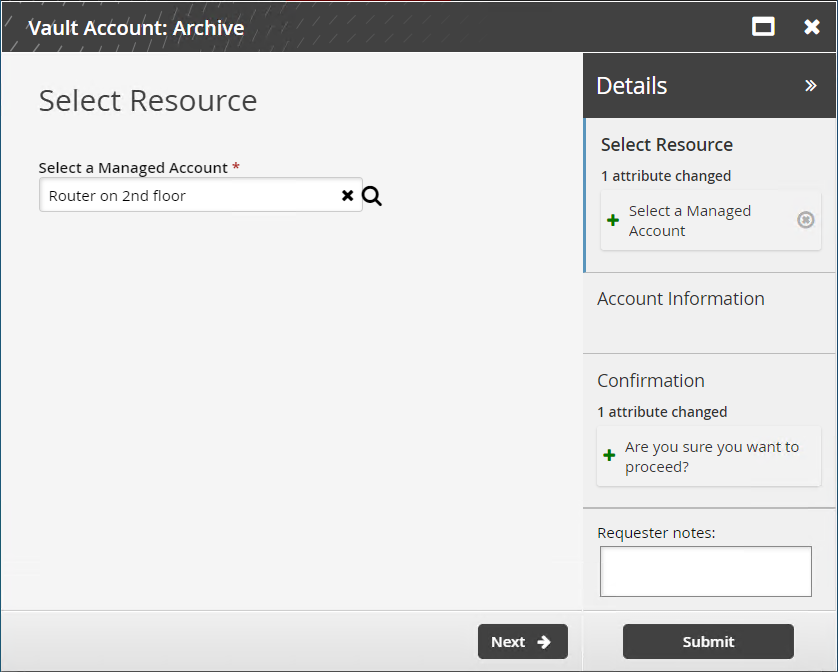
Click Next.
Click Next.
Confirm that you want to proceed.
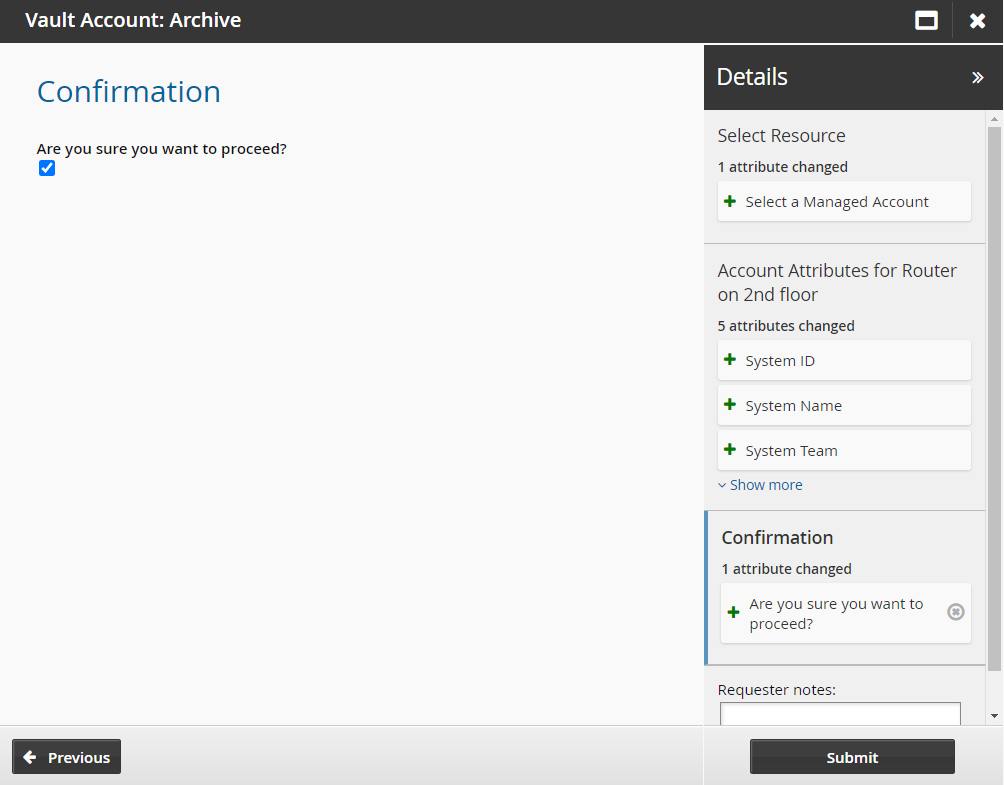
Click Submit.
Bravura Security Fabric notifies authorizers to review the request if required.
Click the View request link at the top of the page to view the status of the request.
API automation for vault account archive
Once the API has been configured (See "SOAP API" in Bravura Security Fabric Remote API (api.pdf) and your script has been authenticated to the API (Login or LoginEx API calls), the WF API calls can be used to create an API request.
Use the WFPDRSubmit function to create a workflow request and submit the request for publishing.
When submitting a request, use ”ARCHIVE_VAULT_ACCOUNT” as the PDR ID. The request uses the following attributes:
attrkey | value |
|---|---|
MS_NAME | The name of the system the vault account is added to. |
MA_NAME | The name of the vault account. |
CONFIRM_ACTION | T to confirm, F to cancel. |
ARCHIVE_VAULT_ACCOUNT batch request sample:
"MS_NAME","MA_NAME","CONFIRM_ACTION"
"VAULT-000000","VAULT-ACCOUNT-000004","T"