Self Service Anywhere: Interactive Voice Response systems
Bravura Pass integrates with Interactive Voice Response (IVR) systems to enable users to authenticate and perform self-service from a telephone.
Bravura Pass enables users to:
Authenticate to the IVR system and reset their forgotten or expired passwords, unlock their accounts, or manage their RSA SecurID from a telephone.
Designate a profile/request attribute to use as an IVR ID during touch-tone identification.
To identify themselves, users either enter the telephone keypad translation of alphanumeric IVR IDs, or simply key in numeric IVR IDs.
Complete IVR question sets used for touch-tone authentication.
IVR systems with touch-tone authentication identify users by validating numeric data entered on a telephone keypad.
Reliably register voice print samples for voice-print authentication.
IVR systems with voice print authentication identify callers by analyzing their voice print, and matching it against a record of each registered user.
Architecture
The network architecture of an integrated Bravura Pass / IVR system is illustrated below.
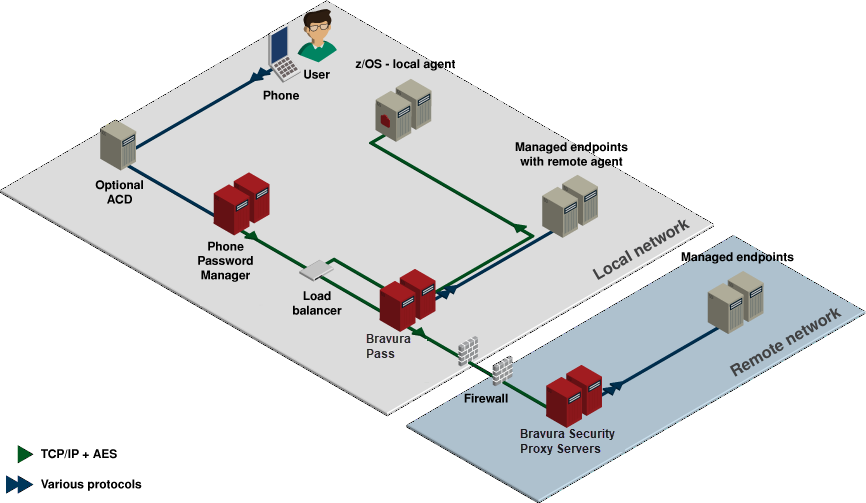
See Phone Password Manager for more detailed information about how Bravura Pass integrates with IVR systems.
IVR with touch-tone identification
Users are identified on the network using alphanumeric login IDs. Since most IVR systems do not offer a reliable speech-to-text mechanism, they can only accept numeric input. This presents a challenge for a password reset system: users must enter an alpha-numeric login ID, but the system can only accept a numeric ID.
Assigning unique, numeric IDs
In organizations where each network login ID is already associated with some unique numeric ID, the simple solution is to ask users to log into the IVR system by keying in their numeric ID on the telephone touch pad. Examples of such numeric ID include employee numbers, or home telephone numbers.
Alternately, if a user registration process will be used (e.g., to collect personal security question data for user authentication), then users may be asked to key in or select a new numeric personal identifier. An example might be the user’s driver’s license number. In this case, users will log into the IVR with their new numeric ID.
Numeric mapping of alphanumeric login IDs
In some cases, numeric IDs are not available. This may happen if there are no existing numeric IDs available for all users, or if what numeric IDs exist are not correlated to network login IDs, or if a registration process is undesirable.
In these cases, users may be asked to log in by pressing the keys on their telephone marked with the letters and numbers of their network login ID. For example, the user smith01 would type 7648401.
Since the digit mapping of two different alpha-numeric login IDs may produce the same number (e.g., poguh01 also maps to 7648401), an IVR system that uses this technique must allow for number collisions, and ask the caller to select the correct ID when the entered number resolves to more than one alpha-numeric login ID.
Selecting an IVR ID source
You can change the profile and request attribute that is used as a source of users’ IVR IDs (the digits users enter to identify themselves to the IVR phone system). By default, the telephone keypad translations of users’ profile IDs are used as their IVR IDs. Phone Password Manager finds a users’ profile ID by searching on their "numid" and "altnumid".
The TPM ID ATTR option allows you to change the source of IVR IDs by specifying a new profile and request attribute. When TPM ID ATTR is in use, Phone Password Manager finds users’ profile IDs by searching on the specified attribute.
For example:
Using the default setup of profile ID
Find user "test123" by entering 8378123 on the keypad. This is the telephone keypad translation of the user’s profile ID.
Using TPM ID ATTR
If user "test123" has their "Telephone number" attribute specified as "4035550740", then set TPM ID ATTR to "Telephone number", and enter 4035550740 on the telephone keypad to find the user.
For the TPM ID ATTR option to work as defined above, you must associate the "Telephone" profile/request attribute with the account attribute "telephoneNumber".
TPM ID ATTR requires the specified attribute to only contain numeric characters; it cannot contain alphabetic or special characters.
IVR with touch-tone authentication
IVR systems with touch-tone authentication identify users by validating numeric data entered on a telephone keypad. This includes Phone Password Manager.
IVR question sets
A simple process to authenticate users is to ask them to answer one or more security questions with numerical answers. Numerical security questions should have the following characteristics:
Answers should be private – relatively hard for anyone other than the user to come by.
Answers should be easy – users should be able to quickly and reliably answer the questions, without having to remember anything new, and with a low likelihood of making mistakes.
Here are a few examples of numerical security questions that meet the above criteria:
Social Security Number
Employee number (if this is typically secret)
Driver’s license number
Insurance policy number (if printed on a card the user carries with him, or if used often)
Date of birth (of self or a close family member)
First or current home telephone number
Since all of these may be acquired by a third party, it makes sense to use more than a single question, to randomize which questions are used for any given authentication session, and to lock out users who repeatedly fail to authenticate.
Using too few numerical security questions, or using data that is too easily acquired by an intruder, has the effect of reducing password strength on the network. Biometric voice print verification is a stronger technology.
Configuring IVR question sets
You can set up one or more question sets for IVR systems that use touch-tone authentication. Users authenticate over the phone by keying in numerical answers to questions that you define in Bravura Pass .
Ensure that:
Ask users to answer questions from this set is checked.
Ask telephone users to answer questions from this set is checked.
All of the questions in the question set require all-numeric answers of a fixed length. To do this:
Set the Minimum length of answers and Maximum length of answer fields to the same value, and set the Formatted string for answer field to contain the required number of Ns. For example, set the minimum and maximum number of characters to 5, and write NNNNN as the formatted string.
Users must provide answers for all required questions in the IVR question sets in Bravura Pass prior to using the IVR system.
You must record vocals (usually *.wav files) for each of the IVR questions. The IVR system plays these vocals for callers, prompting them to enter their numeric answers.
Learn more about adding question sets .
IVR with voice print authentication
IVR systems with voice print authentication reliably identify callers by analyzing their voice print and matching it against a record of each registered user. This is a simpler and more secure caller authentication process, compared to IVR question sets, but is more costly.
Biometric voice print verification is commercially available, can yield effectively zero false-positive recognitions, and low false-negative failures (approximately 1% to 2% of valid authentication attempts end with a failure to recognize the speaker).
Voice print verification is not related to voice recognition technology – the former identifies a speaker, while the latter attempts to "understand" what was said. Voice print verification is reliable, fast and independent of language, accent and the common cold.
Organizations deploying voice print verification technology in their IVR infrastructure must acquire voice samples from the entire user population. Each voice print must be securely mapped to the particular user’s user IDs in order to allow secure password reset. During registration, users are asked to speak one or more phrases, so that their new response can be compared to their registered sample.
Once authenticated, callers may request secure operations, including a password reset. The IVR system uses Bravura Pass to select a strong password for the caller, and to reset the password on all of the user’s accounts to the new selected value.
Registering voice prints
You can use Bravura Pass to facilitate an automated, reliable, secure and effective process to:
Prompt users to register voice prints.
Authenticate users prior to registration.
Map users’ voice prints to their system IDs.
Enable the IVR system to securely capture their voice prints.
You can use Bravura Pass ’s Generate voice print enrollment PIN (PSI) module to reliably register voice print samples for all users. You can use this facility for new IVR deployments or for new users on existing systems.
Without Bravura Pass , IVR users are commonly provided with a short PIN via email, and are required to key in the PIN when they first register with the IVR system. This presents a security weakness: PINs are short, guessable, and sent via an insecure media (email).
Bravura Pass ’s Generate voice print enrollment PIN (PSI) module streamlines and increases the security of the registration process by requiring users to authenticate to receive a longer PIN that is only good for a single use, and expires after a definable period.
A user registers in the following way:
The user logs into Bravura Pass and navigates to the Generate voice print enrollment PIN page.
Bravura Pass generates a random PIN and displays it to the user. The PIN is good for only one use and expires after a defined number of seconds.
If configured, Bravura Pass displays additional information and navigation steps for the phone registration system.
The user calls the IVR system, follows the voice prompts, enters the PIN, and registers their voice print.
Generate voice print enrollment PIN (PSI)
The Generate voice print enrollment PIN (PSI) module is disabled by default. You must enable it to allow users to access this feature.
To configure IVR registration:
Click Manage the system > Modules > Generate voice print enrollment PIN (PSI).
Turn on the PSI ENABLED setting.
Configure the variables described in the table below as required.
Click Update to submit the changes.
See Self Service Anywhere: Interactive Voice Response systems for more information.
Implementation Options
Self-service password reset, self-service RSA SecurID token management and automated registration of biometric voice print samples can all be implemented by integrating Bravura Pass with an IVR system.
Bravura Pass licensees may choose to purchase a dedicated IVR system from Bravura Security, specifically for these applications, or to extend an existing IVR system to include new call logic. Integration is available for every kind of existing IVR system, through multiple language and platform bindings of a powerful Bravura Pass API.
User identification can be implemented using speech-to-text technology, or user input of unique numeric identifiers or numeric-mapped network login IDs.
User authentication can be implemented using either text prompts for personal information, followed by touch-tone input of responses, or using biometric voice print verification technology.
System integration for a telephony-enabled password management system can range from one or two days of effort to activate a turn-key, touch-tone enabled IVR system up to two or three weeks to extend an existing biometric system.
Buying a new IVR system vs. extending an existing system
Bravura Security offers two options to customers who wish to enable telephone access to Bravura Pass :
Purchase a turn-key IVR system, designed specifically for authenticating callers and providing self-service password resets, from Bravura Security.
Turn-key system options are described in Turn-key IVR options offered by Bravura Security .
If an existing Automatic Call Direction (ACD) system is in place, then it must be configured to forward relevant calls to the Bravura Pass IVR system.
Extend the existing IVR system to provide front end password reset functionality (and potentially, biometric voice print authentication) using Bravura Pass as a "back end" to provide user authentication and general password management services.
In this case, the call flow logic on the existing IVR system is modified to prompt the user for identification and authentication information. The IVR is programmed to verify user authentication by calling either:
Bravura Pass (if using keypad PIN authentication), or
An external voice print biometric system (if using voice prints) implemented by the customer (eg, Nuance, Speechworks).
Once the IVR has authenticated the user, it can make calls to the Bravura Pass server to request various password reset services.
Bravura Pass can be integrated with almost any existing IVR system, as described in the Connector Pack Documentation .
The software required to integrate Bravura Pass with any existing IVR system is included at no additional charge. Particular IVR systems may also require software extensions as available from the IVR vendor; for example, XML over HTTPS.
Turn-key IVR options offered by Bravura Security
Bravura Security offers a turn-key IVR option, Phone Password Manager , which uses touch-tone caller authentication, and leverages the Web-based Bravura Pass registration process to build user profiles for numeric security question authentication. This solution is tightly integrated with Bravura Pass, using the secure API.
Bravura Pass has an open interface specification, which allows other IVR biometric voice print authentication systems, such as Vocent, to leverage Bravura Pass for general enterprise password management.
See Phone Password Manager to learn how to set up Bravura Pass to work with the Phone Password Manager and voice print authentication systems such as Vocent.
Leveraging an existing authentication process
Organizations with an existing IVR system may choose to continue to use an existing caller authentication process, or to strengthen it prior to activating self-service password reset.
The existing identification and authentication process may have to be replaced because it is not secure enough and would weaken password security if it enables self-service password reset.
Managing RSA SecurID tokens from a telephone
Users who log into the network or a remote access service using a hardware token (most likely an RSA SecurID token) may experience issues and require assistance.
Possible SecurID token problems include users forgetting their PINs, losing their tokens, or users whose token clocks have drifted significantly away from the time reference on the RSA Authentication Manager server.
These users may require service before accessing the network, so a telephony solution is desirable.
Password resets from a telephone
Allowing users who have experienced a password problem to access self-service from a telephone to resolve their own problem is advantageous for several reasons:
It allows users who forgot their initial network login password to resolve their own problem without any special measure to make this available from the workstation login prompt.
It allows users who forgot their remote access (RAS or VPN) password to access self-service problem resolution without first connecting to the network.
It encourages the use of self-service password reset in organizations where users are accustomed to getting service primarily with a telephone.
Since user authentication, password generation and password resets are all processed by the Bravura Pass server, the process automatically benefits from Bravura Pass ’s auto discovery process, user profiles, password policy engine, email integration and call tracking system integration.
Enabling password resets from a telephone
To enable IVR users to authenticate and reset their own forgotten or locked-out passwords from a telephone:
Set up the appropriate authentication method for your IVR system:
If your IVR system uses voice print authentication to identify users, enable the Generate voice print enrollment PIN (PSI) module.
Users log into the Generate voice print enrollment PIN (PSI) module to obtain a temporary PIN, allowing them to securely register biometric voice samples.
See Registering voice prints .
If your IVR system uses touch-tone authentication, configure an IVR question set.
Users log into the Update security questions (psq) module to register security question information that is used by the IVR system to authenticate users.
Enable and start the
idapiservice on the Bravura Pass server:Click Manage the system > Maintenance > Services, then select the Bravura Security (idapi) API Service .
Select Enable the service.
Select Start the service.
Integrate your system with Bravura Pass using the Password Manager Remote API.
Encourage users to register to use the IVR system, either by submitting a voice sample or by answering questions in the IVR question set.
See Enforced enrollment to learn how to prompt and enforce user registration.
See also
The Bravura Security Fabric Remote API (api.pdf) guide includes configuration details for connecting to the Bravura Security Fabric API.
Phone Password Manager details Bravura Security’s integrated Bravura Pass /IVR solution — Phone Password Manager .